Solved Problem booting into Windows 7 when external hard drive is plugged in

Robo717

New member
Local time
5:42 PM
Messages
9
Hello,

I hope someone can help... I bought a new Seagate Expansion hard drive with 8GB capacity. I plugged it into the mains, and plugged its USB cable into my desktop computer's USB port. When I started the computer, everything booted up normally, and I could see that the new Seagate HD was recognised and was working fine. In Windows Explorer, I could copy, paste and delete files normally.

The file transfer rate for copying files onto the Seagate Hard Drive (USB v.30) was about 70MB/S. I thought that was a bit slow, as the Seagate was plugged into the motherboard's USB port that was USB 3.0, so I was expecting a faster date transfer speed.

After doing some research online, I learned that you can improve the data transfer speed by changing a Policy setting in the Device Manager, for the Seagate external hard drive. By default, the removal policy was set to the "Quick removal (default)" setting. From what I had read, changing the policy setting to "Better performance", and then in the sub-category, putting a tick in the option that says, "Enable write caching on the device", can improve the drive's data transfer speed, so that's what I did. A dialogue box popped up telling me I needed to reboot the computer for the change to take effect, so I clicked "Yes".

When the computer switched off, it automatically tried to reboot, but immediately the booting-up process froze, and nothing happened. If I turn off the computer, and unplug the Seagate external hard drive's USB cable, the computer boots up perfectly, and once I'm into the operating system (Windows 7), all is good. When I then plug the Seagate external hard drive's USB cable into the computer's USB port, again all is good, and I can see the drive in Windows Explorer, and I can copy, paste and delete files. Everything is normal.

If I turn off the computer and reboot with the Seagate external hard drive's USB cable still plugged in, the booting-up process freezes again on the first splash screen.

So basically, I can use the Seagate external Hard Drive normally, but only if I plug it in after the computer has fully booted up. I thought something might have happened to the external Hard Drive after I changed its setting in the Device Manager, so I took it back to the shop where I bought it from, and they exchanged it for a new hard drive... same make and specifications as the original... but the new replacement drive also causes the computer to freeze on start-up. The computer freezes too early to be able to access the bios, but I can access the bios if I unplug the external hard Drive's USB cable.

What could the problem be?

Thank you!
 

My Computers My Computers

System One System Two

  • Computer type
    PC/Desktop
    Computer Manufacturer/Model Number
    Asus
    OS
    Windows 7
    CPU
    Intel Core i&-2700K
    Motherboard
    Asus P8Z68-V PRO-GEN3
    Memory
    16 GB
    Graphics Card(s)
    Asus Nvidia GeForce GTX 760 DirectCU II OC 2GB GDDR5
    Hard Drives
    SSD, OCZ, 240GB, Vertex 3 (boot drive) & SEAGATE Expansion Desktop External Hard Drive (USB 3.0, 8TB capacity)
  • Computer type
    PC/Desktop
Welcome to the forum. First thing check the bios disk setting is it set to boot from usb first or the hard drive?
 

My Computer My Computer

Computer type
PC/Desktop
OS
win 8 32 bit
Welcome to the forum. First thing check the bios disk setting is it set to boot from usb first or the hard drive?
Thanks for your welcome and reply. I have checked that USB isn't selected first in the boot order in the bios, and it wasn't. The first boot device is my C drive which is correct as it has the OS.

I was thinking that because I changed the policy setting in the Device Manager that was originally set at "Quick removal (default)" - does that mean the drive was a 'hot swap' drive. By changing the policy to "Better performance" -> "Enable write caching on the device", I wonder if I did something to the bios whereby it disabled the 'hot swap' function. When I changed the policy back to "Quick removal (default)", it might not have updated the bios. I'm not very knowledgeable of things to do with the bios, so I don't want to go changing things and then making things worse!
 

My Computers My Computers

System One System Two

  • Computer type
    PC/Desktop
    Computer Manufacturer/Model Number
    Asus
    OS
    Windows 7
    CPU
    Intel Core i&-2700K
    Motherboard
    Asus P8Z68-V PRO-GEN3
    Memory
    16 GB
    Graphics Card(s)
    Asus Nvidia GeForce GTX 760 DirectCU II OC 2GB GDDR5
    Hard Drives
    SSD, OCZ, 240GB, Vertex 3 (boot drive) & SEAGATE Expansion Desktop External Hard Drive (USB 3.0, 8TB capacity)
  • Computer type
    PC/Desktop
Some suggestions:

1) change the Device Manager setting back to "Quick Removal", reboot and see if the freeze-on-boot issue disappears. One would expect it to as that is where you started. Copy some largish file from the C drive to the external Seagate and record the time this takes to complete or maybe just note the copy speed

2) again, change the Device Manager back to "Better Performance" (this actually caches the drive in RAM). Reboot and then plug the Seagate in. Re-perform the largish file copy and time this to completion. If improvement in performance timing is worth it, then a reasonable possibility could be to just leave plug-in of the cached external Seagate till after boot.

3) possibly, the issue is insufficient RAM in your PC, or perhaps power supply from the USB port is inadequate when the RAM cache is being deployed. I have several external WD disks that suffer from this issue - my resolution was to install a USB3 hub powered from the mains, rather than just plug-in separately as needed.
 

My Computer My Computer

Computer type
Laptop
Computer Manufacturer/Model Number
HP 250 G7
OS
Windows 7 Pro x64
CPU
Intel i5-8265U
Motherboard
Intel Coffee Lake
Memory
8gb
Graphics Card(s)
Intel Iris Plus 655
Sound Card
Realtek HDA
Monitor(s) Displays
Generic
Screen Resolution
1366 x 768
Hard Drives
Crucial P5 NVMe 1Tb internal
WD's 4Tb, 3Tb, 2 x 2Tb external
Mouse
Logi wireless
Internet Speed
45 Mbps
Antivirus
AVG
Browser
Firefox 88, Pale Moon 29, Brave 129
Other Info
Combination of i5-8265U with Crucial P5 achieves Crystal Bench scores > 5000

Iris Plus GPU (Whiskey Lake) driver from BioStar

HP 250 G7 is a budget machine
Some suggestions:

1) change the Device Manager setting back to "Quick Removal", reboot and see if the freeze-on-boot issue disappears. One would expect it to as that is where you started. Copy some largish file from the C drive to the external Seagate and record the time this takes to complete or maybe just note the copy speed

2) again, change the Device Manager back to "Better Performance" (this actually caches the drive in RAM). Reboot and then plug the Seagate in. Re-perform the largish file copy and time this to completion. If improvement in performance timing is worth it, then a reasonable possibility could be to just leave plug-in of the cached external Seagate till after boot.

3) possibly, the issue is insufficient RAM in your PC, or perhaps power supply from the USB port is inadequate when the RAM cache is being deployed. I have several external WD disks that suffer from this issue - my resolution was to install a USB3 hub powered from the mains, rather than just plug-in separately as needed.
Thanks for your suggestions. At this point, I'm not concerned about the data transfer speed as I'd just like to be able to boot up with the Seagate external hard drive plugged in with the USB cable. Changing the Device manager settings back to "Quick Removal" didn't solve the problem.

Something else I'm about to try...

I don't have Windows 7 restoration enabled, so have no restore points, but I have an Acronis disk image of my operating system from January, so I'll install that and will report back.
If the problem continues, would that totally rule out a problem with the registry and the operating system? In other words, would it mean that the only place there is a problem is in the bios?

Anyhow, I'll install the image of the OS from January and see what happens.
 

My Computers My Computers

System One System Two

  • Computer type
    PC/Desktop
    Computer Manufacturer/Model Number
    Asus
    OS
    Windows 7
    CPU
    Intel Core i&-2700K
    Motherboard
    Asus P8Z68-V PRO-GEN3
    Memory
    16 GB
    Graphics Card(s)
    Asus Nvidia GeForce GTX 760 DirectCU II OC 2GB GDDR5
    Hard Drives
    SSD, OCZ, 240GB, Vertex 3 (boot drive) & SEAGATE Expansion Desktop External Hard Drive (USB 3.0, 8TB capacity)
  • Computer type
    PC/Desktop
Your OP did express concern over the speed of the external disk, although you say that isn't important.

If the PC freezes on boot with the external disk already plugged into a USB port, cached in RAM or not, it seems likely you have your BIOS (or EUFI) set to boot off the USB port before the internal C drive. If so, just change the boot order.
 

My Computer My Computer

Computer type
Laptop
Computer Manufacturer/Model Number
HP 250 G7
OS
Windows 7 Pro x64
CPU
Intel i5-8265U
Motherboard
Intel Coffee Lake
Memory
8gb
Graphics Card(s)
Intel Iris Plus 655
Sound Card
Realtek HDA
Monitor(s) Displays
Generic
Screen Resolution
1366 x 768
Hard Drives
Crucial P5 NVMe 1Tb internal
WD's 4Tb, 3Tb, 2 x 2Tb external
Mouse
Logi wireless
Internet Speed
45 Mbps
Antivirus
AVG
Browser
Firefox 88, Pale Moon 29, Brave 129
Other Info
Combination of i5-8265U with Crucial P5 achieves Crystal Bench scores > 5000

Iris Plus GPU (Whiskey Lake) driver from BioStar

HP 250 G7 is a budget machine
Your OP did express concern over the speed of the external disk, although you say that isn't important.
If the PC freezes on boot with the external disk already plugged into a USB port, cached in RAM or not, it seems likely you have your BIOS (or EUFI) set to boot off the USB port before the internal C drive. If so, just change the boot order.
I mentioned the data transfer speed being slow because I had to explain the reason how I got into the situation where my external hard drive was causing Windows 7 to freeze in the early stages of booting up. The slow data transfer speed is an issue, but has since become only a secondary issue. Sorry for the confusion.

I have checked the bios to make sure that it's not trying to boot off the USB port before the internal hard drive where my operating system is located, which is the C Drive, and it is definitely set to boot of the C drive first. Thanks for the reply.

- - - Updated - - -

I don't have Windows 7 restoration enabled, so have no restore points, but I have an Acronis disk image of my operating system from January, so I'll install that and will report back.
If the problem continues, would that totally rule out a problem with the registry and the operating system? In other words, would it mean that the only place there is a problem is in the bios?
Anyhow, I'll install the image of the OS from January and see what happens.
Update:

Using Acronis True Image Home, I tried installing the image of the OS from January, but in the recovery console that appears during the booting up process, it says it can't find any disk drives, which is interesting.

Could this mean that my MBR (Master Boot Record) is damaged on Drive C (which houses the Windows 7 operating system)?

Should I try to repair MBR or could that make matters worse, or is that just not the problem anyway?
 

My Computers My Computers

System One System Two

  • Computer type
    PC/Desktop
    Computer Manufacturer/Model Number
    Asus
    OS
    Windows 7
    CPU
    Intel Core i&-2700K
    Motherboard
    Asus P8Z68-V PRO-GEN3
    Memory
    16 GB
    Graphics Card(s)
    Asus Nvidia GeForce GTX 760 DirectCU II OC 2GB GDDR5
    Hard Drives
    SSD, OCZ, 240GB, Vertex 3 (boot drive) & SEAGATE Expansion Desktop External Hard Drive (USB 3.0, 8TB capacity)
  • Computer type
    PC/Desktop
Robo717 if it were me I would NOT try to recover to a January image, as at least in my case there will have been dozens of program changes and hundreds of files that would be affected going back that far! I'd leave that alone for the time being anyway, and until I find a solution to the boot issue I would just plug the new drive after bootup.

When you enabled "Better performance" and "Enable write-caching" did you try also "Turn off Windows write-cache..."? Just a shot in the dark...

I feel you will get this fixed and when you do, you should turn On System Protection i.e. Restore Points.
 

My Computer My Computer

Computer type
Laptop
Computer Manufacturer/Model Number
Dell Latitude E6540 Laptop
OS
Windows 7 Professional 64bit
CPU
Intel Core i7 4600M @ 2.90GHz
Motherboard
Dell Inc. 0CYT5F (SOCKET 0)
Memory
16.0GB Dual-Channel DDR3 @ 797MHz (11-11-11-28)
Graphics Card(s)
Intel HD Graphics 4600 (Dell) 2048MB ATI AMD Radeon HD 8790M
Sound Card
Realtek High Definition Audio
Monitor(s) Displays
HP ZR30w (2560x1600@60Hz)
Hard Drives
256GB LITEONIT LMT-256M6M-41 mm SATA (SSD)
1TB Samsung SSD 860 EVO mSATA SATA (SSD)
2TB USB 3.0 USB Device
115GB SanDisk Ultra Fit USB
Other Info
Multiple Dell E-Port Plus II Port Replicator/Docking Stations 0Y72NH USB 3.0 + 130W AC Adapters
Robo717 if it were me I would NOT try to recover to a January image, as at least in my case there will have been dozens of program changes and hundreds of files that would be affected going back that far! I'd leave that alone for the time being anyway, and until I find a solution to the boot issue I would just plug the new drive after bootup.
Regarding recovering to a January image, as long as it fixes the external hard drive freezing Windows 7 during booting up, I don't mind having to update all changes I've made to computer since then. Those would be challenges I could deal with as I've done that many times before with Windows 7 over the past 14 years I've had the operating system. I'm just wondering if recovering the image backup from January is likely to solve the problem. If it may do, I'd be prepared to take the risk.

When you enabled "Better performance" and "Enable write-caching" did you try also "Turn off Windows write-cache..."? Just a shot in the dark..
So far, I haven't tried putting a tick in "Turn off Windows write-cache...". I haven't used the option yet, is that something I should try, and if I do, should I also put a tick in the box "Enable write-caching"?

I feel you will get this fixed and when you do, you should turn On System Protection i.e. Restore Points.
Thanks for your help and encouraging comment.
 

My Computers My Computers

System One System Two

  • Computer type
    PC/Desktop
    Computer Manufacturer/Model Number
    Asus
    OS
    Windows 7
    CPU
    Intel Core i&-2700K
    Motherboard
    Asus P8Z68-V PRO-GEN3
    Memory
    16 GB
    Graphics Card(s)
    Asus Nvidia GeForce GTX 760 DirectCU II OC 2GB GDDR5
    Hard Drives
    SSD, OCZ, 240GB, Vertex 3 (boot drive) & SEAGATE Expansion Desktop External Hard Drive (USB 3.0, 8TB capacity)
  • Computer type
    PC/Desktop
Did you buy the drive from a reseller or second hand?
Did you clean the drive when you first install?

Please provide the full specs of the drive with it's reference code.

Please post a whole window Disk Manager image of ALL your drives. Don't forget to expand the columns so we can read them. How to Post a Screenshot of Disk Management
If you have a MiniTool or AOMEI Partition use it instead or Windows disk manager.

The file transfer rate for copying files onto the Seagate Hard Drive (USB v.30) was about 70MB/S.

For a 2.5" USB HDD that is excellent. The bottle neck isn't the communication (USB 3.0) but the drive itself.
Enabling write caching on the device is cosmetic and a danger. It doesn't improve the writing speed. Instead of writing directly to the drive it writes to a cache file on the main drive. When it finish writing to the cache file it seems that the task is done but in fact it is still copying from the cache file to the USB drive. It is danger because you think the writing to the disk is done when it isn't. If you disconnect the drive you can corrupt the file system. That is why write caching on external devices are normally disable.
 
Last edited:

My Computers My Computers

System One System Two

  • Computer type
    PC/Desktop
    Computer Manufacturer/Model Number
    custom build
    OS
    Windows 7 HP 64
    CPU
    i5 6600K - 800MHz to 4200MHz
    Motherboard
    GA-Z170-HD3P
    Memory
    4+4G GSkill DDR4 3000
    Graphics Card(s)
    IG - Intel 530
    Monitor(s) Displays
    Samsung 226BW
    Screen Resolution
    1680x1050
    Hard Drives
    (1) -1 SM951 – 128GB M.2 AHCI PCIe SSD drive for Windows 7 and Lubuntu
    (2) -1 WD SATA 3 - 1T for Data
    (3) -1 WD SATA 3 - 1T for backup
    PSU
    Thermaltake 450W TR2 gold
    Keyboard
    Old and good Chicony mechanical keyboard
    Mouse
    Logitech mX performance - 9 buttons (had to disable some)
    Internet Speed
    500Mb/s
    Browser
    Firefox 64
    Other Info
    TinyWall firewall
  • Computer type
    Laptop
    System Manufacturer/Model Number
    Asus Q550LF
    OS
    Windows 7 Pro
    CPU
    i7-4500U 800MHz to 3.0GHz
    Motherboard
    Asus Q550LF
    Memory
    (4+4)G DDR3 1600
    Graphics Card(s)
    IG intel 4400 + NVIDIA GeForce GT 745M
    Sound Card
    Realtek
    Monitor(s) Displays
    LG Display LP156WF4-SPH1
    Screen Resolution
    1920 x 1080
    Hard Drives
    BX500 120G SSD for Windows and programs +
    1T HDD for data
    Internet Speed
    500 Mb/s
    Browser
    Firefox
    Other Info
    TinyWall firewall
Did you buy the drive from a reseller or second hand?

Did you clean the drive when you first install?

Please provide the full specs of the drive with it's reference code.

Please post a whole window Disk Manager image of ALL your drives. Don't forget to expand the columns so we can read them. How to Post a Screenshot of Disk Management

If you have a MiniTool or AOMEI Partition use it instead or Windows disk manager.

For a 2.5" USB HDD that is excellent. The bottle neck isn't the communication (USB 3.0) but the drive itself.

Enabling write caching on the device is cosmetic and a danger. It doesn't improve the writing speed. Instead of writing directly to the drive it writes to a cache file on the main drive. When it finish writing to the cache file it seems that the task is done but in fact it is still copying from the cache file to the USB drive. It is danger because you think the writing to the disk is done when it isn't. If you disconnect the drive you can corrupt the file system. That is why write caching on external devices are normally disable.
Thanks for your reply and suggestions.

The drive was brand new from Curry's.

When I first installed the drive, the drive was clean apart from a few proprietary files from Seagate, such as links to its home page and file management software. Also, the drive was working well. I even rebooted the computer without any problems. It was only when I changed the setting in the device Manager, as described above that there was a problem. When I changed the setting to "Better performance", and "Enable write-caching", it said I needed to restart the computer for the modification to take effect. That's when I found that when it rebooted, it immediately froze on the motherboard's splash screen.

Earlier this evening, I used Acronis True Image Home to install a disk image of my operating system from January, earlier this year. When the new image was installed, I restarted the computer with the Seagate Hard Drive's USB cable plugged in, but it made the boot-up process freeze again, in the same part of the process, right at the start of booting. When I unplug the USB cable and reboot, Windows 7 starts fine, and if I plug the Seagate external hard drive's USB cable in after successfully booting up, it still works normally.

I wish I didn't change the setting in the Device Manager, as described above, as that's obviously what's the caused problem.

As I used the MBR from the operating system's disk image from last January, I guess that I can deduct that the problem is not in the MBR, nor in registry, or anywhere in the Windows 7 operating system. The problem must therefore be in the bios?

The only things I can think of that I haven't tried so far are changing the drive letter of the Seagate USB external hard drive, and completely erasing the drive and reformatting it to NFTS (at the moment, it is exFAT. This would also get rid of the external hard drive's partition where its MBR is, in case anything bad is lurking there?

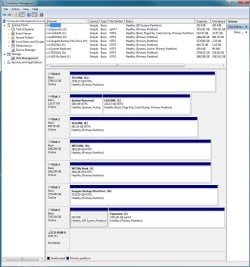
I don't have MiniTool or AOMEI Partition, so here's a screenshot of my Windows 7 Disk Manager, showing all my drives:

Disk 0 is G (internal HDD)
Disk 1 is C (OS SSD Drive)
Disk 2 is E (internal HDD)
Disk 3 is D (internal HDD)
Disk 4 is J (WD external USB hard drive, installed for several years with no problem)
Disk 5 is H (Seagate external USB Hard Drive, installed for several years with no problem)
Disk 6 is I (Seagate external USB Drive that's giving the problem)

MWSnap605.jpg
 

My Computers My Computers

System One System Two

  • Computer type
    PC/Desktop
    Computer Manufacturer/Model Number
    Asus
    OS
    Windows 7
    CPU
    Intel Core i&-2700K
    Motherboard
    Asus P8Z68-V PRO-GEN3
    Memory
    16 GB
    Graphics Card(s)
    Asus Nvidia GeForce GTX 760 DirectCU II OC 2GB GDDR5
    Hard Drives
    SSD, OCZ, 240GB, Vertex 3 (boot drive) & SEAGATE Expansion Desktop External Hard Drive (USB 3.0, 8TB capacity)
  • Computer type
    PC/Desktop
Your drive 1 Windows drive is Legacy MBR.
Bingo
Your drive 6 has a EFI partition. EFI partitions has the Boot Manager for boot able UEFI - GPT drives.
It is also formatted as exFAT. Do you have a MAC?
Did you ever installed Windows on it?

My suggestion is to clean the drive and format as NTFS.
ALL DATA ON DRIVE 6 WILL BE ERASED

Open a CMD window as administrator and type:

diskpart
list disk (it will list all drives. Identify the data drive number. It's probably 6)
select disk n (replace n by the data drive number obtained with list disk)
clean
create part primary
select part 1
format fs=NTFS quick
assign letter=I
exit (to exit diskpart)
 

My Computers My Computers

System One System Two

  • Computer type
    PC/Desktop
    Computer Manufacturer/Model Number
    custom build
    OS
    Windows 7 HP 64
    CPU
    i5 6600K - 800MHz to 4200MHz
    Motherboard
    GA-Z170-HD3P
    Memory
    4+4G GSkill DDR4 3000
    Graphics Card(s)
    IG - Intel 530
    Monitor(s) Displays
    Samsung 226BW
    Screen Resolution
    1680x1050
    Hard Drives
    (1) -1 SM951 – 128GB M.2 AHCI PCIe SSD drive for Windows 7 and Lubuntu
    (2) -1 WD SATA 3 - 1T for Data
    (3) -1 WD SATA 3 - 1T for backup
    PSU
    Thermaltake 450W TR2 gold
    Keyboard
    Old and good Chicony mechanical keyboard
    Mouse
    Logitech mX performance - 9 buttons (had to disable some)
    Internet Speed
    500Mb/s
    Browser
    Firefox 64
    Other Info
    TinyWall firewall
  • Computer type
    Laptop
    System Manufacturer/Model Number
    Asus Q550LF
    OS
    Windows 7 Pro
    CPU
    i7-4500U 800MHz to 3.0GHz
    Motherboard
    Asus Q550LF
    Memory
    (4+4)G DDR3 1600
    Graphics Card(s)
    IG intel 4400 + NVIDIA GeForce GT 745M
    Sound Card
    Realtek
    Monitor(s) Displays
    LG Display LP156WF4-SPH1
    Screen Resolution
    1920 x 1080
    Hard Drives
    BX500 120G SSD for Windows and programs +
    1T HDD for data
    Internet Speed
    500 Mb/s
    Browser
    Firefox
    Other Info
    TinyWall firewall
Your drive 1 Windows drive is Legacy MBR.
Bingo
Your drive 6 has a EFI partition. EFI partitions has the Boot Manager for boot able UEFI - GPT drives.
It is also formatted as exFAT. Do you have a MAC?
Did you ever installed Windows on it?

My suggestion is to clean the drive and format as NTFS.
ALL DATA ON DRIVE 6 WILL BE ERASED

Open a CMD window as administrator and type:

diskpart
list disk (it will list all drives. Identify the data drive number. It's probably 6)
select disk n (replace n by the data drive number obtained with list disk)
clean
create part primary
select part 1
format fs=NTFS quick
assign letter=I
exit (to exit diskpart)
Thanks for your reply. When I first plugged in the external hard drive, I noticed that it was formatted as exFAT. On the Seagate website, it says that it's latest external hard drives are now formatted in this way:

Link: How to format your drive | Support Seagate US

Newer Seagate and LaCie branded external drives come preformatted with the exFAT file system, which allows it to be used on both Mac and Windows without reformatting the drive.
I'll follow your advice to clean the drive and format as NTFS, using diskpart and the method you suggested, which is the same method that Seagate is suggesting right down as the bottom of the "How to..." page, and will report back!

- - - Updated - - -

Update:

Thank you, Megahertz07

I formatted the external hard drive following your instructions using diskpart. I then rebooted the computer, and voila, it worked... Windows booted up with the external hard drive's USB cable plugged in, success! The problem is now resolved, thank you!

However, I seem to have a new challenge... the properties for the external hard drive shows that there is now only 2TB of available space on the drive, but the drive should have close to 8TB, as it's an 8TB drive. Is there a way of utilising more of the disk, please, so it's closer to the 8TB capacity?

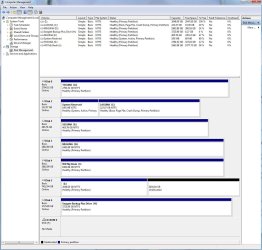
Here's a screenshot of the file system in Windows 7 Disk Management, taken after the formatting (the Seagate external hard disk drive is now marked as Disk 5, whereas before, it was Disk 6, but it is still allocated with the letter I, same as before the formatting):

Windows 7 Disk Manager screenshot after formatting.jpg
 

My Computers My Computers

System One System Two

  • Computer type
    PC/Desktop
    Computer Manufacturer/Model Number
    Asus
    OS
    Windows 7
    CPU
    Intel Core i&-2700K
    Motherboard
    Asus P8Z68-V PRO-GEN3
    Memory
    16 GB
    Graphics Card(s)
    Asus Nvidia GeForce GTX 760 DirectCU II OC 2GB GDDR5
    Hard Drives
    SSD, OCZ, 240GB, Vertex 3 (boot drive) & SEAGATE Expansion Desktop External Hard Drive (USB 3.0, 8TB capacity)
  • Computer type
    PC/Desktop
The drive you bought was somehow used as a UEFI boot able drive as it had a EFI partition.

The limitation of 2T is a characteristic of a MBR drive, not a GPT.

Another reason could be that the drive is Advanced Formatted (AF) that use a different cluster size on a MBR drive.
Does the label of the drive has an AF on it?

What are the full specs of the drive (Brand, model, code)?

Open a CMD window as administrator and type:

diskpart
list disk (See if on the GPT colums it has an * on the drive)
exit

382536d1636727520t-windows-10-cannot-find-hard-drive-boot-image.png
 

My Computers My Computers

System One System Two

  • Computer type
    PC/Desktop
    Computer Manufacturer/Model Number
    custom build
    OS
    Windows 7 HP 64
    CPU
    i5 6600K - 800MHz to 4200MHz
    Motherboard
    GA-Z170-HD3P
    Memory
    4+4G GSkill DDR4 3000
    Graphics Card(s)
    IG - Intel 530
    Monitor(s) Displays
    Samsung 226BW
    Screen Resolution
    1680x1050
    Hard Drives
    (1) -1 SM951 – 128GB M.2 AHCI PCIe SSD drive for Windows 7 and Lubuntu
    (2) -1 WD SATA 3 - 1T for Data
    (3) -1 WD SATA 3 - 1T for backup
    PSU
    Thermaltake 450W TR2 gold
    Keyboard
    Old and good Chicony mechanical keyboard
    Mouse
    Logitech mX performance - 9 buttons (had to disable some)
    Internet Speed
    500Mb/s
    Browser
    Firefox 64
    Other Info
    TinyWall firewall
  • Computer type
    Laptop
    System Manufacturer/Model Number
    Asus Q550LF
    OS
    Windows 7 Pro
    CPU
    i7-4500U 800MHz to 3.0GHz
    Motherboard
    Asus Q550LF
    Memory
    (4+4)G DDR3 1600
    Graphics Card(s)
    IG intel 4400 + NVIDIA GeForce GT 745M
    Sound Card
    Realtek
    Monitor(s) Displays
    LG Display LP156WF4-SPH1
    Screen Resolution
    1920 x 1080
    Hard Drives
    BX500 120G SSD for Windows and programs +
    1T HDD for data
    Internet Speed
    500 Mb/s
    Browser
    Firefox
    Other Info
    TinyWall firewall
The drive you bought was somehow used as a UEFI boot able drive as it had a EFI partition.

The limitation of 2T is a characteristic of a MBR drive, not a GPT.

Another reason could be that the drive is Advanced Formatted (AF) that use a different cluster size on a MBR drive.
Does the label of the drive has an AF on it?

What are the full specs of the drive (Brand, model, code)?

Open a CMD window as administrator and type:

diskpart
list disk (See if on the GPT colums it has an * on the drive)
exit

382536d1636727520t-windows-10-cannot-find-hard-drive-boot-image.png
It turned out the drive was in the MBR format, so I deleted the volume and using Windows 7 Disk Management tool, converted the drive to GTP, which immediately restored it to its full capacity of just under 8TB, and thanks to your previous tip, I can still reboot without having to unplug the USB cable. Thank you, Megahertz07.

The problem's resolved and am very gratefull for all the help in this thread, thanks.
 

My Computers My Computers

System One System Two

  • Computer type
    PC/Desktop
    Computer Manufacturer/Model Number
    Asus
    OS
    Windows 7
    CPU
    Intel Core i&-2700K
    Motherboard
    Asus P8Z68-V PRO-GEN3
    Memory
    16 GB
    Graphics Card(s)
    Asus Nvidia GeForce GTX 760 DirectCU II OC 2GB GDDR5
    Hard Drives
    SSD, OCZ, 240GB, Vertex 3 (boot drive) & SEAGATE Expansion Desktop External Hard Drive (USB 3.0, 8TB capacity)
  • Computer type
    PC/Desktop
Glad to know you fix it.

I hope you're going to use the drive as a backup of the other drives you have.

NEVER, ever, trust a drive to save files you can't loose. Soon or later all drives will fail.
Remember that a HDD has an arm moving very, very close to the disk surface. Once running, don't move it, don't even touch it.
Always have a backup.
 

My Computers My Computers

System One System Two

  • Computer type
    PC/Desktop
    Computer Manufacturer/Model Number
    custom build
    OS
    Windows 7 HP 64
    CPU
    i5 6600K - 800MHz to 4200MHz
    Motherboard
    GA-Z170-HD3P
    Memory
    4+4G GSkill DDR4 3000
    Graphics Card(s)
    IG - Intel 530
    Monitor(s) Displays
    Samsung 226BW
    Screen Resolution
    1680x1050
    Hard Drives
    (1) -1 SM951 – 128GB M.2 AHCI PCIe SSD drive for Windows 7 and Lubuntu
    (2) -1 WD SATA 3 - 1T for Data
    (3) -1 WD SATA 3 - 1T for backup
    PSU
    Thermaltake 450W TR2 gold
    Keyboard
    Old and good Chicony mechanical keyboard
    Mouse
    Logitech mX performance - 9 buttons (had to disable some)
    Internet Speed
    500Mb/s
    Browser
    Firefox 64
    Other Info
    TinyWall firewall
  • Computer type
    Laptop
    System Manufacturer/Model Number
    Asus Q550LF
    OS
    Windows 7 Pro
    CPU
    i7-4500U 800MHz to 3.0GHz
    Motherboard
    Asus Q550LF
    Memory
    (4+4)G DDR3 1600
    Graphics Card(s)
    IG intel 4400 + NVIDIA GeForce GT 745M
    Sound Card
    Realtek
    Monitor(s) Displays
    LG Display LP156WF4-SPH1
    Screen Resolution
    1920 x 1080
    Hard Drives
    BX500 120G SSD for Windows and programs +
    1T HDD for data
    Internet Speed
    500 Mb/s
    Browser
    Firefox
    Other Info
    TinyWall firewall
Glad to know you fix it.
I hope you're going to use the drive as a backup of the other drives you have.
NEVER, ever, trust a drive to save files you can't loose. Soon or later all drives will fail.
Always have a backup.
You guessed correctly... I got a large drive to back up all the others!

Thanks again for your help. I made a silly mistake messing with the write policy in the Device Manager but I learned a lot in the process.

Can't believe my first drive was a floppy disk drive!
 

My Computers My Computers

System One System Two

  • Computer type
    PC/Desktop
    Computer Manufacturer/Model Number
    Asus
    OS
    Windows 7
    CPU
    Intel Core i&-2700K
    Motherboard
    Asus P8Z68-V PRO-GEN3
    Memory
    16 GB
    Graphics Card(s)
    Asus Nvidia GeForce GTX 760 DirectCU II OC 2GB GDDR5
    Hard Drives
    SSD, OCZ, 240GB, Vertex 3 (boot drive) & SEAGATE Expansion Desktop External Hard Drive (USB 3.0, 8TB capacity)
  • Computer type
    PC/Desktop
Back
Top