Problem restoring Macrium image, please help!

Hello WHS,

Thanks for the information. I downloaded and used the (EasyBCD 2.1.2). According to the EasyBCD is the backup successful. Now, I am having a file in the C drive called (EasyBCD Backup (07-27-2012)). I do not see any changes on the picture of the Disk Manager! Do I have to do anything else or that is it. Is the odd setup fixed now?

Thanks & best regards,

Anne
Did you do this? http://www.sevenforums.com/tutorials/209885-bootmgr-move-c-easybcd.html


Yes, I did it exactly as mentioned. The question: do I have to change anything now in the Bios?

Anne
 

My Computer

OS
Windows 7 Ultimate x64
You are OK now. The little system partition remains. It is pretty useless now but it still contains the original copy of the bootmgr.

I suggest you change the BIOS boot sequence to boot from Disk1. If you do not do that, it will still boot via the bootmgr in the system partition. That in itself is not a problem, but the day you delete that system partition you would be stuck and would have to change the BIOS boot sequence then.

By changing the BIOS boot sequence you also get a good test whether the copy of the bootmgr to C has worked properly.
 

My Computer

Computer Manufacturer/Model Number
HP, Dell, Gateway, Toshiba - 4 laptops and 2 desktops
OS
Vista, Windows7, Mint Mate, Zorin, Windows 8
CPU
from 1.6GHz Duo to i7
Monitor(s) Displays
2x HP w2207
Hard Drives
5x HDD, 7x SSD, 12x Externals
Keyboard
with trackball - no mices
Mouse
Trackball mice
Internet Speed
DSL 6000
You are OK now. The little system partition remains. It is pretty useless now but it still contains the original copy of the bootmgr.

I suggest you change the BIOS boot sequence to boot from Disk1. If you do not do that, it will still boot via the bootmgr in the system partition. That in itself is not a problem, but the day you delete that system partition you would be stuck and would have to change the BIOS boot sequence then.

By changing the BIOS boot sequence you also get a good test whether the copy of the bootmgr to C has worked properly.


Hello WHS,

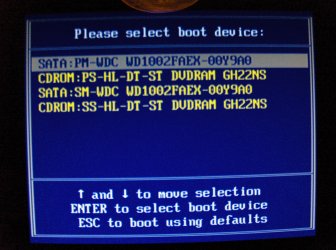
Went to the BIOS using F8 before the PC start getting two HD's to chose:

1. SATA: PM-WDC WD1002FAEX-00Y9A0
2. SATA: SM-WDC WD1002FAEX-00Y9A0

both are working fine.


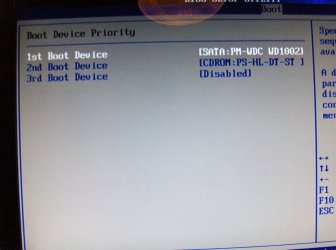
Getting to the BIOS by pushing DEL bottom I can only have the following choices and that:


SATA: PM-WDC WD1002FAEX-00Y9A0
Or a DVD rom Station.

The choice of the other HD can not be seen.


Will be glad to know how to find out the C: HD from the two abovementioned drives and how to change the boot sequence permanently.

Thanks & regards,

[FONT=&quot]Anne[/FONT]
 

My Computer

OS
Windows 7 Ultimate x64
You could go into the BIOS and disable a random drive.

If you can then still boot with that drive disabled, the booted drive is the one with C. If you cannot boot, the disabled drive is the one with C.

You could do much the same thing by opening the case and unplugging a drive.

Ideally, you want the drive containing C to be the first in the boot sequence. There is a setting within the BIOS where you can arrange your boot devices in the order of your choice--you would likely set the drive with C as the first device and your DVD drive as the second choice.

I suspect the drive labeled PM-WDC contains the C partition.
 

My Computer

Computer type
PC/Desktop
Computer Manufacturer/Model Number
Ignatz Special; 4 speed manual gearbox; factory air conditioning; one of one
OS
Windows 7 Home Premium SP1, 64-bit
CPU
Intel Skylake i5-6600K, not overclocked
Motherboard
AsRock Z170M Extreme 4, micro ATX
Memory
8 GB HyperX DDR4-2666 (2 x 4 GB)
Graphics Card(s)
none; graphics are integrated on CPU
Sound Card
onboard: Realtek ALC1150; external: USB Behringer UF0-202
Monitor(s) Displays
Dell S2340M 23 inch IPS
Screen Resolution
1600 x 900
Hard Drives
System: Crucial MX100 series SSD, 128 GB;
Data: Samsung Spinpoint 103SJ, 1 TB;
Backup: WD Caviar Green WD30EZRX-00D8PB0, 3 TB
PSU
Rosewill SilentNight 500 watt fanless, semi-modular
Case
Antec Solo II
Cooling
Noctua NH-U12S; Noctua F12 intake, Noctua S12A exhaust
Keyboard
Microsoft 200 6JH-00001 USB
Mouse
Dell or Microsoft optical wired; USB
Antivirus
Microsoft Security Essentials and Malwarebytes Premium
Browser
Pale Moon
Other Info
All fans PWM; speeds at idle: CPU circa 500 rpm; intake circa 600 rpm; exhaust circa 600 rpm; CPU temps 27 idle and 47 C load in a warm room (27 C/81 F) when running Intel Extreme Tuning Utility stress test.
You could go into the BIOS and disable a random drive.

If you can then still boot with that drive disabled, the booted drive is the one with C. If you cannot boot, the disabled drive is the one with C.

You could do much the same thing by opening the case and unplugging a drive.

Ideally, you want the drive containing C to be the first in the boot sequence. There is a setting within the BIOS where you can arrange your boot devices in the order of your choice--you would likely set the drive with C as the first device and your DVD drive as the second choice.

I suspect the drive labeled PM-WDC contains the C partition.


Hello ignatzatsonic,

By going to the BIOS via F8, I could chose between two HD's and both are working fine because I did not delete the system files from Drive 0. in other words drive C or the other drives can boot good.

I want to modify the BIOS in a way that the drive containing C to be the first in the boot sequence. Trying to do this by going to the BIOS via DEL bottom. The problem is that in this menu I can see only one drive (SATA: PM-WDC WD1002FAEX-00Y9A0). It looks that the BIOS does not know (at least for now) the second drive i.e. SATA: SM-WDC WD1002FAEX-00Y9A0.

The problem IMO is: The second drive should be known by the BIOS and then try to chose it as the first in the boot sequence.

Best regards,

Anne
 

My Computer

OS
Windows 7 Ultimate x64
See comments in bold

By going to the BIOS via F8, I could chose between two HD's and both are working fine because I did not delete the system files from Drive 0. in other words drive C or the other drives can boot good.


What brand PC is this?

I'll take your word for it that F8 leads you to the BIOS.

Are you familiar with BIOS navigation and changing settings in the BIOS?

You can temporarily disable a drive in the BIOS. That was what I suggested in my prior post.


I want to modify the BIOS in a way that the drive containing C to be the first in the boot sequence. Trying to do this by going to the BIOS via DEL bottom. The problem is that in this menu I can see only one drive (SATA: PM-WDC WD1002FAEX-00Y9A0). It looks that the BIOS does not know (at least for now) the second drive i.e. SATA: SM-WDC WD1002FAEX-00Y9A0.


If I understand you correctly, F8 leads to the BIOS, but the delete key leads you only to a menu? Those choices on that menu are asking you which you want to boot from--DVD drive or SATA: PM-WDC WD1002FAEX-00Y9A0 drive.

I would guess that this PM-WDC drive contains C, but am not positive. Thus, I offered you a way to test to find out---disabling a drive.

This menu is NOT the BIOS. It's only a menu.


The problem IMO is: The second drive should be known by the BIOS and then try to chose it as the first in the boot sequence.

I'm not quite following this. You said earlier that F8 leads you to the BIOS and that you can see BOTH drives.

If you can in fact get to the BIOS via F8 and can see both drives there, then you can certainly change the boot sequence in the BIOS or temporarily disable a drive as a test as I mentioned.

But I don't know if you have any experience with BIOS navigation or changing settings there. And I don't know what peculiarities might be found in your particular BIOS.


My Computer

Computer type
PC/Desktop
Computer Manufacturer/Model Number
Ignatz Special; 4 speed manual gearbox; factory air conditioning; one of one
OS
Windows 7 Home Premium SP1, 64-bit
CPU
Intel Skylake i5-6600K, not overclocked
Motherboard
AsRock Z170M Extreme 4, micro ATX
Memory
8 GB HyperX DDR4-2666 (2 x 4 GB)
Graphics Card(s)
none; graphics are integrated on CPU
Sound Card
onboard: Realtek ALC1150; external: USB Behringer UF0-202
Monitor(s) Displays
Dell S2340M 23 inch IPS
Screen Resolution
1600 x 900
Hard Drives
System: Crucial MX100 series SSD, 128 GB;
Data: Samsung Spinpoint 103SJ, 1 TB;
Backup: WD Caviar Green WD30EZRX-00D8PB0, 3 TB
PSU
Rosewill SilentNight 500 watt fanless, semi-modular
Case
Antec Solo II
Cooling
Noctua NH-U12S; Noctua F12 intake, Noctua S12A exhaust
Keyboard
Microsoft 200 6JH-00001 USB
Mouse
Dell or Microsoft optical wired; USB
Antivirus
Microsoft Security Essentials and Malwarebytes Premium
Browser
Pale Moon
Other Info
All fans PWM; speeds at idle: CPU circa 500 rpm; intake circa 600 rpm; exhaust circa 600 rpm; CPU temps 27 idle and 47 C load in a warm room (27 C/81 F) when running Intel Extreme Tuning Utility stress test.
This is a bit strange. In my Dell systems you get to the BIOS setuo via F2 and not F8 which usually gets you into recovery mode. Try F2 first.

If nothing else, try F12 with which you can change the boot order temporarily.
 

My Computer

Computer Manufacturer/Model Number
HP, Dell, Gateway, Toshiba - 4 laptops and 2 desktops
OS
Vista, Windows7, Mint Mate, Zorin, Windows 8
CPU
from 1.6GHz Duo to i7
Monitor(s) Displays
2x HP w2207
Hard Drives
5x HDD, 7x SSD, 12x Externals
Keyboard
with trackball - no mices
Mouse
Trackball mice
Internet Speed
DSL 6000
Hello WHS & ignatzatsonic

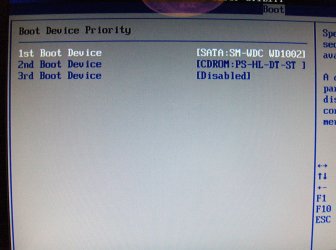
The problem of changing the BIOS is solves. The boot device priority went via another menu called (Hard Disk drives) with the possibility to chose between HD1 or HD2. By changing the last then get automatically the second drive as a first boot device.

The question is: is there a way to know which HD on the Disk Management is corresponding to the HD's on the BIOS (except by opening the case and disconnect the wires). Is it possible to mark one of the (System Reserved partition) as non active and try to boot and find out from which disk is the PC booting?

Many thanks to you gentlemen for your advices and sorry to bother you so much.

Best regards,

Anne
 

My Computer

OS
Windows 7 Ultimate x64
The question is: is there a way to know which HD on the Disk Management is corresponding to the HD's on the BIOS

What EXACTLY do you see as a description of the 2 drives in the BIOS?
 

My Computer

Computer type
PC/Desktop
Computer Manufacturer/Model Number
Ignatz Special; 4 speed manual gearbox; factory air conditioning; one of one
OS
Windows 7 Home Premium SP1, 64-bit
CPU
Intel Skylake i5-6600K, not overclocked
Motherboard
AsRock Z170M Extreme 4, micro ATX
Memory
8 GB HyperX DDR4-2666 (2 x 4 GB)
Graphics Card(s)
none; graphics are integrated on CPU
Sound Card
onboard: Realtek ALC1150; external: USB Behringer UF0-202
Monitor(s) Displays
Dell S2340M 23 inch IPS
Screen Resolution
1600 x 900
Hard Drives
System: Crucial MX100 series SSD, 128 GB;
Data: Samsung Spinpoint 103SJ, 1 TB;
Backup: WD Caviar Green WD30EZRX-00D8PB0, 3 TB
PSU
Rosewill SilentNight 500 watt fanless, semi-modular
Case
Antec Solo II
Cooling
Noctua NH-U12S; Noctua F12 intake, Noctua S12A exhaust
Keyboard
Microsoft 200 6JH-00001 USB
Mouse
Dell or Microsoft optical wired; USB
Antivirus
Microsoft Security Essentials and Malwarebytes Premium
Browser
Pale Moon
Other Info
All fans PWM; speeds at idle: CPU circa 500 rpm; intake circa 600 rpm; exhaust circa 600 rpm; CPU temps 27 idle and 47 C load in a warm room (27 C/81 F) when running Intel Extreme Tuning Utility stress test.
2. The odd setup you have can be easily fixed. I suggest you move (copy) the bootmgr to C. Then you can forget about the system partition and you only have to image C. http://www.sevenforums.com/tutorials/209885-bootmgr-move-c-easybcd.html
I have to disagree. Partition C: as shown in the OPs screenshot is the 2nd partition on the 2nd HDD (Disk 1). This is not a good place to put your OS.
It will end up being called C: but should be in the location E: on Disk 0 of your screenshot.
On a spinning HDD the OS and installed programs should be on the outer tracks of the HDD for speed.
Also I'm not sure that the EasyBCD solution will retain the F8 safe mode boot function but restoring the system reserved using x3 system repairs should retain the F8 function.

It is assumed that the OP still has the image to restore from. As I've said before don't have the 2 HDDs connected when doing this.

WHS your suggestion may be simpler and should work but I don't think it is ideal. Of course up to the OP.
 

My Computer

Computer type
PC/Desktop
Computer Manufacturer/Model Number
Own build
OS
Windows 7x64 Home Premium SP1
CPU
Intel i7 2600k
Motherboard
ASUS P8Z68 Deluxe
Memory
G.Skill Ripjaws (DDR3-1600) 2x4GB
Graphics Card(s)
Nvidia GeForce GTS 450; Intel HD Graphics 3000(GT2+)
Monitor(s) Displays
Dell Ultrasharp IPS panel U2311H, Samsung SyncMaster P2350
Screen Resolution
1920x1080
Hard Drives
Samsung 850 Pro SSD 256GB, Samsung SSD 840 120GB, Seagates 1TB Barracuda ST31000528AS x2
PSU
Seasonic M12II 520W
Case
Lian Li Lancool PC-K60
Cooling
Case: 1x120mm, 3x140mm CPU: Hyper 212+
Keyboard
Logitech MK520 (wireless)
Mouse
Logitech MK520
Internet Speed
6-7 Mbps
Antivirus
Norton Security Premium, Malwarebytes on 2 (MSE on 3rd PC)
Browser
FireFox
Other Info
Audio: Logitech Z523 2.1
Mike, I appreciate your performance argument. But as things stand, Anne has to work with what she has got. A complete revamp of the disk assignments is a bigger task.

Anne, if you set disk1 as first in the BIOS boot order, then you can be certain that it will boot from Disk1. If you want to be double sure, keep tapping F12 after power-on. That will show you the boot order assignments.
 

My Computer

Computer Manufacturer/Model Number
HP, Dell, Gateway, Toshiba - 4 laptops and 2 desktops
OS
Vista, Windows7, Mint Mate, Zorin, Windows 8
CPU
from 1.6GHz Duo to i7
Monitor(s) Displays
2x HP w2207
Hard Drives
5x HDD, 7x SSD, 12x Externals
Keyboard
with trackball - no mices
Mouse
Trackball mice
Internet Speed
DSL 6000
The question is: is there a way to know which HD on the Disk Management is corresponding to the HD's on the BIOS

What EXACTLY do you see as a description of the 2 drives in the BIOS?


Hello ignatzatsonic,

Picture 1, which I could get by pushing F8 in my computer, which can change the boot order temporarily. You see all the possible boot drives.

Picture 2 which I could get by pushing DEL in my computer, showing the first boot device BEFORE I changed it.

Picture 3 which I could get by pushing DEL in my computer, showing the first boot device AFTER I changed it.


Thanks & regards,

Anne
 

Attachments

  • Picture 1 F8.jpg
    Picture 1 F8.jpg
    710.8 KB · Views: 1
  • Picture 2 - DEL.jpg
    Picture 2 - DEL.jpg
    771.1 KB · Views: 1
  • Picture 3 - DEL.jpg
    Picture 3 - DEL.jpg
    1 MB · Views: 1

My Computer

OS
Windows 7 Ultimate x64
2. The odd setup you have can be easily fixed. I suggest you move (copy) the bootmgr to C. Then you can forget about the system partition and you only have to image C. http://www.sevenforums.com/tutorials/209885-bootmgr-move-c-easybcd.html
I have to disagree. Partition C: as shown in the OPs screenshot is the 2nd partition on the 2nd HDD (Disk 1). This is not a good place to put your OS.
It will end up being called C: but should be in the location E: on Disk 0 of your screenshot.
On a spinning HDD the OS and installed programs should be on the outer tracks of the HDD for speed.
Also I'm not sure that the EasyBCD solution will retain the F8 safe mode boot function but restoring the system reserved using x3 system repairs should retain the F8 function.

It is assumed that the OP still has the image to restore from. As I've said before don't have the 2 HDDs connected when doing this.

WHS your suggestion may be simpler and should work but I don't think it is ideal. Of course up to the OP.


Hello MJF,

Thanks for your advice. The question is: What is in your view the practical solution? For me, to be honest, managing enough time to re-install Windows 7 from the beginning is almost impossible!

Best regards,

Anne
 

My Computer

OS
Windows 7 Ultimate x64
I don't know what Mike had in mind. But one approach could be that you image both partitions, then clear the disk and assign new partitions with the OS partition as first partition on the HDD and then put the images back. But even that is a lot of work.

I suggest that you leave it as is for the time being. Maybe one day you have a spare $70 for a 60GB SSD to which you can transfer the OS. Then all performance concerns vanish and your system will get a LOT faster and snappier.
 

My Computer

Computer Manufacturer/Model Number
HP, Dell, Gateway, Toshiba - 4 laptops and 2 desktops
OS
Vista, Windows7, Mint Mate, Zorin, Windows 8
CPU
from 1.6GHz Duo to i7
Monitor(s) Displays
2x HP w2207
Hard Drives
5x HDD, 7x SSD, 12x Externals
Keyboard
with trackball - no mices
Mouse
Trackball mice
Internet Speed
DSL 6000
Anne, if you set disk1 as first in the BIOS boot order, then you can be certain that it will boot from Disk1. If you want to be double sure, keep tapping F12 after power-on. That will show you the boot order assignments.

Hello WHS,

Many thanks for your advices. Booting from Disk1 or Disk2 is not problem because both are doing well. I think this is due to the fact that I did not delete the (System Reserved partition) from the first disk. In other words, both disks now are having a (System Reserved partition).

The question is: What is the safest way to backup the OS and the documents in this case? Is it better to do it separates or together? To be honest, I am afraid to be in the same situation of backing up everything regularly but when try to restore it, then it will fail.


Many thanks again for all of you for your patience and good advices.

Best regards,

Anne
 

My Computer

OS
Windows 7 Ultimate x64
In other words, both disks now are having a (System Reserved partition).
This is not quite correct. The corect statement would be that both disks have a bootmgr. On disk0 it is in the system reserved partition and on disk1 it is on the C partition.

I recommend to keep the system reserved partition on disk0. It is the original of the bootmgr and can always be useful if something unexpected happens. But for normal daily operation you do not need it.

If you now make an image of C and later restore that image, C will boot (because it has the copy of the bootmgr). So C is "self contained". You must, of course, restore it to the original partition or to another primary active partition and the disk to which you restore must be first in the BIOS bootorder.

So you will not get the same situation as when you imaged the C partition but forgot the bootmgr which was in the system reserved at the time. Now the bootmgr is integral part of C.
 

My Computer

Computer Manufacturer/Model Number
HP, Dell, Gateway, Toshiba - 4 laptops and 2 desktops
OS
Vista, Windows7, Mint Mate, Zorin, Windows 8
CPU
from 1.6GHz Duo to i7
Monitor(s) Displays
2x HP w2207
Hard Drives
5x HDD, 7x SSD, 12x Externals
Keyboard
with trackball - no mices
Mouse
Trackball mice
Internet Speed
DSL 6000
In other words, both disks now are having a (System Reserved partition).
This is not quite correct. The corect statement would be that both disks have a bootmgr. On disk0 it is in the system reserved partition and on disk1 it is on the C partition.

I recommend to keep the system reserved partition on disk0. It is the original of the bootmgr and can always be useful if something unexpected happens. But for normal daily operation you do not need it.

If you now make an image of C and later restore that image, C will boot (because it has the copy of the bootmgr). So C is "self contained". You must, of course, restore it to the original partition or to another primary active partition and the disk to which you restore must be first in the BIOS bootorder.

So you will not get the same situation as when you imaged the C partition but forgot the bootmgr which was in the system reserved at the time. Now the bootmgr is integral part of C.


Hello WHS,

Thanks for the correction. As you see, I am not as professional in the computer as you and the other gentlemen.

I think the idea of having a small SSD for the OS is very good. Pity I did not know this before starting the installation. By the way, is it possible to image (backup) the C Drive and then restore it on the small SSD? or maybe I am asking too much!

Many thanks & best regards,

Anne
 

My Computer

OS
Windows 7 Ultimate x64
Yeah, that is very possible and quite easy. I even wrote a tutorial for that. The easiest way is to do it with the Paragon Migration tool - only 3 clicks. But even the 'geeky' way is not too difficult and well explained in my tutorial - I hope, LOL.
 

My Computer

Computer Manufacturer/Model Number
HP, Dell, Gateway, Toshiba - 4 laptops and 2 desktops
OS
Vista, Windows7, Mint Mate, Zorin, Windows 8
CPU
from 1.6GHz Duo to i7
Monitor(s) Displays
2x HP w2207
Hard Drives
5x HDD, 7x SSD, 12x Externals
Keyboard
with trackball - no mices
Mouse
Trackball mice
Internet Speed
DSL 6000
Yolu are using "system reserved" now!! Delete it or make it inactive!
 

My Computer

Computer type
Laptop
Computer Manufacturer/Model Number
ACER ASPIRE 5742G
OS
Microsoft Windows 7 Home Premium 64-bits 7601 Multiprocessor Free Service Pack 1
CPU
Intel(R) Core(TM) i3 CPU M 370 @ 2.40GHz
Motherboard
Acer Aspire 5742G
Memory
4,00 GB
Graphics Card(s)
ATI Mobility Radeon HD 5400 Series
Sound Card
(1) AMD High Definition Audio Device (2) Realtek High Defi
Screen Resolution
1366 x 768 x 32 bits (4294967296 colors) @ 60 Hz
Hard Drives
WDC WD5000BEVT-22ZAT0
Yolu are using "system reserved" now!! Delete it or make it inactive!
I don't think so. Anne set disk1 as first boot priority. Then the system reserved which is on disk0 plays no role.
 

My Computer

Computer Manufacturer/Model Number
HP, Dell, Gateway, Toshiba - 4 laptops and 2 desktops
OS
Vista, Windows7, Mint Mate, Zorin, Windows 8
CPU
from 1.6GHz Duo to i7
Monitor(s) Displays
2x HP w2207
Hard Drives
5x HDD, 7x SSD, 12x Externals
Keyboard
with trackball - no mices
Mouse
Trackball mice
Internet Speed
DSL 6000
Back
Top