Solved Problem starting pc with dual boot XP-Windows 7

Did Win7 start after you moved the Active flag to it and ran 3 Startup Repairs? It isn't expected to start otherwise. And there will be no Dual Boot menu until you then add XP using EasyBCD.

Did you install EasyBCD to Win7 to add XP to a Dual Boot menu?

Post back another DIsk Mgmt screenshot and another of the EasyBCD drive screen.
 
First time it did not start, that´s when it said (NTLDR not found, press ctrl, alt, del to restart) or something like that.

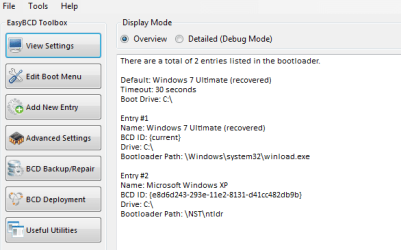
Here are the pics, don´t know if the EasyBCD one is what you are asking for

HD2.PNG EasyBCD.PNG
 

My Computer My Computer

OS
Windows 7 ultimate 32 bit.
Does XP start correctly when you select it on menu?

If not on Edit Boot Menu highlight the XP listing to Delete it. Then on Add OS Entry add Xp but uncheck Automatically detect drive letter and manually select D.

You can edit the Win7 entry name to removed Recovered on the Edit Boot menu>highlight Win7 listing>Rename.
 
Yes, so far XP works correctly after I am able to choose the one I´ve been using.
 

My Computer My Computer

OS
Windows 7 ultimate 32 bit.
The problem is the same as at the beginning. First system boot, that is, after being started from the power button won´t allow me to choose the OS to load from the black screen. I have to wait till windows 7 boots itself, from then on I can restart from shut down menu and the boot screen works fine so then I am able to choose another OS.
 

My Computer My Computer

OS
Windows 7 ultimate 32 bit.
There's likely an anomaly in the boot sector of the XP HD.

Would you like our help to clone Win7 to a space resized from the left size of the the other HD, start it to confirm it starts, then delete it from the XP HD after marking XP Active to confirm it will boot again?

Win7 would then boot from the BIOS by default, but if you want XP you'd just tap the BIOS Boot menu key at boot to trigger it instead. This is a recommended method of dual booting to make them independent.

We can walk you through these steps. Are either of your HD's Western Digital or Seagate which has a free version of the best cloning software Acronis?
 
No Greg, I don´t have that software. What I´m thinking right now is waiting to see how the problem evolves. What worries me most is the couple of reezes I had which I don´t know if are related to the boot problem.
Depending on that, I´ll ask you on how to do what you described or even uninstalling Windows 7 and erasing the partition and starting from scratch with any method you sugest.

Again, thanks for your help.
 

My Computer My Computer

OS
Windows 7 ultimate 32 bit.
What software? I asked you if you have a Western Digital or Seagate HD. Check in Device Manager under Disk Drives.

The reason it may not be necessary to reinstall is because you have two HD's which allows you to have the preferred method of Dual Boot via the BIOS. And since XP was installed first on it's HD it likely is fine to keep booting on its HD once the Active flag is moved back to it.

Plug once you move Win7 to the other HD it should start up and not have interference from XP or any problem related to Dual Booting since your choice of drives will be booted via BIOS and one will not be dependent upon the other.
 
Oh sorry. One is WD and the other Seagate.
 

My Computer My Computer

OS
Windows 7 ultimate 32 bit.
There is a free premium WD Acronis free cloning app that you can use to clone the Win7 partition to a space you create at the beginning of your second HD. Or if you're not happy with the Win7 install you can Clean Reinstall - Factory OEM Windows 7 there.

On the WD app's downloads page there is a Manual to download to read how to do an Automatic cloning in section 15.3.1

THis video shows how to shrink a partition after deleing the OEM partition (not needed) on the other HD: Partition Wizard Move/Resize Partition Video Help.

Once it's cloned over or reinstalled and starts up and runs fine, you can move the Active flag back to XP to start it up, then delete the Win7 partition on the XP HD.

This way there is no Windows Boot menu. You either let Win7 start up by default, or you tap the Fkey for Boot menu to trigger XP instead.
 
OK, will try.
 

My Computer My Computer

OS
Windows 7 ultimate 32 bit.
I'd read over the links and ask back any questions. I can make you a more detailed list of steps if that helps.

Take all the time you need. There is no rush although I would not want a dual boot to remain in that condition for long.
 
All right, thanks.
 

My Computer My Computer

OS
Windows 7 ultimate 32 bit.
Or what if I move the stuff I need from the second HD to the biggest one so I can format it and install Windows 7 and have an OS in each HD? Is that advisable?
 

My Computer My Computer

OS
Windows 7 ultimate 32 bit.
You can do that, sure. It might be easier than cloning or resizing instead of just deleting all partitions during install.

You'd also have our help to get a perfect Clean Reinstall - Factory OEM Windows 7 which is a specialty of these forums.

If you do this you'll need to move the Active flag back to XP to see if it starts without running repairs.
 
So I think I´ll be doing that tomorrow. I would like to perform the easiest option. Maybe keeping the partition where W7 was installed just for storage but I don´t know how can I wipe it out as well as the remnants of the OS that was in the other HD. Or if just formating would work.
The reinstall factory OEM seem a bit complicated so if there´s an easier method I´d prefer the other.
Any advise?
 

My Computer My Computer

OS
Windows 7 ultimate 32 bit.
I linked that tutorial because it gives you the tools and methods which assure a perfect reinstall. If you want a simpler illustrated guide use Clean Install Windows 7.

You need to move the Active flag back to XP to see if it will start, then you can delete the old Win7 partition when you're ready. If XP won't start move the flag back to Win7 and I will give you steps to repair XP so it boots on its own again. Mark Partition Active

Be sure to unplug the XP HD during install to Wn7 to the other HD. During install at the screen where you select where to install Win7, choose the Drive Options link at bottom to delete all partitions, then create a new install partition for install, or just click Next and the installer will do it for you.

Afterwards plug back in the XP HD and boot it using the one-time BIOS Boot menu key. Do you know which key that is on your PC? It should be displayed on the first boot screen.
 
I´ll figure that Boot Menu key out, I think is Delete.
Some questions are, can I move the active flag to XP from W7? How can I clear the partition where W7 was so I can move some files from the second HD?

Sorry but as you can see I´m too noob regarding this stuff.
 

My Computer My Computer

OS
Windows 7 ultimate 32 bit.
As shown in Mark Partition Active there are two methods to move the Active flag to XP. Easiest is in Disk Mgmt. It can also be done from the Win7 installer Command Line accessed by pressing Shift + F10 at the first screen after you boot into the disk. Both methods are illustrated in tutorial link.

If XP won't start after moving the Active flag back to it, boot into Win7 installer, open a command line, type each command followed by Enter:

diskpart
list vol (determine the drive letter for XP partition)
exit
bootsect /nt52 d: (if d: shows as the XP partition in Diskpart as likely)

Reboot to XP. There are other fixes if required including an XP Repair Install, however to overcome the problems you have had you may need to wipe the boot sector of the disk using Diskpart Clean Command so do that if you reinstall after backing up all files.

Once XP again holds the System Active flags, you can delete or format the Win7 partition in XP Disk Mgmt, extend XP or create a new partition there. Partition or Volume - Delete
Partition or Volume - Create New
Partition or Volume - Extend
 
Last edited:
Back
Top