I have a dell inspiron 1750 and my router is a netgear wireless-g router wgr614v9....im pretty sure my router is working correctly for the fact all my other wireless devices are still working...I bought a 2.5 sata and ide to usb 2.0 case so I could take all my files and photos off my hard drive and I had no problems with my hard drive..I also ran a bios scan on my hard drive and everything passed..but still not sure if its the problem or not..I had to reinstall windows 7 because I did a system restore back a week before this problem started and it crashed my laptop..so I got my desktop going again but still no wireless connection...still get the message..problem with wireless adapter or access point..Im currently on the laptop with the issue but im plugged straight into the modem for internet access..I have been at this for 2 weeks and cant figure it out and i need help..hopefully specific instruction type help..if anyone can help me id greatly appreciate it..because im all out of ideas...thank you
As you have re-installed the operating system, some drivers might be missing and causing issues. After installing Windows, you need to update the drivers from Here and in correct order as given Here.
Dell Inspiron 1750 is shipped with various wireless card options. You may follow the steps below to find the model of wireless card in your system and share it here :
Press Windows + R button on keyboard
Type 'devmgmt.msc' (without quotes) and press Enter
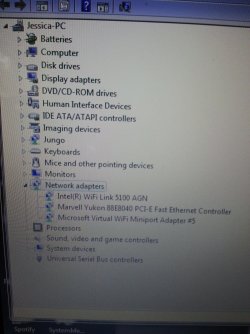
Expand Network Adapter and check if your wireless card is listed
If the wireless card is not listed under Network Adapter, Expand Other devices
The wireless card would be listed as Network Controller under Other devices indicating missing drivers.
You may right click the Network Controller device under Other devices in Device Manager and click on Properties -> Details -> Hardware Id
Please share a screenshot of Device Manager with Network Adapter and Other devices expanded
Please reply with the findings. Will take it further from there.
mannan..i uninstalled my mcafee and itunes before reinstalling windows and that didnt work...but i didnt realize my windows firewall was on..so i just turned that off and as long as im by my router i get internet service on and off...i cant go anywhere else and i was able to before..so i just plugged back into my modem since my connection doesnt stay connected
1. wireless connection issue
2. comcast is internet provider
3. cable internet connection
4. router is netgear wireless g router wgr614v9
5. i have mcafee but it is currently uninstalled until i fix my problem and my windows firewall is off too
i will post the next step here in a bit
Though the driver appears to be installed, I would still suggest you to install the driver provided by Dell. The wireless driver might have been updated automatically via Windows updates. Before installing the driver, I would suggest you to disable automatic driver updates and uninstall the driver. You may refer to article Here.
Once the driver updates has been disabled you may remove the WiFi driver by following the steps below :
Open Device Manager
Right Click on Intel WiFi Link 5100 and click on Uninstall
Check 'Delete the Driver software for this device' and click on OK.
Click on Start -> Control Panel -> Program and Features -> Uninstall a Program or Program and Features
Uninstall the Intel WiFi driver. Follow the on-screen instructions and restart the computer when prompted.
Upon restart you will see a Network Controller device under Other devices in Device Manager. You may update the Intel WiFi driver provided by Dell from Here. Follow the onscreen instructions and restart the computer when prompted.
ok..I did all this and after i restarted my computer i went into device manager and the intel wifi link 5100 was still there..so i tried updating the intel wifi driver anyways and it wouldnt do it..i got..this software package cannot be installed on your system the setup application will exit....so i went back in an uninstalled intel wifi link 5100 again and it disappeared out of the device manager and when i restarted my computer it was there again..but when i go into unistall a program...it isnt there..so i really dont know whats going on..should i restore everything back the way it was???
The display issue might be related to video driver. You may follow the steps below to start the computer in Safe Mode with Networking and see if the issue persists :
Turn on the computer.
As soon as the computer starts up, press <F8> several times until the Advanced Boot Menu appears. If the computer starts up into Windows, restart the computer and try again.
Press the <Up Arrow> or <Down Arrow> key to highlight Safe Mode with Networking, then press <Enter>.
If the system works fine in Safe Mode with networking, the issue might be related to video drivers. You may try updating the video drivers from Here (if your system is shipped with ATi video card) or from Here (if your system is shipped with Intel VGA adapter) and see if it helps.
Note : You may check the video card type shipped with your system under Display Adapters in Device Manager.
ok...wireless connection still isnt working in safe mode...and when i tried to update my video drivers under the intel vga adapter it said the version im trying to download is older than what i already have..and what i have is 8.15.10.1994 and the one this site wanted me to download is 8.15.10.1808...so apparently i have a newer version than this one..unless you still want me to try downloading an older version????
I would like to know if you are able to connect to the wireless network. If yes, please share the ipconfig /all details. You may refer to the tutorial shared by 2xg for step by step instructions on posting ipconfig results.
2xg ..i already posted this information in posts 7 and 8 and my issue is i cant get my wireless internet to work..my router is fine because it works on all other wireless devices...when i run a trouble shoot it says problem with wireless adapter or access point...im currently plugged straight into my modem with a cable.
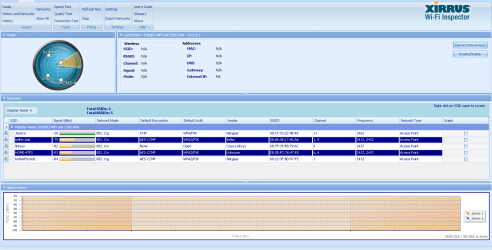
Post #7 contains answer's to questions 1 to 5 and post #8 has a screenshot of Xirrus WiFi inspector. We would need the ipconfig details as well. Please disconnect the computer from wired internet and connect it to wireless network and the follow the below mentioned step 6 :
6. How to run and post an ipconfig /all output of the computer(s) in question for review. Click on the Windows Start button, in search programs and files type cmd, right click cmd on the top and select Run Administrator.
A message will pop ‘Do you want to allow the following program to make changes in your computer? Answer YES.
From the Command Prompt (black) screen, type ipconfig /all press enter. You will now see the results. Note: You may also use any of these valid renditions: ipconfig/all
ipconfig /all
ipconfig -all
Here’s your ipconfig/all output:
Note: If you would like a text file output. From the command prompt (black screen), Copy and Paste these ipconfig /all >c:\ipconfig.txt then press enter. You will find the output in your Local Disk ‘C’.
To post the output in a Forum or Notepad, right click on the Command Prompt Window and choose Select All, then press Enter, open up Notepad or go to your Post from the Forum right click on it and choose Paste.
As you are unable to connect to wireless network, I would suggest changing the wireless adapter power option to maximum performance by following the steps below :
Click on Start -> Control Panel
Open Power Options
Click Change plan settings for the selected power profile
Click Change advanced power settings
Under Wireless Adapter Settings , click Power Saving Mode and change the settings to Maximum Performance
Restart the computer and try connecting to wireless network. If the issue persists, I would suggest you to change the router settings :
Connect your computer to internet via wired connection and follow the steps shared above to check the 'ipconfig /all' details
Under Ethernet adapter Local Area Connection note down the default gateway address
Open any browser of your choice and type the default gateway in address bar and press enter
If it asks for a username and password type admin for both (incase you or your ISP have changed it, you may consider contacting ISP for getting the password or you may refer to Owner's manual of router to find the default username and password or instructions on how to reset it)
Click on Wireless tab to open the wireless settings and change the following
Change router channel to 6
Change CTS Protection Type from CTS Only to RTS_CTS
Also, change the Encryption type under wireless security from TKIP to AES/TKIP
ok..i changed to maximum power and nothing happened still couldnt connect wirelessly..so I went in to change my router settings and i changed everything but the cts protection type...there was nothing listed there for cts...there was a mode setting to change it to either b and g or g only...so i kept it on b and g...so if this is a problem let me know..