Problems in Windows Live Mail Essential 2011

Adela

New member
Hello, I have Windows 7, WLM Essential 2011, Firefox.

PLEASE help with these 3 glitches?:


1. How to alphabetize the folders I created in the email at the left column? they don't arrange automatically...

2. System folder “Outbox” is missing, how to get it?


3. How to get rid of the tiny triangular “icons” (don’t know the name) which make the sub-folders? I want a straight, non-indented column of my folders.


Thanks ever so much for any help!
:) Adela
 

My Computer

Computer Manufacturer/Model Number
Dell Inspiron 560 Desktop
OS
Windows 7 Home, 64 bit.
Monitor(s) Displays
LCD
Could you post a picture, I don't appear to have any of those problems???
Perhaps, at this stage, a reinstall of WLM would solve it?
 

My Computer

Computer Manufacturer/Model Number
Three desktops and one laptop with good specs..
OS
Vista and now 7 in 32 and 64 bit.
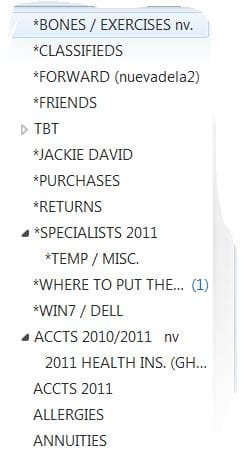
Thanks. Here's a screenshot of my problem #3. The other 2 are self-explanatory Davehc.

Here you can see how the folders aren't in alphabetical order and also the tiny triangles I spoke about which produce the sub-folders, meaning indented folders which I do not want.

Any ideas?

Thanks again. Adela

P.S. I uploaded the screenshot as attachment but don't see it here. Please let me know if you received it?
 

My Computer

Computer Manufacturer/Model Number
Dell Inspiron 560 Desktop
OS
Windows 7 Home, 64 bit.
Monitor(s) Displays
LCD
Hello Adela,

Answers inline. :)

Your screenshot is not uploaded or attached in your post above though.

1. How to alphabetize the folders I created in the email at the left column? they don't arrange automatically...
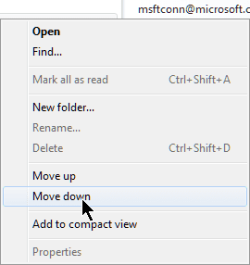
You can right click on the main email account name in the left pane, and click on Move up or Move down to manually move each email account list to the order you want them to be.
2. System folder “Outbox” is missing, how to get it?
Did you already use the scroll bar to scroll down in the left pane to see if the Outbox may have just been further down and out of view?

3. How to get rid of the tiny triangular “icons” (don’t know the name) which make the sub-folders? I want a straight, non-indented column of my folders.
These triangles are to indicate opened/expanded (outlined white) and closed/unexpanded (solid black) message folders. The indented folders are subfolders of a message folder. This cannot be changed.
Hope this helps,
Shawn
 

My Computer

Computer type
PC/Desktop
Computer Manufacturer/Model Number
Self built custom
OS
64-bit Windows 11 Pro for Workstations
CPU
Intel i7-8700K OC'd to 5 GHz
Motherboard
ASUS ROG Maximus XI Formula Z390
Memory
64 GB (4x16GB) G.SKILL TridentZ RGB DDR4 3600 MHz
Graphics Card(s)
ASUS ROG-STRIX-GTX1080TI-O11G-GAMING
Sound Card
Integrated
Monitor(s) Displays
2 x Samsung Odyssey G7 27"
Screen Resolution
2560x1440
Hard Drives
1TB Samsung 990 PRO M.2,
4TB Samsung 990 PRO PRO M.2,
TerraMaster F8 SSD Plus NAS
PSU
Seasonic Prime Titanium 850W
Case
Thermaltake Core P3
Cooling
Corsair Hydro H115i
Keyboard
Logitech wireless K800
Mouse
Logitech MX Master 4
Internet Speed
2 Gb/s Download and 100 Mb/s Upload
Antivirus
Malwarebyte Anti-Malware Premium
Browser
Google Chrome
Other Info
Logitech Z625 speaker system,
Logitech BRIO 4K Pro webcam,
HP Color LaserJet Pro MFP M477fdn,
APC SMART-UPS RT 1000 XL - SURT1000XLI,
Galaxy S23 Plus phone
Hi and thank you Brink!

(In uploading my screenshot I did do everything that the link you so kindly sent me, listed. But, since I didn’t maximize the window I didn’t see the “UPLOAD” button at all. So sorry. I went back and did it again even though you have already answered my problems), can you see it? ;)

"(1) You can right click on the main email account name in the left pane, and click on
Move up or Move down to manually move each email account list to the order you want them to be."

It’s not the account that I wanted to have in alphabetical order – it is the individual folders underneath the email account...

"(2) Did you already use the scroll bar to scroll down in the left pane to see if the
Outbox may have just been further down and out of view?

Yes I did and it isn’t there.

"(3)
These triangles are to indicate opened/expanded (outlined white) and closed/unexpanded (solid black) message folders. The indented folders are subfolders of a message folder. This cannot be changed."

Oh what a shame! But at least I wish to have the individual folders arranged in alphabetical order. How to do this??? :)

Thank you again! Adela

P.S. I'm sorry that the "Quote" button isn't working here. It put "Quote" codes in the middle of the paragraph splitting it into 2 quoted paragraphs, and didn't show the quoted content in the 3rd paragraph. :huh:


Attachments

  • ALPHABETIZE.JPG
    ALPHABETIZE.JPG
    23.6 KB · Views: 6

My Computer

Computer Manufacturer/Model Number
Dell Inspiron 560 Desktop
OS
Windows 7 Home, 64 bit.
Monitor(s) Displays
LCD
Adela,

Yes, the screenshot is showing now. :)

There's not a way to arrange the message folders for an email account either though. :(

Could you post a screenshot of the left pane with the message folders in it scrolled down all the to the bottom?
 

My Computer

Computer type
PC/Desktop
Computer Manufacturer/Model Number
Self built custom
OS
64-bit Windows 11 Pro for Workstations
CPU
Intel i7-8700K OC'd to 5 GHz
Motherboard
ASUS ROG Maximus XI Formula Z390
Memory
64 GB (4x16GB) G.SKILL TridentZ RGB DDR4 3600 MHz
Graphics Card(s)
ASUS ROG-STRIX-GTX1080TI-O11G-GAMING
Sound Card
Integrated
Monitor(s) Displays
2 x Samsung Odyssey G7 27"
Screen Resolution
2560x1440
Hard Drives
1TB Samsung 990 PRO M.2,
4TB Samsung 990 PRO PRO M.2,
TerraMaster F8 SSD Plus NAS
PSU
Seasonic Prime Titanium 850W
Case
Thermaltake Core P3
Cooling
Corsair Hydro H115i
Keyboard
Logitech wireless K800
Mouse
Logitech MX Master 4
Internet Speed
2 Gb/s Download and 100 Mb/s Upload
Antivirus
Malwarebyte Anti-Malware Premium
Browser
Google Chrome
Other Info
Logitech Z625 speaker system,
Logitech BRIO 4K Pro webcam,
HP Color LaserJet Pro MFP M477fdn,
APC SMART-UPS RT 1000 XL - SURT1000XLI,
Galaxy S23 Plus phone
Could you post a screenshot of the left pane with the message folders in it scrolled down all the to the bottom?
Hi and thank you Shawn. Yes I can, but only of the visible segment (attached) which I took from where I left off the previous one, because it doesn’t show the entire column all the way down to the Storage Folders. To copy them segment by segment I’d need to do around 10 screenshots.

However, the rest of the column shows more or less the same pattern as the previous screenshot; i.e., the indented sub-folders which I don’t like but you said can’t be changed; and the lack of alphabetical order in the folders which I very much hope to learn how to do...

Also, at the bottom there’s nothing that could give a clue - the column just ends without even a line!

Thanks again! Adela


P.S. I just discovered the “Outbox” folder within the “Storage Folders” column all the way down below. Is there a way to move it above among the other system folders? :confused:
 

Attachments

  • ALPHABETIZE 4.JPG
    ALPHABETIZE 4.JPG
    27.7 KB · Views: 3

My Computer

Computer Manufacturer/Model Number
Dell Inspiron 560 Desktop
OS
Windows 7 Home, 64 bit.
Monitor(s) Displays
LCD
First thing to try is to right click on the Outlook folder and see if it has a choice to Move Up or Move Down.

To remove the Triangles - Left Click and Hold on a folder and drag it to the Account Name and it will be appear right under the Deleted folder. Do this for each folder and they will be inline after the Deleted folder. If you have any Message Rules setup you will have to change them to match the move.

Jim :geek:
 

My Computer

Computer type
PC/Desktop
Computer Manufacturer/Model Number
Home Built
OS
Windows 8.1 Pro w/Media Center 64bit, Windows 7 HP 64bit
CPU
Phenom II X6 1100T
Motherboard
ASUS M5A99X EVO
Memory
Crucial Balistic 8gb DDR3-1866 CL9
Graphics Card(s)
MSI R6850 Cyclone IGD5 PE
Sound Card
On Board
Monitor(s) Displays
ASUS VE258Q 25" LED with DVI-HDMI-DisplayPort
Screen Resolution
1920 x 1080
Hard Drives
Two WD Cavier Black 2TB Sata III, WD My Book Essential 2TB USB 3.0
PSU
Seasonic X650 80 Plus GOLD Modular
Case
Corsair 400R
Cooling
Antec Kuhler H2O 620, Two 120mm and four 140mm
Keyboard
Logitech K120
Mouse
Logitech Marble Mouse USB, Logitech Precision Game Pad
Internet Speed
15MB
Antivirus
Norton IS 2013, Malwarebytes Pro Beta 2
Browser
IE-11, FF-27
Other Info
APC UPS ES 750, Netgear WNR3500L Gigabit & Wireless N Router with SamKnows Test Program, Motorola SB6120 Gigabit Cable Modem. Brother HL-2170W Laser Printer, Epson V300 Scanner
If you right click the "OutBox", you will find an option to move it up or down.
 

My Computer

Computer Manufacturer/Model Number
Three desktops and one laptop with good specs..
OS
Vista and now 7 in 32 and 64 bit.
Thanks so much Davehc and Jim! I tried as follows:

Outlook Button: Doesn’t have the menu with options to go up or down...I then tried to move it by left click and drag...but it wouldn't budge!

Remove Triangles: (“Left Click and Hold on a folder and drag it to the Account Name...”): They don’t remove themselves! They reappear and multiply!

Alphabetize Folders: (“Left Click and Hold on a folder and drag it to the Account Name and it will be appear right under the Deleted folder. Do this for each folder and they will be inline after the Deleted folder....”) Something strange happened here: :confused:

(1) The first 3 or 4 folders I moved up, placed themselves right under the “Delete” folder in alphabetical order and I was happy...but when I tried the rest of them they either didn’t move or they moved to any other place, for which I had to search all over...

(2) In desperation, I tried to move it right under the proper alphabetical folder name...but this brought on more triangles on each folder I moved and therefore more indented folder names!
If you have any Message Rules setup you will have to change them to match the move.
(3) I never setup any Message Rules, how do you set them up to put folders in alphabetical order?
Please forgive this new set of problems, hopefully you and/or other “geeks” will help me further? Anticipating my deep thanks. :) Adela
 

My Computer

Computer Manufacturer/Model Number
Dell Inspiron 560 Desktop
OS
Windows 7 Home, 64 bit.
Monitor(s) Displays
LCD
The question of not having the "Move up or down" is beyond me. It should be there, by default, on a mouse right click.

You can sort , with a compromise, by adding a digit to their name, e.g:

1 Accts
2 Bones
3 Specialists
....etc
 

My Computer

Computer Manufacturer/Model Number
Three desktops and one laptop with good specs..
OS
Vista and now 7 in 32 and 64 bit.
The question of not having the "Move up or down" is beyond me. It should be there, by default, on a mouse right click.

Thank you Davehc, but where it has the "Move up or down" is only when clicking on the account email address. Being that "Outbox" is not an address it doesn't have it. Could this be the reason? Or is it another glitch?

You can sort , with a compromise, by adding a digit to their name, e.g:

1 Accts
2 Bones
3 Specialists
....etc
This is a good idea, I'm going to try it. Thanks so much! :) Adela
 

My Computer

Computer Manufacturer/Model Number
Dell Inspiron 560 Desktop
OS
Windows 7 Home, 64 bit.
Monitor(s) Displays
LCD
The question of not having the "Move up or down" is beyond me. It should be there, by default, on a mouse right click.

Thank you Davehc, but where it has the "Move up or down" is only when clicking on the account email address. Being that "Outbox" is not an address it doesn't have it. Could this be the reason? Or is it another glitch?

You can sort , with a compromise, by adding a digit to their name, e.g:

1 Accts
2 Bones
3 Specialists
....etc
This is a good idea, I'm going to try it. Thanks so much! :) Adela

Another way to move your folders:

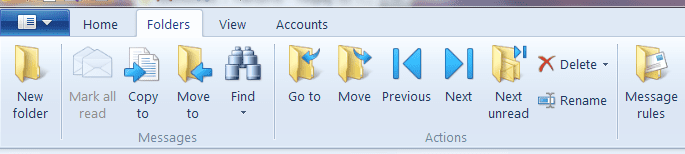
Click on Folders at the top. Select the folder you want to move and at the top click the Move icon under "actions" and a window will open and you can select where to move the folder.

Mail Move.PNG

Jim :geek:
 

My Computer

Computer type
PC/Desktop
Computer Manufacturer/Model Number
Home Built
OS
Windows 8.1 Pro w/Media Center 64bit, Windows 7 HP 64bit
CPU
Phenom II X6 1100T
Motherboard
ASUS M5A99X EVO
Memory
Crucial Balistic 8gb DDR3-1866 CL9
Graphics Card(s)
MSI R6850 Cyclone IGD5 PE
Sound Card
On Board
Monitor(s) Displays
ASUS VE258Q 25" LED with DVI-HDMI-DisplayPort
Screen Resolution
1920 x 1080
Hard Drives
Two WD Cavier Black 2TB Sata III, WD My Book Essential 2TB USB 3.0
PSU
Seasonic X650 80 Plus GOLD Modular
Case
Corsair 400R
Cooling
Antec Kuhler H2O 620, Two 120mm and four 140mm
Keyboard
Logitech K120
Mouse
Logitech Marble Mouse USB, Logitech Precision Game Pad
Internet Speed
15MB
Antivirus
Norton IS 2013, Malwarebytes Pro Beta 2
Browser
IE-11, FF-27
Other Info
APC UPS ES 750, Netgear WNR3500L Gigabit & Wireless N Router with SamKnows Test Program, Motorola SB6120 Gigabit Cable Modem. Brother HL-2170W Laser Printer, Epson V300 Scanner
Gotta be a glitch, I'm afraid. There's mine!


Up and down.png
 

My Computer

Computer Manufacturer/Model Number
Three desktops and one laptop with good specs..
OS
Vista and now 7 in 32 and 64 bit.
Davehc, yes it must be a glitch...

Jim, I did try clicking on “Folders” then on the folder to be moved. I didn’t see an “Action” button so I just clicked on “Move To”, and it took me to the regular Move (or Copy) window where one puts files inside the folders by clicking on the folders, rather than moving the folder itself. Am I doing it wrong maybe? :cry: lol!


Thank you both again... Adela
 

My Computer

Computer Manufacturer/Model Number
Dell Inspiron 560 Desktop
OS
Windows 7 Home, 64 bit.
Monitor(s) Displays
LCD
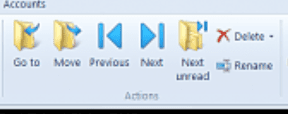
Wrong icon. The Move To is for messages. A little further to the right is the Move icon. That will be greyed out until you select a folder then it will be available to use.

Move.PNG

Jim
 

My Computer

Computer type
PC/Desktop
Computer Manufacturer/Model Number
Home Built
OS
Windows 8.1 Pro w/Media Center 64bit, Windows 7 HP 64bit
CPU
Phenom II X6 1100T
Motherboard
ASUS M5A99X EVO
Memory
Crucial Balistic 8gb DDR3-1866 CL9
Graphics Card(s)
MSI R6850 Cyclone IGD5 PE
Sound Card
On Board
Monitor(s) Displays
ASUS VE258Q 25" LED with DVI-HDMI-DisplayPort
Screen Resolution
1920 x 1080
Hard Drives
Two WD Cavier Black 2TB Sata III, WD My Book Essential 2TB USB 3.0
PSU
Seasonic X650 80 Plus GOLD Modular
Case
Corsair 400R
Cooling
Antec Kuhler H2O 620, Two 120mm and four 140mm
Keyboard
Logitech K120
Mouse
Logitech Marble Mouse USB, Logitech Precision Game Pad
Internet Speed
15MB
Antivirus
Norton IS 2013, Malwarebytes Pro Beta 2
Browser
IE-11, FF-27
Other Info
APC UPS ES 750, Netgear WNR3500L Gigabit & Wireless N Router with SamKnows Test Program, Motorola SB6120 Gigabit Cable Modem. Brother HL-2170W Laser Printer, Epson V300 Scanner
Wrong icon. The Move To is for messages. A little further to the right is the Move icon. That will be greyed out until you select a folder then it will be available to use.
View attachment 152840
Jim

Jim, thank you for the very clear instructions! I clicked on the right icon but:

“Move” icon: It says “Select a folder to move this item to” and again, it went to the same window where we put files into folders, which is titled: ”Move the item(s) to the selected folder”.

I then tried the “Go to“ icon that says “Select a folder to go to”, but it went to the same window, with title: “Go to the selected folder”.

I thank you so much for your time but both icons seem to go to folders already there. It also seems there’s no way to achieve this task in WLM 2011... :( Adela
 

My Computer

Computer Manufacturer/Model Number
Dell Inspiron 560 Desktop
OS
Windows 7 Home, 64 bit.
Monitor(s) Displays
LCD
Wrong icon. The Move To is for messages. A little further to the right is the Move icon. That will be greyed out until you select a folder then it will be available to use.
View attachment 152840
Jim

“Move” icon: It says “Select a folder to move this item to” and again, it went to the same window where we put files into folders, which is titled: ”Move the item(s) to the selected folder”.

That is correct. The "item" is the folder you selected. It can be moved to any other folder that is on the list included the "Account Name". If you Move a folder to the Account Name it will list it below the "Deleted" folder.

The "Move To" moves messages and the "Move" moves folders but uses the same window for choices.

A Folder can be moved to the Account Name but a message can not.

Jim
 

My Computer

Computer type
PC/Desktop
Computer Manufacturer/Model Number
Home Built
OS
Windows 8.1 Pro w/Media Center 64bit, Windows 7 HP 64bit
CPU
Phenom II X6 1100T
Motherboard
ASUS M5A99X EVO
Memory
Crucial Balistic 8gb DDR3-1866 CL9
Graphics Card(s)
MSI R6850 Cyclone IGD5 PE
Sound Card
On Board
Monitor(s) Displays
ASUS VE258Q 25" LED with DVI-HDMI-DisplayPort
Screen Resolution
1920 x 1080
Hard Drives
Two WD Cavier Black 2TB Sata III, WD My Book Essential 2TB USB 3.0
PSU
Seasonic X650 80 Plus GOLD Modular
Case
Corsair 400R
Cooling
Antec Kuhler H2O 620, Two 120mm and four 140mm
Keyboard
Logitech K120
Mouse
Logitech Marble Mouse USB, Logitech Precision Game Pad
Internet Speed
15MB
Antivirus
Norton IS 2013, Malwarebytes Pro Beta 2
Browser
IE-11, FF-27
Other Info
APC UPS ES 750, Netgear WNR3500L Gigabit & Wireless N Router with SamKnows Test Program, Motorola SB6120 Gigabit Cable Modem. Brother HL-2170W Laser Printer, Epson V300 Scanner
Oh how kind of you, Jim, to continue to help me, but I'm sorry I'm becoming a nuisance.

That is correct. The "item" is the folder you selected. It can be moved to any other folder that is on the list included the "Account Name".
I tried again, and it just doesn't allow me to insert a folder. It doesn't even allow me to use the right mouse on the email account name to insert a folder, within that window...

If you Move a folder to the Account Name it will list it below the "Deleted" folder.
This worked at the left column, where I dragged the folder into the email account name, which then it would place itself, alphabetically, right under the "Delete" folder...but after a day or two it stopped doing it, and at that point I came for help. But it won't do it within that window which apparently is only to insert files into folders?

Could it be yet another glitch in this program? Who knows, but I'm really most grateful for all the time you took on my account. :) Adela
 

My Computer

Computer Manufacturer/Model Number
Dell Inspiron 560 Desktop
OS
Windows 7 Home, 64 bit.
Monitor(s) Displays
LCD
Here is a step by step procedure. See if it works, if not you may need to do a repair.

Select the folder you want to move. "ATT" and select the Move icon and the Move window should look like this.


Move 1.PNG

Then in the Move window select the Account Name and then select the OK button.

Move 2.PNG

If this does not work you can try a repair.

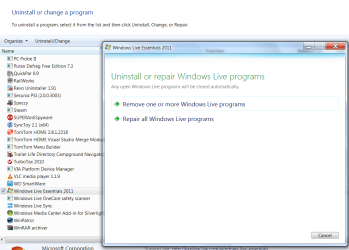
Go to Control Panel/Program and Features and select Windows Live Essentials. then select Repair.

Live repair.PNG

Jim :geek:
 

My Computer

Computer type
PC/Desktop
Computer Manufacturer/Model Number
Home Built
OS
Windows 8.1 Pro w/Media Center 64bit, Windows 7 HP 64bit
CPU
Phenom II X6 1100T
Motherboard
ASUS M5A99X EVO
Memory
Crucial Balistic 8gb DDR3-1866 CL9
Graphics Card(s)
MSI R6850 Cyclone IGD5 PE
Sound Card
On Board
Monitor(s) Displays
ASUS VE258Q 25" LED with DVI-HDMI-DisplayPort
Screen Resolution
1920 x 1080
Hard Drives
Two WD Cavier Black 2TB Sata III, WD My Book Essential 2TB USB 3.0
PSU
Seasonic X650 80 Plus GOLD Modular
Case
Corsair 400R
Cooling
Antec Kuhler H2O 620, Two 120mm and four 140mm
Keyboard
Logitech K120
Mouse
Logitech Marble Mouse USB, Logitech Precision Game Pad
Internet Speed
15MB
Antivirus
Norton IS 2013, Malwarebytes Pro Beta 2
Browser
IE-11, FF-27
Other Info
APC UPS ES 750, Netgear WNR3500L Gigabit & Wireless N Router with SamKnows Test Program, Motorola SB6120 Gigabit Cable Modem. Brother HL-2170W Laser Printer, Epson V300 Scanner
Back
Top