Program Files (x86) & Program Files Installed On Another Drive

DaveC118

New member
Local time
9:24 AM
Messages
1
Hi have have a new PC running Win7 Home Premium 64bit. I have 2 drives:

1 x 120GB SSD (running the OS) (C Drive)
1 x 1TB HDD (D Drive)

The SSD is running the OS and a couple of main programs which i use quite often (ie. Office 2010, Antivirus, etc).

The HDD i want to use to install and run Games, iTunes, etc...

My question is, if by default installing programmes want to install to C:\Program Files or Program Files (x86). How to i make them install to D:\ and what file structure should i use to make sure the 64bit and 32bit are in the right file and run as they should at the correct bit version??

Is it just a case of creating Program Files & Program Files (x86) folders on D and navigating to these folders on install?

Thanks
 

My Computer

OS
Windows 7 Home Premium 64bit

My Computer

Computer type
PC/Desktop
Computer Manufacturer/Model Number
Pandora (computer name)
OS
Windows 7 x64 / Windows Server 2008 / Linux (Redhat & Deb distros) / OS X / More
CPU
AMD FX 8150 Eight-Core Processor 4.23 Ghz OC
Motherboard
ASUS SaberTooth 990FX
Memory
G.SKILL Ripjaws X Series 32GB (4 x 8GB) DDR3 SDRAM 1333
Graphics Card(s)
2X Radeon HD 4870 CrossFire X
Sound Card
Onboard and loving it
Monitor(s) Displays
2x HP w2480 Wide LCD
Screen Resolution
1920x1200 each
Hard Drives
RAID (6x0 Seagate Barracuda 7200 rpm 32 MB cache 500Gb SATA)
PSU
Antec 850 Watt
Case
Antec 900
Cooling
Lots of fans
Keyboard
Logitech
Mouse
Rat 9
Internet Speed
40 Mbps Down 5 Mbps Up
Antivirus
AVG
Browser
Chrome, Firefox, IE
Other Info
My main desktop
I would move the User data folders and not the Program files since you want Programs to benefit from the faster SSD.

To move the User folders copy them to your data drive and rightclick each to link to the related Win7 Library - Include a Folder - Windows 7 Forums.

When you run out of space on the SSD then uninstall lesser-used Programs to install to the HD by directing their installer to it.
 
I would move the User data folders and not the Program files since you want Programs to benefit from the faster SSD.

To move the User folders copy them to your data drive and rightclick each to link to the related Win7 Library - Include a Folder - Windows 7 Forums.

When you run out of space on the SSD then uninstall lesser-used Programs to install to the HD by directing their installer to it.

Yea that sounds like a better plan. all and all this is why i haven't got SSDs yet. i wont until they are at least 500gb in size at a reasonable price.
 

My Computer

Computer type
PC/Desktop
Computer Manufacturer/Model Number
Pandora (computer name)
OS
Windows 7 x64 / Windows Server 2008 / Linux (Redhat & Deb distros) / OS X / More
CPU
AMD FX 8150 Eight-Core Processor 4.23 Ghz OC
Motherboard
ASUS SaberTooth 990FX
Memory
G.SKILL Ripjaws X Series 32GB (4 x 8GB) DDR3 SDRAM 1333
Graphics Card(s)
2X Radeon HD 4870 CrossFire X
Sound Card
Onboard and loving it
Monitor(s) Displays
2x HP w2480 Wide LCD
Screen Resolution
1920x1200 each
Hard Drives
RAID (6x0 Seagate Barracuda 7200 rpm 32 MB cache 500Gb SATA)
PSU
Antec 850 Watt
Case
Antec 900
Cooling
Lots of fans
Keyboard
Logitech
Mouse
Rat 9
Internet Speed
40 Mbps Down 5 Mbps Up
Antivirus
AVG
Browser
Chrome, Firefox, IE
Other Info
My main desktop
Hi There DaveC118,

I have done this on my PC having 2 x 60GB (raid 0) as my c drive with 4x 2TB in raid 10 mode for all programs and games, pics , music etc

I set this all up after a clean install of win 7 home and my preferred programs installed to my SSD's on the C drive.

here is the solution to your query. there are a couple of things you need to do using the regedit.exe shell

if your not happy in making changes to the registry then you can make a back up of it first before hand.

WARNING: making changes to the registry can prevent other programs from functioning that have already been installed.

ok so the first step is to change the default path for both the 32 bit and 64 bit registry's

copy the command functions below and paste them into the run command line. only one registry can be opened at a time.

1. 64 bit registry

C:\Windows\SysWOW64\regedit.exe

2. 32 bit registry

C:\Windows\regedit.exe

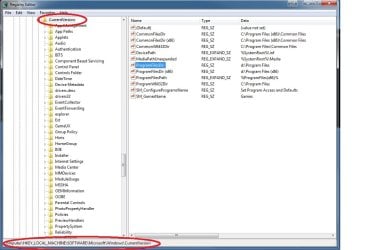
follow the path to the following folder in both registry's

HKEY_LOCAL_MACHINE\SOFTWARE\Microsoft\Windows\CurrentVersion

click onto the currentversion folder

look for the entry "ProgramFilesDir", double click and change the drive from C to D, where D is the drive you intend to install to, (to distinguish between the two registry's quickly for future ref use lower case "d" for 32 bit and upper case "D" for 64 bit).

and do the same for the entry "ProgramFilesDir (x86)"

exit the directory (exit autosaves) and repeat the process on the other registry

should you need to reverse the process just reopen and it should goto your last exit point on each directory.
 

Attachments

  • registry.jpg
    registry.jpg
    91.9 KB · Views: 104
Last edited:

My Computer

Computer Manufacturer/Model Number
self build
OS
windows 7 home premium 64bit sp1 (ver 6.1.7601)
CPU
i7 930 @2.8 GHz overclocked to 4.2
Motherboard
Gigabyte GA-X58A-UD7
Memory
18 Gb Corsair vengence trichannel
Graphics Card(s)
2 x Nvidia GTX285 1GB x16
Monitor(s) Displays
2 x Benq G222hdl
Screen Resolution
1920 x 1080
Hard Drives
2 x SSD 60 GB Raid 0

4 x 2TB raid 10 (2 x WD & 2 x Seagate)
PSU
Corsair 850w modular
Case
scoutmaster
Cooling
fan cooled
Keyboard
microsoft 3000 wired
Mouse
sidewinder x8 wired
Back
Top