
Public Folders - Restore

How to Restore Public Folders in Windows 7

   Information
This tutorial will show you how to restore any missing or moved Windows 7 Public folders located at C:\Users\Public.

You will need to be logged in as an administrator to be able to do the steps in this tutorial.

   Note
The hidden Favorites, Libraries, and nonhidden Public Recorded TV public folders are not included in this tutorial.


EXAMPLE: Public folders
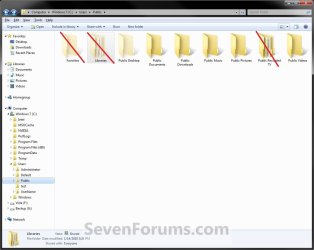
Public_Folders.jpg


Here's How:

   Warning
If you have any duplicate public folders, or public folders that do not have a Location properties tab, then you will need to:
  • Backup only the folder's contents to another location to be safe.
  • Now proceed with the steps below


1. To Restore Default Public Desktop FolderA) Click on the Download button below to download the file below.Restore_Default_Public_Desktop_Folder.reg


Download


2. To Restore Default Public Documents FolderA) Click on the Download button below to download the file below.Restore_Default_Public_Documents_Folder.reg


Download


3. To Restore Default Public Downloads FolderA) Click on the Download button below to download the file below.Restore_Default_Public_Downloads_Folder.reg


Download


4. To Restore Default Public Music FolderA) Click on the Download button below to download the file below.Restore_Default_Public_Music_Folder.reg


Download


5. To Restore Default Public Pictures FolderA) Click on the Download button below to download the file below.Restore_Default_Public_Pictures_Folder.reg


Download


6. To Restore Default Public Videos FolderA) Click on the Download button below to download the file below.Restore_Default_Public_Videos_Folder.reg


Download


7. Click on Save, and save the .reg file to the Desktop.

8. Right click on the downloaded .reg file and click on Merge.

9. Click on Run, Yes, Yes, and OK when prompted.

10. Open the C:\Users\Public folder. If a public folder is missing, then create a New Folder and rename it with the name below for each missing specific public folder.Public Folders Names


NOTE: The names in red are hidden system folders.
  • Libraries
  • Desktop
  • Documents
  • Downloads
  • Music
  • Pictures
  • Recorded TV
  • Videos

11. Open an elevated command prompt (Right click -> Run as administrator).

12. In the elevated command prompt, Copy and Paste the command below for the public folder, and press Enter. This will restore the default attributes for the public folder. (see table below)

Public FolderCommand
Librariesattrib +h +r -s %Public%\Libraries /S /D
Desktopattrib +h +r -s %Public%\Desktop /S /D
Documentsattrib +r -s -h %Public%\Documents /S /D
Downloadsattrib +r -s -h %Public%\Downloads /S /D
Musicattrib +r -s -h %Public%\Music /S /D
Picturesattrib +r -s -h %Public%\Pictures /S /D
Videosattrib +r -s -h %Public%\Videos /S /D


13. You may need to log off and log on, or restart the computer, to finish restoring the default public folder location.
NOTE: Sometimes you may need to restart more than once for the changes to be applied.

14. When done, you can delete the downloaded .reg file(s) on the desktop if you like.


That's it,
Shawn Brink


Attachments

Last edited:
Brink,
many thanks for the prompt reply. Before I proceed, I'd like to confirm something. Am I correct in thinking that the names of the folders under the public user should, in fact, be 'Music', 'Pictures' and 'Videos' rather than 'Public Music', 'Public Pictures' and 'Public Videos'? Or do you really mean the 'exact same name as the ones in the screenshot '? (I assume that Windows 'helpfully' adds the 'Public' just as it adds 'My'). It was trying to rename them with the actual 'Public' prefix that seemed to have started the problem - which is why I felt it safer to try to go back to the Windows default names.

I now wonder whether the backup utility had problems finding the folder 'C:\Users\Public\Public Music' or did it really mean 'C:\Users\Public\Music'. If the former, where would it be trying to get the name from?

Thanks again.

They should be the exact same names as in the tutorial, 'Music', 'Pictures' and 'Videos', etc.... :)
 
Last edited:

My Computer

Computer type
PC/Desktop
Computer Manufacturer/Model Number
Self built custom
OS
64-bit Windows 11 Pro for Workstations
CPU
Intel i7-8700K OC'd to 5 GHz
Motherboard
ASUS ROG Maximus XI Formula Z390
Memory
64 GB (4x16GB) G.SKILL TridentZ RGB DDR4 3600 MHz
Graphics Card(s)
ASUS ROG-STRIX-GTX1080TI-O11G-GAMING
Sound Card
Integrated
Monitor(s) Displays
2 x Samsung Odyssey G7 27"
Screen Resolution
2560x1440
Hard Drives
1TB Samsung 990 PRO M.2,
4TB Samsung 990 PRO PRO M.2,
TerraMaster F8 SSD Plus NAS
PSU
Seasonic Prime Titanium 850W
Case
Thermaltake Core P3
Cooling
Corsair Hydro H115i
Keyboard
Logitech wireless K800
Mouse
Logitech MX Master 4
Internet Speed
2 Gb/s Download and 100 Mb/s Upload
Antivirus
Malwarebyte Anti-Malware Premium
Browser
Google Chrome
Other Info
Logitech Z625 speaker system,
Logitech BRIO 4K Pro webcam,
HP Color LaserJet Pro MFP M477fdn,
APC SMART-UPS RT 1000 XL - SURT1000XLI,
Galaxy S23 Plus phone
Thanks very much.

However, please now satisfy my curiosity! I've just looked at someone else's laptop. Under the public user, when I looked at the properties of these folders, the general tab may say 'Public Music' but, in the location tab, it says 'C:\Users\Public\Music'. If I create 'C:\Users\Public\Public Music', is it restoring the public folder or creating another folder that satisfies the same goal?

I'm concerned that my problems seemed to stem from when I changed the location from 'C:\Users\Public\Music' to 'C:\Users\Public\Public Music'.

The registry entries do not have the 'public' word in front of the folder names (e.g. 'C:\Users\Public\Music') - so I cannot understand how it would match 'C:\Users\Public\Public Music'.

Much appreciated.
 
Last edited by a moderator:

My Computer

Computer Manufacturer/Model Number
Dell XPS 7100
OS
Windows 7 Home Premium 64 bit
CPU
AMD
Motherboard
unknown
Memory
4GB
Graphics Card(s)
unknown
Sound Card
unknown
Monitor(s) Displays
BenQ
Hard Drives
500GB
PSU
unknown
Case
unknown
Cooling
unknown
You're welcome BR.

I have updated the tutorial to help you better with this. Go through it again. After merging the REG files for the missing folders, name them as in step 10. Afterwards, verify that they have a "Locations" tab. Recorded TV will not have one though.

If so, then you can rename the folder say "Music", click "Continue" if prompted by UAC, to have the name back as say "Public Music". Renaming it will also change the path in the registry, but it will still work.
 
Last edited:

My Computer

Computer type
PC/Desktop
Computer Manufacturer/Model Number
Self built custom
OS
64-bit Windows 11 Pro for Workstations
CPU
Intel i7-8700K OC'd to 5 GHz
Motherboard
ASUS ROG Maximus XI Formula Z390
Memory
64 GB (4x16GB) G.SKILL TridentZ RGB DDR4 3600 MHz
Graphics Card(s)
ASUS ROG-STRIX-GTX1080TI-O11G-GAMING
Sound Card
Integrated
Monitor(s) Displays
2 x Samsung Odyssey G7 27"
Screen Resolution
2560x1440
Hard Drives
1TB Samsung 990 PRO M.2,
4TB Samsung 990 PRO PRO M.2,
TerraMaster F8 SSD Plus NAS
PSU
Seasonic Prime Titanium 850W
Case
Thermaltake Core P3
Cooling
Corsair Hydro H115i
Keyboard
Logitech wireless K800
Mouse
Logitech MX Master 4
Internet Speed
2 Gb/s Download and 100 Mb/s Upload
Antivirus
Malwarebyte Anti-Malware Premium
Browser
Google Chrome
Other Info
Logitech Z625 speaker system,
Logitech BRIO 4K Pro webcam,
HP Color LaserJet Pro MFP M477fdn,
APC SMART-UPS RT 1000 XL - SURT1000XLI,
Galaxy S23 Plus phone
(Partial) success

Brink, thanks for your patience. Prior to your last reply I attempted simply deleting the 'Public xxx' folders and creating 'xxx' folders to match the entries in the registry. Not surprisingly, the shell commands all worked. The folders showed in explorer as 'xxx' and none had a location tab. I then copied back in all of the files that they should contain. After that I went into both users to add the folders to the relevant libraries and, hey presto, the folders appeared in explorer as 'public xxx' and all had a location tab.

I thought that this might have cured the original problem. i.e. for some reason in Windows Media Player, for one user, none of the videos in the video library from the public videos folder are visible. If I remove and re-add the folder they appear briefly. But they disappear when I close WMP. I had assumed it was something to do with my messing with the folder names but now I am not convinced. However, with all the aggravation I have had with this, I think that it will be something that I shall put up with for now.

Thanks for all the assistance.

BR
 

My Computer

Computer Manufacturer/Model Number
Dell XPS 7100
OS
Windows 7 Home Premium 64 bit
CPU
AMD
Motherboard
unknown
Memory
4GB
Graphics Card(s)
unknown
Sound Card
unknown
Monitor(s) Displays
BenQ
Hard Drives
500GB
PSU
unknown
Case
unknown
Cooling
unknown
You're most welcome BR.

When you're ready to deal with WMP, please feel free to create a new thread on it, and we'll be happy to try and help. :)
 

My Computer

Computer type
PC/Desktop
Computer Manufacturer/Model Number
Self built custom
OS
64-bit Windows 11 Pro for Workstations
CPU
Intel i7-8700K OC'd to 5 GHz
Motherboard
ASUS ROG Maximus XI Formula Z390
Memory
64 GB (4x16GB) G.SKILL TridentZ RGB DDR4 3600 MHz
Graphics Card(s)
ASUS ROG-STRIX-GTX1080TI-O11G-GAMING
Sound Card
Integrated
Monitor(s) Displays
2 x Samsung Odyssey G7 27"
Screen Resolution
2560x1440
Hard Drives
1TB Samsung 990 PRO M.2,
4TB Samsung 990 PRO PRO M.2,
TerraMaster F8 SSD Plus NAS
PSU
Seasonic Prime Titanium 850W
Case
Thermaltake Core P3
Cooling
Corsair Hydro H115i
Keyboard
Logitech wireless K800
Mouse
Logitech MX Master 4
Internet Speed
2 Gb/s Download and 100 Mb/s Upload
Antivirus
Malwarebyte Anti-Malware Premium
Browser
Google Chrome
Other Info
Logitech Z625 speaker system,
Logitech BRIO 4K Pro webcam,
HP Color LaserJet Pro MFP M477fdn,
APC SMART-UPS RT 1000 XL - SURT1000XLI,
Galaxy S23 Plus phone
Unfortunately I deleted the c:\users\Public Folder itself and that's why I think this solution didn't work.

I tried System Restore which didn't work either.

Attempted to restore the deleted folders with "Previous Version" but it only allows me to copy the folders into a location of my choice. Copying doesn't solve the problem may be because it doesn't restore the characteristics of each folder. Restore button is grayed out.

I am on a Notebook and can't run Windows 7 repair installation either as the Notebook doesn't have a DVD/RW...

Going to try "ShadowExplorer" now...

Mean while appreciate if any one has any other suggestions...
 
Last edited:

My Computer

OS
Windows 7 Starter 32bit
That's great news Yohan, and welcome to Seven Forums. :)
 

My Computer

Computer type
PC/Desktop
Computer Manufacturer/Model Number
Self built custom
OS
64-bit Windows 11 Pro for Workstations
CPU
Intel i7-8700K OC'd to 5 GHz
Motherboard
ASUS ROG Maximus XI Formula Z390
Memory
64 GB (4x16GB) G.SKILL TridentZ RGB DDR4 3600 MHz
Graphics Card(s)
ASUS ROG-STRIX-GTX1080TI-O11G-GAMING
Sound Card
Integrated
Monitor(s) Displays
2 x Samsung Odyssey G7 27"
Screen Resolution
2560x1440
Hard Drives
1TB Samsung 990 PRO M.2,
4TB Samsung 990 PRO PRO M.2,
TerraMaster F8 SSD Plus NAS
PSU
Seasonic Prime Titanium 850W
Case
Thermaltake Core P3
Cooling
Corsair Hydro H115i
Keyboard
Logitech wireless K800
Mouse
Logitech MX Master 4
Internet Speed
2 Gb/s Download and 100 Mb/s Upload
Antivirus
Malwarebyte Anti-Malware Premium
Browser
Google Chrome
Other Info
Logitech Z625 speaker system,
Logitech BRIO 4K Pro webcam,
HP Color LaserJet Pro MFP M477fdn,
APC SMART-UPS RT 1000 XL - SURT1000XLI,
Galaxy S23 Plus phone
thanks..this was helpful
 

My Computer

Computer type
Laptop
Computer Manufacturer/Model Number
Dell Inspiron N5040
OS
Windows 7 Ultimate x64
CPU
Intel Pentium P6200
These instructions are incomplete. On a pristine system, you have these paths

Code:
C:\Users\Public\Documents
C:\Users\Public\Downloads
However, these folder appear as

Code:
C:\Users\Public\Public Documents
C:\Users\Public\Public Downloads
Now Brink’s directions will restore the paths, but not the apparent paths. To do
that you need to

1. Mark the folder Read-only

Code:
ATTRIB +R C:\Users\Public\Documents
2. create these files

Code:
; C:\Users\Public\Documents\desktop.ini
[.ShellClassInfo]
LocalizedResourceName=@%SystemRoot%\system32\shell32.dll,-21801
Code:
; C:\Users\Public\Downloads\desktop.ini
[.ShellClassInfo]
LocalizedResourceName=@%SystemRoot%\system32\shell32.dll,-21808
Code:
; C:\Users\Public\Music\desktop.ini
[.ShellClassInfo]
LocalizedResourceName=@%SystemRoot%\system32\shell32.dll,-21803
Code:
; C:\Users\Public\Pictures\desktop.ini
[.ShellClassInfo]
LocalizedResourceName=@%SystemRoot%\system32\shell32.dll,-21802
Code:
; C:\Users\Public\Recorded TV\desktop.ini
[.ShellClassInfo]
LocalizedResourceName=@%SystemRoot%\eHome\ehepgres.dll,-304
Code:
; C:\Users\Public\Videos\desktop.ini
[.ShellClassInfo]
LocalizedResourceName=@%SystemRoot%\system32\shell32.dll,-21804
 

My Computer

OS
Windows 7 Ultimate x64
These instructions are incomplete. On a pristine system, you have these paths

Code:
C:\Users\Public\Documents
C:\Users\Public\Downloads
However, these folder appear as
[...]
[/CODE]


Thanks. Also, some major typo on OP's post:
attrib +h +r -s %Public%Desktop /S /D should be
attrib +h +r -s %Public%\Desktop /S /D
 

My Computer

Computer type
PC/Desktop
OS
6.1x
Back
Top