Quick Launch - Enable or Disable

How to Enable or Disable Quick Launch in Windows 7

   Information
By default Quick Launch is disabled in Windows 7. This will show you how to enable or disable Quick Launch as a taskbar toolbar using small or large icons in Windows 7.

   Note
Quick Launch is a toolbar on the taskbar. Quick Launch is used to open a program quickly from a shortcut from within it separate from the pinned programs on the taskbar.

The Quick Launch folder is located at the hidden system folder location below to add shortcuts to.

C:\Users\(user-name)\AppData\Roaming\Microsoft\Internet Explorer\Quick Launch

   Tip
Microsoft has made available a hotfix that will resolve a problem where the taskbar customizations are lost and reset to defaults when automatic logon is enabled in Windows 7 and Windows Server 2008 R2. More details are available at FIX: The Taskbar is reset to the default settings when you use the "Automatically Log On" feature in Windows 7 and in Windows Server 2008 R2.


If you still have the issue of where the pinned Quick Launch used in this tutorial disappears on you after logging off and on or restarting the computer, then a workaround for this issue is to either:
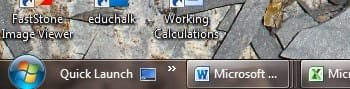
EXAMPLE: Default Windows 7 Taskbar
1441d1234757806-quick-launch-enable-disable-disabled.jpg


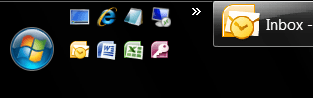
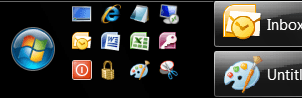
EXAMPLE: Quick Launch Enabled on Right Side of Taskbar
NOTE: This is the new Quick Launch toolbar with text and title, small icons, or large icons.
2048d1234327806-quick-launch-enable-disable-quick_launch_toolbar.jpg


4733d1234757607-quick-launch-enable-disable-small_quick_launch.jpg


4732d1234757607-quick-launch-enable-disable-large_quick_launch.jpg


EXAMPLE: Quick Launch Enabled on Left Side of Taskbar
NOTE: This is the new Quick Launch toolbar without text and title, and with small icons or large icons.

Right_Example-1.jpg

Right_Example-2.jpg


OPTION ONE

To Add Quick Launch to Taskbar


1. Right click on a empty space on the taskbar, then select (hover on) Taskbar and click on New Toolbar. (See screenshot below)
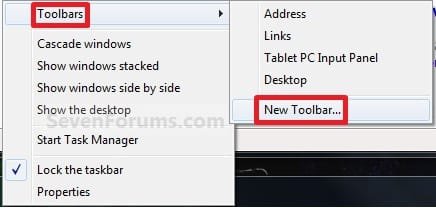
Right_Click_Taskbar.jpg
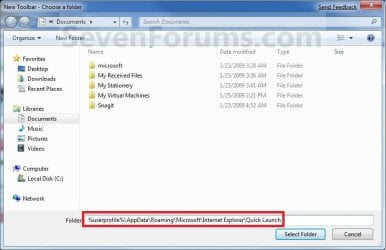
2. In the Folder line, type or copy the location below. (See screenshot below)
%userprofile%\AppData\Roaming\Microsoft\Internet Explorer\Quick Launch
Select_Folder.jpg
3. Click on the Select Folder button. (See screenshot above)

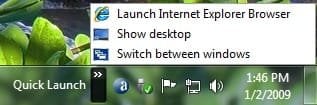
4. You now have a Quick Launch toolbar on the taskbar. (See screenshot below)
NOTE: Click on the arrow to see your Quick Launch shortcuts.
Quick_Launch_Toolbar.jpg
5. To Expand the Quick Launch Toolbar
A) Unlock the taskbar.

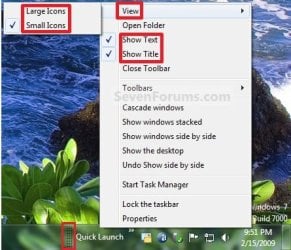
B) Left click and hold on the dotted separator line just to the left of Quick Launch, then drag it to the left or right to adjust to unhide all of the icons. Release the left click when done. (See screenshot below)
Right_Click_Toolbar.jpg
C) Lock the taskbar.
6. To Remove Quick Launch Toolbar Icon Text or Title
A) Unlock the taskbar.

B) Right click on the dotted separator line just to the left of Quick Launch, then uncheck the Show Text and Show Title by clicking on them. (See screenshot below step 5B)

C) Lock the taskbar.
7. To Have Small or Large Icons for Quick Launch Toolbar
A) Unlock the taskbar.

B) Right click on the dotted separator line just to the left of Quick Launch, then click on View and select to have Large Icons or Small Icons. (See screenshot below step 5B)

C) Lock the taskbar.
8. To Have Quick Launch Toolbar on Left Side of Taskbar
A) Unlock the taskbar.

B) Left click and hold on the dotted separator line just to the left of Quick Launch, then drag Quick Launch as far to the left on the taskbar as you are able to and release.

C) If you still have any pinned program icons to the left of Quick Launch, then left click and hold on the dotted separator line just to the left of the icons and hold, and drag it to the right past Quick Launch and release. (See screenshot below)

RightSide_1.jpg
D) The Quick Launch toolbar is now on the far left side of the taskbar. (See screenshot below)

RightSide_2.jpg
E) Left click and hold on the dotted separator line for the other icons and drag them left or right to make any adjustments to how you want them placed on the taskbar. (See screenshot above)

F) Lock the taskbar.


OPTION TWO

To Remove Quick Launch from Taskbar


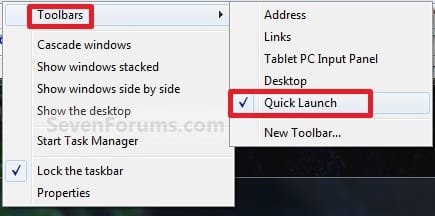
1. Right click on a empty space on the taskbar and click on Toolbars and Quick Launch to uncheck and remove it from the taskbar. (See screenshot below)
Remove.jpg
That's it,
Shawn


Attachments

  • Small_Quick_Launch.jpg
    Small_Quick_Launch.jpg
    8.5 KB · Views: 1,657,225
  • Large_Quick_Launch.jpg
    Large_Quick_Launch.jpg
    8.5 KB · Views: 1,656,917
  • Disabled.jpg
    Disabled.jpg
    9.3 KB · Views: 1,677,290
Last edited:
From where i can download the reg file for it can you give me the link for it mate appreciate it

Hello Simon,

Uh? :huh:

I think you may have posted in the wrong thread. :p
 
Last edited:

My Computer

Computer type
PC/Desktop
Computer Manufacturer/Model Number
Self built custom
OS
64-bit Windows 11 Pro for Workstations
CPU
Intel i7-8700K OC'd to 5 GHz
Motherboard
ASUS ROG Maximus XI Formula Z390
Memory
64 GB (4x16GB) G.SKILL TridentZ RGB DDR4 3600 MHz
Graphics Card(s)
ASUS ROG-STRIX-GTX1080TI-O11G-GAMING
Sound Card
Integrated
Monitor(s) Displays
2 x Samsung Odyssey G7 27"
Screen Resolution
2560x1440
Hard Drives
1TB Samsung 990 PRO M.2,
4TB Samsung 990 PRO PRO M.2,
TerraMaster F8 SSD Plus NAS
PSU
Seasonic Prime Titanium 850W
Case
Thermaltake Core P3
Cooling
Corsair Hydro H115i
Keyboard
Logitech wireless K800
Mouse
Logitech MX Master 4
Internet Speed
2 Gb/s Download and 100 Mb/s Upload
Antivirus
Malwarebyte Anti-Malware Premium
Browser
Google Chrome
Other Info
Logitech Z625 speaker system,
Logitech BRIO 4K Pro webcam,
HP Color LaserJet Pro MFP M477fdn,
APC SMART-UPS RT 1000 XL - SURT1000XLI,
Galaxy S23 Plus phone
no mate hahahahaha i am looking for the reg file for the quick launch bar i read the tutorial but everytime i need to go throuhg whole tutorial so thought to ask if got a reg file for it then it would be easy to install it
 

My Computer

Computer type
PC/Desktop
Computer Manufacturer/Model Number
Custom build
OS
Windows 7 Ultimate 64 Bit Sp1
CPU
Intel Quad Core Q9650
Motherboard
Asus P5G41T-MLX
Memory
Kingston DDR 3 8GB 1333 Mhz
Graphics Card(s)
Gigabyte 5450 1Gb DDR3
Sound Card
Mobo Built
Monitor(s) Displays
Dell 24 wm
Screen Resolution
1080 P
Hard Drives
2 Tb Sata Drive
PSU
Coolermatser GX750
Case
Cooler Master Casing
Cooling
Normal
LOL, oh ok. Sorry, but there wouldn't and couldn't be a REG file involved for this. You're basically just creating a folder with a Recycle Bin shortcut in it, then adding the folder as a toolbar to the taskbar. :)
 

My Computer

Computer type
PC/Desktop
Computer Manufacturer/Model Number
Self built custom
OS
64-bit Windows 11 Pro for Workstations
CPU
Intel i7-8700K OC'd to 5 GHz
Motherboard
ASUS ROG Maximus XI Formula Z390
Memory
64 GB (4x16GB) G.SKILL TridentZ RGB DDR4 3600 MHz
Graphics Card(s)
ASUS ROG-STRIX-GTX1080TI-O11G-GAMING
Sound Card
Integrated
Monitor(s) Displays
2 x Samsung Odyssey G7 27"
Screen Resolution
2560x1440
Hard Drives
1TB Samsung 990 PRO M.2,
4TB Samsung 990 PRO PRO M.2,
TerraMaster F8 SSD Plus NAS
PSU
Seasonic Prime Titanium 850W
Case
Thermaltake Core P3
Cooling
Corsair Hydro H115i
Keyboard
Logitech wireless K800
Mouse
Logitech MX Master 4
Internet Speed
2 Gb/s Download and 100 Mb/s Upload
Antivirus
Malwarebyte Anti-Malware Premium
Browser
Google Chrome
Other Info
Logitech Z625 speaker system,
Logitech BRIO 4K Pro webcam,
HP Color LaserJet Pro MFP M477fdn,
APC SMART-UPS RT 1000 XL - SURT1000XLI,
Galaxy S23 Plus phone
Got it! Now remove the label?

Thank you Brink for the original Tut on Quick Launch - Enable or Disable.

Got that and it is now on the left side of the Task Bar, great stuff - BUT, it retains its label at the left "Quick Launch" beside the Show Desktop icon.

How to get rid of that label?

Thanks in advance.
 

Attachments

  • QuickLaunchToolbar.jpg
    QuickLaunchToolbar.jpg
    17.1 KB · Views: 400

My Computer

Computer type
Laptop
Computer Manufacturer/Model Number
Acer 5745DG
OS
Microsoft Windows 7 Home Premium 64-bit 7601 Multiprocessor Free Service Pack 1
CPU
Intel(R) Core(TM) i3 CPU M 370 @ 2.40GHz
Motherboard
Acer ZR7D
Memory
4.00 GB
Graphics Card(s)
NVIDIA GeForce GT 425M
Sound Card
(1) High Definition Audio Device (2) NVIDIA High Definitio
Screen Resolution
1366 x 768 x 32 bits (4294967296 colors) @ 119 Hz
Hard Drives
WDC WD3200BEVT-22A23T0
3 partitions
S/N W -DXW167AM03248
Size 298.09 GB
Internet Speed
6690
Antivirus
Avast Pro
Browser
Firefox 28
Other Info
Sound:
Card 1 - Microsoft High Definition Audio Device
Card 2 - High Definition Audio Device
Card 3 - High Definition Audio Device
Card 4 - NVIDIA Virtual Audio Device (Wave Extensible) (WDM)
Card 5 - NVIDIA High Definition Audio
Card 6 - NVIDIA High Definition Audio
VideoController1 - NVIDIA GeForce GT 425M
Video Processor - GeForce GT 425M
Video Driver Version - 9.18.13.2723
Video Driv
You're most welcome muymalestado.

It looks like you just missed step 6 in OPTION ONE to remove it. :)
 

My Computer

Computer type
PC/Desktop
Computer Manufacturer/Model Number
Self built custom
OS
64-bit Windows 11 Pro for Workstations
CPU
Intel i7-8700K OC'd to 5 GHz
Motherboard
ASUS ROG Maximus XI Formula Z390
Memory
64 GB (4x16GB) G.SKILL TridentZ RGB DDR4 3600 MHz
Graphics Card(s)
ASUS ROG-STRIX-GTX1080TI-O11G-GAMING
Sound Card
Integrated
Monitor(s) Displays
2 x Samsung Odyssey G7 27"
Screen Resolution
2560x1440
Hard Drives
1TB Samsung 990 PRO M.2,
4TB Samsung 990 PRO PRO M.2,
TerraMaster F8 SSD Plus NAS
PSU
Seasonic Prime Titanium 850W
Case
Thermaltake Core P3
Cooling
Corsair Hydro H115i
Keyboard
Logitech wireless K800
Mouse
Logitech MX Master 4
Internet Speed
2 Gb/s Download and 100 Mb/s Upload
Antivirus
Malwarebyte Anti-Malware Premium
Browser
Google Chrome
Other Info
Logitech Z625 speaker system,
Logitech BRIO 4K Pro webcam,
HP Color LaserJet Pro MFP M477fdn,
APC SMART-UPS RT 1000 XL - SURT1000XLI,
Galaxy S23 Plus phone
Duh! RTFT, eh?
 

My Computer

Computer type
Laptop
Computer Manufacturer/Model Number
Acer 5745DG
OS
Microsoft Windows 7 Home Premium 64-bit 7601 Multiprocessor Free Service Pack 1
CPU
Intel(R) Core(TM) i3 CPU M 370 @ 2.40GHz
Motherboard
Acer ZR7D
Memory
4.00 GB
Graphics Card(s)
NVIDIA GeForce GT 425M
Sound Card
(1) High Definition Audio Device (2) NVIDIA High Definitio
Screen Resolution
1366 x 768 x 32 bits (4294967296 colors) @ 119 Hz
Hard Drives
WDC WD3200BEVT-22A23T0
3 partitions
S/N W -DXW167AM03248
Size 298.09 GB
Internet Speed
6690
Antivirus
Avast Pro
Browser
Firefox 28
Other Info
Sound:
Card 1 - Microsoft High Definition Audio Device
Card 2 - High Definition Audio Device
Card 3 - High Definition Audio Device
Card 4 - NVIDIA Virtual Audio Device (Wave Extensible) (WDM)
Card 5 - NVIDIA High Definition Audio
Card 6 - NVIDIA High Definition Audio
VideoController1 - NVIDIA GeForce GT 425M
Video Processor - GeForce GT 425M
Video Driver Version - 9.18.13.2723
Video Driv
LOL
 

My Computer

Computer type
PC/Desktop
Computer Manufacturer/Model Number
Self built custom
OS
64-bit Windows 11 Pro for Workstations
CPU
Intel i7-8700K OC'd to 5 GHz
Motherboard
ASUS ROG Maximus XI Formula Z390
Memory
64 GB (4x16GB) G.SKILL TridentZ RGB DDR4 3600 MHz
Graphics Card(s)
ASUS ROG-STRIX-GTX1080TI-O11G-GAMING
Sound Card
Integrated
Monitor(s) Displays
2 x Samsung Odyssey G7 27"
Screen Resolution
2560x1440
Hard Drives
1TB Samsung 990 PRO M.2,
4TB Samsung 990 PRO PRO M.2,
TerraMaster F8 SSD Plus NAS
PSU
Seasonic Prime Titanium 850W
Case
Thermaltake Core P3
Cooling
Corsair Hydro H115i
Keyboard
Logitech wireless K800
Mouse
Logitech MX Master 4
Internet Speed
2 Gb/s Download and 100 Mb/s Upload
Antivirus
Malwarebyte Anti-Malware Premium
Browser
Google Chrome
Other Info
Logitech Z625 speaker system,
Logitech BRIO 4K Pro webcam,
HP Color LaserJet Pro MFP M477fdn,
APC SMART-UPS RT 1000 XL - SURT1000XLI,
Galaxy S23 Plus phone
Quick Launch icon vertical spacing and keeping it there

I have my taskbar setup to double height of normal, quick launch (QL) bar on the left hand side of the screen, small icons with no text in QL. When I reboot my computer, Windows displays two (2) rows of QL icons, followed by some double arrows that I can click on which brings up a list box with my other shortcuts. When I unlock the taskbar, and quickly drag it to the top of the screen and then back down to the bottom, Windows displays three (3) rows of icons. How do I get Windows to consitently display three (3) rows of icons in the quick launch bar without me having to unlock and move to and from every time I reboot?
 

Attachments

  • 2rows.png
    2rows.png
    18.2 KB · Views: 658
  • 3rows.png
    3rows.png
    25.3 KB · Views: 641

My Computer

OS
Windows 7 Enterprise x64 SP1
Hello Michael, and welcome to Seven Forums.

I've been playing with this, and I can't even get it to show 3 rows in QL with the taskbar set to double height. Only if the taskbar was set to triple height. :confused:

If you like, a workaround would be to unlock the taskbar, drag the dotted line separator to the right of QL over to the right just a bit until all small icons in QL show without the expansion double arrow, then lock the taskbar.
 

My Computer

Computer type
PC/Desktop
Computer Manufacturer/Model Number
Self built custom
OS
64-bit Windows 11 Pro for Workstations
CPU
Intel i7-8700K OC'd to 5 GHz
Motherboard
ASUS ROG Maximus XI Formula Z390
Memory
64 GB (4x16GB) G.SKILL TridentZ RGB DDR4 3600 MHz
Graphics Card(s)
ASUS ROG-STRIX-GTX1080TI-O11G-GAMING
Sound Card
Integrated
Monitor(s) Displays
2 x Samsung Odyssey G7 27"
Screen Resolution
2560x1440
Hard Drives
1TB Samsung 990 PRO M.2,
4TB Samsung 990 PRO PRO M.2,
TerraMaster F8 SSD Plus NAS
PSU
Seasonic Prime Titanium 850W
Case
Thermaltake Core P3
Cooling
Corsair Hydro H115i
Keyboard
Logitech wireless K800
Mouse
Logitech MX Master 4
Internet Speed
2 Gb/s Download and 100 Mb/s Upload
Antivirus
Malwarebyte Anti-Malware Premium
Browser
Google Chrome
Other Info
Logitech Z625 speaker system,
Logitech BRIO 4K Pro webcam,
HP Color LaserJet Pro MFP M477fdn,
APC SMART-UPS RT 1000 XL - SURT1000XLI,
Galaxy S23 Plus phone
My specs if it helps

Screen Resolution: 1280 x 1024

Custom DPI Setting: 125% 9 point Segoe UI at 120 pixels per inch using Windows XP style DPI scaling

Window Color and Appearance:
Caption Buttons - Size: 26
Icon - Size: 32
Icon Spacing (Horizontal) - Size: 62
Icon Spacing (Vertical) - Size: 55

I DO use Aero, not a basic theme.

I just do not understand why it will not show me the three rows until I move the bar around. If it displays it this way once, I should always be able to display it this way.

I have tried holding the shift key down when re-booting, no luck.
 

My Computer

OS
Windows 7 Enterprise x64 SP1
I Registered Just to post how much I like this. I often have 4 or 5 firefox browsers running and need a new one. IE sometimes too. When they are pinned it makes it hard to launch a new browser I have to open the start menu and go to programs and launch a new one. This is nice now I can launch a new one off the taskbar and that is very convenient. For those who can't figure out why this would be a good idea that is why. if you have 10 tabs open in a browser it is better to open a new one rather than have a hundred tabs better to have 10 browsers. Pinning is ok for single use apps in fact is sometimes convenient to have a program on pinned so you can close it easier. I like having both plus taskbar has nice windows switch and show desktop.
 

My Computer

Computer Manufacturer/Model Number
Homemade
OS
win7u 64
CPU
AMD x2
Motherboard
Gigabyte
Memory
4g
Graphics Card(s)
ati-built in
Sound Card
realtec-builtin
Monitor(s) Displays
crt like old school
Hard Drives
1.5Tb + 500Gb
PSU
POS 400mhz
Case
emachine t3642
Cooling
My Biggest Fan
How to Create shortcut of Local Area Connection in Windows 7

I was having difficult time to sort out how to create a shortcut of Local Area Connection in the Start bar or in the toolbar ,there is no option when right click the local area connection to create shortcut ,only option was there is to create a shortcut to desktop but not in toolbar .But this Quick Launch this has just sorted it out so easily .Now i don't have to go into the Network and Sharing Center and click on Change Adapter Settings and then Local Area Connection to enable it, Now i can enable it here with one two clicks away .Thank You
 

My Computer

OS
Windows 7 32 Bit
Thank you .I was looking for this but it goes after some days and i have to do this thing all over again.
 

My Computer

OS
Windows 7 32 Bit
Hello Shivam,

Double check to see if the items in the yellow tip box at the top of the tutorial may be able to help with this for now. :)
 

My Computer

Computer type
PC/Desktop
Computer Manufacturer/Model Number
Self built custom
OS
64-bit Windows 11 Pro for Workstations
CPU
Intel i7-8700K OC'd to 5 GHz
Motherboard
ASUS ROG Maximus XI Formula Z390
Memory
64 GB (4x16GB) G.SKILL TridentZ RGB DDR4 3600 MHz
Graphics Card(s)
ASUS ROG-STRIX-GTX1080TI-O11G-GAMING
Sound Card
Integrated
Monitor(s) Displays
2 x Samsung Odyssey G7 27"
Screen Resolution
2560x1440
Hard Drives
1TB Samsung 990 PRO M.2,
4TB Samsung 990 PRO PRO M.2,
TerraMaster F8 SSD Plus NAS
PSU
Seasonic Prime Titanium 850W
Case
Thermaltake Core P3
Cooling
Corsair Hydro H115i
Keyboard
Logitech wireless K800
Mouse
Logitech MX Master 4
Internet Speed
2 Gb/s Download and 100 Mb/s Upload
Antivirus
Malwarebyte Anti-Malware Premium
Browser
Google Chrome
Other Info
Logitech Z625 speaker system,
Logitech BRIO 4K Pro webcam,
HP Color LaserJet Pro MFP M477fdn,
APC SMART-UPS RT 1000 XL - SURT1000XLI,
Galaxy S23 Plus phone
Option 3 :Thank you very very much,good job!
 

My Computer

Computer type
PC/Desktop
OS
Win7 Ultimate/X84
CPU
Intel Celeron 336/2.8Ghz
Motherboard
MS-7592
Memory
DDR3/2GB
Hard Drives
ATA-100/160GB
Browser
FirefoX
Hi boys.... i continue to have problems whit quicklaunch disappering after random reboot!
I have downdload the Hotfix from link but when i try to install i obtain an error says "It's not applicable" and i need to understand and resolve this problems :(

I have create a folder on C:\..... called "AAARapidi". I have add to Taskbar and i have pinned and all it's correctly but after some random reboot the quicklauch it's disappering whitout any error!!

Please help........... i have windows 7 x64 whit all windows update............. there's exist some registry voice to add or other similar tweak to my system to fix this problems ??
 

My Computer

Computer type
PC/Desktop
OS
Windows 7 X64
Hello DjDiabolik, :)

Have you already tried everything in the yellow tip box at the top of the tutorial to see if it may help?
 

My Computer

Computer type
PC/Desktop
Computer Manufacturer/Model Number
Self built custom
OS
64-bit Windows 11 Pro for Workstations
CPU
Intel i7-8700K OC'd to 5 GHz
Motherboard
ASUS ROG Maximus XI Formula Z390
Memory
64 GB (4x16GB) G.SKILL TridentZ RGB DDR4 3600 MHz
Graphics Card(s)
ASUS ROG-STRIX-GTX1080TI-O11G-GAMING
Sound Card
Integrated
Monitor(s) Displays
2 x Samsung Odyssey G7 27"
Screen Resolution
2560x1440
Hard Drives
1TB Samsung 990 PRO M.2,
4TB Samsung 990 PRO PRO M.2,
TerraMaster F8 SSD Plus NAS
PSU
Seasonic Prime Titanium 850W
Case
Thermaltake Core P3
Cooling
Corsair Hydro H115i
Keyboard
Logitech wireless K800
Mouse
Logitech MX Master 4
Internet Speed
2 Gb/s Download and 100 Mb/s Upload
Antivirus
Malwarebyte Anti-Malware Premium
Browser
Google Chrome
Other Info
Logitech Z625 speaker system,
Logitech BRIO 4K Pro webcam,
HP Color LaserJet Pro MFP M477fdn,
APC SMART-UPS RT 1000 XL - SURT1000XLI,
Galaxy S23 Plus phone
Hello DjDiabolik, :)

Have you already tried everything in the yellow tip box at the top of the tutorial to see if it may help?
Yes... and in some cases no because i don't have understand the exactly procedure...


Otherwise - Point One - The HotFix:
I have tryed to download and tryed to install but i obtain a errors says "it's not applicable"

Point Two - Save my current theme:
I have save my theme and i have now a file called "Diabolik.theme":
Code:
; Copyright © Microsoft Corp.

[Theme]
; Windows 7 - IDS_THEME_DISPLAYNAME_AERO
DisplayName=Diabolik

; Computer - SHIDI_SERVER
[CLSID\{20D04FE0-3AEA-1069-A2D8-08002B30309D}\DefaultIcon]
DefaultValue=%SystemRoot%\System32\imageres.dll,-109

; UsersFiles - SHIDI_USERFILES
[CLSID\{59031A47-3F72-44A7-89C5-5595FE6B30EE}\DefaultIcon]
DefaultValue=%SystemRoot%\System32\imageres.dll,-123

; Network - SHIDI_MYNETWORK
[CLSID\{F02C1A0D-BE21-4350-88B0-7367FC96EF3C}\DefaultIcon]
DefaultValue=%SystemRoot%\System32\imageres.dll,-25

; Recycle Bin - SHIDI_RECYCLERFULL SHIDI_RECYCLER
[CLSID\{645FF040-5081-101B-9F08-00AA002F954E}\DefaultIcon]
Full=%SystemRoot%\System32\imageres.dll,-54
Empty=%SystemRoot%\System32\imageres.dll,-55

[Control Panel\Cursors]
AppStarting=
Arrow=
Crosshair=
Hand=
Help=
IBeam=
No=
NWPen=
SizeAll=
SizeNESW=
SizeNS=
SizeNWSE=
SizeWE=
UpArrow=
Wait=
DefaultValue=
Link=

[Control Panel\Desktop]
Wallpaper=%SystemRoot%\Web\Wallpaper\Windows\img1.jpg
TileWallpaper=0
WallpaperStyle=10
Pattern=

[VisualStyles]
Path=%SystemRoot%\resources\themes\Aero\Aero.msstyles
ColorStyle=NormalColor
Size=NormalSize
ColorizationColor=0X6B74B8FC
Transparency=1
Composition=1
VisualStyleVersion=10

[boot]
SCRNSAVE.EXE=

[MasterThemeSelector]
MTSM=DABJDKT

[Sounds]
; IDS_SCHEME_DEFAULT
SchemeName=Predefiniti di Windows
Apparently whit and whitout the additional quicklaunch activated/added the files it's not changed.... otherwise it's not help me to resolve this issue.

Point three - 32bit OS - Disable UAC:
I have Windows 7 X64 but i also disable UAC otherwise... no help me

Point four - i quote:
Code:
Open the hidden [B]Quick Launch[/B] folder in the NOTE box above, then right click in the folder and click on [B]New [/B]and[B] Shortcut[/B] to add a shortcut into Quick Launch instead.
I don't have understand how i need to do...... open the quicklaunch folder in the NOTE.. ok i reach the folder. Inside of this i can watch a hidden folder called "User Pinned"........ i need to create inside this folder a new shortcut to same exaxt folder ? It's right ? And after this ?

The next point - i quote:
Code:
Create a new folder, copy the shortcuts in the Quick Launch folder above into the new folder, then [URL="http://www.sevenforums.com/tutorials/9305-taskbar-pin-unpin-folder.html"][B][U]pin the new folder to the taskbar[/U][/B][/URL] instead just like the Quick Launch folder here.
It's a second parts of Precedent point ?? I don't have undestand ? how i need to create a new folder ? And the quick launch shortcut it's the same shortcut created on Point four ? I don't have understand this parts..........

The last point - Speak again about fix.......... i already explain i can't apply......
 

My Computer

Computer type
PC/Desktop
OS
Windows 7 X64
It's unbelievable..... after i post here i'm go to sleep.................. now i'm back and i turn on my pc and.................... BOOM... quicklaunch it's gone!
It's very frustrating this stupid bug.....................and:

My previous "saved" themes it's correctly loaded but no quicklauch it's apparing........


*EDIT*
Otherwise... if i can't use the quicklaunch... it's possibly to make/create a menù inside the Main "Start Menu" ???
Now i have "pinned" a folder contain all app........ but it's possibly to create a multi choice menù ?
 
Last edited:

My Computer

Computer type
PC/Desktop
OS
Windows 7 X64
Point four - i quote:
Code:
Open the hidden [B]Quick Launch[/B] folder in the NOTE box above, then right click in the folder and click on [B]New [/B]and[B] Shortcut[/B] to add a shortcut into Quick Launch instead.
I don't have understand how i need to do...... open the quicklaunch folder in the NOTE.. ok i reach the folder. Inside of this i can watch a hidden folder called "User Pinned"........ i need to create inside this folder a new shortcut to same exaxt folder ? It's right ? And after this ?

This would be to create the shortcut directly in the Quick Launch folder instead of dragging and dropping item on Quick Launch on the taskbar.


The next point - i quote:
Code:
Create a new folder, copy the shortcuts in the Quick Launch folder above into the new folder, then [URL="http://www.sevenforums.com/tutorials/9305-taskbar-pin-unpin-folder.html"][B][U]pin the new folder to the taskbar[/U][/B][/URL] instead just like the Quick Launch folder here.
It's a second parts of Precedent point ?? I don't have undestand ? how i need to create a new folder ? And the quick launch shortcut it's the same shortcut created on Point four ? I don't have understand this parts..........

The last point - Speak again about fix.......... i already explain i can't apply......

This is to create a new folder where you like, create shortcuts you want in this new folder, then pin the folder to your taskbar to use instead of Quick Launch. The tutorial link in that point will show you how to pin a folder to the taskbar.
 

My Computer

Computer type
PC/Desktop
Computer Manufacturer/Model Number
Self built custom
OS
64-bit Windows 11 Pro for Workstations
CPU
Intel i7-8700K OC'd to 5 GHz
Motherboard
ASUS ROG Maximus XI Formula Z390
Memory
64 GB (4x16GB) G.SKILL TridentZ RGB DDR4 3600 MHz
Graphics Card(s)
ASUS ROG-STRIX-GTX1080TI-O11G-GAMING
Sound Card
Integrated
Monitor(s) Displays
2 x Samsung Odyssey G7 27"
Screen Resolution
2560x1440
Hard Drives
1TB Samsung 990 PRO M.2,
4TB Samsung 990 PRO PRO M.2,
TerraMaster F8 SSD Plus NAS
PSU
Seasonic Prime Titanium 850W
Case
Thermaltake Core P3
Cooling
Corsair Hydro H115i
Keyboard
Logitech wireless K800
Mouse
Logitech MX Master 4
Internet Speed
2 Gb/s Download and 100 Mb/s Upload
Antivirus
Malwarebyte Anti-Malware Premium
Browser
Google Chrome
Other Info
Logitech Z625 speaker system,
Logitech BRIO 4K Pro webcam,
HP Color LaserJet Pro MFP M477fdn,
APC SMART-UPS RT 1000 XL - SURT1000XLI,
Galaxy S23 Plus phone
Back
Top