
Quick Launch - Enable or Disable

How to Enable or Disable Quick Launch in Windows 7

   Information
By default Quick Launch is disabled in Windows 7. This will show you how to enable or disable Quick Launch as a taskbar toolbar using small or large icons in Windows 7.

   Note
Quick Launch is a toolbar on the taskbar. Quick Launch is used to open a program quickly from a shortcut from within it separate from the pinned programs on the taskbar.

The Quick Launch folder is located at the hidden system folder location below to add shortcuts to.

C:\Users\(user-name)\AppData\Roaming\Microsoft\Internet Explorer\Quick Launch

   Tip
Microsoft has made available a hotfix that will resolve a problem where the taskbar customizations are lost and reset to defaults when automatic logon is enabled in Windows 7 and Windows Server 2008 R2. More details are available at FIX: The Taskbar is reset to the default settings when you use the "Automatically Log On" feature in Windows 7 and in Windows Server 2008 R2.


If you still have the issue of where the pinned Quick Launch used in this tutorial disappears on you after logging off and on or restarting the computer, then a workaround for this issue is to either:
EXAMPLE: Default Windows 7 Taskbar
1441d1234757806-quick-launch-enable-disable-disabled.jpg


EXAMPLE: Quick Launch Enabled on Right Side of Taskbar
NOTE: This is the new Quick Launch toolbar with text and title, small icons, or large icons.
2048d1234327806-quick-launch-enable-disable-quick_launch_toolbar.jpg


4733d1234757607-quick-launch-enable-disable-small_quick_launch.jpg


4732d1234757607-quick-launch-enable-disable-large_quick_launch.jpg


EXAMPLE: Quick Launch Enabled on Left Side of Taskbar
NOTE: This is the new Quick Launch toolbar without text and title, and with small icons or large icons.

Right_Example-1.jpg

Right_Example-2.jpg


OPTION ONE

To Add Quick Launch to Taskbar


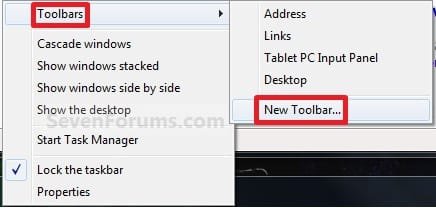
1. Right click on a empty space on the taskbar, then select (hover on) Taskbar and click on New Toolbar. (See screenshot below)
Right_Click_Taskbar.jpg
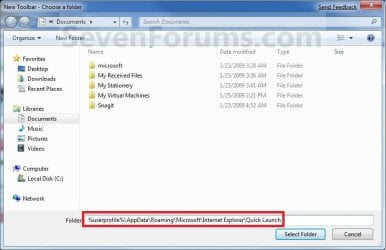
2. In the Folder line, type or copy the location below. (See screenshot below)
%userprofile%\AppData\Roaming\Microsoft\Internet Explorer\Quick Launch
Select_Folder.jpg
3. Click on the Select Folder button. (See screenshot above)

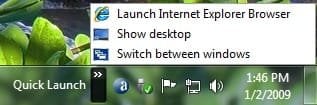
4. You now have a Quick Launch toolbar on the taskbar. (See screenshot below)
NOTE: Click on the arrow to see your Quick Launch shortcuts.
Quick_Launch_Toolbar.jpg
5. To Expand the Quick Launch Toolbar
A) Unlock the taskbar.

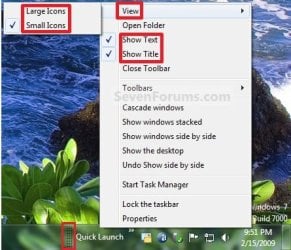
B) Left click and hold on the dotted separator line just to the left of Quick Launch, then drag it to the left or right to adjust to unhide all of the icons. Release the left click when done. (See screenshot below)
Right_Click_Toolbar.jpg
C) Lock the taskbar.
6. To Remove Quick Launch Toolbar Icon Text or Title
A) Unlock the taskbar.

B) Right click on the dotted separator line just to the left of Quick Launch, then uncheck the Show Text and Show Title by clicking on them. (See screenshot below step 5B)

C) Lock the taskbar.
7. To Have Small or Large Icons for Quick Launch Toolbar
A) Unlock the taskbar.

B) Right click on the dotted separator line just to the left of Quick Launch, then click on View and select to have Large Icons or Small Icons. (See screenshot below step 5B)

C) Lock the taskbar.
8. To Have Quick Launch Toolbar on Left Side of Taskbar
A) Unlock the taskbar.

B) Left click and hold on the dotted separator line just to the left of Quick Launch, then drag Quick Launch as far to the left on the taskbar as you are able to and release.

C) If you still have any pinned program icons to the left of Quick Launch, then left click and hold on the dotted separator line just to the left of the icons and hold, and drag it to the right past Quick Launch and release. (See screenshot below)

RightSide_1.jpg
D) The Quick Launch toolbar is now on the far left side of the taskbar. (See screenshot below)

RightSide_2.jpg
E) Left click and hold on the dotted separator line for the other icons and drag them left or right to make any adjustments to how you want them placed on the taskbar. (See screenshot above)

F) Lock the taskbar.


OPTION TWO

To Remove Quick Launch from Taskbar


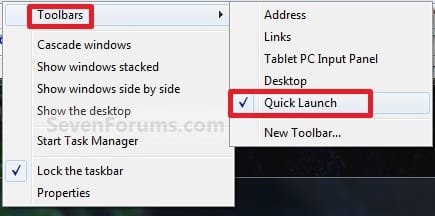
1. Right click on a empty space on the taskbar and click on Toolbars and Quick Launch to uncheck and remove it from the taskbar. (See screenshot below)
Remove.jpg
That's it,
Shawn


Attachments

  • Disabled.jpg
    Disabled.jpg
    9.3 KB · Views: 1,677,290
  • Large_Quick_Launch.jpg
    Large_Quick_Launch.jpg
    8.5 KB · Views: 1,656,917
  • Small_Quick_Launch.jpg
    Small_Quick_Launch.jpg
    8.5 KB · Views: 1,657,225
Last edited:
Point four - i quote:
Code:
Open the hidden [B]Quick Launch[/B] folder in the NOTE box above, then right click in the folder and click on [B]New [/B]and[B] Shortcut[/B] to add a shortcut into Quick Launch instead.
I don't have understand how i need to do...... open the quicklaunch folder in the NOTE.. ok i reach the folder. Inside of this i can watch a hidden folder called "User Pinned"........ i need to create inside this folder a new shortcut to same exaxt folder ? It's right ? And after this ?

This would be to create the shortcut directly in the Quick Launch folder instead of dragging and dropping item on Quick Launch on the taskbar.


The next point - i quote:
Code:
Create a new folder, copy the shortcuts in the Quick Launch folder above into the new folder, then [URL="http://www.sevenforums.com/tutorials/9305-taskbar-pin-unpin-folder.html"][B][U]pin the new folder to the taskbar[/U][/B][/URL] instead just like the Quick Launch folder here.
It's a second parts of Precedent point ?? I don't have undestand ? how i need to create a new folder ? And the quick launch shortcut it's the same shortcut created on Point four ? I don't have understand this parts..........

The last point - Speak again about fix.......... i already explain i can't apply......

This is to create a new folder where you like, create shortcuts you want in this new folder, then pin the folder to your taskbar to use instead of Quick Launch. The tutorial link in that point will show you how to pin a folder to the taskbar.


Ah ok... i understand this workaround but it's not the same result at the end :)
 

My Computer

Computer type
PC/Desktop
OS
Windows 7 X64
Yeah, it's only a workaround and not quite the same as Quick Launch, but both are essentially a toolbar on the taskbar.
 

My Computer

Computer type
PC/Desktop
Computer Manufacturer/Model Number
Self built custom
OS
64-bit Windows 11 Pro for Workstations
CPU
Intel i7-8700K OC'd to 5 GHz
Motherboard
ASUS ROG Maximus XI Formula Z390
Memory
64 GB (4x16GB) G.SKILL TridentZ RGB DDR4 3600 MHz
Graphics Card(s)
ASUS ROG-STRIX-GTX1080TI-O11G-GAMING
Sound Card
Integrated
Monitor(s) Displays
2 x Samsung Odyssey G7 27"
Screen Resolution
2560x1440
Hard Drives
1TB Samsung 990 PRO M.2,
4TB Samsung 990 PRO PRO M.2,
TerraMaster F8 SSD Plus NAS
PSU
Seasonic Prime Titanium 850W
Case
Thermaltake Core P3
Cooling
Corsair Hydro H115i
Keyboard
Logitech wireless K800
Mouse
Logitech MX Master 4
Internet Speed
2 Gb/s Download and 100 Mb/s Upload
Antivirus
Malwarebyte Anti-Malware Premium
Browser
Google Chrome
Other Info
Logitech Z625 speaker system,
Logitech BRIO 4K Pro webcam,
HP Color LaserJet Pro MFP M477fdn,
APC SMART-UPS RT 1000 XL - SURT1000XLI,
Galaxy S23 Plus phone
Yeah, it's only a workaround and not quite the same as Quick Launch, but both are essentially a toolbar on the taskbar.
mmmmmmmm.... you can know if it's possible to create a multichoice folder on main start menu ?

For now i have pinned this "folder" on my start menu... here the screenshot:
j9nIzUX.png


But if it's possible to create a multichoice folder i thinks it's a great feature.......... apparently here it's no possibly to obtain but it's possible to obtain this only if i create a folder in "All Programs" section.....


Otherwise after some search over internet and also in other italian forum i have found a registry value when it's this "Quick Launch" toolbars it's been stored.

I have exported this section of my registry:
Code:
Windows Registry Editor Version 5.00

[HKEY_CURRENT_USER\Software\Microsoft\Windows\CurrentVersion\Explorer\Streams\Desktop]
"TaskbarWinXP"=hex:0c,00,00,00,08,00,00,00,02,00,00,00,00,00,00,00,b0,e2,2b,d8,\
  64,57,d0,11,a9,6e,00,c0,4f,d7,05,a2,22,00,1c,00,0a,10,00,00,01,00,00,00,01,\
  00,00,00,00,00,00,00,00,00,00,00,00,00,00,00,4c,00,00,00,01,14,02,00,00,00,\
  00,00,c0,00,00,00,00,00,00,46,81,01,00,00,11,00,00,00,70,58,76,b2,9a,28,d1,\
  01,e0,4d,4f,c1,7e,ab,d1,01,e0,4d,4f,c1,7e,ab,d1,01,00,10,00,00,00,00,00,00,\
  01,00,00,00,00,00,00,00,00,00,00,00,00,00,00,00,87,00,14,00,1f,50,e0,4f,d0,\
  20,ea,3a,69,10,a2,d8,08,00,2b,30,30,9d,19,00,2f,43,3a,5c,00,00,00,00,00,00,\
  00,00,00,00,00,00,00,00,00,00,00,00,00,58,00,31,00,00,00,00,00,ab,48,e4,61,\
  11,00,41,41,41,52,41,50,7e,31,00,00,40,00,08,00,04,00,ef,be,7a,47,63,b4,ab,\
  48,e4,61,2a,00,00,00,fe,09,03,00,00,00,56,00,00,00,00,00,00,00,00,00,00,00,\
  00,00,00,00,41,00,41,00,41,00,52,00,61,00,70,00,69,00,64,00,69,00,00,00,18,\
  00,00,00,60,00,00,00,03,00,00,a0,58,00,00,00,00,00,00,00,64,69,61,62,6f,6c,\
  69,6b,2d,73,65,76,65,6e,00,00,a2,7d,6a,21,35,37,ae,44,a5,72,08,88,c5,b7,a4,\
  84,1d,b5,03,63,36,94,e5,11,b1,2f,90,e6,ba,dc,8e,cf,a2,7d,6a,21,35,37,ae,44,\
  a5,72,08,88,c5,b7,a4,84,1d,b5,03,63,36,94,e5,11,b1,2f,90,e6,ba,dc,8e,cf,00,\
  00,00,00,b6,00,00,00,40,07,00,00,00,00,00,00,1e,00,00,00,00,00,00,00,00,00,\
  00,00,28,00,00,00,00,00,00,00,01,00,00,00,01,00,00,00,aa,4f,28,68,48,6a,d0,\
  11,8c,78,00,c0,4f,d9,18,b4,74,04,00,00,40,0d,00,00,00,00,00,00,28,00,00,00,\
  00,00,00,00,00,00,00,00,28,00,00,00,00,00,00,00,01,00,00,00

Apparently after X days this value it's disappering itself from registry and the quicklaunch disappears.
When it's append i can now re-add this .reg files but i need also after to kill the explorer.exe process and immediatelly relaunch it and the quick lauch toolbars reappears.
I thinks it's impossible to know because this value it's disappering and how i know if this appening in shutdown procedure on during the login operation...............
 

My Computer

Computer type
PC/Desktop
OS
Windows 7 X64

My Computer

Computer type
PC/Desktop
Computer Manufacturer/Model Number
Self built custom
OS
64-bit Windows 11 Pro for Workstations
CPU
Intel i7-8700K OC'd to 5 GHz
Motherboard
ASUS ROG Maximus XI Formula Z390
Memory
64 GB (4x16GB) G.SKILL TridentZ RGB DDR4 3600 MHz
Graphics Card(s)
ASUS ROG-STRIX-GTX1080TI-O11G-GAMING
Sound Card
Integrated
Monitor(s) Displays
2 x Samsung Odyssey G7 27"
Screen Resolution
2560x1440
Hard Drives
1TB Samsung 990 PRO M.2,
4TB Samsung 990 PRO PRO M.2,
TerraMaster F8 SSD Plus NAS
PSU
Seasonic Prime Titanium 850W
Case
Thermaltake Core P3
Cooling
Corsair Hydro H115i
Keyboard
Logitech wireless K800
Mouse
Logitech MX Master 4
Internet Speed
2 Gb/s Download and 100 Mb/s Upload
Antivirus
Malwarebyte Anti-Malware Premium
Browser
Google Chrome
Other Info
Logitech Z625 speaker system,
Logitech BRIO 4K Pro webcam,
HP Color LaserJet Pro MFP M477fdn,
APC SMART-UPS RT 1000 XL - SURT1000XLI,
Galaxy S23 Plus phone
WOW!! I have some another workaround!! I have created this... look my "NEW" start menu:
RIDENhO.png


I have used this:
Client

After that i have pinned the APP on StartMenu........ launched the APP and created all link for my prefer app and save it!

At the end........ i follow this guide:
http://www.sevenforums.com/tutorials/9305-taskbar-pin-unpin-folder.html

And i have changed the ICON and the name for obtain what you can watch from screenshot!
 

My Computer

Computer type
PC/Desktop
OS
Windows 7 X64
It is a nuisance when the Quick Launch bar disappears and pinning on the taskbar is not a good alternative, since there the icons a bigger and with more distance between so that they occupy a lot more space.
The hotfix KB979155 is supposed to remedy this but apparently only installs in Windows 7 "SP0" and not SP1...
Is there any trick to get it installed in SP1?

However, I have another solution:
Microsoft informs: "When you restart the computer, any customizations that you
made to the Taskbar are lost and the Taskbar is reset to its default settings. ... This problem occurs
because of a race condition between Windows Explorer and Taskhost.exe.”
So I use Startup Delayer to delay the start of taskhost.exe by 40 seconds. So far, it has not happened again.
 

My Computer

Computer type
PC/Desktop
Computer Manufacturer/Model Number
Acer
OS
Windows Ultimate SP1
What I have in mind could be to install the hotfix from the cab file in the expanded msu file. Can that be done? How? I would like to give it a try...
 

My Computer

Computer type
PC/Desktop
Computer Manufacturer/Model Number
Acer
OS
Windows Ultimate SP1
Last edited:

My Computer

Computer type
PC/Desktop
Computer Manufacturer/Model Number
Self built custom
OS
64-bit Windows 11 Pro for Workstations
CPU
Intel i7-8700K OC'd to 5 GHz
Motherboard
ASUS ROG Maximus XI Formula Z390
Memory
64 GB (4x16GB) G.SKILL TridentZ RGB DDR4 3600 MHz
Graphics Card(s)
ASUS ROG-STRIX-GTX1080TI-O11G-GAMING
Sound Card
Integrated
Monitor(s) Displays
2 x Samsung Odyssey G7 27"
Screen Resolution
2560x1440
Hard Drives
1TB Samsung 990 PRO M.2,
4TB Samsung 990 PRO PRO M.2,
TerraMaster F8 SSD Plus NAS
PSU
Seasonic Prime Titanium 850W
Case
Thermaltake Core P3
Cooling
Corsair Hydro H115i
Keyboard
Logitech wireless K800
Mouse
Logitech MX Master 4
Internet Speed
2 Gb/s Download and 100 Mb/s Upload
Antivirus
Malwarebyte Anti-Malware Premium
Browser
Google Chrome
Other Info
Logitech Z625 speaker system,
Logitech BRIO 4K Pro webcam,
HP Color LaserJet Pro MFP M477fdn,
APC SMART-UPS RT 1000 XL - SURT1000XLI,
Galaxy S23 Plus phone
Sure - if only the msu file would install in Win7 SP1......
But it does not, see above. Apparently only in "SP0"
That is why I would like to use the cab file as a workaround.
Thanks for the link!
 

My Computer

Computer type
PC/Desktop
Computer Manufacturer/Model Number
Acer
OS
Windows Ultimate SP1
Quick Launch enable where is Method 3

Cannot find an Option or Method 3 for enabling Quick Launch. Other method does not work now - Windows refuses to allow the characters in the suggested copy and paste text.
 

My Computer

Computer type
PC/Desktop
Computer Manufacturer/Model Number
Mesh
OS
Windows 7 Home Premium Upgrade designed for Windows Vista
Browser
Internet Explorer
Hello Windy, :)

There's not an Option 3 in the tutorial.

Were you not able to copy and paste the path in step 2 of Option 1 to create a Quick Launch toolbar?
 

My Computer

Computer type
PC/Desktop
Computer Manufacturer/Model Number
Self built custom
OS
64-bit Windows 11 Pro for Workstations
CPU
Intel i7-8700K OC'd to 5 GHz
Motherboard
ASUS ROG Maximus XI Formula Z390
Memory
64 GB (4x16GB) G.SKILL TridentZ RGB DDR4 3600 MHz
Graphics Card(s)
ASUS ROG-STRIX-GTX1080TI-O11G-GAMING
Sound Card
Integrated
Monitor(s) Displays
2 x Samsung Odyssey G7 27"
Screen Resolution
2560x1440
Hard Drives
1TB Samsung 990 PRO M.2,
4TB Samsung 990 PRO PRO M.2,
TerraMaster F8 SSD Plus NAS
PSU
Seasonic Prime Titanium 850W
Case
Thermaltake Core P3
Cooling
Corsair Hydro H115i
Keyboard
Logitech wireless K800
Mouse
Logitech MX Master 4
Internet Speed
2 Gb/s Download and 100 Mb/s Upload
Antivirus
Malwarebyte Anti-Malware Premium
Browser
Google Chrome
Other Info
Logitech Z625 speaker system,
Logitech BRIO 4K Pro webcam,
HP Color LaserJet Pro MFP M477fdn,
APC SMART-UPS RT 1000 XL - SURT1000XLI,
Galaxy S23 Plus phone
Okay, I started this a couple weeks ago and then got derailed onto other things and had to leave it be until now, so I have sort of forgotten just exactly what I had done to get as far as I have.
The answer to my question may very well be somewhere in this 38-page thread, but my poor eyes gave up on finding it.
I hope I can explain my situation such that it can be understood.
I have now got a Quick Launch residing on the right end of my task-bar; task-bar is un-locked.
When I grab the dotted lines to slide the quick launch to the left, it "strings out" with all the quick launch icons trailing behind, and "piles up" all of my task bar icons ahead of it as I drag.
As soon as I start moving the quick launch, a little bar appears with two arrows, one pointing up, the other down; clicking either of these arrows scrolls through the task bar icons that have disappeared ahead of my moving the quick launch.
When I drag task bar icons to the right of the quick launch, they just jump back to the left side.
Nothing about this is cooperating like the directions say.
What am I doing wrong ?

Thanks for reading.
 

My Computer

Computer type
PC/Desktop
Computer Manufacturer/Model Number
Dell Optiplex 780m "mini-tower"
OS
Windows 7 Pro x64
CPU
Intel Core Two Duo E8600 3.33 ghz
Motherboard
Whatever DELL put in it
Memory
8GB
Graphics Card(s)
Gigabyte Radeon R7 240
Monitor(s) Displays
HP 2159m
PSU
750 Watt Corsair CX750
Keyboard
Logitech Wireless
Mouse
Logitech Wireless
Browser
Chrome, Firefox, IE
Hello BuckSkin, :)

When you drag the dotted line to the left of the taskbar icons to the right of the Quick Launch dotted lines, the taskbar icons should jump all the way to right. Once this happens, you can drop them, and adjust as needed.

Be sure to not drag them above the taskbar. Doing so will cancel the drag, and could be what's causing them to jump back to the left side.
 

My Computer

Computer type
PC/Desktop
Computer Manufacturer/Model Number
Self built custom
OS
64-bit Windows 11 Pro for Workstations
CPU
Intel i7-8700K OC'd to 5 GHz
Motherboard
ASUS ROG Maximus XI Formula Z390
Memory
64 GB (4x16GB) G.SKILL TridentZ RGB DDR4 3600 MHz
Graphics Card(s)
ASUS ROG-STRIX-GTX1080TI-O11G-GAMING
Sound Card
Integrated
Monitor(s) Displays
2 x Samsung Odyssey G7 27"
Screen Resolution
2560x1440
Hard Drives
1TB Samsung 990 PRO M.2,
4TB Samsung 990 PRO PRO M.2,
TerraMaster F8 SSD Plus NAS
PSU
Seasonic Prime Titanium 850W
Case
Thermaltake Core P3
Cooling
Corsair Hydro H115i
Keyboard
Logitech wireless K800
Mouse
Logitech MX Master 4
Internet Speed
2 Gb/s Download and 100 Mb/s Upload
Antivirus
Malwarebyte Anti-Malware Premium
Browser
Google Chrome
Other Info
Logitech Z625 speaker system,
Logitech BRIO 4K Pro webcam,
HP Color LaserJet Pro MFP M477fdn,
APC SMART-UPS RT 1000 XL - SURT1000XLI,
Galaxy S23 Plus phone
Hello BuckSkin, :)

When you drag the dotted line to the left of the taskbar icons to the right of the Quick Launch dotted lines, the taskbar icons should jump all the way to right. Once this happens, you can drop them, and adjust as needed.


Thanks so much!
That bit you said about the pair of dotted lines to the left of the task bar icons is where I was missing the boat; I was not noticing that pair of lines.
When I saw those lines, grabbed them and dragged the task bar icons to the right, it worked on my first attempt.

EDIT: Disregard This : "Now, two more questions: how do I add programs to my new quick launch and can I add something like "pin to quick launch" in my right-click context menu ?"

EDIT: I just found the answer to both questions here:

How to Add an Application to the Quick Launch Menu in Windows

Thanks for reading.
 
Last edited:

My Computer

Computer type
PC/Desktop
Computer Manufacturer/Model Number
Dell Optiplex 780m "mini-tower"
OS
Windows 7 Pro x64
CPU
Intel Core Two Duo E8600 3.33 ghz
Motherboard
Whatever DELL put in it
Memory
8GB
Graphics Card(s)
Gigabyte Radeon R7 240
Monitor(s) Displays
HP 2159m
PSU
750 Watt Corsair CX750
Keyboard
Logitech Wireless
Mouse
Logitech Wireless
Browser
Chrome, Firefox, IE

My Computer

Computer type
PC/Desktop
Computer Manufacturer/Model Number
Self built custom
OS
64-bit Windows 11 Pro for Workstations
CPU
Intel i7-8700K OC'd to 5 GHz
Motherboard
ASUS ROG Maximus XI Formula Z390
Memory
64 GB (4x16GB) G.SKILL TridentZ RGB DDR4 3600 MHz
Graphics Card(s)
ASUS ROG-STRIX-GTX1080TI-O11G-GAMING
Sound Card
Integrated
Monitor(s) Displays
2 x Samsung Odyssey G7 27"
Screen Resolution
2560x1440
Hard Drives
1TB Samsung 990 PRO M.2,
4TB Samsung 990 PRO PRO M.2,
TerraMaster F8 SSD Plus NAS
PSU
Seasonic Prime Titanium 850W
Case
Thermaltake Core P3
Cooling
Corsair Hydro H115i
Keyboard
Logitech wireless K800
Mouse
Logitech MX Master 4
Internet Speed
2 Gb/s Download and 100 Mb/s Upload
Antivirus
Malwarebyte Anti-Malware Premium
Browser
Google Chrome
Other Info
Logitech Z625 speaker system,
Logitech BRIO 4K Pro webcam,
HP Color LaserJet Pro MFP M477fdn,
APC SMART-UPS RT 1000 XL - SURT1000XLI,
Galaxy S23 Plus phone

My Computer

Computer type
PC/Desktop
Computer Manufacturer/Model Number
Dell Optiplex 780m "mini-tower"
OS
Windows 7 Pro x64
CPU
Intel Core Two Duo E8600 3.33 ghz
Motherboard
Whatever DELL put in it
Memory
8GB
Graphics Card(s)
Gigabyte Radeon R7 240
Monitor(s) Displays
HP 2159m
PSU
750 Watt Corsair CX750
Keyboard
Logitech Wireless
Mouse
Logitech Wireless
Browser
Chrome, Firefox, IE
You're most welcome. :)
 

My Computer

Computer type
PC/Desktop
Computer Manufacturer/Model Number
Self built custom
OS
64-bit Windows 11 Pro for Workstations
CPU
Intel i7-8700K OC'd to 5 GHz
Motherboard
ASUS ROG Maximus XI Formula Z390
Memory
64 GB (4x16GB) G.SKILL TridentZ RGB DDR4 3600 MHz
Graphics Card(s)
ASUS ROG-STRIX-GTX1080TI-O11G-GAMING
Sound Card
Integrated
Monitor(s) Displays
2 x Samsung Odyssey G7 27"
Screen Resolution
2560x1440
Hard Drives
1TB Samsung 990 PRO M.2,
4TB Samsung 990 PRO PRO M.2,
TerraMaster F8 SSD Plus NAS
PSU
Seasonic Prime Titanium 850W
Case
Thermaltake Core P3
Cooling
Corsair Hydro H115i
Keyboard
Logitech wireless K800
Mouse
Logitech MX Master 4
Internet Speed
2 Gb/s Download and 100 Mb/s Upload
Antivirus
Malwarebyte Anti-Malware Premium
Browser
Google Chrome
Other Info
Logitech Z625 speaker system,
Logitech BRIO 4K Pro webcam,
HP Color LaserJet Pro MFP M477fdn,
APC SMART-UPS RT 1000 XL - SURT1000XLI,
Galaxy S23 Plus phone
Can I enable Quick Lunch with regedit?
 

My Computer

Computer type
PC/Desktop
Computer Manufacturer/Model Number
Casper (Custom Build)
OS
Windows Server 2008 x64
CPU
Intel Xeon E5405 2.00Ghz
Motherboard
Asus P5G41C-M LX
Memory
Kingston DDR3 2X2 4GB RAM
Graphics Card(s)
Nvidia Geforce GT 730
Can I enable Quick Lunch with regedit?

Hello SlipshodOak76, :-)

Quick Launch is basically just a folder added as a toolbar to the taskbar.

There is not a way to add just Quick Launch via regedit since all toolbars are stored in the same binary value in the registry and is impossible to ID separate toolbars.

However, as a workaround, once you add Quick Launch using the tutorial here, you can back up your toolbars to a .reg file using the method in the tutorial below, and be able to restore the .reg file as needed.

Taskbar Toolbars - Backup and Restore
 

My Computer

Computer type
PC/Desktop
Computer Manufacturer/Model Number
Self built custom
OS
64-bit Windows 11 Pro for Workstations
CPU
Intel i7-8700K OC'd to 5 GHz
Motherboard
ASUS ROG Maximus XI Formula Z390
Memory
64 GB (4x16GB) G.SKILL TridentZ RGB DDR4 3600 MHz
Graphics Card(s)
ASUS ROG-STRIX-GTX1080TI-O11G-GAMING
Sound Card
Integrated
Monitor(s) Displays
2 x Samsung Odyssey G7 27"
Screen Resolution
2560x1440
Hard Drives
1TB Samsung 990 PRO M.2,
4TB Samsung 990 PRO PRO M.2,
TerraMaster F8 SSD Plus NAS
PSU
Seasonic Prime Titanium 850W
Case
Thermaltake Core P3
Cooling
Corsair Hydro H115i
Keyboard
Logitech wireless K800
Mouse
Logitech MX Master 4
Internet Speed
2 Gb/s Download and 100 Mb/s Upload
Antivirus
Malwarebyte Anti-Malware Premium
Browser
Google Chrome
Other Info
Logitech Z625 speaker system,
Logitech BRIO 4K Pro webcam,
HP Color LaserJet Pro MFP M477fdn,
APC SMART-UPS RT 1000 XL - SURT1000XLI,
Galaxy S23 Plus phone
Thanks for facility
 

My Computer

Computer type
Laptop
Computer Manufacturer/Model Number
HP
OS
Windows 7 Ultimate x64
CPU
AMD E-450 APU with Raedon(tm) HD Graphics (2 CPUs), ~1.6GHz
Motherboard
Hewlett-Packard
Memory
6 GB
Graphics Card(s)
AMD Raedon HD 6320 Graphics
Sound Card
High Definition Audio
Monitor(s) Displays
Monitor PnP Generic
Screen Resolution
1024 x 728 (32 bit) (60Hz)
Keyboard
HP Key
Mouse
Perfect Choice
Internet Speed
1 MB/S
Antivirus
Windows Defender
Browser
Google Chrome
Back
Top


