Quick Launch - Enable or Disable

How to Enable or Disable Quick Launch in Windows 7

   Information
By default Quick Launch is disabled in Windows 7. This will show you how to enable or disable Quick Launch as a taskbar toolbar using small or large icons in Windows 7.

   Note
Quick Launch is a toolbar on the taskbar. Quick Launch is used to open a program quickly from a shortcut from within it separate from the pinned programs on the taskbar.

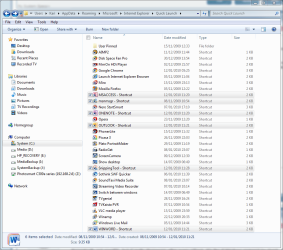
The Quick Launch folder is located at the hidden system folder location below to add shortcuts to.

C:\Users\(user-name)\AppData\Roaming\Microsoft\Internet Explorer\Quick Launch

   Tip
Microsoft has made available a hotfix that will resolve a problem where the taskbar customizations are lost and reset to defaults when automatic logon is enabled in Windows 7 and Windows Server 2008 R2. More details are available at FIX: The Taskbar is reset to the default settings when you use the "Automatically Log On" feature in Windows 7 and in Windows Server 2008 R2.


If you still have the issue of where the pinned Quick Launch used in this tutorial disappears on you after logging off and on or restarting the computer, then a workaround for this issue is to either:
EXAMPLE: Default Windows 7 Taskbar
1441d1234757806-quick-launch-enable-disable-disabled.jpg


EXAMPLE: Quick Launch Enabled on Right Side of Taskbar
NOTE: This is the new Quick Launch toolbar with text and title, small icons, or large icons.
2048d1234327806-quick-launch-enable-disable-quick_launch_toolbar.jpg


4733d1234757607-quick-launch-enable-disable-small_quick_launch.jpg


4732d1234757607-quick-launch-enable-disable-large_quick_launch.jpg


EXAMPLE: Quick Launch Enabled on Left Side of Taskbar
NOTE: This is the new Quick Launch toolbar without text and title, and with small icons or large icons.

Right_Example-1.jpg

Right_Example-2.jpg


OPTION ONE

To Add Quick Launch to Taskbar


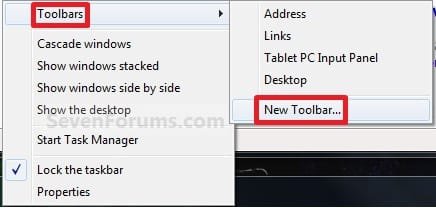
1. Right click on a empty space on the taskbar, then select (hover on) Taskbar and click on New Toolbar. (See screenshot below)
Right_Click_Taskbar.jpg
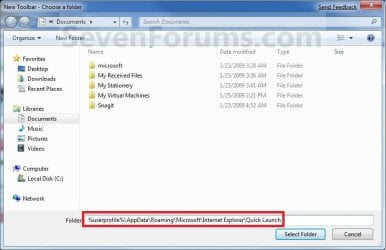
2. In the Folder line, type or copy the location below. (See screenshot below)
%userprofile%\AppData\Roaming\Microsoft\Internet Explorer\Quick Launch
Select_Folder.jpg
3. Click on the Select Folder button. (See screenshot above)

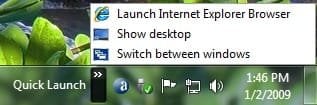
4. You now have a Quick Launch toolbar on the taskbar. (See screenshot below)
NOTE: Click on the arrow to see your Quick Launch shortcuts.
Quick_Launch_Toolbar.jpg
5. To Expand the Quick Launch Toolbar
A) Unlock the taskbar.

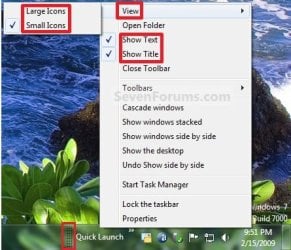
B) Left click and hold on the dotted separator line just to the left of Quick Launch, then drag it to the left or right to adjust to unhide all of the icons. Release the left click when done. (See screenshot below)
Right_Click_Toolbar.jpg
C) Lock the taskbar.
6. To Remove Quick Launch Toolbar Icon Text or Title
A) Unlock the taskbar.

B) Right click on the dotted separator line just to the left of Quick Launch, then uncheck the Show Text and Show Title by clicking on them. (See screenshot below step 5B)

C) Lock the taskbar.
7. To Have Small or Large Icons for Quick Launch Toolbar
A) Unlock the taskbar.

B) Right click on the dotted separator line just to the left of Quick Launch, then click on View and select to have Large Icons or Small Icons. (See screenshot below step 5B)

C) Lock the taskbar.
8. To Have Quick Launch Toolbar on Left Side of Taskbar
A) Unlock the taskbar.

B) Left click and hold on the dotted separator line just to the left of Quick Launch, then drag Quick Launch as far to the left on the taskbar as you are able to and release.

C) If you still have any pinned program icons to the left of Quick Launch, then left click and hold on the dotted separator line just to the left of the icons and hold, and drag it to the right past Quick Launch and release. (See screenshot below)

RightSide_1.jpg
D) The Quick Launch toolbar is now on the far left side of the taskbar. (See screenshot below)

RightSide_2.jpg
E) Left click and hold on the dotted separator line for the other icons and drag them left or right to make any adjustments to how you want them placed on the taskbar. (See screenshot above)

F) Lock the taskbar.


OPTION TWO

To Remove Quick Launch from Taskbar


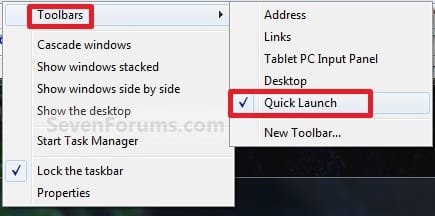
1. Right click on a empty space on the taskbar and click on Toolbars and Quick Launch to uncheck and remove it from the taskbar. (See screenshot below)
Remove.jpg
That's it,
Shawn


Attachments

  • Small_Quick_Launch.jpg
    Small_Quick_Launch.jpg
    17.5 KB · Views: 1,657,225
  • Large_Quick_Launch.jpg
    Large_Quick_Launch.jpg
    17.6 KB · Views: 1,656,917
  • Disabled.jpg
    Disabled.jpg
    18.9 KB · Views: 1,677,290
Last edited:
it isnt dissapearing on reboots, but I agree fully. If it did do that I would still be using windows XP now, yes QL means that much to me it would be a showstopper to me upgrading.

I know a netadmin who works for a company that uses 6000 machines and they chose not to upgrade to windows 7 on the basis of the taskbar changes. They also chose not to upgrade to office 2007 because of ribbon. They actually more likely to go to vista than windows 7 as the gui changes are less significant.
 

My Computer

Computer type
PC/Desktop
Computer Manufacturer/Model Number
home built
OS
windows 8.1 Pro x64
CPU
intel i5 4670k @ 4.3ghz
Motherboard
asus z87-plus
Memory
16 gig ram ddr3 @ 1600 corsair vengeance
Graphics Card(s)
evga 970 GTX 4 GIG FTW ACX 2.0
Sound Card
asus xonar D2X
Monitor(s) Displays
benq gw2765ht
Screen Resolution
2560x1440
Hard Drives
Samsung 850 pro SSD 512gig - boot device wooosh
WD black cavalier 640gig WD6401AALS
Seagate 500gig ST3500630AS
WD 2TB Green WDC20EARS
2 x WD Red 3TB WD30EFRX
Samsung 750gig HD753LG - on asmedia controller
PSU
coolermaster silent pro 600watt modular
Case
fractal define R4
Cooling
artic freezer i30, 3 case fans
Keyboard
microsoft business ps2 keyboard
Mouse
microsoft optical black mouse
Internet Speed
80/20 FTTC SkyBB
Antivirus
Nod32 AV v8, HitmanProAlert, SRP, System Hardening
Browser
Chrome x64
Other Info
Intel controller is in AHCI mode currently using IaSTOR 12.8.0.1016 drivers
Weird issue with Quick Launch toolbar, maybe some of you guys can help me?

I use Snipping Tool quite a lot and have it always placed in my Quick Launch toolbar. However, every time I reboot Snipping Tool has disappeared from Quick Launch. I have to manually put it back after every reboot.

When I put it back, I've tried every possible left and right click dragging option (move, copy, create a shortcut). No difference; next time I reboot, Snipping Tool is not there.

This only happens with Snipping Tool. All other shortcuts stay in Quick Launch, Snipping Tool never. I do not reboot so often, maybe two or three times a month (normally just hibernating) so this is not so big issue, more an annoyance. But I still would like to know why.

Kari
 

My Computer

Computer type
Laptop
Computer Manufacturer/Model Number
HP ENVY 17-1150eg
OS
Windows 10 Pro x64 EN-GB
CPU
1.6 GHz Intel Core i7-720QM Processor
Memory
6 GB
Graphics Card(s)
ATI Mobility Radeon HD 5850 Graphics
Sound Card
Beats sound system with integrated subwoofer
Monitor(s) Displays
17" laptop display, 22" LED and 32" Full HD TV through HDMI
Screen Resolution
1600*900 (1), 1920*1080 (2&3)
Hard Drives
Internal: 2 x 500 GB SATA Hard Disk Drive 7200 rpm
External: 2TB for backups, 3TB USB3 network drive for media
Cooling
As Envy runs a bit warm, I have it on a Cooler Master pad
Keyboard
Logitech diNovo Media Desktop Laser (bluetooth)
Mouse
Logitech Performance Mouse MX
Internet Speed
50/10 Mbps VDSL
Antivirus
Windows Defender 4.3.9431.0
Browser
Maxthon 3.5.2., IE11
Hello Kari,

That is strange. Have you already tried pinning the Snipping Tool shortcut in the Start Menu All Programs area directly to the taskbar to see if it stays that way instead?

For in QL, did you create the Snipping Tool shortcut directly from the "C:\Windows\system32\SnippingTool.exe" file and placed it in the C:\Users\(user-name)\AppData\Roaming\Microsoft\Internet Explorer\Quick Launch
folder?
 

My Computer

Computer type
PC/Desktop
Computer Manufacturer/Model Number
Self built custom
OS
64-bit Windows 11 Pro for Workstations
CPU
Intel i7-8700K OC'd to 5 GHz
Motherboard
ASUS ROG Maximus XI Formula Z390
Memory
64 GB (4x16GB) G.SKILL TridentZ RGB DDR4 3600 MHz
Graphics Card(s)
ASUS ROG-STRIX-GTX1080TI-O11G-GAMING
Sound Card
Integrated
Monitor(s) Displays
2 x Samsung Odyssey G7 27"
Screen Resolution
2560x1440
Hard Drives
1TB Samsung 990 PRO M.2,
4TB Samsung 990 PRO PRO M.2,
TerraMaster F8 SSD Plus NAS
PSU
Seasonic Prime Titanium 850W
Case
Thermaltake Core P3
Cooling
Corsair Hydro H115i
Keyboard
Logitech wireless K800
Mouse
Logitech MX Master 4
Internet Speed
2 Gb/s Download and 100 Mb/s Upload
Antivirus
Malwarebyte Anti-Malware Premium
Browser
Google Chrome
Other Info
Logitech Z625 speaker system,
Logitech BRIO 4K Pro webcam,
HP Color LaserJet Pro MFP M477fdn,
APC SMART-UPS RT 1000 XL - SURT1000XLI,
Galaxy S23 Plus phone
I have not tried to pin it, I do not like and / or use pinned shortcuts.

Yes, I have tried to copy it to Quick Launch folder. Still, it disappears after a reboot. I know this is theoretically not possible, but it really disappears after every reboot. It's like if Windows restored my Quick Launch toolbar to some earlier point every time I boot. But that can not be the case, because if I add another shortcut after Snipping Tool and reboot, the latter shortcut is still there but Snipping Tool is gone.

What makes this even more weird is that it really is only the Snipping Tool that disappears. Everything else stays there. Always.

Interesting: I just rebooted 6 times, just to test this. Snipping Tool stayed there 5 times but now, after sixth reboot it's gone. Added it now manually, once again. So small change: it seems it is not disappearing every time as I thought.

Kari
 

Attachments

  • toolbar.PNG
    toolbar.PNG
    53.9 KB · Views: 186

My Computer

Computer type
Laptop
Computer Manufacturer/Model Number
HP ENVY 17-1150eg
OS
Windows 10 Pro x64 EN-GB
CPU
1.6 GHz Intel Core i7-720QM Processor
Memory
6 GB
Graphics Card(s)
ATI Mobility Radeon HD 5850 Graphics
Sound Card
Beats sound system with integrated subwoofer
Monitor(s) Displays
17" laptop display, 22" LED and 32" Full HD TV through HDMI
Screen Resolution
1600*900 (1), 1920*1080 (2&3)
Hard Drives
Internal: 2 x 500 GB SATA Hard Disk Drive 7200 rpm
External: 2TB for backups, 3TB USB3 network drive for media
Cooling
As Envy runs a bit warm, I have it on a Cooler Master pad
Keyboard
Logitech diNovo Media Desktop Laser (bluetooth)
Mouse
Logitech Performance Mouse MX
Internet Speed
50/10 Mbps VDSL
Antivirus
Windows Defender 4.3.9431.0
Browser
Maxthon 3.5.2., IE11
Kari,

Umm, the mystery deepens. You might see if running a sfc /scannow command may be able to turn anything up, or fix it if there is a bad system file at fault.
 

My Computer

Computer type
PC/Desktop
Computer Manufacturer/Model Number
Self built custom
OS
64-bit Windows 11 Pro for Workstations
CPU
Intel i7-8700K OC'd to 5 GHz
Motherboard
ASUS ROG Maximus XI Formula Z390
Memory
64 GB (4x16GB) G.SKILL TridentZ RGB DDR4 3600 MHz
Graphics Card(s)
ASUS ROG-STRIX-GTX1080TI-O11G-GAMING
Sound Card
Integrated
Monitor(s) Displays
2 x Samsung Odyssey G7 27"
Screen Resolution
2560x1440
Hard Drives
1TB Samsung 990 PRO M.2,
4TB Samsung 990 PRO PRO M.2,
TerraMaster F8 SSD Plus NAS
PSU
Seasonic Prime Titanium 850W
Case
Thermaltake Core P3
Cooling
Corsair Hydro H115i
Keyboard
Logitech wireless K800
Mouse
Logitech MX Master 4
Internet Speed
2 Gb/s Download and 100 Mb/s Upload
Antivirus
Malwarebyte Anti-Malware Premium
Browser
Google Chrome
Other Info
Logitech Z625 speaker system,
Logitech BRIO 4K Pro webcam,
HP Color LaserJet Pro MFP M477fdn,
APC SMART-UPS RT 1000 XL - SURT1000XLI,
Galaxy S23 Plus phone
Like you said, Shawn, the mystery deepens.

I've spent last two hours doing some heavy rebooting and testing, over 40 reboots. As I mentioned earlier, this is not so big issue because I normally hibernate, not reboot. Still, it is intriguing enough to make me want to play with it.

Computer in question is my private laptop (see my specs). It is running a German Ultimate x64 with English language pack, in-place upgraded from Vista Ultimate. Never had any problems, no blue screens, no problems with drivers, just working perfectly.

Here's what I found out:
  • Snipping Tool is not the only disappearing shortcut. To test, I added some Office shortcuts to Quick Launch, and they too seem to disappear time to time, as well as some other shortcuts I played with
  • It seems when shortcut is automatically added by the install or setup, it stays. When I add a shortcut manually, it disappears time to time (about one third of reboots, not always)
  • The shortcuts I now tested always disappear simultaneously i.e. if Snipping Tool shortcut disappears, so do also these Office shortcuts I now tested
  • It looks like Quick Launch is sometimes, somehow reverted to an earlier point

Tried sfc/ scannow. Only 5 reboots after that and nothing disappearing but it's too early to say if it fixed something. I'll continue to play with this later, no time now.

Kari
 

Attachments

  • QuickLaunch.PNG
    QuickLaunch.PNG
    172.8 KB · Views: 167

My Computer

Computer type
Laptop
Computer Manufacturer/Model Number
HP ENVY 17-1150eg
OS
Windows 10 Pro x64 EN-GB
CPU
1.6 GHz Intel Core i7-720QM Processor
Memory
6 GB
Graphics Card(s)
ATI Mobility Radeon HD 5850 Graphics
Sound Card
Beats sound system with integrated subwoofer
Monitor(s) Displays
17" laptop display, 22" LED and 32" Full HD TV through HDMI
Screen Resolution
1600*900 (1), 1920*1080 (2&3)
Hard Drives
Internal: 2 x 500 GB SATA Hard Disk Drive 7200 rpm
External: 2TB for backups, 3TB USB3 network drive for media
Cooling
As Envy runs a bit warm, I have it on a Cooler Master pad
Keyboard
Logitech diNovo Media Desktop Laser (bluetooth)
Mouse
Logitech Performance Mouse MX
Internet Speed
50/10 Mbps VDSL
Antivirus
Windows Defender 4.3.9431.0
Browser
Maxthon 3.5.2., IE11
Easiest method for Quick launch, Taskbar in Windows7

Hey friends,:D

Just forget all.....:mad: Actually it's very easy to fix any program shortcut on taskbar/quick launch bar in Windows7.

How?:rolleyes:

On START---->ALL PROGRAMS---> Right click on any program you want to fix on taskbar. You will get an option as "Pin to taskbar". Click on that & you're done! :shock: And for removing it from the taskbar, again right click on that program icon and "unpin" it.

Isn't it easiest than any other methods or even any other previous versions of Windows? ;)


Cheers,:party:
KAMAL
 

My Computer

OS
windows 7
Hello Kamal, welcome to the Seven Forums.

If you are referring to my issue, it is not a solution I can use. I do not have any programs pinned on taskbar, I'm using a Vista style taskbar with Quick Launch. See the screenshot in this post.

Kari
 

My Computer

Computer type
Laptop
Computer Manufacturer/Model Number
HP ENVY 17-1150eg
OS
Windows 10 Pro x64 EN-GB
CPU
1.6 GHz Intel Core i7-720QM Processor
Memory
6 GB
Graphics Card(s)
ATI Mobility Radeon HD 5850 Graphics
Sound Card
Beats sound system with integrated subwoofer
Monitor(s) Displays
17" laptop display, 22" LED and 32" Full HD TV through HDMI
Screen Resolution
1600*900 (1), 1920*1080 (2&3)
Hard Drives
Internal: 2 x 500 GB SATA Hard Disk Drive 7200 rpm
External: 2TB for backups, 3TB USB3 network drive for media
Cooling
As Envy runs a bit warm, I have it on a Cooler Master pad
Keyboard
Logitech diNovo Media Desktop Laser (bluetooth)
Mouse
Logitech Performance Mouse MX
Internet Speed
50/10 Mbps VDSL
Antivirus
Windows Defender 4.3.9431.0
Browser
Maxthon 3.5.2., IE11
Hello mansrm81,

True, but with being able to pin items to the taskbar directly now I'm afraid that it will be a fading feature.

Shawn


I too thank you Shawn. I hope this doesn't fade away because unless I'm missing something, the "pin" thing doesn't work once you have open one session of your pinned item (e.g. IE). I then have to go to the start menu or a desktop shortcut to open another window. If I am missing something, please let me know. The quick launch is my life and one of the few features I liked in Vista was that you could send almost anything directly from Start to Quick Launch. It's almost like a conspiracy to take away anything of use.
 

My Computer

OS
Windows 7
Hello Raul, and welcome to Seven Forums.

I don't think it will be now. There will always be a need to pin a folder to the taskbar, so there will always be a way to create a Quick Launch using that if needed. :)

In your example, you would right click on the pinned IE icon on the taskbar to be able to pin multiple windows of open IE tabs or windows in the Jump List of the pinned IE icon instead.

Hope this helps,
Shawn
 

My Computer

Computer type
PC/Desktop
Computer Manufacturer/Model Number
Self built custom
OS
64-bit Windows 11 Pro for Workstations
CPU
Intel i7-8700K OC'd to 5 GHz
Motherboard
ASUS ROG Maximus XI Formula Z390
Memory
64 GB (4x16GB) G.SKILL TridentZ RGB DDR4 3600 MHz
Graphics Card(s)
ASUS ROG-STRIX-GTX1080TI-O11G-GAMING
Sound Card
Integrated
Monitor(s) Displays
2 x Samsung Odyssey G7 27"
Screen Resolution
2560x1440
Hard Drives
1TB Samsung 990 PRO M.2,
4TB Samsung 990 PRO PRO M.2,
TerraMaster F8 SSD Plus NAS
PSU
Seasonic Prime Titanium 850W
Case
Thermaltake Core P3
Cooling
Corsair Hydro H115i
Keyboard
Logitech wireless K800
Mouse
Logitech MX Master 4
Internet Speed
2 Gb/s Download and 100 Mb/s Upload
Antivirus
Malwarebyte Anti-Malware Premium
Browser
Google Chrome
Other Info
Logitech Z625 speaker system,
Logitech BRIO 4K Pro webcam,
HP Color LaserJet Pro MFP M477fdn,
APC SMART-UPS RT 1000 XL - SURT1000XLI,
Galaxy S23 Plus phone
OK. First reboot in a few days this morning. And Snipping Tool has once more disappeared.

Put it back, once again. This is weird! How can a shortcut disappear by it self?
 

My Computer

Computer type
Laptop
Computer Manufacturer/Model Number
HP ENVY 17-1150eg
OS
Windows 10 Pro x64 EN-GB
CPU
1.6 GHz Intel Core i7-720QM Processor
Memory
6 GB
Graphics Card(s)
ATI Mobility Radeon HD 5850 Graphics
Sound Card
Beats sound system with integrated subwoofer
Monitor(s) Displays
17" laptop display, 22" LED and 32" Full HD TV through HDMI
Screen Resolution
1600*900 (1), 1920*1080 (2&3)
Hard Drives
Internal: 2 x 500 GB SATA Hard Disk Drive 7200 rpm
External: 2TB for backups, 3TB USB3 network drive for media
Cooling
As Envy runs a bit warm, I have it on a Cooler Master pad
Keyboard
Logitech diNovo Media Desktop Laser (bluetooth)
Mouse
Logitech Performance Mouse MX
Internet Speed
50/10 Mbps VDSL
Antivirus
Windows Defender 4.3.9431.0
Browser
Maxthon 3.5.2., IE11
Hello Kari,

I'm not sure why or how for this one. It seems to work just fine for the large majority of people, but for just a few unlucky ones, some unknown cause is causing it to disappear after a restart. :huh:

Hopefully after some time with everyone comparing notes that this is happening to, we can come up with a common issue.
 

My Computer

Computer type
PC/Desktop
Computer Manufacturer/Model Number
Self built custom
OS
64-bit Windows 11 Pro for Workstations
CPU
Intel i7-8700K OC'd to 5 GHz
Motherboard
ASUS ROG Maximus XI Formula Z390
Memory
64 GB (4x16GB) G.SKILL TridentZ RGB DDR4 3600 MHz
Graphics Card(s)
ASUS ROG-STRIX-GTX1080TI-O11G-GAMING
Sound Card
Integrated
Monitor(s) Displays
2 x Samsung Odyssey G7 27"
Screen Resolution
2560x1440
Hard Drives
1TB Samsung 990 PRO M.2,
4TB Samsung 990 PRO PRO M.2,
TerraMaster F8 SSD Plus NAS
PSU
Seasonic Prime Titanium 850W
Case
Thermaltake Core P3
Cooling
Corsair Hydro H115i
Keyboard
Logitech wireless K800
Mouse
Logitech MX Master 4
Internet Speed
2 Gb/s Download and 100 Mb/s Upload
Antivirus
Malwarebyte Anti-Malware Premium
Browser
Google Chrome
Other Info
Logitech Z625 speaker system,
Logitech BRIO 4K Pro webcam,
HP Color LaserJet Pro MFP M477fdn,
APC SMART-UPS RT 1000 XL - SURT1000XLI,
Galaxy S23 Plus phone
Hello guys. I have a problem. My quick launch disappears on every system restart. I have to add it every time i start my laptop. How can i fix this?


Edit:
UAC is turned off, x32 bit system. Theme is saved. Just restarted, still the same - no quick launch.
 
Last edited:

My Computer

OS
Windows 7 x32 Professional
I'm losing my nerves because of this.

First reboot in about a week and Snpping Tool, along with Word and Excel shortcuts gone again. One thing common with these three shortcuts is that I'd added them myself to the Quick Launch. I've installed two new pieces of software this week, RadioGet and Media Player Classic, and their shortcuts (put to Quick Launch automatically by the respective installations) have not disappeared.

Short: any shortcut I manually put there normally disappears after a reboot. No difference if copy the program or shortcut directly to the Quick Launch folder or drag and drop program or shortcut to the Quick Launch toolbar. Sefl added, it disappears.
 

My Computer

Computer type
Laptop
Computer Manufacturer/Model Number
HP ENVY 17-1150eg
OS
Windows 10 Pro x64 EN-GB
CPU
1.6 GHz Intel Core i7-720QM Processor
Memory
6 GB
Graphics Card(s)
ATI Mobility Radeon HD 5850 Graphics
Sound Card
Beats sound system with integrated subwoofer
Monitor(s) Displays
17" laptop display, 22" LED and 32" Full HD TV through HDMI
Screen Resolution
1600*900 (1), 1920*1080 (2&3)
Hard Drives
Internal: 2 x 500 GB SATA Hard Disk Drive 7200 rpm
External: 2TB for backups, 3TB USB3 network drive for media
Cooling
As Envy runs a bit warm, I have it on a Cooler Master pad
Keyboard
Logitech diNovo Media Desktop Laser (bluetooth)
Mouse
Logitech Performance Mouse MX
Internet Speed
50/10 Mbps VDSL
Antivirus
Windows Defender 4.3.9431.0
Browser
Maxthon 3.5.2., IE11
Kari, and everyone that has the issue with the pinned Quick Launch disappearing after a restart,

You might see if pinning a folder to the taskbar with the shortcuts you wanted and a copy of the ones in Quick Launch would work better instead.

Hope this helps,
Shawn
 

My Computer

Computer type
PC/Desktop
Computer Manufacturer/Model Number
Self built custom
OS
64-bit Windows 11 Pro for Workstations
CPU
Intel i7-8700K OC'd to 5 GHz
Motherboard
ASUS ROG Maximus XI Formula Z390
Memory
64 GB (4x16GB) G.SKILL TridentZ RGB DDR4 3600 MHz
Graphics Card(s)
ASUS ROG-STRIX-GTX1080TI-O11G-GAMING
Sound Card
Integrated
Monitor(s) Displays
2 x Samsung Odyssey G7 27"
Screen Resolution
2560x1440
Hard Drives
1TB Samsung 990 PRO M.2,
4TB Samsung 990 PRO PRO M.2,
TerraMaster F8 SSD Plus NAS
PSU
Seasonic Prime Titanium 850W
Case
Thermaltake Core P3
Cooling
Corsair Hydro H115i
Keyboard
Logitech wireless K800
Mouse
Logitech MX Master 4
Internet Speed
2 Gb/s Download and 100 Mb/s Upload
Antivirus
Malwarebyte Anti-Malware Premium
Browser
Google Chrome
Other Info
Logitech Z625 speaker system,
Logitech BRIO 4K Pro webcam,
HP Color LaserJet Pro MFP M477fdn,
APC SMART-UPS RT 1000 XL - SURT1000XLI,
Galaxy S23 Plus phone
Sorry to ask a simple question, but I have created the Quick launch toolbar - how do I add the icons to it and get them away from the taskbar (like I can in Vista/XP) ? to tidy up the view?

Cheers :geek:
 

My Computer

OS
Windows 7
Hello ColourFly, and welcome to Seven Forums.

You can add shortcuts to Quick Launch by adding the shortcuts into the hidden system folder location at:

C:\Users\(user-name)\AppData\Roaming\Microsoft\Internet Explorer\Quick Launch


Pinning Quick Launch to the taskbar is the same as pinning a folder (above) to it. You can strech or condense the pinned folder on the taskbar using step 8D in this tutorial to how you want it displayed on the taskbar.

Hope this helps,
Shawn
 

My Computer

Computer type
PC/Desktop
Computer Manufacturer/Model Number
Self built custom
OS
64-bit Windows 11 Pro for Workstations
CPU
Intel i7-8700K OC'd to 5 GHz
Motherboard
ASUS ROG Maximus XI Formula Z390
Memory
64 GB (4x16GB) G.SKILL TridentZ RGB DDR4 3600 MHz
Graphics Card(s)
ASUS ROG-STRIX-GTX1080TI-O11G-GAMING
Sound Card
Integrated
Monitor(s) Displays
2 x Samsung Odyssey G7 27"
Screen Resolution
2560x1440
Hard Drives
1TB Samsung 990 PRO M.2,
4TB Samsung 990 PRO PRO M.2,
TerraMaster F8 SSD Plus NAS
PSU
Seasonic Prime Titanium 850W
Case
Thermaltake Core P3
Cooling
Corsair Hydro H115i
Keyboard
Logitech wireless K800
Mouse
Logitech MX Master 4
Internet Speed
2 Gb/s Download and 100 Mb/s Upload
Antivirus
Malwarebyte Anti-Malware Premium
Browser
Google Chrome
Other Info
Logitech Z625 speaker system,
Logitech BRIO 4K Pro webcam,
HP Color LaserJet Pro MFP M477fdn,
APC SMART-UPS RT 1000 XL - SURT1000XLI,
Galaxy S23 Plus phone
OMG!!!

I love you (in a manly, sports-hug, platonic way of course)!!!

The lack of Quick Launch was driving me crazy and had me nearly about to ask my IT group to put me back on XP. I was mistaking those stupid "pinned programs" as QL.

My W7 is a brand new config (build 7600). Your steps worked perfect for me and I am VERY grateful for this thread.

Now if I can just find a solution to my #1 annoyance: Huddled Icons (not group similiar, but huddled). I want to have multiple instances of the same program running but NOT have them stay huddled together on the bar. I want to move them around like I could under XP. i.e. have an Explorer window or 2, then a browser, then my text editor, then another explorer or 2, another browser, etc... My search continues.

Thank you so much!
Tjoe
 

My Computer

OS
Win7
You're welcome Tjoe, and welcome to Seven Forums.

You can drag the pinned or open icons to any order on the taskbar, but I have not seen a way to have separate multiple say Internet Explorer icons yet.
 

My Computer

Computer type
PC/Desktop
Computer Manufacturer/Model Number
Self built custom
OS
64-bit Windows 11 Pro for Workstations
CPU
Intel i7-8700K OC'd to 5 GHz
Motherboard
ASUS ROG Maximus XI Formula Z390
Memory
64 GB (4x16GB) G.SKILL TridentZ RGB DDR4 3600 MHz
Graphics Card(s)
ASUS ROG-STRIX-GTX1080TI-O11G-GAMING
Sound Card
Integrated
Monitor(s) Displays
2 x Samsung Odyssey G7 27"
Screen Resolution
2560x1440
Hard Drives
1TB Samsung 990 PRO M.2,
4TB Samsung 990 PRO PRO M.2,
TerraMaster F8 SSD Plus NAS
PSU
Seasonic Prime Titanium 850W
Case
Thermaltake Core P3
Cooling
Corsair Hydro H115i
Keyboard
Logitech wireless K800
Mouse
Logitech MX Master 4
Internet Speed
2 Gb/s Download and 100 Mb/s Upload
Antivirus
Malwarebyte Anti-Malware Premium
Browser
Google Chrome
Other Info
Logitech Z625 speaker system,
Logitech BRIO 4K Pro webcam,
HP Color LaserJet Pro MFP M477fdn,
APC SMART-UPS RT 1000 XL - SURT1000XLI,
Galaxy S23 Plus phone
Back
Top