
Quick Launch - Enable or Disable

How to Enable or Disable Quick Launch in Windows 7

   Information
By default Quick Launch is disabled in Windows 7. This will show you how to enable or disable Quick Launch as a taskbar toolbar using small or large icons in Windows 7.

   Note
Quick Launch is a toolbar on the taskbar. Quick Launch is used to open a program quickly from a shortcut from within it separate from the pinned programs on the taskbar.

The Quick Launch folder is located at the hidden system folder location below to add shortcuts to.

C:\Users\(user-name)\AppData\Roaming\Microsoft\Internet Explorer\Quick Launch

   Tip
Microsoft has made available a hotfix that will resolve a problem where the taskbar customizations are lost and reset to defaults when automatic logon is enabled in Windows 7 and Windows Server 2008 R2. More details are available at FIX: The Taskbar is reset to the default settings when you use the "Automatically Log On" feature in Windows 7 and in Windows Server 2008 R2.


If you still have the issue of where the pinned Quick Launch used in this tutorial disappears on you after logging off and on or restarting the computer, then a workaround for this issue is to either:
EXAMPLE: Default Windows 7 Taskbar
1441d1234757806-quick-launch-enable-disable-disabled.jpg


EXAMPLE: Quick Launch Enabled on Right Side of Taskbar
NOTE: This is the new Quick Launch toolbar with text and title, small icons, or large icons.
2048d1234327806-quick-launch-enable-disable-quick_launch_toolbar.jpg


4733d1234757607-quick-launch-enable-disable-small_quick_launch.jpg


4732d1234757607-quick-launch-enable-disable-large_quick_launch.jpg


EXAMPLE: Quick Launch Enabled on Left Side of Taskbar
NOTE: This is the new Quick Launch toolbar without text and title, and with small icons or large icons.

Right_Example-1.jpg

Right_Example-2.jpg


OPTION ONE

To Add Quick Launch to Taskbar


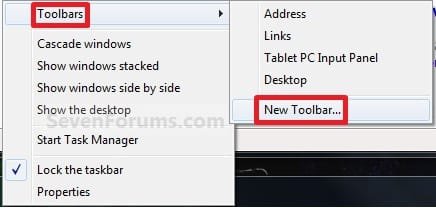
1. Right click on a empty space on the taskbar, then select (hover on) Taskbar and click on New Toolbar. (See screenshot below)
Right_Click_Taskbar.jpg
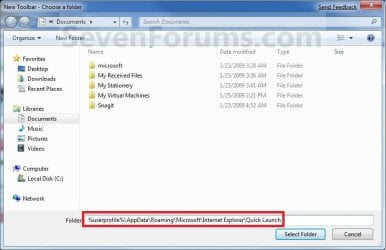
2. In the Folder line, type or copy the location below. (See screenshot below)
%userprofile%\AppData\Roaming\Microsoft\Internet Explorer\Quick Launch
Select_Folder.jpg
3. Click on the Select Folder button. (See screenshot above)

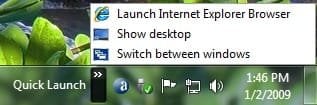
4. You now have a Quick Launch toolbar on the taskbar. (See screenshot below)
NOTE: Click on the arrow to see your Quick Launch shortcuts.
Quick_Launch_Toolbar.jpg
5. To Expand the Quick Launch Toolbar
A) Unlock the taskbar.

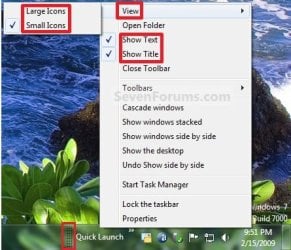
B) Left click and hold on the dotted separator line just to the left of Quick Launch, then drag it to the left or right to adjust to unhide all of the icons. Release the left click when done. (See screenshot below)
Right_Click_Toolbar.jpg
C) Lock the taskbar.
6. To Remove Quick Launch Toolbar Icon Text or Title
A) Unlock the taskbar.

B) Right click on the dotted separator line just to the left of Quick Launch, then uncheck the Show Text and Show Title by clicking on them. (See screenshot below step 5B)

C) Lock the taskbar.
7. To Have Small or Large Icons for Quick Launch Toolbar
A) Unlock the taskbar.

B) Right click on the dotted separator line just to the left of Quick Launch, then click on View and select to have Large Icons or Small Icons. (See screenshot below step 5B)

C) Lock the taskbar.
8. To Have Quick Launch Toolbar on Left Side of Taskbar
A) Unlock the taskbar.

B) Left click and hold on the dotted separator line just to the left of Quick Launch, then drag Quick Launch as far to the left on the taskbar as you are able to and release.

C) If you still have any pinned program icons to the left of Quick Launch, then left click and hold on the dotted separator line just to the left of the icons and hold, and drag it to the right past Quick Launch and release. (See screenshot below)

RightSide_1.jpg
D) The Quick Launch toolbar is now on the far left side of the taskbar. (See screenshot below)

RightSide_2.jpg
E) Left click and hold on the dotted separator line for the other icons and drag them left or right to make any adjustments to how you want them placed on the taskbar. (See screenshot above)

F) Lock the taskbar.


OPTION TWO

To Remove Quick Launch from Taskbar


1. Right click on a empty space on the taskbar and click on Toolbars and Quick Launch to uncheck and remove it from the taskbar. (See screenshot below)
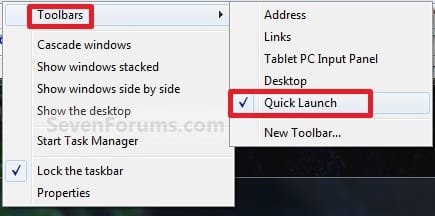
Remove.jpg
That's it,
Shawn


Attachments

  • Disabled.jpg
    Disabled.jpg
    18.9 KB · Views: 1,677,290
  • Large_Quick_Launch.jpg
    Large_Quick_Launch.jpg
    17.6 KB · Views: 1,656,917
  • Small_Quick_Launch.jpg
    Small_Quick_Launch.jpg
    17.5 KB · Views: 1,657,225
Last edited:
Has anyone noticed when adding the Quick Launch bar to Windows 7 that it creates a new Quick Launch Desktop Folder. If you remove it, all your pinned programs in the Start Menu will not function. The only solution I have found so far is to move it to another location so it is not on the desktop.
Thanks for your thoughts

Reports: ·
 

My Computer

Computer Manufacturer/Model Number
Custom
OS
Windows7
CPU
i7 950
Motherboard
Intel DX58SO
Memory
OCZ Platinum 6GB(2x3)
Graphics Card(s)
NVIDIA GE Force 9800 1MB DDR3
Sound Card
Sounblaster Live 24 Bit
Monitor(s) Displays
Samsung 23" LED
Screen Resolution
1920 x 1080
Hard Drives
2 WD Velociraptor 150 GB
PSU
Antec 750
Case
Lian Li
Cooling
Stock Intel and 4 case fans
Keyboard
Logitech backlit
Mouse
Logitech laser trackball
Internet Speed
39 Mbps down 5 Mbps up
Hello Trekfrk,

Sorry, but this is the first time this has been reported of a Quick Launch folder being created on the desktop and the problem you mention of removing it. Are you sure this is not from some Quick Launch program that came preinstalled with your computer instead? The method used in the tutorial is not capable of adding Quick Launch to the desktop.
 

My Computer

Computer type
PC/Desktop
Computer Manufacturer/Model Number
Self built custom
OS
64-bit Windows 11 Pro for Workstations
CPU
Intel i7-8700K OC'd to 5 GHz
Motherboard
ASUS ROG Maximus XI Formula Z390
Memory
64 GB (4x16GB) G.SKILL TridentZ RGB DDR4 3600 MHz
Graphics Card(s)
ASUS ROG-STRIX-GTX1080TI-O11G-GAMING
Sound Card
Integrated
Monitor(s) Displays
2 x Samsung Odyssey G7 27"
Screen Resolution
2560x1440
Hard Drives
1TB Samsung 990 PRO M.2,
4TB Samsung 990 PRO PRO M.2,
TerraMaster F8 SSD Plus NAS
PSU
Seasonic Prime Titanium 850W
Case
Thermaltake Core P3
Cooling
Corsair Hydro H115i
Keyboard
Logitech wireless K800
Mouse
Logitech MX Master 4
Internet Speed
2 Gb/s Download and 100 Mb/s Upload
Antivirus
Malwarebyte Anti-Malware Premium
Browser
Google Chrome
Other Info
Logitech Z625 speaker system,
Logitech BRIO 4K Pro webcam,
HP Color LaserJet Pro MFP M477fdn,
APC SMART-UPS RT 1000 XL - SURT1000XLI,
Galaxy S23 Plus phone
I built this computer so nothing was preinstalled. I have my system configured to show hidden files which is why this is occurring. It seems that this modification causes this folder to be created which is also necessary for pinning to the start menu. It is not a quick launch toolbar but rather a file folder. If you are running Win7 can you try enabling "show hidden files" and see if you can duplicate this issue?
Thanks
 

My Computer

Computer Manufacturer/Model Number
Custom
OS
Windows7
CPU
i7 950
Motherboard
Intel DX58SO
Memory
OCZ Platinum 6GB(2x3)
Graphics Card(s)
NVIDIA GE Force 9800 1MB DDR3
Sound Card
Sounblaster Live 24 Bit
Monitor(s) Displays
Samsung 23" LED
Screen Resolution
1920 x 1080
Hard Drives
2 WD Velociraptor 150 GB
PSU
Antec 750
Case
Lian Li
Cooling
Stock Intel and 4 case fans
Keyboard
Logitech backlit
Mouse
Logitech laser trackball
Internet Speed
39 Mbps down 5 Mbps up
I have "show hidden files" enabled, but using the exact steps in the tutorial, I cannot reproduce what you say. If you use the exact steps in the tutorial I just do not see how you get what you say. :confused:
 

My Computer

Computer type
PC/Desktop
Computer Manufacturer/Model Number
Self built custom
OS
64-bit Windows 11 Pro for Workstations
CPU
Intel i7-8700K OC'd to 5 GHz
Motherboard
ASUS ROG Maximus XI Formula Z390
Memory
64 GB (4x16GB) G.SKILL TridentZ RGB DDR4 3600 MHz
Graphics Card(s)
ASUS ROG-STRIX-GTX1080TI-O11G-GAMING
Sound Card
Integrated
Monitor(s) Displays
2 x Samsung Odyssey G7 27"
Screen Resolution
2560x1440
Hard Drives
1TB Samsung 990 PRO M.2,
4TB Samsung 990 PRO PRO M.2,
TerraMaster F8 SSD Plus NAS
PSU
Seasonic Prime Titanium 850W
Case
Thermaltake Core P3
Cooling
Corsair Hydro H115i
Keyboard
Logitech wireless K800
Mouse
Logitech MX Master 4
Internet Speed
2 Gb/s Download and 100 Mb/s Upload
Antivirus
Malwarebyte Anti-Malware Premium
Browser
Google Chrome
Other Info
Logitech Z625 speaker system,
Logitech BRIO 4K Pro webcam,
HP Color LaserJet Pro MFP M477fdn,
APC SMART-UPS RT 1000 XL - SURT1000XLI,
Galaxy S23 Plus phone
Do you know what the "path" is for items pinned to the Start Menu? Could you right click on any program you have pinned, and go to Properties>General and tell me what it says for Location
Thanks
 

My Computer

Computer Manufacturer/Model Number
Custom
OS
Windows7
CPU
i7 950
Motherboard
Intel DX58SO
Memory
OCZ Platinum 6GB(2x3)
Graphics Card(s)
NVIDIA GE Force 9800 1MB DDR3
Sound Card
Sounblaster Live 24 Bit
Monitor(s) Displays
Samsung 23" LED
Screen Resolution
1920 x 1080
Hard Drives
2 WD Velociraptor 150 GB
PSU
Antec 750
Case
Lian Li
Cooling
Stock Intel and 4 case fans
Keyboard
Logitech backlit
Mouse
Logitech laser trackball
Internet Speed
39 Mbps down 5 Mbps up
The pinned items in the Start Menu are located in the hidden system folder:

Code:
C:\Users\(User-Name)\AppData\Roaming\Microsoft\Internet Explorer\Quick Launch\User Pinned\StartMenu
 

My Computer

Computer type
PC/Desktop
Computer Manufacturer/Model Number
Self built custom
OS
64-bit Windows 11 Pro for Workstations
CPU
Intel i7-8700K OC'd to 5 GHz
Motherboard
ASUS ROG Maximus XI Formula Z390
Memory
64 GB (4x16GB) G.SKILL TridentZ RGB DDR4 3600 MHz
Graphics Card(s)
ASUS ROG-STRIX-GTX1080TI-O11G-GAMING
Sound Card
Integrated
Monitor(s) Displays
2 x Samsung Odyssey G7 27"
Screen Resolution
2560x1440
Hard Drives
1TB Samsung 990 PRO M.2,
4TB Samsung 990 PRO PRO M.2,
TerraMaster F8 SSD Plus NAS
PSU
Seasonic Prime Titanium 850W
Case
Thermaltake Core P3
Cooling
Corsair Hydro H115i
Keyboard
Logitech wireless K800
Mouse
Logitech MX Master 4
Internet Speed
2 Gb/s Download and 100 Mb/s Upload
Antivirus
Malwarebyte Anti-Malware Premium
Browser
Google Chrome
Other Info
Logitech Z625 speaker system,
Logitech BRIO 4K Pro webcam,
HP Color LaserJet Pro MFP M477fdn,
APC SMART-UPS RT 1000 XL - SURT1000XLI,
Galaxy S23 Plus phone
Fixed it:D Somehow my 'user pinned' folder got associated with my desktop. I'm guessing it happened when I was dragging the Quick Launch all the way to the left. Once I corrected it to the path you sent, it works perfectly. Your help was invaluable, thanks again.
On a similar note, you mentioned you 'show hidden and system operating files' so you must have two 'desktop.ini' folders on your desktop. Have you found anyway to hide or move them while still keeping those settings?
 

My Computer

Computer Manufacturer/Model Number
Custom
OS
Windows7
CPU
i7 950
Motherboard
Intel DX58SO
Memory
OCZ Platinum 6GB(2x3)
Graphics Card(s)
NVIDIA GE Force 9800 1MB DDR3
Sound Card
Sounblaster Live 24 Bit
Monitor(s) Displays
Samsung 23" LED
Screen Resolution
1920 x 1080
Hard Drives
2 WD Velociraptor 150 GB
PSU
Antec 750
Case
Lian Li
Cooling
Stock Intel and 4 case fans
Keyboard
Logitech backlit
Mouse
Logitech laser trackball
Internet Speed
39 Mbps down 5 Mbps up
The pinned items in the Start Menu are located in the hidden system folder:

Code:
C:\Users\(User-Name)\AppData\Roaming\Microsoft\Internet Explorer\Quick Launch\User Pinned\StartMenu
Hi, Brink;
I still have QL dissapperance problem even on new machine I just built. I copied the pinned short-cuts on the taskbar and saved the theme as suggested in the past.
In the above path, all the short-cuts are still in the Quick Launch folder and two desktop.ini files. One is desktop(1).ini though. I wonder if there is a way to tweak this area to fix the problem.
 

My Computer

Computer type
PC/Desktop
OS
W7 Ult x64, W8 Pro x64 and W10 Pro x64
CPU
Phenom FX6300
Motherboard
Gigabyte GA-970A-UD3 rev. 1.2
Memory
16GB DDR3 1866 G.Skill F3-1866C9D-16GWM x2
Graphics Card(s)
Radeon R7 360
Sound Card
Asus Xonar DS
Monitor(s) Displays
27" x2, Dell P2715Q
Screen Resolution
3840 x 2160
Hard Drives
Samsung 850Pro 1TB SSD - system
Samsung 4TB SSD - Data
PSU
Corsair CX450M
Case
Corsair 200R
Cooling
Zalman CNPS5X Performa
Internet Speed
400Mbps/12Mbps
Other Info
2nd machine: Same as above
3rd machine: Apple MacAir with W7 Ult installed
Hello Churin,

I still haven't narrowed down why Quick Launch will disappear after a restart for a few people. I have noticed that it seems to happen mostly on laptops though.

You might see if pinning a new folder to the taskbar with a copy of the Quick Launch folder contents in it instead may work better than pinning the actual Quick Launch folder.
 

My Computer

Computer type
PC/Desktop
Computer Manufacturer/Model Number
Self built custom
OS
64-bit Windows 11 Pro for Workstations
CPU
Intel i7-8700K OC'd to 5 GHz
Motherboard
ASUS ROG Maximus XI Formula Z390
Memory
64 GB (4x16GB) G.SKILL TridentZ RGB DDR4 3600 MHz
Graphics Card(s)
ASUS ROG-STRIX-GTX1080TI-O11G-GAMING
Sound Card
Integrated
Monitor(s) Displays
2 x Samsung Odyssey G7 27"
Screen Resolution
2560x1440
Hard Drives
1TB Samsung 990 PRO M.2,
4TB Samsung 990 PRO PRO M.2,
TerraMaster F8 SSD Plus NAS
PSU
Seasonic Prime Titanium 850W
Case
Thermaltake Core P3
Cooling
Corsair Hydro H115i
Keyboard
Logitech wireless K800
Mouse
Logitech MX Master 4
Internet Speed
2 Gb/s Download and 100 Mb/s Upload
Antivirus
Malwarebyte Anti-Malware Premium
Browser
Google Chrome
Other Info
Logitech Z625 speaker system,
Logitech BRIO 4K Pro webcam,
HP Color LaserJet Pro MFP M477fdn,
APC SMART-UPS RT 1000 XL - SURT1000XLI,
Galaxy S23 Plus phone
Thanks, that's interesting alternative. Presently I am using the blank space opened when the start button is clicked on to place those short-cuts I used to put in the quick launch.
 

My Computer

Computer type
PC/Desktop
OS
W7 Ult x64, W8 Pro x64 and W10 Pro x64
CPU
Phenom FX6300
Motherboard
Gigabyte GA-970A-UD3 rev. 1.2
Memory
16GB DDR3 1866 G.Skill F3-1866C9D-16GWM x2
Graphics Card(s)
Radeon R7 360
Sound Card
Asus Xonar DS
Monitor(s) Displays
27" x2, Dell P2715Q
Screen Resolution
3840 x 2160
Hard Drives
Samsung 850Pro 1TB SSD - system
Samsung 4TB SSD - Data
PSU
Corsair CX450M
Case
Corsair 200R
Cooling
Zalman CNPS5X Performa
Internet Speed
400Mbps/12Mbps
Other Info
2nd machine: Same as above
3rd machine: Apple MacAir with W7 Ult installed
Thanks alot! :)
 

My Computer

OS
Windows 7 x86
CPU
E6600
Motherboard
Asus p5v-vm ultra
Memory
2gb
Graphics Card(s)
asus 8800gts
Sound Card
ac'97
Monitor(s) Displays
Nec 195wxm
Hard Drives
WD st3500630a sata 500gb
WD mybook 1tb
WD passport 160gb
Maxtor onetouch II 300gb
Case
ATX
Cooling
2x 120mm coolers
Keyboard
Mitsumi classic keyboard w/t 14 extra multi-media keys
Mouse
MS Wheel mouse optical
Internet Speed
i pay for 4mbps channel but really doesn't get that high ;)
Useful information

Thanks very much for the Quick Launch how-to. Saved me a lot of time in trying to figure out where that useful feature was hidden.

Regards,

Robert Cohn
 

My Computer

OS
Windows 7
You're most welcome Robert, and welcome to Seven Forums.
 

My Computer

Computer type
PC/Desktop
Computer Manufacturer/Model Number
Self built custom
OS
64-bit Windows 11 Pro for Workstations
CPU
Intel i7-8700K OC'd to 5 GHz
Motherboard
ASUS ROG Maximus XI Formula Z390
Memory
64 GB (4x16GB) G.SKILL TridentZ RGB DDR4 3600 MHz
Graphics Card(s)
ASUS ROG-STRIX-GTX1080TI-O11G-GAMING
Sound Card
Integrated
Monitor(s) Displays
2 x Samsung Odyssey G7 27"
Screen Resolution
2560x1440
Hard Drives
1TB Samsung 990 PRO M.2,
4TB Samsung 990 PRO PRO M.2,
TerraMaster F8 SSD Plus NAS
PSU
Seasonic Prime Titanium 850W
Case
Thermaltake Core P3
Cooling
Corsair Hydro H115i
Keyboard
Logitech wireless K800
Mouse
Logitech MX Master 4
Internet Speed
2 Gb/s Download and 100 Mb/s Upload
Antivirus
Malwarebyte Anti-Malware Premium
Browser
Google Chrome
Other Info
Logitech Z625 speaker system,
Logitech BRIO 4K Pro webcam,
HP Color LaserJet Pro MFP M477fdn,
APC SMART-UPS RT 1000 XL - SURT1000XLI,
Galaxy S23 Plus phone
I noted that every few days the Quick launch disappears by itself and I have to re-do the steps again ..
Any one have an idea on this ?!
 

My Computer

Computer Manufacturer/Model Number
Gigabyte
OS
Win7 Ultimate 32bit
CPU
3Ghz /2MB L2
Motherboard
Gigabyte 945 S3P
Memory
2GB
Graphics Card(s)
1GB nVidia 5800 GT
Sound Card
built in
Monitor(s) Displays
Acer 17"
Hard Drives
320 GB
160 GB
PSU
400 W
Case
Discovery
Cooling
n/a
Hello Ahmed,

Sometimes steps 9 or 10 may help with this. If not, the yellow TIP box at the top of the tutorial should work instead.

Hope this helps,
Shawn
 

My Computer

Computer type
PC/Desktop
Computer Manufacturer/Model Number
Self built custom
OS
64-bit Windows 11 Pro for Workstations
CPU
Intel i7-8700K OC'd to 5 GHz
Motherboard
ASUS ROG Maximus XI Formula Z390
Memory
64 GB (4x16GB) G.SKILL TridentZ RGB DDR4 3600 MHz
Graphics Card(s)
ASUS ROG-STRIX-GTX1080TI-O11G-GAMING
Sound Card
Integrated
Monitor(s) Displays
2 x Samsung Odyssey G7 27"
Screen Resolution
2560x1440
Hard Drives
1TB Samsung 990 PRO M.2,
4TB Samsung 990 PRO PRO M.2,
TerraMaster F8 SSD Plus NAS
PSU
Seasonic Prime Titanium 850W
Case
Thermaltake Core P3
Cooling
Corsair Hydro H115i
Keyboard
Logitech wireless K800
Mouse
Logitech MX Master 4
Internet Speed
2 Gb/s Download and 100 Mb/s Upload
Antivirus
Malwarebyte Anti-Malware Premium
Browser
Google Chrome
Other Info
Logitech Z625 speaker system,
Logitech BRIO 4K Pro webcam,
HP Color LaserJet Pro MFP M477fdn,
APC SMART-UPS RT 1000 XL - SURT1000XLI,
Galaxy S23 Plus phone
Thank you very much for this tutorial.:thumbsup:

It's a shame that Microsoft didn't set any options to keep some previous default configuration as to add the Quick Lauch set easily(Add least, available from the toobar options).
 

My Computer

OS
windows 7 ultimate 64
You're most welcome Kayakee, and welcome to Seven Forums. :)
 

My Computer

Computer type
PC/Desktop
Computer Manufacturer/Model Number
Self built custom
OS
64-bit Windows 11 Pro for Workstations
CPU
Intel i7-8700K OC'd to 5 GHz
Motherboard
ASUS ROG Maximus XI Formula Z390
Memory
64 GB (4x16GB) G.SKILL TridentZ RGB DDR4 3600 MHz
Graphics Card(s)
ASUS ROG-STRIX-GTX1080TI-O11G-GAMING
Sound Card
Integrated
Monitor(s) Displays
2 x Samsung Odyssey G7 27"
Screen Resolution
2560x1440
Hard Drives
1TB Samsung 990 PRO M.2,
4TB Samsung 990 PRO PRO M.2,
TerraMaster F8 SSD Plus NAS
PSU
Seasonic Prime Titanium 850W
Case
Thermaltake Core P3
Cooling
Corsair Hydro H115i
Keyboard
Logitech wireless K800
Mouse
Logitech MX Master 4
Internet Speed
2 Gb/s Download and 100 Mb/s Upload
Antivirus
Malwarebyte Anti-Malware Premium
Browser
Google Chrome
Other Info
Logitech Z625 speaker system,
Logitech BRIO 4K Pro webcam,
HP Color LaserJet Pro MFP M477fdn,
APC SMART-UPS RT 1000 XL - SURT1000XLI,
Galaxy S23 Plus phone
Love that Quick Launch

Worked like a charm. I didn't like the pins, missed the quick launch. Well done.
 

My Computer

Computer Manufacturer/Model Number
Acer Aspire 8930
OS
Windows 7 Ultimate 64Bit
CPU
Intel(R) Core(TM)2 Duo CPU T5800 @ 2.00GHz
Memory
4GB
Graphics Card(s)
9300M
I'm sorry to bother you geeks once again with this Quick Launch issue of mine, but I'm desperate to find a fix.

I've described the issue here earlier, here's a short version once again:

After a reboot, Quick Launch loses all the shortcut's I've added myself, showing only those shortcuts added by respective installation programs.

For instance, after a reboot I'll add Snipping Tool to Quick Launch. It stays there as long as I do not reboot. It 'survives' hibernation but not reboot, i.e when I hibernate the computer in the evening and resume it next morning, the Snipping Tool shortcut is still in the Quick Launch, but if I shut down and reboot, it's gone and I have to add it manually once again.

Any tip really appreciated.

Kari
 

My Computer

Computer type
Laptop
Computer Manufacturer/Model Number
HP ENVY 17-1150eg
OS
Windows 10 Pro x64 EN-GB
CPU
1.6 GHz Intel Core i7-720QM Processor
Memory
6 GB
Graphics Card(s)
ATI Mobility Radeon HD 5850 Graphics
Sound Card
Beats sound system with integrated subwoofer
Monitor(s) Displays
17" laptop display, 22" LED and 32" Full HD TV through HDMI
Screen Resolution
1600*900 (1), 1920*1080 (2&3)
Hard Drives
Internal: 2 x 500 GB SATA Hard Disk Drive 7200 rpm
External: 2TB for backups, 3TB USB3 network drive for media
Cooling
As Envy runs a bit warm, I have it on a Cooler Master pad
Keyboard
Logitech diNovo Media Desktop Laser (bluetooth)
Mouse
Logitech Performance Mouse MX
Internet Speed
50/10 Mbps VDSL
Antivirus
Windows Defender 4.3.9431.0
Browser
Maxthon 3.5.2., IE11
Hello Kari,

Have you tried the 2nd part of the TIP box at the top of the tutorial to pin a folder to the taskbar with the Quick Launch shortcuts copied into it instead? Hopefully that workaround will work for you instead.
 

My Computer

Computer type
PC/Desktop
Computer Manufacturer/Model Number
Self built custom
OS
64-bit Windows 11 Pro for Workstations
CPU
Intel i7-8700K OC'd to 5 GHz
Motherboard
ASUS ROG Maximus XI Formula Z390
Memory
64 GB (4x16GB) G.SKILL TridentZ RGB DDR4 3600 MHz
Graphics Card(s)
ASUS ROG-STRIX-GTX1080TI-O11G-GAMING
Sound Card
Integrated
Monitor(s) Displays
2 x Samsung Odyssey G7 27"
Screen Resolution
2560x1440
Hard Drives
1TB Samsung 990 PRO M.2,
4TB Samsung 990 PRO PRO M.2,
TerraMaster F8 SSD Plus NAS
PSU
Seasonic Prime Titanium 850W
Case
Thermaltake Core P3
Cooling
Corsair Hydro H115i
Keyboard
Logitech wireless K800
Mouse
Logitech MX Master 4
Internet Speed
2 Gb/s Download and 100 Mb/s Upload
Antivirus
Malwarebyte Anti-Malware Premium
Browser
Google Chrome
Other Info
Logitech Z625 speaker system,
Logitech BRIO 4K Pro webcam,
HP Color LaserJet Pro MFP M477fdn,
APC SMART-UPS RT 1000 XL - SURT1000XLI,
Galaxy S23 Plus phone
Back
Top


