
Quick Launch - Enable or Disable

How to Enable or Disable Quick Launch in Windows 7

   Information
By default Quick Launch is disabled in Windows 7. This will show you how to enable or disable Quick Launch as a taskbar toolbar using small or large icons in Windows 7.

   Note
Quick Launch is a toolbar on the taskbar. Quick Launch is used to open a program quickly from a shortcut from within it separate from the pinned programs on the taskbar.

The Quick Launch folder is located at the hidden system folder location below to add shortcuts to.

C:\Users\(user-name)\AppData\Roaming\Microsoft\Internet Explorer\Quick Launch

   Tip
Microsoft has made available a hotfix that will resolve a problem where the taskbar customizations are lost and reset to defaults when automatic logon is enabled in Windows 7 and Windows Server 2008 R2. More details are available at FIX: The Taskbar is reset to the default settings when you use the "Automatically Log On" feature in Windows 7 and in Windows Server 2008 R2.


If you still have the issue of where the pinned Quick Launch used in this tutorial disappears on you after logging off and on or restarting the computer, then a workaround for this issue is to either:
EXAMPLE: Default Windows 7 Taskbar
1441d1234757806-quick-launch-enable-disable-disabled.jpg


EXAMPLE: Quick Launch Enabled on Right Side of Taskbar
NOTE: This is the new Quick Launch toolbar with text and title, small icons, or large icons.
2048d1234327806-quick-launch-enable-disable-quick_launch_toolbar.jpg


4733d1234757607-quick-launch-enable-disable-small_quick_launch.jpg


4732d1234757607-quick-launch-enable-disable-large_quick_launch.jpg


EXAMPLE: Quick Launch Enabled on Left Side of Taskbar
NOTE: This is the new Quick Launch toolbar without text and title, and with small icons or large icons.

Right_Example-1.jpg

Right_Example-2.jpg


OPTION ONE

To Add Quick Launch to Taskbar


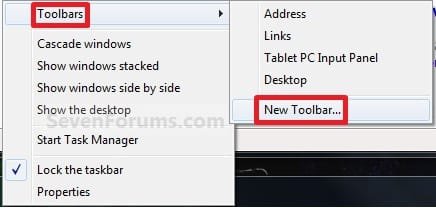
1. Right click on a empty space on the taskbar, then select (hover on) Taskbar and click on New Toolbar. (See screenshot below)
Right_Click_Taskbar.jpg
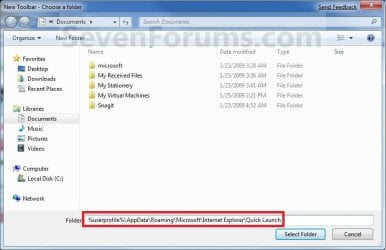
2. In the Folder line, type or copy the location below. (See screenshot below)
%userprofile%\AppData\Roaming\Microsoft\Internet Explorer\Quick Launch
Select_Folder.jpg
3. Click on the Select Folder button. (See screenshot above)

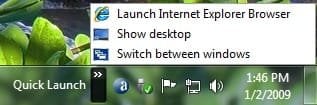
4. You now have a Quick Launch toolbar on the taskbar. (See screenshot below)
NOTE: Click on the arrow to see your Quick Launch shortcuts.
Quick_Launch_Toolbar.jpg
5. To Expand the Quick Launch Toolbar
A) Unlock the taskbar.

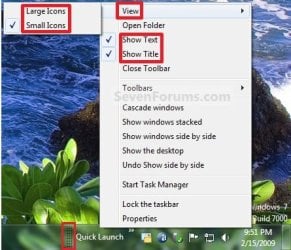
B) Left click and hold on the dotted separator line just to the left of Quick Launch, then drag it to the left or right to adjust to unhide all of the icons. Release the left click when done. (See screenshot below)
Right_Click_Toolbar.jpg
C) Lock the taskbar.
6. To Remove Quick Launch Toolbar Icon Text or Title
A) Unlock the taskbar.

B) Right click on the dotted separator line just to the left of Quick Launch, then uncheck the Show Text and Show Title by clicking on them. (See screenshot below step 5B)

C) Lock the taskbar.
7. To Have Small or Large Icons for Quick Launch Toolbar
A) Unlock the taskbar.

B) Right click on the dotted separator line just to the left of Quick Launch, then click on View and select to have Large Icons or Small Icons. (See screenshot below step 5B)

C) Lock the taskbar.
8. To Have Quick Launch Toolbar on Left Side of Taskbar
A) Unlock the taskbar.

B) Left click and hold on the dotted separator line just to the left of Quick Launch, then drag Quick Launch as far to the left on the taskbar as you are able to and release.

C) If you still have any pinned program icons to the left of Quick Launch, then left click and hold on the dotted separator line just to the left of the icons and hold, and drag it to the right past Quick Launch and release. (See screenshot below)

RightSide_1.jpg
D) The Quick Launch toolbar is now on the far left side of the taskbar. (See screenshot below)

RightSide_2.jpg
E) Left click and hold on the dotted separator line for the other icons and drag them left or right to make any adjustments to how you want them placed on the taskbar. (See screenshot above)

F) Lock the taskbar.


OPTION TWO

To Remove Quick Launch from Taskbar


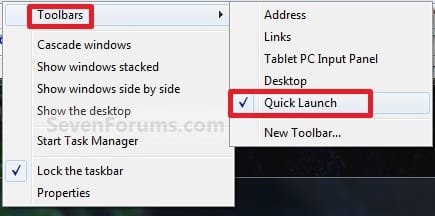
1. Right click on a empty space on the taskbar and click on Toolbars and Quick Launch to uncheck and remove it from the taskbar. (See screenshot below)
Remove.jpg
That's it,
Shawn


Attachments

  • Small_Quick_Launch.jpg
    Small_Quick_Launch.jpg
    8.5 KB · Views: 1,657,225
  • Large_Quick_Launch.jpg
    Large_Quick_Launch.jpg
    8.5 KB · Views: 1,656,917
  • Disabled.jpg
    Disabled.jpg
    9.3 KB · Views: 1,677,290
Last edited:
Quick

Hi there:
Just recently installed Win7. I too, missed the Quick Launch. However, after finding my way around the new baby and accustoming myself to its burping I really found the new system better. With the options still open to put links either on desktop or drag to the taskbar,etc., the speed of Win7 overcomes the change in operation. I think the explanation given in <davehcs> post covers it quite well.
EdmundoF


Fwiw. Hi Brink. According to Microsoft, the whole of the new taskbar is now merged into the quick launch. There is no need for a hack. Works for me!
Quote from the Microsoft Engineers:
"If one increases the size of Quick Launch, one must then determine what to do with the taskband. As previously discussed, we observed that under many scenarios of single-instance programs, launching and switching were equivalent. Hence, we decided to standardize this behavior and have program launchers turn into window switchers when they are launched. Effectively, we unified Quick Launch and the taskband. While some other operating systems have similar concepts, one difference with our approach is that our default experience always optimizes for a single representation on the taskbar. This means that regardless of a window’s state (e.g. minimized, maximized or restored) there are no new or duplicate buttons created. Also, the default taskbar doesn’t allow destinations to be pinned to the top-level which prevents duplication of a pinned file and a running window with that same file open. When we say there is “one button to rule them all” we’re serious. This approach to a single, unified button keeps the taskbar uncluttered and gives the person a single place to find what she’s looking for."
 

My Computer

Computer Manufacturer/Model Number
DELL 560 Inspiron
OS
Windows7 Home Premium
CPU
Pentium(R)Dual Core CPU E5400
Memory
4.00 GB
Graphics Card(s)
Intel G45/G43 Express Chipset
Sound Card
?
Monitor(s) Displays
Viewsonic A70
Hard Drives
500GB ATA Hard Drive
PSU
?
Case
?
Cooling
?
SWEET!! have been looking for this in a while
 

My Computer

OS
window's 7
CPU
core 2 quad
Motherboard
gigabyte
Memory
2gb corsair
Graphics Card(s)
ati hd4850
Monitor(s) Displays
lg
Screen Resolution
1600 X 900
Case
power logic
Other Info
none of the spec above is accurate
Hi, I just tried this since I didn't like the default Windows 7 taskbar. However, the Windows Quick launch hotkey (Windows key+Number) wasn't able to open up the program. Is there a way around this?
 

My Computer

Computer Manufacturer/Model Number
Dell
OS
Windows 7
PSU
*
Hello xoSushi, and welcome to Seven Forums.

Unfortunately, the Windows Key+Number works on tasbar icons (pinned or open windows) now instead of in Quick Launch. However, you can assign your own keyboard shortcut for a program in Quick Launch to use instead.

Hope this helps,
Shawn
 

My Computer

Computer type
PC/Desktop
Computer Manufacturer/Model Number
Self built custom
OS
64-bit Windows 11 Pro for Workstations
CPU
Intel i7-8700K OC'd to 5 GHz
Motherboard
ASUS ROG Maximus XI Formula Z390
Memory
64 GB (4x16GB) G.SKILL TridentZ RGB DDR4 3600 MHz
Graphics Card(s)
ASUS ROG-STRIX-GTX1080TI-O11G-GAMING
Sound Card
Integrated
Monitor(s) Displays
2 x Samsung Odyssey G7 27"
Screen Resolution
2560x1440
Hard Drives
1TB Samsung 990 PRO M.2,
4TB Samsung 990 PRO PRO M.2,
TerraMaster F8 SSD Plus NAS
PSU
Seasonic Prime Titanium 850W
Case
Thermaltake Core P3
Cooling
Corsair Hydro H115i
Keyboard
Logitech wireless K800
Mouse
Logitech MX Master 4
Internet Speed
2 Gb/s Download and 100 Mb/s Upload
Antivirus
Malwarebyte Anti-Malware Premium
Browser
Google Chrome
Other Info
Logitech Z625 speaker system,
Logitech BRIO 4K Pro webcam,
HP Color LaserJet Pro MFP M477fdn,
APC SMART-UPS RT 1000 XL - SURT1000XLI,
Galaxy S23 Plus phone
I have my own 'problem', in that I have my Task Bar on the (lft) side and sized 6-rows across.
Under XP, things were quite stable, but not under Win7 -- I have problems keeping the ordering constant.

It may be related to 'LOGGING OFF' problems (hangs on log off)...but not sure.

Occassionally the contents of the quick-launch bar are set back to some earlier state -- but that might have to do with some random incomplete copy (to or fro) with my profile being store or retrieved on login. (after it ate itself...BEWARE system restore! 2 out of the 4 times it was a system restore that ate Windows -- 'sys restore failed; AND deleted many files; I have used sysrestore successfully, but cross fingers each time now!).

FWIW...I setup my home linux server as a Domain server to serve my profiles after having to resintsall Win7 about 4 times.

I try to keep all important files on the linux server (as it can keep sane, versioned, daily incremental system backups -- unlike Windows!). But only went to networked profiles after installing Win7 and experiencing it's unreliability (sigh)...Since I did that, of course, it hasn't crashed, it just gets flakey w/my profile! ;-) It sometimes (often) has problems keeping them fully sync'ed, and lately it's just been outright hanging on logout (and reboot).... Very troublesome.


I suppose the fact that Win7 Blue-screens about once a week doesn't help for file reliability and persistence.
 

My Computer

Computer Manufacturer/Model Number
Split: Dell, Backend, PowerEdge P610 for disk/server & Frontend, Precision 7500 for GUI+multimedia
OS
linux(SuSE-64),Win7-64
CPU
2 Quad Xeon Core2's; 1-6core Xeon (3.4GHz;12MB-L3);
Motherboard
Intel
Memory
48G server, 48G desktop (both w/ 1333MHz memory)
Graphics Card(s)
Nvidia GTX 590 (SLI card)
Sound Card
Audigy Theater (DTS+ 5.1Dolby Digital over HDMI+S/PDIF)
Monitor(s) Displays
DELL 3008WFP + Sharp 55" LCD
Screen Resolution
2560x1600+1920x1080
Hard Drives
(disk server)
2 LSI SAS 12-Bay w/6GBSAS RAID-50 controller -- w/12 SATA Hitachi 2TB Ultrastars in each
5 Hitachi 2TB SATA Ultrastar HW-RAID5 internal
3 Fujitsu-RAID5 144GB 15K SAS - internal boot
---
[Desktop:]
4 Crucial 128GBM4 6Gb/s SSD's as RAID0
PSU
Dell (dual PS's on each of server and external disks)
Case
Dell
Cooling
Dell (redundant on server)
Keyboard
http://www.comfortkeyboard.com/keyboards_comfort.html
Mouse
2(R+L) Kensington Expert Trackballs + Wacom Intuos4 tablet
Internet Speed
too slow!
QL in Win7 Won't maintain order

I have a similar setup to Astara. Bar is on left side, 3 wide in my case. I gave up on QL because even though I could get it to show up consistently, it would not stay ordered the way I wanted it. I could re-order it, but each time I rebooted, the order would revert to some order that M$ seems to like. There seems to be no workaround for that.

I now use 7Stacks, which is kind of adequate. It is slow and a little bit unreliable, but still workable.

M$ really messed up on this one, big time.
 

My Computer

Computer Manufacturer/Model Number
HP DV5z
OS
Win 7
CPU
Athlon
Memory
4GB
Graphics Card(s)
ATI
Hello Kari,

I'm not sure why or how for this one. It seems to work just fine for the large majority of people, but for just a few unlucky ones, some unknown cause is causing it to disappear after a restart. :huh:

Hopefully after some time with everyone comparing notes that this is happening to, we can come up with a common issue.


Brink I have a thoery, it came up when you mentioned it is common on laptops (doesnt happen on my laptop with my clean installed retail windows 7).

Could it be OEM preinstalled windows suffer with this problem? something in startup perhaps that reverts to defaults.
 

My Computer

Computer type
PC/Desktop
Computer Manufacturer/Model Number
home built
OS
windows 8.1 Pro x64
CPU
intel i5 4670k @ 4.3ghz
Motherboard
asus z87-plus
Memory
16 gig ram ddr3 @ 1600 corsair vengeance
Graphics Card(s)
evga 970 GTX 4 GIG FTW ACX 2.0
Sound Card
asus xonar D2X
Monitor(s) Displays
benq gw2765ht
Screen Resolution
2560x1440
Hard Drives
Samsung 850 pro SSD 512gig - boot device wooosh
WD black cavalier 640gig WD6401AALS
Seagate 500gig ST3500630AS
WD 2TB Green WDC20EARS
2 x WD Red 3TB WD30EFRX
Samsung 750gig HD753LG - on asmedia controller
PSU
coolermaster silent pro 600watt modular
Case
fractal define R4
Cooling
artic freezer i30, 3 case fans
Keyboard
microsoft business ps2 keyboard
Mouse
microsoft optical black mouse
Internet Speed
80/20 FTTC SkyBB
Antivirus
Nod32 AV v8, HitmanProAlert, SRP, System Hardening
Browser
Chrome x64
Other Info
Intel controller is in AHCI mode currently using IaSTOR 12.8.0.1016 drivers
Hello Chrysalis,

Yes, so far this does seem to only happen on a OEM computer (usually a laptop) with a OEM preinstalled Windows 7. I have not narrowed it down to anything specific though on these since they all vary to what the OEM has included with the installation. I would recommend to those with this problem to disable or uninstall anything that was installed by the OEM and not part of Windows 7 to see if any of those may be the cause of the issue.
 

My Computer

Computer type
PC/Desktop
Computer Manufacturer/Model Number
Self built custom
OS
64-bit Windows 11 Pro for Workstations
CPU
Intel i7-8700K OC'd to 5 GHz
Motherboard
ASUS ROG Maximus XI Formula Z390
Memory
64 GB (4x16GB) G.SKILL TridentZ RGB DDR4 3600 MHz
Graphics Card(s)
ASUS ROG-STRIX-GTX1080TI-O11G-GAMING
Sound Card
Integrated
Monitor(s) Displays
2 x Samsung Odyssey G7 27"
Screen Resolution
2560x1440
Hard Drives
1TB Samsung 990 PRO M.2,
4TB Samsung 990 PRO PRO M.2,
TerraMaster F8 SSD Plus NAS
PSU
Seasonic Prime Titanium 850W
Case
Thermaltake Core P3
Cooling
Corsair Hydro H115i
Keyboard
Logitech wireless K800
Mouse
Logitech MX Master 4
Internet Speed
2 Gb/s Download and 100 Mb/s Upload
Antivirus
Malwarebyte Anti-Malware Premium
Browser
Google Chrome
Other Info
Logitech Z625 speaker system,
Logitech BRIO 4K Pro webcam,
HP Color LaserJet Pro MFP M477fdn,
APC SMART-UPS RT 1000 XL - SURT1000XLI,
Galaxy S23 Plus phone
I have not an OEM, and this is happening to me both on laptop and desktop, both on a clean and in-place upgraded setup.

Simply, my Quick Launch is always there, it does not sometimes disappear after reboot, as I've heard and read it does for somebody.

Instead, all icons and / or shortcuts I've added myself to Quick Launch disappear. A good example is Snipping Tool; I have to put it back after every reboot. It's always the same: shortcuts added to Quick Launch by installer ("Would you like to add a shortcut to Quick Launch?") stay, those I add myself don't.

IMO, it have to have something to do with roaming profile reverting to an earlier stage.
 

My Computer

Computer type
Laptop
Computer Manufacturer/Model Number
HP ENVY 17-1150eg
OS
Windows 10 Pro x64 EN-GB
CPU
1.6 GHz Intel Core i7-720QM Processor
Memory
6 GB
Graphics Card(s)
ATI Mobility Radeon HD 5850 Graphics
Sound Card
Beats sound system with integrated subwoofer
Monitor(s) Displays
17" laptop display, 22" LED and 32" Full HD TV through HDMI
Screen Resolution
1600*900 (1), 1920*1080 (2&3)
Hard Drives
Internal: 2 x 500 GB SATA Hard Disk Drive 7200 rpm
External: 2TB for backups, 3TB USB3 network drive for media
Cooling
As Envy runs a bit warm, I have it on a Cooler Master pad
Keyboard
Logitech diNovo Media Desktop Laser (bluetooth)
Mouse
Logitech Performance Mouse MX
Internet Speed
50/10 Mbps VDSL
Antivirus
Windows Defender 4.3.9431.0
Browser
Maxthon 3.5.2., IE11
Ah, that would make more sense Kari. Thank you. :)
 

My Computer

Computer type
PC/Desktop
Computer Manufacturer/Model Number
Self built custom
OS
64-bit Windows 11 Pro for Workstations
CPU
Intel i7-8700K OC'd to 5 GHz
Motherboard
ASUS ROG Maximus XI Formula Z390
Memory
64 GB (4x16GB) G.SKILL TridentZ RGB DDR4 3600 MHz
Graphics Card(s)
ASUS ROG-STRIX-GTX1080TI-O11G-GAMING
Sound Card
Integrated
Monitor(s) Displays
2 x Samsung Odyssey G7 27"
Screen Resolution
2560x1440
Hard Drives
1TB Samsung 990 PRO M.2,
4TB Samsung 990 PRO PRO M.2,
TerraMaster F8 SSD Plus NAS
PSU
Seasonic Prime Titanium 850W
Case
Thermaltake Core P3
Cooling
Corsair Hydro H115i
Keyboard
Logitech wireless K800
Mouse
Logitech MX Master 4
Internet Speed
2 Gb/s Download and 100 Mb/s Upload
Antivirus
Malwarebyte Anti-Malware Premium
Browser
Google Chrome
Other Info
Logitech Z625 speaker system,
Logitech BRIO 4K Pro webcam,
HP Color LaserJet Pro MFP M477fdn,
APC SMART-UPS RT 1000 XL - SURT1000XLI,
Galaxy S23 Plus phone
damn :( feel sorry for you guys with reboot issues. On all systems I have used this guide on the icons stay and they also stay in the right order on reboots just fine.

all my systems are clean installed win7 64 ultimate retail.

another theory.

I am using the default account created at install time, do those with the problem also use this account? the one where it asks you to create on the first bootup.
 

My Computer

Computer type
PC/Desktop
Computer Manufacturer/Model Number
home built
OS
windows 8.1 Pro x64
CPU
intel i5 4670k @ 4.3ghz
Motherboard
asus z87-plus
Memory
16 gig ram ddr3 @ 1600 corsair vengeance
Graphics Card(s)
evga 970 GTX 4 GIG FTW ACX 2.0
Sound Card
asus xonar D2X
Monitor(s) Displays
benq gw2765ht
Screen Resolution
2560x1440
Hard Drives
Samsung 850 pro SSD 512gig - boot device wooosh
WD black cavalier 640gig WD6401AALS
Seagate 500gig ST3500630AS
WD 2TB Green WDC20EARS
2 x WD Red 3TB WD30EFRX
Samsung 750gig HD753LG - on asmedia controller
PSU
coolermaster silent pro 600watt modular
Case
fractal define R4
Cooling
artic freezer i30, 3 case fans
Keyboard
microsoft business ps2 keyboard
Mouse
microsoft optical black mouse
Internet Speed
80/20 FTTC SkyBB
Antivirus
Nod32 AV v8, HitmanProAlert, SRP, System Hardening
Browser
Chrome x64
Other Info
Intel controller is in AHCI mode currently using IaSTOR 12.8.0.1016 drivers
An update.

It seems I've finally found a fix for this disappearing Quick Launch shortcuts issue that has bothered me since the day one of installing Windows 7.

Until now I have always put the shortcuts back by dragging them with mouse to Quick Launch, trying all alternatives there is when using left mouse button drag or right mouse button drag.

A few weeks ago I decided to try "the official" method. I went to the Quick Launch folder (C:\Users\User_Name\AppData\Roaming\Microsoft\Internet Explorer\Quick Launch), right clicked to get a context menu, and chose New > Shortcut. Using the dialog that opens, I added some shortcuts, among them the really annoying Snipping Tool which always disappeared when rebooting, and since that all the shortcuts have stayed there.

I can not understand why this happens. Dragging with the right mouse button allows you to choose if you want to copy or move the the app to the Quick Launch, or create a shortcut. If you choose Create a shortcut, it should be the same, acting like the shortcut added as I described above, but no. There seems to be a difference in these two methods to create a shortcut; what that difference is, I have no idea.

Anyway, it seems this works.

Kari
 

My Computer

Computer type
Laptop
Computer Manufacturer/Model Number
HP ENVY 17-1150eg
OS
Windows 10 Pro x64 EN-GB
CPU
1.6 GHz Intel Core i7-720QM Processor
Memory
6 GB
Graphics Card(s)
ATI Mobility Radeon HD 5850 Graphics
Sound Card
Beats sound system with integrated subwoofer
Monitor(s) Displays
17" laptop display, 22" LED and 32" Full HD TV through HDMI
Screen Resolution
1600*900 (1), 1920*1080 (2&3)
Hard Drives
Internal: 2 x 500 GB SATA Hard Disk Drive 7200 rpm
External: 2TB for backups, 3TB USB3 network drive for media
Cooling
As Envy runs a bit warm, I have it on a Cooler Master pad
Keyboard
Logitech diNovo Media Desktop Laser (bluetooth)
Mouse
Logitech Performance Mouse MX
Internet Speed
50/10 Mbps VDSL
Antivirus
Windows Defender 4.3.9431.0
Browser
Maxthon 3.5.2., IE11
That's exactly how I populate my Quick Launch toolbar, right-click a Start menu item, drag to the QL toolbar, and "Create shortcuts here" (not "Create a shortcut"), and the links persist after reboot.

I had my whole QL toolbar disappear once for no reason, though. I had to add the QL folder again and all was fine, my previous shortcuts reappeared.

I can't understand for the sake of me why Microsoft killed the QL toolbar: The Start menu keeps track of only a few of the most commonly used apps, and the Taskbar does not offer 1-click launch of multiple session apps such as Notepad. For some reason, I can't get myself to clutter my Taskbar with all the apps I need, so I end up with the most common apps on my Taskbar, the less common ones in the QL toolbar, and the rest in the Start menu.

I find the new Windows 7 layout extremely messy and unsatisfactory: Between the Taskbar, the QL toolbar, and the notification area, there is lots of duplication, and the lack of separation between these areas make things even more confusing.

I would prefer a "smarter" dynamic management of all these shortcuts, not having to populate manually any of them, and with no duplication. For instance, if I kill a task from the notification area, I would expect its shortcut to appear automatically in the QL toolbar so I can launch it again.

The Taskbar design is a huge usability regression compared to Vista for multiple session apps: To open a second Windows Explorer, Command Prompt or Notepad session, I now need to right-click on the Taskbar icon, select the app and left-click, instead of the previous single click for either the first or next instances. Microsoft should restore the one-click feature, maybe by offering shortcut buttons with 2 different sensitive zones, so you can open a new session of Notepad if you left-click on the graphical icon of the shortcut, and you open or minimize the window if you left-click on the text part of the shortcut (like "Untitled - Notepad"). That would allow the best of both worlds. Microsoft is saying that it wants to unify the Taskbar, I am fine with that, and don't regret losing exceptions such as the WMP mini-player, but the one-click feature is too important to lose it, it should have been part of the new design.
 

My Computer

Computer Manufacturer/Model Number
Home built
OS
Windows 7 x64 Ultimate English + language kits
CPU
Intel Core 2 6420 2.13GHz
Motherboard
Asus P5W DH Deluxe
Memory
4GB
Graphics Card(s)
NVIDIA GeForce 8800 GTX 768MB
Sound Card
Onboard audio
Monitor(s) Displays
Dell 1901FP
Hard Drives
Seagate Barracuda 1.5 and 0.5 TB
That's exactly how I populate my Quick Launch toolbar, right-click a Start menu item, drag to the QL toolbar, and "Create shortcuts here" (not "Create a shortcut"), and the links persist after reboot.

I had my whole QL toolbar disappear once for no reason, though. I had to add the QL folder again and all was fine, my previous shortcuts reappeared.

I can't understand for the sake of me why Microsoft killed the QL toolbar: The Start menu keeps track of only a few of the most commonly used apps, and the Taskbar does not offer 1-click launch of multiple session apps such as Notepad. For some reason, I can't get myself to clutter my Taskbar with all the apps I need, so I end up with the most common apps on my Taskbar, the less common ones in the QL toolbar, and the rest in the Start menu.

I find the new Windows 7 layout extremely messy and unsatisfactory: Between the Taskbar, the QL toolbar, and the notification area, there is lots of duplication, and the lack of separation between these areas make things even more confusing.

I would prefer a "smarter" dynamic management of all these shortcuts, not having to populate manually any of them, and with no duplication. For instance, if I kill a task from the notification area, I would expect its shortcut to appear automatically in the QL toolbar so I can launch it again.

The Taskbar design is a huge usability regression compared to Vista for multiple session apps: To open a second Windows Explorer, Command Prompt or Notepad session, I now need to right-click on the Taskbar icon, select the app and left-click, instead of the previous single click for either the first or next instances. Microsoft should restore the one-click feature, maybe by offering shortcut buttons with 2 different sensitive zones, so you can open a new session of Notepad if you left-click on the graphical icon of the shortcut, and you open or minimize the window if you left-click on the text part of the shortcut (like "Untitled - Notepad"). That would allow the best of both worlds. Microsoft is saying that it wants to unify the Taskbar, I am fine with that, and don't regret losing exceptions such as the WMP mini-player, but the one-click feature is too important to lose it, it should have been part of the new design.


Shift + click or middle mouse button click will open a new instance of any application.

Quick launch is redudant, that's why they killed it off.

Use the the ability to pin to start menu as a replacement for quick launch. Not only do you get quick access to your apps, but you also get more functionality (the right arrow button next to the app can show options).

I think what they have done with the new taskbar is fantastic. The piloshophy behind it makes much more sense than vista/xp solutions. You're contradicting yourself when you talk about duplication. You want a quick launch, but you don't want duplication? That's the precise reason the quick launch area was removed.

Developers of programs are to blame for the messy solutions. Things like hiding and application in the system tray does that. It's a system tray, not mini taskbar.
 

My Computer

OS
7264x64/7260x86
Thanks for the tip on Shift+Click!
Keyboard+mouse actions are too cumbersome for me for constant usage, and it's still much less efficient than the single Quick Launch click. Middle-button does not work for me, I'll investigate.

I used Start menu pinned shortcuts already, but again, it's 3 steps vs 1. I actually removed them all, my frequent shortcuts are all in the QL, the less frequent ones are already in the dynamical Start menu.

I actually don't want "quick" launch, I just want fast and efficient 1-click launch instead of the current 2 or 3-step processes.

As a developer and demanding usability person, I am sure that there are ways to combine the best of both worlds, an efficient single-click launch action and a unified simpler taskbar design. No doubt Windows 7 default taskbar works wonders for many users, and I am grateful I could customize it with the QL area.
 

My Computer

Computer Manufacturer/Model Number
Home built
OS
Windows 7 x64 Ultimate English + language kits
CPU
Intel Core 2 6420 2.13GHz
Motherboard
Asus P5W DH Deluxe
Memory
4GB
Graphics Card(s)
NVIDIA GeForce 8800 GTX 768MB
Sound Card
Onboard audio
Monitor(s) Displays
Dell 1901FP
Hard Drives
Seagate Barracuda 1.5 and 0.5 TB
...
Quick launch is redudant, that's why they killed it off.

Just because you don't need QL doesn't mean others don't. I and many others have described in detail how the characteristics of quick lauch have not been replaced. I too am a developer and I have 50 or more applications I want to be quickly available. The standard tools in Win7 simply do not handle a large number of apps like that. I have had to use 7stacks as the best replacement I have found, but it has a lot of flaws and requires a lot of manual set up.
 
Last edited by a moderator:

My Computer

Computer Manufacturer/Model Number
HP DV5z
OS
Win 7
CPU
Athlon
Memory
4GB
Graphics Card(s)
ATI
This is a great thread. Saw an appropriate sig a while back, "On the road to the future, tradition stations armies to guard the past." I like the comfortable old past, but I want to give the future a chance.

With my fairly new upgrade to W7, I started a second account, mostly a security experiment, to check out the functionality of the Standard user account (it is working pretty well) and decided that this other account, the one I use most often, I would go with the new styles and features, and avoid the old and familiar.

I have had mixed success. There is a lot to like about the apps pinned to the taskbar. I like them more now that I realized that the buttons would shrink to allow more to fit on the bar. And it is cool how when you have a lengthy copy running in the background, the pinned button gets a progress bar and reflects how long to go.

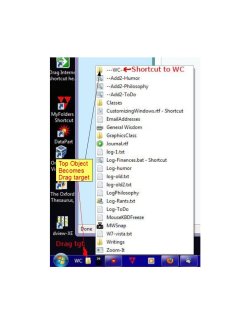
As a simple app launcher/switcher, I am getting fond of the "Terrific Bar" or what ever its new name is. But several things I have not figured out, like how to make it do a ~20 document Work-in-progress launcher. With QuickLaunch, I did this--Created my quick launch folder, then placed in this folder a shortcut to itself. Then when adding it to the Taskbar, I leave room for this shortcut to show. As long as I keep this shortcut at the top, this gives me a "drag target" to quickly add to this QL folder. See attach.

So, now, just like in XP and 2K, I can save a document, where-ever it goes, then immediately "save-as", and drag a shortcut to my quick launch. Now when ever I get an idea about one of these projects, I can get the document open before I forget the idea. I could pin the document, but I like the feeling of separation of these documents from apps.

Also, on the other end of the taskbar, I have another launcher showing shortcuts to various editors, and I can, e.g., drag a graphic directly from a web page into GIMP or Paint for editing. I could not get pinned apps to act as drag targets.
 

Attachments

  • MWSnap 2010-08-06-12_52_38a.jpg
    MWSnap 2010-08-06-12_52_38a.jpg
    67 KB · Views: 245

My Computer

Computer Manufacturer/Model Number
Dell XPS17 laptop
OS
Windows 7 Pro 64
CPU
i7 2760QM 2.4GHz
Memory
8GB
Graphics Card(s)
Intel HD/Nvidia GeForce 555M
Sound Card
RealTek
Monitor(s) Displays
Ntrig DuoSense digitzer, touchscreen
Hard Drives
750GB
Mouse
Synaptics touchpad
Shift + click or middle mouse button click will open a new instance of any application.

Quick launch is redudant, that's why they killed it off.

Use the the ability to pin to start menu as a replacement for quick launch. Not only do you get quick access to your apps, but you also get more functionality (the right arrow button next to the app can show options).

I think what they have done with the new taskbar is fantastic.

I'm glad you like the new taskbar, but I (and many others) hate it. The shift + click to open a new instance is not a good solution for me, because I have a large wide screen and sit about three feet back, and I am rarely positioned to easily use the mouse and keyboard together... so I prefer to just be able to click the icon without having to grab my keyboard, which sits out of the way until I need it.

Brink, thank you for another awesome tutorial! I have been using the new taskbar with pinned programs since May and it's been driving me crazy. The biggest annoyance for me is not being able to tell by looking at the icons which programs are running.

I actually stumbled upon this tutorial accidentally because I was searching for a solution to the Firefox icon having the exact same taskbar icon when it was closed and when it had just one window open. I wanted to be able to set it so that it would look like an additional stacked page when only one window of Firefox was opened... so that it would be obvious at a glance if it was running.

The QuickLaunch toolbar is a much better solution all around. Now I can have all my most used programs right there and I'm able to open additional instances with just one click. I previously had most of them pinned to the start menu which looked visually more cluttered and was not as quick to access.

Having some pinned task launch buttons, which may or may not have been open, mixed in with the un-pinned running programs was very disorganized and frustrating. Instead, with the QL bar, the launch icons and running task icons are all separated, and I can easily see every program that is actually running. That is a huge functional improvement for me.

I do think Microsoft should add the QuickLaunch back as an option, so that people don't have to search the internet to find out how to do it manually. I also hope this is not a sign of things to come. It does remind me of Mac's OSX dock, which I absolutely hated when I tried it out last year... for all the reasons that I hate this dysfunctional new taskbar. If I wanted an annoying Dock, I would buy a Mac. If MS tries to be a Mac clone, I will have to switch to Ubuntu... and I'd rather not because I've always like Windows very much.
 

My Computer

Computer type
Laptop
Computer Manufacturer/Model Number
Toshiba Satellite U845W-S410
OS
Windows 7 Home Premium 64 bit
CPU
Intel ® Core™ i5-3317U Processor
Memory
6GB DDR3 1600MHz
Graphics Card(s)
Mobile Intel ® HD Graphics with 64MB-1696MB dynamically allo
Monitor(s) Displays
All-in-one -- Generic PnP Monitor
Screen Resolution
14.4” diagonal widescreen TruBrite ® TFT display at 1792 x 7
Hard Drives
500GB (5400 RPM, Serial ATA) with dedicated 32GB mSATA SSD disk
cache
Keyboard
Logitech
Mouse
Logitech
...
Quick launch is redudant, that's why they killed it off.

Just because you don't need QL doesn't mean others don't. I and many others have described in detail how the characteristics of quick lauch have not been replaced. I too am a developer and I have 50 or more applications I want to be quickly available. The standard tools in Win7 simply do not handle a large number of apps like that. I have had to use 7stacks as the best replacement I have found, but it has a lot of flaws and requires a lot of manual set up.

It wasn't my personal opinion. The windows 7 UI team behind the new taskbar stated themselves they got rid of the quick launch because it was redundant.
 

My Computer

OS
7264x64/7260x86
Back
Top


