
Quick Launch - Enable or Disable

How to Enable or Disable Quick Launch in Windows 7

   Information
By default Quick Launch is disabled in Windows 7. This will show you how to enable or disable Quick Launch as a taskbar toolbar using small or large icons in Windows 7.

   Note
Quick Launch is a toolbar on the taskbar. Quick Launch is used to open a program quickly from a shortcut from within it separate from the pinned programs on the taskbar.

The Quick Launch folder is located at the hidden system folder location below to add shortcuts to.

C:\Users\(user-name)\AppData\Roaming\Microsoft\Internet Explorer\Quick Launch

   Tip
Microsoft has made available a hotfix that will resolve a problem where the taskbar customizations are lost and reset to defaults when automatic logon is enabled in Windows 7 and Windows Server 2008 R2. More details are available at FIX: The Taskbar is reset to the default settings when you use the "Automatically Log On" feature in Windows 7 and in Windows Server 2008 R2.


If you still have the issue of where the pinned Quick Launch used in this tutorial disappears on you after logging off and on or restarting the computer, then a workaround for this issue is to either:
EXAMPLE: Default Windows 7 Taskbar
1441d1234757806-quick-launch-enable-disable-disabled.jpg


EXAMPLE: Quick Launch Enabled on Right Side of Taskbar
NOTE: This is the new Quick Launch toolbar with text and title, small icons, or large icons.
2048d1234327806-quick-launch-enable-disable-quick_launch_toolbar.jpg


4733d1234757607-quick-launch-enable-disable-small_quick_launch.jpg


4732d1234757607-quick-launch-enable-disable-large_quick_launch.jpg


EXAMPLE: Quick Launch Enabled on Left Side of Taskbar
NOTE: This is the new Quick Launch toolbar without text and title, and with small icons or large icons.

Right_Example-1.jpg

Right_Example-2.jpg


OPTION ONE

To Add Quick Launch to Taskbar


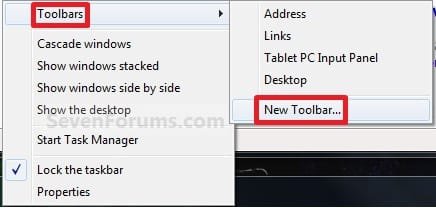
1. Right click on a empty space on the taskbar, then select (hover on) Taskbar and click on New Toolbar. (See screenshot below)
Right_Click_Taskbar.jpg
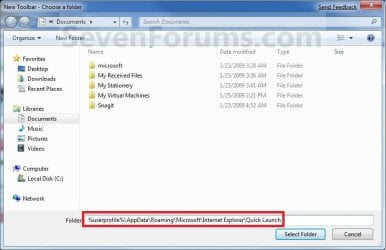
2. In the Folder line, type or copy the location below. (See screenshot below)
%userprofile%\AppData\Roaming\Microsoft\Internet Explorer\Quick Launch
Select_Folder.jpg
3. Click on the Select Folder button. (See screenshot above)

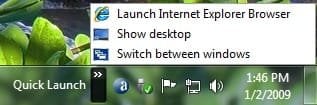
4. You now have a Quick Launch toolbar on the taskbar. (See screenshot below)
NOTE: Click on the arrow to see your Quick Launch shortcuts.
Quick_Launch_Toolbar.jpg
5. To Expand the Quick Launch Toolbar
A) Unlock the taskbar.

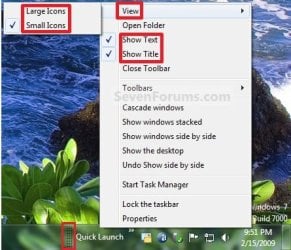
B) Left click and hold on the dotted separator line just to the left of Quick Launch, then drag it to the left or right to adjust to unhide all of the icons. Release the left click when done. (See screenshot below)
Right_Click_Toolbar.jpg
C) Lock the taskbar.
6. To Remove Quick Launch Toolbar Icon Text or Title
A) Unlock the taskbar.

B) Right click on the dotted separator line just to the left of Quick Launch, then uncheck the Show Text and Show Title by clicking on them. (See screenshot below step 5B)

C) Lock the taskbar.
7. To Have Small or Large Icons for Quick Launch Toolbar
A) Unlock the taskbar.

B) Right click on the dotted separator line just to the left of Quick Launch, then click on View and select to have Large Icons or Small Icons. (See screenshot below step 5B)

C) Lock the taskbar.
8. To Have Quick Launch Toolbar on Left Side of Taskbar
A) Unlock the taskbar.

B) Left click and hold on the dotted separator line just to the left of Quick Launch, then drag Quick Launch as far to the left on the taskbar as you are able to and release.

C) If you still have any pinned program icons to the left of Quick Launch, then left click and hold on the dotted separator line just to the left of the icons and hold, and drag it to the right past Quick Launch and release. (See screenshot below)

RightSide_1.jpg
D) The Quick Launch toolbar is now on the far left side of the taskbar. (See screenshot below)

RightSide_2.jpg
E) Left click and hold on the dotted separator line for the other icons and drag them left or right to make any adjustments to how you want them placed on the taskbar. (See screenshot above)

F) Lock the taskbar.


OPTION TWO

To Remove Quick Launch from Taskbar


1. Right click on a empty space on the taskbar and click on Toolbars and Quick Launch to uncheck and remove it from the taskbar. (See screenshot below)
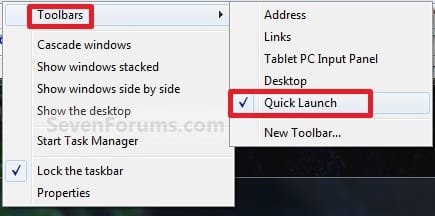
Remove.jpg
That's it,
Shawn


Attachments

  • Disabled.jpg
    Disabled.jpg
    9.3 KB · Views: 1,677,290
  • Large_Quick_Launch.jpg
    Large_Quick_Launch.jpg
    8.5 KB · Views: 1,656,917
  • Small_Quick_Launch.jpg
    Small_Quick_Launch.jpg
    8.5 KB · Views: 1,657,225
Last edited:
That's exactly the point this whole thread is trying to make, that the Windows 7 UI team made a compromise that does not work for everybody when they introduce this regression, putting the priority on the cosmetic aspect vs usability.

There is no redundancy with the QL bar since there is no alternative way to quickly open multiple instances of an application such as Notepad, Windows Explorer or Command Prompt with a single click. I have 5 apps pinned to my task bar, but over a dozen on 2 lines in my QL bar.

I actually find it neat to put some less frequently used shortcuts in the QL bar rather than cluttering the main task bar, for instance accessories like Calculator and Character Pad. Their fixed position in the QL bar also makes it easier to memorize their location or find them. It's also much faster to visually browse the small QL area to find your shortcut compared to scanning 2 lines of icons and minimized apps on almost the whole width of the screen.
 

My Computer

Computer Manufacturer/Model Number
Home built
OS
Windows 7 x64 Ultimate English + language kits
CPU
Intel Core 2 6420 2.13GHz
Motherboard
Asus P5W DH Deluxe
Memory
4GB
Graphics Card(s)
NVIDIA GeForce 8800 GTX 768MB
Sound Card
Onboard audio
Monitor(s) Displays
Dell 1901FP
Hard Drives
Seagate Barracuda 1.5 and 0.5 TB
I want to replace Quick launch toolbar in left near the start menu/
How to change?
 

My Computer

OS
window 7 Ultimate
Hello Monelikemal, and welcome to Seven Forums.

Did you mean replace or place?

If "replace", then what did you want to replace it with?

If "place", then step 8 in Option One in the tutorial on the first page will help show you how to drag the Quick Launch toolbar over to the left side of the taskbar.

Hope this helps for now,
Shawn
 

My Computer

Computer type
PC/Desktop
Computer Manufacturer/Model Number
Self built custom
OS
64-bit Windows 11 Pro for Workstations
CPU
Intel i7-8700K OC'd to 5 GHz
Motherboard
ASUS ROG Maximus XI Formula Z390
Memory
64 GB (4x16GB) G.SKILL TridentZ RGB DDR4 3600 MHz
Graphics Card(s)
ASUS ROG-STRIX-GTX1080TI-O11G-GAMING
Sound Card
Integrated
Monitor(s) Displays
2 x Samsung Odyssey G7 27"
Screen Resolution
2560x1440
Hard Drives
1TB Samsung 990 PRO M.2,
4TB Samsung 990 PRO PRO M.2,
TerraMaster F8 SSD Plus NAS
PSU
Seasonic Prime Titanium 850W
Case
Thermaltake Core P3
Cooling
Corsair Hydro H115i
Keyboard
Logitech wireless K800
Mouse
Logitech MX Master 4
Internet Speed
2 Gb/s Download and 100 Mb/s Upload
Antivirus
Malwarebyte Anti-Malware Premium
Browser
Google Chrome
Other Info
Logitech Z625 speaker system,
Logitech BRIO 4K Pro webcam,
HP Color LaserJet Pro MFP M477fdn,
APC SMART-UPS RT 1000 XL - SURT1000XLI,
Galaxy S23 Plus phone
Hi Shawn, how do you get to that tutorial?

When I click on "Click here to read the entire tutorial" in your first post, it always leads me to the same http://www.sevenforums.com/tutorials/888-quick-launch-enable-disable.html link, which is this very thread, not a link to any tutorial. I don't see any step 8 or option 1 anywhere. From the very start of reading this thread I always thought that the whole tutorial thing was the few screenshots in your post, but apparently there is more to it.

I have been looking forward to move the QL bar to its original Vista location near the Start/Windows button too.
 

My Computer

Computer Manufacturer/Model Number
Home built
OS
Windows 7 x64 Ultimate English + language kits
CPU
Intel Core 2 6420 2.13GHz
Motherboard
Asus P5W DH Deluxe
Memory
4GB
Graphics Card(s)
NVIDIA GeForce 8800 GTX 768MB
Sound Card
Onboard audio
Monitor(s) Displays
Dell 1901FP
Hard Drives
Seagate Barracuda 1.5 and 0.5 TB
Chimel,

When you click on that link to go to the first page and post (the tutorial) of this thread, scroll down a bit past the examples at the top of the tutorial until you see the "OPTION ONE" section. The steps will be underneath it. ;)
 

My Computer

Computer type
PC/Desktop
Computer Manufacturer/Model Number
Self built custom
OS
64-bit Windows 11 Pro for Workstations
CPU
Intel i7-8700K OC'd to 5 GHz
Motherboard
ASUS ROG Maximus XI Formula Z390
Memory
64 GB (4x16GB) G.SKILL TridentZ RGB DDR4 3600 MHz
Graphics Card(s)
ASUS ROG-STRIX-GTX1080TI-O11G-GAMING
Sound Card
Integrated
Monitor(s) Displays
2 x Samsung Odyssey G7 27"
Screen Resolution
2560x1440
Hard Drives
1TB Samsung 990 PRO M.2,
4TB Samsung 990 PRO PRO M.2,
TerraMaster F8 SSD Plus NAS
PSU
Seasonic Prime Titanium 850W
Case
Thermaltake Core P3
Cooling
Corsair Hydro H115i
Keyboard
Logitech wireless K800
Mouse
Logitech MX Master 4
Internet Speed
2 Gb/s Download and 100 Mb/s Upload
Antivirus
Malwarebyte Anti-Malware Premium
Browser
Google Chrome
Other Info
Logitech Z625 speaker system,
Logitech BRIO 4K Pro webcam,
HP Color LaserJet Pro MFP M477fdn,
APC SMART-UPS RT 1000 XL - SURT1000XLI,
Galaxy S23 Plus phone
Sorry Shawn, there is nothing there for me, no OPTION ONE section in your first post.

I found out why, there seems to be a bug in the forums: I had my User CP settings set to display the newest posts first. In that configuration, your whole tutorial is reduced to a line with an ellipse ("...") between the title of your post "How to Enable or Disable Quick Launch in Windows 7" and that new "Click here to read the entire tutorial" link that does not expand as I suppose it should.

I could see your other tutorial "How to Enable or Disable Windows 7 Taskbar Button Grouping" even with the settings set to display the newest posts first, so that's weird.

That step 8 worked fine for me, thanks! Stupid me was trying to move the QL toolbar left instead of the taskbar right. Counter-intuitive Windows... ;(
I changed back the thread display mode to "Linear - Newest first" and the bug repros, maybe check if it does the same for you.
 

My Computer

Computer Manufacturer/Model Number
Home built
OS
Windows 7 x64 Ultimate English + language kits
CPU
Intel Core 2 6420 2.13GHz
Motherboard
Asus P5W DH Deluxe
Memory
4GB
Graphics Card(s)
NVIDIA GeForce 8800 GTX 768MB
Sound Card
Onboard audio
Monitor(s) Displays
Dell 1901FP
Hard Drives
Seagate Barracuda 1.5 and 0.5 TB
Ah, ok. No wonder why you were not seeing the tutorial then. I'm happy to hear that you got it all sorted out. :)
 

My Computer

Computer type
PC/Desktop
Computer Manufacturer/Model Number
Self built custom
OS
64-bit Windows 11 Pro for Workstations
CPU
Intel i7-8700K OC'd to 5 GHz
Motherboard
ASUS ROG Maximus XI Formula Z390
Memory
64 GB (4x16GB) G.SKILL TridentZ RGB DDR4 3600 MHz
Graphics Card(s)
ASUS ROG-STRIX-GTX1080TI-O11G-GAMING
Sound Card
Integrated
Monitor(s) Displays
2 x Samsung Odyssey G7 27"
Screen Resolution
2560x1440
Hard Drives
1TB Samsung 990 PRO M.2,
4TB Samsung 990 PRO PRO M.2,
TerraMaster F8 SSD Plus NAS
PSU
Seasonic Prime Titanium 850W
Case
Thermaltake Core P3
Cooling
Corsair Hydro H115i
Keyboard
Logitech wireless K800
Mouse
Logitech MX Master 4
Internet Speed
2 Gb/s Download and 100 Mb/s Upload
Antivirus
Malwarebyte Anti-Malware Premium
Browser
Google Chrome
Other Info
Logitech Z625 speaker system,
Logitech BRIO 4K Pro webcam,
HP Color LaserJet Pro MFP M477fdn,
APC SMART-UPS RT 1000 XL - SURT1000XLI,
Galaxy S23 Plus phone
My quick launch toolbar can't be moved to the left side, how can I fix that?
 

My Computer

OS
Windows 7 Home Premium 64bit
Hello MJ08, and welcome to Seven Forums.

Did you unlock the taskbar first? (step 8A)

Hope this helps,
Shawn
 

My Computer

Computer type
PC/Desktop
Computer Manufacturer/Model Number
Self built custom
OS
64-bit Windows 11 Pro for Workstations
CPU
Intel i7-8700K OC'd to 5 GHz
Motherboard
ASUS ROG Maximus XI Formula Z390
Memory
64 GB (4x16GB) G.SKILL TridentZ RGB DDR4 3600 MHz
Graphics Card(s)
ASUS ROG-STRIX-GTX1080TI-O11G-GAMING
Sound Card
Integrated
Monitor(s) Displays
2 x Samsung Odyssey G7 27"
Screen Resolution
2560x1440
Hard Drives
1TB Samsung 990 PRO M.2,
4TB Samsung 990 PRO PRO M.2,
TerraMaster F8 SSD Plus NAS
PSU
Seasonic Prime Titanium 850W
Case
Thermaltake Core P3
Cooling
Corsair Hydro H115i
Keyboard
Logitech wireless K800
Mouse
Logitech MX Master 4
Internet Speed
2 Gb/s Download and 100 Mb/s Upload
Antivirus
Malwarebyte Anti-Malware Premium
Browser
Google Chrome
Other Info
Logitech Z625 speaker system,
Logitech BRIO 4K Pro webcam,
HP Color LaserJet Pro MFP M477fdn,
APC SMART-UPS RT 1000 XL - SURT1000XLI,
Galaxy S23 Plus phone
My quick launch toolbar can't be moved to the left side, how can I fix that?
Hi MJ08, even after I unlocked as Brink suggested, I could not move the QL bar to the left either. But what did work, was to drag the whole rest of the taskbar to the right of the new QL bar (drag the left handle on the task bar). Then I was able to re-size things to the way I wanted. It takes some patience. Be sure and re-lock when you have it where you want.
 

My Computer

Computer Manufacturer/Model Number
Dell XPS17 laptop
OS
Windows 7 Pro 64
CPU
i7 2760QM 2.4GHz
Memory
8GB
Graphics Card(s)
Intel HD/Nvidia GeForce 555M
Sound Card
RealTek
Monitor(s) Displays
Ntrig DuoSense digitzer, touchscreen
Hard Drives
750GB
Mouse
Synaptics touchpad
Yep, that's step 8B: You don't move the QL bar left, you need to move the taskbar right of the QL bar as stated in Brink's tutorial.
 

My Computer

Computer Manufacturer/Model Number
Home built
OS
Windows 7 x64 Ultimate English + language kits
CPU
Intel Core 2 6420 2.13GHz
Motherboard
Asus P5W DH Deluxe
Memory
4GB
Graphics Card(s)
NVIDIA GeForce 8800 GTX 768MB
Sound Card
Onboard audio
Monitor(s) Displays
Dell 1901FP
Hard Drives
Seagate Barracuda 1.5 and 0.5 TB
I just fixed it.

Thanks:D
 

My Computer

OS
Windows 7 Home Premium 64bit

My Computer

Computer type
PC/Desktop
Computer Manufacturer/Model Number
Self built custom
OS
64-bit Windows 11 Pro for Workstations
CPU
Intel i7-8700K OC'd to 5 GHz
Motherboard
ASUS ROG Maximus XI Formula Z390
Memory
64 GB (4x16GB) G.SKILL TridentZ RGB DDR4 3600 MHz
Graphics Card(s)
ASUS ROG-STRIX-GTX1080TI-O11G-GAMING
Sound Card
Integrated
Monitor(s) Displays
2 x Samsung Odyssey G7 27"
Screen Resolution
2560x1440
Hard Drives
1TB Samsung 990 PRO M.2,
4TB Samsung 990 PRO PRO M.2,
TerraMaster F8 SSD Plus NAS
PSU
Seasonic Prime Titanium 850W
Case
Thermaltake Core P3
Cooling
Corsair Hydro H115i
Keyboard
Logitech wireless K800
Mouse
Logitech MX Master 4
Internet Speed
2 Gb/s Download and 100 Mb/s Upload
Antivirus
Malwarebyte Anti-Malware Premium
Browser
Google Chrome
Other Info
Logitech Z625 speaker system,
Logitech BRIO 4K Pro webcam,
HP Color LaserJet Pro MFP M477fdn,
APC SMART-UPS RT 1000 XL - SURT1000XLI,
Galaxy S23 Plus phone
Excellent Tutorial Brink!

That was probably the easiest tutorial I've tried to follow yet. It was clear, concise, to the point. I find that most of the time they will over-explain the process which just overwhelms a noob such as myself, the illustrations made it even easier. Thanks for the help.
 

My Computer

Computer Manufacturer/Model Number
Custom
OS
Windows 7 Professional 64 bit
CPU
ASUS
You're most welcome Jim, and welcome to Seven Forums. Thank you. :)
 

My Computer

Computer type
PC/Desktop
Computer Manufacturer/Model Number
Self built custom
OS
64-bit Windows 11 Pro for Workstations
CPU
Intel i7-8700K OC'd to 5 GHz
Motherboard
ASUS ROG Maximus XI Formula Z390
Memory
64 GB (4x16GB) G.SKILL TridentZ RGB DDR4 3600 MHz
Graphics Card(s)
ASUS ROG-STRIX-GTX1080TI-O11G-GAMING
Sound Card
Integrated
Monitor(s) Displays
2 x Samsung Odyssey G7 27"
Screen Resolution
2560x1440
Hard Drives
1TB Samsung 990 PRO M.2,
4TB Samsung 990 PRO PRO M.2,
TerraMaster F8 SSD Plus NAS
PSU
Seasonic Prime Titanium 850W
Case
Thermaltake Core P3
Cooling
Corsair Hydro H115i
Keyboard
Logitech wireless K800
Mouse
Logitech MX Master 4
Internet Speed
2 Gb/s Download and 100 Mb/s Upload
Antivirus
Malwarebyte Anti-Malware Premium
Browser
Google Chrome
Other Info
Logitech Z625 speaker system,
Logitech BRIO 4K Pro webcam,
HP Color LaserJet Pro MFP M477fdn,
APC SMART-UPS RT 1000 XL - SURT1000XLI,
Galaxy S23 Plus phone
RE: Having Issues Launching Hidden Programs In The Quick Launch Bar?

Hello. I need your help with this issue.

I have successfully added the Quick Launch Bar to my Windows 7 Professional over a week ago. Since then I have added several programs where now I have exceeded the icons displayed in the quick launch bar. I have no intentions of extending the size of the quick launch bar across the lenght of my taskbar. Now, maybe I have overlooked this or someone here may of already posted this particular issue; but as I keep adding programs to the quick launch, I am now getting them placed invisible behind the double right arrow now. If I single click on the double right arrow, I get a vertical listing of the program icons that are hidden above the double right arrow. Okay, this is like Windows XP or Vista's quick launch bar's actions with hidden program icons. Now, if I click on any one of the hidden program icons in the vertical listing of the quick launch bar, NOTHING HAPPENS (None of them launch!)! That is strange, because if I clicked on any one of the hidden programs icons in the quick launch bar in Windows Vista and XP, they would launch. Hmmm... ...no launching here? Something happening? What is different now? Is there a way for me to get the hidden programs icons in the quick launch bar to launch if they were not meant to be at this point?

Please reply.

Thank you!
 

My Computer

Computer type
PC/Desktop
OS
Windows 7 Pro x64 SP1 & Windows 8 & 8.1 Pro x64
There was a maximum of 10 shortcuts in Vista, I don't suppose the number has been increased in Windows 7 since the feature was removed.

You should move your most important shortcuts to the Taskbar, keep the next important ones in the QL bar and use the Start menu for the less frequently used apps. Some apps may have been programmed to show in the System Tray/Notification Area, in which case you can remove them from QL and configure the System Tray to make them visible (vertical arrow "Show hidden icons").

Tips:

  • I have my QL bar/Task bar set on 2 lines, expanding vertically instead of horizontally.
  • Instead of adding shortcuts to applications in your QL, you can create subfolders in your QL folder, for instance Video, Games, Media Players, etc. These folders will act as a second layer of menu, you'll just need to populate these subfolders with the appropriate shortcuts. I don't do that in my QL bar, 10 shortcuts is plenty for me, but I have 7 such subfolders in my \Users\All Users\Microsoft\Windows\Start Menu\Programs folder: Accessories, Applications, Complements, Games, Media Players, Startup, Web Browsers, and just a single shortcut for Windows Update.
 
Last edited by a moderator:

My Computer

Computer Manufacturer/Model Number
Home built
OS
Windows 7 x64 Ultimate English + language kits
CPU
Intel Core 2 6420 2.13GHz
Motherboard
Asus P5W DH Deluxe
Memory
4GB
Graphics Card(s)
NVIDIA GeForce 8800 GTX 768MB
Sound Card
Onboard audio
Monitor(s) Displays
Dell 1901FP
Hard Drives
Seagate Barracuda 1.5 and 0.5 TB
there is no such limit, I currently have 19 icons in my quick launch without problems, unlock the taskbar and then drag the bar right so there is enough room for them without the arrow.
 

My Computer

Computer type
PC/Desktop
Computer Manufacturer/Model Number
home built
OS
windows 8.1 Pro x64
CPU
intel i5 4670k @ 4.3ghz
Motherboard
asus z87-plus
Memory
16 gig ram ddr3 @ 1600 corsair vengeance
Graphics Card(s)
evga 970 GTX 4 GIG FTW ACX 2.0
Sound Card
asus xonar D2X
Monitor(s) Displays
benq gw2765ht
Screen Resolution
2560x1440
Hard Drives
Samsung 850 pro SSD 512gig - boot device wooosh
WD black cavalier 640gig WD6401AALS
Seagate 500gig ST3500630AS
WD 2TB Green WDC20EARS
2 x WD Red 3TB WD30EFRX
Samsung 750gig HD753LG - on asmedia controller
PSU
coolermaster silent pro 600watt modular
Case
fractal define R4
Cooling
artic freezer i30, 3 case fans
Keyboard
microsoft business ps2 keyboard
Mouse
microsoft optical black mouse
Internet Speed
80/20 FTTC SkyBB
Antivirus
Nod32 AV v8, HitmanProAlert, SRP, System Hardening
Browser
Chrome x64
Other Info
Intel controller is in AHCI mode currently using IaSTOR 12.8.0.1016 drivers
Cool, then I don't know what's blocking montecarlo1987 if it's not what you said.
Meh, my previous link was deleted, my post is not so helpful anymore.
 

My Computer

Computer Manufacturer/Model Number
Home built
OS
Windows 7 x64 Ultimate English + language kits
CPU
Intel Core 2 6420 2.13GHz
Motherboard
Asus P5W DH Deluxe
Memory
4GB
Graphics Card(s)
NVIDIA GeForce 8800 GTX 768MB
Sound Card
Onboard audio
Monitor(s) Displays
Dell 1901FP
Hard Drives
Seagate Barracuda 1.5 and 0.5 TB
yeah I can see why 10 would be seen as a big issue, as my taskbar is 4 high, I also raised the height, so to fit 19 on its not that wide. Only about 1/20th the width.
 

My Computer

Computer type
PC/Desktop
Computer Manufacturer/Model Number
home built
OS
windows 8.1 Pro x64
CPU
intel i5 4670k @ 4.3ghz
Motherboard
asus z87-plus
Memory
16 gig ram ddr3 @ 1600 corsair vengeance
Graphics Card(s)
evga 970 GTX 4 GIG FTW ACX 2.0
Sound Card
asus xonar D2X
Monitor(s) Displays
benq gw2765ht
Screen Resolution
2560x1440
Hard Drives
Samsung 850 pro SSD 512gig - boot device wooosh
WD black cavalier 640gig WD6401AALS
Seagate 500gig ST3500630AS
WD 2TB Green WDC20EARS
2 x WD Red 3TB WD30EFRX
Samsung 750gig HD753LG - on asmedia controller
PSU
coolermaster silent pro 600watt modular
Case
fractal define R4
Cooling
artic freezer i30, 3 case fans
Keyboard
microsoft business ps2 keyboard
Mouse
microsoft optical black mouse
Internet Speed
80/20 FTTC SkyBB
Antivirus
Nod32 AV v8, HitmanProAlert, SRP, System Hardening
Browser
Chrome x64
Other Info
Intel controller is in AHCI mode currently using IaSTOR 12.8.0.1016 drivers
Back
Top


