Solved RAW external hard drive after making it internal

TheUninvited5

New member
Local time
9:45 AM
Messages
6
So here's what happened. I've decided to make my 1TB WD My Book external HDD to an internal one, I connected it internally using SATA, booted up Windows, and found it wasn't displayed in my computer.

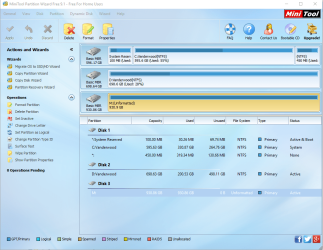
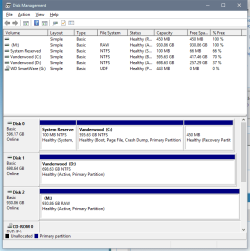
I tried to assign a drive letter and initialize it, make it active but it stays at a RAW format.

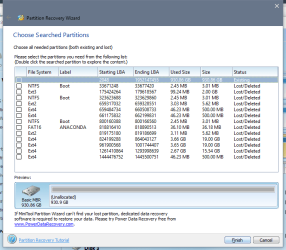
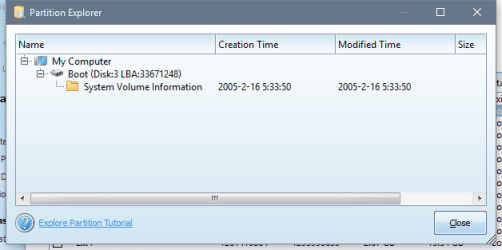
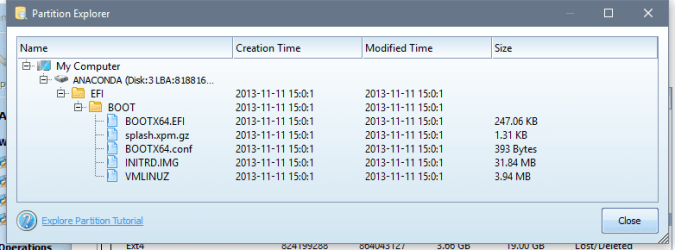
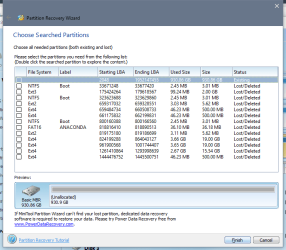
Tried partition recovery wizard but I'm not sure what to recover. When I double click the first in the list, it doesn't bring up anything. I can only double click with the ones with label - see screenshots.

No, I haven't click format the drive yet.
 

Attachments
  • Untitled2.png
    Untitled2.png
    18.5 KB · Views: 3
  • Untitled5.png
    Untitled5.png
    24.7 KB · Views: 2
  • Untitled.png
    Untitled.png
    25.1 KB · Views: 1
  • Untitled3.png
    Untitled3.png
    10 KB · Views: 20
  • Untitled4.png
    Untitled4.png
    16.4 KB · Views: 1
Last edited:

My Computer My Computer

At a glance

Windows 10 x64
Computer type
PC/Desktop
OS
Windows 10 x64
If your 1TB WD external drive is other than an Elements model - Why can't you give the model No and Model name ???? - you can't take the HDD out of the enclosure and connect it as an internal drive. It won't be read properly since all data in it is hardware encrypted by a chip in the enclosure electronics. If you hadn't damaged the enclosure and the electronics while easing out the HDD from it, put it back into the enclosure with a prayer, that it will read properly as before.

( You had initialised it, created New volume, assigned a drive letter - I am not sure whether you had formatted it too - you have made the situation worse. Point of no easy return ????, I can't say)
 
Last edited:

My Computer My Computer

At a glance

Windows 7 Home Premium 32 bit
OS
Windows 7 Home Premium 32 bit
If your 1TB WD external drive is other than an Elements model - Why can't you give the model No and Model name ???? - you can't take the HDD out of the enclosure and connect it as an internal drive. It won't be read properly since all data in it is hardware encrypted by a chip in the enclosure electronics. If you hadn't damaged the enclosure and the electronics while easing out the HDD from it, put it back into the enclosure with a prayer, that it will read properly as before.

Sorry if not being specific. It's a 1TB WD My Book. It's actually a 3.5" caviar green inside.

I watched a couple of videos in YouTube that exactly does this so I'm pretty confident until this happened..

No I have not clicked format.

Thanks for the reply.
 

My Computer My Computer

At a glance

Windows 10 x64
Computer type
PC/Desktop
OS
Windows 10 x64
WD My Book external is hardware encrypted.

Put the HDD back into the enclosure and post a screenshot of Windows Disk Management.

And also answer this question: Before you took the HDD out of its enclosure, was it - your WD My Book external drive - working normally without any problem? Yes / No
 

My Computer My Computer

At a glance

Windows 7 Home Premium 32 bit
OS
Windows 7 Home Premium 32 bit
WD My Book external is hardware encrypted.

Put the HDD back into the enclosure and post a screenshot of Windows Disk Management.

And also answer this question: Before you took the HDD out of its enclosure, was it - your WD My Book external drive - working normally without any problem? Yes / No

I already returned it to the enclosure, the screenshots above are taken after I returned it.

Yes/Yes it was working perfectly, no SMART error till now.

Thanks for your reply.
 

My Computer My Computer

At a glance

Windows 10 x64
Computer type
PC/Desktop
OS
Windows 10 x64
Never mind. We have no clairvoyant power to ascertain which was taken as an internal drive and which was done and taken on the external drive.

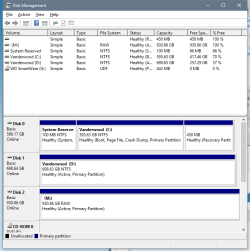
Now confirm that the HDD is inside the original WD enclosure. Remove all other external drives from your machine. ( only your WD My Book 1 TB external plugged in.) Post a screenshot of Windows Disk Management.

Was Partition Wizard run on the internal drive or on the external drive? Again I have no clairvoyant powers :).

So run Partition Wizard again on the external drive now. Post the first screen that appears as soon as you launch PW. Then run Partition Recovery Wizard, quick scan. When Quick Scan completes post the screen that shows the found partitions. ( Only that Window. I don't want the full screen with PW on the background)

I have a lot of running around to do today. So wait till I return and in good mood :D.
 

My Computer My Computer

At a glance

Windows 7 Home Premium 32 bit
OS
Windows 7 Home Premium 32 bit
Again, thanks for your reply.

I confirm that the screenshots below are taken after putting it back in the original enclosure.

My 1TB WD My book is drive M: Vanderwood C: and D: are internal HDDs.
 

Attachments

  • Untitled.png
    Untitled.png
    198 KB · Views: 0
  • Untitled2.png
    Untitled2.png
    18.5 KB · Views: 1
  • Untitled3.png
    Untitled3.png
    24.7 KB · Views: 1

My Computer My Computer

At a glance

Windows 10 x64
Computer type
PC/Desktop
OS
Windows 10 x64
OK, it is nothing different from what you posted earlier.

Partition Wizard does see an existing partition with its NTFS boot sector @ 2048 and extending to the full capacity of the drive. In a normal case,when one selects that partition, the preview map in it will show the drive as it existed before. But here it shows the drive as unformatted.

I really do not know how to go about this.

Please describe, what exactly happened when you connected the HDD as an internal drive.

1. When you tried to open Windows Disk Management, did it say the drive has to be initialised?

2. Did you initialise the drive as an MBR drive?

After initialising the drive what did you do? Explain step by step, till you removed it from your Desktop and put it back in the enclosure. ( Do not at this stage tell me what you did after putting the drive back into the enclosure, I shall come to that later after understanding what you had done to it as an internal drive)

I also see a UDF smartware partition on your drive.Not surprising I know it can be there, but what I want to know now is whether you had installed the Smartware on this PC or any other PC you were using it on before( I guess you had a Windows 7/8 PC before and now you are on Windows 10. If you had installed Smartware anywhere before and using that external drive in conjunction with it, it can create a lot of problems when you change the PC/OS. I also doubt whether you were able to read the external normally on Windows 10. When you say it was working perfectly, may be you mean it was with the previous PC/OS. Was it working normally and readable on Windows 10 PC?
 

My Computer My Computer

At a glance

Windows 7 Home Premium 32 bit
OS
Windows 7 Home Premium 32 bit
1. When you tried to open Windows Disk Management, did it say the drive has to be initialised? - Yes

2. Did you initialise the drive as an MBR drive? - Yes

After initialising the drive what did you do? Explain step by step, till you removed it from your Desktop and put it back in the enclosure. -

I really can't remember, what I did was initialize it, assigned a drive letter, then make partition as active, that's all.

Well, I have some good news. I tried a recovery software (EaseUS if that matters) and during the scan it was able to list out all files and folders. I tried a couple of files to preview and was able to recover it.
Looks like it isn't encrypted at all and I think I can recover 100% of the files.

I guess this is partially resolved. Do you have any suggestion to perform after I recover the files?
Or simply just reformat it after to make it usable again?
 

My Computer My Computer

At a glance

Windows 10 x64
Computer type
PC/Desktop
OS
Windows 10 x64
That's really some good news. I need not break my head :). Recover all data and then format your drive.

As for your statement "Looks like it isn't encrypted at all ", both encryption when you write and decryption when you read take place in the enclosure electronics. So as long as the HDD is inside the enclosure and the enclosure electronics has not failed, it will behave as a normal drive.

Take the HDD out, make it an internal drive and try recovering the data with the same Easeus . You will only get rubbish, the encrypted data, since decryption is now missing out of the enclosure. Try it yourself and you will know.

Should you avoid external hard drives that boast built-in encryption? | Bald Nerd

As you can see in both the links below only Western Digital elements both in Desktop variety and portable variety) do not have hardware encryption.

External Hard Drives | Western Digital (WD)

External Portable Hard Drives | Western Digital (WD)

Now that you know that you will be completely locked out of your data on your MyBook if the enclosure electronics fails, make sure that you have a backup of whatever data you store on your My Book.
 

My Computer My Computer

At a glance

Windows 7 Home Premium 32 bit
OS
Windows 7 Home Premium 32 bit
Thank you very much for your help and information about encryption, etc. appreciate it.

I'll just format it when I put it back it again internally inside my desktop. Hopefully it will behave 'normally' after.

I will mark this as solved.
 

My Computer My Computer

At a glance

Windows 10 x64
Computer type
PC/Desktop
OS
Windows 10 x64
Yes, you can do that and it will behave as a normal internal HDD. No encryption and no decryption.

In future, if you are buying Western Digital External drive (Desktop variety), buy only the Elements which does not have hardware encryption.

But I won't buy even the Elements in the portable class, since WD integrates the enclosure electronics to the HDD in it and one cannot separate the HDD and try it as an internal drive.
 

My Computer My Computer

At a glance

Windows 7 Home Premium 32 bit
OS
Windows 7 Home Premium 32 bit
Back
Top