ReadyBoost - Setup and Use

How to Setup and Use ReadyBoost in Windows 7


   Information
Windows 7 supports Windows ReadyBoost. This feature uses external USB flash drives as a hard disk cache to improve disk read performance. Supported external storage types include USB thumb drives, SD cards, and CF cards. Since ReadyBoost will not provide a perfor¬mance gain when the primary disk is an SSD, Windows 7 disables ReadyBoost when reading from an SSD drive.

This will show you how to setup and use ReadyBoost in Windows 7 with USB flash drives and flash memory cards to help speed up your computer.

However, you most likely will not notice any increase in performance if your computer meets or exceeds the minimum system requirements of 1 GB RAM (4 GB recommended) for 32-bit Windows 7 OR 2 GB RAM (8 GB recommended) for 64-bit Windows 7 installed.

   Note
External storage must meet the following requirements:
  • Capacity of at least 256 MB, with at least 64 kilobytes (KB) of free space.The 4-GB limit of Windows Vista has been removed. For ReadyBoost to effectively speed up your computer, the flash drive or memory card should have at least 1 GB of free available space.
  • At least a 2.5 MB/sec throughput for 4-KB random reads
  • At least a 1.75 MB/sec throughput for 1-MB random writes
  • You can enable or disable ReadyBoost for a specific flash drive or other removable storage device (ex: memory card).
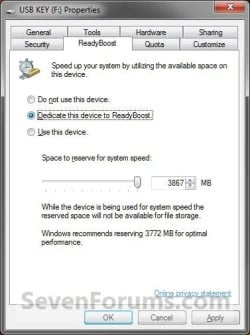
  • Windows 7 shows you how much space it recommends that you allow it to reserve and use on the flash drive or memory card for optimal performance at the bottom of the properties window. (See screenshot below step 4B below)
  • If your flash drive or card doesn't have enough available space for ReadyBoost, you'll see a message telling you to free some space on it.
  • For best results, use a flash drive or flash memory card with at least double the amount of available space as the amount of memory (RAM) in your computer.
  • There's a limit of 8 flash devices (EX: USB flash drive or memory card) that could be used at once for ReadyBoost with a max of 32GB of ReadyBoost space per device for a max total of 256GB per machine.
  • Should you have the USB flash drive formarted as FAT32 or NTFS:
    • The FAT32 file system has size limitations. While you cannot have a FAT32 partition greater than 32 GB (32728 MB), you also cannot save/store a file larger than 4 GB on a FAT32 partition. This limits you to only being able to use up to 4 GB for ReadyBoost on a USB flash drive formatted with FAT32.
    • To be able to use more than 4 GB for ReadyBoost on the USB flash drive, you would need to have the USB flash drive formated with NTFS instead.
For more information about ReadyBoost in Windows 7, see:
   Warning

  • If your Windows 7 is installed on a solid-state drive (SSD), you may not see an option to speed up your computer with ReadyBoost when you plug in a USB flash drive or flash memory card. This is because SSD drives are faster and they're very unlikely to benefit from using ReadyBoost.
  • In some situations, you might not be able to use all of the memory on your device to speed up your computer. For example, some flash memory devices contain both slow and fast flash memory, but ReadyBoost can only use fast flash memory to speed up your computer.
  • ReadyBoost cannot beat the performance gain by just adding more RAM in your computer instead.
  • ReadyBoost uses the Superfetch service that needs to be enabled and set to be "Started" and "Automatic".


Here's How:
1. Plug a USB flash drive or flash memory card that you want to use ReadyBoost with into your computer.

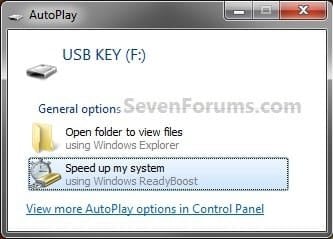
2. If AutoPlay pops-up, click on Speed up my system. (See screenshot below)
Step1.jpg
A) Go to step 4.
OR

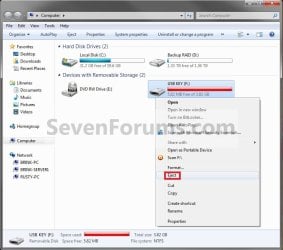
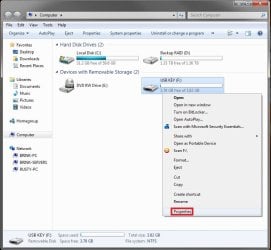
3. If AutoPlay does not pop-up, then open the Start Menu and click on Computer. In Computer, right click on the USB flash drive or flash memory card, and click on Properties. (See screenshot below)
Step1B.jpg
4. To Turn On ReadyBoost

A) To use all of the flash drive or memory card free space for ReadyBoost
  • Select (dot) Dedicate this device to ReadyBoost. (See screenshot below)
Step2.jpg

B) To specify how much free space on the flash drive or memory to use for ReadyBoost
  • Select (dot) Use this device. (See screenshot below)
  • Either slide the slider or enter the amount of free space you want to reserve to ReadyBoost.
    NOTE: See the note box at the top of the tutorial for details about how much free space to use.
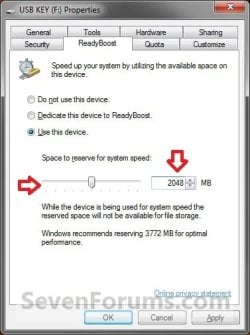
Step3.jpg

5. To Turn Off ReadyBoost
  • Select (dot) Do not use this device. (See screenshots above)
6. Click on OK.

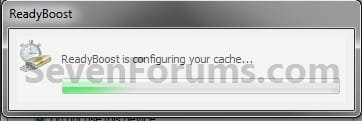
7. You will see this for a brief moment while Windows 7 configures the ReadyBoost cache on your flash drive or memory card. (See screenshot below)
Step4.jpg
   Tip
To Temporarily Remove the ReadyBoost Device
NOTE: If you wanted to temporarily remove the USB flash drive or memory card that ReadyBoost is currently using, then this will show you how to safely remove it.
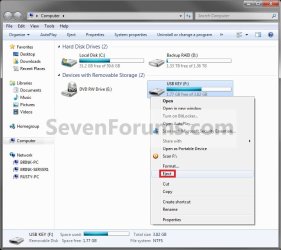
1. Open the Start Menu and click on Computer, then right click on the USB flash drive or flash memory card being used by ReadyBoost, and click on Eject. (See screenshots below)
Eject1.jpgEject2.jpg
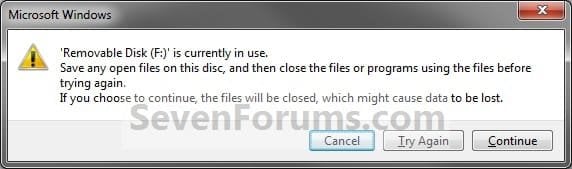
A) Click on Continue. (See screenshot below)
EjectB.jpg
B) Go to step 3.
OR

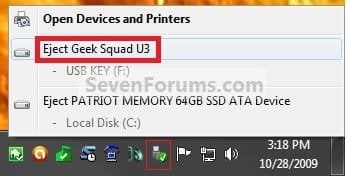
2. Click on the Safely Remove Hardware icon in the notification area on the right side of the taskbar, then click on the USB flash drive or flash memory card being used by ReadyBoost to eject it. (See screenshot below)
Eject3.jpg
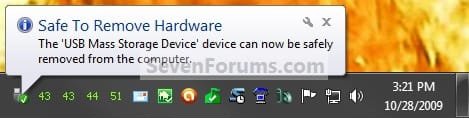
3. When you see this, it is now safe to remove the USB flash drive or flash memory card. (See screenshot below)
Eject3B.jpg
4. When ready, you can just plug the USB flash drive or flash memory card back in to have ReadyBoost automatically start using it again.

That's it,
Shawn


Last edited:
Nice Write up thanks :)
 

My Computer

Computer type
PC/Desktop
Computer Manufacturer/Model Number
Custom Build
OS
Windows 7 Ultimate 64-bit
CPU
Intel G3420 3.2GHZ Dual Core
Motherboard
Gigabyte H87-HD3
Memory
Kingson 8GB 1600mhz
Graphics Card(s)
MSI R7970 TF 3GD5/OC BE
Monitor(s) Displays
21" LG & "19 Vertical Samsung
Hard Drives
120GB SSD - Boot
1TB WD
350GB External
2TB External (Wireless)
PSU
Corsair CX 500 modular
Case
Zalman Z11 Plus (modified)
Cooling
Corsair H55, 2x 120mm SP Corsair, 1x 140 Coolermaster
Keyboard
Corsair K50
Mouse
CSL Gaming
Internet Speed
164Mbps
Antivirus
Avast, Malwarebytes
Browser
Google Chrome, IE, Firefox
Ready boost is not a RAM aid instead it is a disc prefetch aid. It work when the disc head has to do a seak of say 10ms, and when only a small amount of data is needed.

If it has the data prefetched.

It is like a cheap solid state hybrid disc some of the time otherwise invisible.

The only cost is you loose a USB or other slot if you already have a spare fast memory chip.

If you have a stick with a LED it will be off most of the time but when it is flashing you are gettng some speed up, a seek is real slow.

My LED is off all the time cept for some system functions, when it can be quite animated.e.g. defragmenting. Defrag can be boring slow... close down ditto, etc.
 
Last edited:

My Computer

Computer type
Laptop
Computer Manufacturer/Model Number
Toshiba Satellite T110-107
OS
Windows 7 64 bit
CPU
Pentium
Motherboard
OEM
Memory
4Gb RAM, 8Gb readyboost, 7Gb virtual
Graphics Card(s)
OEM
Hard Drives
250 Gb OEM disc + 1Tb back up USB bricks
Antivirus
mixrosoft
Browser
various
I'm not sure how active this thread is any more--I hope someone who knows something about this can respond.

I read the whole thread, and I have a few questions I did not see raised about Win7 running ReadyBoost. Many laptops have an ExpressCard slot that could be used with an adapter to run a flash card. However, there are also a couple of ExpressCard SSD's on the market. (ExpressCard has capability to run on either of two interfaces--USB 2.0 and PCI-E, which is MUCH faster.) This company makes an SSD (64 & 128 GB) for this slot that runs off the PCI-E, so it should be pretty fast:

Wintec Industries - Flash Memory - Solid State Drives - ExpressCard SSD - Product Specifications

I understand that one generally cannot use this SSD as a boot drive, as the laptop will not boot off of the ExpressCard slot. So the C: drive would still be the installed HDD on the laptop. However, so long as the boot drive remains a standard HDD:

1. Will Windows 7 allow the ExpressCard SSD to be used for the ReadyBoost cache? I know it will NOT allow it if the SSD is the boot drive.

2. I imagine the access times on an SSD are faster than an SDHC flash card, but I'm not sure. (SDHC is the fastest SD protocol that will run in the SD slot of most older laptops, or an SD adapter for the ExpressCard slot.) I'm wondering if it would be a benefit to put the ReadyBoost cache on this SSD. I'm not planning on replacing the main HDD with an SSD on this older machine.

3. With the 64GB SSD, there is enough room to also put the Page file and perhaps some frequently used programs on the SSD. Does this make the idea more worthwhile? Which other Windows components could be moved to this drive with benefit in this situation?

4. Since with Win 7, one can run two or more Flash drives with ReadyBoost, I could use the SD slot and the ExpressCard slot with an SD adapter to run TWO SDHC cards for readyboost. (I understand that by running several cards, Win7 will use them like a RAID array, increasing the speed of transfers by using both cards intermittently--so potentially much faster.)

5. I could also use the two slots for one SDHC card, and one ExpressCard SSD. In this case, the SSD may be much faster, because it is running on PCI-E,...so I am wondering if the discrepancy in speeds would be more problematical than running two identical Flash cards.

I realize these are complex questions. Anyone willing to take this on?

Thanks,
Michael
 

My Computer

Computer type
Laptop
Computer Manufacturer/Model Number
Toshiba
OS
Win 7 x64 Pro
CPU
Intel Core i7
Memory
4 GB
Browser
IE; Chrome
Hello Michael, :)

To be honest, today's PCs will not see any performance benefits from ReadyBoost.

In your situation, it would be best to have the page file on either the SSD or SDHC depending on which one is faster.
 

My Computer

Computer type
PC/Desktop
Computer Manufacturer/Model Number
Self built custom
OS
64-bit Windows 11 Pro for Workstations
CPU
Intel i7-8700K OC'd to 5 GHz
Motherboard
ASUS ROG Maximus XI Formula Z390
Memory
64 GB (4x16GB) G.SKILL TridentZ RGB DDR4 3600 MHz
Graphics Card(s)
ASUS ROG-STRIX-GTX1080TI-O11G-GAMING
Sound Card
Integrated
Monitor(s) Displays
2 x Samsung Odyssey G7 27"
Screen Resolution
2560x1440
Hard Drives
1TB Samsung 990 PRO M.2,
4TB Samsung 990 PRO PRO M.2,
TerraMaster F8 SSD Plus NAS
PSU
Seasonic Prime Titanium 850W
Case
Thermaltake Core P3
Cooling
Corsair Hydro H115i
Keyboard
Logitech wireless K800
Mouse
Logitech MX Master 4
Internet Speed
2 Gb/s Download and 100 Mb/s Upload
Antivirus
Malwarebyte Anti-Malware Premium
Browser
Google Chrome
Other Info
Logitech Z625 speaker system,
Logitech BRIO 4K Pro webcam,
HP Color LaserJet Pro MFP M477fdn,
APC SMART-UPS RT 1000 XL - SURT1000XLI,
Galaxy S23 Plus phone
Thanks for replying. This laptop is actually a little older--around 2008 or 2009 vintage. I forgot to say it is maxed out with 4 GB of memory, but I know some have still reported benefit even there with RB. And I haven't seen any discussion of actual use of two or more flash drives with RB. Almost all reports are with only one Flash device. If two are working together, couldn't this tip the balance in terms of access speed on a heavily loaded Win7?

My wife uses this laptop, and almost always loads many programs and web pages at one time, so I'm thinking it might help. I am trying to find out now which has faster access time and random access speeds--SSD or SDHC.

Lastly, can you recommend a good resource on the question of putting the paging file on a fast separate drive?

Thanks again,
Michael
 

My Computer

Computer type
Laptop
Computer Manufacturer/Model Number
Toshiba
OS
Win 7 x64 Pro
CPU
Intel Core i7
Memory
4 GB
Browser
IE; Chrome

My Computer

Computer type
PC/Desktop
Computer Manufacturer/Model Number
Self built custom
OS
64-bit Windows 11 Pro for Workstations
CPU
Intel i7-8700K OC'd to 5 GHz
Motherboard
ASUS ROG Maximus XI Formula Z390
Memory
64 GB (4x16GB) G.SKILL TridentZ RGB DDR4 3600 MHz
Graphics Card(s)
ASUS ROG-STRIX-GTX1080TI-O11G-GAMING
Sound Card
Integrated
Monitor(s) Displays
2 x Samsung Odyssey G7 27"
Screen Resolution
2560x1440
Hard Drives
1TB Samsung 990 PRO M.2,
4TB Samsung 990 PRO PRO M.2,
TerraMaster F8 SSD Plus NAS
PSU
Seasonic Prime Titanium 850W
Case
Thermaltake Core P3
Cooling
Corsair Hydro H115i
Keyboard
Logitech wireless K800
Mouse
Logitech MX Master 4
Internet Speed
2 Gb/s Download and 100 Mb/s Upload
Antivirus
Malwarebyte Anti-Malware Premium
Browser
Google Chrome
Other Info
Logitech Z625 speaker system,
Logitech BRIO 4K Pro webcam,
HP Color LaserJet Pro MFP M477fdn,
APC SMART-UPS RT 1000 XL - SURT1000XLI,
Galaxy S23 Plus phone
It is simple to use a PC Card or USB and ready boost!
Windows knows when it will save seek time cause it keeps a record of where it last moved the head to and only uses the cache's data when it faster getting the cache data than moving the head.
A disc access is seek, rotational latency, and transfer
Ready boost is just transfer even if it is sloooooooooooooow traaaaaaaansfer
It will wear out a flash memory eventually but mine has lasted longer than this thread.
You are overthinking if the disc is being thrashed ready boost helps independent of the other suggestions.
Your processor has a smaller cache fast RAM memory for similar reasons.
My laptop has a slow CPU and fast rotation disc and only uses the PC Card a lot in disc defrag hibernate & reboot when it is on near 50% of the time.
But I only use email and text web pages but the disc is near 80% full.
It is simple to plug in a medium speed (cheap) PC Card and use the recommended cache size.
It won't match a hybrid disc but that is more wonga and more difficult install, needing thought.
Don't forget to defrag regular a fragged disc is slow.
 

My Computer

Computer type
Laptop
Computer Manufacturer/Model Number
Toshiba Satellite T110-107
OS
Windows 7 64 bit
CPU
Pentium
Motherboard
OEM
Memory
4Gb RAM, 8Gb readyboost, 7Gb virtual
Graphics Card(s)
OEM
Hard Drives
250 Gb OEM disc + 1Tb back up USB bricks
Antivirus
mixrosoft
Browser
various
Thanks for the reply, Xmas. You know, a processor's cache RAM is REALLY fast! No PC card is nearly as fast as that, nor fast as regular RAM, nor as an SSD. But your points are well taken.

I'm really hoping that someone has had experience using TWO or more Flash cards or sticks using Ready Boost. I'm wondering if there is any evidence that using two makes a difference.

Michael
 

My Computer

Computer type
Laptop
Computer Manufacturer/Model Number
Toshiba
OS
Win 7 x64 Pro
CPU
Intel Core i7
Memory
4 GB
Browser
IE; Chrome
Thanks for the reply, Xmas. You know, a processor's cache RAM is REALLY fast! No PC card is nearly as fast as that, nor fast as regular RAM, nor as an SSD. But your points are well taken.

I'm really hoping that someone has had experience using TWO or more Flash cards or sticks using Ready Boost. I'm wondering if there is any evidence that using two makes a difference.

Michael
Any cache memory hierarchy works when the faster more local memory is hit a reasonable % of the time on chip or intermediate fast RAM.
Two memories will be better than one statistically for sure.
But the big gain is the first PC or USB.
The gain is because a

10ms seek + rotational latency

is a very long time.
Especially if the head needs to be returned for the next file read or moved randomly.

A disc frag spends all its time moving files and the PC active LED is on a lot!

The big improvement is the first flash cache

Mine is a 2009 laptop 4gb RAM, 8gb ready boost note compressed so close to 16gb effective.
I don't think the compression is optimal but it is not optional either.

That was the recommended size the PC Card is 16 or 32 gb 96k/s read from... 320 gb disc fast rotation.

Note ready boost will boost (avoid a % of) seeks for virtual memory etc. as needed it is a uniform associative cache.

Your significant other may be better reducing the disc traffic as well, if ready boost still leaves her unhappy a hybrid might not be detectably better and a full flash uneconomic compared with a replacement machine.

Mine is just acceptable.

Check the fragment % and enable a scheduled defrag that is where the biggest gain may lie.
 

My Computer

Computer type
Laptop
Computer Manufacturer/Model Number
Toshiba Satellite T110-107
OS
Windows 7 64 bit
CPU
Pentium
Motherboard
OEM
Memory
4Gb RAM, 8Gb readyboost, 7Gb virtual
Graphics Card(s)
OEM
Hard Drives
250 Gb OEM disc + 1Tb back up USB bricks
Antivirus
mixrosoft
Browser
various
Mine is a 2009 laptop 4gb RAM, 8gb ready boost note compressed so close to 16gb effective.

My wife's old Toshiba laptop has almost the same specs--with a Core Duo processor. I plan to give it at least 8GB, maybe as much as 32GB for ReadyBoost. For the moment it's a trial with a weak SD card with 4 GB. If I use the SSD ExpressCard, I will also follow Brink's suggestion and put the Page File on the SSD.

That was the recommended size the PC Card is 16 or 32 gb 96k/s read from... 320 gb disc fast rotation.

96k/s? Do you mean MB/s? (Which could only be sequential reads--Random Writes are much slower.) 96KB/s would be only .096MB/s. I did some comparative study through searches on benchmarking of various devices. I'll try to round up those numbers for you.

Your significant other may be better reducing the disc traffic as well, if ready boost still leaves her unhappy a hybrid might not be detectably better and a full flash uneconomic compared with a replacement machine.

Trouble is, she really likes her current machine (keyboard, touchpad, screen). She actually tried a newer, more powerful Lenovo--and we both hated it compared to her old Toshiba Tecra R10, and frankly, it was so loaded up with bloatware, it wasn't really faster off the shelf, despited updated processor and twice the memory!

Check the fragment % and enable a scheduled defrag that is where the biggest gain may lie.

That's a good point--I doubt she has defragmented the drive in a while, though maybe Win7 is doing it automatically. I'll check.

Michael
 

My Computer

Computer type
Laptop
Computer Manufacturer/Model Number
Toshiba
OS
Win 7 x64 Pro
CPU
Intel Core i7
Memory
4 GB
Browser
IE; Chrome
Mine is also a toshiba but a single core 'slug' one up from web book.

But you do need to enable defrag once a week and check it regular.

Maybe buy a second battery.

And run the windows tune up and kill the default sexy graphics...

But explaining how a cache memory works is difficult.

Basically even a small cache achieves 90% of the speed up of a full flash disc for 90% of time! So that the speed of the processor is now more limited by the dual core and the RAM.

The ready boost is similar to the processors cache memory in essence.

But more exactly similar to a hybrid disc - because it has more information than a hybrid disc though it is using up processor speed to do things. The clue is they have compressed the files... To reduce the dependency on flash speed.

So moving any files to flash and using ready boost together won't gain much more.

Ready boost will have the swap files cached already... For a large % of time. If you move them to SSD this will stop ready boost worrying about them and increase its efficiency but the gain is much lower.

And ready boost will only use the cached files when it is quicker to do so it is not simple like the processors cache.

But if you have a small slow flash card installed you probably have 85% of gain already. I'd not try further.

I decided there was no point in a hybrid! Though I need more disc space. Free space reduces fragmentation.

Yes it is a 95 M flash card I got it in a sale so was cheap.

I'm on a small iPhone so typing is not easy on fast train.

Sorry
 

My Computer

Computer type
Laptop
Computer Manufacturer/Model Number
Toshiba Satellite T110-107
OS
Windows 7 64 bit
CPU
Pentium
Motherboard
OEM
Memory
4Gb RAM, 8Gb readyboost, 7Gb virtual
Graphics Card(s)
OEM
Hard Drives
250 Gb OEM disc + 1Tb back up USB bricks
Antivirus
mixrosoft
Browser
various
You would be better off having a larger page file instead. The tutorial below can help show you how to. :)

Virtual Memory Paging File - Change

Thanks for the suggestion, Shawn. I was tied up with other stuff for a few days, but I've now had a chance to read all through that thread on the Paging File. The main information about moving it I was familiar with. What I've been uncertain about, and was hoping people would go into more in the discussion is what drives one can put it on, and whether there are alternative ways to do that.

When you suggested (a few posts before) that I try putting "the page file on either the SSD or SDHC depending on which one is faster" I think you must have forgotten your previous comment (also in that thread) that one cannot put the Paging File on a removable drive. (I've also heard this elsewhere.) But in any case, I've been wondering:

1) Is the thing about removable drives a hard-and-fast rule?
2) Will the OS (Win7) consider a 64 MB SSD that is mounted on an Express Card slot as a removable drive or not?... And:
3) If Win7 thinks of an ExpressCard drive or a flash card as removable, is there a way to convince the OS otherwise--get it to "rethink" the situation and consider it a standard drive? Or to force it to use the drive anyway?
 

My Computer

Computer type
Laptop
Computer Manufacturer/Model Number
Toshiba
OS
Win 7 x64 Pro
CPU
Intel Core i7
Memory
4 GB
Browser
IE; Chrome
@Xmas--I really appreciate your comments. You have obviously thought a lot about cache and how it functions, and how ReadyBoost works.

Basically even a small cache achieves 90% of the speed up of a full flash disc for 90% of time! So that the speed of the processor is now more limited by the dual core and the RAM.

Yes, I understand what you are saying. But you know how it is, most of us would like to get the best performance possible. :geek:

...similar to a hybrid disc - because it has more information than a hybrid disc though it is using up processor speed to do things. The clue is they have compressed the files... To reduce the dependency on flash speed.

BTW, I just saw a 1 TB 2 1/2" Hybrid drive for about $100--would be hard to beat that as an option, in either my situation or yours. The problem for me is, my wife's laptop does NOT have a removable HD bay. So to change out the HDD, I have to take the whole laptop apart. I did that once, and don't really want to do it again on an older laptop!

That's a good point about what Microsoft did when they created ReadyBoost. By compressing the files, they speeded up the transfers, so you get a greater effectiveness.

So moving any files to flash and using ready boost together won't gain much more.

Yes, I've thought about this--using both the ExpressCard SSD and a Flash Card, but for different things. Are there files that would be worth moving to the SSD and still install Readyboost on the Flash, since the entire OS would NOT be on the SSD? Without Win7 installed on the SSD, it should allow RB, but RB should then ignore the files that are on the SSD because they are making very fast transfers (if it is that intelligent!) Would RB still cache files that reside on the hard drive, while ignoring those on the SSD? I could put things like the browser cache and heavily used programs on the SSD.

Ready boost will have the swap files cached already... For a large % of time. If you move them to SSD this will stop ready boost worrying about them and increase its efficiency but the gain is much lower.

...And ready boost will only use the cached files when it is quicker to do so...

As I just mentioned to Brink, I'm not sure if Win7 will allow me to put the swap files on this SSD--even though that may make sense.

Yes it is a 95 M flash card I got it in a sale so was cheap.

Do you have a device--SD slot or USB--that is compatible with the speed of the card? Otherwise you will not get the full speed that is rated. Most SD card slots in laptops are rated for SD and probably SDHC--but not for SDXC or higher. Unless you use an adapter off USB 3.0 or the Express Card slot (like Compact Flash.) SDHC will probably not go beyond 30 MB/s or so. But in any case, the more important thing is the access speed of the card, and random reads and writes. Oddly, some slower (sequential) speed cards turn out to be faster for random transfers.

I'm on a small iPhone so typing is not easy on fast train.

You did very well! Thanks.

BTW, my wife's laptop did have the Windows defrag turned on, but at the time it was set for, I doubt it has run often. I did it manually, and the disk was 3% fragmented. This does not sound like a lot, but I did the defrag. But I don't like the fact that Win7 defrag does not give one much information about what it's doing. I'm thinking of trying Puran instead.
 

My Computer

Computer type
Laptop
Computer Manufacturer/Model Number
Toshiba
OS
Win 7 x64 Pro
CPU
Intel Core i7
Memory
4 GB
Browser
IE; Chrome
I also looked at the 1tb hybrids but decided that might mean a weekend cloning and screw driving so asked a chum for easy options.
The PC Card can be left in all the time a USB stick and socket is more exposed to physical damage eg in train or coffee shop.
Defrag does not take long if the disc is not badly fragged, if I have a work break I run defrag if I need to end the day I run defrag...
If the disc is 3% that is bad as it is predominately the current files post the last defrag that will be fragged...
Ready boost will cache the page file if the page file is on a hard drive. The 4gb RAM should reduce page traffic anyway.
If you keep defragging and have ready boost running already you are only going to get a little more throughput.
Try and explain fragmentation as like you hiding her under garments in trash can.
 

My Computer

Computer type
Laptop
Computer Manufacturer/Model Number
Toshiba Satellite T110-107
OS
Windows 7 64 bit
CPU
Pentium
Motherboard
OEM
Memory
4Gb RAM, 8Gb readyboost, 7Gb virtual
Graphics Card(s)
OEM
Hard Drives
250 Gb OEM disc + 1Tb back up USB bricks
Antivirus
mixrosoft
Browser
various
The PC Card can be left in all the time a USB stick and socket is more exposed to physical damage eg in train or coffee shop.

Yes, that's why I thought of using the ExpressCard slot. For some uses, everything can be completely recessed, just like the SD card slot on a laptop. I don't think there is an adapter for Compact Flash that will do this--the card will stick out and can easily break off. But an SD adapter in ExpressCard slot should remain recessed. Same with the SSD I found, that goes right in the slot and disappears. So you could have two RB devices, both of which are not visible and easily transportable with the laptop.

So--did you look into using two or more devices for ReadyBoost? Some compare this to RAID--it should speed up RB cache file transfers considerably, and access speed on the SSD only. What has me stumped is I have not found any information about what happens when you use two devices that have different random transfer speeds? Do they both slow down to the speed of the slower device? Or does RB allow the faster device to transfer the larger part of the data? The latter would be ideal.

Try and explain fragmentation as like you hiding her under garments in trash can.

That's a pretty funny metaphor! Thanks for that. :)

Michael
 

My Computer

Computer type
Laptop
Computer Manufacturer/Model Number
Toshiba
OS
Win 7 x64 Pro
CPU
Intel Core i7
Memory
4 GB
Browser
IE; Chrome
My laptop is small only one PC slot.
I appreciate that ready boost will be better with more than one device but have not seen how it used two devices ie does it 'write through' each device.
I only defrag regular.
Keep 20% or more free space.
And use a reasonably fast premium brand PC Card.
I don't have free weekends to fit a fast hybrid.
Defragging is as necessary as the PC Card.
A 1tb hybrid would not frag as much, but I eat or do something else while it defrags.
 

My Computer

Computer type
Laptop
Computer Manufacturer/Model Number
Toshiba Satellite T110-107
OS
Windows 7 64 bit
CPU
Pentium
Motherboard
OEM
Memory
4Gb RAM, 8Gb readyboost, 7Gb virtual
Graphics Card(s)
OEM
Hard Drives
250 Gb OEM disc + 1Tb back up USB bricks
Antivirus
mixrosoft
Browser
various
Back
Top