
computergal
New member
- Local time
- 7:44 PM
- Messages
- 27
Hi,
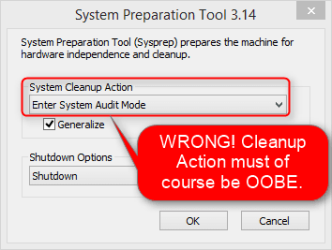
I am in charge of creating the Windows 7 image to deploy to about 150 computers, and I am about to lose my job because I can't get this going. We are not using a server, and because of our slow network, I would like to have everything on a flashdrive so we don't use the network. I installed WAIK and have been working on the AutoUnattend.xml (using SIM) for days, and I can't get it to work correctly. I created a 'Configuration Set' on my flash drive after finishing the AutoUnattend file, and have 2 out-of-box drivers, and 3 applications that I would like to install as a test (many more to come). It seems to pick up the AutoUnattend file, (doesn't ask me any questions) but when it finishes installing windows, none of my applications are installed, and when I restart after exiting from the Sysprep box, it asks me what language I want to use. Could anyone look at my AutoUnattend file and tell me what I am doing wrong?
It looks like the Configuration Set only created one folder named AutoUnattend_Files with my 2 drivers and my AutoUnattend.xml, but no $OEM$ Folders at all (where I put the applications). Maybe I should not have created the Configuration Set. I saved a copy of the unattend.xml file before I created the Configuration Set. Here is the AutoUnattend.xml after I created the Configuration Set:
<?xml version="1.0" encoding="utf-8"?>
<unattend xmlns="urn:schemas-microsoft-com:unattend">
<settings pass="windowsPE">
<component name="Microsoft-Windows-International-Core-WinPE" processorArchitecture="x86" publicKeyToken="31bf3856ad364e35" language="neutral" versionScope="nonSxS" xmlns:wcm="http://schemas.microsoft.com/WMIConfig/2002/State" xmlns:xsi="http://www.w3.org/2001/XMLSchema-instance">
<SetupUILanguage>
<UILanguage>en-us</UILanguage>
</SetupUILanguage>
<InputLocale>en-us</InputLocale>
<SystemLocale>en-us</SystemLocale>
<UILanguage>en-us</UILanguage>
<UserLocale>en-us</UserLocale>
</component>
<component name="Microsoft-Windows-Setup" processorArchitecture="x86" publicKeyToken="31bf3856ad364e35" language="neutral" versionScope="nonSxS" xmlns:wcm="http://schemas.microsoft.com/WMIConfig/2002/State" xmlns:xsi="http://www.w3.org/2001/XMLSchema-instance">
<DiskConfiguration>
<Disk wcm:action="add">
<CreatePartitions>
<CreatePartition wcm:action="add">
<Order>1</Order>
<Extend>true</Extend>
<Type>Primary</Type>
</CreatePartition>
</CreatePartitions>
<ModifyPartitions>
<ModifyPartition wcm:action="add">
<Active>true</Active>
<Format>NTFS</Format>
<Label>Windows 7</Label>
<Letter>C</Letter>
<PartitionID>1</PartitionID>
<Order>1</Order>
</ModifyPartition>
</ModifyPartitions>
<DiskID>0</DiskID>
<WillWipeDisk>true</WillWipeDisk>
</Disk>
<WillShowUI>Never</WillShowUI>
</DiskConfiguration>
<ImageInstall>
<OSImage>
<InstallTo>
<DiskID>0</DiskID>
<PartitionID>1</PartitionID>
</InstallTo>
<InstallToAvailablePartition>false</InstallToAvailablePartition>
<WillShowUI>OnError</WillShowUI>
</OSImage>
</ImageInstall>
<UserData>
<AcceptEula>true</AcceptEula>
</UserData>
<UseConfigurationSet>true</UseConfigurationSet>
</component>
<component name="Microsoft-Windows-PnpCustomizationsWinPE" processorArchitecture="x86" publicKeyToken="31bf3856ad364e35" language="neutral" versionScope="nonSxS" xmlns:wcm="http://schemas.microsoft.com/WMIConfig/2002/State" xmlns:xsi="http://www.w3.org/2001/XMLSchema-instance">
<DriverPaths>
<PathAndCredentials wcm:keyValue="c9dc93d" wcm:action="add">
<Path>%configsetroot%\AutoUnattend_Files\win7\Out-of-Box Drivers\LAN_Realtek_v.7.003.0522.2009_Win7x86</Path>
</PathAndCredentials>
<PathAndCredentials wcm:keyValue="6b0433dc" wcm:action="add">
<Path>%configsetroot%\AutoUnattend_Files\win7\Out-of-Box Drivers\Chipset_Intel_v.9.1.1.1015_Win7x86</Path>
</PathAndCredentials>
</DriverPaths>
</component>
</settings>
<settings pass="specialize">
<component name="Microsoft-Windows-IE-InternetExplorer" processorArchitecture="x86" publicKeyToken="31bf3856ad364e35" language="neutral" versionScope="nonSxS" xmlns:wcm="http://schemas.microsoft.com/WMIConfig/2002/State" xmlns:xsi="http://www.w3.org/2001/XMLSchema-instance">
<Home_Page>REMOVED</Home_Page>
</component>
<component name="Microsoft-Windows-Shell-Setup" processorArchitecture="x86" publicKeyToken="31bf3856ad364e35" language="neutral" versionScope="nonSxS" xmlns:wcm="http://schemas.microsoft.com/WMIConfig/2002/State" xmlns:xsi="http://www.w3.org/2001/XMLSchema-instance">
<AutoLogon>
<Password>
<Value>bgBAAHcAcwBwAEAAcABAAHIAcwBQAGEAcwBzAHcAbwByAGQA</Value>
<PlainText>false</PlainText>
</Password>
<Domain>REMOVED</Domain>
<Enabled>true</Enabled>
<LogonCount>4</LogonCount>
<Username>administrator</Username>
</AutoLogon>
<DisableAutoDaylightTimeSet>true</DisableAutoDaylightTimeSet>
<TimeZone>Eastern Standard Time</TimeZone>
<CopyProfile>true</CopyProfile>
<RegisteredOrganization>REMOVED</RegisteredOrganization>
<ComputerName>TEST2</ComputerName>
<ProductKey>REMOVED</ProductKey>
<RegisteredOwner></RegisteredOwner>
<ShowWindowsLive>false</ShowWindowsLive>
</component>
<component name="Microsoft-Windows-UnattendedJoin" processorArchitecture="x86" publicKeyToken="31bf3856ad364e35" language="neutral" versionScope="nonSxS" xmlns:wcm="http://schemas.microsoft.com/WMIConfig/2002/State" xmlns:xsi="http://www.w3.org/2001/XMLSchema-instance">
<Identification>
<Credentials>
<Domain></Domain>
<Password></Password>
<Username></Username>
</Credentials>
<UnsecureJoin>false</UnsecureJoin>
<JoinWorkgroup>Workgroup</JoinWorkgroup>
</Identification>
</component>
<component name="Microsoft-Windows-Deployment" processorArchitecture="x86" publicKeyToken="31bf3856ad364e35" language="neutral" versionScope="nonSxS" xmlns:wcm="http://schemas.microsoft.com/WMIConfig/2002/State" xmlns:xsi="http://www.w3.org/2001/XMLSchema-instance">
<RunSynchronous>
<RunSynchronousCommand wcm:action="add">
<Path>net user administrator /active:yes</Path>
<Order>1</Order>
</RunSynchronousCommand>
</RunSynchronous>
</component>
</settings>
<settings pass="oobeSystem">
<component name="Microsoft-Windows-Deployment" processorArchitecture="x86" publicKeyToken="31bf3856ad364e35" language="neutral" versionScope="nonSxS" xmlns:wcm="http://schemas.microsoft.com/WMIConfig/2002/State" xmlns:xsi="http://www.w3.org/2001/XMLSchema-instance">
<Reseal>
<Mode>Audit</Mode>
</Reseal>
</component>
<component name="Microsoft-Windows-Shell-Setup" processorArchitecture="x86" publicKeyToken="31bf3856ad364e35" language="neutral" versionScope="nonSxS" xmlns:wcm="http://schemas.microsoft.com/WMIConfig/2002/State" xmlns:xsi="http://www.w3.org/2001/XMLSchema-instance">
<OOBE>
<HideEULAPage>true</HideEULAPage>
<ProtectYourPC>3</ProtectYourPC>
<NetworkLocation>Work</NetworkLocation>
</OOBE>
<UserAccounts>
<AdministratorPassword>
<Value>bgBAAHcAcwBwAEAAcABAAHIAcwBBAGQAbQBpAG4AaQBzAHQAcgBhAHQAbwByAFAAYQBzAHMAdwBvAHIAZAA=</Value>
<PlainText>false</PlainText>
</AdministratorPassword>
</UserAccounts>
<FirstLogonCommands>
<SynchronousCommand wcm:action="add">
<Order>1</Order>
<CommandLine>C:\win7\$OEM$ Folders\App1-FFX\Firefox Setup Stub 30.0.exe</CommandLine>
</SynchronousCommand>
<SynchronousCommand wcm:action="add">
<Order>2</Order>
<CommandLine>C:\win7\$OEM$ Folders\App2-MSupdater\windowsupdateagent30-x86.exe</CommandLine>
</SynchronousCommand>
<SynchronousCommand wcm:action="add">
<Order>3</Order>
<CommandLine>C:\win7\$OEM$ Folders\Adobe-Reader\install_reader11_en_gtbd_chrd_dn_aaa_aih.exe</CommandLine>
</SynchronousCommand>
</FirstLogonCommands>
</component>
</settings>
<settings pass="generalize">
<component name="Microsoft-Windows-PnpSysprep" processorArchitecture="x86" publicKeyToken="31bf3856ad364e35" language="neutral" versionScope="nonSxS" xmlns:wcm="http://schemas.microsoft.com/WMIConfig/2002/State" xmlns:xsi="http://www.w3.org/2001/XMLSchema-instance">
<PersistAllDeviceInstalls>true</PersistAllDeviceInstalls>
<DoNotCleanUpNonPresentDevices>true</DoNotCleanUpNonPresentDevices>
</component>
<component name="Microsoft-Windows-Security-SPP" processorArchitecture="x86" publicKeyToken="31bf3856ad364e35" language="neutral" versionScope="nonSxS" xmlns:wcm="http://schemas.microsoft.com/WMIConfig/2002/State" xmlns:xsi="http://www.w3.org/2001/XMLSchema-instance">
<SkipRearm>1</SkipRearm>
</component>
</settings>
<cpiofflineImage cpi:source="wim:c:/users/REMOVED/sources/install.wim#Windows 7 PROFESSIONAL" xmlns:cpi="urn:schemas-microsoft-com:cpi" />
</unattend>
I am in charge of creating the Windows 7 image to deploy to about 150 computers, and I am about to lose my job because I can't get this going. We are not using a server, and because of our slow network, I would like to have everything on a flashdrive so we don't use the network. I installed WAIK and have been working on the AutoUnattend.xml (using SIM) for days, and I can't get it to work correctly. I created a 'Configuration Set' on my flash drive after finishing the AutoUnattend file, and have 2 out-of-box drivers, and 3 applications that I would like to install as a test (many more to come). It seems to pick up the AutoUnattend file, (doesn't ask me any questions) but when it finishes installing windows, none of my applications are installed, and when I restart after exiting from the Sysprep box, it asks me what language I want to use. Could anyone look at my AutoUnattend file and tell me what I am doing wrong?
It looks like the Configuration Set only created one folder named AutoUnattend_Files with my 2 drivers and my AutoUnattend.xml, but no $OEM$ Folders at all (where I put the applications). Maybe I should not have created the Configuration Set. I saved a copy of the unattend.xml file before I created the Configuration Set. Here is the AutoUnattend.xml after I created the Configuration Set:
<?xml version="1.0" encoding="utf-8"?>
<unattend xmlns="urn:schemas-microsoft-com:unattend">
<settings pass="windowsPE">
<component name="Microsoft-Windows-International-Core-WinPE" processorArchitecture="x86" publicKeyToken="31bf3856ad364e35" language="neutral" versionScope="nonSxS" xmlns:wcm="http://schemas.microsoft.com/WMIConfig/2002/State" xmlns:xsi="http://www.w3.org/2001/XMLSchema-instance">
<SetupUILanguage>
<UILanguage>en-us</UILanguage>
</SetupUILanguage>
<InputLocale>en-us</InputLocale>
<SystemLocale>en-us</SystemLocale>
<UILanguage>en-us</UILanguage>
<UserLocale>en-us</UserLocale>
</component>
<component name="Microsoft-Windows-Setup" processorArchitecture="x86" publicKeyToken="31bf3856ad364e35" language="neutral" versionScope="nonSxS" xmlns:wcm="http://schemas.microsoft.com/WMIConfig/2002/State" xmlns:xsi="http://www.w3.org/2001/XMLSchema-instance">
<DiskConfiguration>
<Disk wcm:action="add">
<CreatePartitions>
<CreatePartition wcm:action="add">
<Order>1</Order>
<Extend>true</Extend>
<Type>Primary</Type>
</CreatePartition>
</CreatePartitions>
<ModifyPartitions>
<ModifyPartition wcm:action="add">
<Active>true</Active>
<Format>NTFS</Format>
<Label>Windows 7</Label>
<Letter>C</Letter>
<PartitionID>1</PartitionID>
<Order>1</Order>
</ModifyPartition>
</ModifyPartitions>
<DiskID>0</DiskID>
<WillWipeDisk>true</WillWipeDisk>
</Disk>
<WillShowUI>Never</WillShowUI>
</DiskConfiguration>
<ImageInstall>
<OSImage>
<InstallTo>
<DiskID>0</DiskID>
<PartitionID>1</PartitionID>
</InstallTo>
<InstallToAvailablePartition>false</InstallToAvailablePartition>
<WillShowUI>OnError</WillShowUI>
</OSImage>
</ImageInstall>
<UserData>
<AcceptEula>true</AcceptEula>
</UserData>
<UseConfigurationSet>true</UseConfigurationSet>
</component>
<component name="Microsoft-Windows-PnpCustomizationsWinPE" processorArchitecture="x86" publicKeyToken="31bf3856ad364e35" language="neutral" versionScope="nonSxS" xmlns:wcm="http://schemas.microsoft.com/WMIConfig/2002/State" xmlns:xsi="http://www.w3.org/2001/XMLSchema-instance">
<DriverPaths>
<PathAndCredentials wcm:keyValue="c9dc93d" wcm:action="add">
<Path>%configsetroot%\AutoUnattend_Files\win7\Out-of-Box Drivers\LAN_Realtek_v.7.003.0522.2009_Win7x86</Path>
</PathAndCredentials>
<PathAndCredentials wcm:keyValue="6b0433dc" wcm:action="add">
<Path>%configsetroot%\AutoUnattend_Files\win7\Out-of-Box Drivers\Chipset_Intel_v.9.1.1.1015_Win7x86</Path>
</PathAndCredentials>
</DriverPaths>
</component>
</settings>
<settings pass="specialize">
<component name="Microsoft-Windows-IE-InternetExplorer" processorArchitecture="x86" publicKeyToken="31bf3856ad364e35" language="neutral" versionScope="nonSxS" xmlns:wcm="http://schemas.microsoft.com/WMIConfig/2002/State" xmlns:xsi="http://www.w3.org/2001/XMLSchema-instance">
<Home_Page>REMOVED</Home_Page>
</component>
<component name="Microsoft-Windows-Shell-Setup" processorArchitecture="x86" publicKeyToken="31bf3856ad364e35" language="neutral" versionScope="nonSxS" xmlns:wcm="http://schemas.microsoft.com/WMIConfig/2002/State" xmlns:xsi="http://www.w3.org/2001/XMLSchema-instance">
<AutoLogon>
<Password>
<Value>bgBAAHcAcwBwAEAAcABAAHIAcwBQAGEAcwBzAHcAbwByAGQA</Value>
<PlainText>false</PlainText>
</Password>
<Domain>REMOVED</Domain>
<Enabled>true</Enabled>
<LogonCount>4</LogonCount>
<Username>administrator</Username>
</AutoLogon>
<DisableAutoDaylightTimeSet>true</DisableAutoDaylightTimeSet>
<TimeZone>Eastern Standard Time</TimeZone>
<CopyProfile>true</CopyProfile>
<RegisteredOrganization>REMOVED</RegisteredOrganization>
<ComputerName>TEST2</ComputerName>
<ProductKey>REMOVED</ProductKey>
<RegisteredOwner></RegisteredOwner>
<ShowWindowsLive>false</ShowWindowsLive>
</component>
<component name="Microsoft-Windows-UnattendedJoin" processorArchitecture="x86" publicKeyToken="31bf3856ad364e35" language="neutral" versionScope="nonSxS" xmlns:wcm="http://schemas.microsoft.com/WMIConfig/2002/State" xmlns:xsi="http://www.w3.org/2001/XMLSchema-instance">
<Identification>
<Credentials>
<Domain></Domain>
<Password></Password>
<Username></Username>
</Credentials>
<UnsecureJoin>false</UnsecureJoin>
<JoinWorkgroup>Workgroup</JoinWorkgroup>
</Identification>
</component>
<component name="Microsoft-Windows-Deployment" processorArchitecture="x86" publicKeyToken="31bf3856ad364e35" language="neutral" versionScope="nonSxS" xmlns:wcm="http://schemas.microsoft.com/WMIConfig/2002/State" xmlns:xsi="http://www.w3.org/2001/XMLSchema-instance">
<RunSynchronous>
<RunSynchronousCommand wcm:action="add">
<Path>net user administrator /active:yes</Path>
<Order>1</Order>
</RunSynchronousCommand>
</RunSynchronous>
</component>
</settings>
<settings pass="oobeSystem">
<component name="Microsoft-Windows-Deployment" processorArchitecture="x86" publicKeyToken="31bf3856ad364e35" language="neutral" versionScope="nonSxS" xmlns:wcm="http://schemas.microsoft.com/WMIConfig/2002/State" xmlns:xsi="http://www.w3.org/2001/XMLSchema-instance">
<Reseal>
<Mode>Audit</Mode>
</Reseal>
</component>
<component name="Microsoft-Windows-Shell-Setup" processorArchitecture="x86" publicKeyToken="31bf3856ad364e35" language="neutral" versionScope="nonSxS" xmlns:wcm="http://schemas.microsoft.com/WMIConfig/2002/State" xmlns:xsi="http://www.w3.org/2001/XMLSchema-instance">
<OOBE>
<HideEULAPage>true</HideEULAPage>
<ProtectYourPC>3</ProtectYourPC>
<NetworkLocation>Work</NetworkLocation>
</OOBE>
<UserAccounts>
<AdministratorPassword>
<Value>bgBAAHcAcwBwAEAAcABAAHIAcwBBAGQAbQBpAG4AaQBzAHQAcgBhAHQAbwByAFAAYQBzAHMAdwBvAHIAZAA=</Value>
<PlainText>false</PlainText>
</AdministratorPassword>
</UserAccounts>
<FirstLogonCommands>
<SynchronousCommand wcm:action="add">
<Order>1</Order>
<CommandLine>C:\win7\$OEM$ Folders\App1-FFX\Firefox Setup Stub 30.0.exe</CommandLine>
</SynchronousCommand>
<SynchronousCommand wcm:action="add">
<Order>2</Order>
<CommandLine>C:\win7\$OEM$ Folders\App2-MSupdater\windowsupdateagent30-x86.exe</CommandLine>
</SynchronousCommand>
<SynchronousCommand wcm:action="add">
<Order>3</Order>
<CommandLine>C:\win7\$OEM$ Folders\Adobe-Reader\install_reader11_en_gtbd_chrd_dn_aaa_aih.exe</CommandLine>
</SynchronousCommand>
</FirstLogonCommands>
</component>
</settings>
<settings pass="generalize">
<component name="Microsoft-Windows-PnpSysprep" processorArchitecture="x86" publicKeyToken="31bf3856ad364e35" language="neutral" versionScope="nonSxS" xmlns:wcm="http://schemas.microsoft.com/WMIConfig/2002/State" xmlns:xsi="http://www.w3.org/2001/XMLSchema-instance">
<PersistAllDeviceInstalls>true</PersistAllDeviceInstalls>
<DoNotCleanUpNonPresentDevices>true</DoNotCleanUpNonPresentDevices>
</component>
<component name="Microsoft-Windows-Security-SPP" processorArchitecture="x86" publicKeyToken="31bf3856ad364e35" language="neutral" versionScope="nonSxS" xmlns:wcm="http://schemas.microsoft.com/WMIConfig/2002/State" xmlns:xsi="http://www.w3.org/2001/XMLSchema-instance">
<SkipRearm>1</SkipRearm>
</component>
</settings>
<cpiofflineImage cpi:source="wim:c:/users/REMOVED/sources/install.wim#Windows 7 PROFESSIONAL" xmlns:cpi="urn:schemas-microsoft-com:cpi" />
</unattend>
My Computer
At a glance
Windows 7 Pro x86
- Computer type
- PC/Desktop
- OS
- Windows 7 Pro x86

 ), sit down, relax and read this tutorial through once:

