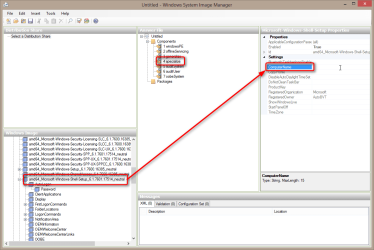
I have been trying to transition over to using WDS for my main method of Windows 7 image deployment in our Server 2008 R2 domain environment. I am having trouble with getting the answer file to work properly. I have read through multiple threads, posts, and guides including the guide on this site
http://www.sevenforums.com/tutorials/286053-system-preparation-tool-use-customize-windows.html
and I have been making progress. As of now I have two answer files, as described in this guide:
Deploying Windows 7 Using Windows Deployment Services (WDS): Step-by-Step ? Part II | Augusto Alvarez
One is used to tell WinPE which image to install, and the other is used to answer the questions after the image push is complete. My answer files are as follows:
The answer file configured in the 'client' tab of the WDS server
The answer file attached to the install image:
Now, what happens is - the image installs on the client successfully, I am not prompted for any input during the installation, it is fully automated. Windows boots successfully after installation, and I can log in with the "adminaccount" that was included in the image. The OS IS activated. The computer IS joined to the domain, however the computer is named: DomainUser1. I deleted the computer account in AD, I pushed it again and it named the computer to: DomainUser2. I'm not sure why the computer is being named the name of the domain user. Originally I had put in TestComputer for the computer name in the answer file, but it still had named it DomainUser1, so I took the TestComputer out of the answer file, thinking it would prompt me for a name, but instead it named it DomainUser2. This is one issue.
The second issue is, after the first log in, the "Set Network Location" box pops up. Is there a way to avoid this so the user is not asked this?
Third, I need the user that's created during the process to be disabled after it's created since I already have an administrator account included in the image. However the OOBE needs to have a user created, so I just had it create one.
Any and all help is appreciated.
http://www.sevenforums.com/tutorials/286053-system-preparation-tool-use-customize-windows.html
and I have been making progress. As of now I have two answer files, as described in this guide:
Deploying Windows 7 Using Windows Deployment Services (WDS): Step-by-Step ? Part II | Augusto Alvarez
One is used to tell WinPE which image to install, and the other is used to answer the questions after the image push is complete. My answer files are as follows:
The answer file configured in the 'client' tab of the WDS server
Code:
<?xml version="1.0" encoding="utf-8"?>
<unattend xmlns="urn:schemas-microsoft-com:unattend">
    <settings pass="windowsPE">
        <component name="Microsoft-Windows-International-Core-WinPE" processorArchitecture="amd64" publicKeyToken="31bf3856ad364e35" language="neutral" versionScope="nonSxS" xmlns:wcm="http://schemas.microsoft.com/WMIConfig/2002/State" xmlns:xsi="http://www.w3.org/2001/XMLSchema-instance">
            <SetupUILanguage>
                <UILanguage>en-us</UILanguage>
            </SetupUILanguage>
            <InputLocale>en-us</InputLocale>
            <SystemLocale>en-us</SystemLocale>
            <UILanguage>en-us</UILanguage>
            <UILanguageFallback>en-us</UILanguageFallback>
            <UserLocale>en-us</UserLocale>
        </component>
        <component name="Microsoft-Windows-Setup" processorArchitecture="amd64" publicKeyToken="31bf3856ad364e35" language="neutral" versionScope="nonSxS" xmlns:wcm="http://schemas.microsoft.com/WMIConfig/2002/State" xmlns:xsi="http://www.w3.org/2001/XMLSchema-instance">
            <DiskConfiguration>
                <Disk wcm:action="add">
                    <CreatePartitions>
                        <CreatePartition wcm:action="add">
                            <Extend>true</Extend>
                            <Order>1</Order>
                            <Type>Primary</Type>
                        </CreatePartition>
                    </CreatePartitions>
                    <ModifyPartitions>
                        <ModifyPartition wcm:action="add">
                            <Active>true</Active>
                            <Extend>false</Extend>
                            <Format>NTFS</Format>
                            <Label>System</Label>
                            <Letter>C</Letter>
                            <Order>1</Order>
                            <PartitionID>1</PartitionID>
                        </ModifyPartition>
                    </ModifyPartitions>
                    <DiskID>0</DiskID>
                    <WillWipeDisk>true</WillWipeDisk>
                </Disk>
            </DiskConfiguration>
            <WindowsDeploymentServices>
                <Login>
                    <Credentials>
                        <Domain>mydomain.local</Domain>
                        <Password>Password</Password>
                        <Username>DomainUser</Username>
                    </Credentials>
                </Login>
                <ImageSelection>
                    <InstallImage>
                        <Filename>Win7.wim</Filename>
                        <ImageName>Win7</ImageName>
                        <ImageGroup>Windows 7 Enterprise x64</ImageGroup>
                    </InstallImage>
                    <InstallTo>
                        <DiskID>0</DiskID>
                        <PartitionID>1</PartitionID>
                    </InstallTo>
                </ImageSelection>
            </WindowsDeploymentServices>
        </component>
    </settings>
    <cpi:offlineImage cpi:source="wim://antares-g/reminst/images/windows%207%20enterprise%20x64/win7-student-cschool-12dec2013.wim#Win7-Student-Cschool-12Dec2013" xmlns:cpi="urn:schemas-microsoft-com:cpi" />
</unattend>
Code:
<?xml version="1.0" encoding="utf-8"?>
<unattend xmlns="urn:schemas-microsoft-com:unattend">
    <settings pass="generalize">
        <component name="Microsoft-Windows-Security-SPP" processorArchitecture="amd64" publicKeyToken="31bf3856ad364e35" language="neutral" versionScope="nonSxS" xmlns:wcm="http://schemas.microsoft.com/WMIConfig/2002/State" xmlns:xsi="http://www.w3.org/2001/XMLSchema-instance">
            <SkipRearm>1</SkipRearm>
        </component>
    </settings>
    <settings pass="specialize">
        <component name="Microsoft-Windows-Deployment" processorArchitecture="amd64" publicKeyToken="31bf3856ad364e35" language="neutral" versionScope="nonSxS" xmlns:wcm="http://schemas.microsoft.com/WMIConfig/2002/State" xmlns:xsi="http://www.w3.org/2001/XMLSchema-instance">
            <RunSynchronous>
                <RunSynchronousCommand wcm:action="add">
                    <Order>1</Order>
                    <Path>net user adminaccount /active:yes</Path>
                </RunSynchronousCommand>
            </RunSynchronous>
        </component>
        <component name="Microsoft-Windows-Security-SPP-UX" processorArchitecture="amd64" publicKeyToken="31bf3856ad364e35" language="neutral" versionScope="nonSxS" xmlns:wcm="http://schemas.microsoft.com/WMIConfig/2002/State" xmlns:xsi="http://www.w3.org/2001/XMLSchema-instance">
            <SkipAutoActivation>false</SkipAutoActivation>
        </component>
        <component name="Microsoft-Windows-Shell-Setup" processorArchitecture="amd64" publicKeyToken="31bf3856ad364e35" language="neutral" versionScope="nonSxS" xmlns:wcm="http://schemas.microsoft.com/WMIConfig/2002/State" xmlns:xsi="http://www.w3.org/2001/XMLSchema-instance">
            <RegisteredOrganization>Microsoft</RegisteredOrganization>
            <RegisteredOwner>AutoBVT</RegisteredOwner>
            <ShowWindowsLive>false</ShowWindowsLive>
            <TimeZone>Eastern Standard Time</TimeZone>
            <DoNotCleanTaskBar>false</DoNotCleanTaskBar>
        </component>
        <component name="Microsoft-Windows-UnattendedJoin" processorArchitecture="amd64" publicKeyToken="31bf3856ad364e35" language="neutral" versionScope="nonSxS" xmlns:wcm="http://schemas.microsoft.com/WMIConfig/2002/State" xmlns:xsi="http://www.w3.org/2001/XMLSchema-instance">
            <Identification>
                <Credentials>
                    <Domain>mydomain.local</Domain>
                    <Password>password</Password>
                    <Username>DomainUser</Username>
                </Credentials>
                <JoinDomain>Mydomain.local</JoinDomain>
                <UnsecureJoin>true</UnsecureJoin>
            </Identification>
        </component>
    </settings>
    <settings pass="oobeSystem">
        <component name="Microsoft-Windows-International-Core" processorArchitecture="amd64" publicKeyToken="31bf3856ad364e35" language="neutral" versionScope="nonSxS" xmlns:wcm="http://schemas.microsoft.com/WMIConfig/2002/State" xmlns:xsi="http://www.w3.org/2001/XMLSchema-instance">
            <InputLocale>en-us</InputLocale>
            <SystemLocale>en-us</SystemLocale>
            <UserLocale>en-us</UserLocale>
            <UILanguage>en-us</UILanguage>
        </component>
        <component name="Microsoft-Windows-Shell-Setup" processorArchitecture="amd64" publicKeyToken="31bf3856ad364e35" language="neutral" versionScope="nonSxS" xmlns:wcm="http://schemas.microsoft.com/WMIConfig/2002/State" xmlns:xsi="http://www.w3.org/2001/XMLSchema-instance">
            <OOBE>
                <HideEULAPage>true</HideEULAPage>
                <NetworkLocation>Work</NetworkLocation>
                <ProtectYourPC>1</ProtectYourPC>
            </OOBE>
            <UserAccounts>
                <AdministratorPassword>
                    <Value>UABBAFMAUwBXAE8AUgBEAEEAZABtAGkAbgBpAHMAdAByAGEAdABvAHIAUABhAHMAcwB3AG8AcgBkAA==</Value>
                    <PlainText>false</PlainText>
                </AdministratorPassword>
                <LocalAccounts>
                    <LocalAccount wcm:action="add">
                        <Description>standard user</Description>
                        <DisplayName>Admin</DisplayName>
                        <Group>Users</Group>
                        <Name>Admin</Name>
                    </LocalAccount>
                </LocalAccounts>
            </UserAccounts>
            <RegisteredOrganization>MYCOMPANY</RegisteredOrganization>
            <RegisteredOwner>MYCOMPANY</RegisteredOwner>
        </component>
    </settings>
    <settings pass="windowsPE">
        <component name="Microsoft-Windows-International-Core-WinPE" processorArchitecture="amd64" publicKeyToken="31bf3856ad364e35" language="neutral" versionScope="nonSxS" xmlns:wcm="http://schemas.microsoft.com/WMIConfig/2002/State" xmlns:xsi="http://www.w3.org/2001/XMLSchema-instance">
            <SetupUILanguage>
                <UILanguage>en-us</UILanguage>
            </SetupUILanguage>
            <InputLocale>en-us</InputLocale>
            <UserLocale>en-us</UserLocale>
            <UILanguageFallback>en-us</UILanguageFallback>
            <UILanguage>en-us</UILanguage>
            <SystemLocale>en-us</SystemLocale>
        </component>
        <component name="Microsoft-Windows-Setup" processorArchitecture="amd64" publicKeyToken="31bf3856ad364e35" language="neutral" versionScope="nonSxS" xmlns:wcm="http://schemas.microsoft.com/WMIConfig/2002/State" xmlns:xsi="http://www.w3.org/2001/XMLSchema-instance">
            <WindowsDeploymentServices>
                <Login>
                    <Credentials>
                        <Domain>Mydomain.local</Domain>
                        <Password>Password</Password>
                        <Username>DomainUser</Username>
                    </Credentials>
                </Login>
            </WindowsDeploymentServices>
        </component>
    </settings>
    <cpi:offlineImage cpi:source="catalog://antares-g/reminst/images/windows 7 enterprise x64/win7-student-cschool-12dec2013_win7-student-cschool-12dec2013.clg" xmlns:cpi="urn:schemas-microsoft-com:cpi" />
</unattend>The second issue is, after the first log in, the "Set Network Location" box pops up. Is there a way to avoid this so the user is not asked this?
Third, I need the user that's created during the process to be disabled after it's created since I already have an administrator account included in the image. However the OOBE needs to have a user created, so I just had it create one.
Any and all help is appreciated.
My Computer
At a glance
Windows 7 Enterprise x64
- Computer type
- PC/Desktop
- Computer Manufacturer/Model Number
- HP
- OS
- Windows 7 Enterprise x64