Reassigned Drive letters and System Reserve

glennc

New member
Power User
VIP
Local time
3:52 AM
Messages
1,024
Hello,
I am just fighting with the install of Windows 7 Ultimate 64 Bit on my homemade. I first had only a 500 GB Black Caviar drive and installed on that. It gave me a C: drive and an unremembered letter System Reserve partition. A week later I put a 1 TB Caviar Green both drives SATA 3G. I also have a multicard reader. I got a lettered drive for the 2nd hardrive and a second lettered System Reserve partition. I didn't ask it to do that. Continuing now the 1st Drive partition is C: and the 200 MB partition which I'm assuming is the System Reserve partition on the C: drive is lettered E:.
The 2nd drive shows as F: drive and the F:System Reserve lettered partition has disappeared.
When I run a backup it displays grayed out and checked the C: and the E: System Reserve partition and it gives me the option of choosing the F: drive and an unlettered System Reserve area.
Is this normal, is it something to be concerned with? I desperately need assistance as Windows is finally running almost perfect.
Please help, Thanks
glennc
 

My Computer My Computer

At a glance

Windows 7 UltimateAMD Phenom-II X4 9658192 MB DDR2-SDRAMATI Radeon HD 4200
Computer type
PC/Desktop
Computer Manufacturer/Model Number
Self-Built
OS
Windows 7 Ultimate
CPU
AMD Phenom-II X4 965
Motherboard
Gigabyte GA-MA785GM-US2H
Memory
8192 MB DDR2-SDRAM
Graphics Card(s)
ATI Radeon HD 4200
Sound Card
ATI Radeon HD 4200 High Definition Audo
Monitor(s) Displays
LG Electronics W1943
Screen Resolution
1360 X 768
Hard Drives
C: 500 GB Caviar Black SATA
E: 500 GB Caviar Black SATA
PSU
Ultra LSP 750
Case
Ultra XBlaster
Cooling
2 Fans, CPU Fan, PS Fan
Keyboard
Acer
Mouse
Logitech
Internet Speed
6 MB
Are both these drives still plugged in? Are you trying to Dual Boot?

Perhaps you can tell us exactly what you want and post up a screenshot of your full Disk Management drive map with listings, so we can advise you best how to proceed.

Use Snipping Tool in Start Menu.
 
Hello gregrocker,
Thanks for your reply. No I'm not trying to dual boot and both drives are plugged in and visible in the Windows Explorer, just not the previously lettered System Reserve area on the 2nd drive (F:) as it was before.
As to my intentions first I must say concern and curiosity that this issue has occurred without my direct input. What I mean is how or what is doing this and should I be concerned. I honestly just want it to show what is there if it is still there or its gone or renamed or hidden.
In reference to the snipping tool, I bypassed Vista and came from XP Pro so I don't know what it is or how to use it. I do remember removing it from my start menu.
So any specific thing I can do to assist you in troubleshooting I will be glad to do.
I will recontact tomorrow. I also have a persistent can't get my recycle bin to display on the desktop thread running. I'm tired.
Thanks again and I hope you can assist.
glennc
 

My Computer My Computer

At a glance

Windows 7 UltimateAMD Phenom-II X4 9658192 MB DDR2-SDRAMATI Radeon HD 4200
Computer type
PC/Desktop
Computer Manufacturer/Model Number
Self-Built
OS
Windows 7 Ultimate
CPU
AMD Phenom-II X4 965
Motherboard
Gigabyte GA-MA785GM-US2H
Memory
8192 MB DDR2-SDRAM
Graphics Card(s)
ATI Radeon HD 4200
Sound Card
ATI Radeon HD 4200 High Definition Audo
Monitor(s) Displays
LG Electronics W1943
Screen Resolution
1360 X 768
Hard Drives
C: 500 GB Caviar Black SATA
E: 500 GB Caviar Black SATA
PSU
Ultra LSP 750
Case
Ultra XBlaster
Cooling
2 Fans, CPU Fan, PS Fan
Keyboard
Acer
Mouse
Logitech
Internet Speed
6 MB
The System Reserved parttion should have its drive letter removed so no programs or backup attempt to save to it. It should only appear in DIsk Mgmt.

Type Disk Management into Start button search box, open to full page.

Type Snipping Tool in Start box, click on it, make a New Rectangular snip, using cursor draw a box around full Disk Mgmt drive map and listings, save file to desktop, attach using paper clip in reply box.

Tell us in your reply exactly what happened that concerns you. It isn't at all clear from your posts so far. We'll look it over and answer your concerns while making any suggestions based on the screenshot.
 
Good Day gregrocker,
I'm sorry to be unable to clearly express the issue. A picture in this case is appropriate. Thanks for giving me a reason to learn the Snipping tool. It is great!

Capture.PNG

Here goes and you've helped clarify in my mind, my own concerns.
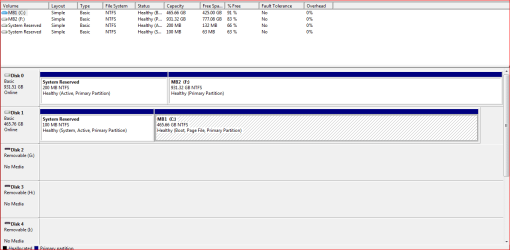
1. How did my 200 MB System Area from the MB1 drive get to the F: Drive and how do I correct this?
2. Disk management shows my C: Drive MB1 as drive #1 and F: Drive MB2 as drive #0. I installed them by cable with C: in SATA connector on Mobo as SATA 0 and F: cabled to the marked SATA 1 connector. Why would it show up as it does? And I will check.

3. The changing and deletion of drive letters done by Windows 7 without my knowledge or approval is normal or is something that should concern me. I'm not used to such changes without a warning or something.

4. Does the Drive layout look normal. Is there supposed to be a System Reserve area on my second hard drive?

5. How in your extensive opinion and knowledge, should it be set up for safety, and clarity?

6. Finally, how do I accomplish your suggestions.

I did remove the drive letter from the 200 MB Reserve Sytem Partition, successfully.
Gratefully Yours
glennc
 
Last edited:

My Computer My Computer

At a glance

Windows 7 UltimateAMD Phenom-II X4 9658192 MB DDR2-SDRAMATI Radeon HD 4200
Computer type
PC/Desktop
Computer Manufacturer/Model Number
Self-Built
OS
Windows 7 Ultimate
CPU
AMD Phenom-II X4 965
Motherboard
Gigabyte GA-MA785GM-US2H
Memory
8192 MB DDR2-SDRAM
Graphics Card(s)
ATI Radeon HD 4200
Sound Card
ATI Radeon HD 4200 High Definition Audo
Monitor(s) Displays
LG Electronics W1943
Screen Resolution
1360 X 768
Hard Drives
C: 500 GB Caviar Black SATA
E: 500 GB Caviar Black SATA
PSU
Ultra LSP 750
Case
Ultra XBlaster
Cooling
2 Fans, CPU Fan, PS Fan
Keyboard
Acer
Mouse
Logitech
Internet Speed
6 MB
Howdy again,
I just opened up the box to double check and the Boot Disk C: (MB1) is cabled to SATA0 and second drive F: (MB2) is cabled to SATA1. I couldn't find a way in disk management or Windows help to change the Disk Managements listing to the opposite.
Is there a way to make it show correctly ie: C: (MB1) as Disk 0 and F: (MB2) as Disk 1? Even in properties of the disks shows the incorrect and current drive designations.
Thanks
glennc
 

My Computer My Computer

At a glance

Windows 7 UltimateAMD Phenom-II X4 9658192 MB DDR2-SDRAMATI Radeon HD 4200
Computer type
PC/Desktop
Computer Manufacturer/Model Number
Self-Built
OS
Windows 7 Ultimate
CPU
AMD Phenom-II X4 965
Motherboard
Gigabyte GA-MA785GM-US2H
Memory
8192 MB DDR2-SDRAM
Graphics Card(s)
ATI Radeon HD 4200
Sound Card
ATI Radeon HD 4200 High Definition Audo
Monitor(s) Displays
LG Electronics W1943
Screen Resolution
1360 X 768
Hard Drives
C: 500 GB Caviar Black SATA
E: 500 GB Caviar Black SATA
PSU
Ultra LSP 750
Case
Ultra XBlaster
Cooling
2 Fans, CPU Fan, PS Fan
Keyboard
Acer
Mouse
Logitech
Internet Speed
6 MB
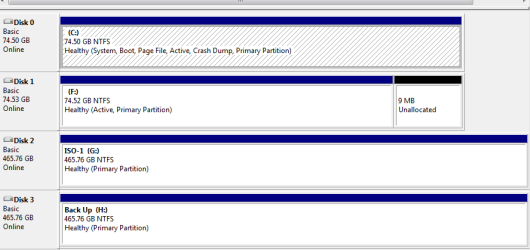
You have your F: Drive pluged in Sata 1 = Disk 0, which is a old used drive that needs to be cleaned.

Your C: drive with your OS is pluged to Sata 2 = Disk 1.

Do you have DATA on F:drive?
 

My Computer My Computer

At a glance

ME/XP/Vista/Win7
OS
ME/XP/Vista/Win7
It looks like you have a Windows 7 installation on DISK0, which is why I asked if you want to Dual Boot.

Or if you want to wipe the HD to use as a Logical data partition, copy any data from F that you want to keep over to C or external, boot the Win7 DVD Repair console or Repair CD, press Shift F10 on first screen to open a Command Line, type:

DISKPART
LIST DISK
SELECT DISK 0 (confirm again by size that this is HD containing F)
clean
create partition logical
select partition 1
assign letter=f:
format
exit

Now you can copy your data back over, even set up your User files on DISK0 for faster access.
http://www.sevenforums.com/tutorials/18629-user-folders-change-default-location.html
http://www.sevenforums.com/tutorials/72427-data-partition.html video
 
Last edited:
Hello gregrocker,
Unfortunately for me it sounds like that is what is required. Thank you very much for the guidance. Will give it a try and advise.
Thanks again
glennc
 

My Computer My Computer

At a glance

Windows 7 UltimateAMD Phenom-II X4 9658192 MB DDR2-SDRAMATI Radeon HD 4200
Computer type
PC/Desktop
Computer Manufacturer/Model Number
Self-Built
OS
Windows 7 Ultimate
CPU
AMD Phenom-II X4 965
Motherboard
Gigabyte GA-MA785GM-US2H
Memory
8192 MB DDR2-SDRAM
Graphics Card(s)
ATI Radeon HD 4200
Sound Card
ATI Radeon HD 4200 High Definition Audo
Monitor(s) Displays
LG Electronics W1943
Screen Resolution
1360 X 768
Hard Drives
C: 500 GB Caviar Black SATA
E: 500 GB Caviar Black SATA
PSU
Ultra LSP 750
Case
Ultra XBlaster
Cooling
2 Fans, CPU Fan, PS Fan
Keyboard
Acer
Mouse
Logitech
Internet Speed
6 MB
gregrocker,
Just want to check a few things before I do this massive thing (for me). Do I need to copy the System Volume Information and the Recycle Bin?? Will the backups and system images, and Macrium clones still be linked. I intend to copy the whole F: drive to a folder on the C: Drive and then copy it back after the format. Will it give me the 100 MB System Reserve area on the F: Drive or will that be gone as I would believe it should?

In reference to Now you can copy your data back over, even set up your User files on DISK0 for faster access.
User Folders - Change Default Location
Data Partition video
As the C: drive is a smaller faster drive than the F: drive will those suggestion still be valid??
Thanks
glennc
 
Last edited:

My Computer My Computer

At a glance

Windows 7 UltimateAMD Phenom-II X4 9658192 MB DDR2-SDRAMATI Radeon HD 4200
Computer type
PC/Desktop
Computer Manufacturer/Model Number
Self-Built
OS
Windows 7 Ultimate
CPU
AMD Phenom-II X4 965
Motherboard
Gigabyte GA-MA785GM-US2H
Memory
8192 MB DDR2-SDRAM
Graphics Card(s)
ATI Radeon HD 4200
Sound Card
ATI Radeon HD 4200 High Definition Audo
Monitor(s) Displays
LG Electronics W1943
Screen Resolution
1360 X 768
Hard Drives
C: 500 GB Caviar Black SATA
E: 500 GB Caviar Black SATA
PSU
Ultra LSP 750
Case
Ultra XBlaster
Cooling
2 Fans, CPU Fan, PS Fan
Keyboard
Acer
Mouse
Logitech
Internet Speed
6 MB
Is there a Win7 installation on F that you want to keep?

You still have not said, leaving us to guess... :confused:

If it is already just a data partition, then you only need to delete the 200mb SysReserved partition.

Save an image of F: first to C:

Download and burn free Partition Wizard bootable CD, boot it, rightclick 200mb, Delete, OK. Then rightclick F: to Resize, slide left border to the left over the deleted 200mb, OK, apply.

I'd leave your User folders on C if it is faster and you already have a storage purpose for F.
 
Last edited:
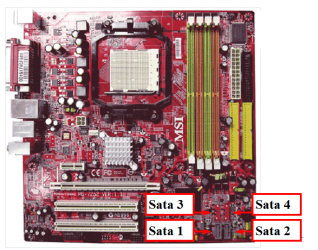
If want your drives in the in right order check mobo layout.

On this Mobo

Sata 1 = Disk 0
Sata 2 = Disk 1
Sata 3 = Disk 2
Sata 4 = Disk 3

Capturemobo1.PNG Capturemobo2.PNG
 
Last edited:

My Computer My Computer

At a glance

ME/XP/Vista/Win7
OS
ME/XP/Vista/Win7
gregrocker,
I answered your email with as much info as I can. If anymore is needed I will sit at the machine and reply immediately. No I don't want the F: drive to have and installation, I just want it to hold backup files.

Hello theog,
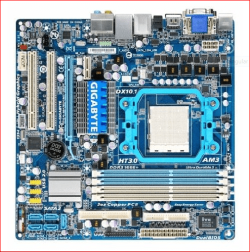
I am using a Gigabyte MA785GM-US2H mobo. It has a SATA O (zero) plug next to the SATA 1 plug. Then 2 & 3 together. So I am uncertain what I am doing wrong. Should I disregard the SATA 0 connector, it works when only the C: drive was intalled and cabled to it?

Thank you gentlemen for your patience and helpfulness, and I apologize for my inability to so far give you the info you need to diagnose.
glennc
 

My Computer My Computer

At a glance

Windows 7 UltimateAMD Phenom-II X4 9658192 MB DDR2-SDRAMATI Radeon HD 4200
Computer type
PC/Desktop
Computer Manufacturer/Model Number
Self-Built
OS
Windows 7 Ultimate
CPU
AMD Phenom-II X4 965
Motherboard
Gigabyte GA-MA785GM-US2H
Memory
8192 MB DDR2-SDRAM
Graphics Card(s)
ATI Radeon HD 4200
Sound Card
ATI Radeon HD 4200 High Definition Audo
Monitor(s) Displays
LG Electronics W1943
Screen Resolution
1360 X 768
Hard Drives
C: 500 GB Caviar Black SATA
E: 500 GB Caviar Black SATA
PSU
Ultra LSP 750
Case
Ultra XBlaster
Cooling
2 Fans, CPU Fan, PS Fan
Keyboard
Acer
Mouse
Logitech
Internet Speed
6 MB
Does F drive contain a Windows 7 installation now?

If you are unsure, please go to Start button>Computer>F drive, make the Explorer window full screen so it shows all of the folders, then post up a screenshot using Snipping Tool.
 
Hello theog,
This is basically what it looks like, see the lower left corner for 5 light blue connectors. You can just make out the designation of SATAO and SATA 1 under the leftmost two connectors

Capture.PNG

I am definitely confused and am sorry
glennc
 

My Computer My Computer

At a glance

Windows 7 UltimateAMD Phenom-II X4 9658192 MB DDR2-SDRAMATI Radeon HD 4200
Computer type
PC/Desktop
Computer Manufacturer/Model Number
Self-Built
OS
Windows 7 Ultimate
CPU
AMD Phenom-II X4 965
Motherboard
Gigabyte GA-MA785GM-US2H
Memory
8192 MB DDR2-SDRAM
Graphics Card(s)
ATI Radeon HD 4200
Sound Card
ATI Radeon HD 4200 High Definition Audo
Monitor(s) Displays
LG Electronics W1943
Screen Resolution
1360 X 768
Hard Drives
C: 500 GB Caviar Black SATA
E: 500 GB Caviar Black SATA
PSU
Ultra LSP 750
Case
Ultra XBlaster
Cooling
2 Fans, CPU Fan, PS Fan
Keyboard
Acer
Mouse
Logitech
Internet Speed
6 MB
gregrocker,
I am deeply sorry to advise you that I don't know for sure. When it was formatted IIRC as a primary not extended partition it acquired a 100 MB System Reserve area which I did not tell it to do. Apologetically, how may I make sure, so I can respond to you correctly?

glennc
 

My Computer My Computer

At a glance

Windows 7 UltimateAMD Phenom-II X4 9658192 MB DDR2-SDRAMATI Radeon HD 4200
Computer type
PC/Desktop
Computer Manufacturer/Model Number
Self-Built
OS
Windows 7 Ultimate
CPU
AMD Phenom-II X4 965
Motherboard
Gigabyte GA-MA785GM-US2H
Memory
8192 MB DDR2-SDRAM
Graphics Card(s)
ATI Radeon HD 4200
Sound Card
ATI Radeon HD 4200 High Definition Audo
Monitor(s) Displays
LG Electronics W1943
Screen Resolution
1360 X 768
Hard Drives
C: 500 GB Caviar Black SATA
E: 500 GB Caviar Black SATA
PSU
Ultra LSP 750
Case
Ultra XBlaster
Cooling
2 Fans, CPU Fan, PS Fan
Keyboard
Acer
Mouse
Logitech
Internet Speed
6 MB
Not a good a picture.

Find the manual.

Capturemobo5.PNG
 
Last edited:

My Computer My Computer

At a glance

ME/XP/Vista/Win7
OS
ME/XP/Vista/Win7
It is unlikely DISK0 would have a 200mb System Reserved partition unless it contained an old Win7 installation, likely from beta days when SysReserved was still 200mb.

Please post back a screenshot of your F drive contents. Go to Start button>Computer, click on F drive, make the window large enough to show all folders, save a screenshot showing all of the folders and post it up.
 
Find the manual.
 

My Computer My Computer

At a glance

ME/XP/Vista/Win7
OS
ME/XP/Vista/Win7
theog,
It shows a SATA 0 connector. That is where the 500 GB drive is cabled to. The backup drive 1 TB is above it on SATA 1. Tell me what you need to know and I try to get it for you.


gregrocker,
OK, just looking in Disk Manager the 200 MB system reserve is on the 1TB drive now!
Here is the picture.

Capture.PNG

Hope it helps you!!!!!!!!!!
glennc
 

My Computer My Computer

At a glance

Windows 7 UltimateAMD Phenom-II X4 9658192 MB DDR2-SDRAMATI Radeon HD 4200
Computer type
PC/Desktop
Computer Manufacturer/Model Number
Self-Built
OS
Windows 7 Ultimate
CPU
AMD Phenom-II X4 965
Motherboard
Gigabyte GA-MA785GM-US2H
Memory
8192 MB DDR2-SDRAM
Graphics Card(s)
ATI Radeon HD 4200
Sound Card
ATI Radeon HD 4200 High Definition Audo
Monitor(s) Displays
LG Electronics W1943
Screen Resolution
1360 X 768
Hard Drives
C: 500 GB Caviar Black SATA
E: 500 GB Caviar Black SATA
PSU
Ultra LSP 750
Case
Ultra XBlaster
Cooling
2 Fans, CPU Fan, PS Fan
Keyboard
Acer
Mouse
Logitech
Internet Speed
6 MB
Back
Top