"Reboot and Select Proper Boot Device," etc. Error - Just Sometimes

ESL

Banned
VIP
Local time
6:28 AM
Messages
190
"Reboot and Select Proper Boot Device," etc. Error - Just Sometimes

Hi, guys.

A short while ago I posted about my 750 GB WD HDD that was giving me a Bootmgr is Missing error. Well, I don't get that error now after using KillDisk to wipe the drive clean, but after reinstalling Windows 7 and all my programs today, I got the infamous "Reboot and Select Proper Boot Device..." error.

I've actually gone through the Windows 7 reinstallation process three or four times in as many days to try and rid myself of the error, but it appears I'd say on two out of every ten restarts, only on this 750 GB drive, and it isn't permanent. If I do a control, alt, delete, Windows starts normally. I don't know if this means anything, but sometimes before the error message, I see "Matrix Storage Manager" appearing and disappearing quickly. Startup repair using a Windows 7 repair disc says no problems could be detected and my installation of Windows 7 is listed. I have checked for loose cables. No problems. I have run chkdsk and the WD diagnostics tool (long method). It passes. My HDD is set as the first boot device, and the DVD-RAM is second.

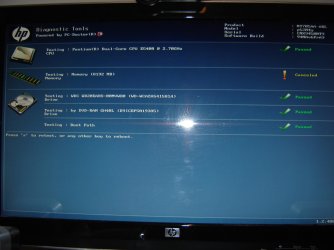
When I restarted the PC, I noticed on the HP splash screen that it said to press F9 for diagnostics. I did that. As you'll see, it came back with a BIOHD-2 error (no drives detected). The DVD-RAM and HDD work (other than the error message) and are detected in the BIOS, so this sure is puzzling. After this, I powered down the PC, opened it up, checked the cables, and then removed the 750 GB drive and reinstalled my 2 TB drive, powered the PC up, and ran the test again. It passed. Based on this, can I assume that the 750 GB drive is close to failing? It just seems odd why all the other diagnostics say it is fine and the HP diagnostics give the error.
 

Attachments

  • DSC04473.jpg
    DSC04473.jpg
    370.8 KB · Views: 85
  • DSC04475.jpg
    DSC04475.jpg
    232.1 KB · Views: 62

My Computer My Computer

Computer type
PC/Desktop
Computer Manufacturer/Model Number
Dell XPS8700
OS
Windows 7 Professional x64
CPU
Intel Core i7-4790 CPU @ 3.60GHz (Haswell)
Motherboard
Dell Lynx Point Z87 Chipset motherboard
Memory
16 GB
Graphics Card(s)
NVIDIA GeForce GTX 745 4GB DDR 3
Sound Card
NVIDIA High Definition Audio
Monitor(s) Displays
HP Pavilion 27bw 27"
Screen Resolution
1920 x 1080 @ 60 Hz
Hard Drives
Seagate ST2000DM001 2 TB
Internet Speed
150 mb/s
Antivirus
Microsoft Security Essentials
Browser
Google Chrome
Check in BIOS setup to see if HD is detected. What is the SATA controller setting? Is there more than one storage controller?

Test your HD using maker's HD Diagnostic extended CD scan, followed by Disk Check run from the installer's Command Line in System Recovery Options.

If necessary format a full disk partition marked Active to try install and do the DIsk Check, using Step 2.2 here: SSD - HDD Optimize for Windows Reinstallation

The HD is detected in BIOS. How to I find out the SATA controller setting? Where do I check to see if there is more than one storage controller?
 

My Computer My Computer

Computer type
PC/Desktop
Computer Manufacturer/Model Number
Dell XPS8700
OS
Windows 7 Professional x64
CPU
Intel Core i7-4790 CPU @ 3.60GHz (Haswell)
Motherboard
Dell Lynx Point Z87 Chipset motherboard
Memory
16 GB
Graphics Card(s)
NVIDIA GeForce GTX 745 4GB DDR 3
Sound Card
NVIDIA High Definition Audio
Monitor(s) Displays
HP Pavilion 27bw 27"
Screen Resolution
1920 x 1080 @ 60 Hz
Hard Drives
Seagate ST2000DM001 2 TB
Internet Speed
150 mb/s
Antivirus
Microsoft Security Essentials
Browser
Google Chrome
Look under storage or HD section of the BIOS setup menu's .

There are other steps given to check the HD. Do those now.

If you'd posted your system specs in the bottom left corner of your posts someone might have already checked for you.
 
As I said in my first post, I already ran WD's diagnostic on the drive. It passed an extended scan. I've already done chkdsk, and it, too, passed. The SATA controller setting is set to RAID. There are three settings: RAID, IDE, and AHCI.
 

My Computer My Computer

Computer type
PC/Desktop
Computer Manufacturer/Model Number
Dell XPS8700
OS
Windows 7 Professional x64
CPU
Intel Core i7-4790 CPU @ 3.60GHz (Haswell)
Motherboard
Dell Lynx Point Z87 Chipset motherboard
Memory
16 GB
Graphics Card(s)
NVIDIA GeForce GTX 745 4GB DDR 3
Sound Card
NVIDIA High Definition Audio
Monitor(s) Displays
HP Pavilion 27bw 27"
Screen Resolution
1920 x 1080 @ 60 Hz
Hard Drives
Seagate ST2000DM001 2 TB
Internet Speed
150 mb/s
Antivirus
Microsoft Security Essentials
Browser
Google Chrome
Change it to AHCI to try install. If that fails try IDE.

Make sure you are following the Best Practices for reinstall in Clean Reinstall - Factory OEM Windows 7

Unplug all other HDs and peripherals. Pay attention to how drivers are handled in Win7 because this is not XP.
 
Speaking of drivers, let me mention something. During this whole process, I downloaded and installed the Windows 7 driver for my Brother PT-1950 labeller. Once I did that, it said I must restart for the changes to take effect. It was when I restarted at that time that I first got the error message. Prior to that, the Windows 7 install and reinstallation of all my programs had gone beautifully. I'm almost tempted to reinstall Windows 7 again sans the Brother PT-1950 driver. I will try the ACHI option. I don't understand why it was set to RAID, as it is my understanding that RAID is used for multiple hard drives installed all at once. I only use one drive at a time.
 

My Computer My Computer

Computer type
PC/Desktop
Computer Manufacturer/Model Number
Dell XPS8700
OS
Windows 7 Professional x64
CPU
Intel Core i7-4790 CPU @ 3.60GHz (Haswell)
Motherboard
Dell Lynx Point Z87 Chipset motherboard
Memory
16 GB
Graphics Card(s)
NVIDIA GeForce GTX 745 4GB DDR 3
Sound Card
NVIDIA High Definition Audio
Monitor(s) Displays
HP Pavilion 27bw 27"
Screen Resolution
1920 x 1080 @ 60 Hz
Hard Drives
Seagate ST2000DM001 2 TB
Internet Speed
150 mb/s
Antivirus
Microsoft Security Essentials
Browser
Google Chrome
Let us know how it goes after setting it to AHCI.

On some machines the RAID setting accomodates both RAID and AHCI. But on those machines you often see there are only two options, RAID and IDE. Setting it to RAID doesn't necessarily mean you're using RAID, but it is ready at that point to be set up that way. (And you're right about RAID being for multiple disks.)

Rather than a reinstall you might consider reverting to a prior restore point (prior to the installation of that driver you're concerned about):

http://www.sevenforums.com/tutorials/700-system-restore.html
 

My Computer My Computer

OS
Windows 7 Ultimate x64
I haven't fully switched to AHCI yet. Let me tell you what I did, and it may or may not have solved the problem. I read instructions somewhere about switching to AHCI AFTER installing Windows 7. It involved going into the registry and changing an entry. I'm not a huge fan of doing that. Long story short, that method I read about didn't work. After I switched to AHCI, it would get to the Starting Windows screen, then reboot, and ask me if I wanted to launch startup repair. I did a repair, it took forever to check for problems, and said it couldn't fix the problems. I restarted the PC. I went into BIOS and changed the setting back to RAID. I exited the BIOS, then did an F9 at the HP splash screen to run the HP diagnostics and this time everything (including the hard drive) passed. No more BIOHD-2 error. If I had switched to AHCI without going into the registry, would that have destroyed the Windows 7 installation on the 750 GB drive, or would going into BIOS and changing it back to RAID have enabled me to boot into Windows, as I did with the registry method?

I am definitely going to switch to AHCI and then reinstall Windows 7 on the 750 GB drive. Right now, because of all the problems I have had with this particular WD 750 GB drive, it is more or less a testing drive, as I don't fully trust using it as my main drive just yet. As I write this, I am using my reliable WD 2 TB (WD20EARS) drive. If I do have a concern, it is that perhaps switching to AHCI may affect the performance of the 2 TB, which has performed perfectly set to RAID in BIOS. I'm a bit concerned that my 2 TB drive may start giving me the same boot device message.
 
Last edited:

My Computer My Computer

Computer type
PC/Desktop
Computer Manufacturer/Model Number
Dell XPS8700
OS
Windows 7 Professional x64
CPU
Intel Core i7-4790 CPU @ 3.60GHz (Haswell)
Motherboard
Dell Lynx Point Z87 Chipset motherboard
Memory
16 GB
Graphics Card(s)
NVIDIA GeForce GTX 745 4GB DDR 3
Sound Card
NVIDIA High Definition Audio
Monitor(s) Displays
HP Pavilion 27bw 27"
Screen Resolution
1920 x 1080 @ 60 Hz
Hard Drives
Seagate ST2000DM001 2 TB
Internet Speed
150 mb/s
Antivirus
Microsoft Security Essentials
Browser
Google Chrome
I haven't fully switched to AHCI yet. Let me tell you what I did, and it may or may not have solved the problem. I read instructions somewhere about switching to AHCI AFTER installing Windows 7. It involved going into the registry and changing an entry. I'm not a huge fan of doing that. Long story short, that method I read about didn't work. After I switched to AHCI, it would get to the Starting Windows screen, then reboot, and ask me if I wanted to launch startup repair. I did a repair, it took forever to check for problems, and said it couldn't fix the problems. I restarted the PC. I went into BIOS and changed the setting back to RAID. I exited the BIOS, then did an F9 at the HP splash screen to run the HP diagnostics and this time everything (including the hard drive) passed. No more BIOHD-2 error. If I had switched to AHCI without going into the registry, would that have destroyed the Windows 7 installation on the 750 GB drive, or would going into BIOS and changing it back to RAID have enabled me to boot into Windows, as I did with the registry method?

No matter which route you take there are ways to get around either method to avoid declaring the installation as "destroyed".

I am definitely going to switch to AHCI and then reinstall Windows 7 on the 750 GB drive. Right now, because of all the problems I have had with this particular WD 750 GB drive, it is more or less a testing drive, as I don't fully trust using it as my main drive just yet. As I write this, I am using my reliable WD 2 TB (WD20EARS) drive. If I do have a concern, it is that perhaps switching to AHCI may affect the performance of the 2 TB, which has performed perfectly set to RAID in BIOS. I'm a bit concerned that my 2 TB drive may start giving me the same boot device message.

If you do get the same message switching the controller back to the original setting should get you back in business.

What does the WD diagnostics tool report for SMART results (both drives)?
 

My Computer My Computer

OS
Windows 7 Ultimate x64
I haven't run the SMART test on my main drive yet, only the 750 GB. It says it passes, with a green checkmark beside it. The method of switching to AHCI after installing Windows 7 was from another forum. The steps were similar, but I didn't have to launch an elevated command prompt to do it.
 

My Computer My Computer

Computer type
PC/Desktop
Computer Manufacturer/Model Number
Dell XPS8700
OS
Windows 7 Professional x64
CPU
Intel Core i7-4790 CPU @ 3.60GHz (Haswell)
Motherboard
Dell Lynx Point Z87 Chipset motherboard
Memory
16 GB
Graphics Card(s)
NVIDIA GeForce GTX 745 4GB DDR 3
Sound Card
NVIDIA High Definition Audio
Monitor(s) Displays
HP Pavilion 27bw 27"
Screen Resolution
1920 x 1080 @ 60 Hz
Hard Drives
Seagate ST2000DM001 2 TB
Internet Speed
150 mb/s
Antivirus
Microsoft Security Essentials
Browser
Google Chrome
Here's an update. I set the controller to AHCI, reinstalled Windows 7 on the 750 GB drive, ran the HP diagnostics and everything passed. I then put back my 2 TB drive into my computer that had my other Windows 7 installation on it (set to RAID). On the weekend, I'll have more time to test the 750 GB drive, doing reboots, and trying to reproduce the error. But, considering the "select boot device" error occurred when the HP diagnostics gave me the "no drives detected" message, and that problem is now gone, I'd say it's a good bet that the "select boot device" message is also a thing of the past. I'll keep everyone posted.

By the way, Greg, in your Windows 7 reinstallation tutorial, you link to several ISO files of different versions of Windows 7 SP1. Can I use one of these ISOs with my current product key to replace the Windows 7 Home Premium 64-bit OEM disc (without SP1) I am using now? I actually bought it because I didn't like the HP bloatware. I've used it since day one instead of HP's version. Would I need to use the key from my tower or the key from the Windows 7 Home Premium OEM disc?
 

My Computer My Computer

Computer type
PC/Desktop
Computer Manufacturer/Model Number
Dell XPS8700
OS
Windows 7 Professional x64
CPU
Intel Core i7-4790 CPU @ 3.60GHz (Haswell)
Motherboard
Dell Lynx Point Z87 Chipset motherboard
Memory
16 GB
Graphics Card(s)
NVIDIA GeForce GTX 745 4GB DDR 3
Sound Card
NVIDIA High Definition Audio
Monitor(s) Displays
HP Pavilion 27bw 27"
Screen Resolution
1920 x 1080 @ 60 Hz
Hard Drives
Seagate ST2000DM001 2 TB
Internet Speed
150 mb/s
Antivirus
Microsoft Security Essentials
Browser
Google Chrome
You should use the Product Key on COA sticker on the tower since you own that $100+valued version of Windows 7 for the PC's life, to reinstall as often and in any way you please in either 32- or 64-bit.

Unfortunately if you already used the retail OEM version Product Key you purchased then it has already become locked to that mobo. I would call MS Customer Service and explain that retail key was used accidentally to activate an HP factory OEM PC which already has a OEM-COA key that was intended to be used. Based on reports we've had they may issue you a new key for the retail purchase or reset the purchased key so it can be used on a fresh install. If one agent says no, the next agent may say yes, or you may need to wait until time to activate with it on another install and use phone activation option to get the leniency MS is shown to have as of late on retail OEM.
 
Thank you, Greg. I appreciate your help in this thread. To the others who also helped, thanks, also. This is a great forum and there are some very good people here. :)
 

My Computer My Computer

Computer type
PC/Desktop
Computer Manufacturer/Model Number
Dell XPS8700
OS
Windows 7 Professional x64
CPU
Intel Core i7-4790 CPU @ 3.60GHz (Haswell)
Motherboard
Dell Lynx Point Z87 Chipset motherboard
Memory
16 GB
Graphics Card(s)
NVIDIA GeForce GTX 745 4GB DDR 3
Sound Card
NVIDIA High Definition Audio
Monitor(s) Displays
HP Pavilion 27bw 27"
Screen Resolution
1920 x 1080 @ 60 Hz
Hard Drives
Seagate ST2000DM001 2 TB
Internet Speed
150 mb/s
Antivirus
Microsoft Security Essentials
Browser
Google Chrome
On the weekend, I'll have more time to test the 750 GB drive, doing reboots, and trying to reproduce the error. But, considering the "select boot device" error occurred when the HP diagnostics gave me the "no drives detected" message, and that problem is now gone, I'd say it's a good bet that the "select boot device" message is also a thing of the past. I'll keep everyone posted.

Well, I was a bit too optimistic. I set the drive to AHCI, used Diskpart's erase all command, reinstalled Windows 7, installed the updates, and when it came time to reboot, I got the "select boot device" error again. Before this, I ran HP Diagnostics and it said everything was fine. I also ran Windows Repair and it said it couldn't detect a problem. One thing, though, is that I had a USB flash drive plugged into my PC when the error appeared, and also, the error appeared while I was installing SP1. I removed the USB flash drive, rebooted, and Windows 7 booted up. I wanted to see if having the USB flash drive connected could trigger the error again, so I put the USB flash drive back in, rebooted, and Windows booted up normally. Any more ideas, guys?
 

My Computer My Computer

Computer type
PC/Desktop
Computer Manufacturer/Model Number
Dell XPS8700
OS
Windows 7 Professional x64
CPU
Intel Core i7-4790 CPU @ 3.60GHz (Haswell)
Motherboard
Dell Lynx Point Z87 Chipset motherboard
Memory
16 GB
Graphics Card(s)
NVIDIA GeForce GTX 745 4GB DDR 3
Sound Card
NVIDIA High Definition Audio
Monitor(s) Displays
HP Pavilion 27bw 27"
Screen Resolution
1920 x 1080 @ 60 Hz
Hard Drives
Seagate ST2000DM001 2 TB
Internet Speed
150 mb/s
Antivirus
Microsoft Security Essentials
Browser
Google Chrome
Bad cabling/connections/power?

Does your other drive always work without issue?

Maybe intermittent hard drive problem. Download CrystalDisk (portable version to avoid installation of additional adware); you can use it to keep track of your HDD's SMART attributes (SMART doesn't do that on its own): CrystalDiskInfo - Software - Crystal Dew World
 

My Computer My Computer

OS
Windows 7 Ultimate x64
Bad cabling/connections/power?

Does your other drive always work without issue?

Maybe intermittent hard drive problem. Download CrystalDisk (portable version to avoid installation of additional adware); you can use it to keep track of your HDD's SMART attributes (SMART doesn't do that on its own): CrystalDiskInfo - Software - Crystal Dew World

The cabling, etc. is all good. The other drive always works, yes. I'll check out CrystalDisk. Thanks for your reply.
 

My Computer My Computer

Computer type
PC/Desktop
Computer Manufacturer/Model Number
Dell XPS8700
OS
Windows 7 Professional x64
CPU
Intel Core i7-4790 CPU @ 3.60GHz (Haswell)
Motherboard
Dell Lynx Point Z87 Chipset motherboard
Memory
16 GB
Graphics Card(s)
NVIDIA GeForce GTX 745 4GB DDR 3
Sound Card
NVIDIA High Definition Audio
Monitor(s) Displays
HP Pavilion 27bw 27"
Screen Resolution
1920 x 1080 @ 60 Hz
Hard Drives
Seagate ST2000DM001 2 TB
Internet Speed
150 mb/s
Antivirus
Microsoft Security Essentials
Browser
Google Chrome
The cabling, etc. is all good. The other drive always works, yes. I'll check out CrystalDisk. Thanks for your reply.

You're welcome! Let us know what you find...
 

My Computer My Computer

OS
Windows 7 Ultimate x64
Back
Top