Reccuring BSOD error 0x00000124

Littlecompadre

New member
Local time
9:05 AM
Messages
4
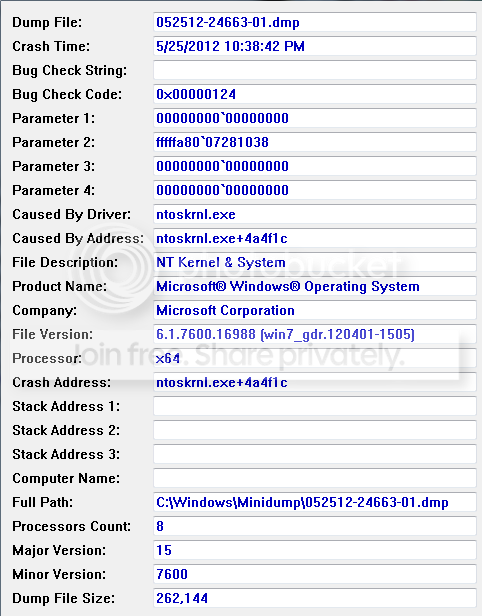
I have a brand new build and I keep getting this error. I think 124 is a hardware error? I'm not sure where to start.

Untitled.png


ASRock 970DE3/U3S3 AM3+ AMD 770 SATA 6Gb/s USB 3.0 ATX AMD Motherboard
Corsair Nova Series 2 CSSD-V30GB2A 2.5" 30GB SATA II Internal Solid State
CORSAIR Vengeance 8GB (2 x 4GB) 240-Pin DDR3 SDRAM DDR3 1600 (PC3 12800) Desktop Memory Model CMZ8GX3M2A1600C9B
AMD FX-8120 Zambezi 3.1GHz Socket AM3+ 125W Eight-Core Desktop Processor FD8120FRGUBOX
Western Digital WD2500 250GB IDE HDD
Nvidia GeForcve 8500GT PCIE 2.0 512mb
 

My Computer My Computer

OS
Windows 7 Ultimate 64 bit
We do need the DMP file as it contains the only record of the sequence of events leading up to the crash, what drivers were loaded, and what was responsible.
Please attach the DMP files to your next post not to post one.


If you are overclocking STOP

You may be able to get the DMP files without crashing by booting into safe mode (F8) with networking.

To enable us to assist you with your computer's BSOD symptoms, upload the contents of your "\Windows\Minidump" folder. If empty (or non existent) please look in the following folders. C:\windows (the dmp should be called memory.dmp), and C:\windows\LiveKernelReports\Watchdog.

The procedure:
* Copy the contents of \Windows\Minidump to another (temporary) location somewhere on your machine.
* Zip up the copy.
* Attach the ZIP archive to your post using the "paperclip" (file attachments) button.
*If the files are too large please upload them to a file sharing service like "Rapidshare" and put a link to them in your reply.
To ensure minidumps are enabled:
* Go to Start, in the Search Box type: sysdm.cpl, press Enter.
* Under the Advanced tab, click on the Startup and Recovery Settings... button.
* Ensure that Automatically restart is unchecked.
* Under the Write Debugging Information header select Small memory dump (256 kB) in the dropdown box (the 256kb varies).
* Ensure that the Small Dump Directory is listed as %systemroot%\Minidump.
* OK your way out.
* Reboot if changes have been made.
 

My Computer My Computer

Computer Manufacturer/Model Number
HP Pavillion dv-7 1005 Tx
OS
Win 8 Release candidate 8400
CPU
[email protected]
Memory
4 gigs
Graphics Card(s)
Nvidia 9600M
Sound Card
HD built-in
Monitor(s) Displays
17" Wxga
Screen Resolution
1440x900
Cooling
none
Internet Speed
45Mb down 5Mb up
1. Stop 0x124 is a hardware error

If you are overclocking try resetting your processor to standard settings and see if that helps.


If you continue to get BSODS, here are some things you may want to consider.


This is usually heat related, defective hardware, memory or even processor though it is"possible" that it is driver related (rare).


Stop 0x124 - what it means and what to try
Synopsis:

A "stop 0x124" is fundamentally different to many other types of bluescreens because it stems from a hardware complaint.

Stop 0x124 minidumps contain very little practical information, and it is therefore necessary to approach the problem as a case of hardware in an unknown state of distress.


Generic "Stop 0x124" Troubleshooting Strategy:

1) Ensure that none of the hardware components are overclocked. Hardware that is driven beyond its design specifications - by overclocking - can malfunction in unpredictable ways.


2) Ensure that the machine is adequately cooled.
If there is any doubt, open up the side of the PC case (be mindful of any relevant warranty conditions!) and point a mains fan squarely at the motherboard. That will rule out most (lack of) cooling issues.


3) Update all hardware-related drivers: video, sound, RAID (if any), NIC... anything that interacts with a piece of hardware.
It is good practice to run the latest drivers anyway.


4) Update the motherboard BIOS according to the manufacturer's instructions.
Their website should provide detailed instructions as to the brand and model-specific procedure.


5) Rarely, bugs in the OS may cause "false positive" 0x124 events where the hardware wasn't complaining but Windows thought otherwise (because of the bug).
At the time of writing, Windows 7 is not known to suffer from any such defects, but it is nevertheless important to always keep Windows itself updated.

6) Attempt to (stress) test those hardware components which can be put through their paces artificially.
The most obvious examples are the RAM and HDD(s).
For the RAM, use the in-built memory diagnostics (run MDSCHED) or the 3rd-party memtest86 utility to run many hours worth of testing.
For hard drives, check whether CHKDSK /R finds any problems on the drive(s), notably "bad sectors".
Unreliable RAM, in particular, is deadly as far as software is concerned, and anything other than a 100% clear memory test result is cause for concern. Unfortunately, even a 100% clear result from the diagnostics utilities does not guarantee that the RAM is free from defects - only that none were encountered during the test passes.

7) As the last of the non-invasive troubleshooting steps, perform a "vanilla" reinstallation of Windows: just the OS itself without any additional applications, games, utilities, updates, or new drivers - NOTHING AT ALL that is not sourced from the Windows 7 disc.
Should that fail to mitigate the 0x124 problem, jump to the next steps.
If you run the "vanilla" installation long enough to convince yourself that not a single 0x124 crash has occurred, start installing updates and applications slowly, always pausing between successive additions long enough to get a feel for whether the machine is still free from 0x124 crashes.
Should the crashing resume, obviously the very last software addition(s) may be somehow linked to the root cause.
If stop 0x124 errors persist despite the steps above, and the harware is under warranty, consider returning it and requesting a replacement which does not suffer periodic MCE events.
Be aware that attempting the subsequent harware troubleshooting steps may, in some cases, void your warranty:

8) Clean and carefully remove any dust from the inside of the machine.
Reseat all connectors and memory modules.
Use a can of compressed air to clean out the RAM DIMM sockets as much as possible.

9) If all else fails, start removing items of hardware one-by-one in the hope that the culprit is something non-essential which can be removed.
Obviously, this type of testing is a lot easier if you've got access to equivalent components in order to perform swaps.

Should you find yourself in the situation of having performed all of the steps above without a resolution of the symptom, unfortunately the most likely reason is because the error message is literally correct - something is fundamentally wrong with the machine's hardware.

http://www.sevenforums.com/crash-lockup-debug-how/35349-stop-0x124-what-means-what-try.html


2. BTW > It would be considered wise to update to SP1.

Please run the System Update Readiness Tool (SURT) and then update to SP-1

Description of the System Update Readiness Tool for Windows Vista, for Windows Server 2008, for Windows 7, and for Windows Server 2008 R2


Now update to SP-1


Learn how to install Windows 7 Service Pack 1 (SP1)


Download: Windows 7 and Windows Server 2008 R2 Service Pack 1 (KB976932) - Microsoft Download Center - Download Details
 

My Computer My Computer

Computer Manufacturer/Model Number
LAPTOP. HP Pavilion dv7-4010TX .
OS
Win 7 Ultimate 64-bit. SP1.
CPU
Intel i7 -720QM.[1.6GHz Turbo Boost 2.8GHz. 6MB Cache.]
Memory
8 DDR 3 RAM. 1066MHZ
Graphics Card(s)
ATI 1024 MB. DDR3. Radeon HD5650
Monitor(s) Displays
17.3" High Definition Brightview LCD. LED Backlit.
Screen Resolution
1600 x 900.
Hard Drives
640GB
Case
Laptop / notebook.
Mouse
Logitech Anywhere mouse. MX.
Internet Speed
ADSL [ but too slow ]
My dmp files are attached


These just reaffirm that it is a hardware problem. Have you done all of the suggested steps in the link?

You need to stress components till one responds and that is the problematic one.

Can I assume you are not overclocking?
 

My Computer My Computer

Computer Manufacturer/Model Number
HP Pavillion dv-7 1005 Tx
OS
Win 8 Release candidate 8400
CPU
[email protected]
Memory
4 gigs
Graphics Card(s)
Nvidia 9600M
Sound Card
HD built-in
Monitor(s) Displays
17" Wxga
Screen Resolution
1440x900
Cooling
none
Internet Speed
45Mb down 5Mb up
I'm not overclocking anything. All of my drivers and BIOS are updated. Crystaldisk Info says my Hdds don't have any bad sectors. I'm kind of lost as to what to do from here...
 

My Computer My Computer

OS
Windows 7 Ultimate 64 bit
Just ran memory diagnostic, no problems there either
 

My Computer My Computer

OS
Windows 7 Ultimate 64 bit
124 Error for desktops not under warranty. If you are at all uncomfortable don't do it.

This is usually heat related, defective hardware, memory or even processor though it is"possible" that it is driver related (rare).

Remove ALL power and re-seat all cards, memory and cables (on both ends) - actually remove and replace - do not just snug.


Make sure the system has adequate ventilation - add a small fan blowing into intakes.


Carefully inspect the motherboard and other cards for damage.

Pay attention to the fatal hardware error implication.
You may need a real computer shop (not leeks and peeks at a BestBuy or other BigBox stores) or the System maker's Support.

Check the processor seating, heat sink, and the compound between the processor and the heat sink which are common causes.


There have been a few instances where Norton/Symantec and other antivirus/security programs have caused this error.


BCCode: 124 0x00000124


The WHEA_UNCORRECTABLE_ERROR bug check has a value of 0x00000124. This bug

check indicates that a fatal hardware error has occurred. This bug check uses the error data that is provided by the Windows Hardware Error Architecture (WHEA).

0x00000124 <-- read this link

The system encountered an uncorrectable hardware error.
 

My Computer My Computer

Computer Manufacturer/Model Number
LAPTOP. HP Pavilion dv7-4010TX .
OS
Win 7 Ultimate 64-bit. SP1.
CPU
Intel i7 -720QM.[1.6GHz Turbo Boost 2.8GHz. 6MB Cache.]
Memory
8 DDR 3 RAM. 1066MHZ
Graphics Card(s)
ATI 1024 MB. DDR3. Radeon HD5650
Monitor(s) Displays
17.3" High Definition Brightview LCD. LED Backlit.
Screen Resolution
1600 x 900.
Hard Drives
640GB
Case
Laptop / notebook.
Mouse
Logitech Anywhere mouse. MX.
Internet Speed
ADSL [ but too slow ]
Back
Top