Receiving error code: 0x80070424 Windows Firewall can't change some...

Rastabot

New member
Local time
6:18 PM
Messages
2
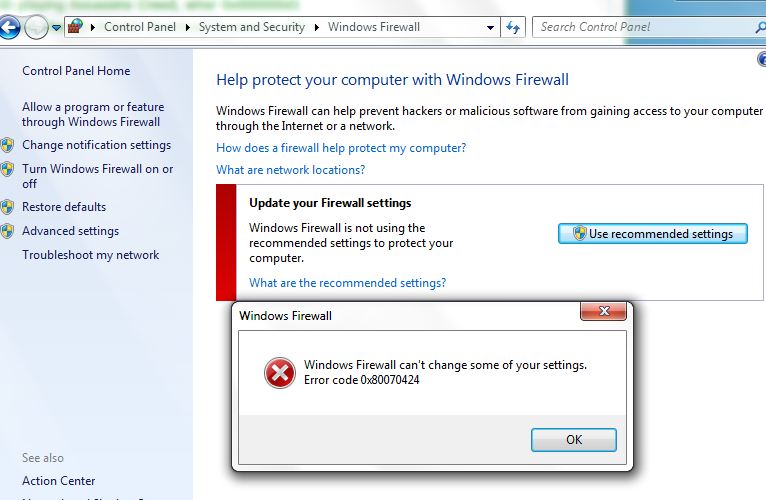
Originally I wanted to turn my Windows firewall off because I heard I can get a better online experience when playing a game, but when I go "turn Windows Firewall on or off" in the Control Panel, it tells me "Windows is not using recommended settings to protect your computer", so I click on " use recommended settings" and that is when I get the error message:

Windows Firewall can't change some of your settings. Error code 0x80070424

Any help on fixing this error would be greatly appreciated

here is a picture of my control panel and the error message:
DxhBD.jpg
 

My Computer

OS
Windows 7 Home Premium 64 bit
never mind the 'use recommended settings'--if you really want it OFF--just turn it off
 

Attachments

  • Capture.JPG
    Capture.JPG
    50.9 KB · Views: 298

My Computer

Computer Manufacturer/Model Number
SALEON model 2.2b
OS
win7 ultimate 32bit
CPU
core2 Extreme QX6850-OCd to 3.15 GHz
Motherboard
ASUS P5G41-M LE
Memory
4 GB
Graphics Card(s)
NVidia 8600 GT
Monitor(s) Displays
23" acer
Hard Drives
one SATA 250GB partitioned equally in half
one SATA 160GB-internal storage
PSU
500W Thermaltake
Case
mini tower
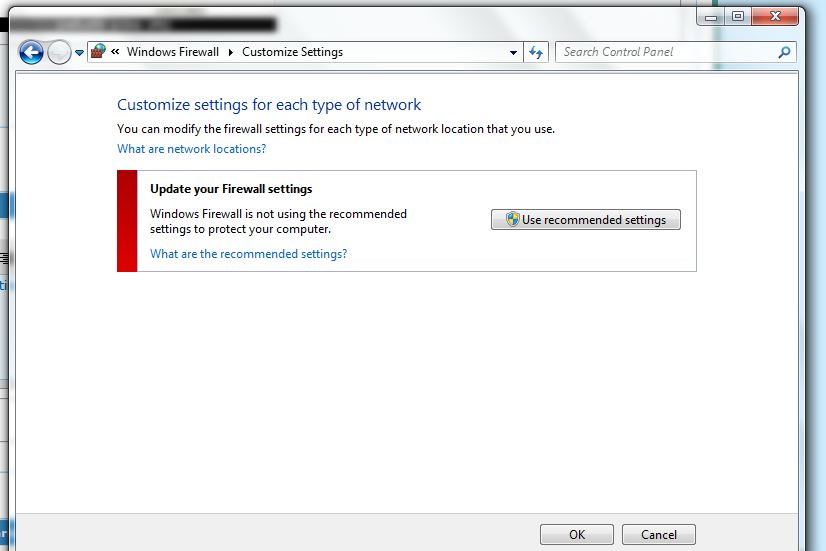
When I go to "Customize settings" I don't even have the option to to turn the firewall on or off I just get the screen shown in my first post:
jWapn.jpg
 

My Computer

OS
Windows 7 Home Premium 64 bit
If windows defender doesnt work

Download Farbar Recovery Scan Tool

Farbar Recovery Scan Tool Download

and save it to a flash drive.

Plug the flashdrive into the infected PC.

Enter System Recovery Options.

To enter System Recovery Options from the Advanced Boot Options:

  • Restart the computer.
  • As soon as the BIOS is loaded begin tapping the F8 key until Advanced Boot Options appears.
  • Use the arrow keys to select the Repair your computer menu item.
  • Select US as the keyboard language settings, and then click Next.
  • Select the operating system you want to repair, and then click Next.
  • Select your user account an click Next.


To enter System Recovery Options by using Windows installation disc:

  • Insert the installation disc.
  • Restart your computer.
  • If prompted, press any key to start Windows from the installation disc. If your computer is not configured to start from a CD or DVD, check your BIOS settings.
  • Click Repair your computer.
  • Select US as the keyboard language settings, and then click Next.
  • Select the operating system you want to repair, and then click Next.
  • Select your user account and click Next.


On the System Recovery Options menu you will get the following options:
    • Startup Repair
      System Restore
      Windows Complete PC Restore
      Windows Memory Diagnostic Tool
      Command Prompt
    Select Command Prompt
    In the command window type in notepad and press Enter
    The notepad opens. Under File menu select Open
    Select "Computer" and find your flash drive letter and close the notepad
    In the command window type e:\frst.exe (for x64 bit version type e:\frst64) and press Enter
    Note: Replace letter e with the drive letter of your flash drive
    The tool will start to run
    When the tool opens click Yes to disclaimer
    Press Scan button
    It will make a log (FRST.txt) on the flash drive. Please copy and paste it to your reply.
 

My Computer

OS
32 bit
Back
Top