Record "what you hear"

Fix

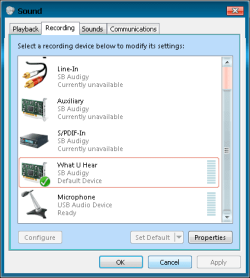
I figured it out, I run a Windows 7 Home Premiium 64bit. I have my speakers plugged into a sound card, I believe that is the only way to be able to do this is not to plug it into the motherboard. If you have a different sound card in one of your pci ports, plug it in there. Then go to sounds, recording devices, go to stereo mix, make that your default device. Go to audacity, go to preferences. Make the playback the speakers of the sound card. and make the recording the stereo mix. when you are done, exit out of audacity, open it up again, and it should work.
 

My Computer My Computer

OS
Windows 7 Home Premium 64bit

My Computer My Computer

Computer Manufacturer/Model Number
Toshiba Satellite A210
OS
Windows 7 Ultimate 32-Bit (Build 7600)
Memory
1.87GB Ram
Monitor(s) Displays
Philips 244E1SB 23.6 inch Computer LCD Monitor
Hard Drives
Fujitsu Mobile MHY2250BH 250 GB

My Computer My Computer

Computer Manufacturer/Model Number
Toshiba Satellite A210
OS
Windows 7 Ultimate 32-Bit (Build 7600)
Memory
1.87GB Ram
Monitor(s) Displays
Philips 244E1SB 23.6 inch Computer LCD Monitor
Hard Drives
Fujitsu Mobile MHY2250BH 250 GB
Here's the answer (if it isn't already posted). YouTube - How to record "what you hear" in Windows 7 and Vista

Here's another link in text form: http://www.awesometoast.com/recording-what-you-hear-in-windows-7/.

I too have Win-7 64-bit, with the ubiquitous Realtek HD on-board audio, and after viewing this, I got it to work, no problem. One other thing, is that this (I believe) only applies to the Realtek on-board audio, as users of Sound Blasters say that this method doesn't apply. I can only say that if you have Realtek, this does work.

As a sidebar, one other thing to remember, is that when recording "what you hear", you'll record EVERYTHING! That means for example, your recording from some on-line source through your browser, and and you get an email, or you finished copying a CD, and you that that ding-dong sound. Well, you'll be recording that too, along with any other sounds Windows or your apps may spit out at any time. Try to shut down apps that make sounds.

Another thing too, is that this is a direct internal (digital?) connection, not looping the line- out or speaker out to line-in.

Have fun!
 

My Computer My Computer

Computer Manufacturer/Model Number
Gateway DX-4822
OS
Win7 64 Bit
CPU
Intel E5300 Dual Core 2.6GHz
Motherboard
Gateway/Acer
Memory
6GB
Graphics Card(s)
ATI HD-4650
Monitor(s) Displays
24" WS
Hard Drives
1TB + 500GB
PSU
500W
The only thing to add to the above... some Realtek chipsets do not support the "Stereo Mix" option, you can load drivers until you're blue in the face but if the hardware doesn't support it, it's not going to appear.

This IS NOT some devious plot by Microsoft.

Also, the Soundblaster Hardware does support Record What U Hear but evidently recent driver releases are not supporting this function, don't know why, it's a Creative problem, not a Microsoft problem.

Ap
 

My Computer My Computer

Computer Manufacturer/Model Number
Assembled in my workshop
OS
Windows 7 Home Premium
CPU
Intel Core 2 Duo @ 3.00gHz
Motherboard
Gigabyte GA-P35-S3G
Memory
4 GB
Graphics Card(s)
ATI Radeon HD 2600 XT
Sound Card
RME 24/96 Card, Realtek Internal Audio PreSonus FireStudio
Monitor(s) Displays
Acer 1917 (x2)
Screen Resolution
1280 x 1024 on both monitors
Hard Drives
Three 250GB Seagate SATA Barracuda 7200rpm
PSU
Rosewill 500-watt
Case
Rosewill mid-tower
Cooling
Noctua NH-U9B (CPU), PwrSupply fan + single large case Fan
Keyboard
Macally w/2/USB ports.
Mouse
Trackman Wheel
Other Info
Event 20/20 bas studio monitors, Yamaha sub.
Rackmount Korg/Roland/Yamaha synthesizers,
Cubase MIDI/audio recording. Sony Soundforge audio/mastering software. CD Architect Mastering. RME & Presonus audio interfaces.
Last Thursday, I downloaded the most recent Realtek driver(Audio_Realtek_Vista_Win7_R253.exe) from their website. It's difficult to determine what version of chipset hardware I have in my Gateway (ECS/Acer G43T-AM MoBo), but I bought it a year ago Christmas, so its not that old.

Simply put, I followed the instructions below:

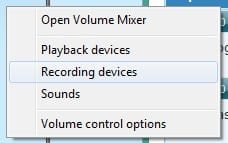
1. Right click on the speaker icon in the bottom right.
2. Choose Recording Devices
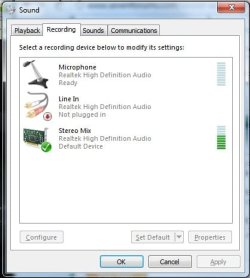
3. In the empty white space, right-click and choose Show Disabled Devices. You should see Stereo Mix appear in the list.
4. Right click on Stereo Mix and choose Enable.
5. Right click on Stereo Mix again, and choose Set as Default Device.

Once done, I opened the Realtek Audio Manager, and adjusted the recording volume level full right, and I was good to go.

Realtek.jpg


Of course, the Stereo Mix options in the Recording device manager, or in the Realtek Audio Manager wasn't previously there until I enabled the device.

I've used Sound Forge for years, and also have Audacity installed. Both work fine now.

The long and short of it is that recording routing is very device and driver dependent. I've had a long (and happy) relationship with Sound Blaster, and I was ready to plop down my $50 for an Audigy sound card, when I found this work around.

Don't get me wrong. I may still do so, and the Realtek, while light years ahead of older generation on-board sound hardware, is still rather lacking in flexibility. The Realtek is also (relatively) quite noisy, showing about -50db. My Audigy SB card on my XP PC (I was using for my recording mastering) was giving me about -70db background noise. That's a HUGE difference!
 

My Computer My Computer

Computer Manufacturer/Model Number
Gateway DX-4822
OS
Win7 64 Bit
CPU
Intel E5300 Dual Core 2.6GHz
Motherboard
Gateway/Acer
Memory
6GB
Graphics Card(s)
ATI HD-4650
Monitor(s) Displays
24" WS
Hard Drives
1TB + 500GB
PSU
500W
Search for this driver and U have the "what U hear"
SB24_VTDRV_LB_1_04_0065A.exe 10,797 KB
if not change install it through dev.menager
-system
-dev. menager
-update
Drivers/wdm/
-ctzapxx.ini


Missing in the post above

"The "What U Hear" feature for Sound Blaster Audigy SE/LS/Live!24 bit cards had changed since the latest driver update. The previous version of Windows Vista driver (SB24_VTDRV_LB_1_04_0065A.exe) for Sound Blaster Audigy SE/LS/Live!24 bit has an option for recording with "What U Hear". The latest driver no longer has the option for "What U Hear" recording with Sound Blaster Audigy SE/LS/Live!24bit.

For Sound Blaster X-Fi Notebook, please update to the latest driver to get the What U Hear option. Click on the Download link at the top right corner of this page under the Quick Links to download the latest driver.

* Notes: For Sound Blaster Audigy SE/LS/Live!24 bit, the only way to get the "What U Hear" option is to reinstall the previous drivers, or roll back drivers.
* Sound Blaster X-Fi Xtreme Audio series owners may experince issues with latency when trying to record via the microphone. This behaviour is due to the microphone software monitoring feature routing the audio signal to the host and back to the card resulting in some latency.
* Creative do not provide technical support for Beta Drivers. We recommend that only experienced users install this driver."
 

Attachments

  • My-LastCreative.png
    My-LastCreative.png
    10.7 KB · Views: 14

My Computer My Computer

Computer type
PC/Desktop
Computer Manufacturer/Model Number
696
OS
7 Ultimate x64 sp1
CPU
Intel i5-4690K
Motherboard
GA Z97X Gaming 5
Memory
16Gb HyperX fury
Graphics Card(s)
R9-270x 2Gb
Sound Card
On Board
Monitor(s) Displays
2443NW
Screen Resolution
1920x1200
Hard Drives
WD5000 -
WD5001 -
WD1002
PSU
Cft-650-14cs
Case
Very Big Case
Cooling
stock
Keyboard
G11
Mouse
Logitech
Internet Speed
Adsl
Browser
FF
Other Info
RWD
The long and short of it is that recording routing is very device and driver dependent. I've had a long (and happy) relationship with Sound Blaster, and I was ready to plop down my $50 for an Audigy sound card, when I found this work around.

Don't get me wrong. I may still do so, and the Realtek, while light years ahead of older generation on-board sound hardware, is still rather lacking in flexibility. The Realtek is also (relatively) quite noisy, showing about -50db. My Audigy SB card on my XP PC (I was using for my recording mastering) was giving me about -70db background noise. That's a HUGE difference!

Realtek makes approx 30-40 different chipsets, don't know why some don't have the "stereo mix" option, perhaps it is absent on the budget chips... or perhaps they haven't enabled it in the driver yet.

You might be able to trim a few db off the S/N ratio by setting all unused inputs to zero, and/or muting them.

Also, if you're recording Line in it's probably best to set Line In as the default recording device as it might be a few db quieter.

The Realtek chipset on this motherboard is fairly old (a 662 model) and it does have Stereo Mix, not bad sounding for internal audio,

take it easy BillW :sarc:

Ap
 

My Computer My Computer

Computer Manufacturer/Model Number
Assembled in my workshop
OS
Windows 7 Home Premium
CPU
Intel Core 2 Duo @ 3.00gHz
Motherboard
Gigabyte GA-P35-S3G
Memory
4 GB
Graphics Card(s)
ATI Radeon HD 2600 XT
Sound Card
RME 24/96 Card, Realtek Internal Audio PreSonus FireStudio
Monitor(s) Displays
Acer 1917 (x2)
Screen Resolution
1280 x 1024 on both monitors
Hard Drives
Three 250GB Seagate SATA Barracuda 7200rpm
PSU
Rosewill 500-watt
Case
Rosewill mid-tower
Cooling
Noctua NH-U9B (CPU), PwrSupply fan + single large case Fan
Keyboard
Macally w/2/USB ports.
Mouse
Trackman Wheel
Other Info
Event 20/20 bas studio monitors, Yamaha sub.
Rackmount Korg/Roland/Yamaha synthesizers,
Cubase MIDI/audio recording. Sony Soundforge audio/mastering software. CD Architect Mastering. RME & Presonus audio interfaces.
Enabling What U hear

What you hear or Stereo mix can be enabled from "Sound" control panel item. On the Recording tab right click and show Disabled devices, then right click Stereo mix and choose to enable.
 

My Computer My Computer

OS
Windows 7

My Computer My Computer

Computer Manufacturer/Model Number
Custom Built
OS
Windows 7 64-bit
CPU
i5 2500k @4.5GHZ
Motherboard
Asus P8P67
Memory
8.0GB G-Skill RIPJAWS
Graphics Card(s)
Ati Radeon HD5850
Monitor(s) Displays
Samsung 1080p LED Backlight Monitor-Tv , BENQ 1080p Display
Screen Resolution
22, 21.5
Hard Drives
Samsung F3 HD103SJ 1TB
WD Elements 1TB SATA HDD
PSU
Coolermaster Silent Pro 700W
Case
CM Storm Scout
Cooling
Cooler Master Hyper 212 Plus
Other Info
Steam :: SN1PERFISH
Xfire :: sn1perfish
Search for this driver and U have the "what U hear"
SB24_VTDRV_LB_1_04_0065A.exe 10,797 KB
if not change install it through dev.menager
-system
-dev. menager
-update
Drivers/wdm/
-ctzapxx.ini


Missing in the post above

"The "What U Hear" feature for Sound Blaster Audigy SE/LS/Live!24 bit cards had changed since the latest driver update. The previous version of Windows Vista driver (SB24_VTDRV_LB_1_04_0065A.exe) for Sound Blaster Audigy SE/LS/Live!24 bit has an option for recording with "What U Hear". The latest driver no longer has the option for "What U Hear" recording with Sound Blaster Audigy SE/LS/Live!24bit.

For Sound Blaster X-Fi Notebook, please update to the latest driver to get the What U Hear option. Click on the Download link at the top right corner of this page under the Quick Links to download the latest driver.

* Notes: For Sound Blaster Audigy SE/LS/Live!24 bit, the only way to get the "What U Hear" option is to reinstall the previous drivers, or roll back drivers.
* Sound Blaster X-Fi Xtreme Audio series owners may experince issues with latency when trying to record via the microphone. This behaviour is due to the microphone software monitoring feature routing the audio signal to the host and back to the card resulting in some latency.
* Creative do not provide technical support for Beta Drivers. We recommend that only experienced users install this driver."

Thankyou! Didn't think I'd ever get to use What U Hear ever again with my old Soundblaster Live! 24-Bit on Windows 7 64-Bit. This brings it back, I'm amazed!
 

My Computer My Computer

Computer type
PC/Desktop
OS
Windows 7 Ultimate x64
CPU
AMD FX 8120 Eight-Core 3.10 GHz
Memory
8GB DDR3
Graphics Card(s)
GeForce GTX 550 Ti
Sound Card
SoundBlaster Live! 24-Bit
I use Audacity all the time. Recording "what you hear" is a function of the sound card. If your sound card can do it, then that option, or something similar, will appear in Audacity--assuming you've set up Audacity correctly.
 

My Computer My Computer

Computer type
PC/Desktop
Computer Manufacturer/Model Number
Dell Studio XPS 8100, Dell XPS 15 laptop
OS
Windows 10 Home, 64 bit
CPU
Intel Core i7 860 @ 2.8 GHz
Motherboard
Dell 0T568R (CPU1)
Memory
8.0 GB Dual Channel DDR3 @ 664 MHz (9-9-9-24)
Graphics Card(s)
nVidia GeForce GTS 240
Sound Card
M-Audio Delta Audiophile 2496
Monitor(s) Displays
Dell 2407WFP
Screen Resolution
1920x1200
Hard Drives
977 GB Western Digital WDC WD1001FAES-75W7A0 (SCSI)
Antivirus
Windows Defender, MalwareBytes Anti-Malware, AdwCleaner
Browser
Firefox, occasionally IE and Edge
Other Info
Mozilla Firefox, Mozilla Thunderbird. Western Digital Passport 250 GB external HD, two Mushkin Enhanced Mulholland 32GB USB flash drives, AKG K240 Studio headphones, Asus AC-1900 dual band wireless router.
How to record "what you hear" in Windows 7

You need to change what your audio program (I'm using Cool Edit Pro) is getting it's sound signal from.
Right click on the speaker icon
Select recording devices
Set your sound card as the default device
Now your audio recording program should record whatever your sound card is outputting.
 

Attachments

  • swcreenshot of audio recording setting 1.jpg
    swcreenshot of audio recording setting 1.jpg
    6.2 KB · Views: 1,722
  • swcreenshot of audio recording setting.jpg
    swcreenshot of audio recording setting.jpg
    24.5 KB · Views: 47

My Computer My Computer

OS
Windows 7 Home Premium 64bit
I've enabled Stereo Mix and set it as my default but when I attempt to record my screen and what I hear (I'm using SnagIt and Screenpresso) neither are recording the audio that I hear in my headset (Logitech G930) but they will record the sound from my MIC in the G930. Motherboard Crosshair_IV_Extreme motherboard includes the RealTec HD Audio Manager, Win7 x64. With the Sound window (the image in the preceding post) open I never see any green for the Stereo Mix but I do see green for my G930. Any suggestions?
 

My Computer My Computer

OS
Windows 7 Ultimate x64
I've enabled Stereo Mix and set it as my default but when I attempt to record my screen and what I hear (I'm using SnagIt and Screenpresso) neither are recording the audio that I hear in my headset (Logitech G930) but they will record the sound from my MIC in the G930. Motherboard Crosshair_IV_Extreme motherboard includes the RealTec HD Audio Manager, Win7 x64. With the Sound window (the image in the preceding post) open I never see any green for the Stereo Mix but I do see green for my G930. Any suggestions?
I don't even have Stereo Mix in my settings. But i capture with Fraps and in there i've enabled Record Win7 Sound option and it works. It's possible that both of your apps doesn't use default Windows sound settings.
 

My Computer My Computer

OS
Windows 7 Professional x64 SP1
CPU
AMD Phenom II X6 1100T BE
Motherboard
ASUS M5A99X EVO
Memory
12GB (Kingston 4GB & 8GB DDR3 1333MHz Kits)
Graphics Card(s)
MSI GeForce N560GTX-Ti Twin Frozr II
Sound Card
ALC892, SB Audigy ES
Monitor(s) Displays
ViewSonic 24"
Screen Resolution
1920x1080
Hard Drives
OCZ Vertex 3 240GB SATA III, Seagate Barracuda 500GB SATA II, Seagate Barracuda Green 2TB SATA III, Seagate Barracuda LP 2TB SATA II
PSU
Corsair Professional Series Gold AX850
Case
Cooler Master HAF 932
Cooling
Zalman CNPS10X Performa, CM 230mm, Titan 140mm PWM
Keyboard
Logitech Illuminated
Mouse
Logitech G400 on SteelSeries 4HD
Other Info
M-Audio Oxygen 25, Xbox 360 Wired Controller
I know this is a little old, but the complete fix wasn't described, so here it is. Right click on the speaker icon in task bar, and select "Recording devices". If you don't have "Stereo Mix" on the recording tab of your sound settings, right click in the window below the devices you do have, and select "Show Disabled Devices". That should make the stereo mix visible, so you can right click on it and select "Enable". After you enable it, set it as default and start recording with any program you want, including the Windows sound recorder.
 

My Computer My Computer

Computer Manufacturer/Model Number
Home Built
OS
windows 7 64bit
CPU
AMD FX-4170 X4 4.2Ghz
Motherboard
ASUS M5A99X EVO
Memory
Corsair Vengeance 8GB PC15000 DDR3
Graphics Card(s)
XFX NVidia GT6600
Sound Card
onboard
Monitor(s) Displays
26" VIzio LCD
Hard Drives
1TB Wester Digital Caviar Blue
Record What you hear with Realtek audio & audacity

Setting your default to Stereo Mix may not work if you've accepted a Windows update to the Realtek driver. Mine originally worked, but stopped at some point. I think it was after the windows update. In any case, I downloaded the most current 64 bit driver from Realtek.

The install first uninstalls the old driver then reinstalls the new version. Initially this did not work, because on reboot windows found it's own driver and installed it automatically. So, I manually uninstalled using the "delete software" option and rebooted. When I reran Realtek's install wizard and then set the Stereo Mixer as the default recording device everything worked. You also may need to adjust the preferences in Audacity, but mine retained the previous settings. Hope this helps.
 

My Computer My Computer

OS
Windows 7 Professional
I have a Soundblaster Live! 24 bit card on Windows 7 and though I've managed to get What U Hear back using the old driver further up the thread, it doesn't allow me to enable both the Line In and What U Hear at the same time, which is something I used to be able to do on Windows XP. Annoying. It's either one or the other.
 

My Computer My Computer

Computer type
PC/Desktop
OS
Windows 7 Ultimate x64
CPU
AMD FX 8120 Eight-Core 3.10 GHz
Memory
8GB DDR3
Graphics Card(s)
GeForce GTX 550 Ti
Sound Card
SoundBlaster Live! 24-Bit
Even though the latest driver for my Audigy 2 ZS Platinum shows What U Hear in the recording devices, none of my recording apps see a signal when using What U Hear as the source, i.e., the level meters show no input signal. The solution is to set Creative ASIO as the device and Mix L / Mix R as the channels.

Details:
Win7 Pro x64
CreativeLabs driver package 2-18-0017 issued 2010.04.09
Applications tested: Audition CS6, Soundbooth CS4, Sound Forge 8
 

My Computer My Computer

OS
Win7 Pro x64
fixed!

Fixed! ok heres how i did it .. control panel .. sound .. recording .. right click line in .. which is red .. click show disabled devices .. then you will active stereo mixer .. find it .. adjust recording input to max 100 .. good to go . can record what you hear. take care
 

My Computer My Computer

Computer type
PC/Desktop
OS
Washington (WA)
Back
Top