Remote Assistance - Use in Windows

How to Use Windows Remote Assistance in Windows 7, 8 and 8.1

   Information
Windows Remote Assistance is "a feature of Windows XP and later that allows a user to temporarily view or control a remote Windows computer over a network or the Internet to resolve issues without directly touching the unit" (Wikipedia). Based on RDP it uses Peer Name Resolution Protocol and a native Windows feature Easy Connect to allow a direct connection between two computers over LAN or Internet.

Easy Connect requires that both computers (the one asking for assistance and the one offering it) use the same Windows version, and that routers on both ends support the Peer Name Resolution Protocol. In cross version assistance (7 to 8 or vice versa) or in any other Easy Connect issue the user asking for assistance can alternatively send a so called invitation file to the user offering assitance. The latter can then simply launch Remote Assistance using the invitation file and connect to other computer.
   Tip
For various issues with Easy Connect, see this Microsoft article:

Why can't I use Easy Connect with Windows Remote Assistance?

   Note
The Remote Assistance must be enabled in order to get help using Remote Assistance. It is enabled by default. To check whether enabled or disabled, go to Control Panel > System and select Remote Settings on the left pane. RA_Allow_Remote_Assistance.pngNotice that settings for Remote Assistance and Remote Desktop are two different things. Remote Desktop connections can for instance be disabled and denied at the same time than Remote Assistance connections are allowed. For help in using Remote Desktop, see this tutorial.
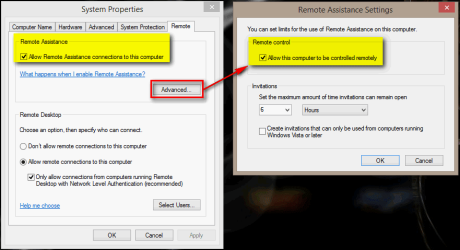
The Remote Assistance works on every edition of Windows 7, 8 and 8.1.


PART ONE

Request Remote Assistance


1.1 Windows 7

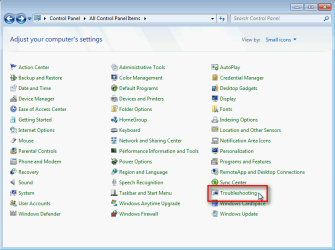
  1. On your Windows 7 PC, open Control Panel > Troubleshooting: RA_Launch_RA_Win7_1.png
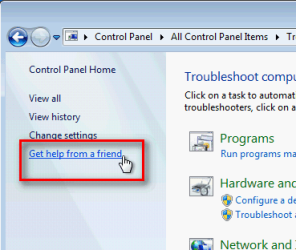
  2. Click Get help from a friend on the left pane: RA_Launch_RA_Win7_2.png
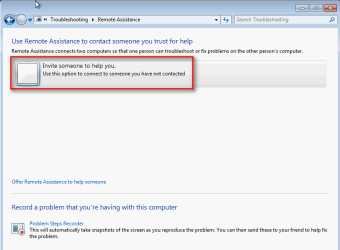
  3. Select Invite someone to help you: RA_Invite_Someone_7.png
  4. Select the method you'd like to use in requesting assistance: RA_Request_Options.png
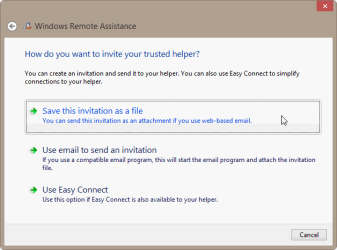
    • I recommend saving the invitation file and emailing it to the user who will be offering the assistance. Easy Connect would be the fastest and easiest method but according to my own quite extensive experience it does not always work. Read more: Why can't I use Easy Connect with Windows Remote Assistance?
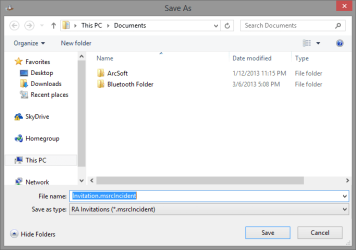
  5. If you selected saving the invitation file, save and name it as you wish (do not change the long file extension!), attach it to an email and send to user assisting you: RA_Save_Invitation_2.png
  6. Your PC will now show the password the user assisting you needs in order to connect to your PC. The same message will appear on your screen without the file save steps if you selected Easy Connect. Email it to the person assisting you, together with the Invitation file if you selected that option: RA_Wait_Incoming_Connection.png
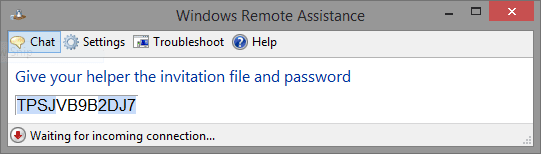
  7. Do not close this window! It is waiting for the incoming connection. IF closed, you need to initiate a new session
   Note
You can also create a shortcut for requesting assistance as told in this tutorial: Windows Remote Assistance Shortcut - Create

1.2 Windows 8
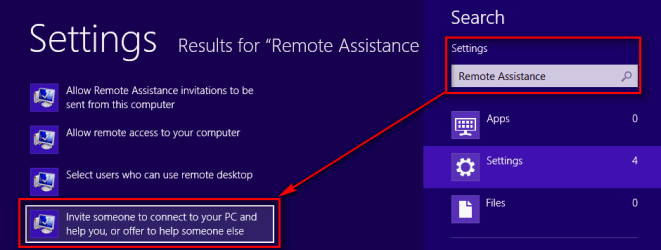
  1. On your Windows 8 PC, press WIN + W to open Search for Settings. Type Remote Assistance to Search field, select Invite someone to connect... : RA_Launch_RA_Win8.png
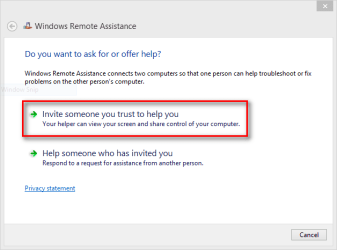
  2. Select Invite someone you trust to help you: RA_Invite.png
  3. Follow steps 4 to 7 as told above on 1.1 Windows 7
1.3 Windows 8.1
  1. On your Windows 8.1 PC, press WIN + Q to open Search. Select Search Settings from the drop down menu, type Remote Assistance to Search field, select Invite someone to connect... : RA_Launch_RA_Win81.png
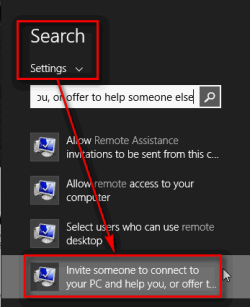
  2. Select Invite someone you trust to help you: RA_Invite.png
  3. Follow steps 4 to 7 as told above on 1.1 Windows 7


PART TWO

Accept Invitation and offer Remote Assistance


2.1 Windows 7
  1. Open the Remote Assistance dialog as told above in Part One 1.1 Windows 7 steps 1 and 2
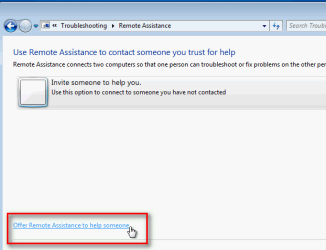
  2. Select Offer Remote Assistance to help someone: RA_Offer_Assistance_7.png
  3. Select the Remote Assistance method to be used: RA_Select_Assistance_Method.png
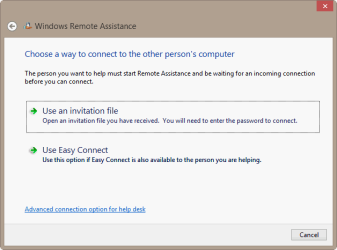
  4. If you have received an invitation file, select Use an invitation file, browse to it and open it, or if you will be using Easy Connect select Use Easy Connect. In both cases Remote Assistance will now ask for the password. Type the password you received from the user asking your assistance and click OK: RA_Enter_Password_to_Connect.png
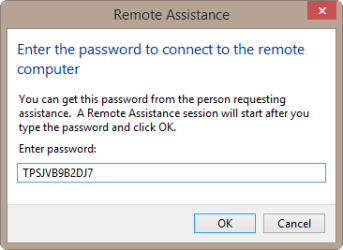
  5. Notice that the passwords are for one session only and cannot be used later; when the connection is closed the password is no longer valid. The password is valid for this one time connection for 6 hours after it is created, if no assisting connection is made during this time the process must be restarted as the password is no longer valid

2.2 Windows 8 and 8.1
  1. Start Remote Assistance as told above in steps 1 and 2 in Part One 1.2 Windows 8 respective Part One 1.3 Windows 8.1
  2. Follow steps 3 to 5 as told above in Part Two 2.1 Windows 7


PART THREE

Remote Assistance session flow


  1. After the assisting user has entered the password, the assisted user must accept the incoming connection: RA_Accept_Incoming_Connection.png
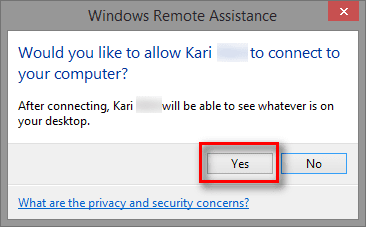
  2. At this point the assisted user still has the full control of the assisted PC. Assisting PC can see everything but has no control, mouse and keyboard as well as UAC prompts are controlled by the assisted user himself. This is a good alternative when the assisted computer is only used to show something to the assisting user without his / her input
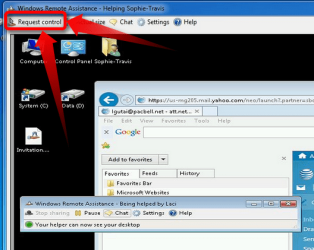
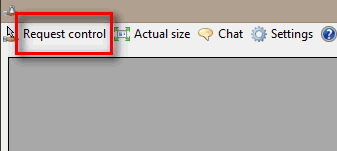
  3. Assisting computer can request a partial (mouse and keyboard only, no UAC acceptance rights) or full control. To do this the assisting user needs to click Request Control at top left corner of the Remote Assistance window: RA_Request_Control.png
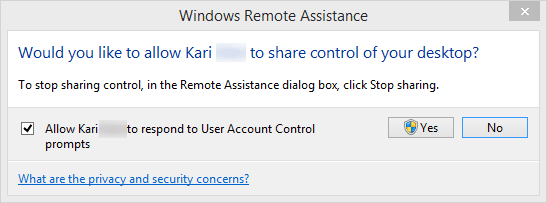
  4. The assisted user must accept the request and decide if the control is granted with or without the UAC prompt acceptance rights: RA_Grant_Control.png
That's it. Remote Assistance is a practical way to get help. Keep in your mind that RA is not a suitable Remote Desktop Connection alternative. Files and clipboard can for instance not be shared using RA.

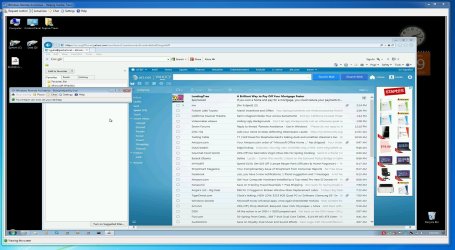
A Remote Assistance window showing my wife's desktop on my Windows 8.1 PC, me offering help for her. Windows 7 and 8 views look the same: RA_Remote_Computer_View.pngKari

 
Last edited by a moderator:
Good job.
 

My Computer

Computer type
PC/Desktop
Computer Manufacturer/Model Number
Custom Built
OS
Windows 10 Pro
CPU
AMD Ryzen 5 2400G Processor with Radeon RX Vega 11 Graphics
Motherboard
ASRock X470 Master SLI/AC AM4 AMD Promontory X470 SATA 6Gb/s
Memory
G.SKILL Ripjaws V Series 16GB (2 x 8GB) 288-Pin DDR4 SDRAM D
Graphics Card(s)
2047MB NVIDIA GeForce GTX 1060 6GB (EVGA)
Sound Card
Motherboard Built in
Monitor(s) Displays
Acer R240HY bidx 23.8-Inch IPS HDMI DVI VGA (1920 x 1080) Wi
Screen Resolution
1920 x 1080
Hard Drives
1TB Sandisk SSD PLUS (Main drive)
500 GB Seagate 7200 RPM (Games)
500 GB Western Digital 7200 RPM (Virtual Machines)
PSU
CORSAIR TX Series TX650M 650W 80+ Gold Modular Power Supply
Case
CORSAIR CARBIDE SPEC-02 Mid-Tower Gaming Case, Red LED Fan
Cooling
220mm, two 120mm, and four 60mm fans
Keyboard
Wired Dell keyboard
Mouse
Wireless Logitech mouse
Internet Speed
250mb down, 30mb up
Antivirus
Panda Cloud Antivirus
Browser
Chrome-ish x64
Other Info
Your awesome for reading this.
Very well thought out Kari.

I have my "Allow remote connections" unchecked but Norton can connect. I had an activation issue and the (very helpful) tech connected and controlled my system with no problem, I had to click a link to allow it though.
 

My Computer

Computer type
PC/Desktop
Computer Manufacturer/Model Number
Home Built Desktop By DataTech
OS
Windows 7 Ultimate X64 SP1
CPU
Intel i5-2550K, Differing ~4.4-4.8GHz No built in GPU
Motherboard
ASUS P8Z68-V PRO/GEN3
Memory
16GB G.Skill Sniper 1866MHz @ 2133MHz 2x8GB
Graphics Card(s)
ASUS GTX650TIB-DC2OC-2GD5, (650TI Boost)
Sound Card
Onboard Realtek 5-1
Monitor(s) Displays
Samsung P2570HD
Screen Resolution
1920x1080
Hard Drives
Samsung 840 Pro 256GB SSD for OS, 500GB Seagate Constellation (Enterprise drive) for Data
PSU
Corsair HX650W
Case
Inwin Dragon Rider
Cooling
Hyper 212 EVO w/two Noctua fans, push-pull, @1300 RPM
Keyboard
E-Z Eyes, bright yellow keys with large characters
Mouse
steelseries SENSEI Laser Pro Gaming
Internet Speed
48-51Mbs Mbs down, 11 Mbs up Xfinity Cable
Antivirus
Norton Internet Security 2013
Browser
IE 10, Opera, Pale Moon if needed
Other Info
4 case fans, LG BluRay-RE, ASUS DVD-RW, Mr. Fusion power supply, 1.21 gigawatts.
@Britton30 yeah they use their own program to do this like most places. Usually bypassing remote assistance.
 

My Computer

Computer type
PC/Desktop
Computer Manufacturer/Model Number
Custom Built
OS
Windows 10 Pro
CPU
AMD Ryzen 5 2400G Processor with Radeon RX Vega 11 Graphics
Motherboard
ASRock X470 Master SLI/AC AM4 AMD Promontory X470 SATA 6Gb/s
Memory
G.SKILL Ripjaws V Series 16GB (2 x 8GB) 288-Pin DDR4 SDRAM D
Graphics Card(s)
2047MB NVIDIA GeForce GTX 1060 6GB (EVGA)
Sound Card
Motherboard Built in
Monitor(s) Displays
Acer R240HY bidx 23.8-Inch IPS HDMI DVI VGA (1920 x 1080) Wi
Screen Resolution
1920 x 1080
Hard Drives
1TB Sandisk SSD PLUS (Main drive)
500 GB Seagate 7200 RPM (Games)
500 GB Western Digital 7200 RPM (Virtual Machines)
PSU
CORSAIR TX Series TX650M 650W 80+ Gold Modular Power Supply
Case
CORSAIR CARBIDE SPEC-02 Mid-Tower Gaming Case, Red LED Fan
Cooling
220mm, two 120mm, and four 60mm fans
Keyboard
Wired Dell keyboard
Mouse
Wireless Logitech mouse
Internet Speed
250mb down, 30mb up
Antivirus
Panda Cloud Antivirus
Browser
Chrome-ish x64
Other Info
Your awesome for reading this.
Very well thought out Kari.

I have my "Allow remote connections" unchecked but Norton can connect. I had an activation issue and the (very helpful) tech connected and controlled my system with no problem, I had to click a link to allow it though.
I kind of like the idea that Windows by default has Remote Assistance enabled but Remote Desktop disabled.

Quite a many of us geeks here are "the family IT guys" ;), the person family and friends call when there are some computer issues. Very often these people relying on our assistance are more or less computer illiterate. Instead of telling them on phone to download this or that software, the few steps to get started with Remote Assistance are easy to tell and understand.

Although designed to be quite simple and meant for private users, I can recall one or two times when I have used it in corporate environment, for instance when the corporate policy does not allow any installations on work laptops, a co-worker is doing home office and can't log in to VPN although the internet connection is fine so the intern remote connections are out of the question, as well as is asking them to download and install a third party remote assistance program.

Remote Assistance works in these situations and gives me a better picture of the issue than a panicked voice on the phone "Then I clicked that round thing and it like blinked and mails were gone...".

Anyway, my point is that the built-in, Windows native Remote Assistance is a very practical, nice tool, doing very well what it is designed to do.

Kari
 
Last edited:

My Computer

Computer type
Laptop
Computer Manufacturer/Model Number
HP ENVY 17-1150eg
OS
Windows 10 Pro x64 EN-GB
CPU
1.6 GHz Intel Core i7-720QM Processor
Memory
6 GB
Graphics Card(s)
ATI Mobility Radeon HD 5850 Graphics
Sound Card
Beats sound system with integrated subwoofer
Monitor(s) Displays
17" laptop display, 22" LED and 32" Full HD TV through HDMI
Screen Resolution
1600*900 (1), 1920*1080 (2&3)
Hard Drives
Internal: 2 x 500 GB SATA Hard Disk Drive 7200 rpm
External: 2TB for backups, 3TB USB3 network drive for media
Cooling
As Envy runs a bit warm, I have it on a Cooler Master pad
Keyboard
Logitech diNovo Media Desktop Laser (bluetooth)
Mouse
Logitech Performance Mouse MX
Internet Speed
50/10 Mbps VDSL
Antivirus
Windows Defender 4.3.9431.0
Browser
Maxthon 3.5.2., IE11
I never tried this remote assistance of windows and i think this topics will really help me thank you :geek::geek::geek:
 

My Computer

Computer type
PC/Desktop
Computer Manufacturer/Model Number
asus
OS
window 7 professional 32 bit
CPU
core2duo
Motherboard
asus
Memory
2gig
Sound Card
none
Screen Resolution
1366x768
Hard Drives
250gig
Case
vision
Keyboard
4tech
Mouse
4tech
Internet Speed
dl speed 3.61 mbps ul speed 4.18 mbps
Antivirus
avast
Browser
mozilla firefox
I never tried this remote assistance of windows and i think this topics will really help me thank you :geek::geek::geek:

Hi AizenoA, welcome to the Seven Forums.

You are welcome :).

Remote Assistance is very practical when you need help or want to assist a friend over the Internet.

Kari
 

My Computer

Computer type
Laptop
Computer Manufacturer/Model Number
HP ENVY 17-1150eg
OS
Windows 10 Pro x64 EN-GB
CPU
1.6 GHz Intel Core i7-720QM Processor
Memory
6 GB
Graphics Card(s)
ATI Mobility Radeon HD 5850 Graphics
Sound Card
Beats sound system with integrated subwoofer
Monitor(s) Displays
17" laptop display, 22" LED and 32" Full HD TV through HDMI
Screen Resolution
1600*900 (1), 1920*1080 (2&3)
Hard Drives
Internal: 2 x 500 GB SATA Hard Disk Drive 7200 rpm
External: 2TB for backups, 3TB USB3 network drive for media
Cooling
As Envy runs a bit warm, I have it on a Cooler Master pad
Keyboard
Logitech diNovo Media Desktop Laser (bluetooth)
Mouse
Logitech Performance Mouse MX
Internet Speed
50/10 Mbps VDSL
Antivirus
Windows Defender 4.3.9431.0
Browser
Maxthon 3.5.2., IE11
Problem with Win 7 Remote Assitance

Dear Forum,

I haven't been on this Forum for a long, long time. However, I just built a second PC (for my daughter who lives in another city) and wanted to try out the Windows Remote Assistance (WRA) feature. Right now, both computers are in my office and connected to my router (without the second computer being connected to my home network). Following the advice in these pages (and elsewhere) I could establish the connection between the two computers (either by "Easy Connect", or e-mail, both ways between the two PCs), and I could see the other desktop either way.

The only thing I couldn't do is to get control over the other PC. I haven't seen any comment about this kind of a problem in the many help postings regarding WRA. Maybe I misunderstood something about this feature.

I would greatly appreciate any help.

Thank you,
Laszlo G.
 

My Computer

Computer type
PC/Desktop
Computer Manufacturer/Model Number
Self built
OS
windows 7 64 bit professional
CPU
Intel Core i7 930
Motherboard
ASUS P6X58D
Memory
Corsair Core i7 XMS3 24 GB PC 12800 DDR3
Graphics Card(s)
ASUS GTX480
Sound Card
Integrated
Monitor(s) Displays
SAMSUNG SyncMaster 2443bwx
Hard Drives
5x SAMSUNG F3 (1 TB)
PSU
Cooler Master Silent Pro 1000 W
Case
Lian Li PC=A77B
Cooling
Noctua NH-D14
Following the advice in these pages (and elsewhere) I could establish the connection between the two computers (either by "Easy Connect", or e-mail, both ways between the two PCs), and I could see the other desktop either way.

The only thing I couldn't do is to get control over the other PC. I haven't seen any comment about this kind of a problem in the many help postings regarding WRA. Maybe I misunderstood something about this feature.
I am sorry but I do not understand what you mean? First you mention that you can see the other computer using WRA. Then you continue that you cannot control the other PC.

The thing is, if the WRA works and you can connect to another PC, that's it. You control it in its own WRA window which shows the desktop computer you are connected to.

Please could you explain your issue more detailed.

Kari
 

My Computer

Computer type
Laptop
Computer Manufacturer/Model Number
HP ENVY 17-1150eg
OS
Windows 10 Pro x64 EN-GB
CPU
1.6 GHz Intel Core i7-720QM Processor
Memory
6 GB
Graphics Card(s)
ATI Mobility Radeon HD 5850 Graphics
Sound Card
Beats sound system with integrated subwoofer
Monitor(s) Displays
17" laptop display, 22" LED and 32" Full HD TV through HDMI
Screen Resolution
1600*900 (1), 1920*1080 (2&3)
Hard Drives
Internal: 2 x 500 GB SATA Hard Disk Drive 7200 rpm
External: 2TB for backups, 3TB USB3 network drive for media
Cooling
As Envy runs a bit warm, I have it on a Cooler Master pad
Keyboard
Logitech diNovo Media Desktop Laser (bluetooth)
Mouse
Logitech Performance Mouse MX
Internet Speed
50/10 Mbps VDSL
Antivirus
Windows Defender 4.3.9431.0
Browser
Maxthon 3.5.2., IE11
Windows Remote Assistance - cannot control other PC

Hi Kari,

Sorry for not being clear previously, I repeat my question. I established the connection (this time via email); the person requested the help allowed me to connect; and she got a message: "Your helper can now see your desktop". And indeed, I can see her desktop (please, see the attachment). However, I would like to do things ("control") on the remote desktop. E.g. click on her folder from my computer and open it, on her computer from my PC go into her C: drive, run programs, etc., but I have no way to do anything on her desktop from my computer! Maybe this WRA program only lets you see the other desktop but not to do anything?

If not so, can you tell me what I am doing wrong, and if so, can you suggest a way to do what I would like to do? (Before I retired from Intel at 73 as a reliability physicist, 5 years ago, the wonderful IT people did everything on my PC - I just had to make sure that Intel products are reliable :).)

Thank you again, and sorry for not being clear.

Regards,

Laszlo.
 

Attachments

  • Windows Assistance.JPG
    Windows Assistance.JPG
    347.2 KB · Views: 1,365

My Computer

Computer type
PC/Desktop
Computer Manufacturer/Model Number
Self built
OS
windows 7 64 bit professional
CPU
Intel Core i7 930
Motherboard
ASUS P6X58D
Memory
Corsair Core i7 XMS3 24 GB PC 12800 DDR3
Graphics Card(s)
ASUS GTX480
Sound Card
Integrated
Monitor(s) Displays
SAMSUNG SyncMaster 2443bwx
Hard Drives
5x SAMSUNG F3 (1 TB)
PSU
Cooler Master Silent Pro 1000 W
Case
Lian Li PC=A77B
Cooling
Noctua NH-D14
Please, disregard my previous comment! I just discovered that little window that says "Request control". And now, everything is dandy!!! Sorry for inconveniencing you but when you are almost 80, then you miss little prints sometimes :-(. Laszlo.
 

My Computer

Computer type
PC/Desktop
Computer Manufacturer/Model Number
Self built
OS
windows 7 64 bit professional
CPU
Intel Core i7 930
Motherboard
ASUS P6X58D
Memory
Corsair Core i7 XMS3 24 GB PC 12800 DDR3
Graphics Card(s)
ASUS GTX480
Sound Card
Integrated
Monitor(s) Displays
SAMSUNG SyncMaster 2443bwx
Hard Drives
5x SAMSUNG F3 (1 TB)
PSU
Cooler Master Silent Pro 1000 W
Case
Lian Li PC=A77B
Cooling
Noctua NH-D14
That's OK :). I had just prepared this small screenshot for you to show how it's done but you found it faster than what it took from me to make the screenshot:

2015-03-19_22h51_32.png
 

My Computer

Computer type
Laptop
Computer Manufacturer/Model Number
HP ENVY 17-1150eg
OS
Windows 10 Pro x64 EN-GB
CPU
1.6 GHz Intel Core i7-720QM Processor
Memory
6 GB
Graphics Card(s)
ATI Mobility Radeon HD 5850 Graphics
Sound Card
Beats sound system with integrated subwoofer
Monitor(s) Displays
17" laptop display, 22" LED and 32" Full HD TV through HDMI
Screen Resolution
1600*900 (1), 1920*1080 (2&3)
Hard Drives
Internal: 2 x 500 GB SATA Hard Disk Drive 7200 rpm
External: 2TB for backups, 3TB USB3 network drive for media
Cooling
As Envy runs a bit warm, I have it on a Cooler Master pad
Keyboard
Logitech diNovo Media Desktop Laser (bluetooth)
Mouse
Logitech Performance Mouse MX
Internet Speed
50/10 Mbps VDSL
Antivirus
Windows Defender 4.3.9431.0
Browser
Maxthon 3.5.2., IE11
Thanks a lot! I was practicing (while both computers are here), and again had a hard time to find that little button on the top left corner! (I was trying to find it at a less hidden location :-).) Laszlo (also an angry old man).
 

My Computer

Computer type
PC/Desktop
Computer Manufacturer/Model Number
Self built
OS
windows 7 64 bit professional
CPU
Intel Core i7 930
Motherboard
ASUS P6X58D
Memory
Corsair Core i7 XMS3 24 GB PC 12800 DDR3
Graphics Card(s)
ASUS GTX480
Sound Card
Integrated
Monitor(s) Displays
SAMSUNG SyncMaster 2443bwx
Hard Drives
5x SAMSUNG F3 (1 TB)
PSU
Cooler Master Silent Pro 1000 W
Case
Lian Li PC=A77B
Cooling
Noctua NH-D14
Back
Top