Remove "Other Credentials" button from login screen

artisanalPraxis

New member
Local time
10:18 PM
Messages
6
I would like to remove the "Other Credentials" button from the login screen for aesthetic reasons (I've already removed almost everything else). I run a .reg on startup to make sure that the password dialog is always open on the login screen and not the fingerprint reader dialog; since the fingerprint reader works even when the password dialog is open, there's no reason why I would ever switch to it. I use the fingerprint reader regularly to log on, so disabling it isn't an option.

Surely it must be somewhere in authui.dll, but I cannot determine what or where the "Other Credentials" button is encoded.

(Also helpful would be removing the username, "Locked" text when the computer is locked, and the momentary "Welcome" text after logging on)
 

My Computer

OS
Windows 7 Professional 64bit
Could you post a screenshot of what you're seeing?
 

My Computer

OS
XP / Win7 x64 Pro
CPU
Intel Quad-Core Q9450 @ 3.2GHz
Motherboard
Asus P5-E
Memory
2x2GB GSkill DDR2
Graphics Card(s)
NVIDIA GeForce 8600 GTS (EVGA)
Monitor(s) Displays
Dell 2408WFP
Screen Resolution
1920x1200
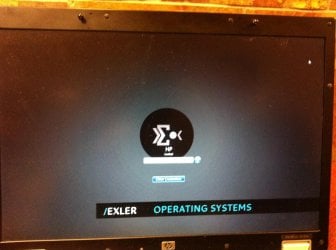
Here's a shot. It's in progress; my end goal is to remove everything but the password field and customize the background so it looks like http://i.imgur.com/IRmAN.jpg

Removing the user icon, branding and accessibility were trivially done in Resource Editor editing authui.dll in System32. But I can't figure out how to do the same for the Other Credentials button.

(Obviously I cannot use print screen from the logon screen, and the other solutions all rely on opening a program from the accessibility menu which I've removed)
 

Attachments

  • photo-50%.jpg
    photo-50%.jpg
    160.1 KB · Views: 107

My Computer

OS
Windows 7 Professional 64bit
I'm not really sure how to remove that, to be honest. Is this machine hooked to a Domain? If so, it might have something to do with that, as I've never seen that button.
 

My Computer

OS
XP / Win7 x64 Pro
CPU
Intel Quad-Core Q9450 @ 3.2GHz
Motherboard
Asus P5-E
Memory
2x2GB GSkill DDR2
Graphics Card(s)
NVIDIA GeForce 8600 GTS (EVGA)
Monitor(s) Displays
Dell 2408WFP
Screen Resolution
1920x1200
It's there because there are multiple ways to login (i.e. multiple credentials); namely, by password and by fingerprint reader. It disappears when there are no longer multiple ways to login, I believe.

How can I determine whether it is hooked to a domain? I bought this computer used and it had not been formatted (just inexpertly manually cleaned) so that could be it. On the Computer Name tab in System Properties it says it's part of workgroup WORKGROUP, is that an issue?
 

My Computer

OS
Windows 7 Professional 64bit
No, Workgroup is fine and doesn't mean it is/was hooked to a domain.

I see what you're saying now. My interpretation of credentials was that it was a possible network-type logon (like a domain logon) rather than meaning it was for fingerprint or password. I would assume the only way to remove that button would be to disable the fingerprint reader logon option. Otherwise, the button is going to remain there to give you the option.
 

My Computer

OS
XP / Win7 x64 Pro
CPU
Intel Quad-Core Q9450 @ 3.2GHz
Motherboard
Asus P5-E
Memory
2x2GB GSkill DDR2
Graphics Card(s)
NVIDIA GeForce 8600 GTS (EVGA)
Monitor(s) Displays
Dell 2408WFP
Screen Resolution
1920x1200
Okay, indeed, the Other Credentials option disappears when the fingerprint reader is disabled, and reappears when it is re-enabled. It also disappears when [HKEY_LOCAL_MACHINE\SOFTWARE\Microsoft\Windows\CurrentVersion\Authentication\Credential Providers\{AC3AC249-E820-4343-A65B-377AC634DC09}] is deleted (it has a string value saying "WinBio Credential Provider"). In both these cases the fingerprint log-on ceases to work. Is there any way I can determine what exactly is reading that registry location, and thereby determine what is placing the Other Credentials button there?
 

My Computer

OS
Windows 7 Professional 64bit
That could be a very tough one. One of the services is obviously checking for some registry values and is placing the button there upon finding it. You find when you delete that registry key, the actual service is disabled, which is not what you want - you just want the button placement disabled. In essence, what I think you're getting at is trying to hook the action of placing the button and stop it before it happens. I believe that would require debugging whichever service is in charge of checking for this, finding the routine that is called to check for registry values relating to multiple credential logons, and patching it so it never makes the call the place the button. You could try using Ollydbg or some other debugger and slowly work your way through the windows logon services, but that is going to be a huge feat/pain. I wish you good luck. Maybe someone else can come up with a better answer than that, but that's my understanding at this point based on what you've found so far.
 

My Computer

OS
XP / Win7 x64 Pro
CPU
Intel Quad-Core Q9450 @ 3.2GHz
Motherboard
Asus P5-E
Memory
2x2GB GSkill DDR2
Graphics Card(s)
NVIDIA GeForce 8600 GTS (EVGA)
Monitor(s) Displays
Dell 2408WFP
Screen Resolution
1920x1200
So there's no way to track memory with something like Process Explorer and look for reference to that registry key when I lock my computer? (I can delete the key and it instantly takes effect when I lock my computer)
 

My Computer

OS
Windows 7 Professional 64bit
You could try that. RegShot is another good program too that doesn't require it to be running in between taking snapshots.
 

My Computer

OS
XP / Win7 x64 Pro
CPU
Intel Quad-Core Q9450 @ 3.2GHz
Motherboard
Asus P5-E
Memory
2x2GB GSkill DDR2
Graphics Card(s)
NVIDIA GeForce 8600 GTS (EVGA)
Monitor(s) Displays
Dell 2408WFP
Screen Resolution
1920x1200
But I need to have it tracking handles *while* I lock my computer (to see what specific program/dll is looking at that key), is there any program that will just sit and log all handles?
 

My Computer

OS
Windows 7 Professional 64bit
You can try regmon and see if that works for you.
 

My Computer

OS
XP / Win7 x64 Pro
CPU
Intel Quad-Core Q9450 @ 3.2GHz
Motherboard
Asus P5-E
Memory
2x2GB GSkill DDR2
Graphics Card(s)
NVIDIA GeForce 8600 GTS (EVGA)
Monitor(s) Displays
Dell 2408WFP
Screen Resolution
1920x1200
I'm sorry this is not a solution to your problem.

But I saw you saying this:

I run a .reg on startup to make sure that the password dialog is always open on the login screen and not the fingerprint reader dialog

How did you exactly manage this? I've been looking for ages for a way to do this, but all my searches came up with nothing. Is it also possible to have this aesthetic change in the Lock screen (in addition to the login screen).
 

My Computer

Computer Manufacturer/Model Number
HP Elitebook 8530w
OS
Windows 7 Professional 64-bit
CPU
Intel Core2 Duo T9600
Memory
4 GB (type unknown)
Graphics Card(s)
Nvidia Quadro FX 700M
I'm sorry this is not a solution to your problem.

But I saw you saying this:

I run a .reg on startup to make sure that the password dialog is always open on the login screen and not the fingerprint reader dialog

How did you exactly manage this? I've been looking for ages for a way to do this, but all my searches came up with nothing. Is it also possible to have this aesthetic change in the Lock screen (in addition to the login screen).

See my last two posts here for info.

Basically, you create a .reg file with the two lastloggedonprovider settings and then create a vbs file to import the .reg file and add it as a logon scheduled task.
 

My Computer

OS
Windows 7 Home Premium 64bit
Back
Top