Remove XP from dual boot

bertie11

New member
Member
VIP
Local time
12:01 AM
Messages
254
I'm currently dual booting Win7 and XP Pro. Because the fix that prevents XP from wiping out restore points in Win 7 won't work on this system I want to remove XP completely and just run Win 7. How should I go about this, do I just format the XP partition from Win7, and will the boot manager need to be altered to remove reference to XP?
I might, at a later date, do a clean instal of XP and then try the 'restore point' fix. If that works I will just use it for a couple of programs that won't work in 7. Many thanks.
 

My Computer

Computer type
Laptop
Computer Manufacturer/Model Number
HP Envy 15
OS
Windows 8.1.1
CPU
AMD A10-5750M APU with Radeon(tm) HD Graphics
Memory
8gb
Hard Drives
1TB Serial ATA 16mb buffer
First of all and just to put you online , I have a french windows, so I'm sorry for bad technical words translation.
To remove win xp from the boot screenwhile you are using windows 7
1- Right click on computer icon
2-Propriies
3-advanced system settintg ( up on the left)
4- start up and recovering==>click on setting
5-Uncheck " display systems during 30 sec" ( becrefullwin 7 should be the system that appear in the chosing bar
After a restar you can format the partition where xp is installed
good luck
 

My Computer

Computer Manufacturer/Model Number
Don'tknow
OS
Windows 7
CPU
Intel Pentium D CPU 3.40GHz
Motherboard
ASUSTeK Computer INC. P5Q SE PLUS
Memory
4GB
Graphics Card(s)
gFORCE 9500 GT
Sound Card
VIA Technologies, Inc. VIA High Definition Audio
Monitor(s) Displays
Plug-and-Play générique
Hard Drives
ST380013AS ATA Device
PSU
don't know
Case
don't know
Cooling
4 fans
Hi rachid128

Thank you, I understood you just fine.
Is it as simple as that? Only I noticed others doing the same thing are using BCDedit. Have you used that method?
Thanks
 

My Computer

Computer type
Laptop
Computer Manufacturer/Model Number
HP Envy 15
OS
Windows 8.1.1
CPU
AMD A10-5750M APU with Radeon(tm) HD Graphics
Memory
8gb
Hard Drives
1TB Serial ATA 16mb buffer
If you format XP on the first partition, it will make Win7 unbootable.

You need to mark Win7 active in Disk Managment, delete XP partition, then boot into the Win7 installer Repair console and run Startup Repair 3 times to rewrite the MBR.

If you want the Win7 partition moved into the lower address, use bootable Partition Wizard to move it over into the deleted XP space, mark it active then boot into Win7installer and run Startup Repair 3 times to solve multple issues..
 
If you format XP on the first partition, it will make Win7 unbootable.

You need to mark Win7 active in Disk Managment, delete XP partition, then boot into the Win7 installer Repair console and run Startup Repair 3 times to rewrite the MBR.

If you want the Win7 partition moved into the lower address, use bootable Partition Wizard to move it over into the deleted XP space, mark it active then boot into Win7installer and run Startup Repair 3 times to solve multple issues..

Hi gregrocker thanks for response

This is the bit that confuses me. Presumably you mean disk management when booted into XP? When in Win 7, both Win7 and XP are marked as active, primary partitions anyway. But if you do mean XP then do I have to delete XP from within XP?
I'm getting too old for this:confused:
 

My Computer

Computer type
Laptop
Computer Manufacturer/Model Number
HP Envy 15
OS
Windows 8.1.1
CPU
AMD A10-5750M APU with Radeon(tm) HD Graphics
Memory
8gb
Hard Drives
1TB Serial ATA 16mb buffer
In windows 7 "disk management" one of the partitions will be marked as "Boot" and this is where the boot manager is , If it's in your windows 7 partition because you installed it first then you can simply format the XP partition, but if it's in the XP partition then a format will delete the boot manager and leave your system unbootable, you can try and move the boot manager files then rewrite it starting with using a tool like Easybcd or you can make a recovery disc in windows 7 then run it after deleting the XP partition, and that will get you back into windows 7 :geek:

you can download recovery discs from here or you can make one within your own system by going to control panel / backup and restore and use the option to "create a system repair disc" :cool:
 

My Computer

Computer Manufacturer/Model Number
built my own
OS
win7 ultimate / virtual box
CPU
Intel Core i7 3770K,1155, Ivy Bridge
Motherboard
MSI Z77A-G43
Memory
GSkill Ripjaws Z Series 1600 CL 9.0 16GB
Graphics Card(s)
KFA2 GeForce GTX 670 EX OC 2048MB GDDR5 PCI-E gfx card
Sound Card
onboard Nvidia HDMI audio
Monitor(s) Displays
ASUS VK222H 22" widescreen LCD monitor
Screen Resolution
1680x1050
Hard Drives
Kingston 128gb SSD
OCZ Vertex 90gb SSD
500GB WDCaviar 16mb 5000KS
320GB WDCaviar 16mb 3200AAKS sata 2
1TB Samsung 16mb HD103SJ sata 2
PSU
Corsair HX 750W ATX2.2 Modular
Cooling
Antec 25 Kuhler H2O 620
Keyboard
logitech
Mouse
logitech MX518
Internet Speed
7mb adsl
If you format XP on the first partition, it will make Win7 unbootable.

You need to mark Win7 active in Disk Managment, delete XP partition, then boot into the Win7 installer Repair console and run Startup Repair 3 times to rewrite the MBR.

If you want the Win7 partition moved into the lower address, use bootable Partition Wizard to move it over into the deleted XP space, mark it active then boot into Win7installer and run Startup Repair 3 times to solve multple issues..

Hi gregrocker thanks for response

This is the bit that confuses me. Presumably you mean disk management when booted into XP? When in Win 7, both Win7 and XP are marked as active, primary partitions anyway. But if you do mean XP then do I have to delete XP from within XP?
I'm getting too old for this:confused:

If you have XP running you won't be able to delete it. So boot into Win7 and follow his instructions.

After you delete the XP partition, restart with the Win7 installation DVD in the DVD drive, and run Startup Repair three times. This will rebuild the boot manager.

Have a look at this tutorial, it will explain how to use the installation DVD for startup repair.
How to Boot to the System Recovery Options in Windows 7

Let us know how it's going.
 

My Computer

Computer type
PC/Desktop
Computer Manufacturer/Model Number
76~2.0
OS
Windows 7 Ult x64 - SP1/ Windows 8 Pro x64
CPU
Intel Core i5-3570K 4.6GHz
Motherboard
Gigabyte GA-Z77X UD3H, f18
Memory
8GB (2X4GB) DDR3 1600 Corsair Vengeance CL8 1.5v
Graphics Card(s)
Sapphire HD 7770 Vapor-X OC 1GB DDR5
Sound Card
Onboard VIA VT2021
Monitor(s) Displays
22" LCD Dell
Screen Resolution
1680x1050
Hard Drives
Samsung 840Pro 128GB SSD,
Seagate Barracuda 500GB SATA2 7200rpm 32MB cache, Seagate Barracuda 1TB SATA2 7200rpm 32MB cache,
PSU
Corsair HX650W
Case
Cooler Master Storm Scout
Cooling
Corsair H80 2x12cm Noctua NF P12 , 2x14cm case fans
Keyboard
Logitech Wave
Mouse
CM Sentinel
Internet Speed
Dismal
Antivirus
Avast
Browser
Opera Next
Other Info
Haswell laptop: HP Envy 17t-j, i7-4700MQ, GeForce 740M 2GB DDR3, 17.3" Full HD 1920x1080, 16GB RAM, Samsung 840 Pro 128GB, 1TB Hitachi 7200 HDD,
Desktop: eSATA ports,
External eSATA Seagate 500GB SATA2 7200rpm,
External WD USB 500GB
In windows 7 "disk management" one of the partitions will be marked as "Boot" and this is where the boot manager is , If it's in your windows 7 partition because you installed it first then you can simply format the XP partition, but if it's in the XP partition then a format will delete the boot manager and leave your system unbootable, you can try and move the boot manager files then rewrite it starting with using a tool like Easybcd or you can make a recovery disc in windows 7 then run it after deleting the XP partition, and that will get you back into windows 7 :geek:

you can download recovery discs from here or you can make one within your own system by going to control panel / backup and restore and use the option to "create a system repair disc" :cool:

Hello ickymay
Disk management says that boot is on Windows 7 (C:\) and XP Pro shows as Active, primary partition so from what you say I can format D:\XP from Win7. When I try that it says it cannot format the system partition on this disk.
I am still in disk management at this point. Should I come out of it?
I have made a system repair disk.
Thanks.
 

My Computer

Computer type
Laptop
Computer Manufacturer/Model Number
HP Envy 15
OS
Windows 8.1.1
CPU
AMD A10-5750M APU with Radeon(tm) HD Graphics
Memory
8gb
Hard Drives
1TB Serial ATA 16mb buffer
OK. I've now got it sorted. Once I had Win 7 active and not XP and rebooted I then got 'NTLDR not found'. I went into the BIOS and found that it was trying to boot from a removable disk. The CD drive had been pushed to third on the list. Once I made it the first again all went well, and as you say I needed to do three repairs first.
So, to all who got me sorted, my thanks to you. Fewer hairs now than when I started though.;)
 

My Computer

Computer type
Laptop
Computer Manufacturer/Model Number
HP Envy 15
OS
Windows 8.1.1
CPU
AMD A10-5750M APU with Radeon(tm) HD Graphics
Memory
8gb
Hard Drives
1TB Serial ATA 16mb buffer
Did you move your Win7 partiiton over, too? If you decide to do it later,, be sure to make a backup image stored externally so you can start over if the Resize/move operation fails using Partition Wizard disk.

When you get it all where you want it, make the Win7 backup image stored externally (and in a primary formatted partition ifyou want) to reimage the HDD (or a replacement) in 15 minutes, making reinstalls never again needed.
 
No, I have yet to do this. I have C:\Win 7 D:\XP Pro formatted and E:\XP Programs formatted (both now empty) and at this point I haven't decided my next move. I do have Acronis Disk Manager 10.9.2117 which is OK for Vista so maybe is OK for Win 7 also.
So there is about 50gb which I will probably add to my Backups partition G:\ and yes, I also have True Image and I have an image tucked away at this point!

quote If you want the Win7 partition moved into the lower address, use bootable Partition Wizard to move it over into the deleted XP space, mark it active then boot into Win7 installer and run Startup Repair 3 times to solve multiple issues. unquote

I'm not I fully understand 'moved into the lower address'. As I say C:\ is Win 7, but are you saying it may not be at the beginning of the disk?
 

My Computer

Computer type
Laptop
Computer Manufacturer/Model Number
HP Envy 15
OS
Windows 8.1.1
CPU
AMD A10-5750M APU with Radeon(tm) HD Graphics
Memory
8gb
Hard Drives
1TB Serial ATA 16mb buffer
I'm not I fully understand 'moved into the lower address'. As I say C:\ is Win 7, but are you saying it may not be at the beginning of the disk?

what does it look like in disk management ?

maybe post a screenie :p
 

My Computer

Computer Manufacturer/Model Number
built my own
OS
win7 ultimate / virtual box
CPU
Intel Core i7 3770K,1155, Ivy Bridge
Motherboard
MSI Z77A-G43
Memory
GSkill Ripjaws Z Series 1600 CL 9.0 16GB
Graphics Card(s)
KFA2 GeForce GTX 670 EX OC 2048MB GDDR5 PCI-E gfx card
Sound Card
onboard Nvidia HDMI audio
Monitor(s) Displays
ASUS VK222H 22" widescreen LCD monitor
Screen Resolution
1680x1050
Hard Drives
Kingston 128gb SSD
OCZ Vertex 90gb SSD
500GB WDCaviar 16mb 5000KS
320GB WDCaviar 16mb 3200AAKS sata 2
1TB Samsung 16mb HD103SJ sata 2
PSU
Corsair HX 750W ATX2.2 Modular
Cooling
Antec 25 Kuhler H2O 620
Keyboard
logitech
Mouse
logitech MX518
Internet Speed
7mb adsl
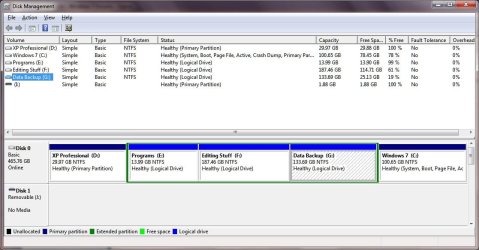
Here yuo go, hope it comes out OK!
 

Attachments

  • disks.jpg
    disks.jpg
    83.6 KB · Views: 258

My Computer

Computer type
Laptop
Computer Manufacturer/Model Number
HP Envy 15
OS
Windows 8.1.1
CPU
AMD A10-5750M APU with Radeon(tm) HD Graphics
Memory
8gb
Hard Drives
1TB Serial ATA 16mb buffer
Looking at your Disk Management map, your Win7 is indeed way over to the right side. You can leave it this way if you are satisfied with performance, however I prefer having the OS in the first partition closer to where the laser starts.

What I would do is move the F:Editing Stuff data into your Data partition, then boot into Partition Wizard disk and delete the D:XP partition, the empty E:Programs partition, and the F:Editing Stuff partition you have now vacated.

Then Copy your Win7 partition into the unallocated space from deleted D,E,F partitions which puts it in the first partition. After it is successfully copied into the unallocated space from the D,E,F partitions, delete the unneeded Win7 partition on the far right of the drive.

Then boot into your Win7 installer repair console and run Startup Repair 3 times to recover the boot if necessary.

Now you can use your Win7 Disk Management to change your partitioning as desired.

It is strongly suggested before doing such copying operations that you back up ALL of your files to an external drive or disk. Use Windows 7 Backup imaging to also save an image of your HDD which can be easily reimaged if anything fails.

And since you are backing the files up anyway in the Data partition, you also then have the flexibiility to use Partition Wizard to delete all of your data partitions and simply move the sole remaining Win7 partition over into the deleted data partitions space, by right clicking on it and choosing Resize/Move. Then boot into the Win7 installer and run Startup REpair 3 times if necessary. Now you can use Disk Management to create and populate your partitions as you please.
 
Last edited:
I understand what you mean about the position on the disk now. When I installed the evaluation version of 7 it was convenient to create space in the largest partition-hence it became H.

To clarify your suggestion, do you mean physically move the contents of F: into G : (drag & drop)? If so, unless I've got it wrong, G: won't have enough space. F: has 73gb of data but G: only has about 25gb of free space.

Once that is clarified I will dig a bit deeper. As I already have Acronis Disk Manager I will instal that and see how it could handle your suggestion.
I appreciate your help here, the system seems to run quite happily but I might be able to squeeze a few more mph out of it!
 

My Computer

Computer type
Laptop
Computer Manufacturer/Model Number
HP Envy 15
OS
Windows 8.1.1
CPU
AMD A10-5750M APU with Radeon(tm) HD Graphics
Memory
8gb
Hard Drives
1TB Serial ATA 16mb buffer
How do you want your HD to look when your all finished?

From reading through the thread, I'll take a guess.

Delete partitions D:\XP Pro and E:\XP Programs

Then,
Partition C:/Win7 first on the disk. Same size?
F:/Editing Stuff second. Same size?
G:/Data Backup last. 187GB + 44GB (from D and E partitions)= 231GB

Are your current backups on this HD in the G partition?
If you can, it's best to have your entire HD backed up to an external HD.
Moving all the partitions around will probably go smoothly, but it's best to be prepared for the worst.
 

My Computer

Computer type
PC/Desktop
Computer Manufacturer/Model Number
76~2.0
OS
Windows 7 Ult x64 - SP1/ Windows 8 Pro x64
CPU
Intel Core i5-3570K 4.6GHz
Motherboard
Gigabyte GA-Z77X UD3H, f18
Memory
8GB (2X4GB) DDR3 1600 Corsair Vengeance CL8 1.5v
Graphics Card(s)
Sapphire HD 7770 Vapor-X OC 1GB DDR5
Sound Card
Onboard VIA VT2021
Monitor(s) Displays
22" LCD Dell
Screen Resolution
1680x1050
Hard Drives
Samsung 840Pro 128GB SSD,
Seagate Barracuda 500GB SATA2 7200rpm 32MB cache, Seagate Barracuda 1TB SATA2 7200rpm 32MB cache,
PSU
Corsair HX650W
Case
Cooler Master Storm Scout
Cooling
Corsair H80 2x12cm Noctua NF P12 , 2x14cm case fans
Keyboard
Logitech Wave
Mouse
CM Sentinel
Internet Speed
Dismal
Antivirus
Avast
Browser
Opera Next
Other Info
Haswell laptop: HP Envy 17t-j, i7-4700MQ, GeForce 740M 2GB DDR3, 17.3" Full HD 1920x1080, 16GB RAM, Samsung 840 Pro 128GB, 1TB Hitachi 7200 HDD,
Desktop: eSATA ports,
External eSATA Seagate 500GB SATA2 7200rpm,
External WD USB 500GB
Absolutely right, that is what I would like to achieve!
I would like to keep C:\Win 7 at 100GB and I can be fairly flexible about the rest. I do have a USB Lacie drive with 257 GB free but I'm not sure whether there is enough free space to image the C:\, F:\ and G:\ partitions.
I have done some tidying up on the Lacie and F:\ so I've done another screenshot. I think Acronis True Image 2010 only images written data, not sectors and tracks with no data. Not sure about that so don't know how much space I will need on the Lacie..
I found that my Acronis Disk Director isn't compatible with Win 7 so I now have Easeus Partition Master, never used it before though.
Thanks.
 

Attachments

  • disks2.jpg
    disks2.jpg
    158.9 KB · Views: 62

My Computer

Computer type
Laptop
Computer Manufacturer/Model Number
HP Envy 15
OS
Windows 8.1.1
CPU
AMD A10-5750M APU with Radeon(tm) HD Graphics
Memory
8gb
Hard Drives
1TB Serial ATA 16mb buffer
First I would recommend to keep a backup of your Win7 OS on the external HD. If your OS HD fails you won't have a backup.

Do you have a backup for Win7 C:/ and Editing Stuff F:/ in the Data Backup G:/ now?

Run a new backup of Win7 C:/ to your external HD.
Copy or backup Editing Stuff F:/ to your external HD.

If you already had backups saved in G:/ and make another as mentioned above, then you'll have two backups of each and double safe.

Step one:
Delete partitions D:\XP Pro, E:\XP Programs and F:/Editing Stuff this will give you enough space to move Win7 C:/ to the front of the disk.

Step two:
Copy Win7 C:/ to the front of the disk in the unallocated space, make it 100GB if thats what you want it to be.
Delete the old Win7 C:/ at the back of the HD.

Test your Win7 OS, if it won't boot then run startup repair from your installation DVD three times to re-build your boot manager. Acronis should take care of this when you copy the OS partition to the front of the HD.

Step three:
Make a new partition with the 130GB unallocated space (use all the space) after the new Win7 C:/ partition. Copy or restore your F:/Editing Stuff there.

You will be left with 100GB unallocated space at the end (right) of the Data Backup G:/ you can extend G:/ into that space, will be the easiest, or move it and make F:/ bigger.

Let us know how it goes.
 

My Computer

Computer type
PC/Desktop
Computer Manufacturer/Model Number
76~2.0
OS
Windows 7 Ult x64 - SP1/ Windows 8 Pro x64
CPU
Intel Core i5-3570K 4.6GHz
Motherboard
Gigabyte GA-Z77X UD3H, f18
Memory
8GB (2X4GB) DDR3 1600 Corsair Vengeance CL8 1.5v
Graphics Card(s)
Sapphire HD 7770 Vapor-X OC 1GB DDR5
Sound Card
Onboard VIA VT2021
Monitor(s) Displays
22" LCD Dell
Screen Resolution
1680x1050
Hard Drives
Samsung 840Pro 128GB SSD,
Seagate Barracuda 500GB SATA2 7200rpm 32MB cache, Seagate Barracuda 1TB SATA2 7200rpm 32MB cache,
PSU
Corsair HX650W
Case
Cooler Master Storm Scout
Cooling
Corsair H80 2x12cm Noctua NF P12 , 2x14cm case fans
Keyboard
Logitech Wave
Mouse
CM Sentinel
Internet Speed
Dismal
Antivirus
Avast
Browser
Opera Next
Other Info
Haswell laptop: HP Envy 17t-j, i7-4700MQ, GeForce 740M 2GB DDR3, 17.3" Full HD 1920x1080, 16GB RAM, Samsung 840 Pro 128GB, 1TB Hitachi 7200 HDD,
Desktop: eSATA ports,
External eSATA Seagate 500GB SATA2 7200rpm,
External WD USB 500GB
ie dave76

Thanks for the concise instructions. All went well until I came to delete D: and E:.D was OK and gave me unallocated space but deleting E: didn't, it stayed green in disk management, so I only had the 30gb to restore into.
I did restore my Acronis image into the unallocated space and it booted up just fine, but I then had to use Easeus Partition Magic to extend the new C; to 100gb and extend the Data partition which is now E:.
To my jaundiced eye all seems well now, hope I'm right, here is the latest screenshot:
 

Attachments

  • disc3.jpg
    disc3.jpg
    126.5 KB · Views: 65

My Computer

Computer type
Laptop
Computer Manufacturer/Model Number
HP Envy 15
OS
Windows 8.1.1
CPU
AMD A10-5750M APU with Radeon(tm) HD Graphics
Memory
8gb
Hard Drives
1TB Serial ATA 16mb buffer
Your welcome,

Glad the partitions are moved where you want them.

All looks good. Everything in it's optimum position.

Let us know if you have other questions.
 

My Computer

Computer type
PC/Desktop
Computer Manufacturer/Model Number
76~2.0
OS
Windows 7 Ult x64 - SP1/ Windows 8 Pro x64
CPU
Intel Core i5-3570K 4.6GHz
Motherboard
Gigabyte GA-Z77X UD3H, f18
Memory
8GB (2X4GB) DDR3 1600 Corsair Vengeance CL8 1.5v
Graphics Card(s)
Sapphire HD 7770 Vapor-X OC 1GB DDR5
Sound Card
Onboard VIA VT2021
Monitor(s) Displays
22" LCD Dell
Screen Resolution
1680x1050
Hard Drives
Samsung 840Pro 128GB SSD,
Seagate Barracuda 500GB SATA2 7200rpm 32MB cache, Seagate Barracuda 1TB SATA2 7200rpm 32MB cache,
PSU
Corsair HX650W
Case
Cooler Master Storm Scout
Cooling
Corsair H80 2x12cm Noctua NF P12 , 2x14cm case fans
Keyboard
Logitech Wave
Mouse
CM Sentinel
Internet Speed
Dismal
Antivirus
Avast
Browser
Opera Next
Other Info
Haswell laptop: HP Envy 17t-j, i7-4700MQ, GeForce 740M 2GB DDR3, 17.3" Full HD 1920x1080, 16GB RAM, Samsung 840 Pro 128GB, 1TB Hitachi 7200 HDD,
Desktop: eSATA ports,
External eSATA Seagate 500GB SATA2 7200rpm,
External WD USB 500GB
Back
Top