Solved Restoring Windows 7 from Windows 8 Developer Preview

What if I merged the partition with c:/ ... could I then copy it and make it bootable?
 

My Computer

Computer Manufacturer/Model Number
Dell Inspiron One2305
OS
Window 7 Home Premium x64
CPU
AMD Athlon II X@ 240e Processor 2.80 GHZ
Memory
4 GB
You should be able to access the contents of the recovery partition.


First make sure it has a partition id windows can see - you have done that.

Second make sure it has a drive letter.

Third, if it is hidden, unhide it - I think partition wizard has an unhide function - don't know how good that is tho.

Paragon products seem to be able to recognize and unhide just about anything - but I don't think their free versions do that.

Try with PW first - if not, I may have another suggestion you can use.
 

My Computers

System One System Two

  • Computer type
    PC/Desktop
    OS
    7 X64
    CPU
    i5 8400
    Motherboard
    gigabyte b365m ds3h
    Memory
    2x8gb 3200mhz
    Hard Drives
    various
    PSU
    pure power 11 400w cm
    Case
    Coolermaster
    Cooling
    cryorig m9i
  • Computer type
    PC/Desktop
    OS
    7x64
    CPU
    g5400
    Motherboard
    ga b365m ds3h
    Memory
    8gb ddr4 2400
    PSU
    xfx pro 450w
Ok, It said it wasn't hidden inside of partition wizard - partition wizard will let me view the contents of the recovery partition, windows explorer will not.

I tried paragon trail, but it says 'unknown operating system'

How dangerous is it to merge the recovery partition with C: ?
 

My Computer

Computer Manufacturer/Model Number
Dell Inspiron One2305
OS
Window 7 Home Premium x64
CPU
AMD Athlon II X@ 240e Processor 2.80 GHZ
Memory
4 GB
I think if you make the Recovery partition active instead of the Win 7/8 partition then reboot, the recovery process will load. At least this worked for me on a Sony VAIO recently.

I made a backup image of the recovery partition. Replaced the hard drive then restored the recovery image to the new hard drive and made it active. When I rebooted the recovey process started and restored the computer to factory state.

I don't remember if I had to assign a drive letter to the recovery partition before I could make it active or not. Greg, have you tried this?

Worth a try.
 

My Computer

Computer type
PC/Desktop
Computer Manufacturer/Model Number
Lenovo IdeaCenter 450
OS
Windows 10 Pro X64
CPU
Intel Quad Core i7-4770 @ 3.4Ghz
Memory
16.0GB PC3-12800 DDR3 SDRAM 1600 MHz
Graphics Card(s)
Intel Integrated HD Graphics
Sound Card
Realtek HD Audio
Monitor(s) Displays
HP 22" LCD
Screen Resolution
1680 x 1050
Hard Drives
250GB Samsung EVO SATA-3 SSD
2TB Seagate ST2000DM001 SATA-2
1.5TB Seagate ST3150041AS SATA
Keyboard
Dell USB
Mouse
Lenovo USB
Internet Speed
Cable via Road Runner 3MB Upload, 30MB Download
Antivirus
Windows Defender, MBAM Pro, MBAE
Browser
Seamonkey
Other Info
UEFI/GPT
PLDS DVD-RW DH16AERSH
Merging is not a particularly dangerous operation - it is the kind of thing partition managers do all the time.

Not sure what you hope to achieve by doing that.

Given that your aim is to run the factory restore process.

The Dell program inside the bootable.wim will be expecting install.wim to be in a predefined place.

If it somewhere different - i.e. on a different partition - it may not be able to locate it.

As it is your "C" partition you want to overwrite with the restore image - how are you going to do that if the restore image is also on "C".


As you cannot access the .wim from windows explorer - then it must be hidden from windows explorer in some way.

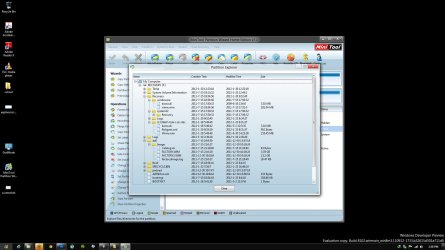
Have a look with this and see if it throws any light on the matter.


Click the Parts Manage Tab, then highlight the recov partition

View attachment 194953


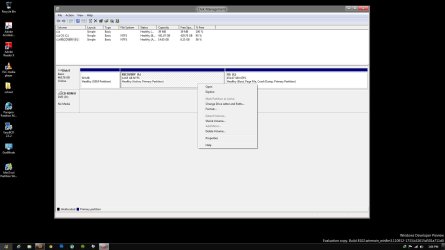
Also, please post a screenshot of windows disk management - we are working blind here.
 

My Computers

System One System Two

  • Computer type
    PC/Desktop
    OS
    7 X64
    CPU
    i5 8400
    Motherboard
    gigabyte b365m ds3h
    Memory
    2x8gb 3200mhz
    Hard Drives
    various
    PSU
    pure power 11 400w cm
    Case
    Coolermaster
    Cooling
    cryorig m9i
  • Computer type
    PC/Desktop
    OS
    7x64
    CPU
    g5400
    Motherboard
    ga b365m ds3h
    Memory
    8gb ddr4 2400
    PSU
    xfx pro 450w
That is always the first thing to try.

Didn't someone already suggest it on this thread ? - it appears not - that's what I get for not reading the thread thoroughly.

LOL


I think if you make the Recovery partition active instead of the Win 7/8 partition then reboot, the recovery process will load. At least this worked for me on a Sony VAIO recently.

I made a backup image of the recovery partition. Replaced the hard drive then restored the recovery image to the new hard drive and made it active. When I rebooted the recovey process started and restored the computer to factory state.

I don't remember if I had to assign a drive letter to the recovery partition before I could make it active or not. Greg, have you tried this?

Worth a try.
 

My Computers

System One System Two

  • Computer type
    PC/Desktop
    OS
    7 X64
    CPU
    i5 8400
    Motherboard
    gigabyte b365m ds3h
    Memory
    2x8gb 3200mhz
    Hard Drives
    various
    PSU
    pure power 11 400w cm
    Case
    Coolermaster
    Cooling
    cryorig m9i
  • Computer type
    PC/Desktop
    OS
    7x64
    CPU
    g5400
    Motherboard
    ga b365m ds3h
    Memory
    8gb ddr4 2400
    PSU
    xfx pro 450w
Yes, I suggested it two days ago. I learned it from you Si years ago. :geek:

It likely is only a hidden file, not a System file. Did you uncheck Hidden files?

You can try to restore Recovery to the F8 menu: Dell Recovery Partition - restoring F8 link

You can also try marking the Recovery partition Active to see if it will boot itself: Partition - Mark as Active

Otherwise you can order Factory Recovery disks from Dell, or use a Win7 retail installer to get a superior Clean Reinstall with the Product Key on COA sticker if you will answer my questions asked.
 
Ok, we may be getting somewhere, I was able to find the factory.wim, and factory2.wim files by navigating to recovery>dell>image - though it appear they were hidden, it shows them when I type the location manually.

What should I do with those files now?
 

My Computer

Computer Manufacturer/Model Number
Dell Inspiron One2305
OS
Window 7 Home Premium x64
CPU
AMD Athlon II X@ 240e Processor 2.80 GHZ
Memory
4 GB
Here is the screenshot

jpg.gif
screenshot.jpg

How do I make that drive bootable?
 

Attachments

  • screenshot.jpg
    screenshot.jpg
    115.7 KB · Views: 49

My Computer

Computer Manufacturer/Model Number
Dell Inspiron One2305
OS
Window 7 Home Premium x64
CPU
AMD Athlon II X@ 240e Processor 2.80 GHZ
Memory
4 GB
You would normally give the recov partition a drive letter - then set it as the Active partition - do you get those options if you rt click it in disk mgmt?


Otherwise, Which of those is the bootable.wim?

Any chance of some sort of screenshot - we need to see the contents of the recov partition as well as ?

Try a 3rd party explorer for a screenshot - explorer++ perhaps

Explorer++ - A small and fast file manager for Windows
 

My Computers

System One System Two

  • Computer type
    PC/Desktop
    OS
    7 X64
    CPU
    i5 8400
    Motherboard
    gigabyte b365m ds3h
    Memory
    2x8gb 3200mhz
    Hard Drives
    various
    PSU
    pure power 11 400w cm
    Case
    Coolermaster
    Cooling
    cryorig m9i
  • Computer type
    PC/Desktop
    OS
    7x64
    CPU
    g5400
    Motherboard
    ga b365m ds3h
    Memory
    8gb ddr4 2400
    PSU
    xfx pro 450w
He gave you those steps 4 days ago. Easy will pick up the correct file.

It depends how Dell have set it up.

If you can find a file on the recovery partition called boot.wim or winre.wim , or restore.wim or similar ( it won't be very big - 165-200mb - [there will probably another .wim file called factory.wim or install.wim- much larger] )

It is the smaller one you want to add to your boot menu.

The easiest way to do that is with the free version of easybcd.

EasyBCD Download Registration Page — NeoSmart Technologies

View attachment 194146


Select ADD ENTRY

View attachment 194141

Select the WINPE Tab and click the little browse icon

View attachment 194142

Browse to the bootable.wim file , click Open

View attachment 194143


Then click ADD

View attachment 194144

Restart your pc and select the boot menu entry called NST WINPE IMAGE

 
Oh , there you go - thought I had seen it somewhere.

Perhaps I am not going mad after all.


Yes, I suggested it two days ago. I learned it from you Si years ago. :geek:

It likely is only a hidden file, not a System file. Did you uncheck Hidden files?

You can try to restore Recovery to the F8 menu: Dell Recovery Partition - restoring F8 link

You can also try marking the Recovery partition Active to see if it will boot itself: Partition - Mark as Active

Otherwise you can order Factory Recovery disks from Dell, or use a Win7 retail installer to get a superior Clean Reinstall with the Product Key on COA sticker if you will answer my questions asked.
 

My Computers

System One System Two

  • Computer type
    PC/Desktop
    OS
    7 X64
    CPU
    i5 8400
    Motherboard
    gigabyte b365m ds3h
    Memory
    2x8gb 3200mhz
    Hard Drives
    various
    PSU
    pure power 11 400w cm
    Case
    Coolermaster
    Cooling
    cryorig m9i
  • Computer type
    PC/Desktop
    OS
    7x64
    CPU
    g5400
    Motherboard
    ga b365m ds3h
    Memory
    8gb ddr4 2400
    PSU
    xfx pro 450w
OK, on disk management inside of windows, I set the recovery partition as active. C: is the one that usually boots to, but the one that is only 39 MB is the OEM partition.

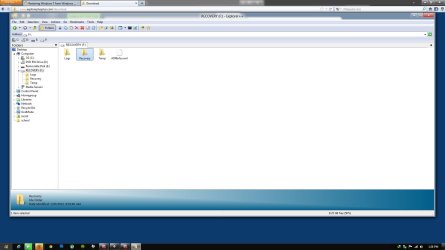
Here is a screenshot of ++explorer, showing that the recovery folder is empty, and the second screenshot is in partition wizard where it shows the files, basically there are a few different .wim files.
 

Attachments

  • explorerscreenshot.jpg
    explorerscreenshot.jpg
    120.3 KB · Views: 22
  • partitionwizard.jpg
    partitionwizard.jpg
    190.3 KB · Views: 31

My Computer

Computer Manufacturer/Model Number
Dell Inspiron One2305
OS
Window 7 Home Premium x64
CPU
AMD Athlon II X@ 240e Processor 2.80 GHZ
Memory
4 GB
Try retarting your pc.

Hopefully the DEll winre.wim will load up and you will get to see the Dell restore program.
 

My Computers

System One System Two

  • Computer type
    PC/Desktop
    OS
    7 X64
    CPU
    i5 8400
    Motherboard
    gigabyte b365m ds3h
    Memory
    2x8gb 3200mhz
    Hard Drives
    various
    PSU
    pure power 11 400w cm
    Case
    Coolermaster
    Cooling
    cryorig m9i
  • Computer type
    PC/Desktop
    OS
    7x64
    CPU
    g5400
    Motherboard
    ga b365m ds3h
    Memory
    8gb ddr4 2400
    PSU
    xfx pro 450w
No, sorry, I just booted into windows. I tried pressing F8, but I just got the same screen that basically says restore from a backup
 

My Computer

Computer Manufacturer/Model Number
Dell Inspiron One2305
OS
Window 7 Home Premium x64
CPU
AMD Athlon II X@ 240e Processor 2.80 GHZ
Memory
4 GB
I will try easyBCD again, but which file is the correct .wim file to choose?
 

My Computer

Computer Manufacturer/Model Number
Dell Inspiron One2305
OS
Window 7 Home Premium x64
CPU
AMD Athlon II X@ 240e Processor 2.80 GHZ
Memory
4 GB
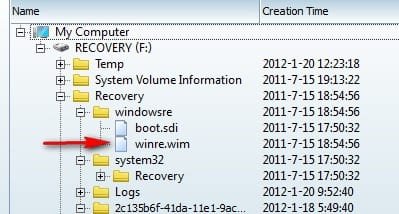
Try this one:

winre.jpg

That is the one on the windowsre folder
 

My Computers

System One System Two

  • Computer type
    PC/Desktop
    OS
    7 X64
    CPU
    i5 8400
    Motherboard
    gigabyte b365m ds3h
    Memory
    2x8gb 3200mhz
    Hard Drives
    various
    PSU
    pure power 11 400w cm
    Case
    Coolermaster
    Cooling
    cryorig m9i
  • Computer type
    PC/Desktop
    OS
    7x64
    CPU
    g5400
    Motherboard
    ga b365m ds3h
    Memory
    8gb ddr4 2400
    PSU
    xfx pro 450w
proceeding. It didn't show up when I tried to add it, so I typed in the address manually and it let me.
 

My Computer

Computer Manufacturer/Model Number
Dell Inspiron One2305
OS
Window 7 Home Premium x64
CPU
AMD Athlon II X@ 240e Processor 2.80 GHZ
Memory
4 GB
Yes, that should work.
 

My Computers

System One System Two

  • Computer type
    PC/Desktop
    OS
    7 X64
    CPU
    i5 8400
    Motherboard
    gigabyte b365m ds3h
    Memory
    2x8gb 3200mhz
    Hard Drives
    various
    PSU
    pure power 11 400w cm
    Case
    Coolermaster
    Cooling
    cryorig m9i
  • Computer type
    PC/Desktop
    OS
    7x64
    CPU
    g5400
    Motherboard
    ga b365m ds3h
    Memory
    8gb ddr4 2400
    PSU
    xfx pro 450w
Back
Top