
ROBOCOPY - Create Backup Script

How to Create a Backup Script using ROBOCOPY Command


   Information
There are many paid and free software solutions available to backup critical data and files on a computer system. Many users, however, are unaware of an inbuilt Windows 7 command called ROBOCOPY (Robust File Copy) that allows users to create simple or highly advanced backup strategies.


In its simplist form, ROBOCOPY can be likened to an extension of XCOPY on steroids. Some of the more important features that make ROBOCOPY an attractive backup alternative are:
  • multi-threaded copying
  • mirroring or synchronisation mode between the destination and source
  • automatic retry and copy resumption
The examples shown below are primarily geared towards less experienced users, especially those that are unfamilar with batch file creation and running. More experienced users, however, are welcome to explore some of the advanced functionality offered by ROBOCOPY here:

http://technet.microsoft.com/en-us/library/cc733145(WS.10).aspx

and also here:

http://www.theether.net/download/Microsoft/Utilities/robocopy.pdf

or by simply typing robocopy /? at a cmd window prompt.


   Note
ROBOCOPY is a FOLDER copier, not a FILE copier - the source and destination syntax arguments in ROBOCOPY can only be folder names.


:note: Creating a BACKUP strategy

The easiest way to use the ROBOCOPY command to create a backup strategy is by creating a batch (.BAT) file. A batch file is a simple text file, that when executed, runs several commands one after the other.

Step 1

Click :orb: and in the search box, type notepad. Select Notepad to open up a new blank Notepad document.


Step 2

Type the ROBOCOPY commands into the Notepad document, save it as a .BAT file, and then execute it.

In the example below, I have 3 folders (Data1, Data2, and Data3) containing some data that I wish to backup. One folder is located on E: drive and the other two are located on F: drive. I wish to back these up as follows:

Data1 folder on E: backup to a folder called Backups on G: (external USB drive)
Data2 folder on F: backup to a folder called Backups on G: (external USB drive)
Data3 folder on F: backup to a folder called Backups on Q: (network storage drive)

The general format of the ROBOCOPY command is:

Code:
robocopy <source> <destination> <options>
In the empty Notepad document, the simplist form of the command would look like this:

Code:
robocopy E:\Data1 G:\Backups\Data1
robocopy F:\Data2 G:\Backups\Data2
robocopy F:\Data3 Q:\Backups\Data3
pause
   Tip
If source or destination paths contain spaces in them, enclose these in double quotes e.g. "C:\My Data\My Music"


Only the source
  • E:\Data1
  • F:\Data2
  • F:\Data3
and the destination
  • G:\Backups\Data1
  • G:\Backups\Data2
  • Q:\Backups\Data3
are mandatory inputs into the ROBOCOPY command.

   Tip
The PAUSE command at the bottom of the .BAT file allows the cmd window to stay open after it has completed to allow me to see the output from ROBOCOPY.


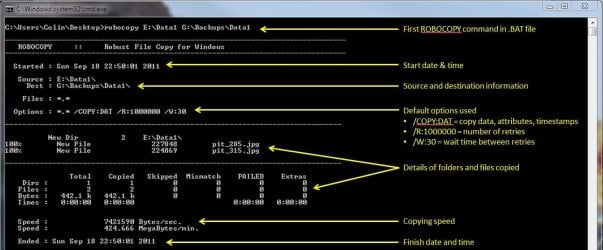
If I save the .BAT file to my Desktop, and run it by double-clicking it, then a cmd window is opened and the .BAT file executes the three ROBOCOPY commands as shown below.
R1.JPG

The same information is repeated for every ROBOCOPY line in the .BAT file.


In order to utilise some of the powerful functionality in ROBOCOPY, I need to utilise some options in the ROBOCOPY command line. In this next example I want to edit my existing backup strategy such that:
  1. All sub-folders within my data folders are backed up, even if they are empty.
  2. The backup only copies newer files to my existing backup - this means a faster backup time.
  3. The percentage progress counter for copying is not shown - this neatens the overall appearance of the ROBOCOPY information, and creates a smaller log file.
  4. The information normally echoed to the cmd window is saved to a log file that I can examine at a later stage.
In order to do this, I need to specify some additional options in my ROBOCOPY commands like this:

Code:
robocopy E:\Data1 G:\Backups\Data1 [B][COLOR=red]/e /mir /np /log:backup_log.txt[/COLOR][/B]
robocopy F:\Data2 G:\Backups\Data2 [B][COLOR=red]/e /mir /np /log+:backup_log.txt[/COLOR][/B]
robocopy F:\Data3 Q:\Backups\Data3 [B][COLOR=red]/e /mir /np /log+:backup_log.txt[/COLOR][/B]
pause
Where:
/e = copy all sub-folders, even empty ones
/mir = mirror (check the files in the destination, and only copy newer files)
/np = no progress counter
/log: = create a logfile

   Tip

Note the use of the /log+: option in the 2nd and 3rd line of the .BAT file. This option ensures that the results of the 2nd and 3rd ROBOCOPY are appended to the log file created in the 1st ROBOCOPY line, meaning I only need one log file to capture all the information I backup.

The log file is always saved to the same folder as the .BAT file - in my case, the folder is saved to my Desktop.


Since the output from ROBOCOPY is written to the log file, the cmd window will not display the output from ROBOCOPY. If I wish to have this information written to both the log file and the cmd window for visual tracking of the backup process, then I can add the /tee option to each line in the .BAT file, as shown below.

Code:
robocopy E:\Data1 G:\Backups\Data1 /e /mir /np [B][COLOR=red]/te[/COLOR][COLOR=red]e[/COLOR][/B] /log:backup_log.txt
robocopy F:\Data2 G:\Backups\Data2 /e /mir /np [COLOR=red][B]/tee[/B][/COLOR] /log+:backup_log.txt
robocopy F:\Data3 Q:\Backups\Data3 /e /mir /np[COLOR=red][B] /tee[/B][/COLOR] /log+:backup_log.txt
pause
This is an example of the typical output to the the log file - it looks exactly the same as what is echoed to the cmd window.

Code:
-------------------------------------------------------------------------------
   ROBOCOPY     ::     Robust File Copy for Windows                              
-------------------------------------------------------------------------------
  Started : Sun Sep 18 23:35:01 2011
   Source : E:\Data1\
     Dest : G:\Backups\Data1\
    Files : *.*
 
  Options : *.* /S /E /COPY:DAT /PURGE /MIR /R:1000000 /W:30 
------------------------------------------------------------------------------
                    2 E:\Data1\
------------------------------------------------------------------------------
               Total    Copied   Skipped  Mismatch    FAILED    Extras
    Dirs :         1         0         1         0         0         0
   Files :         2         0         2         0         0         0
   Bytes :   442.1 k         0   442.1 k         0         0         0
   Times :   0:00:00   0:00:00                       0:00:00   0:00:00
   Ended : Sun Sep 18 23:35:01 2011
Since one of the data folders I am backing up is being copied across a network, I want to ensure that any possible network outages do not cause some critical files to be skipped in the backup. To do this, I can make use of the /z option in the 3rd line of my .BAT file (backup to my network storage) as shown below.

Code:
robocopy E:\Data1 G:\Backups\Data1 /e /mir /np /tee /log:backup_log.txt
robocopy F:\Data2 G:\Backups\Data2 /e /mir /np /tee /log+:backup_log.txt
robocopy F:\Data3 Q:\Backups\Data3 /e /mir /np [B][COLOR=red]/z[/COLOR][/B] /tee /log+:backup_log.txt
This option implements a "retry" for the copying. If I were part way through the copying process, and I lost connection with the network, then ROBOCOPY would automatically restart the copying at the point of failure once the network connection was re-established. It would retrying a million times every 30 seconds (the default settings shown in the image above). The only drawback with this option, is that it can significantly increase the backup time.

ROBOCOPY also has the ability to perform faster multi-threaded copying by simply using the option /mt. I can choose the number of threads to use by specifying a number between 1 and 128 after the /mt option, or if I just specify /mt without a number then the it will use 8 threads by default. In the example below, I use 4 threads to copy to my USB drive, and 8 threads (no number) to copy to my network drive.

Code:
robocopy E:\Data1 G:\Backups\Data1 /e /mir /np /tee [B][COLOR=red]/mt:4[/COLOR][/B] /log:backup_log.txt
robocopy F:\Data2 G:\Backups\Data2 /e /mir /np /tee [COLOR=red][B]/mt:4[/B][/COLOR] /log+:backup_log.txt
robocopy F:\Data3 Q:\Backups\Data3 /e /mir /np [COLOR=black]/z[/COLOR] /tee [COLOR=red][B]/mt[/B][/COLOR] /log+:backup_log.txt
Below is a template that you can use to create your own backup strategy using ROBOCOPY. Simply copy and paste the lines into a blank text document, and then edit as appropriate.

Code:
rem --- Edit the lines below to create your own backup strategy
rem --- The /mir option has been left out for safety sake
rem --- Add more lines for each new folder requiring backup
rem --- Specified 4 threads to use for multi-threaded copying
rem --- The results of the backup can be found in my_backup_log.txt 
robocopy <source> <destination> /e /np /tee /mt:4 /log:my_backup_log.txt
robocopy <source> <destination> /e /np /tee /mt:4 /log+:my_backup_log.txt
pause
   Tip

The can automate your backup's by using the Windows 7 Task Scheduler to run the .BAT file at specific times.

For more information please refer to this tutorial by Orbital Shark:
http://www.sevenforums.com/tutorials/12444-task-scheduler-create-new-task.html


I hope this brief tutorial helps you access the power and simplicity of ROBOCOPY to create some effective backup strategies.

Regards,
Golden
 
Last edited by a moderator:
Hi, I just started using Robocopy to backup my files to my JBOD recently and I noticed that it does not copy anything in My Document folder. Here is the result log for Robocopy regarding the backup.
------------------------------------------------------------------------------

Total Copied Skipped Mismatch FAILED Extras
Dirs : 4287 0 4287 0 0 0
Files : 34164 22831 11333 0 0 0
Bytes : 107.783 g 90.408 g 17.375 g 0 0 0
Times : 20:32:46 2:02:26 0:00:00 0:15:26

Ended : Mon Sep 08 02:58:21 2014

-------------------------------------------------------------------------------
Even though it says that it copied 22831 files the destination folder says it has not been modified at all.

274a2e401e.png


The strange thing is that when I was checking back on the progress in the cmd window, it showed that it was copying files. The problem is I have no idea where those files went, the files that were supposedly copied aren't there at all. Here is the script I used to back up my files.

robocopy F:\Anime G:\Anime /mir /copyall /np /tee /mt /log:"C:\Users\C.C\Desktop\my_backup_log.txt"

robocopy "E:\Disk Backups" "G:\Disk Backups" /mir /copyall /np /tee /mt /log+:"C:\Users\C.C\Desktop\my_backup_log.txt"

robocopy E:\Downloads G:\Downloads /mir /copyall /np /tee /mt /log+:"C:\Users\C.C\Desktop\my_backup_log.txt"

robocopy E:\Movie G:\Movie /mir /copyall /np /tee /mt /log+:"C:\Users\C.C\Desktop\my_backup_log.txt"

robocopy "C:\Users\C.C\My Documents" "G:\My Documents" /mir /copyall /np /tee /mt /log+:"C:\Users\C.C\Desktop\my_backup_log.txt"

robocopy E:\Text G:\Text /mir /copyall /np /tee /mt /log+:"C:\Users\C.C\Desktop\my_backup_log.txt"

pause
The other folders seem to have been mirrored correctly, it's just the My Documents folder that is having this issue.

I tried deleting the destination folder I currently had on the backup disk and ran robocopy again. It skipped right through the document script. It seems like it's saving somewhere but I don't know where. Here is the result.

------------------------------------------------------------------------------

Total Copied Skipped Mismatch FAILED Extras
Dirs : 4287 0 4287 0 0 0
Files : 34163 0 34163 0 0 0
Bytes : 107.783 g 0 107.783 g 0 0 0
Times : 0:03:11 0:00:00 0:00:00 0:03:11

Ended : Mon Sep 08 09:51:19 2014

-------------------------------------------------------------------------------
 

My Computer

OS
Microsoft Windows 7 Home Premium 64-bit 1-Pack for System Builders - OEM
CPU
AMD Phenom II X6 1055T Thuban 2.8GHz Socket AM3 125W Six-Cor
Motherboard
ASUS M4A88TD-M/USB3 AM3 AMD 880G SATA 6Gb/s USB 3.0 HDMI Mic
Memory
Kingston ValueRAM 4GB (2 x 2GB) 240-Pin DDR3 SDRAM DDR3 1333
Graphics Card(s)
SAPPHIRE 100314SR Radeon HD 6870 1GB 256-bit GDDR5 PCI Expre
Sound Card
ASUS Xonar DX 7.1 Channels PCI Express x1 Interface Sound Ca
Monitor(s) Displays
DELL E173FP
Hard Drives
SAMSUNG Spinpoint F3 HD103SJ 1TB 7200 RPM SATA 3.0Gb/s 3.5" Internal Hard Drive -Bare Drive
PSU
CORSAIR CMPSU-650TX 650W ATX12V / EPS12V SLI Ready CrossFire
Case
Antec Three Hundred Illusion Black Steel ATX Mid Tower Compu
ROBOCOPY

Can someone write me an robocopy script for the following;

- copy a folder
- different backup sets for each day
- delete backups sets for each day when overwritten
- also check for all files are being copied
- backup log

Thanks a million in advance
 

My Computer

Computer Manufacturer/Model Number
Dell
OS
windows 8 64bit
Robocopy commands fail in script not in command

Hello,

I have several ROBOCOPY commands in a script. 1 of the command lines fails when running it in the script.

The error I receive is: ERROR 2 (0x00000002) Accessing Source Directory W:\sales\Bibliothèque sacs Holweg\ The system cannot find the file specified.

When I run the ROBOCOPY command in the command window it executes flawlessly.

Here is the specific command line: ROBOCOPY "W:\sales\Bibliothèque sacs Holweg" "d:\dept\sales\Holweg Transfer\Bibliothèque sacs Holweg" /MIR /COPY:dat /R:1 /W:1 /TEE /LOG:d:\Scripts\Logs\Hol_sales_2.txt

Any suggestions?

Thank you!
 

My Computer

Computer type
Laptop
OS
Windows 7 Professional 64 Bit
As regards the template towards the end of the first post in this thread, I am curious as to what the following line means:
rem --- The /mir option has been left out for safety sake

Why is it more safe to disallow the creation of a new file alongside the original?
 

My Computer

Computer Manufacturer/Model Number
built it myself
OS
Windows 7 Pro 64-bit
CPU
Intel i7 950
Motherboard
Asus Sabertooth X58
Memory
18GB
Graphics Card(s)
Gigabyte Radeon HD7700
Sound Card
onboard Realtek HD audio chip
Monitor(s) Displays
2 x Dell U2412M
Screen Resolution
1920x1200
Hard Drives
3 SSD
4 Western Digital Caviar Green
PSU
SeaSonic x650
Case
Fractal Design R3 case
Cooling
Magehalems rev. B CPU cooler
When I first put this together, I was mistakenly under the impression that \mir could inadvertently delete the original source file, so I included that rem statement. I'll remove it from the template this evening.
 

My Computer

Computer type
PC/Desktop
Computer Manufacturer/Model Number
Golden Mk. I.4
OS
Windows 10 Pro x64 ; Xubuntu x64
CPU
Intel i7 860 @ 2.80 GHz O/C'ed to 4.0GHz
Motherboard
Gigabyte P55A-UD3R Rev.1. Award BIOS F13
Memory
16GB Corsair Vengance DDR3 @ 661 MHz Dual Channel (9-9-9-24)
Graphics Card(s)
EVGA NVidia GTX 560 1024MB
Sound Card
Realtek Integrated
Monitor(s) Displays
Dual Samsung SyncMaster 2494HS
Screen Resolution
1920*1080 and 1920*1080
Hard Drives
1*Samsung 840 EVO 120GB SSD;
1*OCZ Vertex 2 60GB SSD;
2*Samsung F3 SpinPoint 1TB in RAID0;
1*Samsung F1 SpinPoint 1TB;
2*Western Digital 1TB External USB 3.0
1*Western Digital 500GB External USB 3.0
1*Seagate 500GB External USB 2.0
PSU
Thermaltake ToughPower QFan 750W
Case
Thermaltake Element S VK60001W2Z
Cooling
Corsair H60 Water Cooling, 2*230mm and 2*80mm case fans
Keyboard
Logitech G110
Mouse
Logitech MX518
Actually, hold that thought...
I ran a test trying to sort out my option switches. And files were actually deleted. Perhaps I can counter that by adding /XX. I will try.
Sorry, was confusing source and destination.

But what really surprised me was the log file that showed a host of switches that were not present in my command line. They seem to have defaulted in. Is that expected? If MIR is E+PURGE, then why are all three of them in the generated command line?

Code:
robocopy "G:\musica\_lectures" "E:\##testrobot" /e /mir /np /tee /mt:4 /log:robocopy_backup_log.txt
pause

yielded:

Code:
-------------------------------------------------------------------------------
   ROBOCOPY     ::     Robust File Copy for Windows                              
-------------------------------------------------------------------------------

  Started : Thu Dec 11 23:26:47 2014

   Source : G:\musica\_lectures\
     Dest : E:\##testrobot\

    Files : *.*
	    
  Options : *.* [COLOR="Red"]/TEE /S /E /COPY:DAT /PURGE /MIR /NP /MT:4 /R:1000000 /W:30[/COLOR] 


                       //// etc etc etc ////
 
Last edited:

My Computer

Computer Manufacturer/Model Number
built it myself
OS
Windows 7 Pro 64-bit
CPU
Intel i7 950
Motherboard
Asus Sabertooth X58
Memory
18GB
Graphics Card(s)
Gigabyte Radeon HD7700
Sound Card
onboard Realtek HD audio chip
Monitor(s) Displays
2 x Dell U2412M
Screen Resolution
1920x1200
Hard Drives
3 SSD
4 Western Digital Caviar Green
PSU
SeaSonic x650
Case
Fractal Design R3 case
Cooling
Magehalems rev. B CPU cooler
How to locate skipped files in backup log

Hi Golden,

This is my first time using this program; your tutorial is the only thing I've come across that is actually helpful (I am not a tech person and other how-tos have assumed the reader is tech-savvy already).

So, thank you for this!

I was finally able to write a script that did what we want it to do; however, I noticed that it skipped a file/folder the second time, but hadn't skipped anything the first time.

The difference between the first and second times are that on the second run, I'd added the /log: switch to create a log file.

How can I find out what folders/files are skipped after a backup has been completed? Is there anything in the log that identifies skipped data?

Thanks much,
Jenee
 

My Computer

Computer type
PC/Desktop
Computer Manufacturer/Model Number
Dell
OS
Windows 7 Professional, 64-bit
CPU
Intel Core i5-3340M CPU @ 2.70 GHz
Memory
4 gb
Can you paste a copy of your .bat and log file here, and I'll have a look at it for you?
 

My Computer

Computer type
PC/Desktop
Computer Manufacturer/Model Number
Golden Mk. I.4
OS
Windows 10 Pro x64 ; Xubuntu x64
CPU
Intel i7 860 @ 2.80 GHz O/C'ed to 4.0GHz
Motherboard
Gigabyte P55A-UD3R Rev.1. Award BIOS F13
Memory
16GB Corsair Vengance DDR3 @ 661 MHz Dual Channel (9-9-9-24)
Graphics Card(s)
EVGA NVidia GTX 560 1024MB
Sound Card
Realtek Integrated
Monitor(s) Displays
Dual Samsung SyncMaster 2494HS
Screen Resolution
1920*1080 and 1920*1080
Hard Drives
1*Samsung 840 EVO 120GB SSD;
1*OCZ Vertex 2 60GB SSD;
2*Samsung F3 SpinPoint 1TB in RAID0;
1*Samsung F1 SpinPoint 1TB;
2*Western Digital 1TB External USB 3.0
1*Western Digital 500GB External USB 3.0
1*Seagate 500GB External USB 2.0
PSU
Thermaltake ToughPower QFan 750W
Case
Thermaltake Element S VK60001W2Z
Cooling
Corsair H60 Water Cooling, 2*230mm and 2*80mm case fans
Keyboard
Logitech G110
Mouse
Logitech MX518
Sure, here is the .bat script:

robocopy "J:\SOPs_from Public Drive" "H:\Work Stuff\SOPs\BACKUPS\SOP Public Backup as of 02-19-15" /E /tee /log:backup_log.txt
robocopy "J:\Standard Operating Procedures_SOPs" "H:\Work Stuff\SOPs\BACKUPS\SOP Training Backup as of 02-19-15" /E /tee /log:backup_log.txt
pause

I will attach the log file because it is a LOT of data....you might even change your mind about looking through it for me, lol.
 

Attachments

My Computer

Computer type
PC/Desktop
Computer Manufacturer/Model Number
Dell
OS
Windows 7 Professional, 64-bit
CPU
Intel Core i5-3340M CPU @ 2.70 GHz
Memory
4 gb
Script Doesn't Work

I've tried this script verbatim with no luck. I even created the test directories manually, and the script still wouldn't work (Windows 7, Windows 10).
 

My Computer

Computer type
PC/Desktop
Computer Manufacturer/Model Number
Custom Build
OS
Windows 8.1 x64
CPU
Core 2 Quad Q9550
Motherboard
MSI-7514
Memory
8GB DDR2
Graphics Card(s)
Nvidia GeForce GTX 260
Hard Drives
160GB Main Drive, 500GB Data Drive
Antivirus
Windows Defender
Browser
Google Chrome
Just spent the best part of this afternoon reading all 25 pages of this fantastic post. What an awesome guy "Golden" is and the patience of a saint.

Anyway onto the question. I need to do some replication of data on a NAS drive, to an external USB drive hanging off a PC, so traffic is across the network after hours.

I need to ensure the explicit copy of all permissions and security elements so that in the event we need to recover from the External to the NAS, all permissions are in place and cuts down on our workload.

So basically copying from mapped drive H:\Users to mapped drive Q:\users

what would be the best script to use to ensure I get all security permissions ?

when the batch files run, there will be no other network traffic at all, and all files on other workstations will be closed down.

In addition. Is there anyway I can run RoboCopy to just transfer the permissions from the source to the destination where files already exist.

Previously I used RichCopy, to find out, that despite having all the advanced settings turned on, it didn't copy the permissions as it should.

thanks
 

My Computer

Computer type
Laptop
Computer Manufacturer/Model Number
Lenovo T530 HD
OS
Windows 7 Enterprise 64 bits
CPU
i5-2520
Memory
16Gb
Graphics Card(s)
Intel HD 3000
Hard Drives
480Gb SSD (x2)
Antivirus
NOD32
Browser
Mozilla
Thanks for the compliments.

Please try a test using this flag:

Code:
 /COPY:DATSOU
 

My Computer

Computer type
PC/Desktop
Computer Manufacturer/Model Number
Golden Mk. I.4
OS
Windows 10 Pro x64 ; Xubuntu x64
CPU
Intel i7 860 @ 2.80 GHz O/C'ed to 4.0GHz
Motherboard
Gigabyte P55A-UD3R Rev.1. Award BIOS F13
Memory
16GB Corsair Vengance DDR3 @ 661 MHz Dual Channel (9-9-9-24)
Graphics Card(s)
EVGA NVidia GTX 560 1024MB
Sound Card
Realtek Integrated
Monitor(s) Displays
Dual Samsung SyncMaster 2494HS
Screen Resolution
1920*1080 and 1920*1080
Hard Drives
1*Samsung 840 EVO 120GB SSD;
1*OCZ Vertex 2 60GB SSD;
2*Samsung F3 SpinPoint 1TB in RAID0;
1*Samsung F1 SpinPoint 1TB;
2*Western Digital 1TB External USB 3.0
1*Western Digital 500GB External USB 3.0
1*Seagate 500GB External USB 2.0
PSU
Thermaltake ToughPower QFan 750W
Case
Thermaltake Element S VK60001W2Z
Cooling
Corsair H60 Water Cooling, 2*230mm and 2*80mm case fans
Keyboard
Logitech G110
Mouse
Logitech MX518
I need a backup solution - i need to write a startup script to be inserted in our company laptops such that when a laptop connects to our network and detects our backup server, it should automatically start to backup data that are new or is there any free software available so that i can install as a backup and restore solution
 

My Computer

Computer type
Laptop
OS
Windows 7 Professional 64
Hello.

I have been using Robocopy successfully for some time now, in a batch script in Windows 7 to copy files from a local file to a network mapped drive folder. A couple of weeks ago, I tried to use the same exact script (and Robocopy file version btw) in a Windows 10 machine and couldn't.

This is basically my current command (variable %logfile% is dynamically filled before):
@robocopy "D:\Backup" "Y:\Backup" /MIR /ZB /R:5 /V /FP /UNILOG:"%logfile%" /NP>nul

which yields the following log file:
-------------------------------------------------------------------------------
ROBOCOPY :: Robust File Copy for Windows
-------------------------------------------------------------------------------

Started : friday, 16th of October 2015 16:17:38
2015/10/16 16:17:38 ERROR 3 (0x00000003) Getting File System Type of Destination Y:\Backup\
The system cannot find the path specified.


Source : D:\Backup\
Dest - Y:\Backup\

Files : *.*

Options : *.* /V /FP /S /E /DCOPY:DA /COPY:DAT /PURGE /MIR /ZB /NP /R:5 /W:30

------------------------------------------------------------------------------

2015/10/16 16:17:38 ERROR 3 (0x00000003) Creating Destination Directory Y:\Backup\
The system cannot find the path specified.

I've read somewhere that this might be an bug in Windows 10, as the following command also fails all the time from the batch file:
if NOT exist "Y:\Backup" goto:message2

Can anyone provide any tips on how to overcome this error in robocopy (and how to check if a certain folder exists in a mapped network drive, in Windows 10 via batch file)?
 

My Computer

Computer type
PC/Desktop
OS
Windows 10 Pro x64
In Windows Explorer, is Y: the mapped network drive?
 

My Computer

Computer type
PC/Desktop
Computer Manufacturer/Model Number
Golden Mk. I.4
OS
Windows 10 Pro x64 ; Xubuntu x64
CPU
Intel i7 860 @ 2.80 GHz O/C'ed to 4.0GHz
Motherboard
Gigabyte P55A-UD3R Rev.1. Award BIOS F13
Memory
16GB Corsair Vengance DDR3 @ 661 MHz Dual Channel (9-9-9-24)
Graphics Card(s)
EVGA NVidia GTX 560 1024MB
Sound Card
Realtek Integrated
Monitor(s) Displays
Dual Samsung SyncMaster 2494HS
Screen Resolution
1920*1080 and 1920*1080
Hard Drives
1*Samsung 840 EVO 120GB SSD;
1*OCZ Vertex 2 60GB SSD;
2*Samsung F3 SpinPoint 1TB in RAID0;
1*Samsung F1 SpinPoint 1TB;
2*Western Digital 1TB External USB 3.0
1*Western Digital 500GB External USB 3.0
1*Seagate 500GB External USB 2.0
PSU
Thermaltake ToughPower QFan 750W
Case
Thermaltake Element S VK60001W2Z
Cooling
Corsair H60 Water Cooling, 2*230mm and 2*80mm case fans
Keyboard
Logitech G110
Mouse
Logitech MX518
In Windows Explorer, is Y: the mapped network drive?


Yes, for sure.

If I use the command prompt rather than the script, it actually works properly :s
 

My Computer

Computer type
PC/Desktop
OS
Windows 10 Pro x64
In Windows Explorer, is Y: the mapped network drive?


Yes, for sure.

If I use the command prompt rather than the script, it actually works properly :s

Is the script running as Administrator?

For some reason, Robocopy behaves better when ran as user instead of Administrator. "Error 3" plagued me for some time before I realized.
 

My Computer

Computer Manufacturer/Model Number
Multiple
OS
Win7+10, Home+Pro, 32+64
I also supply /XJ (to prevent following junctions) and /B to acquire backup restore privilege. The latter ensures you will not run into ACL issues but you need to run the script elevated. Also I never use /MIR - because /MIR will delete files that have been deleted on the source drive. With MIR you can potentially lose data when say some files are missing in the source drive.
 

My Computer

Computer type
PC/Desktop
Computer Manufacturer/Model Number
Dell
OS
WA
CPU
Xeon
Memory
16gb
Fixed by NOT running the script as Administrator (as I used to do in Windows 7 without issues) and also change /ZB to /Z as the backup mode.

Now all works well and is back to normal.
 

My Computer

Computer type
PC/Desktop
OS
Windows 10 Pro x64
I have been using robocopy with success mirror copying folders from different locations and drives. However, I am having difficulty backing up a drive from an old Trition 250 unit nas.

Robocopy always add 3 backslashes.

Here is my input
'robocopy \\jcbnas\disk1 C:\disk1'

Robocopy trys to scan the nas with '\\jcbnas\disk1\\\' which is an invalid path.

I have tried different ways of add the line source path with quotes, with and without backslash. Changed the network name. Created a network drive with a letter and tried to connect with it. Using the network ip address rather its name. It always add 3 backslashes during scan.

I am able to copy using unc path from a hdd that is connected from a pc with no issue. It is just this NAS I have trouble with.
 

My Computer

Computer type
PC/Desktop
OS
Windows 7 64bit
Back
Top