Run Command - Create Shortcut

How to Create a "Run" Command Box Shortcut in Windows 7 and Windows 8

   Information
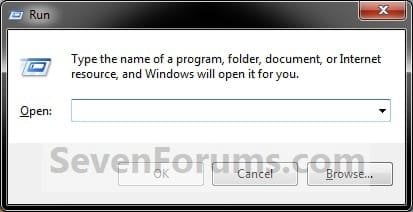
This tutorial will show you how to create or download a Run command dialog shortcut that you can pin and use where you like in Windows 7 and Windows 8.

   Note
The default keyboard shortcut to open the Run dialog is Windows + R.


EXAMPLE: Run command dialog
Run.jpg


OPTION ONE

To Download a "Run" Command Dialog Box Shortcut


1. Click/tap on the download button below to download the Run.zip file.

Download


2. Save the .zip file to your desktop.

3. Open the .zip file and extract the Run shortcut to the desktop.

4. Right click or press and hold on the Run shortcut, and click/tap on Properties, General tab, and on the Unblock button. (see screenshot below)
NOTE: If you do not have a Unblock button under the General tab, then the shortcut is already unblocked and you can continue on to step 5 or 6 below.
Unblock.jpg
5. In Windows 7, you can now Pin to Taskbar or Pin to Start Menu, add to Quick Launch, assign a keyboard shortcut to it, or move this shortcut to where you like for easy use.

6. In Windows 8, you can Pin to Taskbar on desktop, Pin to Start screen, add to Quick Launch, assign a keyboard shortcut to it, or move this shortcut to where you like for easy use.

7. When finished, you can delete the downloaded .zip file if you like.


OPTION TWO

To Manually Create a "Run" Command Dialog Box Shortcut


1. Right click or press and hold on an empty area on desktop, and click/tap on New and Shortcut.

2. Copy and paste the location below into the location area, and click/tap on the Next button. (see screenshot below)
%windir%\explorer.exe shell:::{2559a1f3-21d7-11d4-bdaf-00c04f60b9f0}
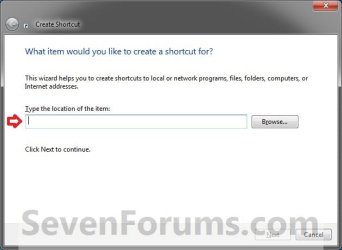
Step1.jpg
3. Type Run for the name, and click/tap on the Finish button. (see screenshot below)
NOTE: You can name this anything you would like though.
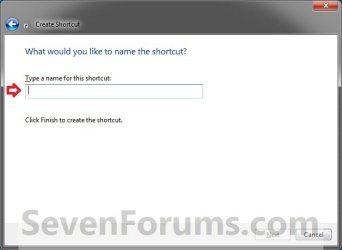
Step2.jpg
4. Right click or press and hold on the new Run shortcut on the Desktop, and click/tap on Properties.

5. Click/tap on the Shortcut tab. To the right of Run, click/tap on the drop down menu, select Minimized, and click/tap on Apply. (see screenshot below)
NOTE: This is so the command window will not be seen flashing quickly open and closed when you use the Windows Update shortcut.
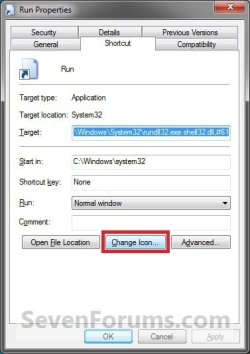
Run1.jpg
6. Click/tap on the Change Icon button. (see screenshot above)

7. In the line under "Look for icons in this file", copy and paste the location below, and press Enter. (see screenshot below)
%SystemRoot%\System32\imageres.dll
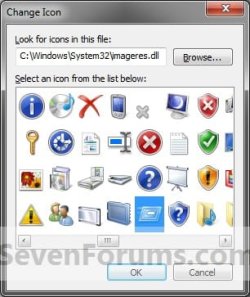
Change_Icon.jpg
8. Select the Run icon, and click/tap on OK. (see screenshot above)

9. Click/tap on OK. (see screenshot below)
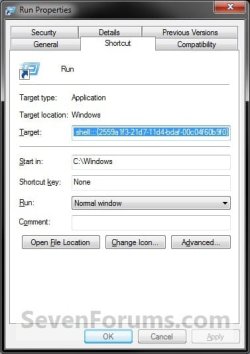
Step5.jpg
10. In Windows 7, you can now Pin to Taskbar or Pin to Start Menu, add to Quick Launch, assign a keyboard shortcut to it, or move this shortcut to where you like for easy use.

11. In Windows 8, you can Pin to Taskbar on desktop, Pin to Start screen, add to Quick Launch, assign a keyboard shortcut to it, or move this shortcut to where you like for easy use.
That's it,
Shawn


Attachments

Last edited:
that's nice.
 

My Computer

Computer Manufacturer/Model Number
Samsung NP530U4B-S02IN
OS
Windows® 8 Pro (64-bit)
CPU
Intel® Core™ i5 Processor 2467M (1.60GHz, 3MB L3 Cache)
Motherboard
Samsung Electronics
Memory
6GB DDR3 System Memory at 1,333MHz (on BD 4GB + 2GB x 1)
Graphics Card(s)
AMD Radeon™ HD7550M 1GB DDR3 (Ext. Graphic)
Sound Card
Realtek High Definition Audio
Monitor(s) Displays
35.56cm (14.0) SuperBright 300nit HD LED Display
Screen Resolution
1366x768
Hard Drives
1TB S-ATA II Hard Drive (5400RPM) with ExpressCache 16GB SSD
Internet Speed
sucks
Antivirus
Microsoft Security Essentials
Browser
Google Chrome (Sync enabled)
nice.
 

My Computer

Computer Manufacturer/Model Number
Seanix Desktop PC
OS
Windows 7 Ultimate 32 bit
CPU
Intel Core 2 Duo CPU E4500 2.20 GHz
Memory
1.99 GB
Graphics Card(s)
Intel G33/G31 Express Chipset Family (256 MB)
Sound Card
Realtek ALC888/1200
Monitor(s) Displays
DELL
Screen Resolution
1280 X 1024
Hard Drives
320GB Internal
200GB External
Case
Seanix
Keyboard
Seanix USB Keyboard
Mouse
Seanix USB Keyboard
Internet Speed
Broadband
Other Info
Getting close to 3 years old.
I was also able to pin this by clicking the Run command from my Start Menu. While the run dialog box is open I then right clicked the taskbar button and was able to select "Pin to Taskbar" from there.
 

My Computer

OS
Windows 7 Professional
Hello Dafatkid,

That is definitely another great way to pin Run to the taskbar. :)

Thank you,
Shawn
 

My Computer

Computer type
PC/Desktop
Computer Manufacturer/Model Number
Self built custom
OS
64-bit Windows 11 Pro for Workstations
CPU
Intel i7-8700K OC'd to 5 GHz
Motherboard
ASUS ROG Maximus XI Formula Z390
Memory
64 GB (4x16GB) G.SKILL TridentZ RGB DDR4 3600 MHz
Graphics Card(s)
ASUS ROG-STRIX-GTX1080TI-O11G-GAMING
Sound Card
Integrated
Monitor(s) Displays
2 x Samsung Odyssey G7 27"
Screen Resolution
2560x1440
Hard Drives
1TB Samsung 990 PRO M.2,
4TB Samsung 990 PRO PRO M.2,
TerraMaster F8 SSD Plus NAS
PSU
Seasonic Prime Titanium 850W
Case
Thermaltake Core P3
Cooling
Corsair Hydro H115i
Keyboard
Logitech wireless K800
Mouse
Logitech MX Master 4
Internet Speed
2 Gb/s Download and 100 Mb/s Upload
Antivirus
Malwarebyte Anti-Malware Premium
Browser
Google Chrome
Other Info
Logitech Z625 speaker system,
Logitech BRIO 4K Pro webcam,
HP Color LaserJet Pro MFP M477fdn,
APC SMART-UPS RT 1000 XL - SURT1000XLI,
Galaxy S23 Plus phone
why not just hit the windows key + R
 

My Computer

OS
win 7 64 , Vista
CPU
Amd 64 X2 5600
Motherboard
Msi K9n MS-7250
Memory
4G Corsair PC2-6400
Graphics Card(s)
MSI Gefores 8800 GT
Monitor(s) Displays
Acer P221w
Screen Resolution
1680 x 1080
Hello Jeff,

It's just an alternative for those that want a shortcut instead that can also be pinned to the taskbar and Start Menu. That's all. ;)
 

My Computer

Computer type
PC/Desktop
Computer Manufacturer/Model Number
Self built custom
OS
64-bit Windows 11 Pro for Workstations
CPU
Intel i7-8700K OC'd to 5 GHz
Motherboard
ASUS ROG Maximus XI Formula Z390
Memory
64 GB (4x16GB) G.SKILL TridentZ RGB DDR4 3600 MHz
Graphics Card(s)
ASUS ROG-STRIX-GTX1080TI-O11G-GAMING
Sound Card
Integrated
Monitor(s) Displays
2 x Samsung Odyssey G7 27"
Screen Resolution
2560x1440
Hard Drives
1TB Samsung 990 PRO M.2,
4TB Samsung 990 PRO PRO M.2,
TerraMaster F8 SSD Plus NAS
PSU
Seasonic Prime Titanium 850W
Case
Thermaltake Core P3
Cooling
Corsair Hydro H115i
Keyboard
Logitech wireless K800
Mouse
Logitech MX Master 4
Internet Speed
2 Gb/s Download and 100 Mb/s Upload
Antivirus
Malwarebyte Anti-Malware Premium
Browser
Google Chrome
Other Info
Logitech Z625 speaker system,
Logitech BRIO 4K Pro webcam,
HP Color LaserJet Pro MFP M477fdn,
APC SMART-UPS RT 1000 XL - SURT1000XLI,
Galaxy S23 Plus phone
Pretty good, but why do something so complicated?
Easier solution:
Right Click the start menu and select "Properties". Go to the "Start Menu" tab and click "Customize". Scroll down to the checkbox "Run Command" and check it (it is located after "Recorded TV"). Then open up the start menu and drag the "Run" button to the desktop. If you want you can then disable the "Run" command from the menu even after the creation of the shortcut.

Still, rep+, any effort is good!
 

My Computer

Computer type
PC/Desktop
Computer Manufacturer/Model Number
Multirama PC Expert [Bulgaria]
OS
Windows 7 Home Premium [64-Bit]
CPU
Intel Core 2 Quad CPU Q8200 @ 2.33 GHz
Motherboard
GIGABYTE GA-G31M-S2C
Memory
4094 MB DDR2
Graphics Card(s)
SAPPHIRE Radeon HD 6970 (2 GB VRAM)
Sound Card
Realtek ALC883 @ Intel 82801GB ICH7 - High Definition Audio
Monitor(s) Displays
Samsung SyncMaster BX2235 [21.5" LCD with LED Backlight]
Screen Resolution
1920x1080
Hard Drives
Hitachi HDT721075SLA360 - 750 GB
PSU
Cooler Master GX750 - 750W
Case
Multirama (Black / 2010 Revision)
Cooling
Stock + Cooler Master
Keyboard
Logitech G510 (Gaming Keyboard)
Mouse
Razer Lachesis (4000 DPI, Blue Version)
Internet Speed
Vivacom Optical [100 Mbps]
Browser
Chrome [Windows]
Pretty good, but why do something so complicated?
Easier solution:
Right Click the start menu and select "Properties". Go to the "Start Menu" tab and click "Customize". Scroll down to the checkbox "Run Command" and check it (it is located after "Recorded TV"). Then open up the start menu and drag the "Run" button to the desktop. If you want you can then disable the "Run" command from the menu even after the creation of the shortcut.

Still, rep+, any effort is good!

Hello Stefan,

That's fine if you just wanted to use the Customize settings for the Start Menu to have the Run button there on the dark right side.

http://www.sevenforums.com/tutorials/13234-run-command-add-remove-start-menu.html

This is just another option that will allow you to easily pin the shortcut to the taskbar, Quick Launch, and/or Start Menu instead. ;)
 
Last edited:

My Computer

Computer type
PC/Desktop
Computer Manufacturer/Model Number
Self built custom
OS
64-bit Windows 11 Pro for Workstations
CPU
Intel i7-8700K OC'd to 5 GHz
Motherboard
ASUS ROG Maximus XI Formula Z390
Memory
64 GB (4x16GB) G.SKILL TridentZ RGB DDR4 3600 MHz
Graphics Card(s)
ASUS ROG-STRIX-GTX1080TI-O11G-GAMING
Sound Card
Integrated
Monitor(s) Displays
2 x Samsung Odyssey G7 27"
Screen Resolution
2560x1440
Hard Drives
1TB Samsung 990 PRO M.2,
4TB Samsung 990 PRO PRO M.2,
TerraMaster F8 SSD Plus NAS
PSU
Seasonic Prime Titanium 850W
Case
Thermaltake Core P3
Cooling
Corsair Hydro H115i
Keyboard
Logitech wireless K800
Mouse
Logitech MX Master 4
Internet Speed
2 Gb/s Download and 100 Mb/s Upload
Antivirus
Malwarebyte Anti-Malware Premium
Browser
Google Chrome
Other Info
Logitech Z625 speaker system,
Logitech BRIO 4K Pro webcam,
HP Color LaserJet Pro MFP M477fdn,
APC SMART-UPS RT 1000 XL - SURT1000XLI,
Galaxy S23 Plus phone
Pretty good, but why do something so complicated?
Easier solution:
Right Click the start menu and select "Properties". Go to the "Start Menu" tab and click "Customize". Scroll down to the checkbox "Run Command" and check it (it is located after "Recorded TV"). Then open up the start menu and drag the "Run" button to the desktop. If you want you can then disable the "Run" command from the menu even after the creation of the shortcut.

Still, rep+, any effort is good!
I also found that this method worked if I was wanting to copy the run command to a custom toolbar or to the Quick Launch. However I was unable to drag and drop it and automatically pin itself to the taskbar. I had to use one of the methods listed above but I might have been missing something though.

Thanks for the info!
 

My Computer

OS
Windows 7 Professional
Hello dafatkid,

However I was unable to drag and drop it and automatically pin itself to the taskbar.

That was one of the main purposes of the shortcut in the tutorial instead. ;)

The normal way of creating a RUN shortcut like that above does not have the option to pin it.
 

My Computer

Computer type
PC/Desktop
Computer Manufacturer/Model Number
Self built custom
OS
64-bit Windows 11 Pro for Workstations
CPU
Intel i7-8700K OC'd to 5 GHz
Motherboard
ASUS ROG Maximus XI Formula Z390
Memory
64 GB (4x16GB) G.SKILL TridentZ RGB DDR4 3600 MHz
Graphics Card(s)
ASUS ROG-STRIX-GTX1080TI-O11G-GAMING
Sound Card
Integrated
Monitor(s) Displays
2 x Samsung Odyssey G7 27"
Screen Resolution
2560x1440
Hard Drives
1TB Samsung 990 PRO M.2,
4TB Samsung 990 PRO PRO M.2,
TerraMaster F8 SSD Plus NAS
PSU
Seasonic Prime Titanium 850W
Case
Thermaltake Core P3
Cooling
Corsair Hydro H115i
Keyboard
Logitech wireless K800
Mouse
Logitech MX Master 4
Internet Speed
2 Gb/s Download and 100 Mb/s Upload
Antivirus
Malwarebyte Anti-Malware Premium
Browser
Google Chrome
Other Info
Logitech Z625 speaker system,
Logitech BRIO 4K Pro webcam,
HP Color LaserJet Pro MFP M477fdn,
APC SMART-UPS RT 1000 XL - SURT1000XLI,
Galaxy S23 Plus phone
Why have I not done this before? I use "start>run" probably 30 times a day. This has saved at least 90 seconds a day = 7.5 minutes a week = 6.25 hours per working year.

That's it I'm storming in my boss's office and demanding a raise.
 

My Computer

OS
Windows 7 Professional 64bit
Hello ktell, and welcome to Seven Forums.

LOL, hopefully your boss will not give you the other type of raise. ;)

kick.gif
 

My Computer

Computer type
PC/Desktop
Computer Manufacturer/Model Number
Self built custom
OS
64-bit Windows 11 Pro for Workstations
CPU
Intel i7-8700K OC'd to 5 GHz
Motherboard
ASUS ROG Maximus XI Formula Z390
Memory
64 GB (4x16GB) G.SKILL TridentZ RGB DDR4 3600 MHz
Graphics Card(s)
ASUS ROG-STRIX-GTX1080TI-O11G-GAMING
Sound Card
Integrated
Monitor(s) Displays
2 x Samsung Odyssey G7 27"
Screen Resolution
2560x1440
Hard Drives
1TB Samsung 990 PRO M.2,
4TB Samsung 990 PRO PRO M.2,
TerraMaster F8 SSD Plus NAS
PSU
Seasonic Prime Titanium 850W
Case
Thermaltake Core P3
Cooling
Corsair Hydro H115i
Keyboard
Logitech wireless K800
Mouse
Logitech MX Master 4
Internet Speed
2 Gb/s Download and 100 Mb/s Upload
Antivirus
Malwarebyte Anti-Malware Premium
Browser
Google Chrome
Other Info
Logitech Z625 speaker system,
Logitech BRIO 4K Pro webcam,
HP Color LaserJet Pro MFP M477fdn,
APC SMART-UPS RT 1000 XL - SURT1000XLI,
Galaxy S23 Plus phone
Hi everybody.

First of all, to Brink I'd like to say "Thank you, Brink!". I've been looking for EXACTLY this kind of tutorial for a while now. It's obscenely frustrating to try to find this but to only find tutorial after tutorial about how to enable it instead, even when the words that you use for the search DON'T use "enable".

Anyway, I want to say "Thank you, Brink", but it turns out that your tutorial doesn't work in Windows 7 64-bit. I can only assume that it does work in Windows 7 32-bit.
Luckily, dw96's advice (in post 7) does work in Windows 7 64-bit, so "Thank you, dw96!".

Just so that anybody who thinks that NOBODY will ever need this kind of thing knows, I actually NEED it. I'm making my very own "Start Menu" because the real "Start Menu" lacks the kind of customization that it should have had BEFORE I used a .reg patch to tell the Library system "You're fired!", & what little customization options it had before that also got fired when the Library got fired. I now have the following things linked to my new "Start Menu".
Computer
Control panel
Device manager
MS-config
Run
System info
Task manager
& the easy-to-find (not to mention easy-to-make-shortcuts-to) things like my account, my pictures, my videos, & so on.

Now I just need to make some shortcuts to the power button's functions, use something from here
Get the Classic Start Menu in Windows 7 - How-To Geek
to hide Microfail's "Start Menu", & then pin my new "Start Menu" to the task bar, so that my new "Start Menu" will be complete.
 
Last edited:

My Computer

Computer Manufacturer/Model Number
Gateway NV50A
OS
Windows 7 home premium 64-bit
CPU
AMD phenom II X2 N660
Memory
4 GB DDR3
Graphics Card(s)
ATI mobility radeon HD 4250
Hard Drives
500 GB
For those who simply want to run a program:
WIN + R key combo brings up the run box

WIN is the key with the Microsoft logo on top.
 

My Computer

Computer Manufacturer/Model Number
Toshiba Satellite S875D-S7239 laptop
OS
MS Windows 7 Ultimate SP1 64-bit
CPU
AMD A10-4600M
Motherboard
AMD Pumori (Socket FT1)
Memory
6.00 GB Dual-Channel DDR3 @ 798MHz (11-11-12-28)
Graphics Card(s)
AMD Radeon HD 7660G
Sound Card
High Definition Audio Device
Monitor(s) Displays
Generic PnP Monitor (1600x900@60Hz)
Screen Resolution
1600x900@60Hz
Hard Drives
SSD 119GB Corsair CSSD-V128GB2 ATA Device
Keyboard
Standard PS/2 Keyboard
Mouse
HP Wireless Optical Mobile Mouse Model FHA-3410
Internet Speed
What the local pub, local coffee shop offers.
Other Info
Optical Drive:MATSHITA BD-CMB UJ160B ATA Device


Also have an Asus ha1002xp netbook with Win 7 Ultimate installed.
& for those who simply want to make their own, FULLY customizable "Start Menu" to replace Microfail's "Start Menu", that doesn't even begin to do what dw96's advice does.
 

My Computer

Computer Manufacturer/Model Number
Gateway NV50A
OS
Windows 7 home premium 64-bit
CPU
AMD phenom II X2 N660
Memory
4 GB DDR3
Graphics Card(s)
ATI mobility radeon HD 4250
Hard Drives
500 GB
very true.
 

My Computer

Computer Manufacturer/Model Number
Toshiba Satellite S875D-S7239 laptop
OS
MS Windows 7 Ultimate SP1 64-bit
CPU
AMD A10-4600M
Motherboard
AMD Pumori (Socket FT1)
Memory
6.00 GB Dual-Channel DDR3 @ 798MHz (11-11-12-28)
Graphics Card(s)
AMD Radeon HD 7660G
Sound Card
High Definition Audio Device
Monitor(s) Displays
Generic PnP Monitor (1600x900@60Hz)
Screen Resolution
1600x900@60Hz
Hard Drives
SSD 119GB Corsair CSSD-V128GB2 ATA Device
Keyboard
Standard PS/2 Keyboard
Mouse
HP Wireless Optical Mobile Mouse Model FHA-3410
Internet Speed
What the local pub, local coffee shop offers.
Other Info
Optical Drive:MATSHITA BD-CMB UJ160B ATA Device


Also have an Asus ha1002xp netbook with Win 7 Ultimate installed.
Hi everybody.

First of all, to Brink I'd like to say "Thank you, Brink!". I've been looking for EXACTLY this kind of tutorial for a while now. It's obscenely frustrating to try to find this but to only find tutorial after tutorial about how to enable it instead, even when the words that you use for the search DON'T use "enable".

Anyway, I want to say "Thank you, Brink", but it turns out that your tutorial doesn't work in Windows 7 64-bit. I can only assume that it does work in Windows 7 32-bit.
Luckily, dw96's advice (in post 7) does work in Windows 7 64-bit, so "Thank you, dw96!".

Hello Natsumerio,

I'm not sure what may have happened on your end, but the tutorial on the first page does work just fine in all 32-bit and 64-bit Windows 7 editions.

What happened for you? Did you try the download for the shortcut in OPTION ONE?
 

My Computer

Computer type
PC/Desktop
Computer Manufacturer/Model Number
Self built custom
OS
64-bit Windows 11 Pro for Workstations
CPU
Intel i7-8700K OC'd to 5 GHz
Motherboard
ASUS ROG Maximus XI Formula Z390
Memory
64 GB (4x16GB) G.SKILL TridentZ RGB DDR4 3600 MHz
Graphics Card(s)
ASUS ROG-STRIX-GTX1080TI-O11G-GAMING
Sound Card
Integrated
Monitor(s) Displays
2 x Samsung Odyssey G7 27"
Screen Resolution
2560x1440
Hard Drives
1TB Samsung 990 PRO M.2,
4TB Samsung 990 PRO PRO M.2,
TerraMaster F8 SSD Plus NAS
PSU
Seasonic Prime Titanium 850W
Case
Thermaltake Core P3
Cooling
Corsair Hydro H115i
Keyboard
Logitech wireless K800
Mouse
Logitech MX Master 4
Internet Speed
2 Gb/s Download and 100 Mb/s Upload
Antivirus
Malwarebyte Anti-Malware Premium
Browser
Google Chrome
Other Info
Logitech Z625 speaker system,
Logitech BRIO 4K Pro webcam,
HP Color LaserJet Pro MFP M477fdn,
APC SMART-UPS RT 1000 XL - SURT1000XLI,
Galaxy S23 Plus phone
I tried #2, which is the one that failed for me. I completely forgot that there even was a #1 after #2 failed me. Anyway, I can confirm that #2 didn't work on my Windows 7 home premium 64-bit OS. I was surprised that it didn't work for me, because the shortcut that #2 uses looks like it's both 32-bit & 64-bit compatible. There is one thing that I did before I tried #2 that might have affected it's success/failure rate in my 64-bit OS. Long before trying #2, I downloaded & used a .reg file to tell the "Libraries" system "You're fired!". I guess I'll never know now if that was a factor, but at least it all worked out for me anyway (just not with #2).

This is off-topic, but before it slips my mind to ask, does anybody know of a guide that tells how to make some shortcuts to the power button's functions, & also to the real "Start Menu's" type-&-search box? I've already got my new "Start Menu" pinned to the task bar (it invokes the new "Start Menu" too, not windows explorer), & I've given it a custom icon. After I put some shortcuts to the power button's functions & to the type-&-search box in my new "Start Menu", I'll be able to hide the real "Start Menu's" icon using that link that I posted & my new "Start Menu" will be OFFICIALLY finished (& fully customizable).
 
Last edited:

My Computer

Computer Manufacturer/Model Number
Gateway NV50A
OS
Windows 7 home premium 64-bit
CPU
AMD phenom II X2 N660
Memory
4 GB DDR3
Graphics Card(s)
ATI mobility radeon HD 4250
Hard Drives
500 GB
Did #1 work for you?
 

My Computer

Computer type
PC/Desktop
Computer Manufacturer/Model Number
Self built custom
OS
64-bit Windows 11 Pro for Workstations
CPU
Intel i7-8700K OC'd to 5 GHz
Motherboard
ASUS ROG Maximus XI Formula Z390
Memory
64 GB (4x16GB) G.SKILL TridentZ RGB DDR4 3600 MHz
Graphics Card(s)
ASUS ROG-STRIX-GTX1080TI-O11G-GAMING
Sound Card
Integrated
Monitor(s) Displays
2 x Samsung Odyssey G7 27"
Screen Resolution
2560x1440
Hard Drives
1TB Samsung 990 PRO M.2,
4TB Samsung 990 PRO PRO M.2,
TerraMaster F8 SSD Plus NAS
PSU
Seasonic Prime Titanium 850W
Case
Thermaltake Core P3
Cooling
Corsair Hydro H115i
Keyboard
Logitech wireless K800
Mouse
Logitech MX Master 4
Internet Speed
2 Gb/s Download and 100 Mb/s Upload
Antivirus
Malwarebyte Anti-Malware Premium
Browser
Google Chrome
Other Info
Logitech Z625 speaker system,
Logitech BRIO 4K Pro webcam,
HP Color LaserJet Pro MFP M477fdn,
APC SMART-UPS RT 1000 XL - SURT1000XLI,
Galaxy S23 Plus phone
Back
Top