
How to Add or Remove "Screen resolution" from Desktop Context Menu in Windows
Information
This tutorial will show you how to add or remove Screen resolution from the desktop context menu for all users in Windows 7 and Windows 8.
You must be logged in as an administrator to be able to do the steps in this tutorial.
You must be logged in as an administrator to be able to do the steps in this tutorial.
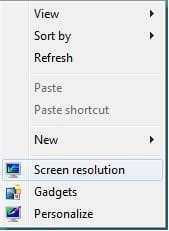
EXAMPLE: "Screen resolution" in Desktop Context Menu
NOTE: This is when you right click or press and hold on a empty area of the desktop.
OPTION ONE
To Remove "Screen resolution" from Desktop Context Menu
Note
If you have already previously done steps 1-4, then you can just skip them and only have to do step 5 below instead.
2. If prompted by UAC, then click on Yes.
3. In regedit, go to the registry key location below, take ownership of set permissions to Allow your user account Full control of the Display registry key. (see screenshot below)
NOTE: For Windows 8, see also: Take Ownership of a File, Folder, Drive, or Registry Key in Windows 8 HKEY_CLASSES_ROOT\DesktopBackground\Shell\Display
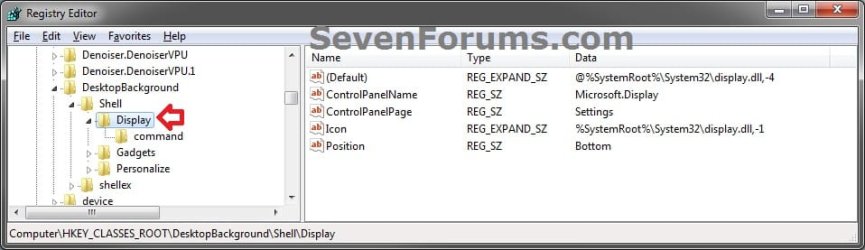
4. In regedit, go to the registry key location below, take ownership of set permissions to Allow your user account Full control of the command registry key. (see screenshot below)
NOTE: For Windows 8, see also: Take Ownership of a File, Folder, Drive, or Registry Key in Windows 8 HKEY_CLASSES_ROOT\DesktopBackground\Shell\Display\command
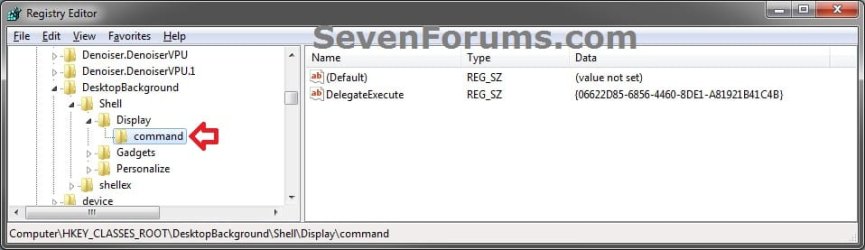
5. Click/tap on the Download button below to download the .reg file below.
NOTE: This will delete the Display and command registry keys above for you automatically instead of you having to manually doing it. Remove_Screen-resolution_from_Desktop_Context_Menu.reg
Download
A) Click/tap on Save, and save the .reg file to the desktop.
B) Double click/tap on the downloaded .reg file to merge it.
C) If prompted, click/tap on Run, Yes (UAC), Yes, and OK.
D) When finished, you can delete the downloaded .reg file if you like.
OPTION TWO
To Add/Restore "Screen resolution" to Desktop Context Menu
NOTE: This will restore the default Display and command registry keys and their entries that were deleted from above. Add_Screen-resolution_to_Desktop_Context_Menu.reg
Download
2. Click/tap on Save, and save the .reg file to the desktop.
3. Double click/tap on the downloaded .reg file to merge it.
4. If prompted, click/tap on Run, Yes (UAC), Yes, and OK.
5. When finished, you can delete the downloaded .reg file if you like.
That's it,
Shawn
Related Tutorials
- How to Change the Screen Resolution of Displays in Windows 8
- How to Change the Screen Resolution in Windows 7
- How to Create a "Screen Resolution" Shortcut in Windows
- Add or Remove "Display" from Desktop Context Menu in Windows 7 and Windows 8
- Enable or Disable Changing "DPI" and "Screen Resolution" Display Settings in Windows 7 and Windows 8
Attachments
Last edited:


