
Screen Saver Settings Shortcut - Create

How to Create a "Screen Saver Settings" Shortcut in Vista, Windows 7, and Windows 8

   Information
This tutorial will show you how to create or download a Screen Saver Settings shortcut for Vista, Windows 7, and Windows 8.


EXAMPLE: Screen Saver Settings
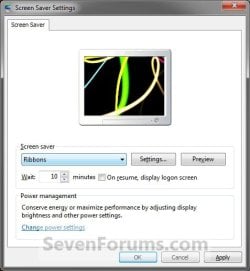
Screen_Saver_Settings.jpg


OPTION ONE

To Download a "Screen Saver Settings" Shortcut


1. Click/tap on the Download button below to download the file below.
Screen_Saver_Settings.zip

Download


2. Save the .zip file to your desktop.

3. Open the .zip file and extract the Screen Saver Settings shortcut to the desktop.

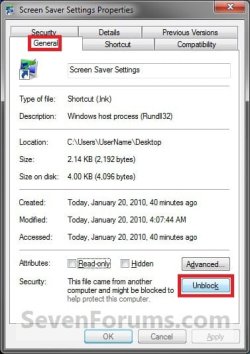
4. Right click on the Screen Saver Settings shortcut, and click/tap on Properties, General tab, and on the Unblock button. (See screenshot below)
NOTE: If you do not have a Unblock button under the General tab, then the shortcut is already unblocked and you can continue on to step 5.
Unblock.jpg
5. In Vista or Windows 7, you can now Pin to Taskbar (Windows 7) or Pin to Start Menu, add to Quick Launch, assign a keyboard shortcut to it, or move this shortcut to where you like for easy use.

6. In Windows 8, you can Pin to Taskbar on desktop, Pin to Start screen, add to Quick Launch, assign a keyboard shortcut to it, or move this shortcut to where you like for easy use.

7. When finished, you can delete the downloaded .zip file if you like.


OPTION TWO

To Manually Create a "Screen Saver Settings" Shortcut


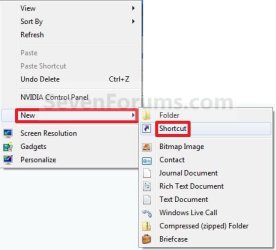
1. Right click or press and hold on an empty area on desktop, and click/tap on New and Shortcut. (See screenshot below)
Right_Click.jpg
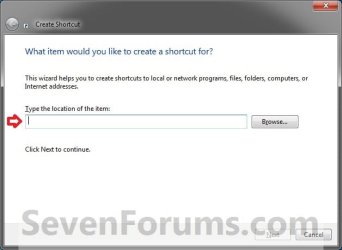
2. Type the command below into the location area, and click/tap on the Next button. (See screenshot below)
rundll32.exe shell32.dll,Control_RunDLL desk.cpl,,1
Step1.jpg
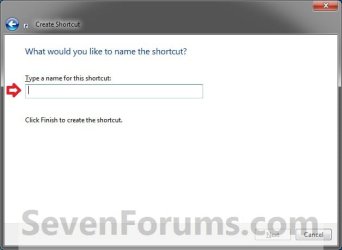
3. Type Screen Saver Settings for the name, and click/tap on the Finish button. (See screenshot below)
NOTE: You can name this anything you would like though.
Step2.jpg
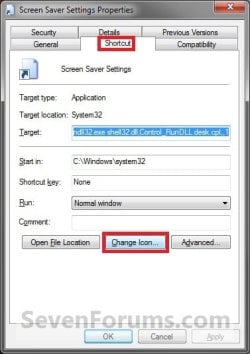
4. Right click on the new Screen Saver Settings shortcut on the Desktop, and click/tap on Properties.

5. Click/tap on the Shortcut tab, then click/tap on the Change Icon button. (See screenshot below)
Step4.jpg
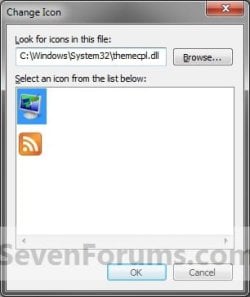
6. In the line under "Look for icons in this file", type the location below, and press Enter. (See screenshot below)
%windir%\System32\themecpl.dll
Step5.jpg
7. Select the icon highlighted in blue above, and click/tap on OK. (See screenshot above)
NOTE: You can use any icon that you would like instead though.

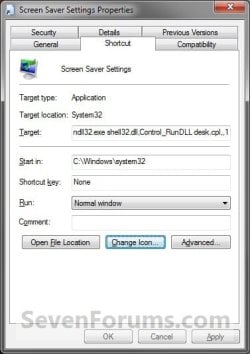
8. Click/tap on OK. (See screenshot below)
Step6.jpg
9. In Vista or Windows 7, you can now Pin to Taskbar (Windows 7) or Pin to Start Menu, add to Quick Launch, assign a keyboard shortcut to it, or move this shortcut to where you like for easy use.

10. In Windows 8, you can Pin to Taskbar on desktop, Pin to Start screen, add to Quick Launch, assign a keyboard shortcut to it, or move this shortcut to where you like for easy use.
That's it,
Shawn


Attachments

Last edited:
Thank you, thank you, thank you!!! I've been searching online for HOURS to find a way to add a taskbar shortcut for my screensaver settings, as I'm constantly adjusting the "kick-in" time between 1 minute when I'm away and 15 minutes when I'm present. This worked beautifully and now I can get to this screen in one click vs. four (show desktop+right click+personalise+screensaver)!

For any Vista users out there- I'm using Vista Home Premium 32 bit and these instructions worked flawlessly. I guess even though Vista has gotten trashed, Windows 7 is basically an upgraded Vista, as all the command prompts were identical.
 

My Computer

OS
Vista Home premium 32 bit
You're most welcome Ddeferrari, and welcome to Seven Forums. :)
 

My Computer

Computer type
PC/Desktop
Computer Manufacturer/Model Number
Self built custom
OS
64-bit Windows 11 Pro for Workstations
CPU
Intel i7-8700K OC'd to 5 GHz
Motherboard
ASUS ROG Maximus XI Formula Z390
Memory
64 GB (4x16GB) G.SKILL TridentZ RGB DDR4 3600 MHz
Graphics Card(s)
ASUS ROG-STRIX-GTX1080TI-O11G-GAMING
Sound Card
Integrated
Monitor(s) Displays
2 x Samsung Odyssey G7 27"
Screen Resolution
2560x1440
Hard Drives
1TB Samsung 990 PRO M.2,
4TB Samsung 990 PRO PRO M.2,
TerraMaster F8 SSD Plus NAS
PSU
Seasonic Prime Titanium 850W
Case
Thermaltake Core P3
Cooling
Corsair Hydro H115i
Keyboard
Logitech wireless K800
Mouse
Logitech MX Master 4
Internet Speed
2 Gb/s Download and 100 Mb/s Upload
Antivirus
Malwarebyte Anti-Malware Premium
Browser
Google Chrome
Other Info
Logitech Z625 speaker system,
Logitech BRIO 4K Pro webcam,
HP Color LaserJet Pro MFP M477fdn,
APC SMART-UPS RT 1000 XL - SURT1000XLI,
Galaxy S23 Plus phone
Another good one Shawn, keep them coming. :cool:
 

My Computer

Computer Manufacturer/Model Number
Samsung Chronos 7
OS
windows 7 Pro 64Bit
CPU
2.2 GHz Intel Core i7-2675QM
Memory
8GB
Graphics Card(s)
Intel HD Graphics 3000/Radeon HD 6490M
Sound Card
Realtek High Definition Audio
Monitor(s) Displays
Built in LCD and external Dell 22 inch LCD
Screen Resolution
1600x900
Hard Drives
1 TB HDD
Internet Speed
20 MBPS Down 1500 KBPS Up
Thanks for the tip:)
 

My Computer

OS
Windows 7 64 bit Pro
Sound Card
On board
Monitor(s) Displays
Dual Monitor: Dell U2311H 23" monitor, LG M227WD
Screen Resolution
1920x1080x2 (landscape)
Keyboard
Microsoft Ergonomic Keyboard 4000
Mouse
Logitech M 705
Internet Speed
25mb/1mb
Other Info
Printer: HP F4180
Speakers: Creative Gigaworks T20 Series II
Do you know where to find the screen saver icon that is used in the bottom right hand corner of the Control Panel - Personalization window? It looks like an icon with a computer monitor with a bunch of bubbles floating over it. That particular icon is not in the %windir%\System32\themecpl.dll or %systemroot%\System32\desk.cpl
 

Attachments

  • screen_saver_icon.png
    screen_saver_icon.png
    5.5 KB · Views: 6,681

My Computer

Computer type
PC/Desktop
Computer Manufacturer/Model Number
custom build
OS
Windows 7 Professional x64
CPU
AMD Phenom II X6 1090T 3.20GHz CPU
Motherboard
Gigabyte GA-890FXA-UD7 AM3 rev2.0
Memory
8.0GB DDR3 1333MHz (PC3-10666) SDRAM
Graphics Card(s)
2x XFX Radeon HD 5870 1GB CrossFire
Monitor(s) Displays
Samsung 2253LW Monitor
Hard Drives
Corsair Force GT 240GB SATA 3 6.0Gb/s SSD
PSU
Thermaltake TR2 TRX-1200M 1200W PSU
Case
CoolerMaster HAF 932 ATX Full Tower
Cooling
XIGMATEK Aegir SD128264 CPU Cooler
Keyboard
Microsoft Sculpt Ergonomic Keyboard
Mouse
Logitech M570 Wireless Trackball
Internet Speed
AT&T U-verse Max Turbo (30Mb/s down, 2Mb/s up)
Antivirus
ESET Smart Security
Browser
Google Chrome
Other Info
ASUS RT-AC66U Router
Hello Matt, :)

You can get it from the system file below.

C:\Windows\System32\PhotoScreensaver.scr
 

My Computer

Computer type
PC/Desktop
Computer Manufacturer/Model Number
Self built custom
OS
64-bit Windows 11 Pro for Workstations
CPU
Intel i7-8700K OC'd to 5 GHz
Motherboard
ASUS ROG Maximus XI Formula Z390
Memory
64 GB (4x16GB) G.SKILL TridentZ RGB DDR4 3600 MHz
Graphics Card(s)
ASUS ROG-STRIX-GTX1080TI-O11G-GAMING
Sound Card
Integrated
Monitor(s) Displays
2 x Samsung Odyssey G7 27"
Screen Resolution
2560x1440
Hard Drives
1TB Samsung 990 PRO M.2,
4TB Samsung 990 PRO PRO M.2,
TerraMaster F8 SSD Plus NAS
PSU
Seasonic Prime Titanium 850W
Case
Thermaltake Core P3
Cooling
Corsair Hydro H115i
Keyboard
Logitech wireless K800
Mouse
Logitech MX Master 4
Internet Speed
2 Gb/s Download and 100 Mb/s Upload
Antivirus
Malwarebyte Anti-Malware Premium
Browser
Google Chrome
Other Info
Logitech Z625 speaker system,
Logitech BRIO 4K Pro webcam,
HP Color LaserJet Pro MFP M477fdn,
APC SMART-UPS RT 1000 XL - SURT1000XLI,
Galaxy S23 Plus phone
Back
Top