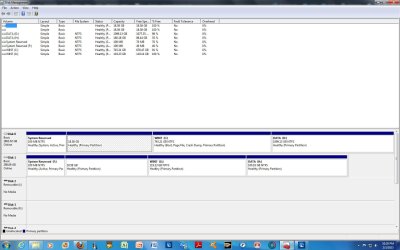
Secondary drive is system reserved - how to open?

rfxobrien

New member
Local time
11:07 AM
Messages
7
My PC crashed, sent it back to ASUS, I think they reformatted the HD (they won't say!). Upon return I did a reinstall with the backup disks, BUT... connected the secondary hard drive before the reinstall. Big mistake, now that drive is "system reserved," and I can't access the files on it. I have to have those files - this was my backup. Any suggestions?
 

My Computer My Computer

At a glance

Windows 7 Home Premium 64-bitIntel Core i5-2320 CPU @ 3.00GHz12.0 GBNVidia GeForce GTS 250
Computer Manufacturer/Model Number
ASUS / CM6850
OS
Windows 7 Home Premium 64-bit
CPU
Intel Core i5-2320 CPU @ 3.00GHz
Memory
12.0 GB
Graphics Card(s)
NVidia GeForce GTS 250
Post a screen shot of a full screen Disk Management window.

To open Disk Management, press Windows key+r, type diskmgmt.msc and press Enter or click GO. Make it full screen.

How to Use the Snipping Tool in Vista - Vista Forums (says it's for Vista but also works with Win 7).

Use the Browse and Attach This File buttons below the text input area while using the Full editor to upload and insert here.
 

My Computer My Computer

At a glance

Windows 10 Pro X64Intel Quad Core i7-4770 @ 3.4Ghz16.0GB PC3-12800 DDR3 SDRAM 1600 MHzIntel Integrated HD Graphics
Computer type
PC/Desktop
Computer Manufacturer/Model Number
Lenovo IdeaCenter 450
OS
Windows 10 Pro X64
CPU
Intel Quad Core i7-4770 @ 3.4Ghz
Memory
16.0GB PC3-12800 DDR3 SDRAM 1600 MHz
Graphics Card(s)
Intel Integrated HD Graphics
Sound Card
Realtek HD Audio
Monitor(s) Displays
HP 22" LCD
Screen Resolution
1680 x 1050
Hard Drives
250GB Samsung EVO SATA-3 SSD
2TB Seagate ST2000DM001 SATA-2
1.5TB Seagate ST3150041AS SATA
Keyboard
Dell USB
Mouse
Lenovo USB
Internet Speed
Cable via Road Runner 3MB Upload, 30MB Download
Antivirus
Windows Defender, MBAM Pro, MBAE
Browser
Seamonkey
Other Info
UEFI/GPT
PLDS DVD-RW DH16AERSH

My Computer My Computer

At a glance

Windows 10 Pro x64Intel Core i7 6700KGSkill TridentZ RGB 16GB 3600 16-16-16-36EVGA GTX 980 Ti SC x2
Computer type
PC/Desktop
Computer Manufacturer/Model Number
Skylake Special #666
OS
Windows 10 Pro x64
CPU
Intel Core i7 6700K
Motherboard
Asus Sabertooth Z170 Mark 1
Memory
GSkill TridentZ RGB 16GB 3600 16-16-16-36
Graphics Card(s)
EVGA GTX 980 Ti SC x2
Sound Card
Realtek High Definition
Monitor(s) Displays
AOC G2460PG
Screen Resolution
1920 x 1080 144Hz
Hard Drives
Samsung 860 Pro 256GB, Seagate Barracuda 4TB x2
PSU
EVGA 1000 P2, EVGA White Custom Braided Cables
Case
Corsair Vengeance C70 Gunmetal Black
Cooling
Corsair H100i v2, Corsair ML120 x2, Thermal Grizzly Kryonaut
Keyboard
Logitech G910 Orion Spectrum
Mouse
Logitech G700s
Internet Speed
Verizon Fios Quantum Gateway 75/75
Antivirus
Windows Defender, Malwarebytes Free 3.8.3
Browser
Chrome
Other Info
Corsair SP120 x4, LG Blu-ray Drive, Durabrand HT-395 100 Watt Dolby Digital Amp, Corsair H2100 Wireless 7.1 Headset
Here's the screen shot/I tried that

Screen shot attached. Thanks!

I tried installing it on another computer, but "system reserved" migrated right along with it.
 

Attachments

  • diskmgmt screen.jpg
    diskmgmt screen.jpg
    155.4 KB · Views: 25

My Computer My Computer

At a glance

Windows 7 Home Premium 64-bitIntel Core i5-2320 CPU @ 3.00GHz12.0 GBNVidia GeForce GTS 250
Computer Manufacturer/Model Number
ASUS / CM6850
OS
Windows 7 Home Premium 64-bit
CPU
Intel Core i5-2320 CPU @ 3.00GHz
Memory
12.0 GB
Graphics Card(s)
NVidia GeForce GTS 250
Your C drive in the screenshot is being booted by the System Reserved partition on the same HD as signified by the System Active flags.

If that's the Win7 you want to keep then you only need to move the data off of Disk1 onto Disk0 and then wipe Disk1 with Diskpart Clean Command to get it cleanest for repartitioning in Disk Mgmt.

Be aware that running Factory Recovery is an inferior install larded with sponsored bloatware and useless duplicate utilities that throttle Win7 native performance. You'd be much better off following the steps to get a perfect Clean Reinstall - Factory OEM Windows 7.

At the minimum I'd Clean Up Factory Bloatware
 
Your Data is still there on H, have you been able to access it yet ?
 

My Computer My Computer

At a glance

Windows 10 Pro x64Intel Core i7 6700KGSkill TridentZ RGB 16GB 3600 16-16-16-36EVGA GTX 980 Ti SC x2
Computer type
PC/Desktop
Computer Manufacturer/Model Number
Skylake Special #666
OS
Windows 10 Pro x64
CPU
Intel Core i7 6700K
Motherboard
Asus Sabertooth Z170 Mark 1
Memory
GSkill TridentZ RGB 16GB 3600 16-16-16-36
Graphics Card(s)
EVGA GTX 980 Ti SC x2
Sound Card
Realtek High Definition
Monitor(s) Displays
AOC G2460PG
Screen Resolution
1920 x 1080 144Hz
Hard Drives
Samsung 860 Pro 256GB, Seagate Barracuda 4TB x2
PSU
EVGA 1000 P2, EVGA White Custom Braided Cables
Case
Corsair Vengeance C70 Gunmetal Black
Cooling
Corsair H100i v2, Corsair ML120 x2, Thermal Grizzly Kryonaut
Keyboard
Logitech G910 Orion Spectrum
Mouse
Logitech G700s
Internet Speed
Verizon Fios Quantum Gateway 75/75
Antivirus
Windows Defender, Malwarebytes Free 3.8.3
Browser
Chrome
Other Info
Corsair SP120 x4, LG Blu-ray Drive, Durabrand HT-395 100 Watt Dolby Digital Amp, Corsair H2100 Wireless 7.1 Headset
No access to files on reserved drive

No. I know they're there, but I just can't access them. You'd think there would be a way to just "unlock" the drive without losing the data that's on it.
 

My Computer My Computer

At a glance

Windows 7 Home Premium 64-bitIntel Core i5-2320 CPU @ 3.00GHz12.0 GBNVidia GeForce GTS 250
Computer Manufacturer/Model Number
ASUS / CM6850
OS
Windows 7 Home Premium 64-bit
CPU
Intel Core i5-2320 CPU @ 3.00GHz
Memory
12.0 GB
Graphics Card(s)
NVidia GeForce GTS 250
"System Reserved" is a partition created by Win7 to boot itself, not an error given when files failed to be accessed.

Go to Start>Computer>H drive. What is the problem with copying your data over to C or D by dragging it to the correct folder on the left-hand Explorer bar?

Please report back any actual error message you're getting.

If necessary use the Take Ownership Shortcut
 
Thanks for the comment. BUT - the problem is that I can't even see the files, no less access or move them. The only reason I suspect they are still on the drive is that, when I right click on the F drive (the drive in question) and click on properties, it shows that 54 MB are used and 46 MB are free, which is how it was before this whole mess started.

To recap: I had already connected my secondary drive when I ran system restore on this PC; consequently, Windows 7 made that entire drive "system reserved," and I am no longer able to access the files there - they are hidden. If I could just un-hide them then I could move them to my primary hard drive, which works just fine, and then reformat the secondary drive. I just don't want to reformat that drive until I get my files off it.
 

My Computer My Computer

At a glance

Windows 7 Home Premium 64-bitIntel Core i5-2320 CPU @ 3.00GHz12.0 GBNVidia GeForce GTS 250
Computer Manufacturer/Model Number
ASUS / CM6850
OS
Windows 7 Home Premium 64-bit
CPU
Intel Core i5-2320 CPU @ 3.00GHz
Memory
12.0 GB
Graphics Card(s)
NVidia GeForce GTS 250
Why do you keep referring to the HD becoming "System Reserved?" We can see in Disk Mgmt that System Reserved is just one partition which was previously booting that HD, not the whole drive. It's like saying your car has become it's tire.

Because the HD shows up in Disk Mgmt with each partition correctly assigned a letter it should also show up in Explorer when you click on Computer or rightclick on the partition in Disk Mgmt to Explore. If not run a Disk Check or Partition Wizard Check File System.

As a last resort follow the suggestions AddRAM made to Copy & Paste - in Windows Recovery Console, or use Paragon Rescue Kit Free Edition 11.0 Free to copy files to the other HD.
 
Well, it appears that the entire drive has become "system reserved": it is described as such in Explorer [System Reserved (F:]. When I click on what I believe to be the letter corresponding to that drive, it denies access to the contents of that drive. In Explorer I searched for any doc, mp4 or ppt files in the entire system, hoping that maybe I had overlooked a location for them in one of the myriad drives that have started appearing, and the only ones that showed up are on the C drive. So I'm pretty confident that this secondary drive has been partitioned and is not allowing access to the files therein, and that this difficulty is somehow linked to the "system reserved" status of the drive.

I am also fairly confident (or maybe just hopeful) that the files still exist on that drive, I just wish I could get to them. I'm hesitant to do anything that might inadvertently reformat the drive before I get my files off it.

Thanks!
 
Last edited:

My Computer My Computer

At a glance

Windows 7 Home Premium 64-bitIntel Core i5-2320 CPU @ 3.00GHz12.0 GBNVidia GeForce GTS 250
Computer Manufacturer/Model Number
ASUS / CM6850
OS
Windows 7 Home Premium 64-bit
CPU
Intel Core i5-2320 CPU @ 3.00GHz
Memory
12.0 GB
Graphics Card(s)
NVidia GeForce GTS 250
Did you come here to tell us what the problem is, or do you want to actually listen and learn from those who've dealt with these issues countless thousands of times before?

Judge by the Disk Mgmt output which shows all partitions intact. If only F is showing up in Explorer from that HD then run the Disk Check by either method I posted, or both. F is also not accessible because its files are System files that are hidden in Control Panel>Folder Options>View.

I've now given you a good dozen things to try with no evidence you've tried a single one because you're too busy telling us what can't be done. When you're ready to get your files start at the top of the thread and work through the steps given. If by slight chance they're still not accessible we have other methods when you complete those.
 
I apologize. I'll go over the thread again, this time more carefully, and let you know what happens.
 

My Computer My Computer

At a glance

Windows 7 Home Premium 64-bitIntel Core i5-2320 CPU @ 3.00GHz12.0 GBNVidia GeForce GTS 250
Computer Manufacturer/Model Number
ASUS / CM6850
OS
Windows 7 Home Premium 64-bit
CPU
Intel Core i5-2320 CPU @ 3.00GHz
Memory
12.0 GB
Graphics Card(s)
NVidia GeForce GTS 250
Stupid error on my part

I tried all the solutions suggested, but as it turns out there was nothing there to work with.

This has all been for naught - I can see now (via Properties) that the drive must have been formatted during system recovery - the only files on it are system files. Obviously I was wrong to believe that all my backup files were on the drive (I read MB as GB - I was hoping when I should have been looking).

My apologies.
 

My Computer My Computer

At a glance

Windows 7 Home Premium 64-bitIntel Core i5-2320 CPU @ 3.00GHz12.0 GBNVidia GeForce GTS 250
Computer Manufacturer/Model Number
ASUS / CM6850
OS
Windows 7 Home Premium 64-bit
CPU
Intel Core i5-2320 CPU @ 3.00GHz
Memory
12.0 GB
Graphics Card(s)
NVidia GeForce GTS 250
There are no files on F, your files are on H, There is no reason to explore F. According to that pic, there are 72 Gb of data on H
 

My Computer My Computer

At a glance

Windows 10 Pro x64Intel Core i7 6700KGSkill TridentZ RGB 16GB 3600 16-16-16-36EVGA GTX 980 Ti SC x2
Computer type
PC/Desktop
Computer Manufacturer/Model Number
Skylake Special #666
OS
Windows 10 Pro x64
CPU
Intel Core i7 6700K
Motherboard
Asus Sabertooth Z170 Mark 1
Memory
GSkill TridentZ RGB 16GB 3600 16-16-16-36
Graphics Card(s)
EVGA GTX 980 Ti SC x2
Sound Card
Realtek High Definition
Monitor(s) Displays
AOC G2460PG
Screen Resolution
1920 x 1080 144Hz
Hard Drives
Samsung 860 Pro 256GB, Seagate Barracuda 4TB x2
PSU
EVGA 1000 P2, EVGA White Custom Braided Cables
Case
Corsair Vengeance C70 Gunmetal Black
Cooling
Corsair H100i v2, Corsair ML120 x2, Thermal Grizzly Kryonaut
Keyboard
Logitech G910 Orion Spectrum
Mouse
Logitech G700s
Internet Speed
Verizon Fios Quantum Gateway 75/75
Antivirus
Windows Defender, Malwarebytes Free 3.8.3
Browser
Chrome
Other Info
Corsair SP120 x4, LG Blu-ray Drive, Durabrand HT-395 100 Watt Dolby Digital Amp, Corsair H2100 Wireless 7.1 Headset
What do you mean there's nothing in the steps given to help you? You've reported back nothing that's been done. Why would you ask for help here, ignore it then keep insisting there are no files on the HD when we're looking right at them in Disk Mgmt? Is this some kind of joke?

What was shown when you rightclick H in Disk Mgmt to Explore?

What resulted from the Partition Wizard file system check and HD surface scan? You were given illustrated tutorials how to run these.

Why do you keep saying there's nothing on the HD? What is on the HD is displayed authoritatively by the Disk Mgmt screenshot. You posted it - have you even looked at it?

Just because the drives aren't showing in Disk Mgmt doesn't mean that they aren't there. DIsk Mgmt says they are.

Install Partition Wizard to confirm the Disk Mgmt findings. Then in PW rightclick on each of the drives missing in Computer to run Check File System. Click on the HD to run HD Surface test with both boxes checked. I gave you tutorials to run these. Why didnt you?

Even if none of these yield the files you can still use a rescue method since Disk Mgmt shows the files are there: Copy & Paste - in Windows Recovery Console
 
Back
Top