
Two System Reserved 100MB partitions

SidharthaXx

New member
Local time
2:48 AM
Messages
3
Hi All,

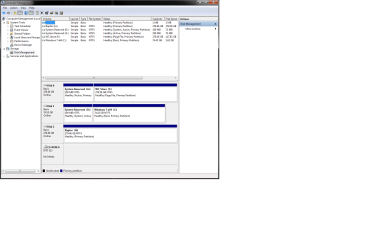
Somehow I have ended up with two system reserved partitions. I enclose a screenshot of my disk management screen.

Disk 1 is my primary Win 7 boot drive... Because of this I am assuming that D:/ which is the system reserved partition on that drive is needed.

However, disk 0 is just a backup I disk I use for data, music, videos etc..etc.. but somehow it seems to also have acquired a 100MB system partition (may be due to the fact that I used to have a dual boot linux setup).

Anyway, I am thinking that I can probably delete G:/ the 100MB partition on that drive. The only thing that worries me is that it's listed as 'active' as is D:/...

Also, should my main C:/ be made 'active'.

Help appreciated. Thanks.
 

Attachments
  • Untitled.png
    Untitled.png
    35.5 KB · Views: 71

My Computer

OS
Windows 7 x64 Pro
Welcome to the Seven Forums, SidharthaXx.

To me the Disk 1 System Reserved Partition appears to be the correct one because it is linked with the System Drive. But wait till you get some more expert opinions before tinkering.

As C:\ is working properly without being active I think it should be left alone.
 

My Computer

Computer Manufacturer/Model Number
Custom Built
OS
Windows 7 Pro with SP1 32bit
Motherboard
Intel D845GVS1 X86-based PC
Memory
2 gigs of RAM
Graphics Card(s)
Intel(R) 82845G/GL/GE/PE/GV Graphics Controller
Sound Card
Realtek AC'97 Audio
Monitor(s) Displays
Samsung SyncMaster 931BF Black 19" LCD Monitor
Screen Resolution
1280X960
Hard Drives
1. SAMSUNG SP0822N ATA Device ~ 80 GigaBytes

2. Seagate FreeAgent Go USB Device ~ 500 GigaBytes
Keyboard
COMPAQ Standard PS/2 Keyboard
Mouse
iBall Laser Precise Speedster
Internet Speed
4 mb/sec
1. You cannot make C active because the bootmgr is sitting in one of those 100MB partitions.

2. Question is in which of the 100MB partitions and how did you end up with 2 system partitions. My guess is that the bootmgr is in the system partition of Disk0. You can test that by disconnecting Disk0 and see whether the system still boots. You can also check in the BIOS which disk is boot priority 1.

3. An easy fix would be to copy the bootmgr to C. Then you can forget both 100MB partitions.
 

My Computer

Computer Manufacturer/Model Number
HP, Dell, Gateway, Toshiba - 4 laptops and 2 desktops
OS
Vista, Windows7, Mint Mate, Zorin, Windows 8
CPU
from 1.6GHz Duo to i7
Monitor(s) Displays
2x HP w2207
Hard Drives
5x HDD, 7x SSD, 12x Externals
Keyboard
with trackball - no mices
Mouse
Trackball mice
Internet Speed
DSL 6000
Thanks for your replies.

Just to add how I got here... actually I've only just noticed this situation because I removed the grub loader from a dual boot scenario I was running with Linux. Decided to run Linux on a vritual machine inside Win 7 instead.

Anyway, Ok here is the current situation. If I disable all HDD's in the bios except Disk 1, then my windows 7 boots fine...
However, if I enable Disk 0 then my system won't boot and I go through to a grub command line prompt.

I hope this information helps. I mean it points to me that I should remove G:/ but I'm hoping someone more expert than me can verify.

Many Thanks
 

My Computer

OS
Windows 7 x64 Pro
Then wanchoo was right and I was wrong. Apparently the bootmgr is sitting in the 100MB partition of Disk1. The confusion apparently came from the Linux deal.

As long as Disk1 is first in the boot priority, nothing bad can really happen. But if it bothers you, you can get rid of the 100MB partition on Disk0. For that you probably need the bootable CD of Partition Wizard.

Free Partition Magic alternative, partition manager freeware, partition magic server, partition magic Windows 7 and free Partition Manager software for Windows 7/8/VISTA/XP/2000 and Windows Server 2003/2008/2000.
 

My Computer

Computer Manufacturer/Model Number
HP, Dell, Gateway, Toshiba - 4 laptops and 2 desktops
OS
Vista, Windows7, Mint Mate, Zorin, Windows 8
CPU
from 1.6GHz Duo to i7
Monitor(s) Displays
2x HP w2207
Hard Drives
5x HDD, 7x SSD, 12x Externals
Keyboard
with trackball - no mices
Mouse
Trackball mice
Internet Speed
DSL 6000
Thanks.

Ohh, so I can't just remove it with the Win 7 disk management tool?
 

My Computer

OS
Windows 7 x64 Pro
You can try. But I don't think it will work. The option may be greyed out.
 

My Computer

Computer Manufacturer/Model Number
HP, Dell, Gateway, Toshiba - 4 laptops and 2 desktops
OS
Vista, Windows7, Mint Mate, Zorin, Windows 8
CPU
from 1.6GHz Duo to i7
Monitor(s) Displays
2x HP w2207
Hard Drives
5x HDD, 7x SSD, 12x Externals
Keyboard
with trackball - no mices
Mouse
Trackball mice
Internet Speed
DSL 6000
We know that DISK1 contains the Active System boot files since it holds the System flag signifying this.

For that reason you can mark System Reserved on Disk0 Inactive and delete it:
Partition - Mark as Inactive - Windows 7 Forums
Partition or Volume - Delete

I would prefer having the Win7 HD as DISK0 so that future repairs won't possibly derail the boot files to DISK0 - especially if it incorrectly has an Active partition - so you can also accomplish that by swapping its cable with DISK1. Make sure the Win7 HD remains set first to boot in BIOS setup.
 
Back
Top