
How to Add or Remove "Send to" from Context Menu
Information
This will show you how to add or remove "Send to" from the context menu of all users in Windows 7 and Windows 8.
You must be logged in as an administrator to be able to do the steps in this tutorial.
You must be logged in as an administrator to be able to do the steps in this tutorial.
EXAMPLE: "Send to" Context Menu
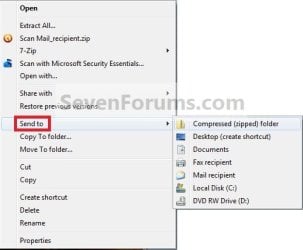
Here's How:
1. To Add "Send to" to Context Menu
NOTE: This is the default setting.
A) Click on the Download button below to download the file below.
Add_Send-To_to_Context_Menu.reg
Download
B) Go to step 3.
2. To Remove "Send to" from Context Menu
A) Click on the Download button below to download the file below.
Remove_Send-To_from_Context_Menu.reg
Download
B) Go to step 3.
3. Save the .reg file to the desktop.
4. Right click on the downloaded .reg file and click on Merge.
5. When prompted, click on Run, Yes (UAC-Windows 7/8) or Continue (UAC-Vista), Yes, and OK to approve merging the .reg file.
6. You can now delete the downloaded .reg file if you like.
That's it
Shawn
Related Tutorials
- How to Add or Remove "Send To" from the Context Menu in Vista
- How to Remove and Restore Default Windows 7 "Send to" Context Menu Items
- How to Customize the Send To Context Menu in Vista, Windows 7, and Windows 8
- How to Remove or Show Drives in the Vista and Windows 7 "Send to" Context Menu
- How to Add Quick Launch to the "Send to" Context Menu in Vista, Windows 7, and Windows 8
- How to Add Google Drive to "Send to" Context Menu in Windows
Attachments
Last edited:

