Serious problem: A disk read error occurred

I would proceed with file retrieval using the two methods posted first, as running the Drive Fitness test always risks data loss on a failing or ailing HD when it moves data off to repair.

I have not had data loss in the dozen or so times HD repair extended scan repaired failing drives, however I have had a few suffer total failure during these repairs.

Your HD diagnostics/repair regimen should also include http://www.sevenforums.com/tutorials/433-disk-check.html run from System Recovery Options' Command Line: http://www.sevenforums.com/tutorials/668-system-recovery-options.html

Alright, will continue with the file retrieving process tomorrow (it's in the middle of the night over here). Can you elaborate on how to use the Rescue Kit?
After that I will try to repair the HD. Thanks for the advice :)
 

My Computer

OS
Windows 7
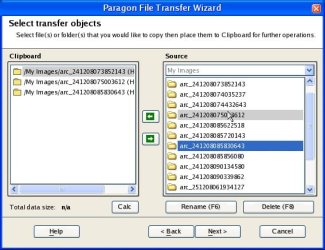
Boot into Rescue CD, choose File Transfer Wizard, then copy out your files to DVD, external, or another HD.
 

Attachments

  • rk-4_File_Transfer_Wizard.jpg
    rk-4_File_Transfer_Wizard.jpg
    75.2 KB · Views: 11
Boot into Rescue CD, choose File Transfer Wizard, then copy out your files to DVD, external, or another HD.

Thanks. I just downloaded the Rescue Kit and it's an exe file. Do I open it or should I just burn/write image to a cd using Infra Recorder?
 

My Computer

OS
Windows 7
Run the .exe as Admin, do the quick free registration.

It will unpack the ISO to burn to OD at slowest speed, or browse to saved file with ImgBurn to burn to CD at 4x speed with Verify.
 
Run the .exe as Admin, do the quick free registration.

It will unpack the ISO to burn to OD at slowest speed, or browse to saved file with ImgBurn to burn to CD at 4x speed with Verify.

I'm sitting at a computer with Windows XP. How do I run it as administrator? When I right click on the file, it just says "Run as...".

Why do I have to burn it exactly at 4x speed with Verify?
 

My Computer

OS
Windows 7
I'd just use the burner built into the .exe file application, set to Slowest speed.

No need to Run As Admin in XP.
 
I chose normal mode and then File Transfer.

Under the source column the following appeared:

/(Root dir)
/MyComputer (my computer)
/mnt (Mounted resources)
/mnt/disk (Local disks)
/media (Removable disks)
SCSI CD/DVD (HL-DT-S DVDRAM GT 31N)
C:\ (NTFS, 0 on Disk 0) (PQSERVICE)
D:\ (NTFS, 1 on Disk 0) (UFSD disk - SYSTEM)
E:\ (NTFS. 2 on Disk 0) (UFSD disk - Acer)

What do I choose now?


EDIT:

This is silly. I chose the last one, but I can't select the "Users" folder, because every time I scroll down, the bar goes up again, making it completely impossible to choose the folder where all my files are.
What can I do to solve this problem?
 

My Computer

OS
Windows 7
Try using the down arrow then Enter instead of mouse which may lack functionality on booted CD.

If this fails, try the other method using the WIn7 REpair CD:
http://www.sevenforums.com/tutorials/2083-system-repair-disc-create.html
http://www.sevenforums.com/tutorials/93347-copy-paste-windows-recovery-console.html

I managed to get it to work after a while, so all my files have safely been copied to my external hard drive, which I'm of course extremely delighted with :)

A minor problem seems to have occurred though. After I had copied all my files, I used Acer's e-recovery to delete the entire harddrive and restore it to default.
It worked perfectly and my laptop is basically as good as new.... BUT every time I turn it on, a lot of text appears on the screen.

It says something about a disk file check/run and that it will start running the check/run if I don't press a button within 10 seconds.

The first text is a really long (file?) name, where the word "volume" is included.


Lower down it says:

File system type: NTFS

Disk unit name: System Reserved.


What is it, and how do I get rid of it? It's quite annoying that it turns up every time I turn my laptop on. I've tried letting it run the check and after it's done, my laptop basically freezes.

I should probably mention that the two sentences above written in italics have been translated by me, as English is not my first language so the text on my laptop is in my native language. Therefore, it might have been written differently in "English" computers.
 

My Computer

OS
Windows 7

My Computer

Computer type
PC/Desktop
Computer Manufacturer/Model Number
Home Built - Jan 2013
OS
Windows 7 64 Bit Home Premium SP1
CPU
i7-3820
Motherboard
Asus P9X79-PRO - Bios 4608
Memory
GSkill F3-14900CL9Q - 16GB
Graphics Card(s)
EVGA GeForce GTX660 - Driver 352.86
Sound Card
On board Realtek ALC898
Monitor(s) Displays
Acer S271HL
Screen Resolution
1920 x 1080
Hard Drives
#1- Samsung 840 Pro Series
#2- Western Digital WD1002FAEX Sata3 Black
#3- Western Digital WD1002FAEX Sata3 Black
PSU
Corsair CMPSU-850TX-V2 - 850 watt (by Seasonic)
Case
Corsair Obsidian 550D
Cooling
Standard 3 120mm case fans, Cooler Master Hyper 212 EVO
Keyboard
MS KC-0405
Mouse
Intellimouse 5-button
Internet Speed
56 Mbits/Sec (on a good day)
Antivirus
Avast & Malwarebytes
Browser
Firefox
Other Info
Asus DVD - DRW-24B1ST 24X
Unsetting the "Dirty Bit"

This is a more comprehensive explanation and cure from deep in the bowels of my archive:

"This used to work in XP and Vista ... haven't come across it in Windows 7 but you could try it .. dunno if it will work
The operating system would run ScanDisk on F: drive, stating that the computer did not shut down properly, and needs to be checked for consistency .... which is not true. The system then runs a full ScanDisk on drive F: andgives an error-free report. Then after that, each time it boots, it runs ScanDisk on F: drive all overagain and finds no errors.

Well this is what Windows refers to as "setting the dirty bit" and what you have to do is unset that bit. Every time Windows starts, autochk.exe is called by the kernel to scan all volumes to check if the volume dirty bit is set. If the dirty bit is set, autochk performs an immediate chkdsk /f on that volume. Chkdsk /f verifies file system integrity and attempts to fix any problems with the volume. It is usually caused by a hard shut down or a power loss during a read-right operation on that particular drive.

You will need to open a command prompt in administrator mode by right-clicking and choosing “Run as administrator” (or use the Ctrl+Shift+Enter shortcut from the search box)

and then type:

fsutil dirty query f: (substitute the letter "f" with the drive that is giving you problems)

To see the other commands for fsutil type fsutil plus /? or just type fsutil alone. Here is what you will see:

fsutil
---- Commands Supported ----

behavior Control file system behavior
dirty Manage volume dirty bit
file File specific commands
fsinfo File system information
hardlink Hardlink management
objectid Object ID management
quota Quota management
reparsepoint Reparse point management
sparse Sparse file control
usn USN management
volume Volume management

This queries the drive, and more than likely it will tell you that it is dirty. Next, type

CHKNTFS /X f:

The X tells Windows to NOT check that particular drive on the next reboot. At this time, manually reboot your computer, it should not do a Chkdsk and take you directly to Windows.

Once Windows has fully loaded, bring up another CMD prompt and type and now you want to do a Chkdsk manually by typing

Chkdsk /f /r f:

This should take you through 5 stages of the scan and will unset that dirty bit. this takes a while so be patient. Finally, type

fsutil dirty query f:

and Windows will confirm that the dirty bit is not set on that drive. It will give you this message:

Volume - f: is NOT Dirty

From here we are back to some sense of normality"
 

My Computer

Computer type
PC/Desktop
Computer Manufacturer/Model Number
Home Built - Jan 2013
OS
Windows 7 64 Bit Home Premium SP1
CPU
i7-3820
Motherboard
Asus P9X79-PRO - Bios 4608
Memory
GSkill F3-14900CL9Q - 16GB
Graphics Card(s)
EVGA GeForce GTX660 - Driver 352.86
Sound Card
On board Realtek ALC898
Monitor(s) Displays
Acer S271HL
Screen Resolution
1920 x 1080
Hard Drives
#1- Samsung 840 Pro Series
#2- Western Digital WD1002FAEX Sata3 Black
#3- Western Digital WD1002FAEX Sata3 Black
PSU
Corsair CMPSU-850TX-V2 - 850 watt (by Seasonic)
Case
Corsair Obsidian 550D
Cooling
Standard 3 120mm case fans, Cooler Master Hyper 212 EVO
Keyboard
MS KC-0405
Mouse
Intellimouse 5-button
Internet Speed
56 Mbits/Sec (on a good day)
Antivirus
Avast & Malwarebytes
Browser
Firefox
Other Info
Asus DVD - DRW-24B1ST 24X
Try Quiet boot then, to get the normal BIOS splash screen instead of the POST commands being run.

On some BIOS' there is a way to limit the number of POST tests it runs. Your description sounds like a BIOS setting was changed to allow full chkdsk at every BIOS POST (Power-On Self test). Study closely the BIOS POST settings in your BIOS to read what each one does. Consult your User Manual if needed on the Support Downloads webpage for your mobo BIOS.

If the chkdsk test prompt continues, boot into the Win7 DVD Repair or Repair DVD Command Line to run http://www.sevenforums.com/tutorials/433-disk-check.html, followed by your HD maker's diagnostics/repair CD extended scan: http://www.carrona.org/hddiag.html
 
Try Quiet boot then, to get the normal BIOS splash screen instead of the POST commands being run.

On some BIOS' there is a way to limit the number of POST tests it runs. Your description sounds like a BIOS setting was changed to allow full chkdsk at every BIOS POST (Power-On Self test). Study closely the BIOS POST settings in your BIOS to read what each one does. Consult your User Manual if needed on the Support Downloads webpage for your mobo BIOS.

If the chkdsk test prompt continues, boot into the Win7 DVD Repair or Repair DVD Command Line to run http://www.sevenforums.com/tutorials/433-disk-check.html, followed by your HD maker's diagnostics/repair CD extended scan: HD Diagnostic

Okay, but all the boots I mentioned before are already set as "Enabled". It was the default setting. I should probably mention that this problem never occurred before. It was only after I used Acer's e-recovery to delete everything and restore to default, that it appeared.

Should I then try the Windows7 DVD repair?


@tveblen

I think that you've described what I'm experiencing quite accurately.
The file name is long and starts with: //?/ and the word "volume" is included. Not to mention that it says something about disk control and checking for consistency.
 

My Computer

OS
Windows 7
Yes, it sounds a lot like "DSKCHK runs every time I boot my computer". So now you just need to stop that from happening.

Whether you use the suggestions from Gregrocker or the Command Line functions to unset the dirty bit, you just want to try everything till you find one that works.
 

My Computer

Computer type
PC/Desktop
Computer Manufacturer/Model Number
Home Built - Jan 2013
OS
Windows 7 64 Bit Home Premium SP1
CPU
i7-3820
Motherboard
Asus P9X79-PRO - Bios 4608
Memory
GSkill F3-14900CL9Q - 16GB
Graphics Card(s)
EVGA GeForce GTX660 - Driver 352.86
Sound Card
On board Realtek ALC898
Monitor(s) Displays
Acer S271HL
Screen Resolution
1920 x 1080
Hard Drives
#1- Samsung 840 Pro Series
#2- Western Digital WD1002FAEX Sata3 Black
#3- Western Digital WD1002FAEX Sata3 Black
PSU
Corsair CMPSU-850TX-V2 - 850 watt (by Seasonic)
Case
Corsair Obsidian 550D
Cooling
Standard 3 120mm case fans, Cooler Master Hyper 212 EVO
Keyboard
MS KC-0405
Mouse
Intellimouse 5-button
Internet Speed
56 Mbits/Sec (on a good day)
Antivirus
Avast & Malwarebytes
Browser
Firefox
Other Info
Asus DVD - DRW-24B1ST 24X
Agree, in that case you most likely have a chkdsk loop.

So run Disk Check from the DVD or Repair CD so it doesn't rely on OS files and can conclusively resolve any disk issues. Then to be thorough, run the HD maker's full diag/repair CD scan; if it finds anything to repair, then run DIsk Check again. http://www.sevenforums.com/tutorials/433-disk-check.html
http://www.sevenforums.com/tutorials/668-system-recovery-options.html

I would also run Startup Repair from booted DVD/CD to see if it finds anything to repair: http://www.sevenforums.com/tutorials/681-startup-repair.html?ltr=S

Do you have access to a Win7 Installation DVD so you could get a cleaner install without the factory bloatware load, to a HD wiped of all corrupt code. Here are the steps to consider: http://www.sevenforums.com/installation-setup/125874-re-install-windows-7-a.html#post1086729
 
Back
Top