
Setting the window icon for a command prompt window

swiftie

Old git Member
Member
VIP
Local time
9:23 AM
Messages
149
Location
Hampshire, England
I have a set of scheduled tasks, all of which run programs written in Open Object REXX. Consequently, the Command Prompt windows where these tasks runs inherit their icons (at the top left of the window) from the rexx.exe program that handles my scripts.

This means that all of these REXX tasks display the same icon in the taskbar, or system area, which is unhelpful.

I doubt that there's any way of influencing the icon from my REXX code itself, but is there some sort of wrapper program that I could run, which would allow me to choose different icons for each of the scheduled tasks? Perhaps by running my REXX from some program other than a Command Prompt window?

I'll also go and ask the REXX community, so we'll see who gets there first! :)

I realise that this is something of a long shot, but if I don't ask, I'll never get...
 

My Computer

Computer type
PC/Desktop
Computer Manufacturer/Model Number
Arbico/Quiet i7377
OS
Windows 7 Ultimate x64
CPU
3.40 gigahertz Intel Core i7-3770 Multi-core (4 total)
Motherboard
ASUSTeK COMPUTER INC. P8Z77-V LX Rev X.0x
Memory
16Gb
Graphics Card(s)
AMD Radeon HD 7700
Sound Card
AMD High Definition Audio Device
Monitor(s) Displays
Samsung 2443BW/Lenovo L2240pwD
Screen Resolution
1920x1200 1050x1680
Hard Drives
OCZ-VERTEX450 (256 GB)
ST31000524AS (1000.20 GB)
Drobo 5D 5-disk enclosure
Seagate USB 1Tb
ST1500DL 003-9VT16L 1500.30 GB
Case
Special noise-reducing case
Cooling
Quiet fans
Keyboard
Lenovo SK-8815 Multimedia keyboard
Mouse
Logitech MX
Internet Speed
~7mbps
Antivirus
Microsoft Security Essentials (and caution)
Browser
Chrome/Opera/Firefox/IE/Off-by-One
Other Info
Acoustic Energy AEGO-M Speakers - incredible sound, given their size.
s there some sort of wrapper program that I could run, which would allow me to choose different icons for each of the scheduled tasks?

You're asking us how to create a Shortcut.
 

My Computer

Computer type
PC/Desktop
OS
Windows 10, Windows 8.1 Pro, Windows 7 Professional, OS X El Capitan
You're asking us how to create a Shortcut.
I thought I was asking how to create a shortcut in the Actions tab of the Task Scheduler. I bet this can't be done.

But since that wasn't obvious, is there some way to influence the window icon that you get when a scheduled task results in a Command Prompt window?
 

My Computer

Computer type
PC/Desktop
Computer Manufacturer/Model Number
Arbico/Quiet i7377
OS
Windows 7 Ultimate x64
CPU
3.40 gigahertz Intel Core i7-3770 Multi-core (4 total)
Motherboard
ASUSTeK COMPUTER INC. P8Z77-V LX Rev X.0x
Memory
16Gb
Graphics Card(s)
AMD Radeon HD 7700
Sound Card
AMD High Definition Audio Device
Monitor(s) Displays
Samsung 2443BW/Lenovo L2240pwD
Screen Resolution
1920x1200 1050x1680
Hard Drives
OCZ-VERTEX450 (256 GB)
ST31000524AS (1000.20 GB)
Drobo 5D 5-disk enclosure
Seagate USB 1Tb
ST1500DL 003-9VT16L 1500.30 GB
Case
Special noise-reducing case
Cooling
Quiet fans
Keyboard
Lenovo SK-8815 Multimedia keyboard
Mouse
Logitech MX
Internet Speed
~7mbps
Antivirus
Microsoft Security Essentials (and caution)
Browser
Chrome/Opera/Firefox/IE/Off-by-One
Other Info
Acoustic Energy AEGO-M Speakers - incredible sound, given their size.
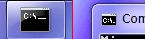
We're talking about these, yes?

th-359527.PNG

You can influence these icons by creating a Shortcut to a program and altering the icon in the Shortcut's properties. Schedule the Shortcut to run and your custom icon will be seen.
 

My Computer

Computer type
PC/Desktop
OS
Windows 10, Windows 8.1 Pro, Windows 7 Professional, OS X El Capitan
No, that's an ordinary command prompt window. I'm OK tailoring those.

I'm talking about the window that you get when a scheduled task runs an executable that doesn't have a GUI. Then you get this:
Window.jpg

Note the icon at the top left. Other than that, it looks exactly like a command prompt window.

Associated with this window, you get one of these in the taskbar (the one with the keys):
Taskbar.jpg

Imagine having two or three of these... which one to click?

I've engineered these scheduled tasks to have something meaningful in their title, so I can distinguish them, but I'd prefer distinct icons, if possible.
 

My Computer

Computer type
PC/Desktop
Computer Manufacturer/Model Number
Arbico/Quiet i7377
OS
Windows 7 Ultimate x64
CPU
3.40 gigahertz Intel Core i7-3770 Multi-core (4 total)
Motherboard
ASUSTeK COMPUTER INC. P8Z77-V LX Rev X.0x
Memory
16Gb
Graphics Card(s)
AMD Radeon HD 7700
Sound Card
AMD High Definition Audio Device
Monitor(s) Displays
Samsung 2443BW/Lenovo L2240pwD
Screen Resolution
1920x1200 1050x1680
Hard Drives
OCZ-VERTEX450 (256 GB)
ST31000524AS (1000.20 GB)
Drobo 5D 5-disk enclosure
Seagate USB 1Tb
ST1500DL 003-9VT16L 1500.30 GB
Case
Special noise-reducing case
Cooling
Quiet fans
Keyboard
Lenovo SK-8815 Multimedia keyboard
Mouse
Logitech MX
Internet Speed
~7mbps
Antivirus
Microsoft Security Essentials (and caution)
Browser
Chrome/Opera/Firefox/IE/Off-by-One
Other Info
Acoustic Energy AEGO-M Speakers - incredible sound, given their size.
It does not matter if we're talking about a command prompt or some Rexx script. Most applications will inherit the icon of a Shortcut file.

Shortcuts are the only way to influence the icon of a program (aside from directly hacking into the executable, ripping it's icon out and replacing it with new one).

I tested with a Python script: made a shortcut to it, changed the icon of the Shortcut; and sure enough, the GUI-less program ran with the icon the Shortcut was set to.

Easy as Py. And you'll find it's easy as Rexx once you try the same.
 
Last edited:

My Computer

Computer type
PC/Desktop
OS
Windows 10, Windows 8.1 Pro, Windows 7 Professional, OS X El Capitan
OK, you created your shortcut. Now try running it as a scheduled task. If you manage this, and it shows your tailored icon, then I'd love to know how you launched a shortcut from the task scheduler!
 

My Computer

Computer type
PC/Desktop
Computer Manufacturer/Model Number
Arbico/Quiet i7377
OS
Windows 7 Ultimate x64
CPU
3.40 gigahertz Intel Core i7-3770 Multi-core (4 total)
Motherboard
ASUSTeK COMPUTER INC. P8Z77-V LX Rev X.0x
Memory
16Gb
Graphics Card(s)
AMD Radeon HD 7700
Sound Card
AMD High Definition Audio Device
Monitor(s) Displays
Samsung 2443BW/Lenovo L2240pwD
Screen Resolution
1920x1200 1050x1680
Hard Drives
OCZ-VERTEX450 (256 GB)
ST31000524AS (1000.20 GB)
Drobo 5D 5-disk enclosure
Seagate USB 1Tb
ST1500DL 003-9VT16L 1500.30 GB
Case
Special noise-reducing case
Cooling
Quiet fans
Keyboard
Lenovo SK-8815 Multimedia keyboard
Mouse
Logitech MX
Internet Speed
~7mbps
Antivirus
Microsoft Security Essentials (and caution)
Browser
Chrome/Opera/Firefox/IE/Off-by-One
Other Info
Acoustic Energy AEGO-M Speakers - incredible sound, given their size.
Oh. I understand where you're coming from now; I've run into the problem you've been trying to explain.

It's a bug... or at least that's what I'm calling it.

So, if a user attempts to schedule, within Task Scheduler, a Shortcut (.lnk) file (that has a custom icon) that links to a program or script, when the task is due to run, it will run normally but it does not inherit the icon the triggered Shortcut file features. Instead, the program will display the icon it's executable is embedded with.

I am at loss as to why this happens. It shouldn't.


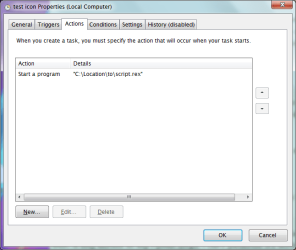
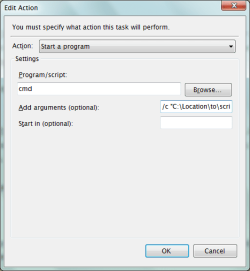
However, I have a potential fix (more of a work-around) that you might like to try, Swiftie. When I tested my "fix", it didn't seem to have an effect on the top left corner icon of the GUI-less program's window (sadly), but it's icon on the taskbar had changed with good success.

Here's what I did: Instead of direcly invoking the (in your case Rexx) script by inputting it's fully qualified path as the program to run, e.g.

Untitled1.png

You'd invoke the command prompt, with the parameters of "/c" and "C:\<PathToScript>", e.g.

Untitled3.png
Untitled2.png


I tested this once on some random executable on my machine. The method above didn't work for me then. It only worked on my Python script. I can't guraentee it'll work for your Rexx script too, but it is worth a shot.

I hope this gets fixed in Windows 10. And I do hope the above satisfies your needs for now, Swiftie.
 

My Computer

Computer type
PC/Desktop
OS
Windows 10, Windows 8.1 Pro, Windows 7 Professional, OS X El Capitan
Oh. I understand where you're coming from now...
Thank you for that excellent description. I'll try out your suggestion.

I wonder if something like VisualBasic (VBScript) has the ability to interact with desktop objects? If so, perhaps it could do the equivalent of double-clicking a desktop icon.

Unfortunately, I'm a rank beginner at VBS.
 

My Computer

Computer type
PC/Desktop
Computer Manufacturer/Model Number
Arbico/Quiet i7377
OS
Windows 7 Ultimate x64
CPU
3.40 gigahertz Intel Core i7-3770 Multi-core (4 total)
Motherboard
ASUSTeK COMPUTER INC. P8Z77-V LX Rev X.0x
Memory
16Gb
Graphics Card(s)
AMD Radeon HD 7700
Sound Card
AMD High Definition Audio Device
Monitor(s) Displays
Samsung 2443BW/Lenovo L2240pwD
Screen Resolution
1920x1200 1050x1680
Hard Drives
OCZ-VERTEX450 (256 GB)
ST31000524AS (1000.20 GB)
Drobo 5D 5-disk enclosure
Seagate USB 1Tb
ST1500DL 003-9VT16L 1500.30 GB
Case
Special noise-reducing case
Cooling
Quiet fans
Keyboard
Lenovo SK-8815 Multimedia keyboard
Mouse
Logitech MX
Internet Speed
~7mbps
Antivirus
Microsoft Security Essentials (and caution)
Browser
Chrome/Opera/Firefox/IE/Off-by-One
Other Info
Acoustic Energy AEGO-M Speakers - incredible sound, given their size.
If so, perhaps [VBScript] could do the equivalent of double-clicking a desktop icon.
Swiftie, you are a genius, I'm jealous I didn't think to use a Windows script as a Shortcut.

Well the VBScript will just invoke the actual Shortcut to the target script file, seeing as .lnks are the only known way of altering a display icon (as far as I'm concerned).

Here's the VBScript "shortcut" script you mention:
Code:
Dim strCommand, objShell
strCommand = "C:\Location\to\script.rex.lnk"
Set objShell = CreateObject("WScript.Shell")
objShell.Run strCommand,1
(Where "script.rex.lnk" would then point to your actual Rexx script file.)

Solution tested and approved; it works perfectly, not only for scripts but any program!
 

My Computer

Computer type
PC/Desktop
OS
Windows 10, Windows 8.1 Pro, Windows 7 Professional, OS X El Capitan

My Computer

Computer type
PC/Desktop
Computer Manufacturer/Model Number
Arbico/Quiet i7377
OS
Windows 7 Ultimate x64
CPU
3.40 gigahertz Intel Core i7-3770 Multi-core (4 total)
Motherboard
ASUSTeK COMPUTER INC. P8Z77-V LX Rev X.0x
Memory
16Gb
Graphics Card(s)
AMD Radeon HD 7700
Sound Card
AMD High Definition Audio Device
Monitor(s) Displays
Samsung 2443BW/Lenovo L2240pwD
Screen Resolution
1920x1200 1050x1680
Hard Drives
OCZ-VERTEX450 (256 GB)
ST31000524AS (1000.20 GB)
Drobo 5D 5-disk enclosure
Seagate USB 1Tb
ST1500DL 003-9VT16L 1500.30 GB
Case
Special noise-reducing case
Cooling
Quiet fans
Keyboard
Lenovo SK-8815 Multimedia keyboard
Mouse
Logitech MX
Internet Speed
~7mbps
Antivirus
Microsoft Security Essentials (and caution)
Browser
Chrome/Opera/Firefox/IE/Off-by-One
Other Info
Acoustic Energy AEGO-M Speakers - incredible sound, given their size.
Thank you for helping me with my VBS script! :D

But, there's still work to be done.

My test shortcut was "C:\Users\Steve\Desktop\Split Test.lnk" and the line "objShell.Run strCommand,1" gave me a popup "The system cannot find the file specified".

Obviously, the classic "Filename containing a blank problem".
Renaming the shortcut to C:\Users\Steve\Desktop\Split_Test.lnk and modifying my "split_run.vbs" is a bypass, but now I find myself looking for a way to modify:

objShell.Run strCommand,1

... for the case where strCommand contains blanks.

This is just cosmetic nitpicking though, especially in the case where the underlying program ("split.rex" in my case) just needs to be run as a scheduled task. You can create the vbs "launcher" shortcut anywhere you like, so you won't have to look at an icon with a name of "Split_Test" (from the file "Split_Test.lnk").

If you really want to have an icon that you actually click, then you can create another shortcut, named whatever you like.
 

My Computer

Computer type
PC/Desktop
Computer Manufacturer/Model Number
Arbico/Quiet i7377
OS
Windows 7 Ultimate x64
CPU
3.40 gigahertz Intel Core i7-3770 Multi-core (4 total)
Motherboard
ASUSTeK COMPUTER INC. P8Z77-V LX Rev X.0x
Memory
16Gb
Graphics Card(s)
AMD Radeon HD 7700
Sound Card
AMD High Definition Audio Device
Monitor(s) Displays
Samsung 2443BW/Lenovo L2240pwD
Screen Resolution
1920x1200 1050x1680
Hard Drives
OCZ-VERTEX450 (256 GB)
ST31000524AS (1000.20 GB)
Drobo 5D 5-disk enclosure
Seagate USB 1Tb
ST1500DL 003-9VT16L 1500.30 GB
Case
Special noise-reducing case
Cooling
Quiet fans
Keyboard
Lenovo SK-8815 Multimedia keyboard
Mouse
Logitech MX
Internet Speed
~7mbps
Antivirus
Microsoft Security Essentials (and caution)
Browser
Chrome/Opera/Firefox/IE/Off-by-One
Other Info
Acoustic Energy AEGO-M Speakers - incredible sound, given their size.
Obviously, the classic "Filename containing a blank problem".
Yeah. I tend to forget that paths can have spaces.

A small edit fixes the problem:

Code:
Dim strCommand, objShell
strCommand = """C:\Location\to\some script.rex.lnk"""
Set objShell = CreateObject("WScript.Shell")
objShell.Run strCommand,1


PS: How's the thread at Rexx Forums doing? :)
 
Last edited:

My Computer

Computer type
PC/Desktop
OS
Windows 10, Windows 8.1 Pro, Windows 7 Professional, OS X El Capitan
Back
Top