
Sharing account error

B4RL0W

New member
Local time
4:59 AM
Messages
77
Location
Rochdale
hi i get this error when i am trying to access shared files from my laptop.
my pc which has the files is running Ultimate
my laptop which is trying to access the files is running Home Premium
 

Attachments
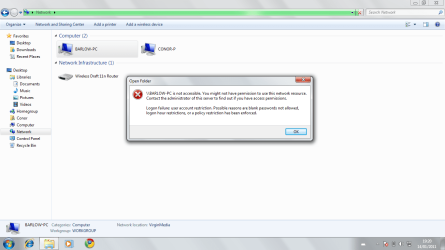
  • Untitled.png
    Untitled.png
    50.4 KB · Views: 22
Last edited:

My Computer

Computer Manufacturer/Model Number
HomeMade PC
OS
Windows 7 Eternity 64bit
CPU
Intel(R) Quad Core(TM) i5 750 @2.67GHz
Motherboard
BIOSTAR TP55
Memory
DDR3 4096MBytes
Graphics Card(s)
Radeon HD 4650
Monitor(s) Displays
Acer V233H
Screen Resolution
1920 x 1080
Hard Drives
1TB
Cooling
AIR!
Internet Speed
50 mb/s
home doesn't play well with others... in the security tab on the drive or folder you are trying to access, put the "Everyone" group in the control list and set it to modify or (full control is you trust user)
 

My Computer

OS
7 Pro
Thanks
 

My Computer

Computer Manufacturer/Model Number
HomeMade PC
OS
Windows 7 Eternity 64bit
CPU
Intel(R) Quad Core(TM) i5 750 @2.67GHz
Motherboard
BIOSTAR TP55
Memory
DDR3 4096MBytes
Graphics Card(s)
Radeon HD 4650
Monitor(s) Displays
Acer V233H
Screen Resolution
1920 x 1080
Hard Drives
1TB
Cooling
AIR!
Internet Speed
50 mb/s
Some general questions:

1. Have you set up file and printer sharing correctly?
2. What system security software do you have installed (third party firewall, etc)?
3. Are you using a homegroup or a workgroup?
 

My Computer

Computer Manufacturer/Model Number
Dell XPS 15 L502x
OS
Windows 7 Ultimate x64 SP1
CPU
Core i7-2670QM
Memory
8GB DDR3 PC3-10600
Graphics Card(s)
Intel HD Graphics 3000 + GeForce GT 540M
Screen Resolution
1920x1080
Hard Drives
1TB 5400RPM Seagate
1. all set up perfectly
3. symantec
3. workgroup because homegroup dosent work

Also i would just like to add that i have fixed it by following these steps:

Open Local Group Policy Editor by typing gpedit.msc in Start Search box and hit Enter.
Navigate to Computer Configuration -> Windows Settings -> Security Settings -> Local Policies -> Security Options branch.
Locate and double click on Accounts: Limit local account use of blank passwords to console logon only option.
Select the radio button for Disabled to allow user account with blank (or no password) for remote login.


Click OK.
For user on system without Local Group Policy Editor, follow the Registry Editor alternative:

Run Registry Editor (RegEdit).
Navigate to the following registry key:
HKEY_LOCAL_MACHINE\System\CurrentControlSet\Control\Lsa\

Double click on LimitBlankPasswordUse registry value name, and set its value data from 1 to 0.
Close Registry Editor.


(SOURCE:Fix Logon Failure: User Account Restriction Error (IIS or Remote Desktop) » My Digital Life )
 

My Computer

Computer Manufacturer/Model Number
HomeMade PC
OS
Windows 7 Eternity 64bit
CPU
Intel(R) Quad Core(TM) i5 750 @2.67GHz
Motherboard
BIOSTAR TP55
Memory
DDR3 4096MBytes
Graphics Card(s)
Radeon HD 4650
Monitor(s) Displays
Acer V233H
Screen Resolution
1920 x 1080
Hard Drives
1TB
Cooling
AIR!
Internet Speed
50 mb/s
Ahh yes, the blank password issue. Unfortunately I forgot to ask if you were not using passwords - as this will always cause your error message to appear.
 

My Computer

Computer Manufacturer/Model Number
Dell XPS 15 L502x
OS
Windows 7 Ultimate x64 SP1
CPU
Core i7-2670QM
Memory
8GB DDR3 PC3-10600
Graphics Card(s)
Intel HD Graphics 3000 + GeForce GT 540M
Screen Resolution
1920x1080
Hard Drives
1TB 5400RPM Seagate
Back
Top