The difference between them is that window size/position will be saved or not. For example with the Use as is option, if you open Q:\ first and then navigate to q:\aaa\bbb\ccc\ddd, then ddd will have the window size/position of Q:\, so next time you click your ddd desktop shortcut it will open like that.
I think that this is exactly what I want. As English is not my first language I don't understand computer terminology that good... I had set it to Update window, no wonder it was jumpy....
Thanks for your help and kudos to you writing a program like this!!
Lena
I take it back... When I use the setting for Use as is and first open my shortcut for
q:\aaa\bbb\ccc\ddd and position it where I want it, all folders also under q:\ ends up in the same position and with the same size. If I change one of them, it will go back to the first size and position the next time I open the short-cut.
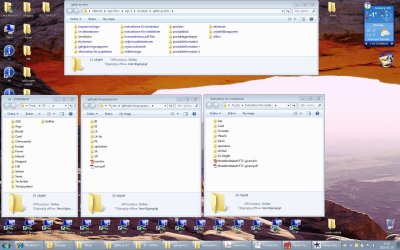
I usually work with 3-4 folders open at the same time. One of the folders should be wide and not high at all at the top of my screen. The other 2-3 should be positioned at the bottom side by side. With the setting Use as is all 4 folders end up on top of each other at the bottom, where I opened the first folder.
I would like to be able to set properties for each shortcut, and if I wander away in my folder and "accidentaly" end up in a folder that also has a shortcut on my desk-top, the position and size should be as the folder I started with. But I still want the folders to end up in the right size, side by side (or at the top) when I click on each shortcut.
It's hard to explain how I work... I am enclosing a screenshot of 4 open folders, all shortcuts opened directly from the row on the bottom of my screen, all originating in the drive q:
With the setting Use as is all folders (size and position) are as the one on the bottom left, the one I opened first.
Lena
Lena