Show Desktop Shortcut - Create

How to Create a "Show Desktop" Shortcut in Windows 7 and Windows 8


   Information
Show Desktop was a feature present in Windows XP and Windows Vista, but has been changed to the Aero Peek/Show Desktop button on the bottom right corner of the screen, near the Notification Area in Windows 7 and Windows 8.

This tutorial will show you how to create or download a Show Desktop shortcut that you can use anywhere in Windows 7 and Windows 8.

   Note
By default in Windows 7, the taskbar button on the far right side is for Show Desktop and Aero Peek.
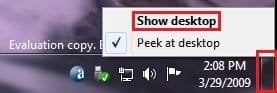
Show_Desktop.jpg


OPTION ONE

To Download the "Show Desktop" Shortcut


1. Click/tap on the Download button below to download the Show_Desktop.zip file.

Download


2. Save the .zip file to your desktop.

3. Open the .zip file, and extract (drag and drop) the Show Desktop shortcut to your desktop.

4. Unblock the Show Desktop shortcut.

5. In Windows 7, you can now Pin to Taskbar or Pin to Start Menu, add to Quick Launch, assign a keyboard shortcut to it, or move this shortcut to where you like for easy use.

6. In Windows 8 and 8.1, you can Pin to Taskbar on desktop, Pin to Start screen, add to Quick Launch,assign a keyboard shortcut to it, or move this shortcut to where you like for easy use.

7. When finished, you can delete the downloaded .zip file if you like.


OPTION TWO

To Manually Create the "Show Desktop" Shortcut


1. Right click or press and hold on an empty area on your desktop, and click/tap on New and Shortcut.

2. Copy and paste the location below into the location area, and click/tap on Next. (see screenshot below)
%windir%\explorer.exe shell:::{3080F90D-D7AD-11D9-BD98-0000947B0257}
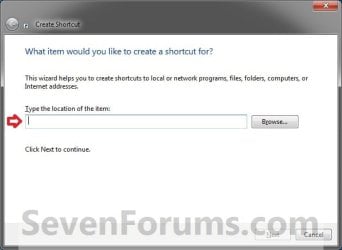
Step1.jpg

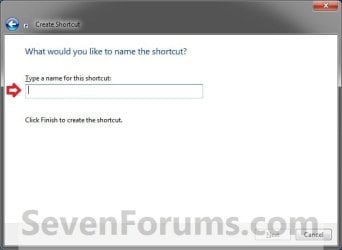
3. Type Show Desktop for the name, and click/tap on the Finish button. (see screenshot below)
NOTE: You can name this anything you would like though.
Step2.jpg
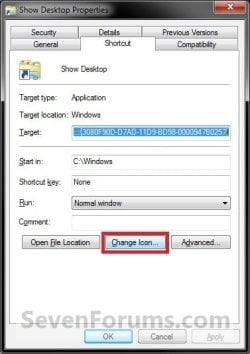
4. Right click or press and hold on the new Show Desktop shortcut, and click/tap on Properties.

5. Click/tap on the Shortcut tab, then click/tap on the Change Icon button. (see screenshot below)
Step3.jpg
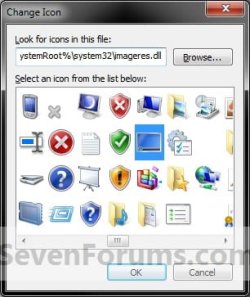
6. In the line under "Look for icons in this file", copy and paste the location below, and press Enter. (see screenshot below)
%SystemRoot%\system32\imageres.dll
Step4.jpg
7. Select the icon highlighted in blue above, and click/tap on OK. (see screenshot above)
NOTE: You can use any icon that you would like instead though.

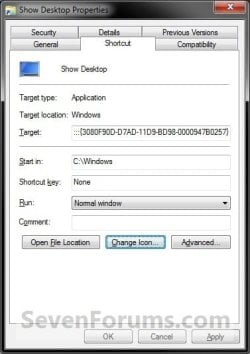
8. Click/tap on OK. (see screenshot below)
Step5.jpg
9. In Windows 7, you can now Pin to Taskbar or Pin to Start Menu, add to Quick Launch, assign a keyboard shortcut to it, or move this shortcut to where you like for easy use.

10. In Windows 8 and 8.1, you can Pin to Taskbar on desktop, Pin to Start screen, add to Quick Launch, assign a keyboard shortcut to it, or move this shortcut to where you like for easy use.


Hope this helps,
Victor Ly


Attachments
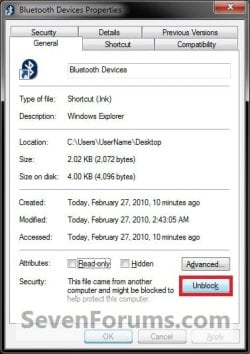
  • Show_Desktop.zip
    Show_Desktop.zip
    834 bytes · Views: 65,896
  • Unblock.jpg
    Unblock.jpg
    34.4 KB · Views: 17,197
Last edited by a moderator:
not working for me! everything is fine until i reboot and the show desktop icon is no longer there...
 

My Computer

OS
Windows 7 64bit Home
CPU
Q9650
Motherboard
Asus P5Q E
Memory
Kingston Hyper X 4x2048
Graphics Card(s)
His 4870
Sound Card
Onboard
Monitor(s) Displays
Dell 2008WFP
Screen Resolution
1920x1200
Hard Drives
Velociraptor
PSU
Enermax Modu+ 625w
Case
Antec 300
not working for me! everything is fine until i reboot and the show desktop icon is no longer there...
Sorry about that. I have since updated the tutorial to make sure that does not happen.

Have a good day,
Victor Ly
 

My Computer

Computer Manufacturer/Model Number
Dell Vostro 1500
OS
Windows 7 Professional
CPU
Intel Core2Duo T5270
Memory
3072MB
Graphics Card(s)
nVidia GeForce 8400M GS
Hard Drives
Western Digital 320GB Scorpio Blue SATAII
Mouse
Logitech VX Revolution
Internet Speed
Comcast Performance High Speed Internet
Thanks! it's working now!
 

My Computer

OS
Windows 7 64bit Home
CPU
Q9650
Motherboard
Asus P5Q E
Memory
Kingston Hyper X 4x2048
Graphics Card(s)
His 4870
Sound Card
Onboard
Monitor(s) Displays
Dell 2008WFP
Screen Resolution
1920x1200
Hard Drives
Velociraptor
PSU
Enermax Modu+ 625w
Case
Antec 300
Not working on final release?

Hi Victor, sorry to bother you again but since installing the retail version of windows 7 home I'm unable to put show desktop on the taskbar.
If I drag it to taskbar it gets pinned either to windows explorer or to my computer, it doesn't stay directly on the taskbar, I have to click on windows explore or my computer and then its there like a jumplist.
any suggestions?
 

My Computer

OS
Windows 7 64bit Home
CPU
Q9650
Motherboard
Asus P5Q E
Memory
Kingston Hyper X 4x2048
Graphics Card(s)
His 4870
Sound Card
Onboard
Monitor(s) Displays
Dell 2008WFP
Screen Resolution
1920x1200
Hard Drives
Velociraptor
PSU
Enermax Modu+ 625w
Case
Antec 300
This didn't work for me either, but I found the shortcut in the Quicklaunch folder in Brinks tutorial " Quicklaunch - Enable or Disable " ,Right clicked on it to send to desktop ( create shortcut ). Then followed Charbroil57's tutorial on how to pin the Recycle bin to the Taskbar and that worked for me, I don't know if there is an easier way to go about it ?
 

My Computer

Computer type
PC/Desktop
Computer Manufacturer/Model Number
Self Built
OS
Win 10 Pro x64
CPU
Intel I5-2500K @3.3GHz
Motherboard
Asrock P67 Extreme4
Memory
16GB G.Skill Ripjaws X (4x4GB)
Graphics Card(s)
EVGA GeForce 750 Ti SC 2GB
Sound Card
ASUS Xonar DG 5.1 Channels 24-bit 96KHz PCI Interface Sound
Monitor(s) Displays
auria eq2367
Screen Resolution
1920 x 1080
Hard Drives
250GB Samsung 850 EVO SSD
1TB WD Blue
1TB Hitachi
PSU
SeaSonic X 650W 80 Plus Gold
Case
Corsair Obsidian 750D
Cooling
Corsair H60, Three 140mm case fans
Keyboard
Logitech Wireless Keyboard K520
Mouse
Logitech Wireless Mouse M310
Internet Speed
Wave Broadband ~ 100 dn 5 up
Antivirus
Windows Defender, Malwarebytes Premium
Browser
Edge, IE11, Chrome
Other Info
Laptop specs: HP g7-1365dx /
CPU: AMD A6-3420M APU with Radeon(tm) HD Graphics /
RAM: Crucial 8Gb (2x4Gb) /
SSD: Crucial M4-CT128M4SSD2 ATA Device/ FW 000F /
GFX: AMD Radeon HD 6520G /
OS: Windows 10 Pro x64
Thanks Derekimo, I've tried that and it works but its not ideal as I have to keep the icon eiter down one side or the other.
The way the icon behaved after Viktor's tutorial was what I needed, hope he'll be able to fix it.
Thanks
 

My Computer

OS
Windows 7 64bit Home
CPU
Q9650
Motherboard
Asus P5Q E
Memory
Kingston Hyper X 4x2048
Graphics Card(s)
His 4870
Sound Card
Onboard
Monitor(s) Displays
Dell 2008WFP
Screen Resolution
1920x1200
Hard Drives
Velociraptor
PSU
Enermax Modu+ 625w
Case
Antec 300
Show Desktop works near start button, can I get rid of

This procedure worked perfectly. Is there any way to get rid of the small icon to the right of the time?
 

My Computer

Computer Manufacturer/Model Number
Home built
OS
Win7 Pro
CPU
E8500
Motherboard
Asus P5Q SE
Memory
4gb
Graphics Card(s)
ATI Radeon HD 2600 pro
Sound Card
Realtek alc 1200 8-channel HD
Monitor(s) Displays
NEC LCD1960NX, Sharp
Screen Resolution
1280x1024
Hard Drives
Four
PSU
ThermalTake 600 watt
Case
ThermalTake Swing
Internet Speed
Fios 20MB
Creating the desktop icon on the task bar

Hi,

This is totally minor, but I was wondering if you could tell me what I did wrong or what the fix might be: I was able to install the desktop button on my task bar, but it is not actually the desktop icon...can I get the icon image? Thanks!
 

My Computer

Computer Manufacturer/Model Number
HP DV6T
OS
Wiindows 7
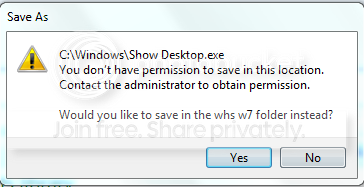
Unfortunately this did not work for me. When I wanted to save the Notepad file, I get this message. I am puzzled. I guess I will use Win+D.

Capture.png
 

My Computer

Computer Manufacturer/Model Number
HP, Dell, Gateway, Toshiba - 4 laptops and 2 desktops
OS
Vista, Windows7, Mint Mate, Zorin, Windows 8
CPU
from 1.6GHz Duo to i7
Monitor(s) Displays
2x HP w2207
Hard Drives
5x HDD, 7x SSD, 12x Externals
Keyboard
with trackball - no mices
Mouse
Trackball mice
Internet Speed
DSL 6000
Hello Wolfgang,

That's normal. You have to save anything first into a user folder (ex: Desktop), then you will be allowed to copy or move it to a system location like the C:\Windows folder. It's a security feature.

Hope this helps,
Shawn
 

My Computer

Computer type
PC/Desktop
Computer Manufacturer/Model Number
Self built custom
OS
64-bit Windows 11 Pro for Workstations
CPU
Intel i7-8700K OC'd to 5 GHz
Motherboard
ASUS ROG Maximus XI Formula Z390
Memory
64 GB (4x16GB) G.SKILL TridentZ RGB DDR4 3600 MHz
Graphics Card(s)
ASUS ROG-STRIX-GTX1080TI-O11G-GAMING
Sound Card
Integrated
Monitor(s) Displays
2 x Samsung Odyssey G7 27"
Screen Resolution
2560x1440
Hard Drives
1TB Samsung 990 PRO M.2,
4TB Samsung 990 PRO PRO M.2,
TerraMaster F8 SSD Plus NAS
PSU
Seasonic Prime Titanium 850W
Case
Thermaltake Core P3
Cooling
Corsair Hydro H115i
Keyboard
Logitech wireless K800
Mouse
Logitech MX Master 4
Internet Speed
2 Gb/s Download and 100 Mb/s Upload
Antivirus
Malwarebyte Anti-Malware Premium
Browser
Google Chrome
Other Info
Logitech Z625 speaker system,
Logitech BRIO 4K Pro webcam,
HP Color LaserJet Pro MFP M477fdn,
APC SMART-UPS RT 1000 XL - SURT1000XLI,
Galaxy S23 Plus phone
Thanks Shawn. Of course it helps - as usual. You are always on top of things - amazing.
 

My Computer

Computer Manufacturer/Model Number
HP, Dell, Gateway, Toshiba - 4 laptops and 2 desktops
OS
Vista, Windows7, Mint Mate, Zorin, Windows 8
CPU
from 1.6GHz Duo to i7
Monitor(s) Displays
2x HP w2207
Hard Drives
5x HDD, 7x SSD, 12x Externals
Keyboard
with trackball - no mices
Mouse
Trackball mice
Internet Speed
DSL 6000
You're welcome Wolfgang. :)
 

My Computer

Computer type
PC/Desktop
Computer Manufacturer/Model Number
Self built custom
OS
64-bit Windows 11 Pro for Workstations
CPU
Intel i7-8700K OC'd to 5 GHz
Motherboard
ASUS ROG Maximus XI Formula Z390
Memory
64 GB (4x16GB) G.SKILL TridentZ RGB DDR4 3600 MHz
Graphics Card(s)
ASUS ROG-STRIX-GTX1080TI-O11G-GAMING
Sound Card
Integrated
Monitor(s) Displays
2 x Samsung Odyssey G7 27"
Screen Resolution
2560x1440
Hard Drives
1TB Samsung 990 PRO M.2,
4TB Samsung 990 PRO PRO M.2,
TerraMaster F8 SSD Plus NAS
PSU
Seasonic Prime Titanium 850W
Case
Thermaltake Core P3
Cooling
Corsair Hydro H115i
Keyboard
Logitech wireless K800
Mouse
Logitech MX Master 4
Internet Speed
2 Gb/s Download and 100 Mb/s Upload
Antivirus
Malwarebyte Anti-Malware Premium
Browser
Google Chrome
Other Info
Logitech Z625 speaker system,
Logitech BRIO 4K Pro webcam,
HP Color LaserJet Pro MFP M477fdn,
APC SMART-UPS RT 1000 XL - SURT1000XLI,
Galaxy S23 Plus phone
Why do I get a message that it is an x86 program, 32 bit and that I should contact the software publisher for a 64bit version???
 

My Computer

Computer Manufacturer/Model Number
Home Cobbled
OS
Win7 Home Prem. 64Bit
CPU
Q6700
Motherboard
MSI X48C
Memory
4G
Graphics Card(s)
ATI 1950 Pro
PSU
PC Power & Cooling
Cooling
Zalmann
Hello Joe,

Strange, it works fine on my 64-bit Windows 7. You might try the tutorial on the first page again to see if a mistake may have been made while creating it.
 

My Computer

Computer type
PC/Desktop
Computer Manufacturer/Model Number
Self built custom
OS
64-bit Windows 11 Pro for Workstations
CPU
Intel i7-8700K OC'd to 5 GHz
Motherboard
ASUS ROG Maximus XI Formula Z390
Memory
64 GB (4x16GB) G.SKILL TridentZ RGB DDR4 3600 MHz
Graphics Card(s)
ASUS ROG-STRIX-GTX1080TI-O11G-GAMING
Sound Card
Integrated
Monitor(s) Displays
2 x Samsung Odyssey G7 27"
Screen Resolution
2560x1440
Hard Drives
1TB Samsung 990 PRO M.2,
4TB Samsung 990 PRO PRO M.2,
TerraMaster F8 SSD Plus NAS
PSU
Seasonic Prime Titanium 850W
Case
Thermaltake Core P3
Cooling
Corsair Hydro H115i
Keyboard
Logitech wireless K800
Mouse
Logitech MX Master 4
Internet Speed
2 Gb/s Download and 100 Mb/s Upload
Antivirus
Malwarebyte Anti-Malware Premium
Browser
Google Chrome
Other Info
Logitech Z625 speaker system,
Logitech BRIO 4K Pro webcam,
HP Color LaserJet Pro MFP M477fdn,
APC SMART-UPS RT 1000 XL - SURT1000XLI,
Galaxy S23 Plus phone
Hello guys. Great tip, but I'm having little problem getting it configured as I'd like.

I followed the instructions above to the letter and managed to get the icon working in the taskbar. However I'd like to have the icon as the new style "Show Desktop" icon. A minor point, I know.

I first tried, after doing everything described in the first post, simply shift+right clicking the icon, clicking change icon, then selecting the icon via the "imageres.dll" location. That changes the icon in the properties window and changes it if I navigate in explorer to "C:\Users\Muzher\AppData\Roaming\Microsoft\Internet Explorer\Quick Launch\User Pinned\TaskBar". However it does not change the icon in the Taskbar.

Next I tried what I think Brink was advising above. I followed the instructions upto and including creating the "Show Desktop.exe" file in "C:\Windows". I then created my own shortcut, targetted to the aforementioned .exe and then pinned it to the Taskbar. This appeared to look fine, correct icon and all. However clicking it would yield an error about it not being x64 compatible.

I'd really appreciate any ideas you guys have, as this is starting to become a bit of an irritant.

I uploaded a screenshot of the error described in my second attempt (creating a shortcut to the .exe) here:

showdesktoperror.jpg
 

My Computer

OS
Windows 7/Ubuntu
Hello Chowchilla, and welcome to Seven Forums.

After you have done the tutorial completely, then right click on the pinned "Show Desktop" icon on the taskbar, right click on "Show Desktop" in the jump list, click on "Properties", "Chage Icon" in Shortcut tab, then select the new icon, and OK twice.

Hope this helps,
Shawn
 

My Computer

Computer type
PC/Desktop
Computer Manufacturer/Model Number
Self built custom
OS
64-bit Windows 11 Pro for Workstations
CPU
Intel i7-8700K OC'd to 5 GHz
Motherboard
ASUS ROG Maximus XI Formula Z390
Memory
64 GB (4x16GB) G.SKILL TridentZ RGB DDR4 3600 MHz
Graphics Card(s)
ASUS ROG-STRIX-GTX1080TI-O11G-GAMING
Sound Card
Integrated
Monitor(s) Displays
2 x Samsung Odyssey G7 27"
Screen Resolution
2560x1440
Hard Drives
1TB Samsung 990 PRO M.2,
4TB Samsung 990 PRO PRO M.2,
TerraMaster F8 SSD Plus NAS
PSU
Seasonic Prime Titanium 850W
Case
Thermaltake Core P3
Cooling
Corsair Hydro H115i
Keyboard
Logitech wireless K800
Mouse
Logitech MX Master 4
Internet Speed
2 Gb/s Download and 100 Mb/s Upload
Antivirus
Malwarebyte Anti-Malware Premium
Browser
Google Chrome
Other Info
Logitech Z625 speaker system,
Logitech BRIO 4K Pro webcam,
HP Color LaserJet Pro MFP M477fdn,
APC SMART-UPS RT 1000 XL - SURT1000XLI,
Galaxy S23 Plus phone
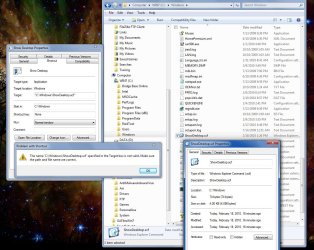
I was delighted to find this tutorial, and all went well until I tried the change Properties of the command bar icon from .exe to .scf. Windows insists on telling me that the path is invalid, despite having the file right where it should be. Any ideas?
 

Attachments

  • ShowDesktopTutorialProblem.jpg
    ShowDesktopTutorialProblem.jpg
    174.1 KB · Views: 1,263

My Computer

OS
Windows 7 64 bit
Notepad won't save to Windows folder

I had the same problem. There are probably more elegant ways to do it, but I was able to work around this by:

Saving to the user folder using the option that the message offered

Using Windows Explorer, copy the folder to the Windows folder. The OS will give you the option to CONTINUE and the file will appear in the Windows folder.

Follow the rest of the procedure.
 

My Computer

Computer Manufacturer/Model Number
Dell Inspiron 546
OS
Windows 7 Home 64
CPU
thlon X2 240
Motherboard
Dell
Memory
2 GB
Back
Top