Show Desktop Shortcut - Create

How to Create a "Show Desktop" Shortcut in Windows 7 and Windows 8


   Information
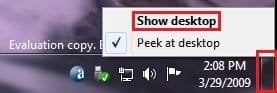
Show Desktop was a feature present in Windows XP and Windows Vista, but has been changed to the Aero Peek/Show Desktop button on the bottom right corner of the screen, near the Notification Area in Windows 7 and Windows 8.

This tutorial will show you how to create or download a Show Desktop shortcut that you can use anywhere in Windows 7 and Windows 8.

   Note
By default in Windows 7, the taskbar button on the far right side is for Show Desktop and Aero Peek.
Show_Desktop.jpg


OPTION ONE

To Download the "Show Desktop" Shortcut


1. Click/tap on the Download button below to download the Show_Desktop.zip file.

Download


2. Save the .zip file to your desktop.

3. Open the .zip file, and extract (drag and drop) the Show Desktop shortcut to your desktop.

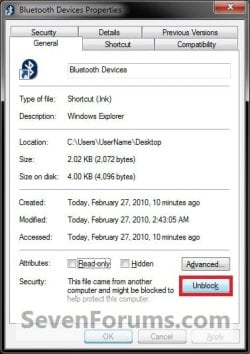
4. Unblock the Show Desktop shortcut.

5. In Windows 7, you can now Pin to Taskbar or Pin to Start Menu, add to Quick Launch, assign a keyboard shortcut to it, or move this shortcut to where you like for easy use.

6. In Windows 8 and 8.1, you can Pin to Taskbar on desktop, Pin to Start screen, add to Quick Launch,assign a keyboard shortcut to it, or move this shortcut to where you like for easy use.

7. When finished, you can delete the downloaded .zip file if you like.


OPTION TWO

To Manually Create the "Show Desktop" Shortcut


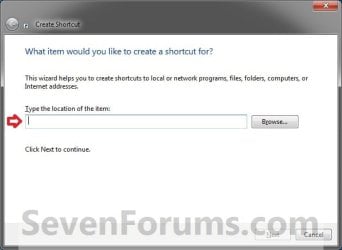
1. Right click or press and hold on an empty area on your desktop, and click/tap on New and Shortcut.

2. Copy and paste the location below into the location area, and click/tap on Next. (see screenshot below)
%windir%\explorer.exe shell:::{3080F90D-D7AD-11D9-BD98-0000947B0257}
Step1.jpg

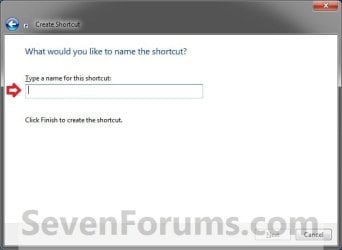
3. Type Show Desktop for the name, and click/tap on the Finish button. (see screenshot below)
NOTE: You can name this anything you would like though.
Step2.jpg
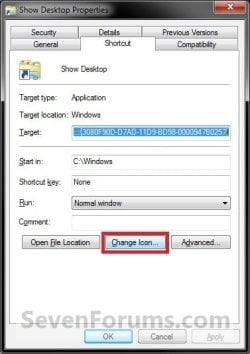
4. Right click or press and hold on the new Show Desktop shortcut, and click/tap on Properties.

5. Click/tap on the Shortcut tab, then click/tap on the Change Icon button. (see screenshot below)
Step3.jpg
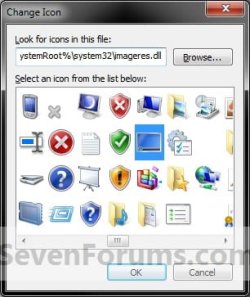
6. In the line under "Look for icons in this file", copy and paste the location below, and press Enter. (see screenshot below)
%SystemRoot%\system32\imageres.dll
Step4.jpg
7. Select the icon highlighted in blue above, and click/tap on OK. (see screenshot above)
NOTE: You can use any icon that you would like instead though.

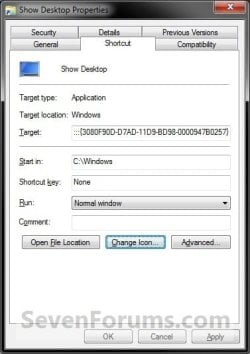
8. Click/tap on OK. (see screenshot below)
Step5.jpg
9. In Windows 7, you can now Pin to Taskbar or Pin to Start Menu, add to Quick Launch, assign a keyboard shortcut to it, or move this shortcut to where you like for easy use.

10. In Windows 8 and 8.1, you can Pin to Taskbar on desktop, Pin to Start screen, add to Quick Launch, assign a keyboard shortcut to it, or move this shortcut to where you like for easy use.


Hope this helps,
Victor Ly


Attachments
  • Show_Desktop.zip
    Show_Desktop.zip
    834 bytes · Views: 65,896
  • Unblock.jpg
    Unblock.jpg
    34.4 KB · Views: 17,197
Last edited by a moderator:
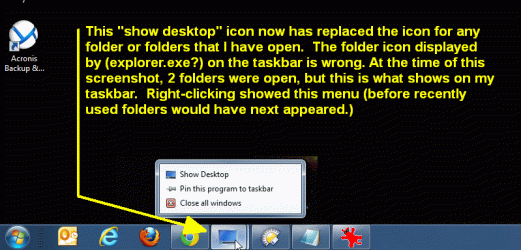
I'm posting here out of desperation. I think this was one method I used ages ago (and/or another procedure to also get the old XP style "show desktop" icon) but something didn't work out quite right, and I unpinned the icon. But since then somehow the "show desktop" icon appears on the taskbar whenever I have a folder (or folders) open; the icon on my taskbar is not the correct icon for a generic folder or group of folders, but rather it's ALWAYS the "show desktop" icon. And clicking hovering over it, or clicking it displays the open folders, i.e. it's not behaving like the show desktop link, it's simply the wrong icon being used instead of a "folder" icon. This is only an issue on taskbar; folder icons are displayed correctly in other places within Windows. How can I restore the icon for folders that show up on the taskbar to be be folders again ? Thanks in advance for a solution to this!! (example in photo I shall attempt to upload)
 

Attachments

  • sevenforums folders, show desktop question.gif
    sevenforums folders, show desktop question.gif
    32 KB · Views: 439

My Computer

OS
Windows 7 Professional 32bit

My Computer

Computer type
PC/Desktop
Computer Manufacturer/Model Number
Self built custom
OS
64-bit Windows 11 Pro for Workstations
CPU
Intel i7-8700K OC'd to 5 GHz
Motherboard
ASUS ROG Maximus XI Formula Z390
Memory
64 GB (4x16GB) G.SKILL TridentZ RGB DDR4 3600 MHz
Graphics Card(s)
ASUS ROG-STRIX-GTX1080TI-O11G-GAMING
Sound Card
Integrated
Monitor(s) Displays
2 x Samsung Odyssey G7 27"
Screen Resolution
2560x1440
Hard Drives
1TB Samsung 990 PRO M.2,
4TB Samsung 990 PRO PRO M.2,
TerraMaster F8 SSD Plus NAS
PSU
Seasonic Prime Titanium 850W
Case
Thermaltake Core P3
Cooling
Corsair Hydro H115i
Keyboard
Logitech wireless K800
Mouse
Logitech MX Master 4
Internet Speed
2 Gb/s Download and 100 Mb/s Upload
Antivirus
Malwarebyte Anti-Malware Premium
Browser
Google Chrome
Other Info
Logitech Z625 speaker system,
Logitech BRIO 4K Pro webcam,
HP Color LaserJet Pro MFP M477fdn,
APC SMART-UPS RT 1000 XL - SURT1000XLI,
Galaxy S23 Plus phone
Thanks, Shawn, for both the welcome and the fast reply ! I just tried both of the procedures you suggested and, unfortunately, they did not cure my problem - the "show desktop" icon still remains the icon on the taskbar for open folders :( I know I had tried a few published techniques for different 'show desktop' options, including this one Restore Show Desktop icon in Windows 7 | InfoTech although I think that was innocuous enough. There was another procedure and now I cannot locate it, but it seemed to involve creating a .scf file using notepad but it referenced something more complex relating to explorer.exe IF I recall, and i'm more than 1/2 asleep right now. Any further thoughts or suggestions would be most appreciated. This situation has been going on for basically a year :(

I came across a vestige of the other procedure: I have a "show desktop" icon on my actual desktop, and when I check its properties, it's this rather complicated reference to explorer.exe : C:\Windows\explorer.exe shell:::{3080F90D-D7AD-11D9-BD98-0000947B0257} Does that perhaps shed additional light on [how my taskbar folder icons got the wrong icon]? (ugh, I feel like such a pest right now :o )

I think I've fixed it! The "show desktop" icon on my actual desktop was created via earlier tip to create XP-style "show desktop", not the technique in this thread. That shortcut was then pinned to the taskbar. BUT even with it unpinned, the very presence of the customized shortcut on the desktop itself led to it (and whatever icon was chosen for it,) being the icon displayed on taskbar every time folders were open. Once I deleted it from desktop, I once again have FOLDER icon back on my taskbar.

I do not know enough about them, but I gather this had something to do with tinkering with CLSID Keys (of which there is a listing within sevenforums: http://www.sevenforums.com/tutorials/110919-clsid-key-list-windows-7-a.html I have a feeling they could be put to good use, but I think maybe I should stick to shallower waters at this point. I'm just happy to have the correct icon for folders once again in my taskbar! Sorry if I've wasted your time, Shawn, although a definitive explanation of how this could happen would be most educational. Thanks again!
 
Last edited by a moderator:

My Computer

OS
Windows 7 Professional 32bit
Tpad,

That's great news. I'm happy to hear that you got it sorted.

I think I know what the issue was. Since your pinned "Show Desktop" shortcut on the taskbar was based on an explorer.exe command and you did not have Windows Explorer pinned to the taskbar to left of "Show Desktop", then any Windows Explorer window that you opened would show it's thumbnail previews on the "Show Desktop" shortcut since it was the one furthest to the left.

If you would still like to have "Show Desktop" pinned to the taskbar, then you will need to also pin Windows Explorer to the taskbar and make sure that Windows Explorer is dragged to the left of "Show Desktop".

Hope this helps,
Shawn
 

My Computer

Computer type
PC/Desktop
Computer Manufacturer/Model Number
Self built custom
OS
64-bit Windows 11 Pro for Workstations
CPU
Intel i7-8700K OC'd to 5 GHz
Motherboard
ASUS ROG Maximus XI Formula Z390
Memory
64 GB (4x16GB) G.SKILL TridentZ RGB DDR4 3600 MHz
Graphics Card(s)
ASUS ROG-STRIX-GTX1080TI-O11G-GAMING
Sound Card
Integrated
Monitor(s) Displays
2 x Samsung Odyssey G7 27"
Screen Resolution
2560x1440
Hard Drives
1TB Samsung 990 PRO M.2,
4TB Samsung 990 PRO PRO M.2,
TerraMaster F8 SSD Plus NAS
PSU
Seasonic Prime Titanium 850W
Case
Thermaltake Core P3
Cooling
Corsair Hydro H115i
Keyboard
Logitech wireless K800
Mouse
Logitech MX Master 4
Internet Speed
2 Gb/s Download and 100 Mb/s Upload
Antivirus
Malwarebyte Anti-Malware Premium
Browser
Google Chrome
Other Info
Logitech Z625 speaker system,
Logitech BRIO 4K Pro webcam,
HP Color LaserJet Pro MFP M477fdn,
APC SMART-UPS RT 1000 XL - SURT1000XLI,
Galaxy S23 Plus phone
Cannot Move Pinned Show Desktop Icon

I recently reloaded the OS so I had to re-create the show desktop icon on my taskbar. Previously I had it as my first icon beside the Windows logo. After recreating it and pinning it this time, it won't allow me to move it there. I can grab it, move it, but when I let go to paste, it goes back to where it currently is (second from the right end). I can move any other icon to any position, and it stays where I put it. I've tried with the task bar locked and unlocked, no difference. I used the second method to create the short, if that helps. The icon is functioning properly but I wonder why now I can't move it to where it use to be. Any ideas?
 

My Computer

Computer type
PC/Desktop
Computer Manufacturer/Model Number
Custom-Built PC By Me
OS
Windows 7 Professional x64 SP1
CPU
i7 - 3930K running @ 3.20 GHz
Motherboard
MSI X79A-GD45 8D
Memory
16 GB Kingston HyperX DDR3 Quad Channel running @ 1600
Graphics Card(s)
HIS Radeon HD 6770
Sound Card
Integrated Realteck HD Audio
Monitor(s) Displays
Dell Professional 23" Widescreen connected via Display Port
Screen Resolution
1920 x 1080
Hard Drives
120 GB Intel 530 SSD 6 Gb/s Boot Drive,
240 GB SanDisk Extreme SSD 6 Gb/s Data Storage Drive,
1 TB Seagate 6 Gb/s Internal Backup Drive
PSU
Corsair Professional Series HX 650 Watt
Case
Zalman Z9
Cooling
Corsair H80 Liquid Cooling
Keyboard
E-Blue Cobra II LED Illuminated Pro Gaming Keyboard
Mouse
Zalman M200
Hello Jeff,

Strange, after you pin the "Show Desktop" shortcut to the taskbar, you should be able to drag it to where you like among the other pinned icons on the taskbar.

Do you have any toolbars, pinned folders, or Quick Launch on the taskbar? If so, you may need to drag them to the right of the "Show Desktop" icon instead.

Could you post a screenshot showing your taskbar to see if anything stands out as a reason why it will not move to where you like?
 

My Computer

Computer type
PC/Desktop
Computer Manufacturer/Model Number
Self built custom
OS
64-bit Windows 11 Pro for Workstations
CPU
Intel i7-8700K OC'd to 5 GHz
Motherboard
ASUS ROG Maximus XI Formula Z390
Memory
64 GB (4x16GB) G.SKILL TridentZ RGB DDR4 3600 MHz
Graphics Card(s)
ASUS ROG-STRIX-GTX1080TI-O11G-GAMING
Sound Card
Integrated
Monitor(s) Displays
2 x Samsung Odyssey G7 27"
Screen Resolution
2560x1440
Hard Drives
1TB Samsung 990 PRO M.2,
4TB Samsung 990 PRO PRO M.2,
TerraMaster F8 SSD Plus NAS
PSU
Seasonic Prime Titanium 850W
Case
Thermaltake Core P3
Cooling
Corsair Hydro H115i
Keyboard
Logitech wireless K800
Mouse
Logitech MX Master 4
Internet Speed
2 Gb/s Download and 100 Mb/s Upload
Antivirus
Malwarebyte Anti-Malware Premium
Browser
Google Chrome
Other Info
Logitech Z625 speaker system,
Logitech BRIO 4K Pro webcam,
HP Color LaserJet Pro MFP M477fdn,
APC SMART-UPS RT 1000 XL - SURT1000XLI,
Galaxy S23 Plus phone
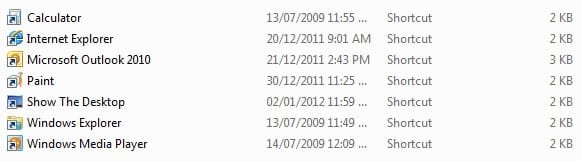
Thanks for your quick response. Taskbar with Show Desktop attached. I have tried to move all the icons to the right of the show desktop but it only allows two and then when I try a third, the Show Desktop puts itself back to its current position, second from the right end. I have tried various combinations of moves and no success in moving the show desktop to be the first icon next to the Windows logo. A mystery as to why I had it functioning correctly the first time. I did try to create it yesterday (and it did not work for some reason) and I have since removed that shortcut. Could that have something to do with this issue? Some residual information stuck somewhere in the system? I can live with it where it is if there is we can't find a solution to the issue.
 

Attachments

  • Taskbar.jpg
    Taskbar.jpg
    15.2 KB · Views: 485
  • User Pinned.jpg
    User Pinned.jpg
    13.6 KB · Views: 486

My Computer

Computer type
PC/Desktop
Computer Manufacturer/Model Number
Custom-Built PC By Me
OS
Windows 7 Professional x64 SP1
CPU
i7 - 3930K running @ 3.20 GHz
Motherboard
MSI X79A-GD45 8D
Memory
16 GB Kingston HyperX DDR3 Quad Channel running @ 1600
Graphics Card(s)
HIS Radeon HD 6770
Sound Card
Integrated Realteck HD Audio
Monitor(s) Displays
Dell Professional 23" Widescreen connected via Display Port
Screen Resolution
1920 x 1080
Hard Drives
120 GB Intel 530 SSD 6 Gb/s Boot Drive,
240 GB SanDisk Extreme SSD 6 Gb/s Data Storage Drive,
1 TB Seagate 6 Gb/s Internal Backup Drive
PSU
Corsair Professional Series HX 650 Watt
Case
Zalman Z9
Cooling
Corsair H80 Liquid Cooling
Keyboard
E-Blue Cobra II LED Illuminated Pro Gaming Keyboard
Mouse
Zalman M200
Not sure. You might see if unpinning the current "Show Desktop" icon, create a new shortcut, right click on the shortcut, click on Pin to Taskbar, and try dragging it to the left on the taskbar and dropping it again. You might also restart the computer to see if it may just be a temporary glitch.
 

My Computer

Computer type
PC/Desktop
Computer Manufacturer/Model Number
Self built custom
OS
64-bit Windows 11 Pro for Workstations
CPU
Intel i7-8700K OC'd to 5 GHz
Motherboard
ASUS ROG Maximus XI Formula Z390
Memory
64 GB (4x16GB) G.SKILL TridentZ RGB DDR4 3600 MHz
Graphics Card(s)
ASUS ROG-STRIX-GTX1080TI-O11G-GAMING
Sound Card
Integrated
Monitor(s) Displays
2 x Samsung Odyssey G7 27"
Screen Resolution
2560x1440
Hard Drives
1TB Samsung 990 PRO M.2,
4TB Samsung 990 PRO PRO M.2,
TerraMaster F8 SSD Plus NAS
PSU
Seasonic Prime Titanium 850W
Case
Thermaltake Core P3
Cooling
Corsair Hydro H115i
Keyboard
Logitech wireless K800
Mouse
Logitech MX Master 4
Internet Speed
2 Gb/s Download and 100 Mb/s Upload
Antivirus
Malwarebyte Anti-Malware Premium
Browser
Google Chrome
Other Info
Logitech Z625 speaker system,
Logitech BRIO 4K Pro webcam,
HP Color LaserJet Pro MFP M477fdn,
APC SMART-UPS RT 1000 XL - SURT1000XLI,
Galaxy S23 Plus phone
Shouldn't the tutorial be updated to say that now the right side of the system tray has a working show desktop button? Maybe it wasn't in 2009.

Reread the tutorial which says there was/is a show desktop button. I don't get it. Why would you want another one?

Each to his own. :D
 

My Computer

Computer Manufacturer/Model Number
Custom
OS
Windows 7 Pro x64 -- PCLinuxOS KDE4 FullMonty 2011
CPU
i7-875k @ Turbo - 7,6,5,5 - 3.6ghz
Motherboard
Asus P7P55D-E Deluxe
Memory
Corsair CMD8GX3M4A1600C8 8gb
Graphics Card(s)
Asus EAH5850 DirectCU/2DIS/1GD5
Sound Card
On Board
Monitor(s) Displays
Samsung SyncMaster T220 - Panasonic VT30a 50"
Screen Resolution
1680x1050 -
Hard Drives
Corsair Force 3 SSD 120GB x 2 ::
WD VelociRaptor 150GB WD1500HLFS x 2
PSU
Corsair HX-850 Power Supply
Case
Coolmaster HAF 932
Cooling
Corsair H50
Keyboard
Logitech Wireless MK700
Mouse
Logitech Wireless MX620
Internet Speed
Good enough for now
Other Info
Voip. Insanely cheap phone calls.
Shouldn't the tutorial be updated to say that now the right side of the system tray has a working show desktop button? Maybe it wasn't in 2009.

Reread the tutorial which says there was/is a show desktop button. I don't get it. Why would you want another one?

Each to his own. :D


Hello Ken,

There's already a note box for that at the top of the tutorial. I suppose some folks just want one for whatever reason. We certainly had enough requests for a separate "Show Desktop" shortcut. :)
 
Last edited:

My Computer

Computer type
PC/Desktop
Computer Manufacturer/Model Number
Self built custom
OS
64-bit Windows 11 Pro for Workstations
CPU
Intel i7-8700K OC'd to 5 GHz
Motherboard
ASUS ROG Maximus XI Formula Z390
Memory
64 GB (4x16GB) G.SKILL TridentZ RGB DDR4 3600 MHz
Graphics Card(s)
ASUS ROG-STRIX-GTX1080TI-O11G-GAMING
Sound Card
Integrated
Monitor(s) Displays
2 x Samsung Odyssey G7 27"
Screen Resolution
2560x1440
Hard Drives
1TB Samsung 990 PRO M.2,
4TB Samsung 990 PRO PRO M.2,
TerraMaster F8 SSD Plus NAS
PSU
Seasonic Prime Titanium 850W
Case
Thermaltake Core P3
Cooling
Corsair Hydro H115i
Keyboard
Logitech wireless K800
Mouse
Logitech MX Master 4
Internet Speed
2 Gb/s Download and 100 Mb/s Upload
Antivirus
Malwarebyte Anti-Malware Premium
Browser
Google Chrome
Other Info
Logitech Z625 speaker system,
Logitech BRIO 4K Pro webcam,
HP Color LaserJet Pro MFP M477fdn,
APC SMART-UPS RT 1000 XL - SURT1000XLI,
Galaxy S23 Plus phone
The show desktop that is over on the very right side is in a silly spot (and is too small), in my opinion. I use this feature a fair amount so the old fashion style suits me better, over by the Windows icon.

As it turns out, I unpinned, repinned, and restarted the computer twice and for some reason on the second go around, it now works. I have been able to drag and drop it by the Windows icon. I have since restarted the computer again and it is still there and working correctly. Something glichy must have been going on. Thanks for your help. Cheers!
 

My Computer

Computer type
PC/Desktop
Computer Manufacturer/Model Number
Custom-Built PC By Me
OS
Windows 7 Professional x64 SP1
CPU
i7 - 3930K running @ 3.20 GHz
Motherboard
MSI X79A-GD45 8D
Memory
16 GB Kingston HyperX DDR3 Quad Channel running @ 1600
Graphics Card(s)
HIS Radeon HD 6770
Sound Card
Integrated Realteck HD Audio
Monitor(s) Displays
Dell Professional 23" Widescreen connected via Display Port
Screen Resolution
1920 x 1080
Hard Drives
120 GB Intel 530 SSD 6 Gb/s Boot Drive,
240 GB SanDisk Extreme SSD 6 Gb/s Data Storage Drive,
1 TB Seagate 6 Gb/s Internal Backup Drive
PSU
Corsair Professional Series HX 650 Watt
Case
Zalman Z9
Cooling
Corsair H80 Liquid Cooling
Keyboard
E-Blue Cobra II LED Illuminated Pro Gaming Keyboard
Mouse
Zalman M200
That's great news Jeff. I'm happy to hear that it's working properly now for you. :)
 

My Computer

Computer type
PC/Desktop
Computer Manufacturer/Model Number
Self built custom
OS
64-bit Windows 11 Pro for Workstations
CPU
Intel i7-8700K OC'd to 5 GHz
Motherboard
ASUS ROG Maximus XI Formula Z390
Memory
64 GB (4x16GB) G.SKILL TridentZ RGB DDR4 3600 MHz
Graphics Card(s)
ASUS ROG-STRIX-GTX1080TI-O11G-GAMING
Sound Card
Integrated
Monitor(s) Displays
2 x Samsung Odyssey G7 27"
Screen Resolution
2560x1440
Hard Drives
1TB Samsung 990 PRO M.2,
4TB Samsung 990 PRO PRO M.2,
TerraMaster F8 SSD Plus NAS
PSU
Seasonic Prime Titanium 850W
Case
Thermaltake Core P3
Cooling
Corsair Hydro H115i
Keyboard
Logitech wireless K800
Mouse
Logitech MX Master 4
Internet Speed
2 Gb/s Download and 100 Mb/s Upload
Antivirus
Malwarebyte Anti-Malware Premium
Browser
Google Chrome
Other Info
Logitech Z625 speaker system,
Logitech BRIO 4K Pro webcam,
HP Color LaserJet Pro MFP M477fdn,
APC SMART-UPS RT 1000 XL - SURT1000XLI,
Galaxy S23 Plus phone
A little annoying. Takes like 8 seconds to appear as closed. Other than that.

:thumbsup:
 

My Computer

Computer type
PC/Desktop
Computer Manufacturer/Model Number
Novatech iRush Pro
OS
Windows 7 Ultimate SP1 - 64 Bit
CPU
Intel Core i5 2500k
Motherboard
Foxconn H67M-S/H67M-V/H67
Memory
2x4GB DDR3 1333Hz
Graphics Card(s)
Ati Radeon 6770
Sound Card
None
Monitor(s) Displays
Samsung S22B150
Screen Resolution
1920x1080
Hard Drives
2x500GB
PSU
500W
Cooling
Fan
Keyboard
HP KU0316
Mouse
Wireless Logitech M185
Internet Speed
20MB/s
Antivirus
Avast Free
Browser
Google Chrome
Other Info
Logitech M185 Mouse
KU-M316 Keyboard
Manual Show desktop shortcut works like a charm

Thanks!;)
 

My Computer

Computer Manufacturer/Model Number
Dell
OS
Win 7 64 bit Home Premium
CPU
Intel Quad Core Q8200
Memory
6 gb
hello, I have disabled the win-shortcuts in the registry because I wanted to use win-1,2,3,etc for volume presets instead of application switching (win 7 32 prof). I managed to get this working, but the win-d shortcut got lost on the way, as expected. (at least in copernic winkey, I can't even remap it - seems like it's lost as long as I keep things this way). so I figured I would use win-t to toggle the desktop. I used this tutorial (actually i tried both methods in the first post), and both worked. - however, my impression is they are much (!) slower than good old win-d, which worked like lightning. it seems like these two shortcuts use a different procedured than win-d - or probably also than the icon in the far right corner on the taskbar does. this effect may be all the more obvious on slower systems, e.g. netbooks.

is there a way to get this going faster?

thanks
 

My Computer

Computer Manufacturer/Model Number
Sony Vaio X
OS
Win7 Prof 32bit
CPU
Atom Z550
Memory
2GB
Hard Drives
SSD

My Computer

Computer type
PC/Desktop
Computer Manufacturer/Model Number
Self built custom
OS
64-bit Windows 11 Pro for Workstations
CPU
Intel i7-8700K OC'd to 5 GHz
Motherboard
ASUS ROG Maximus XI Formula Z390
Memory
64 GB (4x16GB) G.SKILL TridentZ RGB DDR4 3600 MHz
Graphics Card(s)
ASUS ROG-STRIX-GTX1080TI-O11G-GAMING
Sound Card
Integrated
Monitor(s) Displays
2 x Samsung Odyssey G7 27"
Screen Resolution
2560x1440
Hard Drives
1TB Samsung 990 PRO M.2,
4TB Samsung 990 PRO PRO M.2,
TerraMaster F8 SSD Plus NAS
PSU
Seasonic Prime Titanium 850W
Case
Thermaltake Core P3
Cooling
Corsair Hydro H115i
Keyboard
Logitech wireless K800
Mouse
Logitech MX Master 4
Internet Speed
2 Gb/s Download and 100 Mb/s Upload
Antivirus
Malwarebyte Anti-Malware Premium
Browser
Google Chrome
Other Info
Logitech Z625 speaker system,
Logitech BRIO 4K Pro webcam,
HP Color LaserJet Pro MFP M477fdn,
APC SMART-UPS RT 1000 XL - SURT1000XLI,
Galaxy S23 Plus phone
hi brink, yes, I could, but point is, I really would like to do this without a mouse. Besides, I have the icon hidden to save space (via 7taskbartweaker).
 

My Computer

Computer Manufacturer/Model Number
Sony Vaio X
OS
Win7 Prof 32bit
CPU
Atom Z550
Memory
2GB
Hard Drives
SSD
Yeah, Windows+D keys would be the only other way without using a mouse. :(
 

My Computer

Computer type
PC/Desktop
Computer Manufacturer/Model Number
Self built custom
OS
64-bit Windows 11 Pro for Workstations
CPU
Intel i7-8700K OC'd to 5 GHz
Motherboard
ASUS ROG Maximus XI Formula Z390
Memory
64 GB (4x16GB) G.SKILL TridentZ RGB DDR4 3600 MHz
Graphics Card(s)
ASUS ROG-STRIX-GTX1080TI-O11G-GAMING
Sound Card
Integrated
Monitor(s) Displays
2 x Samsung Odyssey G7 27"
Screen Resolution
2560x1440
Hard Drives
1TB Samsung 990 PRO M.2,
4TB Samsung 990 PRO PRO M.2,
TerraMaster F8 SSD Plus NAS
PSU
Seasonic Prime Titanium 850W
Case
Thermaltake Core P3
Cooling
Corsair Hydro H115i
Keyboard
Logitech wireless K800
Mouse
Logitech MX Master 4
Internet Speed
2 Gb/s Download and 100 Mb/s Upload
Antivirus
Malwarebyte Anti-Malware Premium
Browser
Google Chrome
Other Info
Logitech Z625 speaker system,
Logitech BRIO 4K Pro webcam,
HP Color LaserJet Pro MFP M477fdn,
APC SMART-UPS RT 1000 XL - SURT1000XLI,
Galaxy S23 Plus phone
Nice one mate working very nice :) Awesome method :)
 

My Computer

OS
Windows 7 Ultimate x64
Motherboard
DH55TC Intel
Memory
4GBRAM
Monitor(s) Displays
LG W2053TP
Internet Speed
512 Kbps
Back
Top