
Show Window Contents or Outline While Dragging

Show Window Contents or Outline While Dragging in Vista, Windows 7, and Windows 8


   Information
This tutorial will show you how to show window contents while dragging or show only window outline while dragging in Vista, Windows 7, and Windows 8.


EXAMPLE: Show window outline while dragging
Outline.jpg


OPTION ONE

Through Visual Effects Settings


NOTE: In Windows 8.1, you must be signed in as an administrator to be able to do this option.
1. Open the Visual Effects settings in Vista/Windows 7 or Windows 8/8.1.

2. To Show Window Contents While Dragging
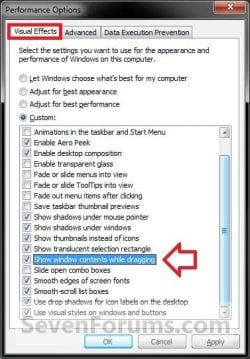
A) Check the Show window contents while dragging box, and click on OK. (see screenshot below)
Visual_Effects.jpg
3. To Show Window Outline While Dragging
A) Uncheck the Show window contents while dragging box, and click on OK. (see screenshot above)


OPTION TWO

Using a REG File Download


1. To Show Window Contents While Dragging
A) Click/tap on the download button below to download the file below.
Show_window_contents_while_dragging.reg

Download


B) Go to step 3.
2. To Show Window Outline While Dragging
A) Click on the download button below to download the file below.
Show_window_outline_while_dragging.reg

Download


3. Save the .reg file to your Desktop.

4. Double click/tap on the downloaded .reg file to merge it.

5. If prompted, click/tap on Run, Yes (UAC), Yes, and OK to approve merging the .reg file.

6. Log off and log on, or restart the computer to apply the changes.

7. When finished, you can delete the downloaded .reg file if you like.


OPTION THREE

Manually in Registry Editor


1. Press the Windows + R keys to open the Run dialog, type regedit, and press Enter.

2. If prompted by UAC, click/tap on Yes to allow.

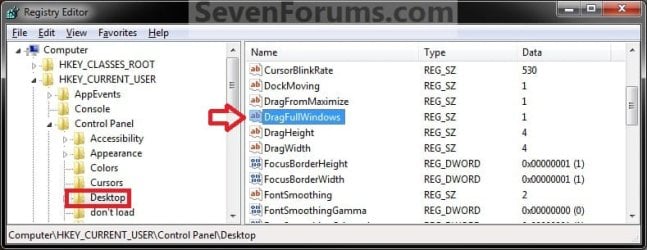
3. In regedit, navigate to the location below. (see screenshot below)
HKEY_CURRENT_USER\Control Panel\Desktop
Reg1.jpg
4. In the right pane, double click/tap on DragFullWindows to modify it. (see screenshot above)

5. To Show Window Contents While Dragging
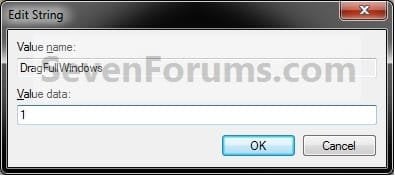
A) Type in 1, and click/tap on OK. (see screenshot below)
Reg2.jpg
B) Go to step 7.
6. To Show Window Outline While Dragging
A) Type in 0 (zero), and click/tap on OK. (see screenshot above)
7. Close regedit.

8. Log off and log on, or restart the computer to apply the changes.
That's it,
Shawn


Attachments

Last edited:

My Computer My Computer

Computer type
PC/Desktop
Computer Manufacturer/Model Number
Self built custom
OS
64-bit Windows 11 Pro for Workstations
CPU
Intel i7-8700K OC'd to 5 GHz
Motherboard
ASUS ROG Maximus XI Formula Z390
Memory
64 GB (4x16GB) G.SKILL TridentZ RGB DDR4 3600 MHz
Graphics Card(s)
ASUS ROG-STRIX-GTX1080TI-O11G-GAMING
Sound Card
Integrated
Monitor(s) Displays
2 x Samsung Odyssey G7 27"
Screen Resolution
2560x1440
Hard Drives
1TB Samsung 990 PRO M.2,
4TB Samsung 990 PRO PRO M.2,
TerraMaster F8 SSD Plus NAS
PSU
Seasonic Prime Titanium 850W
Case
Thermaltake Core P3
Cooling
Corsair Hydro H115i
Keyboard
Logitech wireless K800
Mouse
Logitech MX Master 4
Internet Speed
2 Gb/s Download and 100 Mb/s Upload
Antivirus
Malwarebyte Anti-Malware Premium
Browser
Google Chrome
Other Info
Logitech Z625 speaker system,
Logitech BRIO 4K Pro webcam,
HP Color LaserJet Pro MFP M477fdn,
APC SMART-UPS RT 1000 XL - SURT1000XLI,
Galaxy S23 Plus phone
This is sooo randomic!

Here's what happened:
I followed those two tutorials. It didn't work, the problem was stil there.
So I said myself "let's try to set the other account as a local one and see what happens!"
So I log in that other account (which is still another Microsoft Account) and the problem appeared there before I could do a thing!
I didn't modify anything, and it appeared...
So I did immediatly log out and re-log in on my usual account, and now the problem doesn't show...
It makes no sense to me!
What should I do? Hope that it won't show anymore?

Thank you for your patience anyway!

EDIT:
Uhm so, I plugged in an external HD and it did it again, I had to go to performance settings, it was set on "Custom" and I had to set it again on "Adjust for Best Appearence". I tried to simulate it again (unplugged the HD, replugged it in) but this time it did not trigger the glitch.
I don't know if this can help... (I didn't log out/restart my laptop this time) !
 

My Computer My Computer

Computer type
Laptop
Computer Manufacturer/Model Number
Asus
OS
Windows 8 64bit
Odd glitch there Fieromuso, but glad to hear that you got it narrowed down to be able to stop it.
 

My Computer My Computer

Computer type
PC/Desktop
Computer Manufacturer/Model Number
Self built custom
OS
64-bit Windows 11 Pro for Workstations
CPU
Intel i7-8700K OC'd to 5 GHz
Motherboard
ASUS ROG Maximus XI Formula Z390
Memory
64 GB (4x16GB) G.SKILL TridentZ RGB DDR4 3600 MHz
Graphics Card(s)
ASUS ROG-STRIX-GTX1080TI-O11G-GAMING
Sound Card
Integrated
Monitor(s) Displays
2 x Samsung Odyssey G7 27"
Screen Resolution
2560x1440
Hard Drives
1TB Samsung 990 PRO M.2,
4TB Samsung 990 PRO PRO M.2,
TerraMaster F8 SSD Plus NAS
PSU
Seasonic Prime Titanium 850W
Case
Thermaltake Core P3
Cooling
Corsair Hydro H115i
Keyboard
Logitech wireless K800
Mouse
Logitech MX Master 4
Internet Speed
2 Gb/s Download and 100 Mb/s Upload
Antivirus
Malwarebyte Anti-Malware Premium
Browser
Google Chrome
Other Info
Logitech Z625 speaker system,
Logitech BRIO 4K Pro webcam,
HP Color LaserJet Pro MFP M477fdn,
APC SMART-UPS RT 1000 XL - SURT1000XLI,
Galaxy S23 Plus phone
I just want to say thanks for this great tutorial; I have referred to it on a number of occasions.
Here is my most recent episode(s) with the situation:

"Show Window Contents while Dragging" somehow got turned off ???

I will add this: in my Control Panel, instead of "Performance Options", it says "Performance Information and Tools"; I clicked that and there was "Adjust Visual Effects" at the top of the left pane.

Thanks again.
 

My Computer My Computer

Computer type
PC/Desktop
Computer Manufacturer/Model Number
Dell Optiplex 780m "mini-tower"
OS
Windows 7 Pro x64
CPU
Intel Core Two Duo E8600 3.33 ghz
Motherboard
Whatever DELL put in it
Memory
8GB
Graphics Card(s)
Gigabyte Radeon R7 240
Monitor(s) Displays
HP 2159m
PSU
750 Watt Corsair CX750
Keyboard
Logitech Wireless
Mouse
Logitech Wireless
Browser
Chrome, Firefox, IE
Back
Top