
How to Enable or Disable Shut Down without Having to Log On
Information
This will show you how to enable or disable all users to be able to shut down the computer without having to log on in Windows 7. This will add or remove the red shut down menu box in all Log on and Switch user screens.
You will need to be logged in as an administrator to be able to do this tutorial.
You will need to be logged in as an administrator to be able to do this tutorial.
EXAMPLE: Log On Screen with Shut Down Enabled and Disabled


OPTION ONE
Using a REG File Download
NOTE: This is the default setting. A) Click on the Download button below to download the file below. Enable_Shutdown_without_Logon.reg
Download
B) Go to step 3.
2. To Disable Shut Down without Having to Log On A) Click on the Download button below to download the file below. Disable_Shutdown_without_Logon.reg
Download
3. Save the .reg file to the desktop.
4. Right click on the downloaded .reg file, and click on Merge.
5. Click on Run, Yes (UAC), Yes, and OK when prompted.
6. When done, you can delete the downloaded .reg file if you like.
OPTION TWO
Manually in Registry Editor
2. If prompted by UAC, then click on Yes.
3. In regedit, navigate to the location below. (see screenshots below) HKEY_LOCAL_MACHINE\SOFTWARE\Microsoft\Windows\CurrentVersion\Policies\System
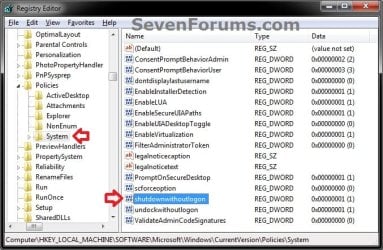
4. In the right pane, right click on shutdownwithoutlogon and click on Modify. (see screenshot above)
5. To Disable Shut Down without Having to Log On A) Type 0 (number zero), and click on OK. (see screeshot below)
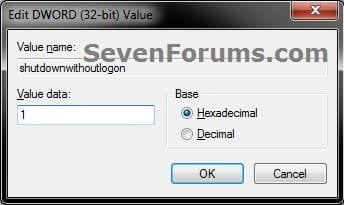
B) Go to step 7.
6. To Enable Shut Down without Having to Log On
NOTE: This is the default setting. A) Type 1, and click on OK. (see screeshot above)
7. Close regedit.
OPTION THREE
Through Local Security Policy
2. In the left pane, expand Local Policies, and click on Security Options. (see screenshot below)
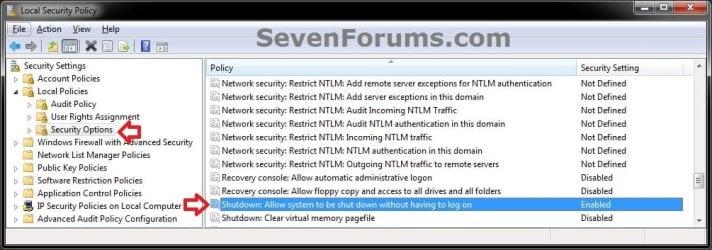
3. In the right pane, right click on Shutdown: Allow system to be shut down without having to log on and click on Properties. (see screenshot above)
4. To Disable Shut Down without Having to Log On A) Select (dot) Disabled, and click on OK. (see screeshot below)
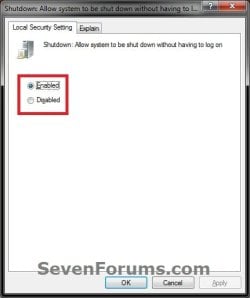
B) Go to step 6.
5. To Enable Shut Down without Having to Log On
NOTE: This is the default setting. A) Select (dot) Enabled, and click on OK. (see screeshot above)
6. Close the Local Security Policy window.
That's it,
Shawn
Related Tutorials
- How to Create a "Shut Down" Computer Shortcut in Windows
- How to Create a "Shut Down Windows" Shortcut in Windows 7
- How to Change the Default Action of the Windows 7 Alt+F4 Shut Down Window
- How to Speed Up the Shut Down Time in Windows 7
- How to Change the "Logging off..." Text Message at Shut Down in Windows 7 and Vista
- How to Change the "Shutting down..." Text Message at Shut Down in Windows 7 and Vista
Attachments
Last edited:


