
Simplest backup wanted.

Aardvarkly

New member
Power User
VIP
Local time
5:39 PM
Messages
222
Location
Northern France
I have recently been worrying about my almost total lack of backup planning. Too much of my life is on my PC these days and if it goes belly up I'm in really deep poo. So its time to have another try.

In the past I have dabbled with various backup software and none of them were simple/easy enough for my feeble brain. When confronted with a page of jargon and basics that are probably well-known to competent tech people I just hit a brick wall. Thankfully I am usually able to uninstall these failures and haven't (so far) manage to mess up my W7 Pro installation. A few of you kind people have given me step by step instructions but more often than not what is expected to show up as the next stage just doesn't appear. I was wondering if there is anything new out there that I can use as a backup, either to an external drive via USB or maybe even a seperate drive installed in the tower. I was hoping to get to a state that if my main drive gets corrupted or dies I can just unplug it and connect to the other one and carry one. I guess this would have to contain the entire installation of Windows plus my drivers and data. Is this even possible? I have lots of bits of my "Documents" on different memory sticks but nothing all in one place that would give me a fresh install of W7. Is this called a clone? I don't even know where to start.

And don't even mention "the Cloud". I don't like the idea of storing anything on somebody else's server just waiting to be hacked or sold to the highest bidder.
 

My Computer

Computer type
PC/Desktop
Computer Manufacturer/Model Number
Home built Asus
OS
Windows 7 Pro 64bit
CPU
Intel® Core™ i3 Processor 3.7ghz
Motherboard
Asus Intel Prime H270-Pro LGA 1151 ATX
Memory
Crucial (2x8GB) DDR4-2400
Graphics Card(s)
on board
Monitor(s) Displays
BENQ GL2450HE (24 inch)
Screen Resolution
1980 x 1080
Hard Drives
C drive is SSD Crucial 500gb mostly for the OS
PSU
Corsair CX750
Case
A big black one
Cooling
Cooler Master Hyper TX3i on the processor
Keyboard
Logitech k2700 wireless
Mouse
Logitech M575 wireless trackball
Internet Speed
Just under about 7mb/s on a good day
Antivirus
Avira Free
Browser
Opera, Firefox, Chrome, and Supermium
Thanks for the suggestions. I will investigate.
Happy New Year!

- - - Updated - - -

Update: Both of these look like they could be potentially easy to use.............but,
both of them offer to either Migrate or Clone. I am having trouble understanding the difference between the two choices. Any clues what they mean? I just want to copy everything on the drive that is in use (Windows installation, software, drivers, personal data, etc.) and place it on a different drive to keep it safe. Then in case of disaster I can just disconnect the dodgy drive and plug the backup one in and have a quick solution. Which choice would allow this?
 

My Computer

Computer type
PC/Desktop
Computer Manufacturer/Model Number
Home built Asus
OS
Windows 7 Pro 64bit
CPU
Intel® Core™ i3 Processor 3.7ghz
Motherboard
Asus Intel Prime H270-Pro LGA 1151 ATX
Memory
Crucial (2x8GB) DDR4-2400
Graphics Card(s)
on board
Monitor(s) Displays
BENQ GL2450HE (24 inch)
Screen Resolution
1980 x 1080
Hard Drives
C drive is SSD Crucial 500gb mostly for the OS
PSU
Corsair CX750
Case
A big black one
Cooling
Cooler Master Hyper TX3i on the processor
Keyboard
Logitech k2700 wireless
Mouse
Logitech M575 wireless trackball
Internet Speed
Just under about 7mb/s on a good day
Antivirus
Avira Free
Browser
Opera, Firefox, Chrome, and Supermium
My Computers

System One System Two

  • Computer type
    PC/Desktop
    OS
    7 X64
    CPU
    i5 8400
    Motherboard
    gigabyte b365m ds3h
    Memory
    2x8gb 3200mhz
    Hard Drives
    various
    PSU
    pure power 11 400w cm
    Case
    Coolermaster
    Cooling
    cryorig m9i
  • Computer type
    PC/Desktop
    OS
    7x64
    CPU
    g5400
    Motherboard
    ga b365m ds3h
    Memory
    8gb ddr4 2400
    PSU
    xfx pro 450w
I looked at the explanation in your link. It was hard going because of the speed of the presenter and I had to pause/backup/replay many times but it still left me in a state of confusion about "partitions". I was hoping that there is a software out there that will simply copy my existing drive (everything on it) and transfer it to another drive exactly as it is. In effect I would have two drives that I could plug into my computer (separately of course) and I could boot up and find everything working identically. That is my naive idea of what a backup should be. Every solution I have looked into starts with a page of options and tools that I don't understand. Perhaps I am looking for something that doesn't exist. At my age I don't have enough time left to learn all the ins and outs of computer software. I have built my own desktops over the last 20-odd years but haven't a clue what half the jargon means and have never been involved with "partitions", nor have any of my friends.
I thank you for your responses but I think I will push this problem to the bottom of my list, again, and cross my fingers.
 

My Computer

Computer type
PC/Desktop
Computer Manufacturer/Model Number
Home built Asus
OS
Windows 7 Pro 64bit
CPU
Intel® Core™ i3 Processor 3.7ghz
Motherboard
Asus Intel Prime H270-Pro LGA 1151 ATX
Memory
Crucial (2x8GB) DDR4-2400
Graphics Card(s)
on board
Monitor(s) Displays
BENQ GL2450HE (24 inch)
Screen Resolution
1980 x 1080
Hard Drives
C drive is SSD Crucial 500gb mostly for the OS
PSU
Corsair CX750
Case
A big black one
Cooling
Cooler Master Hyper TX3i on the processor
Keyboard
Logitech k2700 wireless
Mouse
Logitech M575 wireless trackball
Internet Speed
Just under about 7mb/s on a good day
Antivirus
Avira Free
Browser
Opera, Firefox, Chrome, and Supermium
I looked at the explanation in your link. It was hard going because of the speed of the presenter and I had to pause/backup/replay many times but it still left me in a state of confusion about "partitions". I was hoping that there is a software out there that will simply copy my existing drive (everything on it) and transfer it to another drive exactly as it is. In effect I would have two drives that I could plug into my computer (separately of course) and I could boot up and find everything working identically. That is my naive idea of what a backup should be...
Think of your hard drive as a house. Each partition is a 'room' in that house, and the stuff that's in each room has different jobs to do. The 'living room', the one you are familiar with and spend all your time in, is the C: partition. That's where you keep Windows and all your user files. But on its own a backup of C: is not sufficient to rebuild a working system. There's stuff in the other partitions that boots up the system and opens the door to the living room for you.

Hasleo, like most other backup software, offers the option to do a System Backup. This is a copy of every partition ('room') on your drive ('house') that's necessary to make a fully working PC.

Then you have the choice of making a clone, or a backup image.

A clone is like building a second house (drive) with all the rooms (partitions) and their contents you'd need to live there (boot up as a working PC with all your files and programs).

An image is a file that contains copies of everything from your house, so that if it burns down (drive dies) you could move into a new empty house (get a new blank drive) and restore all the partitions and their contents from the image (refurnish the house with exact copies of everything from the old one).
 

My Computers

System One System Two

  • Computer type
    Laptop
    Computer Manufacturer/Model Number
    Toshiba satellite C650D
    OS
    Windows 7 Home Premium x64
    CPU
    AMD V120
    Memory
    4GB
    Internet Speed
    150 Mbps
    Antivirus
    MSE
    Browser
    IE11, Edge, Firefox
    Other Info
    I also have W7 Pro on my System Two, and several W7 Hyper-V VMs. My other machines run Windows 10/11. Their specs are in my Ten Forums & Eleven Forum profiles.
  • Computer type
    Laptop
    System Manufacturer/Model Number
    Lenovo Thinkpad T430
    OS
    Windows 7 Pro x64
    CPU
    Intel i5-3320M
    Memory
    8 GB
    Hard Drives
    250GB Samsung SSD 860 EVO
    Other Info
    Antivirus: MSE
Although you have offered a simplified explanation, the two options still seem (to me) to be the same thing. I still don't know which one to choose for my purpose. And would probably have no idea what to do to make use of the copy/clone/image when I need it. Your input is much appreciated.
 

My Computer

Computer type
PC/Desktop
Computer Manufacturer/Model Number
Home built Asus
OS
Windows 7 Pro 64bit
CPU
Intel® Core™ i3 Processor 3.7ghz
Motherboard
Asus Intel Prime H270-Pro LGA 1151 ATX
Memory
Crucial (2x8GB) DDR4-2400
Graphics Card(s)
on board
Monitor(s) Displays
BENQ GL2450HE (24 inch)
Screen Resolution
1980 x 1080
Hard Drives
C drive is SSD Crucial 500gb mostly for the OS
PSU
Corsair CX750
Case
A big black one
Cooling
Cooler Master Hyper TX3i on the processor
Keyboard
Logitech k2700 wireless
Mouse
Logitech M575 wireless trackball
Internet Speed
Just under about 7mb/s on a good day
Antivirus
Avira Free
Browser
Opera, Firefox, Chrome, and Supermium
Although you have offered a simplified explanation, the two options still seem (to me) to be the same thing. I still don't know which one to choose for my purpose....
What's the difference between a clone and an image?

A clone requires you to buy a replacement drive now, one that's the same size as (or larger than) your current drive, then cloning will make it an exact copy of your current drive. You can only have one clone per a drive, and you cannot use the drive for anything else. If you want to make another clone later while keeping the first clone, then you'd need to buy a second drive. Either that or overwrite the first clone with the new one.

An image is a file that contains everything you need to make an exact copy of your drive as it stands now. It's just a file, and as imaging uses compression it's small enough to keep several different images from different dates on the same drive. Plus you can use any free space on the drive to store any other files you may want to make backup copies of. You'd only need to buy a new drive to replace the old one should it die. Then you'd restore the image to it and it would be the same as if you'd cloned your drive to it.

My preference is to make an image. I have an external drive with multiple images on it, one from each of my PCs.

.... And would probably have no idea what to do to make use of the copy/clone/image when I need it.

A cloned drive is simple, if the old drive dies just remove it and replace it with the clone. The clone is functionally identical to the old drive at the time you cloned it and will boot up into Windows.

For an image you'd replace the dead drive with a new one. You'd then have to boot from a recovery usb to do the restore. All backup software has an option to make one, so that should be the first thing you do before making your image. The recovery usb has the same imaging software on it. You can use it to choose an image to restore to the new blank drive.
 
Last edited:

My Computers

System One System Two

  • Computer type
    Laptop
    Computer Manufacturer/Model Number
    Toshiba satellite C650D
    OS
    Windows 7 Home Premium x64
    CPU
    AMD V120
    Memory
    4GB
    Internet Speed
    150 Mbps
    Antivirus
    MSE
    Browser
    IE11, Edge, Firefox
    Other Info
    I also have W7 Pro on my System Two, and several W7 Hyper-V VMs. My other machines run Windows 10/11. Their specs are in my Ten Forums & Eleven Forum profiles.
  • Computer type
    Laptop
    System Manufacturer/Model Number
    Lenovo Thinkpad T430
    OS
    Windows 7 Pro x64
    CPU
    Intel i5-3320M
    Memory
    8 GB
    Hard Drives
    250GB Samsung SSD 860 EVO
    Other Info
    Antivirus: MSE
"A cloned drive is simple, if the old drive dies just remove it and replace it with the clone."
With that said, I will go with a clone. That is the result I am looking for. I just want to be able to copy the whole of the drive that is in use. In case of need, I just take it out and plug in the clone and the PC will boot up and everything will work as it did before. Many thanks for your patience.
 

My Computer

Computer type
PC/Desktop
Computer Manufacturer/Model Number
Home built Asus
OS
Windows 7 Pro 64bit
CPU
Intel® Core™ i3 Processor 3.7ghz
Motherboard
Asus Intel Prime H270-Pro LGA 1151 ATX
Memory
Crucial (2x8GB) DDR4-2400
Graphics Card(s)
on board
Monitor(s) Displays
BENQ GL2450HE (24 inch)
Screen Resolution
1980 x 1080
Hard Drives
C drive is SSD Crucial 500gb mostly for the OS
PSU
Corsair CX750
Case
A big black one
Cooling
Cooler Master Hyper TX3i on the processor
Keyboard
Logitech k2700 wireless
Mouse
Logitech M575 wireless trackball
Internet Speed
Just under about 7mb/s on a good day
Antivirus
Avira Free
Browser
Opera, Firefox, Chrome, and Supermium
"A cloned drive is simple, if the old drive dies just remove it and replace it with the clone."
With that said, I will go with a clone. That is the result I am looking for. I just want to be able to copy the whole of the drive that is in use. In case of need, I just take it out and plug in the clone and the PC will boot up and everything will work as it did before. Many thanks for your patience.

Remember, the clone is only as up to date as the time you made it, so make a new clone regularly. If you're going for the clone solution, then I'd advise using two drives to clone to, and alternate which one you make the next clone to. That way you'd always have a fallback position should anything go wrong with the latest clone.
 

My Computers

System One System Two

  • Computer type
    Laptop
    Computer Manufacturer/Model Number
    Toshiba satellite C650D
    OS
    Windows 7 Home Premium x64
    CPU
    AMD V120
    Memory
    4GB
    Internet Speed
    150 Mbps
    Antivirus
    MSE
    Browser
    IE11, Edge, Firefox
    Other Info
    I also have W7 Pro on my System Two, and several W7 Hyper-V VMs. My other machines run Windows 10/11. Their specs are in my Ten Forums & Eleven Forum profiles.
  • Computer type
    Laptop
    System Manufacturer/Model Number
    Lenovo Thinkpad T430
    OS
    Windows 7 Pro x64
    CPU
    Intel i5-3320M
    Memory
    8 GB
    Hard Drives
    250GB Samsung SSD 860 EVO
    Other Info
    Antivirus: MSE
That sounds like the safest way to go. I will pick up a matched pair of SSD drives. Same size as the one in my tower at the moment, (480gb). This size is dirt cheap at the moment and is only half full after about ten years. No point in getting anything larger.
 

My Computer

Computer type
PC/Desktop
Computer Manufacturer/Model Number
Home built Asus
OS
Windows 7 Pro 64bit
CPU
Intel® Core™ i3 Processor 3.7ghz
Motherboard
Asus Intel Prime H270-Pro LGA 1151 ATX
Memory
Crucial (2x8GB) DDR4-2400
Graphics Card(s)
on board
Monitor(s) Displays
BENQ GL2450HE (24 inch)
Screen Resolution
1980 x 1080
Hard Drives
C drive is SSD Crucial 500gb mostly for the OS
PSU
Corsair CX750
Case
A big black one
Cooling
Cooler Master Hyper TX3i on the processor
Keyboard
Logitech k2700 wireless
Mouse
Logitech M575 wireless trackball
Internet Speed
Just under about 7mb/s on a good day
Antivirus
Avira Free
Browser
Opera, Firefox, Chrome, and Supermium
Just one more question. After trying to digest the helpful posts above, and reading the guide on the Hasleo website, I still don't see any difference between the two operations. Cloning vs Migration. Both claim to provide a second disc that can be used to instanly fire up a PC with all settings, drivers, software, and data in place. They must be different in some way otherwise what would be the point in having both?
 

My Computer

Computer type
PC/Desktop
Computer Manufacturer/Model Number
Home built Asus
OS
Windows 7 Pro 64bit
CPU
Intel® Core™ i3 Processor 3.7ghz
Motherboard
Asus Intel Prime H270-Pro LGA 1151 ATX
Memory
Crucial (2x8GB) DDR4-2400
Graphics Card(s)
on board
Monitor(s) Displays
BENQ GL2450HE (24 inch)
Screen Resolution
1980 x 1080
Hard Drives
C drive is SSD Crucial 500gb mostly for the OS
PSU
Corsair CX750
Case
A big black one
Cooling
Cooler Master Hyper TX3i on the processor
Keyboard
Logitech k2700 wireless
Mouse
Logitech M575 wireless trackball
Internet Speed
Just under about 7mb/s on a good day
Antivirus
Avira Free
Browser
Opera, Firefox, Chrome, and Supermium
Just one more question. After trying to digest the helpful posts above, and reading the guide on the Hasleo website, I still don't see any difference between the two operations. Cloning vs Migration. Both claim to provide a second disc that can be used to instanly fire up a PC with all settings, drivers, software, and data in place. They must be different in some way otherwise what would be the point in having both?
Migration sets up the windows environment without certain drivers so it can finish booting and plug and play (or you install) drivers for new hardware. For example if you want to move your existing windows installation to a different motherboard and chipset.

You do not need migration to keep using same hardware, to just have a backup drive with same working windows installation.

Disclaimer: I have not used this software, just going by what other partition backup/copy apps call a migration.
 

My Computers

System One System Two

  • Computer type
    PC/Desktop
    Computer Manufacturer/Model Number
    custom
    OS
    Windows 7 Ultimate 64bit
    CPU
    J1900
    Motherboard
    ASROCK Q1900M
    Memory
    4GB DDR3 1333
    Graphics Card(s)
    Intel 7 Gen IGP
    Hard Drives
    Multiple SATA & USB3
    Antivirus
    Defender
    Browser
    Latest Chrome & Older Firefox
  • Computer type
    PC/Desktop
    System Manufacturer/Model Number
    Cobbled Together Leftover Parts
    OS
    Win7 Ultimate SP1 x64
    CPU
    AMD Phenom II x4 BE 965
    Motherboard
    Asus M4A785TD-V Evo
    Memory
    16GB as 4 x 4GB
    Graphics Card(s)
    GTX 1060
    Sound Card
    Via Envy Chaintech AV-710
    Monitor(s) Displays
    Samsung TVs
    Screen Resolution
    4K
    Hard Drives
    0 - Just SSDs in this box.
My sincere thanks for your post. You have understood my question and drilled down to an informative answer that I can understand.
One method can be used as a complete backup to reinstall on the original machine. The other can be used to install on a different machine, or the same one that has had major components replaced.
 

My Computer

Computer type
PC/Desktop
Computer Manufacturer/Model Number
Home built Asus
OS
Windows 7 Pro 64bit
CPU
Intel® Core™ i3 Processor 3.7ghz
Motherboard
Asus Intel Prime H270-Pro LGA 1151 ATX
Memory
Crucial (2x8GB) DDR4-2400
Graphics Card(s)
on board
Monitor(s) Displays
BENQ GL2450HE (24 inch)
Screen Resolution
1980 x 1080
Hard Drives
C drive is SSD Crucial 500gb mostly for the OS
PSU
Corsair CX750
Case
A big black one
Cooling
Cooler Master Hyper TX3i on the processor
Keyboard
Logitech k2700 wireless
Mouse
Logitech M575 wireless trackball
Internet Speed
Just under about 7mb/s on a good day
Antivirus
Avira Free
Browser
Opera, Firefox, Chrome, and Supermium
There is a lot of confusion because the word clone can mean a lot of things.

It originally meant an exact copy. Nowadays it can just mean copy with a variety of options, e.g. file based, block based, all sectors. used sectors, with or without without retaining the original disk sig and so on.

*******************************************************************************

The OS migration feature in Disk genius is for transferring the operating system from one disk to another while keeping both disks bootable.

It automatically selects the partitions needed by the operating system to function. If there are other partitions on the source disk, they can optionally be included in the migration.

Although everything looks and functions the same for the end user, it is not an exact copy because that can cause problems if the source and target are online at the same time. The target disk does not have the same disk or partition id as the source and the bcd store and os letter are automatically adjusted to reflect the new locations . It is excellent and the best I have come across for that job.

***********************************************************************************************************

It has got nothing to do with a completely different feature some imaging programs have that are called things like "universal restore" or "physical to physical adjust" .
 
Last edited:

My Computers

System One System Two

  • Computer type
    PC/Desktop
    OS
    7 X64
    CPU
    i5 8400
    Motherboard
    gigabyte b365m ds3h
    Memory
    2x8gb 3200mhz
    Hard Drives
    various
    PSU
    pure power 11 400w cm
    Case
    Coolermaster
    Cooling
    cryorig m9i
  • Computer type
    PC/Desktop
    OS
    7x64
    CPU
    g5400
    Motherboard
    ga b365m ds3h
    Memory
    8gb ddr4 2400
    PSU
    xfx pro 450w
Update:
It is now about 8 months later and I am still in a muddle. I installed the Hasleo software, and bought a pair of matched 500gb SSD drives. I (think) it did a system clone to one of the new drives. Today I decided it was about time to renew it because a lot of the personal data in Documents has changed. I used a USB/Sata link cable. When I plug the backup into the PC it doesn't show up as a different drive in "Computer". I assumed this is normal to not be recognised. I thought it would be a good idea to format it before doing a new backup. I then fired up Hasleo disc clone and I (think) it was showing me what was on the SSD backup. Lots of different boxes to tick, like disc 0, disc 1, NTSC, Fat 32, etc. No idea what to tick and no option of where to choose as the destination. I don't know if it is a good idea to tick everything and just press on, or trash the drive and try again with an empty one. They are cheap now but not that cheap.

Is there any new software out there today that will do what I want (described in my posts above) without so much prior knowledge needed. Or should I try using the built-in W7 Backup thing? From my notes I see that I tried that back in 2021 and managed to lose track of it.
Or lastly, should I just try to find a computer help bod and pay them to do me the backup copy I need?
 

My Computer

Computer type
PC/Desktop
Computer Manufacturer/Model Number
Home built Asus
OS
Windows 7 Pro 64bit
CPU
Intel® Core™ i3 Processor 3.7ghz
Motherboard
Asus Intel Prime H270-Pro LGA 1151 ATX
Memory
Crucial (2x8GB) DDR4-2400
Graphics Card(s)
on board
Monitor(s) Displays
BENQ GL2450HE (24 inch)
Screen Resolution
1980 x 1080
Hard Drives
C drive is SSD Crucial 500gb mostly for the OS
PSU
Corsair CX750
Case
A big black one
Cooling
Cooler Master Hyper TX3i on the processor
Keyboard
Logitech k2700 wireless
Mouse
Logitech M575 wireless trackball
Internet Speed
Just under about 7mb/s on a good day
Antivirus
Avira Free
Browser
Opera, Firefox, Chrome, and Supermium
Update:
It is now about 8 months later and I am still in a muddle. I installed the Hasleo software, and bought a pair of matched 500gb SSD drives. I (think) it did a system clone to one of the new drives. Today I decided it was about time to renew it because a lot of the personal data in Documents has changed. I used a USB/Sata link cable. When I plug the backup into the PC it doesn't show up as a different drive in "Computer". I assumed this is normal to not be recognised. I thought it would be a good idea to format it before doing a new backup. I then fired up Hasleo disc clone and I (think) it was showing me what was on the SSD backup. Lots of different boxes to tick, like disc 0, disc 1, NTSC, Fat 32, etc. No idea what to tick and no option of where to choose as the destination. I don't know if it is a good idea to tick everything and just press on, or trash the drive and try again with an empty one. They are cheap now but not that cheap.

Is there any new software out there today that will do what I want (described in my posts above) without so much prior knowledge needed. Or should I try using the built-in W7 Backup thing? From my notes I see that I tried that back in 2021 and managed to lose track of it.
Or lastly, should I just try to find a computer help bod and pay them to do me the backup copy I need?
Rather than Hasleo Clone, try Hasleo Backup Suite.

Best Free Windows Backup Software for PCs and Servers in 2025 - Hasleo Backup Suite

Simply click 'System Backup' and it automatically selects all the partitions required for a working Windows system and backs them up to an image file. Because only the used data is included, an image file will be small enough for you to keep several on your backup drive.

System Backup

Back up all the partitions required for the normal operation of the current Windows operating system, including the boot partition, system partition, and recovery partition. Click "Backup" => "System Backup" and specify the backup options and the storage path of the backup image file. Then click "Proceed" to execute the backup process.
User guide for Hasleo Backup Suite
 

My Computers

System One System Two

  • Computer type
    Laptop
    Computer Manufacturer/Model Number
    Toshiba satellite C650D
    OS
    Windows 7 Home Premium x64
    CPU
    AMD V120
    Memory
    4GB
    Internet Speed
    150 Mbps
    Antivirus
    MSE
    Browser
    IE11, Edge, Firefox
    Other Info
    I also have W7 Pro on my System Two, and several W7 Hyper-V VMs. My other machines run Windows 10/11. Their specs are in my Ten Forums & Eleven Forum profiles.
  • Computer type
    Laptop
    System Manufacturer/Model Number
    Lenovo Thinkpad T430
    OS
    Windows 7 Pro x64
    CPU
    Intel i5-3320M
    Memory
    8 GB
    Hard Drives
    250GB Samsung SSD 860 EVO
    Other Info
    Antivirus: MSE
I have downloaded it and will give it a try. In the preview images on the website it looks suspiciously similar to the other one. Looks like lots of options of discs to use as source, etc. but its worth a shot.

Thanks for your input.
 

My Computer

Computer type
PC/Desktop
Computer Manufacturer/Model Number
Home built Asus
OS
Windows 7 Pro 64bit
CPU
Intel® Core™ i3 Processor 3.7ghz
Motherboard
Asus Intel Prime H270-Pro LGA 1151 ATX
Memory
Crucial (2x8GB) DDR4-2400
Graphics Card(s)
on board
Monitor(s) Displays
BENQ GL2450HE (24 inch)
Screen Resolution
1980 x 1080
Hard Drives
C drive is SSD Crucial 500gb mostly for the OS
PSU
Corsair CX750
Case
A big black one
Cooling
Cooler Master Hyper TX3i on the processor
Keyboard
Logitech k2700 wireless
Mouse
Logitech M575 wireless trackball
Internet Speed
Just under about 7mb/s on a good day
Antivirus
Avira Free
Browser
Opera, Firefox, Chrome, and Supermium
I just want to copy everything on the drive that is in use (Windows installation, software, drivers, personal data, etc.) and place it on a different drive to keep it safe. Then in case of disaster I can just disconnect the dodgy drive and plug the backup one in and have a quick solution. Which choice would allow this?


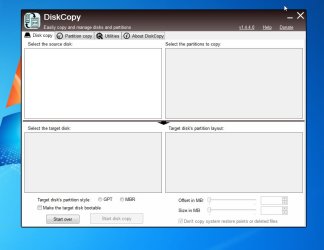
You could try this. It is as simple as it gets

DiskCopy

EDIT: Forget that one. just checked, it doesn't display any disks on win7. Works fine on win 11.

diskcopy-noworks-win7.jpg
 

My Computers

System One System Two

  • Computer type
    PC/Desktop
    OS
    7 X64
    CPU
    i5 8400
    Motherboard
    gigabyte b365m ds3h
    Memory
    2x8gb 3200mhz
    Hard Drives
    various
    PSU
    pure power 11 400w cm
    Case
    Coolermaster
    Cooling
    cryorig m9i
  • Computer type
    PC/Desktop
    OS
    7x64
    CPU
    g5400
    Motherboard
    ga b365m ds3h
    Memory
    8gb ddr4 2400
    PSU
    xfx pro 450w
I have downloaded it and will give it a try. In the preview images on the website it looks suspiciously similar to the other one. Looks like lots of options of discs to use as source, etc. but its worth a shot.

Thanks for your input.
It's from the same people, so will look the same. The System Backup option selects all the required partitions for you. You just have to choose where to save the image.

It's for making a system image, not a clone. The difference is that a clone is an exact copy of the partitions from one disk to another. As such you need a drive of the same capacity, and to have two clones you'd need two disks.

A system image is a single file that contains all the used data from the partitions of the disk being imaged. The software can then be used to restore the partitions from the image to the original or a new disk. Once restored to a disk it is a copy of all the data from the original, just as if it were a clone.

As it only contains the used data an image will be smaller than the size of the drive being imaged. Also compression will be used, making the image smaller still. You can put several images on a drive, keeping older versions in case they're needed, instead of just the one clone per disk.

If the original drive has failed or become corrupted you'll need the software to restore the image. To be able to do this you should make a recovery USB (there's an option in the software for this). Boot from the USB and you can restore from the image to the disk in your PC.
 

My Computers

System One System Two

  • Computer type
    Laptop
    Computer Manufacturer/Model Number
    Toshiba satellite C650D
    OS
    Windows 7 Home Premium x64
    CPU
    AMD V120
    Memory
    4GB
    Internet Speed
    150 Mbps
    Antivirus
    MSE
    Browser
    IE11, Edge, Firefox
    Other Info
    I also have W7 Pro on my System Two, and several W7 Hyper-V VMs. My other machines run Windows 10/11. Their specs are in my Ten Forums & Eleven Forum profiles.
  • Computer type
    Laptop
    System Manufacturer/Model Number
    Lenovo Thinkpad T430
    OS
    Windows 7 Pro x64
    CPU
    Intel i5-3320M
    Memory
    8 GB
    Hard Drives
    250GB Samsung SSD 860 EVO
    Other Info
    Antivirus: MSE
Back
Top