SmartDefrag2: Half the screen filled with black cells

flycaster

New member
Member
VIP
Local time
4:51 AM
Messages
472
Location
Boynton Beach, FL
I just defragged my two computers using IObit's Smart Defragger 2.6. One is a desktop and the other is a laptop. Although they are from different manufacturers, they have the same OS (Windows7 HP) and just about the same programs in use. The desktop is used more than the laptop.

On opening SD, the screen for the laptop didn't have many black cells; whereas the desktop showed about half the screen filled with continuous black cells and many black cells remaining within areas that were defragged/optimized.

I would appreciate knowing if the preponderance of black cells showing the desktop means anything?
 

My Computer My Computer

At a glance

Windows 7 HP 64-bit4GB/4GB
Computer Manufacturer/Model Number
Gateway DX4720-03/HP Pavilion dv6
OS
Windows 7 HP 64-bit
Memory
4GB/4GB
Antivirus
Avast Pro
Browser
Firefox, the latest
That would depend on what the black cells indicate. If they represent free space on the hard drive (just as an example) it's possible the desktop has a larger hard drive than the laptop so it's showing more free space. But if the black cells mean something else...

A screenshot of the defrag screens including the legend of what the different colored cells mean would help. Also the size of both hard drives.
 

My Computer My Computer

At a glance

Win 7 Pro 64-bitIntel i5 2.4 Ghz8GB DDR3Intel HD 3000
Computer type
Laptop
Computer Manufacturer/Model Number
Sony Vaio VPCEB47GM Laptop
OS
Win 7 Pro 64-bit
CPU
Intel i5 2.4 Ghz
Memory
8GB DDR3
Graphics Card(s)
Intel HD 3000
Sound Card
IDT High Definition
Monitor(s) Displays
15.6 WGXA Anti-Glare LED
Screen Resolution
1280x800
Hard Drives
640Gb 7200rpm
Antivirus
MSE
Browser
Opera (primary) with IE9 backup
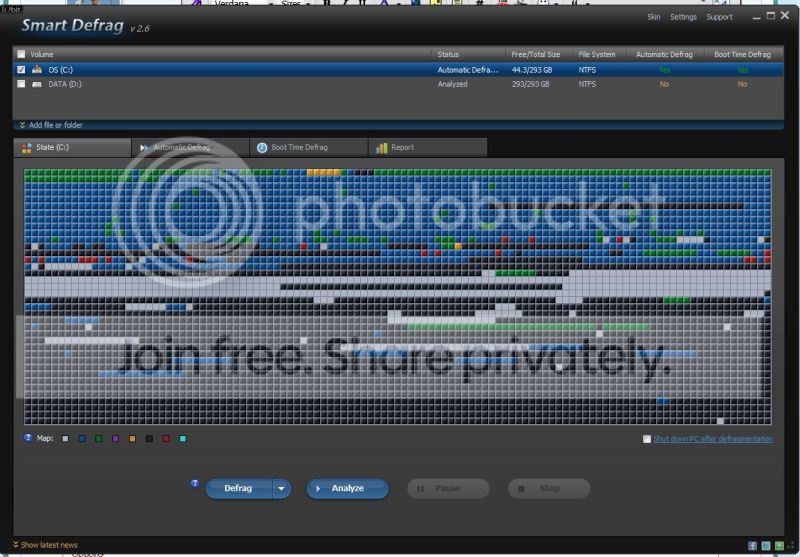
OK, here's a screen shot of SmartDefrag for my desktop. The Desktop's hard drive capacity is 640GB, and for the laptop it is 500GB.
Grey=Free space
Blue=Rarely used
Green=Frequently used
Purple=Directories
Orange=MFT
Black=Unmovable
Red=Fragmented
Blue=Moving

SmartDefrag.jpg
 

My Computer My Computer

At a glance

Windows 7 HP 64-bit4GB/4GB
Computer Manufacturer/Model Number
Gateway DX4720-03/HP Pavilion dv6
OS
Windows 7 HP 64-bit
Memory
4GB/4GB
Antivirus
Avast Pro
Browser
Firefox, the latest
Since the black cells represent unmovable files, those would include System files (including hidden files), Backup files, System Restore files, Shadow Copy files, Zipped files, Compressed files, Encrypted files, Swap files (AKA Paging files), the Master File Table, to name just a few.

The more use a computer has, the greater the probability that more unmovable files will be created. But Windows 7 is a lot better at managing these files than previous OS versions. The greater concern would be if you're running out of hard drive space. As long as the hard drive isn't in the red I'd say everything is fine.

HDDspace.JPG
 

My Computer My Computer

At a glance

Win 7 Pro 64-bitIntel i5 2.4 Ghz8GB DDR3Intel HD 3000
Computer type
Laptop
Computer Manufacturer/Model Number
Sony Vaio VPCEB47GM Laptop
OS
Win 7 Pro 64-bit
CPU
Intel i5 2.4 Ghz
Memory
8GB DDR3
Graphics Card(s)
Intel HD 3000
Sound Card
IDT High Definition
Monitor(s) Displays
15.6 WGXA Anti-Glare LED
Screen Resolution
1280x800
Hard Drives
640Gb 7200rpm
Antivirus
MSE
Browser
Opera (primary) with IE9 backup
Thanks, Marsmimar. I was getting quite concerned as I had never seen so much black when doing a defrag. From the look of the screen, it looks as though about half my drive's capacity is taken up with a lot of stuff I don't know about. I would feel more comfortable if I could reduce the amount of black cells in order to free up room on the HD. Any suggestions on how to go about this?
 

My Computer My Computer

At a glance

Windows 7 HP 64-bit4GB/4GB
Computer Manufacturer/Model Number
Gateway DX4720-03/HP Pavilion dv6
OS
Windows 7 HP 64-bit
Memory
4GB/4GB
Antivirus
Avast Pro
Browser
Firefox, the latest
Use Disk Cleanup. There's an option to delete unnecessary system files as well as deleting non-system files (steps 4 and 5.)

http://www.sevenforums.com/tutorials/818-disk-cleanup-open-use.html

You could also delete older system restore points and reduce the amount of hard drive space that's set aside for those restore points.

http://www.sevenforums.com/tutorials/336-system-protection-restore-points-delete.html

http://www.sevenforums.com/tutorials/335-system-protection-change-disk-space-usage.html

If hibernation is enabled and if you don't use it, you can disable it and gain back an amount of hard drive space equal to about 3/4 of your RAM.

http://www.sevenforums.com/tutorials/819-hibernate-enable-disable.html

I think these are the most common steps people take to regain hard drive space. This tutorial shows several more things you can do if so inclined. Not everything will apply to your computer so don't feel that you have to do everything. :)

http://www.sevenforums.com/tutorials/129976-hard-disk-space-free-up-recover.html
 

My Computer My Computer

At a glance

Win 7 Pro 64-bitIntel i5 2.4 Ghz8GB DDR3Intel HD 3000
Computer type
Laptop
Computer Manufacturer/Model Number
Sony Vaio VPCEB47GM Laptop
OS
Win 7 Pro 64-bit
CPU
Intel i5 2.4 Ghz
Memory
8GB DDR3
Graphics Card(s)
Intel HD 3000
Sound Card
IDT High Definition
Monitor(s) Displays
15.6 WGXA Anti-Glare LED
Screen Resolution
1280x800
Hard Drives
640Gb 7200rpm
Antivirus
MSE
Browser
Opera (primary) with IE9 backup
Wow. Great advice. Will give it a try tomorrow and let you know how it turns out.
 

My Computer My Computer

At a glance

Windows 7 HP 64-bit4GB/4GB
Computer Manufacturer/Model Number
Gateway DX4720-03/HP Pavilion dv6
OS
Windows 7 HP 64-bit
Memory
4GB/4GB
Antivirus
Avast Pro
Browser
Firefox, the latest
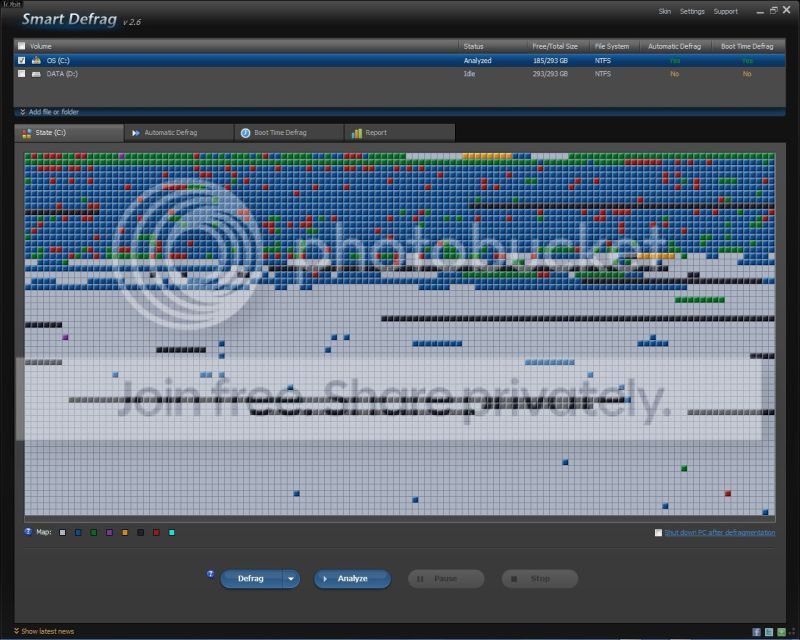
Well, I must say that my C drive is looking a lot, lot better after going through your suggestions. I should have approached this issue more scientifically to see just where those black cells were coming from. That is, I merely went step by step following your suggestions, and when finished, I took a look at the SmartDefrag's screen. What I should have done is taken a look at the SD screen after each adjustment. Anyway, as proof that the suggestions and effort were worth while, here's a pic of the C drive after all was said and done. BTW, if I were to guess at what procedure made the biggest difference (i.e., go rid of the most black cells), I'd say it was my re-setting how much should be set aside to record Restore Points. Somehow, the setting was at 50% and I reduced it to 5%.

Defrag.jpg
 

My Computer My Computer

At a glance

Windows 7 HP 64-bit4GB/4GB
Computer Manufacturer/Model Number
Gateway DX4720-03/HP Pavilion dv6
OS
Windows 7 HP 64-bit
Memory
4GB/4GB
Antivirus
Avast Pro
Browser
Firefox, the latest
What a difference between the before and after screenshots. Looks like you went from 44.3GB free space to 185GB. I agree that the biggest gain was changing how much space was set aside for restore points. That was a HUGE amount ... roughly 146GB.

Glad you were able to get back so much space. Thanks for posting back. :thumbsup:
 

My Computer My Computer

At a glance

Win 7 Pro 64-bitIntel i5 2.4 Ghz8GB DDR3Intel HD 3000
Computer type
Laptop
Computer Manufacturer/Model Number
Sony Vaio VPCEB47GM Laptop
OS
Win 7 Pro 64-bit
CPU
Intel i5 2.4 Ghz
Memory
8GB DDR3
Graphics Card(s)
Intel HD 3000
Sound Card
IDT High Definition
Monitor(s) Displays
15.6 WGXA Anti-Glare LED
Screen Resolution
1280x800
Hard Drives
640Gb 7200rpm
Antivirus
MSE
Browser
Opera (primary) with IE9 backup
Back
Top