
SSD - Fix Misalignment

If the alignment of your SSD is not divisible by 4, you will suffer a noticeable performance degradation. On an SSD with an installed OS, this situation is not easily corrected. You can try the Paragon Alignment Tool, but I am not sure whether they will do the job without a fee.

The steps below and the program I use are completely free and a lot of fun. I hope it can help you when your SSD is in an unfortunate misalignment situation.


1. The fast method

1. Watch this video: Align Partition Easily with AOMEI Partition Assistant Free

2. Download the program from here: Free Partition Manager - AOMEI Partition Assistant Standard

3. In case you do not remember the steps, here are the 3 steps to take once you are in the AOMEI program:

Note: The operation may take a moment because it has to shove a lot of data around.
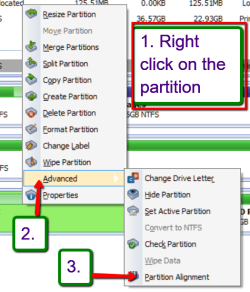


2014-01-13_2203.png


2. The traditional Method

Step 1 - Transfer the bootmgr to C:

Note: This step only applies if you have the 100MB active System Partition - in case of a Dell system it may be the active Recovery Partition. If not, start with Step2.

Eliminating the 100MB active System Partition or the active Recovery Partition will make the job a lot easier and is prerequisite for the following steps to properly work. As first step we will move the bootmgr from the 100MB partition to the C: partition. This is extremely easy with EasyBCD. Follow the picture and the instructions below.


pfco.png


After "Perform Action" you will be prompted to select which letter you like to use as the new boot partition - C: will most likely already be selected as default. When you confirm the selection, EasyBCD will automatically:

v Install the bootmgr to the selected partition
v Make the selected partition active
v Install the bootmgr to both the bootsector and the MBR of the selected partition
v Copy all entries from the old boot partition to the newly-selected one
v Update partition references to work with the new boot partition

Step 2 - Image your system

This is the most important step because it will be your only lifeline. I recommend to use free Macrium or free Paragon for imaging. Make sure you have a good image - better even, make two identical images on two different disks.

Step 3 - Delete the volume

For this and the following steps we will use Command Prompt (cmd) from your installation or recovery disc. In fact, you can use an installation or recovery disks from any system - it need not necessarily be from the system you work on. We only need a cmd.

Once you have opened cmd, run these commands:

Diskpart (Do not exit from Diskpart until all steps are done)
List disk
Select disk n (where n is the number that was given for your SSD in List disk)
List Partition
Select Partition=0
Delete Partition (that will give you unallocated space for the first partition on the SSD)

Note: If you have the 100MB system partition, you just deleted that one. You now have to Select and Delete for Partition=1 to get rid of the OS partition.

Option: If you want to reset the SSD to factory state, you could run a Secure Erase before you start with the Diskpart steps. In that case you would skip Step 3 and start with Step 4 after the Secure Erase. The first command for Step 4 would then be Diskpart.

Step 4 - Define an aligned partition

Select disk n (same as above)
Create partition primary align=1024
Active

Step 5 - Format the new partition

Select disk n (same as above)
Select partition=0
Format /fs:NTFS Quick

Step 6 - Assign drive letter (optional)

List volume
Select volume n (n is from the list and it is not necessarily 0 - the numbering follows the partitions within the Sata port sequence)
Assign letter=M (or any other higher letter - once it is the OS partition, it will become C anyhow)

Step 7 - Double check the alignment

List disk
Select disk n
List partition

Now you should see a result like this.

Partition ### Type Size Offset
------------- ---------------- ------- -------
Partition 1 Primary 59 GB 1024 KB - but 64KB or any number divisible by 4 is also good

The offset (in KBs) has to be divisible by 4.

Exit (we now exit Diskpart because we are done with cmd)

Step 8 - Load the image and boot Windows 7

Now you boot from your imaging CD and reload the image to the newly created partition. After that you reboot and hopefully the OS will work.
 
Last edited by a moderator:
Info says the options are:

External (dd disk): Employs ‘dd’ to write zeroes to the selected drive.
External (dd part): Zeroes out (with ‘dd’) the selected partition.
External (shred disk): Uses ‘shred’ (versus ‘dd’) to write zeroes.
Internal: Secure Erase command writes zeroes to entire data area.

A Guy
 

My Computer

Computer type
PC/Desktop
OS
Windows 10 Home x64
CPU
INTEL Core i5-750 Quad-Core 3.37GHz
Motherboard
ASUS P7P55D
Memory
HyperX Fury Black Series 8GB (2 x 4GB) 1866Mhz
Graphics Card(s)
EVGA GeForce GTX 750 Superclocked 1GB 128-Bit GDDR5
Monitor(s) Displays
LG 32MA68HY 32" IPS
Screen Resolution
1920 x 1080
Hard Drives
Samsung 840 Evo 120GB, SEAGATE 500GB Barracuda® 7200.12, SATA 3 Gb/s, 7200 RPM, 16MB cache
PSU
ANTEC TruePower New TP-550, 80 PLUS, 550W
Case
ANTEC Three Hundred Illusion
Cooling
COOLER MASTER Hyper 212 Plus, 4 x 120mm 1 x 140mm Noctua's
Internet Speed
85 + Mbps
Antivirus
Avast
Browser
Vivaldi

My Computer

Computer Manufacturer/Model Number
Intel(R) Core(TM) i5-2500K CPU @ 3.30GHz
OS
Microsoft Windows 7 Ultimate 64 bits 7601 Multiprocessor Free Service Pack 1
CPU
Intel(R) Core(TM) i5-2500K CPU @ 3.30GHz
Motherboard
Gigabyte Technology Co., Ltd. Z68XP-UD4
Memory
16,00 GB. Usable: 15,92 GB
Graphics Card(s)
NVIDIA GeForce GTX 560 Ti
Sound Card
Internal NVIDIA High Definition Audio
Monitor(s) Displays
DELL 24'' 16:10
Screen Resolution
1920 x 1200 x 32 bits (4294967296 colors) @ 60 Hz
Hard Drives
5, a total of 4 TB

(1) OCZ-AGILITY3 ATA Device (2) ST3500320AS ATA Device (3) ST3500320AS ATA Device (4) ST3500418AS ATA Device (5) ST3500418AS ATA Device (6) ST2000DL 003-9VT166 USB Device
PSU
700W
Case
Cooler Master
Cooling
Air
Keyboard
Microsoft
Mouse
Microsoft
Internet Speed
Jazztel
Hi Foros,

Yes your SSD is perfectly aligned - 1024 is a multiple integer of 4 so no problems.

Regards,
Golden
 

My Computer

Computer type
PC/Desktop
Computer Manufacturer/Model Number
Golden Mk. I.4
OS
Windows 10 Pro x64 ; Xubuntu x64
CPU
Intel i7 860 @ 2.80 GHz O/C'ed to 4.0GHz
Motherboard
Gigabyte P55A-UD3R Rev.1. Award BIOS F13
Memory
16GB Corsair Vengance DDR3 @ 661 MHz Dual Channel (9-9-9-24)
Graphics Card(s)
EVGA NVidia GTX 560 1024MB
Sound Card
Realtek Integrated
Monitor(s) Displays
Dual Samsung SyncMaster 2494HS
Screen Resolution
1920*1080 and 1920*1080
Hard Drives
1*Samsung 840 EVO 120GB SSD;
1*OCZ Vertex 2 60GB SSD;
2*Samsung F3 SpinPoint 1TB in RAID0;
1*Samsung F1 SpinPoint 1TB;
2*Western Digital 1TB External USB 3.0
1*Western Digital 500GB External USB 3.0
1*Seagate 500GB External USB 2.0
PSU
Thermaltake ToughPower QFan 750W
Case
Thermaltake Element S VK60001W2Z
Cooling
Corsair H60 Water Cooling, 2*230mm and 2*80mm case fans
Keyboard
Logitech G110
Mouse
Logitech MX518
  • Like
Reactions: whs
Thank you Golden ;)
 

My Computer

Computer Manufacturer/Model Number
Intel(R) Core(TM) i5-2500K CPU @ 3.30GHz
OS
Microsoft Windows 7 Ultimate 64 bits 7601 Multiprocessor Free Service Pack 1
CPU
Intel(R) Core(TM) i5-2500K CPU @ 3.30GHz
Motherboard
Gigabyte Technology Co., Ltd. Z68XP-UD4
Memory
16,00 GB. Usable: 15,92 GB
Graphics Card(s)
NVIDIA GeForce GTX 560 Ti
Sound Card
Internal NVIDIA High Definition Audio
Monitor(s) Displays
DELL 24'' 16:10
Screen Resolution
1920 x 1200 x 32 bits (4294967296 colors) @ 60 Hz
Hard Drives
5, a total of 4 TB

(1) OCZ-AGILITY3 ATA Device (2) ST3500320AS ATA Device (3) ST3500320AS ATA Device (4) ST3500418AS ATA Device (5) ST3500418AS ATA Device (6) ST2000DL 003-9VT166 USB Device
PSU
700W
Case
Cooler Master
Cooling
Air
Keyboard
Microsoft
Mouse
Microsoft
Internet Speed
Jazztel
I’m glad I attended school today! Great Tutorial
 

My Computer

Computer type
PC/Desktop
Computer Manufacturer/Model Number
custom build
OS
win7 Ultimate 64
CPU
icore5
Motherboard
Gigabyte P67
Memory
4 Gig
Graphics Card(s)
ATI Radeon HD5700
Sound Card
envy24
Monitor(s) Displays
Samsung SyncMaster T22HD/HP F1905
Screen Resolution
1680x1050
Hard Drives
Samsung
WDC
PSU
650
Case
GMC
Cooling
corsair
Keyboard
Dell
Mouse
MS3000
Internet Speed
slow
Antivirus
Microsoft
Browser
IE

My Computer

Computer Manufacturer/Model Number
Intel(R) Core(TM) i5-2500K CPU @ 3.30GHz
OS
Microsoft Windows 7 Ultimate 64 bits 7601 Multiprocessor Free Service Pack 1
CPU
Intel(R) Core(TM) i5-2500K CPU @ 3.30GHz
Motherboard
Gigabyte Technology Co., Ltd. Z68XP-UD4
Memory
16,00 GB. Usable: 15,92 GB
Graphics Card(s)
NVIDIA GeForce GTX 560 Ti
Sound Card
Internal NVIDIA High Definition Audio
Monitor(s) Displays
DELL 24'' 16:10
Screen Resolution
1920 x 1200 x 32 bits (4294967296 colors) @ 60 Hz
Hard Drives
5, a total of 4 TB

(1) OCZ-AGILITY3 ATA Device (2) ST3500320AS ATA Device (3) ST3500320AS ATA Device (4) ST3500418AS ATA Device (5) ST3500418AS ATA Device (6) ST2000DL 003-9VT166 USB Device
PSU
700W
Case
Cooler Master
Cooling
Air
Keyboard
Microsoft
Mouse
Microsoft
Internet Speed
Jazztel
Looks like a nice program - although I could not decypher everything. My Spanish is not that good.
 

My Computer

Computer Manufacturer/Model Number
HP, Dell, Gateway, Toshiba - 4 laptops and 2 desktops
OS
Vista, Windows7, Mint Mate, Zorin, Windows 8
CPU
from 1.6GHz Duo to i7
Monitor(s) Displays
2x HP w2207
Hard Drives
5x HDD, 7x SSD, 12x Externals
Keyboard
with trackball - no mices
Mouse
Trackball mice
Internet Speed
DSL 6000
After reading in another post that restoring a windows system image on a new SSD could create an alignment problem, I checked it using the steps in this tutorial and was happy to see, Partition 1 Primary 111 GB 1024 KB. Thanks a million whs for a great tutorial! :D
 

My Computer

Computer Manufacturer/Model Number
Customized build from CyberPower
OS
Windows 7 Home Premium 64bit SP 1
CPU
Intel i5 2500k
Motherboard
Asus P8P67 Deluxe
Memory
8 gigabytes Corsair PC3-12800 DDR3
Graphics Card(s)
EVGA GeForce GTX 460 superclocked
Sound Card
Integrated
Monitor(s) Displays
ViewSonic 23" LCD
Screen Resolution
1980 x 1080
Hard Drives
120 Gb Samsung 840 Pro SSD
120 Gb Kingston Hyper X SSD
1 Tb WD Caviar Black HDD
PSU
Coolermaster 1000 watt modular
Case
Coolermaster HAF X full tower
Cooling
Coolermaster Hyper 212 plus
Keyboard
Logitech USB
Mouse
Microsoft 3 button
Internet Speed
download 1.5 Mb/sec upload 300Kb/sec
You are welcom. I am glad it helped to put your worries at rest.
 

My Computer

Computer Manufacturer/Model Number
HP, Dell, Gateway, Toshiba - 4 laptops and 2 desktops
OS
Vista, Windows7, Mint Mate, Zorin, Windows 8
CPU
from 1.6GHz Duo to i7
Monitor(s) Displays
2x HP w2207
Hard Drives
5x HDD, 7x SSD, 12x Externals
Keyboard
with trackball - no mices
Mouse
Trackball mice
Internet Speed
DSL 6000
Missing the point of the SSD alignment

This Tutorial leaves me with a load of questions. The main ones being what is a misaligned SSD? What are you really doing here?

I'm not to bright, but tutorials are supposed to teach you something. (I think!) I guess I've missed the point of this alignment process altogether. In step 3 what is a secure erase? If you are erasing the SSD. Then the SSD is wiped clean.

My guess is you want to put the 100MB (SRP) system reserved patition on the SSD and afterwords install Windows 7 (the OS) onto a second partition (one the same SSD). Your calling these partitions 0 and 1 respectivly.

Intel wants me to do a clean install to see if it will fix a problem I have. Correct me if I'm wrong, but this (alignment process) is the same as doing a clean install into one SSD with no other drives connected to the PC?

My SRP is now on a HDD but I can boot my system without a HDD connected. I'd like to delete this HDD partition.

What am I missing? Thanks
 
Last edited:

My Computer

Computer Manufacturer/Model Number
Intel DZ68BC Home Built
OS
Windows 7 Ultimate x64
CPU
Intel I7 2600k
Motherboard
Intel DZ68BC
Memory
16 GB Corsair Vengence
Graphics Card(s)
560 Ti
Sound Card
onboard
Monitor(s) Displays
Samgung 23"
Hard Drives
SSD Crucial 128GB
Seagate 1TB Sata 3
WD 1TB Sata 3
PSU
OCZ 850W
Case
Lian-Le 7f
Cooling
Intel Std./CPU
1. For the general question of what alignment of a SSDs means I recommend Google - especially Wikipedia.

2. Secure Erase cleans the SSD of all data which speeds up future Write operations. It does the same as Trim and Garbage Collection except that you get an immediate clean SSD rather than a cleanup over time. This article explains what happens: Garbage Collection and TRIM in SSDs Explained - An SSD Primer - The SSD Review

3. If you do a clean install, the Windows installer will align the SSD automatically. If you want to make sure that the 100MB system partition lands on the SSD, it is advised to disconnect all other disks during the installation. Why? - because the installer has the habit of placing the 100MB system partition on the disk with the lowest port number - and often that is not the SSD. Should you have the mishap of the 100MB system partition (and thereby the bootmgr) landing on another disk, I suggest to move the bootmgr to the C partition on the SSD. http://www.sevenforums.com/tutorials/209885-bootmgr-move-c-easybcd.html. In fact I always move the bootmgr to C in all cases because that makes imaging and recovery a lot easier.
 

My Computer

Computer Manufacturer/Model Number
HP, Dell, Gateway, Toshiba - 4 laptops and 2 desktops
OS
Vista, Windows7, Mint Mate, Zorin, Windows 8
CPU
from 1.6GHz Duo to i7
Monitor(s) Displays
2x HP w2207
Hard Drives
5x HDD, 7x SSD, 12x Externals
Keyboard
with trackball - no mices
Mouse
Trackball mice
Internet Speed
DSL 6000

My Computer

Computer Manufacturer/Model Number
HP, Dell, Gateway, Toshiba - 4 laptops and 2 desktops
OS
Vista, Windows7, Mint Mate, Zorin, Windows 8
CPU
from 1.6GHz Duo to i7
Monitor(s) Displays
2x HP w2207
Hard Drives
5x HDD, 7x SSD, 12x Externals
Keyboard
with trackball - no mices
Mouse
Trackball mice
Internet Speed
DSL 6000
Thanks whs, great help :D
 

My Computer

Computer Manufacturer/Model Number
Acer Aspire 5750
OS
Windows 7 Home Premium 64bit
CPU
Intel Core i3-2310M
Motherboard
Acer OEM
Memory
8GB
Graphics Card(s)
Intel HD3000
Screen Resolution
1366x768
Hard Drives
320GB Toshiba
You are welcome.

There is a new free program on the market that claims to aling misaligned SSDs => AOMEI Partition Assistant. I have not yet tried it, but it is an option. My guess would be that you cannot do it on an active SSD from the installed program but need to do it with their bootable CD or stick. Else run the SSD in an external enclosure and do it there.
 

My Computer

Computer Manufacturer/Model Number
HP, Dell, Gateway, Toshiba - 4 laptops and 2 desktops
OS
Vista, Windows7, Mint Mate, Zorin, Windows 8
CPU
from 1.6GHz Duo to i7
Monitor(s) Displays
2x HP w2207
Hard Drives
5x HDD, 7x SSD, 12x Externals
Keyboard
with trackball - no mices
Mouse
Trackball mice
Internet Speed
DSL 6000
You are welcome.

There is a new free program on the market that claims to aling misaligned SSDs => AOMEI Partition Assistant. I have not yet tried it, but it is an option. My guess would be that you cannot do it on an active SSD from the installed program but need to do it with their bootable CD or stick. Else run the SSD in an external enclosure and do it there.
Yes, I used that new program and worked perfectly and it works in PreOS environment.
 

My Computer

Computer Manufacturer/Model Number
Acer Aspire 5750
OS
Windows 7 Home Premium 64bit
CPU
Intel Core i3-2310M
Motherboard
Acer OEM
Memory
8GB
Graphics Card(s)
Intel HD3000
Screen Resolution
1366x768
Hard Drives
320GB Toshiba

My Computer

Computer Manufacturer/Model Number
HP, Dell, Gateway, Toshiba - 4 laptops and 2 desktops
OS
Vista, Windows7, Mint Mate, Zorin, Windows 8
CPU
from 1.6GHz Duo to i7
Monitor(s) Displays
2x HP w2207
Hard Drives
5x HDD, 7x SSD, 12x Externals
Keyboard
with trackball - no mices
Mouse
Trackball mice
Internet Speed
DSL 6000

My Computer

Computer Manufacturer/Model Number
Acer Aspire 5750
OS
Windows 7 Home Premium 64bit
CPU
Intel Core i3-2310M
Motherboard
Acer OEM
Memory
8GB
Graphics Card(s)
Intel HD3000
Screen Resolution
1366x768
Hard Drives
320GB Toshiba
That sounds like it is going into RE. Interesting trick.
 

My Computer

Computer Manufacturer/Model Number
HP, Dell, Gateway, Toshiba - 4 laptops and 2 desktops
OS
Vista, Windows7, Mint Mate, Zorin, Windows 8
CPU
from 1.6GHz Duo to i7
Monitor(s) Displays
2x HP w2207
Hard Drives
5x HDD, 7x SSD, 12x Externals
Keyboard
with trackball - no mices
Mouse
Trackball mice
Internet Speed
DSL 6000
I did back up my Vista on to a hard drive and recovered with Macrium to install on a SSD but it was misaligned, then I saw your tutorial and tried AOMEI P Assist and amazed how easy it was to use the program.
 

My Computer

Computer Manufacturer/Model Number
Acer Aspire 5750
OS
Windows 7 Home Premium 64bit
CPU
Intel Core i3-2310M
Motherboard
Acer OEM
Memory
8GB
Graphics Card(s)
Intel HD3000
Screen Resolution
1366x768
Hard Drives
320GB Toshiba
Yeah, the AOMEI people seem to have done a good job. There is, however, still work in progress because there are some problems on a 32bit system.
 

My Computer

Computer Manufacturer/Model Number
HP, Dell, Gateway, Toshiba - 4 laptops and 2 desktops
OS
Vista, Windows7, Mint Mate, Zorin, Windows 8
CPU
from 1.6GHz Duo to i7
Monitor(s) Displays
2x HP w2207
Hard Drives
5x HDD, 7x SSD, 12x Externals
Keyboard
with trackball - no mices
Mouse
Trackball mice
Internet Speed
DSL 6000
Back
Top