
If the alignment of your SSD is not divisible by 4, you will suffer a noticeable performance degradation. On an SSD with an installed OS, this situation is not easily corrected. You can try the Paragon Alignment Tool, but I am not sure whether they will do the job without a fee.
The steps below and the program I use are completely free and a lot of fun. I hope it can help you when your SSD is in an unfortunate misalignment situation.
1. The fast method
1. Watch this video: Align Partition Easily with AOMEI Partition Assistant Free
2. Download the program from here: Free Partition Manager - AOMEI Partition Assistant Standard
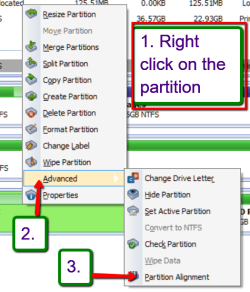
3. In case you do not remember the steps, here are the 3 steps to take once you are in the AOMEI program:
Note: The operation may take a moment because it has to shove a lot of data around.
2. The traditional Method
Step 1 - Transfer the bootmgr to C:
Note: This step only applies if you have the 100MB active System Partition - in case of a Dell system it may be the active Recovery Partition. If not, start with Step2.
Eliminating the 100MB active System Partition or the active Recovery Partition will make the job a lot easier and is prerequisite for the following steps to properly work. As first step we will move the bootmgr from the 100MB partition to the C: partition. This is extremely easy with EasyBCD. Follow the picture and the instructions below.

After "Perform Action" you will be prompted to select which letter you like to use as the new boot partition - C: will most likely already be selected as default. When you confirm the selection, EasyBCD will automatically:
v Install the bootmgr to the selected partition
v Make the selected partition active
v Install the bootmgr to both the bootsector and the MBR of the selected partition
v Copy all entries from the old boot partition to the newly-selected one
v Update partition references to work with the new boot partition
Step 2 - Image your system
This is the most important step because it will be your only lifeline. I recommend to use free Macrium or free Paragon for imaging. Make sure you have a good image - better even, make two identical images on two different disks.
Step 3 - Delete the volume
For this and the following steps we will use Command Prompt (cmd) from your installation or recovery disc. In fact, you can use an installation or recovery disks from any system - it need not necessarily be from the system you work on. We only need a cmd.
Once you have opened cmd, run these commands:
Diskpart (Do not exit from Diskpart until all steps are done)
List disk
Select disk n (where n is the number that was given for your SSD in List disk)
List Partition
Select Partition=0
Delete Partition (that will give you unallocated space for the first partition on the SSD)
Note: If you have the 100MB system partition, you just deleted that one. You now have to Select and Delete for Partition=1 to get rid of the OS partition.
Option: If you want to reset the SSD to factory state, you could run a Secure Erase before you start with the Diskpart steps. In that case you would skip Step 3 and start with Step 4 after the Secure Erase. The first command for Step 4 would then be Diskpart.
Step 4 - Define an aligned partition
Select disk n (same as above)
Create partition primary align=1024
Active
Step 5 - Format the new partition
Select disk n (same as above)
Select partition=0
Format /fs:NTFS Quick
Step 6 - Assign drive letter (optional)
List volume
Select volume n (n is from the list and it is not necessarily 0 - the numbering follows the partitions within the Sata port sequence)
Assign letter=M (or any other higher letter - once it is the OS partition, it will become C anyhow)
Step 7 - Double check the alignment
List disk
Select disk n
List partition
Now you should see a result like this.
Partition ### Type Size Offset
------------- ---------------- ------- -------
Partition 1 Primary 59 GB 1024 KB - but 64KB or any number divisible by 4 is also good
The offset (in KBs) has to be divisible by 4.
Exit (we now exit Diskpart because we are done with cmd)
Step 8 - Load the image and boot Windows 7
Now you boot from your imaging CD and reload the image to the newly created partition. After that you reboot and hopefully the OS will work.
The steps below and the program I use are completely free and a lot of fun. I hope it can help you when your SSD is in an unfortunate misalignment situation.
1. The fast method
1. Watch this video: Align Partition Easily with AOMEI Partition Assistant Free
2. Download the program from here: Free Partition Manager - AOMEI Partition Assistant Standard
3. In case you do not remember the steps, here are the 3 steps to take once you are in the AOMEI program:
Note: The operation may take a moment because it has to shove a lot of data around.
2. The traditional Method
Step 1 - Transfer the bootmgr to C:
Note: This step only applies if you have the 100MB active System Partition - in case of a Dell system it may be the active Recovery Partition. If not, start with Step2.
Eliminating the 100MB active System Partition or the active Recovery Partition will make the job a lot easier and is prerequisite for the following steps to properly work. As first step we will move the bootmgr from the 100MB partition to the C: partition. This is extremely easy with EasyBCD. Follow the picture and the instructions below.
After "Perform Action" you will be prompted to select which letter you like to use as the new boot partition - C: will most likely already be selected as default. When you confirm the selection, EasyBCD will automatically:
v Install the bootmgr to the selected partition
v Make the selected partition active
v Install the bootmgr to both the bootsector and the MBR of the selected partition
v Copy all entries from the old boot partition to the newly-selected one
v Update partition references to work with the new boot partition
Step 2 - Image your system
This is the most important step because it will be your only lifeline. I recommend to use free Macrium or free Paragon for imaging. Make sure you have a good image - better even, make two identical images on two different disks.
Step 3 - Delete the volume
For this and the following steps we will use Command Prompt (cmd) from your installation or recovery disc. In fact, you can use an installation or recovery disks from any system - it need not necessarily be from the system you work on. We only need a cmd.
Once you have opened cmd, run these commands:
Diskpart (Do not exit from Diskpart until all steps are done)
List disk
Select disk n (where n is the number that was given for your SSD in List disk)
List Partition
Select Partition=0
Delete Partition (that will give you unallocated space for the first partition on the SSD)
Note: If you have the 100MB system partition, you just deleted that one. You now have to Select and Delete for Partition=1 to get rid of the OS partition.
Option: If you want to reset the SSD to factory state, you could run a Secure Erase before you start with the Diskpart steps. In that case you would skip Step 3 and start with Step 4 after the Secure Erase. The first command for Step 4 would then be Diskpart.
Step 4 - Define an aligned partition
Select disk n (same as above)
Create partition primary align=1024
Active
Step 5 - Format the new partition
Select disk n (same as above)
Select partition=0
Format /fs:NTFS Quick
Step 6 - Assign drive letter (optional)
List volume
Select volume n (n is from the list and it is not necessarily 0 - the numbering follows the partitions within the Sata port sequence)
Assign letter=M (or any other higher letter - once it is the OS partition, it will become C anyhow)
Step 7 - Double check the alignment
List disk
Select disk n
List partition
Now you should see a result like this.
Partition ### Type Size Offset
------------- ---------------- ------- -------
Partition 1 Primary 59 GB 1024 KB - but 64KB or any number divisible by 4 is also good
The offset (in KBs) has to be divisible by 4.
Exit (we now exit Diskpart because we are done with cmd)
Step 8 - Load the image and boot Windows 7
Now you boot from your imaging CD and reload the image to the newly created partition. After that you reboot and hopefully the OS will work.
Last edited by a moderator:

