SSD / HDD : Optimize for Windows Reinstallation

How to Optimize an SSD / HDD When You're Ready to Reinstall the Operating System

This will show how to remove / over-write all existing data from a Solid State Drive (SSD) or a Hard Disk Drive (HDD), it'll work for both, then how to create a partition and then format that partition before install begins so you have a clean drive to start the installation with.

   Note

Before you start this, in the Windows start menu search box type diskmgmt.msc right click the entry and click "Run as Administrator" if you get a User Account Control (UAC) prompt enter your user credentials and click Yes; make very sure you know the correct drive number of the drive you want to do this to if you have more than one SSD / HDD in the machine, you don't want to do the wrong one.
   Warning

Do not do this to any SSD or HDD that has data on it you don't want to lose, the first thing this does is to mark the drive as "Unallocated Space" and then writes zeroes ( 0's ) to the entire drive, it's known as a "Secure Erase" and it will make data un-recoverable, it cannot be done to just a single partition on a drive, it will do the whole drive.
You have been warned!
   Information

It may be a help to over-write the HDD Master Boot Record (MBR) before you start any other procedure using the diskpart clean command, rather than the clean all; it takes just seconds to complete so you will have "unallocated" space to use either the Windows installer to create and format the partition(s) or use diskpart for that, however you choose.

Let's get started!


Step One

Boot To DISKPART


If need be, view this tutorial at the link below for an out-line of the process.
How to Boot to DISKPART at PC Startup

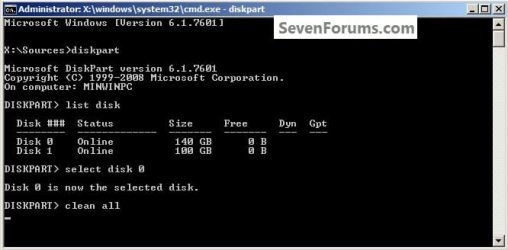
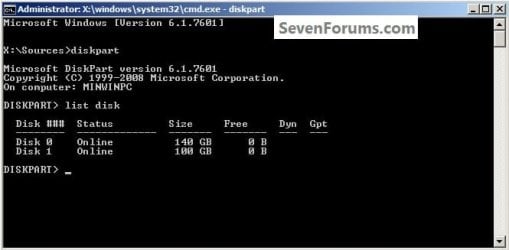
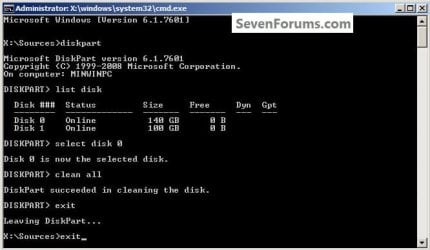
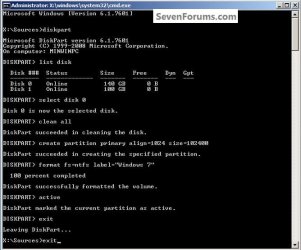
1) In the command window that opens type diskpart then hit the <enter> key then type list disk <enter> if you have more than one SSD / HDD in the machine it'll list them all.

Have a look here to view additional important information on this entire process.
click any image to enlarge
One_1.jpg
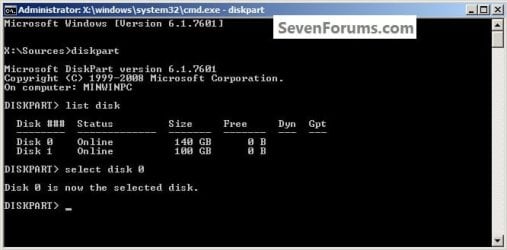
2) Now in the command window type select disk # (# = target disk number) then <enter>, you will get "Disk # is now the selected disk".
One_2.jpg
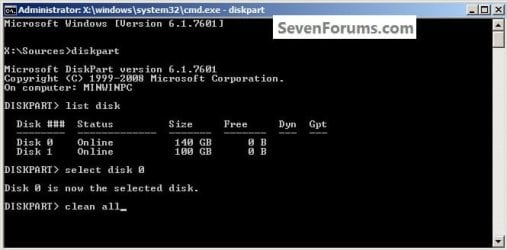
3) Now type clean <enter> you will get a blinking cursor telling you that clean all is working like in the second snip down, just relax and let it work.
One_3.1.jpg
One_3.2.jpg
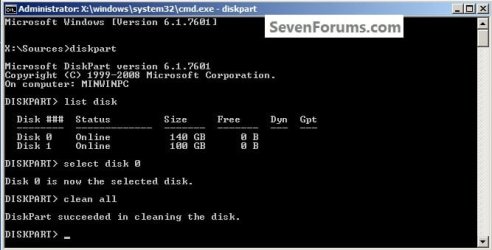
4) When it finishes you'll get "DiskPart succeeded in cleaning the disk" in the command window.
One_4.1.jpg
To leave diskpart at any time and return to the Windows 7 installer type exit two (2) separate times and hit <enter> after each and you will be returned to the installer to continue the installation process.
One_4.2.jpg


Step Two

Create a Partition


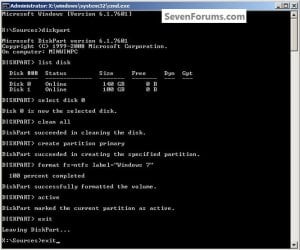
1) Create a single partition of the entire HDD / SSD

Still in the same command window, to create a partition of the entire HDD / SSD, it is suggested if you are using one of the larger, 1 - 2TB HDDs that you use the outline in #2 below to create a single 100GB partition to do the installation to or #3 below if you would like to include the new Windows 7 System Reserved partition, as we're now seeing serious issues with some trying to install to such large partitions.

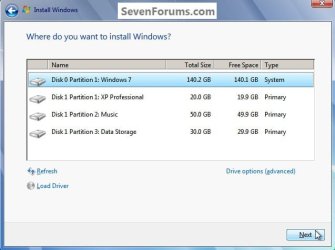
Do not format the created partition(s) with the installer if you create them using this process as the installer will delete all this info, the second snip shows how to select "where to install" during the installation process, click to highlight/select the "Windows 7" partition and click next.

Now skip down to #5 below to start the installation.
click any image to enlarge
Two_1.1.jpg
Two_1.2.jpg
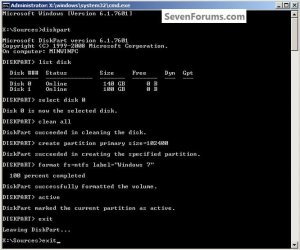
2) Create a specific size partition

If you wanted to create a specific size partition, say 100GB you would add the size you want to create in MBs like in the command below.
create partition primary size=102400 <enter>
1024MB = 1GB - 1024x100 = 102400, you can use/create any size you like.

You can always extend the Windows partition to include the remaining unallocated space on the HDD / SSD or create additional Primary partitions or an Extended partition after the installation completes if you choose.

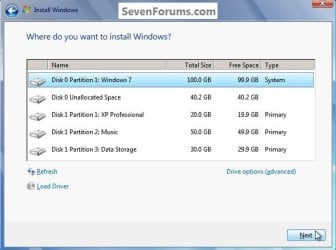
Do not format the created partition(s) with the installer if you create them using this process as the installer will delete all this info, the second snip shows how to select "where to install" during the installation process, click to highlight/select the "Windows 7" partition and click next.

Now skip down to #5 below to start the installation.
Two_2.1.jpg
Two_2.2.jpg
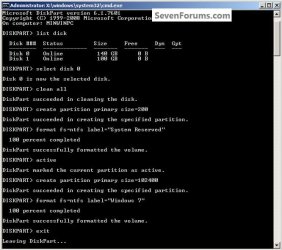
3) Create the System Reserved partition

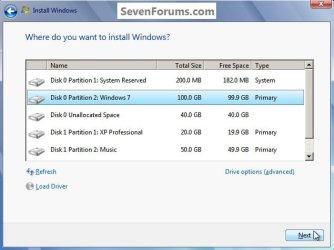
If you should want to add the "System Reserved" partition back after the clean all, see this snip; of course you would have to select to install Windows 7 to the partition labeled as "Windows 7" during the install and do not format either partition with the installer.

The reason for suggesting to create the System Reserved at 200MB instead of the new default of 100MB is an attempt to curb some of the issues we're now seeing with the partition being too small when dual/multi booting and it also being needed for use with the Windows 7 Backup and Restore and BitLocker programs.

You can always extend the Windows partition to include the remaining unallocated space on the HDD / SSD or create additional Primary partitions or an Extended partition after the installation completes if you choose.

The second snip shows how to select "where to install" during the installation process, click to highlight/select the "Windows 7" partition and click next.
Two_3.1.jpg
Two_3.2.jpg
4) See this tutorial for the "align" argument

Align a Solid State Drive for Windows Installation
Two_4.1.jpg
5) That's it, you're now done with the command window, type exit <enter> to leave diskpart and exit <enter> again to close the command window; if you're using a Windows 7 full installer it will go to the "Select Language" screen to continue the installation process as usual.

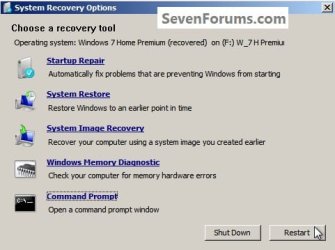
For those using a created repair CD or a Vista installer type exit <enter> to leave diskpart and exit <enter> again to close the command window; at the System Recovery Options dialog box that's still open click Restart to finish the process.
Restart.jpg
Enjoy! :)


Last edited by a moderator:
Great way to clean a disk before its new life whether it be for OS or data storage. Good Work Ted. Makes me wonder why I spent a few dollars on drive erase pro. lol Although there are a few other things it can do, but for whole drive wipe out this tut can't be beat. Great Job!

Do you know of any commands similar to this where it will write all zeros for individual folders/files cleaning?
 

My Computer

Computer Manufacturer/Model Number
POS
OS
OS3.5
CPU
celery
Motherboard
Good Question ...Unknown
Memory
memory never forgets
Graphics Card(s)
OB
Sound Card
OB
Monitor(s) Displays
HUGE
Screen Resolution
168000000x105000000
Hard Drives
full
PSU
OEM 65watt
Case
N/A
Cooling
OB
Keyboard
OB
Mouse
mouse
Internet Speed
1 Trillion MBps
Other Info
Still An Awesome Forum!
Great way to clean a disk before its new life whether it be for OS or data storage. Good Work Ted. Makes me wonder why I spent a few dollars on drive erase pro. lol Although there are a few other things it can do, but for whole drive wipe out this tut can't be beat. Great Job!

Do you know of any commands similar to this where it will write all zeros for individual folders/files cleaning?


Hello OEM, thanks mate.

I don't know about folders/files but have a look at Option Two, and it's free. ;)


Partition Wizard : Use the Bootable CD


Edit: I did see someone had a file shredder but I can't remember who right this minute, I'll think about it.


I haven' had time to have a play but see what you think.

The Windows File Shredder
 

My Computer

Computer Manufacturer/Model Number
* BFK Customs *
OS
W 7 64-bit Ultimate
CPU
Intel Q9550 Yorkfield
Motherboard
ASUS P5Q Pro
Memory
8GB Dominator 8500C5D
Graphics Card(s)
ATI : XFX 5870
Sound Card
Realtek HD Audio 7-1
Monitor(s) Displays
1x 47" LCD HDMI & 3x 26" LCD HDMI
Screen Resolution
1920x1080P & 1920x1200
Hard Drives
1x 80GB Intel X25-M G2 SSD : 1x 500GB & 1x 640GB WD Caviar Black(s)
PSU
Corsair 620HX
Case
Cooler Master RC-690
Cooling
Tuniq Tower 120, 2x 140mm and 3x 120mm case fans
Keyboard
Microsoft 500
Mouse
Razer Diamondback 3G
Internet Speed
14 Mb/s
Other Info
1x Koutech 3Gb/s SATA HDD Hot Swap Rack
Great way to clean a disk before its new life whether it be for OS or data storage. Good Work Ted. Makes me wonder why I spent a few dollars on drive erase pro. lol Although there are a few other things it can do, but for whole drive wipe out this tut can't be beat. Great Job!

Do you know of any commands similar to this where it will write all zeros for individual folders/files cleaning?


Hello OEM, thanks mate.

I don't know about folders/files but have a look at Option Two, and it's free. ;)


Partition Wizard : Use the Bootable CD


Edit: I did see someone had a file shredder but I can't remember who right this minute, I'll think about it.


I haven' had time to have a play but see what you think.

The Windows File Shredder

Its not so much that I need one, but was curious if Windows Se7en Command line could also do single file/files & folders too. Should something go wrong with what I currently use, I'll certainly give that a try.

For others looking to erase files/folders only, please take a look at the link Bare Foot has provided.

Thanks again, -OEM
 

My Computer

Computer Manufacturer/Model Number
POS
OS
OS3.5
CPU
celery
Motherboard
Good Question ...Unknown
Memory
memory never forgets
Graphics Card(s)
OB
Sound Card
OB
Monitor(s) Displays
HUGE
Screen Resolution
168000000x105000000
Hard Drives
full
PSU
OEM 65watt
Case
N/A
Cooling
OB
Keyboard
OB
Mouse
mouse
Internet Speed
1 Trillion MBps
Other Info
Still An Awesome Forum!
Great way to clean a disk before its new life whether it be for OS or data storage. Good Work Ted. Makes me wonder why I spent a few dollars on drive erase pro. lol Although there are a few other things it can do, but for whole drive wipe out this tut can't be beat. Great Job!

Do you know of any commands similar to this where it will write all zeros for individual folders/files cleaning?


Hello OEM, thanks mate.

I don't know about folders/files but have a look at Option Two, and it's free. ;)


Partition Wizard : Use the Bootable CD


Edit: I did see someone had a file shredder but I can't remember who right this minute, I'll think about it.


I haven' had time to have a play but see what you think.

The Windows File Shredder

Its not so much that I need one, but was curious if Windows Se7en Command line could also do single file/files & folders too. Should something go wrong with what I currently use, I'll certainly give that a try.

For others looking to erase files/folders only, please take a look at the link Bare Foot has provided.

Thanks again, -OEM


Thanks again for your interest OEM. :)
 

My Computer

Computer Manufacturer/Model Number
* BFK Customs *
OS
W 7 64-bit Ultimate
CPU
Intel Q9550 Yorkfield
Motherboard
ASUS P5Q Pro
Memory
8GB Dominator 8500C5D
Graphics Card(s)
ATI : XFX 5870
Sound Card
Realtek HD Audio 7-1
Monitor(s) Displays
1x 47" LCD HDMI & 3x 26" LCD HDMI
Screen Resolution
1920x1080P & 1920x1200
Hard Drives
1x 80GB Intel X25-M G2 SSD : 1x 500GB & 1x 640GB WD Caviar Black(s)
PSU
Corsair 620HX
Case
Cooler Master RC-690
Cooling
Tuniq Tower 120, 2x 140mm and 3x 120mm case fans
Keyboard
Microsoft 500
Mouse
Razer Diamondback 3G
Internet Speed
14 Mb/s
Other Info
1x Koutech 3Gb/s SATA HDD Hot Swap Rack
Hi Ted. There may need to be info inserted before partitioning to let them choose if they want to include the 100mb System Reserved Partition (gives Repair console on Advanced Boot Tools F8 menu, needed for Bitlocker, etc). by NOT partitioning with DISKPART but moving to the booted installer to create partitions and format.
 
Hello Greg.


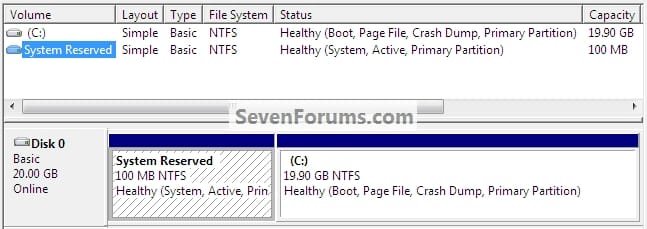
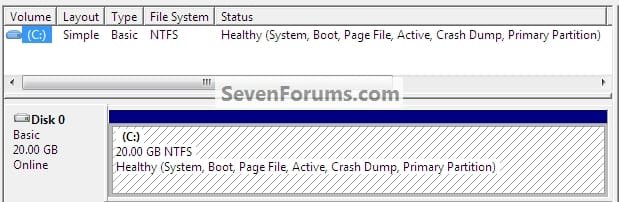
I'm not sure what you're saying, if you're referring to the "Repair Your Computer" option in the F8 menu, it's there and it seems to be the same functionality in installs using both the "clean all" and letting the installer create (partitions) the 100MB boot partition; though I'm aware it may be easier to repair certain boot issues with the separate 100MB boot partition added, help me understand your point as I'm unsure.

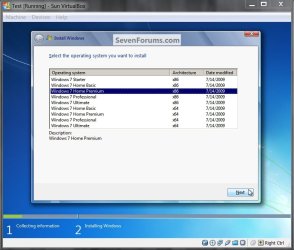
I just created identical installs in VirtualBox to check this out, one using the installer created partitions and the second using "clean all" as in this tutorial.


Thank you.


DM_New.jpgDM_CleanAll.jpg
Version_Test.jpg
 

My Computer

Computer Manufacturer/Model Number
* BFK Customs *
OS
W 7 64-bit Ultimate
CPU
Intel Q9550 Yorkfield
Motherboard
ASUS P5Q Pro
Memory
8GB Dominator 8500C5D
Graphics Card(s)
ATI : XFX 5870
Sound Card
Realtek HD Audio 7-1
Monitor(s) Displays
1x 47" LCD HDMI & 3x 26" LCD HDMI
Screen Resolution
1920x1080P & 1920x1200
Hard Drives
1x 80GB Intel X25-M G2 SSD : 1x 500GB & 1x 640GB WD Caviar Black(s)
PSU
Corsair 620HX
Case
Cooler Master RC-690
Cooling
Tuniq Tower 120, 2x 140mm and 3x 120mm case fans
Keyboard
Microsoft 500
Mouse
Razer Diamondback 3G
Internet Speed
14 Mb/s
Other Info
1x Koutech 3Gb/s SATA HDD Hot Swap Rack
BFG, this is a truly great article you have here. I did a clean install of 7 for the first time since the RC yesterday and used this tutorial along with the ones for making the universal install disc and doing a clean install with a 7 upgrade version. I had always installed XP before hand in the past. I don't know if its because of this, my finding a couple new drivers, or a combo of the two, but 4 of my WEI scores went up by 0.1 after doing this. They had been the same (except the HDD one, since I got a new one recently) since I first installed the RC, so I was happily surprised. Also, I tried the F8 option at start-up and did not see the problem Greg mentioned, but there might be a problem when actually doing the repair and/or with bitlocker.
 

My Computer

Computer type
Laptop
Computer Manufacturer/Model Number
Toshiba P775-S7100
OS
Windows 7 Professional SP1 64-bit
CPU
Intel Core i5-2450M @2.5 GHz
Memory
6 GB DDR3 1333MHz
Graphics Card(s)
Intel HD 3000
Monitor(s) Displays
Built-in 17.3" LED; 22" Insignia NS-L22Q-10A
Screen Resolution
1600x900; 1360x768
Hard Drives
750 GB Hitachi
1TB Seagate FreeAgent External
Internet Speed
Verizon DSL Speed(Down/Up): 3360 Kbps / 800 Kbps
Antivirus
MSE and MBAM Pro
Browser
IE10
Hello Petey.


I'm glad you found it useful, thanks for the encouragement. :)
 

My Computer

Computer Manufacturer/Model Number
* BFK Customs *
OS
W 7 64-bit Ultimate
CPU
Intel Q9550 Yorkfield
Motherboard
ASUS P5Q Pro
Memory
8GB Dominator 8500C5D
Graphics Card(s)
ATI : XFX 5870
Sound Card
Realtek HD Audio 7-1
Monitor(s) Displays
1x 47" LCD HDMI & 3x 26" LCD HDMI
Screen Resolution
1920x1080P & 1920x1200
Hard Drives
1x 80GB Intel X25-M G2 SSD : 1x 500GB & 1x 640GB WD Caviar Black(s)
PSU
Corsair 620HX
Case
Cooler Master RC-690
Cooling
Tuniq Tower 120, 2x 140mm and 3x 120mm case fans
Keyboard
Microsoft 500
Mouse
Razer Diamondback 3G
Internet Speed
14 Mb/s
Other Info
1x Koutech 3Gb/s SATA HDD Hot Swap Rack
I've just re-worked this tutorial to include Method One and Method Two, I also added the command to be used to create a specific size partition at Step Two; these additions should make it easier to use as a whole, I hope so; any feedback would be appreciated. ;)
 

My Computer

Computer Manufacturer/Model Number
* BFK Customs *
OS
W 7 64-bit Ultimate
CPU
Intel Q9550 Yorkfield
Motherboard
ASUS P5Q Pro
Memory
8GB Dominator 8500C5D
Graphics Card(s)
ATI : XFX 5870
Sound Card
Realtek HD Audio 7-1
Monitor(s) Displays
1x 47" LCD HDMI & 3x 26" LCD HDMI
Screen Resolution
1920x1080P & 1920x1200
Hard Drives
1x 80GB Intel X25-M G2 SSD : 1x 500GB & 1x 640GB WD Caviar Black(s)
PSU
Corsair 620HX
Case
Cooler Master RC-690
Cooling
Tuniq Tower 120, 2x 140mm and 3x 120mm case fans
Keyboard
Microsoft 500
Mouse
Razer Diamondback 3G
Internet Speed
14 Mb/s
Other Info
1x Koutech 3Gb/s SATA HDD Hot Swap Rack
bare foot kid I have 2 partitions if I give clean all these 2 partitions will be single unallocated space rite?
 

My Computer

Computer Manufacturer/Model Number
aspire 5920
OS
Windows 8 Professional x64
CPU
core 2 duo T5550
Memory
4 GB
Graphics Card(s)
GMA X3100
Hard Drives
160 GB + 320 GB
Internet Speed
2 mbps
bare foot kid I have 2 partitions if I give clean all these 2 partitions will be single unallocated space rite?


Hello bagavan.


Yes that is correct and any/all data will be over-written and not recoverable so make any needed backups before you start.
 

My Computer

Computer Manufacturer/Model Number
* BFK Customs *
OS
W 7 64-bit Ultimate
CPU
Intel Q9550 Yorkfield
Motherboard
ASUS P5Q Pro
Memory
8GB Dominator 8500C5D
Graphics Card(s)
ATI : XFX 5870
Sound Card
Realtek HD Audio 7-1
Monitor(s) Displays
1x 47" LCD HDMI & 3x 26" LCD HDMI
Screen Resolution
1920x1080P & 1920x1200
Hard Drives
1x 80GB Intel X25-M G2 SSD : 1x 500GB & 1x 640GB WD Caviar Black(s)
PSU
Corsair 620HX
Case
Cooler Master RC-690
Cooling
Tuniq Tower 120, 2x 140mm and 3x 120mm case fans
Keyboard
Microsoft 500
Mouse
Razer Diamondback 3G
Internet Speed
14 Mb/s
Other Info
1x Koutech 3Gb/s SATA HDD Hot Swap Rack
earlier I was unable to delete a extended partition I dont have any data..can I use this command to create entire HDD as unallocated space?
 

My Computer

Computer Manufacturer/Model Number
aspire 5920
OS
Windows 8 Professional x64
CPU
core 2 duo T5550
Memory
4 GB
Graphics Card(s)
GMA X3100
Hard Drives
160 GB + 320 GB
Internet Speed
2 mbps
earlier I was unable to delete a extended partition I dont have any data..can I use this command to create entire HDD as unallocated space?


Yes, the first thing this "clean all" command does it mark the entire Hard Disk Drive (HDD) as unallocated space and then over-writes all the data with zeroes ( 0 ) so that there is nothing left on the HDD at all.
 

My Computer

Computer Manufacturer/Model Number
* BFK Customs *
OS
W 7 64-bit Ultimate
CPU
Intel Q9550 Yorkfield
Motherboard
ASUS P5Q Pro
Memory
8GB Dominator 8500C5D
Graphics Card(s)
ATI : XFX 5870
Sound Card
Realtek HD Audio 7-1
Monitor(s) Displays
1x 47" LCD HDMI & 3x 26" LCD HDMI
Screen Resolution
1920x1080P & 1920x1200
Hard Drives
1x 80GB Intel X25-M G2 SSD : 1x 500GB & 1x 640GB WD Caviar Black(s)
PSU
Corsair 620HX
Case
Cooler Master RC-690
Cooling
Tuniq Tower 120, 2x 140mm and 3x 120mm case fans
Keyboard
Microsoft 500
Mouse
Razer Diamondback 3G
Internet Speed
14 Mb/s
Other Info
1x Koutech 3Gb/s SATA HDD Hot Swap Rack
Good stuff!!! I used CopyWipe to do the same thing, and yes it still takes a good bit of time. I did a 1TB hard drive and it took about 3 hours.

One question, if read the tutorial correctly, if you create your partition in the command line, restart and format, you WON'T get that 100MB system reserve partition of a copy of Windows Ultimate?

Is this beneficial, in my cause it created that system reserve and I don't have plans of changing that, but its good to know for the next time.
 

My Computers

System One System Two

  • Computer type
    PC/Desktop
    Computer Manufacturer/Model Number
    PowerSpec G164
    OS
    WIN10
    CPU
    AMD Ryzen 5 3600 6-Core Processor 3.59 GHz
    Memory
    16.0 GB
    Internet Speed
    VERY FAST>>>!!!
  • Antivirus
    ESET Security Premium
Hello eldinv.


You are correct, if the command line is used to create the partition(s) before the install starts you will not get the 100MB System Reserved partition; the original idea was for people with SSDs with limited space who are individuals with a lot of Windows experience that wanted to trim the amount of space the install used on the SSD.

The tutorial has proven to be useful in a number of different installation issues so it gets recommended to try on those issues.

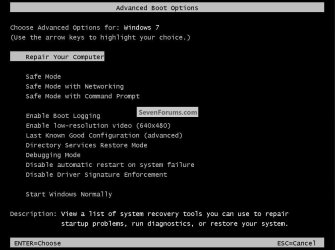
There is an advantage in having the System Reserved partition in certain situations, a dual or multi boot being one as it is used to contain all the boot files for the various OSs so that removing a certain OS isn't that big an issue; and it adds the "Repair Your Computer" recovery console to the F8 boot menu like in the snip below that you won't get without the System Reserved partition being present.
It just depends on an individual's needs/wants if it is really needed.

I hope this answers some of your questions. :)
click to enlarge
Repair.jpg
 
Last edited:

My Computer

Computer Manufacturer/Model Number
* BFK Customs *
OS
W 7 64-bit Ultimate
CPU
Intel Q9550 Yorkfield
Motherboard
ASUS P5Q Pro
Memory
8GB Dominator 8500C5D
Graphics Card(s)
ATI : XFX 5870
Sound Card
Realtek HD Audio 7-1
Monitor(s) Displays
1x 47" LCD HDMI & 3x 26" LCD HDMI
Screen Resolution
1920x1080P & 1920x1200
Hard Drives
1x 80GB Intel X25-M G2 SSD : 1x 500GB & 1x 640GB WD Caviar Black(s)
PSU
Corsair 620HX
Case
Cooler Master RC-690
Cooling
Tuniq Tower 120, 2x 140mm and 3x 120mm case fans
Keyboard
Microsoft 500
Mouse
Razer Diamondback 3G
Internet Speed
14 Mb/s
Other Info
1x Koutech 3Gb/s SATA HDD Hot Swap Rack
Thank You and yes it answered everything.
 

My Computers

System One System Two

  • Computer type
    PC/Desktop
    Computer Manufacturer/Model Number
    PowerSpec G164
    OS
    WIN10
    CPU
    AMD Ryzen 5 3600 6-Core Processor 3.59 GHz
    Memory
    16.0 GB
    Internet Speed
    VERY FAST>>>!!!
  • Antivirus
    ESET Security Premium

My Computer

Computer Manufacturer/Model Number
* BFK Customs *
OS
W 7 64-bit Ultimate
CPU
Intel Q9550 Yorkfield
Motherboard
ASUS P5Q Pro
Memory
8GB Dominator 8500C5D
Graphics Card(s)
ATI : XFX 5870
Sound Card
Realtek HD Audio 7-1
Monitor(s) Displays
1x 47" LCD HDMI & 3x 26" LCD HDMI
Screen Resolution
1920x1080P & 1920x1200
Hard Drives
1x 80GB Intel X25-M G2 SSD : 1x 500GB & 1x 640GB WD Caviar Black(s)
PSU
Corsair 620HX
Case
Cooler Master RC-690
Cooling
Tuniq Tower 120, 2x 140mm and 3x 120mm case fans
Keyboard
Microsoft 500
Mouse
Razer Diamondback 3G
Internet Speed
14 Mb/s
Other Info
1x Koutech 3Gb/s SATA HDD Hot Swap Rack
Excellent tutorial ted ,Ive got to "fix" my old pc when i get a new power unit for it and shall definitely referring to this tut when i do. thanks
 

My Computer

Computer Manufacturer/Model Number
Hewlett packard/p6512uk
OS
Microsoft Windows 7 Home Premium 64-bit 7600
CPU
IIx4 amd athelon 635 processor
Motherboard
FOXCONN 2AA9
Memory
2x2gb
Graphics Card(s)
ati radeon HD 5450
Sound Card
(1) Realtek High Definition Audio (2) AMD High Definition
Monitor(s) Displays
samsung lcd tv 32"
Screen Resolution
1360x 768
Hard Drives
(1) WDC WD10 01FAES-60Z2A0 SATA Disk Device (2) Maxtor OneTouch USB Device (3) ST310003 33AS USB Device (4) WD My Book 1111 USB Device
PSU
?
Cooling
air!
Keyboard
wireless hp
Mouse
wireless Hp,optical
Internet Speed
1.10mb/s
Antivirus
MSE
Browser
Firefox
You're welcome Julian, I'm glad you find it useful!
 

My Computer

Computer Manufacturer/Model Number
* BFK Customs *
OS
W 7 64-bit Ultimate
CPU
Intel Q9550 Yorkfield
Motherboard
ASUS P5Q Pro
Memory
8GB Dominator 8500C5D
Graphics Card(s)
ATI : XFX 5870
Sound Card
Realtek HD Audio 7-1
Monitor(s) Displays
1x 47" LCD HDMI & 3x 26" LCD HDMI
Screen Resolution
1920x1080P & 1920x1200
Hard Drives
1x 80GB Intel X25-M G2 SSD : 1x 500GB & 1x 640GB WD Caviar Black(s)
PSU
Corsair 620HX
Case
Cooler Master RC-690
Cooling
Tuniq Tower 120, 2x 140mm and 3x 120mm case fans
Keyboard
Microsoft 500
Mouse
Razer Diamondback 3G
Internet Speed
14 Mb/s
Other Info
1x Koutech 3Gb/s SATA HDD Hot Swap Rack
Excellent tutorial, I still can't install W7 - any ideas?

First, I have to agree with all the other replies, EXCELLENT tutorial, great job, everything worked perfectly to the point of cleaing the disc and creating a 40GB partition. Thanks very much for that! As you said, the "clean all" routine does take a while - I was doing a 1TB drive so I just left it going all night! :)

Secondly, very sadly I am still getting the original error that I was trying to fix.... any chance you could give me a pointer as to what I'm doing wrong, or direct me somewhere I can find the solution. Problem is as follows:-

I originally reached your excellent post by searching for a solution to the dreaded "error 0x80300024". People were saying "clean and format your disc properly and it will be OK". I am trying to install Windows 7 Ultimate 64bit on my Alienware ALX51. It currently has 32bit Vista Ult installed but the machine is more than capable of running 64bit W7.

I didn't want to reformat the entire computer (it has a 1TB RAID plus 2 other 1TB discs). Vista is factory-installed on the RAID so I left that alone for now. I reformatted the second 1TB drive and tried to install the 64bit W7 = but I got error 0x80300024 so I searched and found your post - GREAT SO FAR!

So I have cleaned my second 1TB disc as per your tutorial, all worked perfectly!

Only when I come to install W7 it is still giving me error 0x80300024 ......

Anything else I can try?

Best
 

My Computer

Computer Manufacturer/Model Number
Alienware ALX51
OS
Windows 7 Ultimate x64
CPU
Intel
Motherboard
NVIDIA
Memory
4GB
Graphics Card(s)
NVDIA GeForce dual 8800
Sound Card
Logitech
Monitor(s) Displays
Dell Ultrasharp
Hard Drives
1TB RAID (2 x 500GB) Hitachi
2 x 1TB Hitachi
PSU
Alienware
Case
Alienware
Cooling
Alienware
Back
Top