Solved SSD Install Problem

Jerald7

New member
Member
Local time
4:34 AM
Messages
37
I have an SSD installation question. I am installing a new SSD in an HP Pavilion Dv3-2157cl laptop with Windows 7 Home Premium currently installed on the hard drive. I put the SSD in a HDD Dock (USB), then used EseUS "Partition Clone" and cloned the main partition of drive C to the SSD (I didn't use "Disk Clone" because I didn't want to put the "Restore" partition on the SSD). All worked well, the SSD is designated as drive "F." I removed the hard drive, put in the SSD, but the computer doesn't recognize it. I guess it is due to the SSD being drive "F" - so how do I change the SSD to drive "C" so the computer will recognize it?

I went into the BIOS, but didn't find any way to change the drive letter for the boot disk. The only option I see in this HP BIOS version F.11 (9/4/2009) is just to boot from the hard drive, CD, etc.


Please Help!

Thank You...
 

My Computer

Computer type
PC/Desktop
Computer Manufacturer/Model Number
Home Build
OS
Windows 7 Home Premium 64bit SP1
CPU
Intel Core i7-4770K Haswell 3.5GHz
Motherboard
MSI Z87 MPOWER LGA 1150 Intell Z87 HDMI SATA 6Gb/s USB 3.0 A
Memory
Crucial Ballistix 8GB 240-Pin DDR3 SDRAM DDR3
Graphics Card(s)
Intel HD Graphics
Monitor(s) Displays
ASUS 26", ASUS 26," ASUS 24"
Screen Resolution
1920 x 1080
Hard Drives
Samsung 830 256GB SATA III SSD
Western Digital Caviar Black WD2001FASS 2TB
Seagate Barracuda 1TB
PSU
Corsair TX Series CMPSU-750TX 750W
Case
Rosewill THOR V2 Gaming
Keyboard
Logitech K350
Mouse
Logitech M705
Internet Speed
18 MBps
Is the partition set to active?
 

My Computer

Computer Manufacturer/Model Number
Alienware
OS
Windows 7 Ultimate x64
CPU
I7
Motherboard
GA-X58-USB3
Memory
6 x 1.5V DDR3 DIMM sockets supporting up to 24 GB of system
Graphics Card(s)
GeForce GTX 580
Sound Card
Realtek ALC892 codec 2/4/5.1/7.1-channel
Monitor(s) Displays
NEC Display Solutions E321 Black 32"
Screen Resolution
1366 x 768
Hard Drives
OCZ Colossus LT Series OCZSSD2-1CLSLT1T 3.5" 1TB SATA II MLC Internal Solid State Drive
PSU
XFX Black Edition XPS-850W-BES 850W ATX12V
Case
Antec
Cooling
Zalman
Keyboard
Microsoft
Mouse
Microsoft
Yes, the SSD is drive "F," NTFS, the Status is (Active, Primary Partition)
 

My Computer

Computer type
PC/Desktop
Computer Manufacturer/Model Number
Home Build
OS
Windows 7 Home Premium 64bit SP1
CPU
Intel Core i7-4770K Haswell 3.5GHz
Motherboard
MSI Z87 MPOWER LGA 1150 Intell Z87 HDMI SATA 6Gb/s USB 3.0 A
Memory
Crucial Ballistix 8GB 240-Pin DDR3 SDRAM DDR3
Graphics Card(s)
Intel HD Graphics
Monitor(s) Displays
ASUS 26", ASUS 26," ASUS 24"
Screen Resolution
1920 x 1080
Hard Drives
Samsung 830 256GB SATA III SSD
Western Digital Caviar Black WD2001FASS 2TB
Seagate Barracuda 1TB
PSU
Corsair TX Series CMPSU-750TX 750W
Case
Rosewill THOR V2 Gaming
Keyboard
Logitech K350
Mouse
Logitech M705
Internet Speed
18 MBps
I suppose this is the problem. The SSD status is "Active, Primary Partition" instead of status of "Sytem, Boot, Page File, Active" - as my drive "C" is. I removed the SSD from the PC and reinstalled the hard drive, since it would not boot up with the SSD. I currently have the SSD in an external HDD Dock (USB). the PC recognizes and reads the SSD fine in the external Dock, but does not recognize it as a boot disk, when installed.

If this is the problem, how do I change the status of the SSD to "System, Boot"? Does it matter if it is designated as drive "F"?
 

My Computer

Computer type
PC/Desktop
Computer Manufacturer/Model Number
Home Build
OS
Windows 7 Home Premium 64bit SP1
CPU
Intel Core i7-4770K Haswell 3.5GHz
Motherboard
MSI Z87 MPOWER LGA 1150 Intell Z87 HDMI SATA 6Gb/s USB 3.0 A
Memory
Crucial Ballistix 8GB 240-Pin DDR3 SDRAM DDR3
Graphics Card(s)
Intel HD Graphics
Monitor(s) Displays
ASUS 26", ASUS 26," ASUS 24"
Screen Resolution
1920 x 1080
Hard Drives
Samsung 830 256GB SATA III SSD
Western Digital Caviar Black WD2001FASS 2TB
Seagate Barracuda 1TB
PSU
Corsair TX Series CMPSU-750TX 750W
Case
Rosewill THOR V2 Gaming
Keyboard
Logitech K350
Mouse
Logitech M705
Internet Speed
18 MBps
Many times it is just simpler to reinstall windows instead of changing drive letters. The registry refers to the system partition as F: probably a million times in the registry. In order for your computer to boot after changing drive letters every one of them would have to be changed to C: Reinstall would be best...with the drive already installed in the computer and following some of the tutorials on this site for a clean install of W7.

http://www.sevenforums.com/tutorials/149969-ssd-install-transfer-operating-system.html

Follow that guide and you'll be on your way with the current image that you already have..
 

My Computer

Computer Manufacturer/Model Number
Alienware
OS
Windows 7 Ultimate x64
CPU
I7
Motherboard
GA-X58-USB3
Memory
6 x 1.5V DDR3 DIMM sockets supporting up to 24 GB of system
Graphics Card(s)
GeForce GTX 580
Sound Card
Realtek ALC892 codec 2/4/5.1/7.1-channel
Monitor(s) Displays
NEC Display Solutions E321 Black 32"
Screen Resolution
1366 x 768
Hard Drives
OCZ Colossus LT Series OCZSSD2-1CLSLT1T 3.5" 1TB SATA II MLC Internal Solid State Drive
PSU
XFX Black Edition XPS-850W-BES 850W ATX12V
Case
Antec
Cooling
Zalman
Keyboard
Microsoft
Mouse
Microsoft
Gerald,
Make a system repair disc.

Disconnect the old disk.

Connect the ssd.

Boot up from the System Repair disc.

Go to a command prompt.

Use following commands:
Diskpart
List disk
select disk 0 (should be the ssd)
detail disk (to make sure it is the ssd)
list partition
select partition 1
detail partition (to make sure you have the correct partition)
do you see Type: 07

If not then,
SET ID = 07 OVERRIDE
exit
exit

reboot your computer

CREATE A SYSTEM REPAIR DISC

START | type System Repair | Enter key | Create Disc button


GO TO A COMMAND PROMPT USING A SYSTEM REPAIR DISC

1) Insert System Repair Disc into optical reader.
2) Shutdown computer.
3) Boot up computer from the System Repair Disc
If your computer doesn’t boot from the optical drive, then
Immediately after pushing your Power ON button,
start tapping the F2 key to get to the BIOS to change the boot order

On some computers, Immediately after pushing the Power ON button, start tapping the F12 key and choose CD/DVD to change the boot order only for this time.
4) Wait while a mini-version of Windows is loaded and finally the SYSTEM RECOVERY OPTIONS dialog appears.
5) NEXT | SYSTEM RECOVERY OPTIONS dialog
will search your system for installed versions of Windows.
6) select the Use recovery tools that can help fix problems starting Windows radio button |
7) NEXT | Choose Command Prompt

Run desired commands and type EXIT when finished.
Remove the System Repair Disc.
Shutdown computer.
Power on computer.

On most computers you can boot to the cd by immediatedly after turning on the computer tapping on the F12 key and then choosing cd/dvd from the menu..
 

My Computer

Computer Manufacturer/Model Number
Toshiba Satellite S875D-S7239 laptop
OS
MS Windows 7 Ultimate SP1 64-bit
CPU
AMD A10-4600M
Motherboard
AMD Pumori (Socket FT1)
Memory
6.00 GB Dual-Channel DDR3 @ 798MHz (11-11-12-28)
Graphics Card(s)
AMD Radeon HD 7660G
Sound Card
High Definition Audio Device
Monitor(s) Displays
Generic PnP Monitor (1600x900@60Hz)
Screen Resolution
1600x900@60Hz
Hard Drives
SSD 119GB Corsair CSSD-V128GB2 ATA Device
Keyboard
Standard PS/2 Keyboard
Mouse
HP Wireless Optical Mobile Mouse Model FHA-3410
Internet Speed
What the local pub, local coffee shop offers.
Other Info
Optical Drive:MATSHITA BD-CMB UJ160B ATA Device


Also have an Asus ha1002xp netbook with Win 7 Ultimate installed.
Thanks Karl for your reply. I followed your instructions exactly, I issued the commands, everything looked like it was right, the SSD is drive 0, partition 1 is Type 07, the partition shows Volume 1, drive letter C. I then exited, rebooted - but still will not boot up. The only thing it does when trying to boot, is to show the "Press Escape" to access BIOS or boot options. It will not do anything past this.
 

My Computer

Computer type
PC/Desktop
Computer Manufacturer/Model Number
Home Build
OS
Windows 7 Home Premium 64bit SP1
CPU
Intel Core i7-4770K Haswell 3.5GHz
Motherboard
MSI Z87 MPOWER LGA 1150 Intell Z87 HDMI SATA 6Gb/s USB 3.0 A
Memory
Crucial Ballistix 8GB 240-Pin DDR3 SDRAM DDR3
Graphics Card(s)
Intel HD Graphics
Monitor(s) Displays
ASUS 26", ASUS 26," ASUS 24"
Screen Resolution
1920 x 1080
Hard Drives
Samsung 830 256GB SATA III SSD
Western Digital Caviar Black WD2001FASS 2TB
Seagate Barracuda 1TB
PSU
Corsair TX Series CMPSU-750TX 750W
Case
Rosewill THOR V2 Gaming
Keyboard
Logitech K350
Mouse
Logitech M705
Internet Speed
18 MBps
Jerald,
This is probably because the Master Boot Record (MBR) is missing.

Is the partition marked as active?

When you created the partition was it created as a primary partition?

Now let's see if I can find the links to the excellent tutorials here on "repairing/recovering" when this info is missing.

In any case you will need either a win 7 dvd or a system repair disc to boot from. I recommend the system repair disc.

http://www.sevenforums.com/tutorials/105541-startup-repair-run-3-separate-times.html
 

My Computer

Computer Manufacturer/Model Number
Toshiba Satellite S875D-S7239 laptop
OS
MS Windows 7 Ultimate SP1 64-bit
CPU
AMD A10-4600M
Motherboard
AMD Pumori (Socket FT1)
Memory
6.00 GB Dual-Channel DDR3 @ 798MHz (11-11-12-28)
Graphics Card(s)
AMD Radeon HD 7660G
Sound Card
High Definition Audio Device
Monitor(s) Displays
Generic PnP Monitor (1600x900@60Hz)
Screen Resolution
1600x900@60Hz
Hard Drives
SSD 119GB Corsair CSSD-V128GB2 ATA Device
Keyboard
Standard PS/2 Keyboard
Mouse
HP Wireless Optical Mobile Mouse Model FHA-3410
Internet Speed
What the local pub, local coffee shop offers.
Other Info
Optical Drive:MATSHITA BD-CMB UJ160B ATA Device


Also have an Asus ha1002xp netbook with Win 7 Ultimate installed.
Karl,
Yes, the partition is marked as active. Also, yes the partition was created as a primary partition. I booted from the system repair disk several times, each time running the "Startup Repair," then rebooting between each. The system recovery does find Windows 7 located on drive C, each time I boot up the system recovery disk. If it sees it as such, it looks like it would boot up from it, but it will not. The hard drive light never even flickers when trying to boot up, so evidently it never tries to access it. It could be the MBR.
 

My Computer

Computer type
PC/Desktop
Computer Manufacturer/Model Number
Home Build
OS
Windows 7 Home Premium 64bit SP1
CPU
Intel Core i7-4770K Haswell 3.5GHz
Motherboard
MSI Z87 MPOWER LGA 1150 Intell Z87 HDMI SATA 6Gb/s USB 3.0 A
Memory
Crucial Ballistix 8GB 240-Pin DDR3 SDRAM DDR3
Graphics Card(s)
Intel HD Graphics
Monitor(s) Displays
ASUS 26", ASUS 26," ASUS 24"
Screen Resolution
1920 x 1080
Hard Drives
Samsung 830 256GB SATA III SSD
Western Digital Caviar Black WD2001FASS 2TB
Seagate Barracuda 1TB
PSU
Corsair TX Series CMPSU-750TX 750W
Case
Rosewill THOR V2 Gaming
Keyboard
Logitech K350
Mouse
Logitech M705
Internet Speed
18 MBps
Jerald,
We've got some tutorials on this and I've asked that those who are fond of them to point you to the correct ones.

they may even be here before this gets there.
 

My Computer

Computer Manufacturer/Model Number
Toshiba Satellite S875D-S7239 laptop
OS
MS Windows 7 Ultimate SP1 64-bit
CPU
AMD A10-4600M
Motherboard
AMD Pumori (Socket FT1)
Memory
6.00 GB Dual-Channel DDR3 @ 798MHz (11-11-12-28)
Graphics Card(s)
AMD Radeon HD 7660G
Sound Card
High Definition Audio Device
Monitor(s) Displays
Generic PnP Monitor (1600x900@60Hz)
Screen Resolution
1600x900@60Hz
Hard Drives
SSD 119GB Corsair CSSD-V128GB2 ATA Device
Keyboard
Standard PS/2 Keyboard
Mouse
HP Wireless Optical Mobile Mouse Model FHA-3410
Internet Speed
What the local pub, local coffee shop offers.
Other Info
Optical Drive:MATSHITA BD-CMB UJ160B ATA Device


Also have an Asus ha1002xp netbook with Win 7 Ultimate installed.

My Computer

Computer type
PC/Desktop
Computer Manufacturer/Model Number
Packard Bell
OS
Windows 7 Home Premium 64bit
CPU
Intel(R) Core(TM) i3-2120 CPU @ 3.30GHz
Motherboard
Packard Bell IPISB-AG
Memory
3.00 GB
Graphics Card(s)
(1) Intel(R) HD Graphics (2) VNC Mirror Driver
Sound Card
Realtek High Definition Audio
Monitor(s) Displays
AIO LCD
Screen Resolution
1920 x 1080
Hard Drives
WDC WD10EADX-22TDHB0 ATA Device
Fixed hard disk media
4 partitions
931.51 GB
Keyboard
Wireless
Mouse
Wireless
Antivirus
Microsoft Security Essentials
Browser
IE; Firefox
Other Info
Also:
Samsung N220 Plus Netbook - Windows 7 Home
HP laptop
iPad 5
Thanks so much Karl, for your time on this. I've got to get a little shuteye, I'll jump back on any suggestions you may have, in the morning.
Again, thank you.
 

My Computer

Computer type
PC/Desktop
Computer Manufacturer/Model Number
Home Build
OS
Windows 7 Home Premium 64bit SP1
CPU
Intel Core i7-4770K Haswell 3.5GHz
Motherboard
MSI Z87 MPOWER LGA 1150 Intell Z87 HDMI SATA 6Gb/s USB 3.0 A
Memory
Crucial Ballistix 8GB 240-Pin DDR3 SDRAM DDR3
Graphics Card(s)
Intel HD Graphics
Monitor(s) Displays
ASUS 26", ASUS 26," ASUS 24"
Screen Resolution
1920 x 1080
Hard Drives
Samsung 830 256GB SATA III SSD
Western Digital Caviar Black WD2001FASS 2TB
Seagate Barracuda 1TB
PSU
Corsair TX Series CMPSU-750TX 750W
Case
Rosewill THOR V2 Gaming
Keyboard
Logitech K350
Mouse
Logitech M705
Internet Speed
18 MBps
   Information
Boot up using the Startup Repair CD or Windows 7 DVD. (not the OEM manufacturer's Recovery Disk) If you have a Netbook, you will need a CD/DVD drive.​

NOTE: Make sure no USB drives are plugged in.

Do not use a USB Pendrive for Startup Repair.


First Do a Strartup Repair:
http://www.sevenforums.com/tutorials/681-startup-repair.html?ltr=S
Note: You may need to do startup repair 3 to 4 times.
http://www.sevenforums.com/tutorials/105541-startup-repair-run-3-separate-times.html

If Startup is a no go
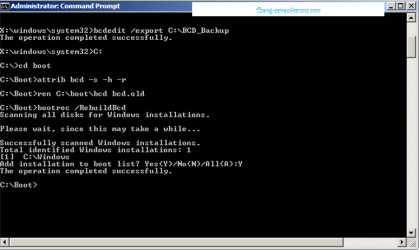
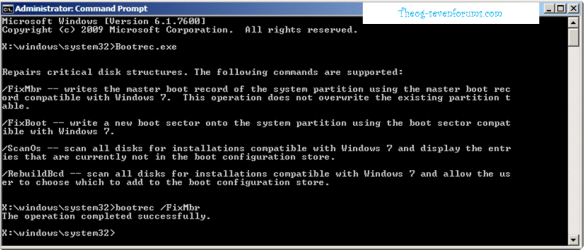
Use the Rebuild BCD in this tutorial:
How to use the Bootrec.exe tool in the Windows Recovery Environment to troubleshoot and repair startup issues in Windows

Startup Repair 4.PNG Startup Repair 5.PNG


& Fix MBR.

Startup Repair 6.PNG


Your best bet, would of been doing clean install.
 

My Computer

OS
ME/XP/Vista/Win7
Nobody here recommends Easeus for anything. I'd use Acronis free premium cloning or imaging app which comes with any WD or Seagate HD. And I'd image it rather than cloning via USB as cloning works bests via SATA or IDE ports. Elect to include MBR and Track 1.

If you don't have WD or Seagate in the mix, then use Win7 backup imaging, Macrium Reflect or Paragon 11 freeware which are all recommended here.

Backup Complete Computer - Create an Image Backup
System Image Recovery
Macrium - Image your system
Seagate Acronis cloning free util
WD Acronis free cloning app
 
Last edited:
Theog,
I use a pen drive for startup repair all of the time.

When you boot up, then the modified Win PE of the system repair creates a ram drive. The "mini-win 7" used by the startup repair is installed to that ram drive, assigned the letter X.

At that point you can remove the pen drive or the CD as System Repair will not reference the usb/cd again.
 

My Computer

Computer Manufacturer/Model Number
Toshiba Satellite S875D-S7239 laptop
OS
MS Windows 7 Ultimate SP1 64-bit
CPU
AMD A10-4600M
Motherboard
AMD Pumori (Socket FT1)
Memory
6.00 GB Dual-Channel DDR3 @ 798MHz (11-11-12-28)
Graphics Card(s)
AMD Radeon HD 7660G
Sound Card
High Definition Audio Device
Monitor(s) Displays
Generic PnP Monitor (1600x900@60Hz)
Screen Resolution
1600x900@60Hz
Hard Drives
SSD 119GB Corsair CSSD-V128GB2 ATA Device
Keyboard
Standard PS/2 Keyboard
Mouse
HP Wireless Optical Mobile Mouse Model FHA-3410
Internet Speed
What the local pub, local coffee shop offers.
Other Info
Optical Drive:MATSHITA BD-CMB UJ160B ATA Device


Also have an Asus ha1002xp netbook with Win 7 Ultimate installed.
I now have a new problem. I did the Rebuild BCD, per the tutorial, then rebooted, when it started the reboot, the drive light did come on briefly (hasn't came on at all up until now), but then went out, and no boot. I then did another series of CD startup repair, then reboot, probably three of them, still no boot. Here is the new problem. I started to reboot again, but the PC will not come on at all. Every time I press the power, it will not power up, but the HDD light comes on. I have never seen anything like this before. At this point, the PC is totally dead. I removed the battery, unplugged it from the power source, left it unpowered for some time, then plugged it back up and it will now reboot to the CD repair disk. Once again, I ran a few CD repair disk repair and reboots, now it is doing the same thing again. It is totally dead - will not power up at all. Right now, when I press the power button, nothing happens - except the HHD light blinks as long as I hold the power button down, but the PC never even attempts to power up at all. Has anyone seen this before?
 

My Computer

Computer type
PC/Desktop
Computer Manufacturer/Model Number
Home Build
OS
Windows 7 Home Premium 64bit SP1
CPU
Intel Core i7-4770K Haswell 3.5GHz
Motherboard
MSI Z87 MPOWER LGA 1150 Intell Z87 HDMI SATA 6Gb/s USB 3.0 A
Memory
Crucial Ballistix 8GB 240-Pin DDR3 SDRAM DDR3
Graphics Card(s)
Intel HD Graphics
Monitor(s) Displays
ASUS 26", ASUS 26," ASUS 24"
Screen Resolution
1920 x 1080
Hard Drives
Samsung 830 256GB SATA III SSD
Western Digital Caviar Black WD2001FASS 2TB
Seagate Barracuda 1TB
PSU
Corsair TX Series CMPSU-750TX 750W
Case
Rosewill THOR V2 Gaming
Keyboard
Logitech K350
Mouse
Logitech M705
Internet Speed
18 MBps
The only time I have ever seen that is when my bios was missing on my desktop and had to get a new mobo but I'm hoping thats not the case with you. Do you see a bios screen at all?
 

My Computer

Computer Manufacturer/Model Number
Alienware
OS
Windows 7 Ultimate x64
CPU
I7
Motherboard
GA-X58-USB3
Memory
6 x 1.5V DDR3 DIMM sockets supporting up to 24 GB of system
Graphics Card(s)
GeForce GTX 580
Sound Card
Realtek ALC892 codec 2/4/5.1/7.1-channel
Monitor(s) Displays
NEC Display Solutions E321 Black 32"
Screen Resolution
1366 x 768
Hard Drives
OCZ Colossus LT Series OCZSSD2-1CLSLT1T 3.5" 1TB SATA II MLC Internal Solid State Drive
PSU
XFX Black Edition XPS-850W-BES 850W ATX12V
Case
Antec
Cooling
Zalman
Keyboard
Microsoft
Mouse
Microsoft
Ok, I killed all power for a bit, took out the SSD, put the hard drive back in, and the PC boots up fine, with no problems. Perhaps that was some kind of power loss issue, not a PC problem.

Back to my original problem with the SSD. With the SSD removed, I put it back in the external HD dock, went into Disk Management, and the drive still has the ID of "F" with status of "Active, Primary Partition."

I'm at a loss as to how to get this thing to become drive C and boot up the PC.
 

My Computer

Computer type
PC/Desktop
Computer Manufacturer/Model Number
Home Build
OS
Windows 7 Home Premium 64bit SP1
CPU
Intel Core i7-4770K Haswell 3.5GHz
Motherboard
MSI Z87 MPOWER LGA 1150 Intell Z87 HDMI SATA 6Gb/s USB 3.0 A
Memory
Crucial Ballistix 8GB 240-Pin DDR3 SDRAM DDR3
Graphics Card(s)
Intel HD Graphics
Monitor(s) Displays
ASUS 26", ASUS 26," ASUS 24"
Screen Resolution
1920 x 1080
Hard Drives
Samsung 830 256GB SATA III SSD
Western Digital Caviar Black WD2001FASS 2TB
Seagate Barracuda 1TB
PSU
Corsair TX Series CMPSU-750TX 750W
Case
Rosewill THOR V2 Gaming
Keyboard
Logitech K350
Mouse
Logitech M705
Internet Speed
18 MBps
GREAT NEWS!
The problem is SOLVED. I downloaded "Magic Partition" Bootable CD, done a MBR Rebuild, rebooted the PC, and she booted up beautifully. Much thanks to everyone for your time and advice on this.
 

My Computer

Computer type
PC/Desktop
Computer Manufacturer/Model Number
Home Build
OS
Windows 7 Home Premium 64bit SP1
CPU
Intel Core i7-4770K Haswell 3.5GHz
Motherboard
MSI Z87 MPOWER LGA 1150 Intell Z87 HDMI SATA 6Gb/s USB 3.0 A
Memory
Crucial Ballistix 8GB 240-Pin DDR3 SDRAM DDR3
Graphics Card(s)
Intel HD Graphics
Monitor(s) Displays
ASUS 26", ASUS 26," ASUS 24"
Screen Resolution
1920 x 1080
Hard Drives
Samsung 830 256GB SATA III SSD
Western Digital Caviar Black WD2001FASS 2TB
Seagate Barracuda 1TB
PSU
Corsair TX Series CMPSU-750TX 750W
Case
Rosewill THOR V2 Gaming
Keyboard
Logitech K350
Mouse
Logitech M705
Internet Speed
18 MBps
Theog,
I use a pen drive for startup repair all of the time.

When you boot up, then the modified Win PE of the system repair creates a ram drive. The "mini-win 7" used by the startup repair is installed to that ram drive, assigned the letter X.

At that point you can remove the pen drive or the CD as System Repair will not reference the usb/cd again.

That is where the ploblem is OP's, DO NOT REMOVE THE PEN DRIVE.

You can not use a USB Pendrive to do a startup Repair, as startup repair will find the MBR on the Pendrive & not the HD.
Therefore will not detect a problem.

Self tested & MS kb934540.
Windows Vista or Windows 7 no longer starts, and the Startup Repair tool does not fix the problem
 

My Computer

OS
ME/XP/Vista/Win7
Back
Top