Solved Start Menu - All Programs (Shortcuts)

craigmh

New member
Local time
4:30 AM
Messages
10
Location
Cleveland, Ohio
A month ago, I upgraded my OS from Vista to Win 7. I'm trying to clean up my Start Menu. I have other folders merged in with my All Programs folder (Downloads Folder, Documents Folder, etc) I just want the programs that are listed in the /Windows/Start Menu folder to show. So how can I correct this?

Please help.

Craig
 

Attachments

My Computer

Computer type
PC/Desktop
Computer Manufacturer/Model Number
Dell Inspiron 530
OS
Windows 7 Home Premium 32 bit
Antivirus
BitDefender
Browser
Chrome
The 'All Users' Start menu is located on your disk at C:\ProgramData\Microsoft\Windows\Start Menu.

The User Start menu is located C:\Users\YOUR USER NAME\AppData\Roaming\Microsoft\Windows\Start Menu.

You can type both paths of either into the Explorer Address Bar to access these folders. Note the User Start menu is your user name. You can remove any items you wish, or try to merge the two start menu sets.

Best Wishes,
Rªnce
 

My Computer

Computer type
PC/Desktop
Computer Manufacturer/Model Number
Dell Precision M6500 / Dell Insprion 3847
OS
Windows 7 Pro 32bit / Windows 7 Professional
CPU
Intel Core i7-620M Duel Core 2.66GHz / Intel Core i5-4460
Memory
4.0 GB / 8.0 GB
Graphics Card(s)
1.0 GB NVIDIA Quadro FX 2800M / Intel HD Graphics
Screen Resolution
1440x900 / 1920x1080
If I move or delete the shortcuts that don't belong (Downloads folder, Documents folder, etc), it seems like they come back. Do I need to change the target of those folders? If so, do I use the path you mentioned above? When it comes to behind the scenes stuff with computers, I'm a beginner.
 

My Computer

Computer type
PC/Desktop
Computer Manufacturer/Model Number
Dell Inspiron 530
OS
Windows 7 Home Premium 32 bit
Antivirus
BitDefender
Browser
Chrome
I think I've misunderstood. I was thinking of multiple and/or incorrect All Program entries. The standard Windows 7 Start menu features links to the User, Documents, Pictures, Music, etc. The standard way to customize your Start menu is to right click the Start menu Orb, select Properties, and Customize. You can choose to NOT display items. Beyond anything in the customization tab, you will have to install a third party UI software I think.

http://www.sevenforums.com/tutorials/265-start-menu-customize.html
 
Last edited by a moderator:

My Computer

Computer type
PC/Desktop
Computer Manufacturer/Model Number
Dell Precision M6500 / Dell Insprion 3847
OS
Windows 7 Pro 32bit / Windows 7 Professional
CPU
Intel Core i7-620M Duel Core 2.66GHz / Intel Core i5-4460
Memory
4.0 GB / 8.0 GB
Graphics Card(s)
1.0 GB NVIDIA Quadro FX 2800M / Intel HD Graphics
Screen Resolution
1440x900 / 1920x1080
Thanks.....I'll give it a shot. Much appreciated.
 

My Computer

Computer type
PC/Desktop
Computer Manufacturer/Model Number
Dell Inspiron 530
OS
Windows 7 Home Premium 32 bit
Antivirus
BitDefender
Browser
Chrome
Windows 7 Start Menu Issue

Hello,

I have a problem that's been unsolved since my recent upgrade. I hope you guys can help. Here's the problem:

A few months ago I upgraded to Win 7 from Vista. In Win 7, my Downloads folder is in my Start Menu (All Programs) list. So every time I download a file, it shows up in the All Programs menu. If I create a folder in the Downloads folder, it shows up...etc. How can I fix this? Hide the downloads folder? change the target of the downloads folder? I don't know. It's been bothering me because I just been deleting the shortcuts. Then next time I do something involving the Downloads folder, it shows up again. I want a permanent solution.

I'm not a computer expert, so please be simple in the language.

Thanks,
CH
 
Last edited by a moderator:

My Computer

Computer type
PC/Desktop
Computer Manufacturer/Model Number
Dell Inspiron 530
OS
Windows 7 Home Premium 32 bit
Antivirus
BitDefender
Browser
Chrome
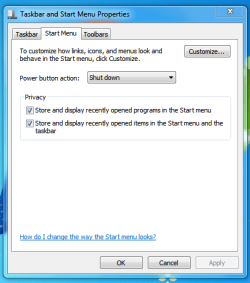
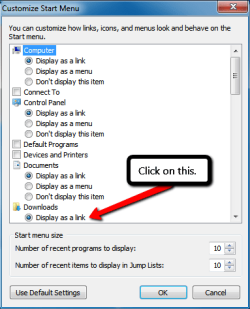
The easiest way is to have your Download folder accessible is to have it on the Start menu. Right click on the Task Bar & select Properties, then Start Menu, then Customise scroll down to Downloads & select Display as a Link. This will put it on the start menu. See the attached screen shots.

Capture Start Menu.PNG
Customise_start_menu.png

In your web Browser settings make sure Downloads go to your Download folder.
 

My Computer

Computer type
PC/Desktop
Computer Manufacturer/Model Number
Self built using existing case
OS
Windows 7 Home Premium 64 bit sp1
CPU
Intel i5 3570 3.4Ghz Ivy Bridge SKT 1155 quad core
Motherboard
Gigabyte Z77-HD3 SKT 1155 2xSata 3, 4x USB 3.0
Memory
G-Skill Rip Jaws 16Gb (8x2) DDR3 -1600 PC3 12800 CL 10 red
Graphics Card(s)
Gigabyte NVIDIA GT610 1Gb DDR3 810/1200 PCI-E 2.0 Silent
Sound Card
NVIDIA High Definition & Realtech High Definition Audio
Monitor(s) Displays
2 x Philips 226V4L 16:9 aspect ratio
Screen Resolution
1920 x 1080 HD
Hard Drives
Samsung 840 Pro 256gb SSD, SATA 3.
Hitachi Touro Portable 1tb, USB 3.0 HDD used for image b/ups.
PSU
Corsair VS450
Case
Codeng
Cooling
PSU fan & CPU fan
Keyboard
Logitech
Mouse
Logitech Wireless trackball M570
Internet Speed
Wireless 3G. 3mg down & 550kb up.
Antivirus
Bitdefender Internet Security 2020
Browser
Opera (Current Version) & Firefox
Other Info
MS Office 2013 Pro. Davis weather station software. MGE Nova 600 avr UPS.
craigmh:

There should not be a Download folder in your All Programs list. Open the All programs list & locate the folder, Right Click on it & select Delete from the list.

If you have Downloads set up as I have shown above then you will have Downloads selectable directly by just clicking on the Start Button.

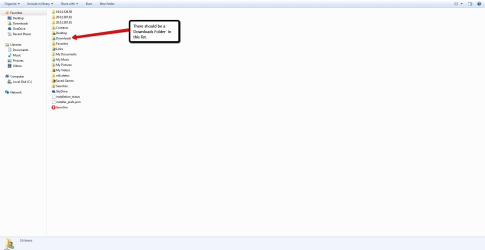
There should be a Download Folder shown in your Favourites list. Click on your User Name, that is, the one at the top of the Start list & this will open a list of folders & Downloads should be one of them. See the attached screen shot.

Favourites.png

Normally you only use the Downloads Folder for programs etc. that you download from the internet via your browser. Once you have installed any such programs you can delete them from the downloads folder.
If you have downloaded a PDF reference file that you wish to keep then set up a new Folder in your Documents Library, naming what you like, & copy the PDF from the Download folder into your new folder. Then delete the old one from the Downloads folder.

I hope this helps you. If you need further help please post back again.
 

My Computer

Computer type
PC/Desktop
Computer Manufacturer/Model Number
Self built using existing case
OS
Windows 7 Home Premium 64 bit sp1
CPU
Intel i5 3570 3.4Ghz Ivy Bridge SKT 1155 quad core
Motherboard
Gigabyte Z77-HD3 SKT 1155 2xSata 3, 4x USB 3.0
Memory
G-Skill Rip Jaws 16Gb (8x2) DDR3 -1600 PC3 12800 CL 10 red
Graphics Card(s)
Gigabyte NVIDIA GT610 1Gb DDR3 810/1200 PCI-E 2.0 Silent
Sound Card
NVIDIA High Definition & Realtech High Definition Audio
Monitor(s) Displays
2 x Philips 226V4L 16:9 aspect ratio
Screen Resolution
1920 x 1080 HD
Hard Drives
Samsung 840 Pro 256gb SSD, SATA 3.
Hitachi Touro Portable 1tb, USB 3.0 HDD used for image b/ups.
PSU
Corsair VS450
Case
Codeng
Cooling
PSU fan & CPU fan
Keyboard
Logitech
Mouse
Logitech Wireless trackball M570
Internet Speed
Wireless 3G. 3mg down & 550kb up.
Antivirus
Bitdefender Internet Security 2020
Browser
Opera (Current Version) & Firefox
Other Info
MS Office 2013 Pro. Davis weather station software. MGE Nova 600 avr UPS.
Back
Top