
How to Enable or Disable Start Menu Auto Arrange by Name in Vista and Windows 7
Information
This will show you how to enable or disable auto arrange to sort all programs menu by name or sort listed programs and program folder menus how you like in the Pin to and All Programs areas of the Start Menu for your user account in Vista and Windows 7.
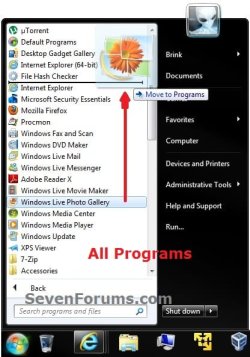
EXAMPLE: Auto Arrange Disabled in Start Menu "Pin to" and "All Programs"
NOTE: Notice in the screenshots with Auto Arrange disabled, the listed programs and program folders can be dragged to be sorted how you like without having to be in alphabetical order.

OPTION ONE
Enable or Disable Start Menu Auto Arrange in "Customize Start Menu" Properties
1. Open the Customize Start Menu properties window, then do step 2 or 3 below for what you would like to do. (see screenshot below)

2. To Enable Auto Arrange by Name in Start Menu
NOTE: This is the default setting.
A) Check the Sort All Programs menu by name box, and click on OK. (see screenshot below step 1)
3. To Disable Auto Arrange by Name in Start Menu
A) Uncheck the Sort All Programs menu by name box, and click on OK. (see screenshot below step 1)
OPTION TWO
Enable or Disable Start Menu Auto Arrange using a REG File Download
1. To Enable Auto Arrange by Name in Start Menu
NOTE: This is the default setting.
A) Click on the Download button below to download the file below.
Enable_Start_Menu_Auto_Arrange_by_Name.reg
Download
B) Go to step 3.
2. To Disable Auto Arrange by Name in Start Menu
A) Click on the Download button below to download the file below.
Disable_Start_Menu_Auto_Arrange_by_Name.reg
Download
B) Go to step 3.
3. Save the .reg file to the desktop.
4. Right click on the downloaded .reg file and click on Merge.
5. If prompted, click on Run, Yes (UAC-Windows 7) or Continue (UAC-Vista), Yes, and OK.
6. When done, you can delete the downloaded .reg file if you like.
That's it,
Shawn
Related Tutorials
- How to Disable Auto Arrange in Windows 7 Explorer to have Free Sorting
- How to Disable Auto Arrange in Vista Windows Explorer to have Free Sorting
- How to Enable or Disable Start Menu "All Programs" in the Vista and Windows 7
- How to Add or Delete Start Menu All Programs Shortcuts in Windows 7
- How to Enable or Disable Pin to Start Menu in Vista and Windows 7
- How to Pin or Unpin a Program to the Windows 7 Start Menu
- How to Pin a Folder, Drive, and Library to the Start Menu in Windows 7
Attachments
Last edited:


