
How to Reset the Pin To Start Menu Area in Windows 7
Information
This will show you how to reset your "Pin to Start Menu" area to remove all current pinned items in Windows 7.
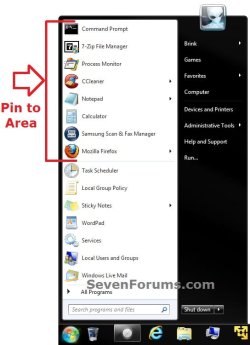
This can be helpful if you cannot "Unpin from Start Menu" a item, or just wish to quickly clear all pinned items from the Start Menu "pin to" area.
This can be helpful if you cannot "Unpin from Start Menu" a item, or just wish to quickly clear all pinned items from the Start Menu "pin to" area.
EXAMPLE: Start Menu "Pin to" area reset and cleared
Here's How:
1. Click on the Download buttom below to download the .bat file below, then run it.
Reset_Clear_Pinned_Start-Menu_Items.bat
Download
2. If prompted, click on Run.
NOTE: If you like, you can stop getting the Run prompt by unblocking the downloaded .bat file.
3. You will now notice your screen flicker as explorer is restarted.
4. All pinned items in your Start Menu "Pin to" area will now be reset and cleared.
That's it,
Shawn
Related Tutorials
- How to Reset and Clear All Pinned Items on the Taskbar in Windows 7
- How to Reset and Clear All Taskbar Toolbars in Vista and Windows 7
- How to Reset and Clear All Items in Windows 7 Jump Lists
- How to Backup and Restore Pinned Start Menu Items in Windows 7
- How to Use Small or Large Icons in the Windows 7 Start Menu
- How to Pin a Folder, Drive, and Library to the Start Menu in Windows 7
- How to Pin or Unpin a Program to the Windows 7 Start Menu
Attachments
Last edited:

